Email and Digital Marketing
How can we help you?
Search our help articles, video tutorials, and quickstart guides

You've got this. You've got us. Search our Knowledge Base to quickly find answers to your questions.

Resize an image in an email

Article: 000017769
Updated: October 21, 2026

Manually resize an image or set a specific size for an optimal look when viewed on both desktop and mobile

Once you've added an image to your email, you can proportionally increase or decrease the size by hand to set how you want it to look when your email is viewed on a desktop, or you can set a specific width and choose whether you want it to span the full width of the screen when the email is viewed on a mobile device.


Learn more about ideal image size: If you upload a low-resolution image and make it bigger in your email, it will appear blurry. Uploaded images that are very large could load more slowly when a contact views your email, even if it is resized to be smaller. To prevent these issues, see our guide on preparing images for upload, which includes tips on optimal image size and resolution.


Resize an image by hand or by adjusting the dimensions


To resize an image by hand:

Place your cursor over the image and click the arrows in the lower right-hand corner. Click and drag the corner out to increase the image size and in to decrease it.
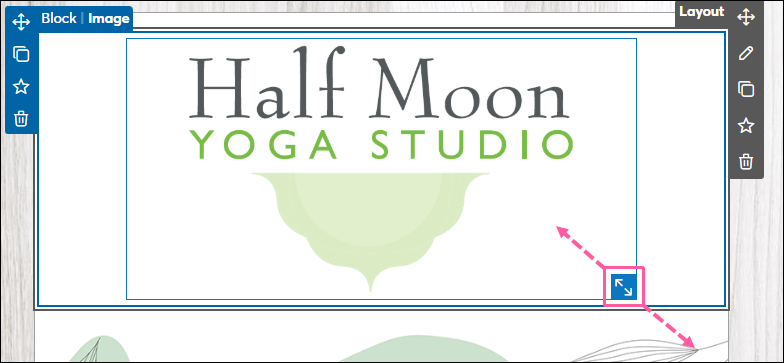

Image Re-size Drag Handle


To adjust the image dimensions:

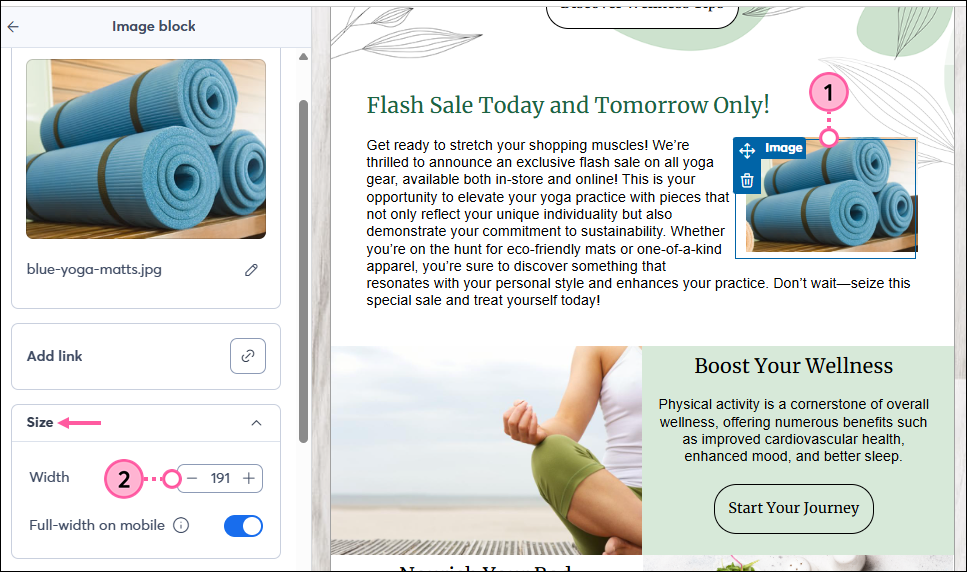
  1. Click on the image within your email template.
  2. Within the panel on the left, locate the Size section. Adjust the width of the image by entering a value or using the plus and minus signs. The height will change proportionally. An image width of 150–250 pixels will take up a third to a half of the mobile screen width.

    Image selected image panel expanded image width setting


Note: When increasing the size of an image, it cannot be stretched larger than the image's original height and width dimensions or the maximum width of the layout block.


Set an image to display as full width on a mobile device


Within the image block panel, click the Full-width on mobile toggle if you want the image to span the full width of the screen when viewed on a mobile device.
Tip: For small size graphics, icons, etc., keep this toggle off to prevent unintended stretching of the image that makes it appear skewed.
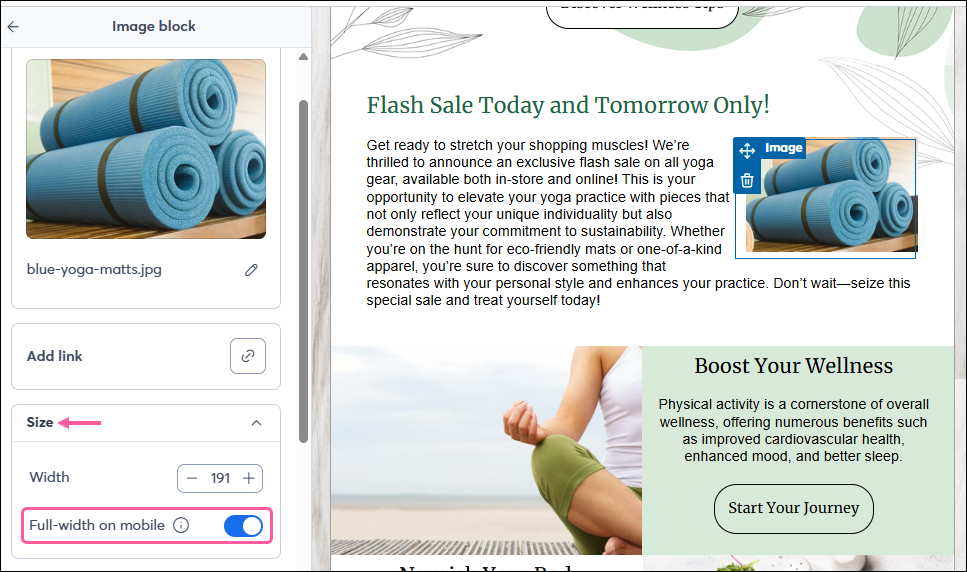


Image selected and Image block panel full width on mobile toggle


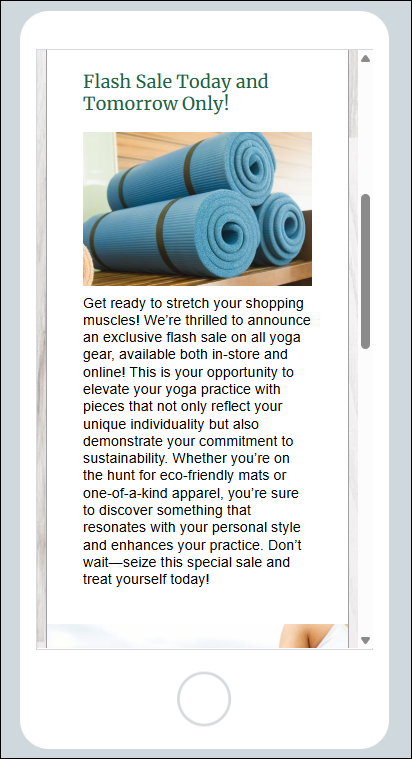
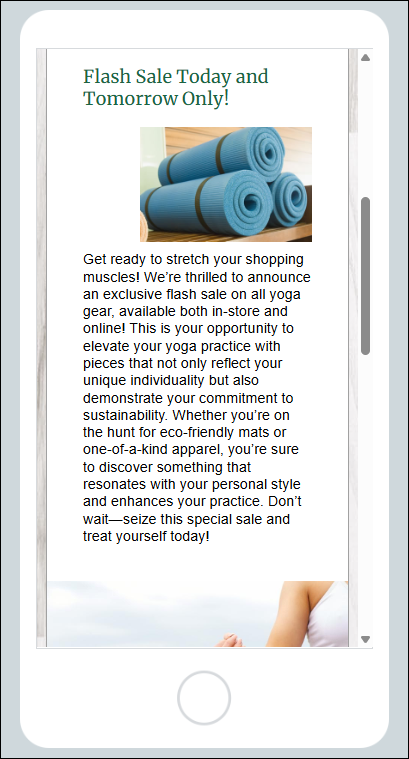
The following examples demonstrate how the full-width on mobile toggle can impact how the image displays. Make sure to preview your email to see the impact of this setting on images in your own email.


"Full width on mobile" toggle is turned on - the image fills the width of the mobile device screen

 "Full width on mobile" toggle is turned off - the image maintains its dimensions and doesn't span the width of the mobile screen

Preview of Email on Mobile Device with logo spanning full widthPreview of Email on Mobile Device with logo not spanning full width


Padding, cropping and additional image design tips


  • Padding and margins - Around each image is padding (the space between the image and the inside of its border) and margins (the space between the outside of the border and the image block). Get rid of extra white space around your image by removing the image padding and margins.
  • Cropping - If your image isn't looking quite the way you want, try cropping it. 
  • Border - Frame an image with a border or frame to make it stand out.
  • Image editing - Looking to make changes to the image itself? Learn how to use the image editor.
  • Background -The background color of the image block can be changed, giving you additional styling options.


Preview how your image will display on desktop and mobile


Preview your email to make sure the image looks the way you want on both desktop and mobile:
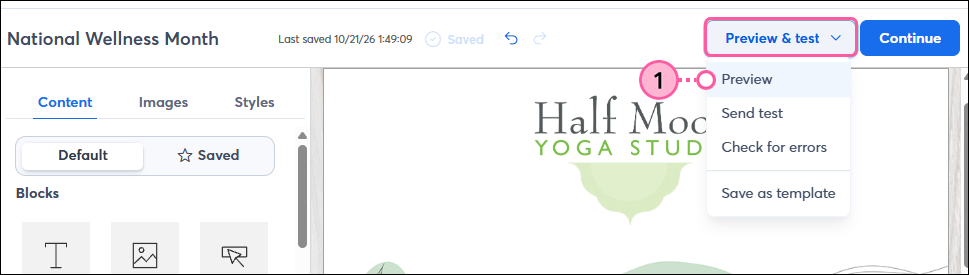
 

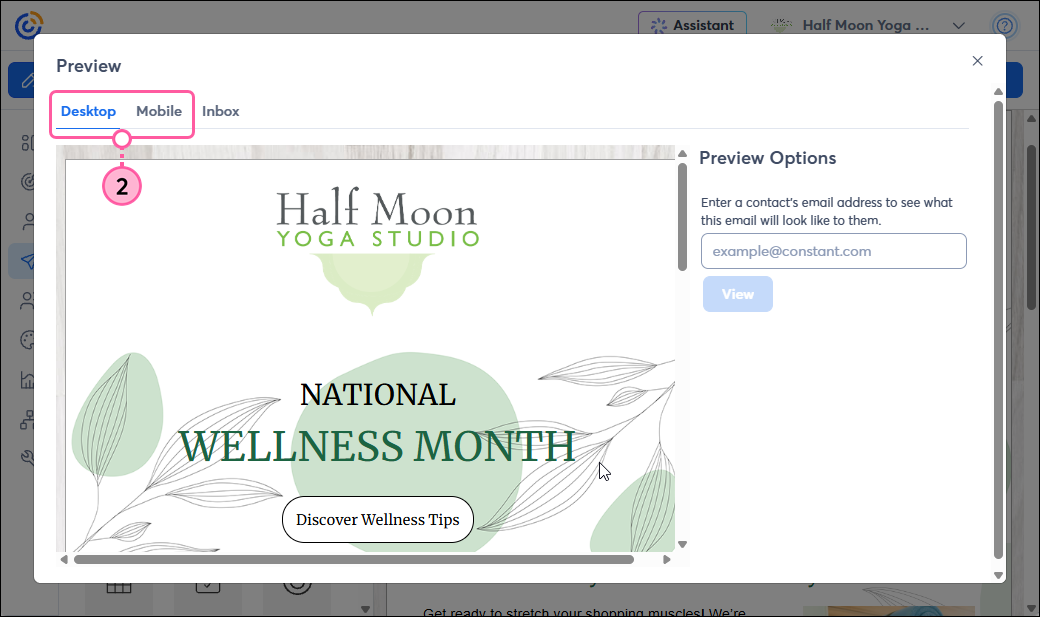
  1. Click Preview & Test > Preview.

    Preview & Test dropdown with Preview option
     
  2. Click the Desktop and Mobile tabs to ensure your images look as you'd like on each device type.

    Desktop Preview of email and Mobile tab


Troubleshooting tips:


  • Image looks cut off on mobile? Ensure it isn't placed inside a restricted multi-column block.
  • Changes aren't saving? Make sure you click outside the image setting panel to apply the pixel adjustments before previewing.


Questions?

Ask the Community

Did this article answer your question?


Constant Contact Logo

Copyright © 2026 · All Rights Reserved · Constant Contact · Privacy Center