Email and Digital Marketing
How can we help you?
Search our help articles, video tutorials, and quickstart guides

You've got this. You've got us. Search our Knowledge Base to quickly find answers to your questions.

Add a border around an image in an email

Article: 000017877
Updated: October 20, 2025

Frame an image with a border to make it stand out

Trying to make your image really stand out from your content? You can add a border or decorative frame to add definition without leaving your email draft using the Image block panel or our image editing tools!
Add a colored border around your image


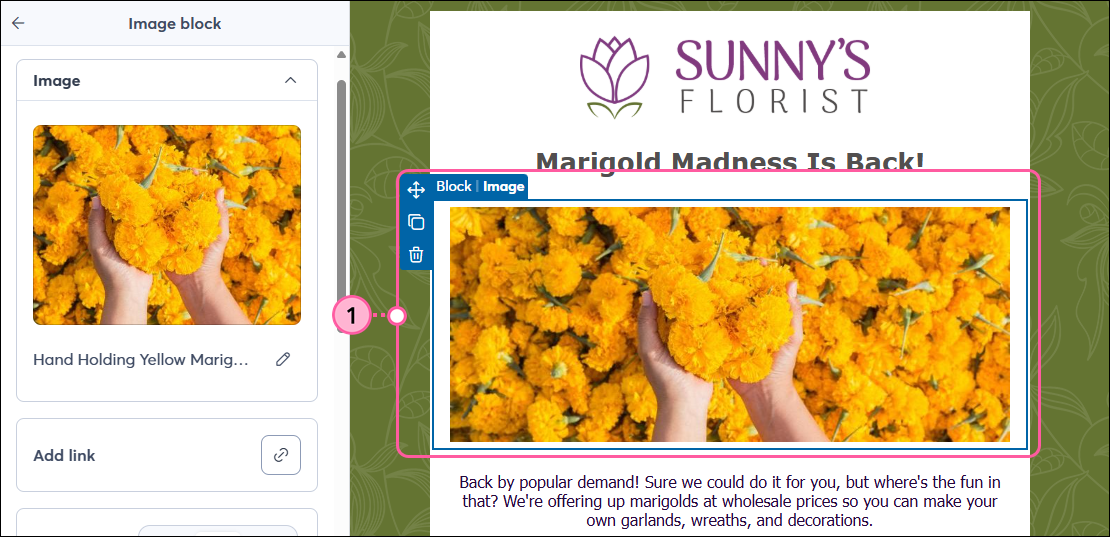
  1. Click on the image block.

    Email editor with Image block selected
     
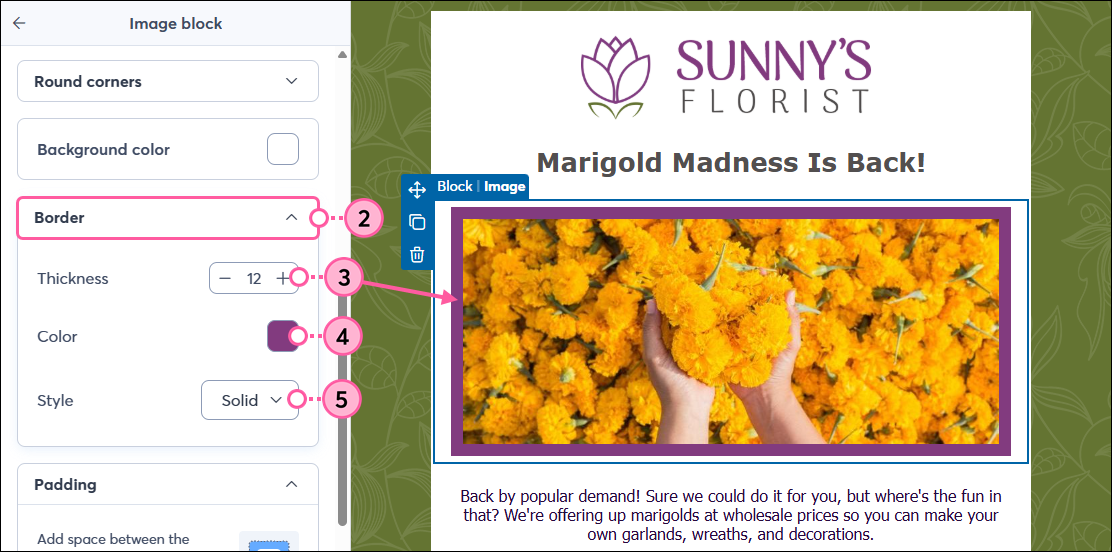
  2. In the left-hand panel, scroll down to the Border section and click to expand it if needed.
  3. Adjust the thickness of the border around your image.
  4. Click the color swatch to select a color for your border.
  5. Use the Style drop-down to select if you want a solid, dashed, or dotted border.

    Image block panel with Border options


Add a decorative frame to your image


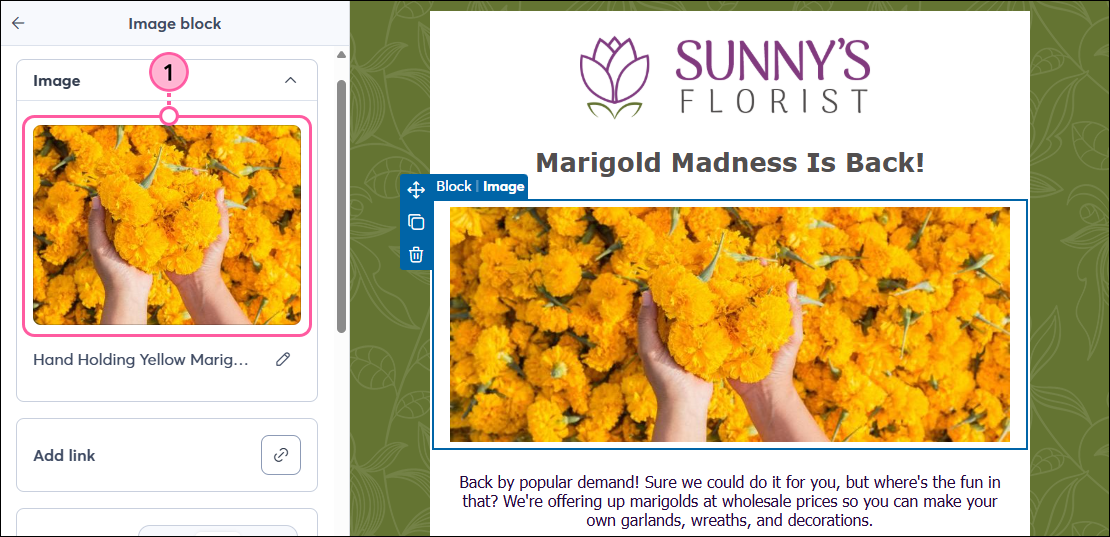
  1. Click on the image block and then click on the image in the left-hand panel to edit it.

    Email editor with Image block panel and image selected
     
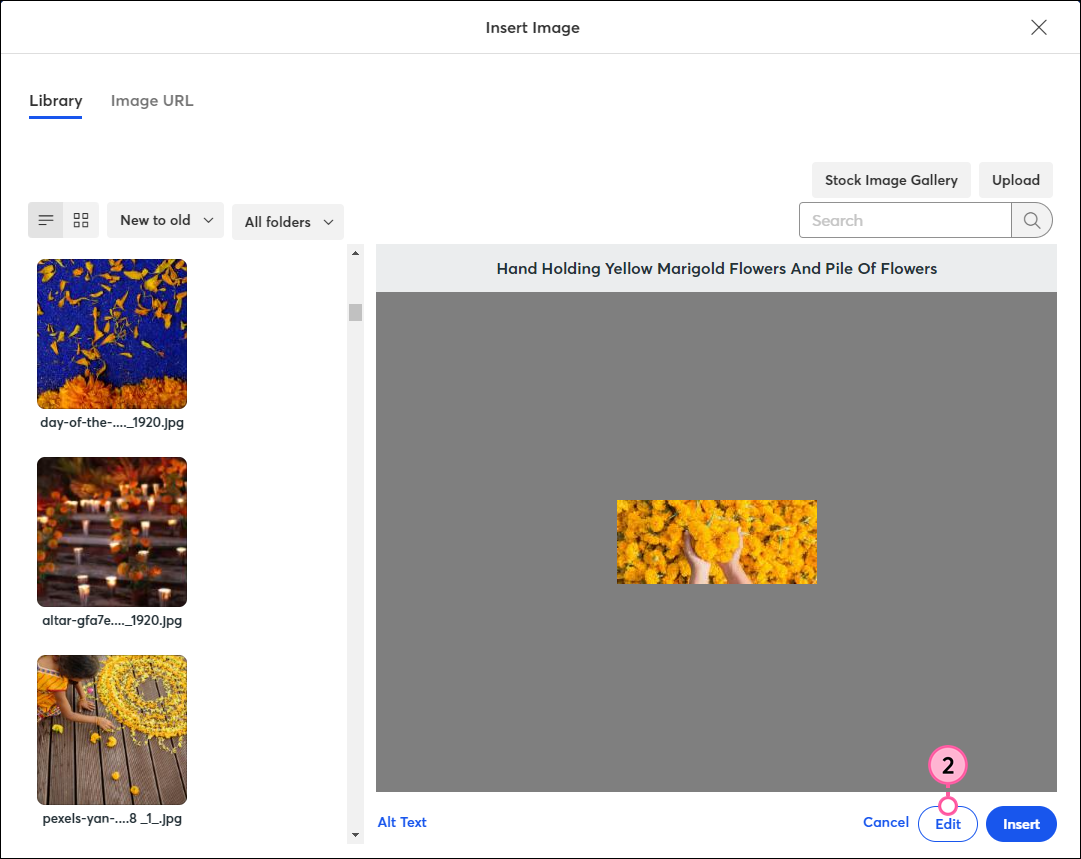
  2. Click Edit.

    Insert Image overlay with Library tab selected, List View selected, and Edit button
     
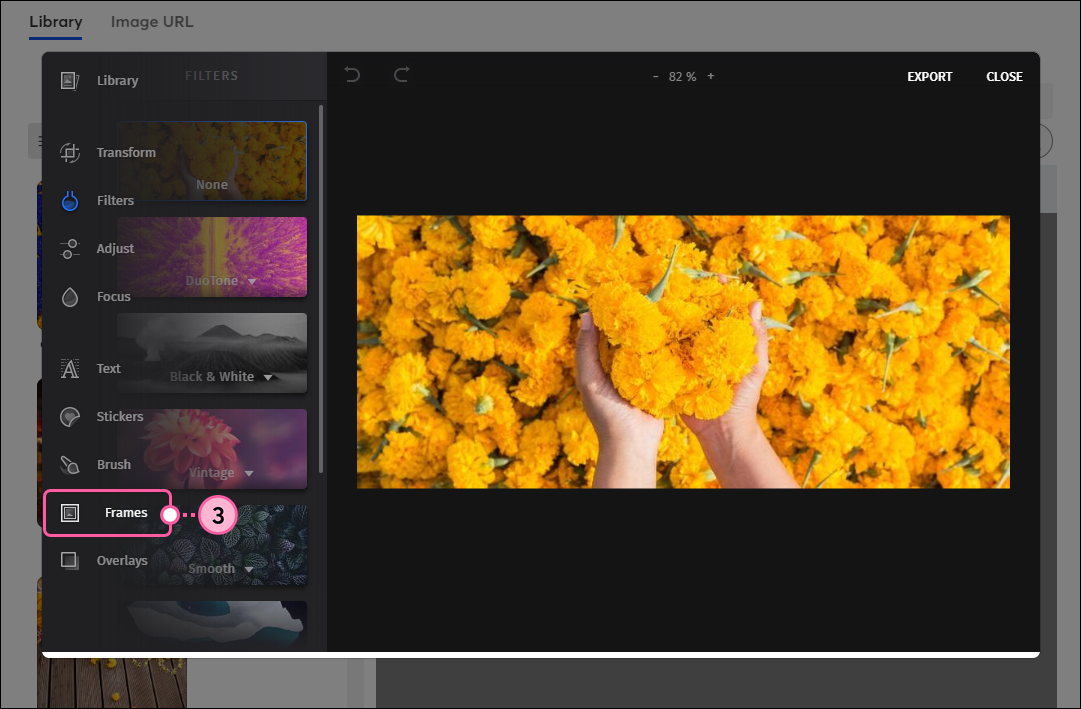
  3. From the image editor, select the Frames option.

    Image editor with tools menu expanded and Frames option selected
     
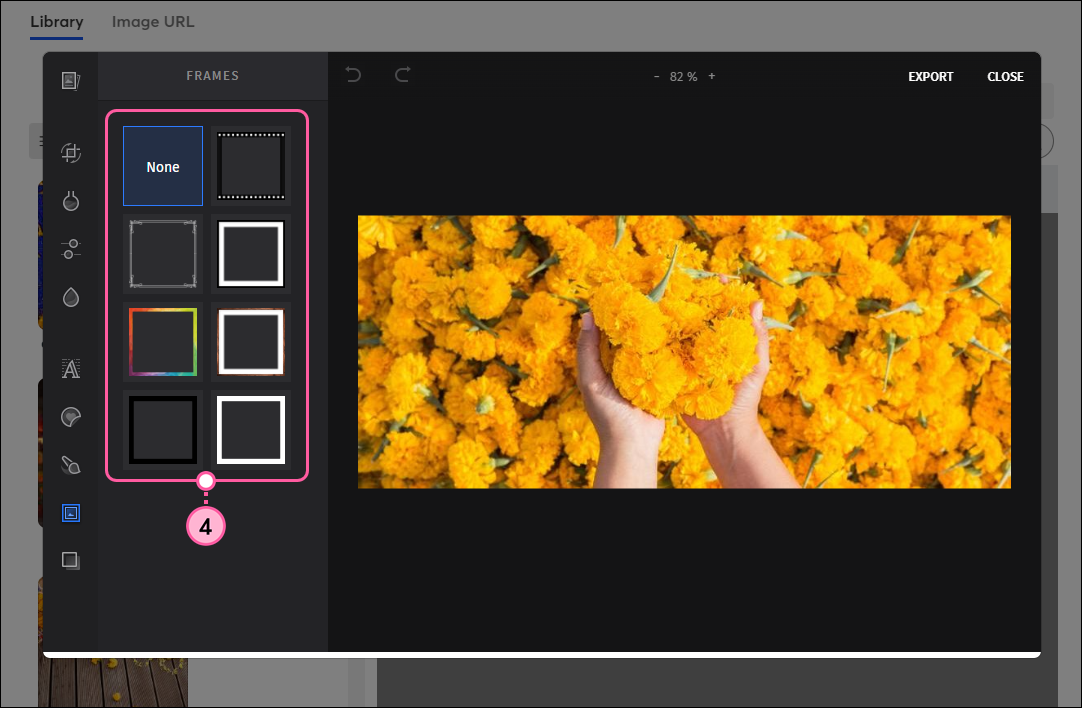
  4. Choose a frame style.

    Image editor with Frames option selected, and Frames menu options
     
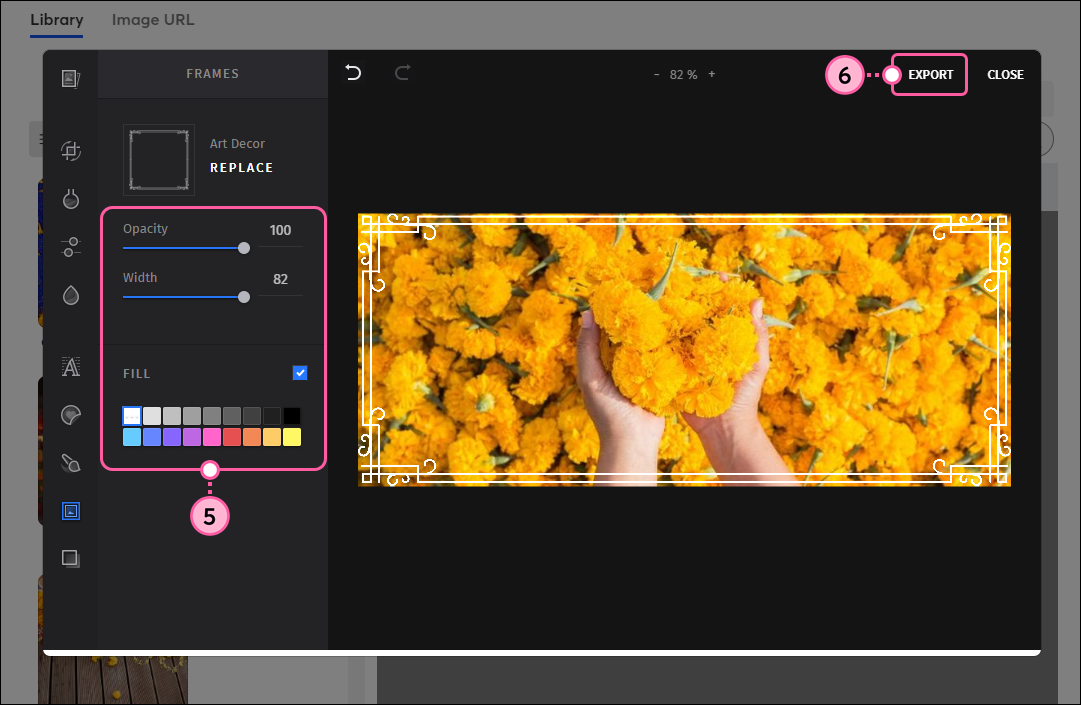
  5. Adjust the opacity and width. Some frame options also have a Fill color that you can select.
  6. When you're finished, click Export.

    Image editor with Art Decor frame option selected, Opacity and Width adjustment options, and Fill color options, image with border preview, and Export button
     
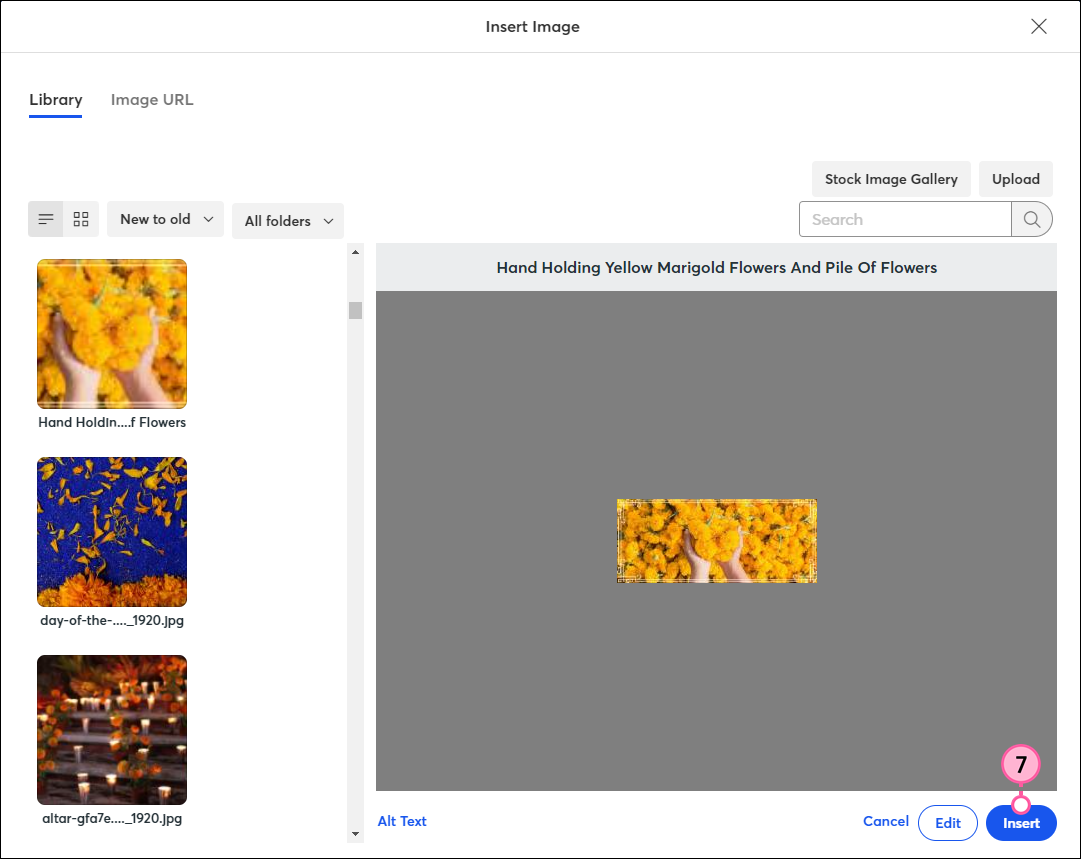
  7. Click Insert.

    Insert Image overlay with Library tab selected, List View option selected, image with border preview, and Insert button
     

The image border is now visible in your email template and you can continue editing your email. For extra emphasis around your image, you can change the background color of the block too.


Light Bulb IconDesign tip: Want to get even more out of your email design? Check out our best practices for making your pictures pop!


Questions?

Ask the Community

Did this article answer your question?


Constant Contact Logo

Copyright © 2026 · All Rights Reserved · Constant Contact · Privacy Center