Email and Digital Marketing
How can we help you?
Search our help articles, video tutorials, and quickstart guides

You've got this. You've got us. Search our Knowledge Base to quickly find answers to your questions.

Find contacts not on any list

Article: 000037414
Updated: June 16, 2026

Find contacts who are in your account but not on any list, and then add them to a list or delete them

You may decide to remove contacts from lists when it no longer makes sense for them to be on them, but once in a while, a contact or two may inadvertently be removed from all lists and need to be reengaged. You can rectify these list-less contacts by selecting a list from the banner at the top of the Contacts page, but if you want to view the full list of contacts and make more customized decisions about which list each contact should be on, you can filter out the contacts not on a list before you choose the lists to add them to:
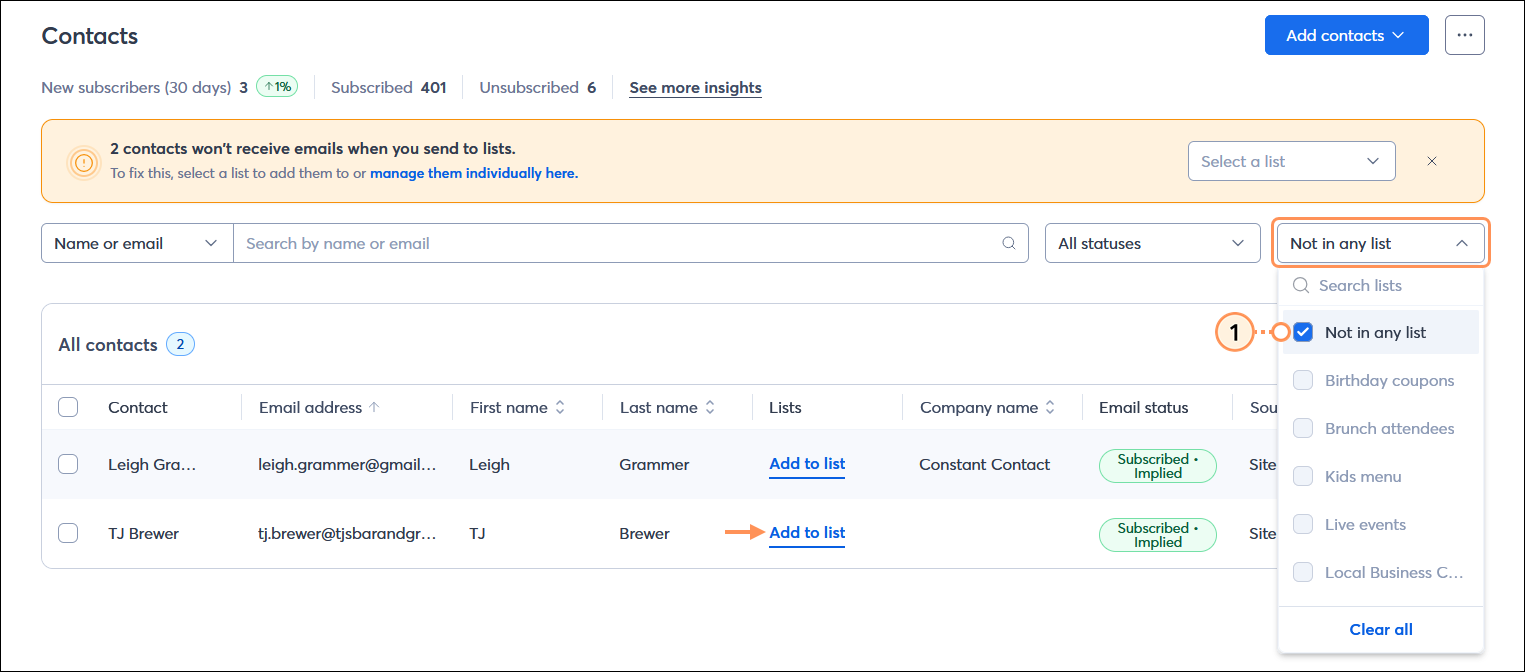
  1. From the Contacts page, click the Lists drop-down and select the "Not in any list" option.
    Note: If you add the Lists column to the All contacts table, it not only shows which lists each contact is on, but also shows which contacts aren't on a list! Just click the "Add to list" link when you see it.

    Contacts page with 2 contacts won't receive emails when you send to lists banner, All contacts table and List drop-down menu expanded with Not in any list option selected

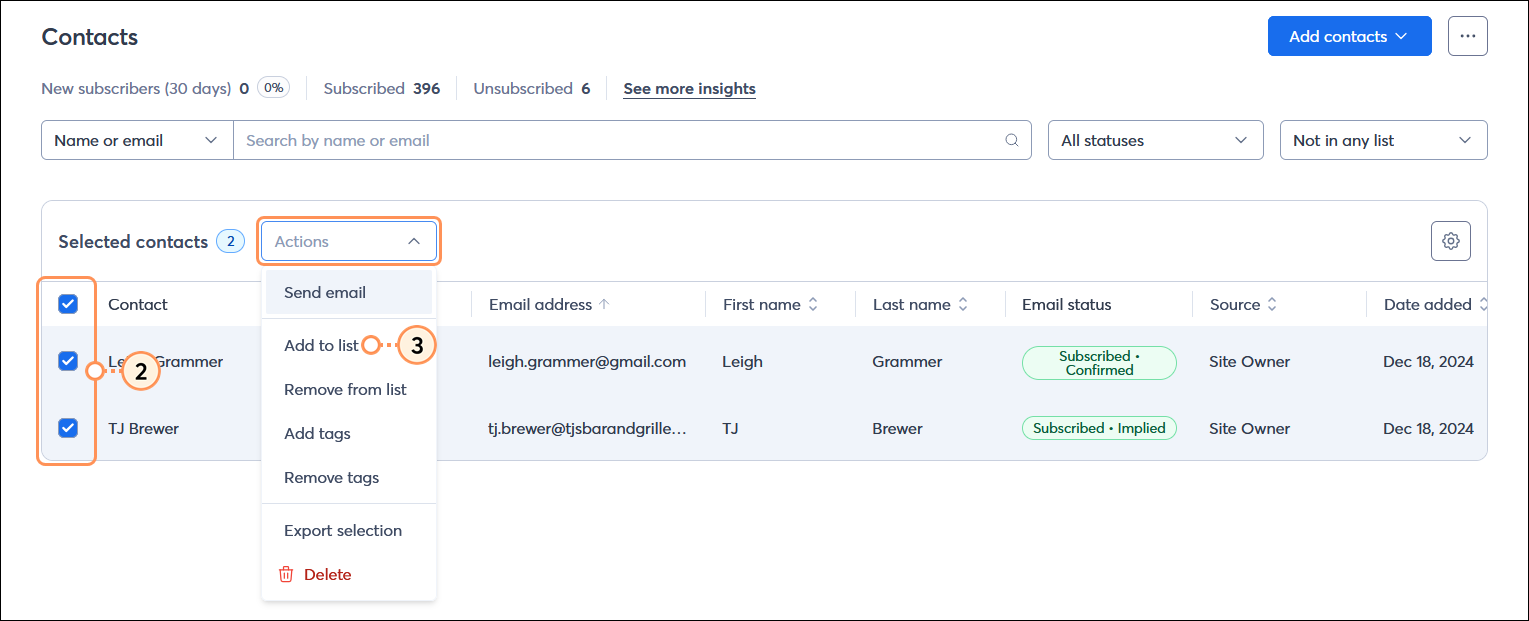
  2. From the results, select a contact, a few contacts, or select all of them by checking the box at the top of the table header.
  3. Click Actions to expand the drop-down menu, select the "Add to list" option, and select a list to add them to.

    Contacts page with Not in any list filter selected with results, contacts selected and Actions drop-down menu expanded with Add to list option selected

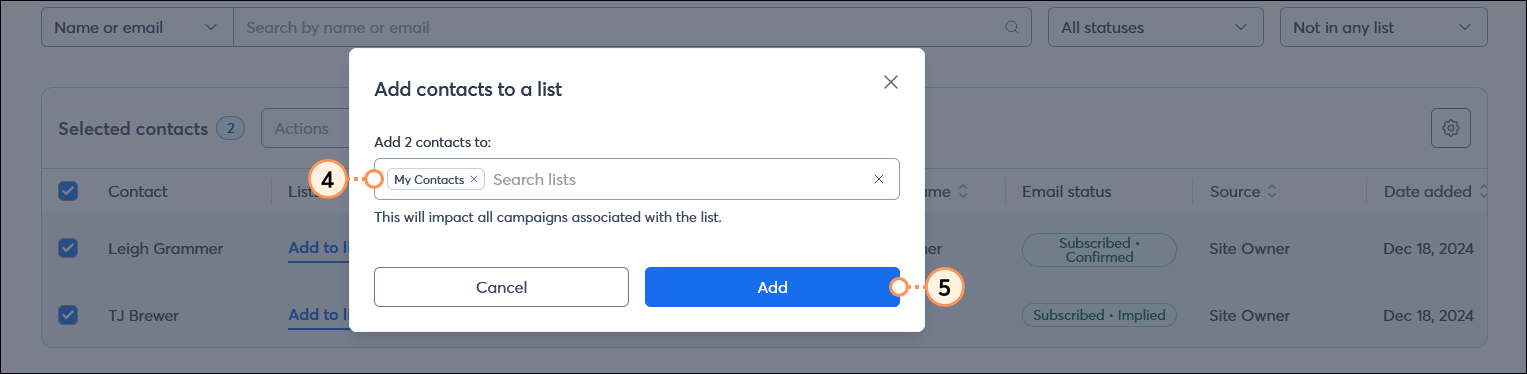
  4. Select at least one list to add your contacts to by typing the name of the list into the field. You can select from your existing lists or create a new list.
  5. Click the Add button.

    Add contacts to a list overlay with Lists field and Add button

Once your contact is on a list, send a targeted email to re-engage with them.


Light Bulb IconDid you know? If you have unsubscribed contacts, it's fine to leave them in your account! We prevent you from sending them emails, and they can resubscribe at any time through your sign-up form.


Questions?

Ask the Community

Did this article answer your question?


Constant Contact Logo

Copyright © 2026 · All Rights Reserved · Constant Contact · Privacy Center