Lead Gen & CRM
How can we help you?
Search our help articles, video tutorials, and quickstart guides

You've got this. You've got us. Search our Knowledge Base to quickly find answers to your questions.

Time-Based Automations Overview

Article: 000050271
Updated: March 5, 2026

Time-based workflows allow you to automate many different processes. With a time-based workflow, you can set an action to occur when a user, visitor, or other party engages with your content in a specific way.

Setting up an automated time-based workflow to replace manual responses to every engagement or interaction will save an untold amount of time and, ultimately, improve your bottom line.

This article will provide an overview on time-based workflow content, as well as how to tie time-based action groups—or action groups based on a specific date and time field—into Lead Gen & CRM's other automation processes.


Light Bulb IconTip: Are you looking for information about Constant Contact’s Email and Digital Marketing product? This article is for Constant Contact’s Lead Gen & CRM product. Head on over to the Email and Digital Marketing articles by clicking here. Not sure what the difference is? Read this article.


Article Contents

 
Users:
Administrators 
Company Managers 
Marketing Managers 
Sales Managers  
Salespersons  
Jr. Salespersons  

Creating DateTime Custom Fields

Time-based automations require DateTime fields. To create a custom DateTime field, do the following:


  1. Click  12personas.png  User Menu > Settings in the top toolbar.
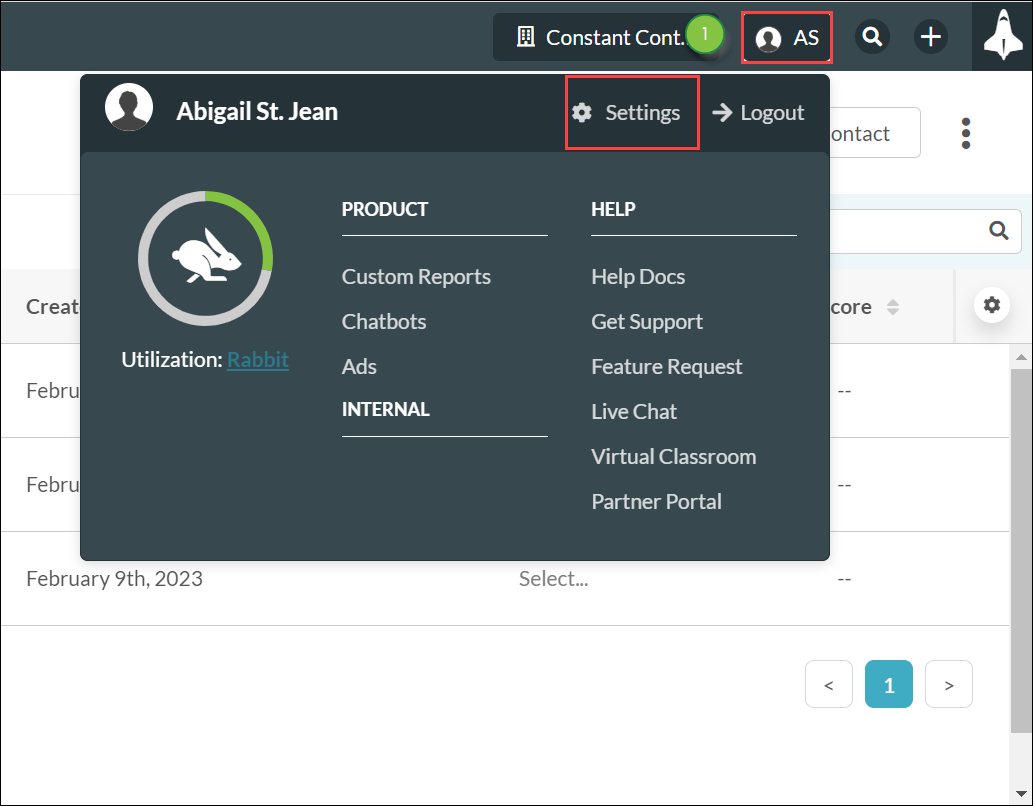
    Settings in the top navigation
     
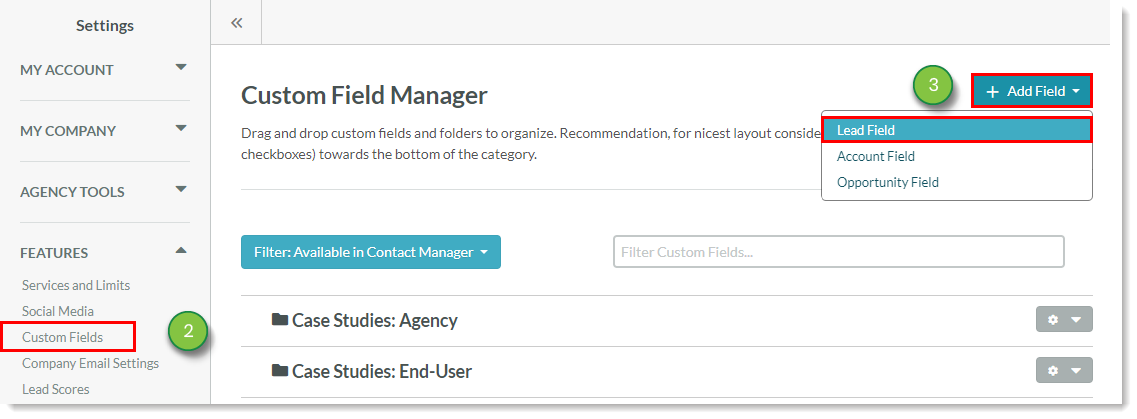
  2. Click Custom Fields, located under Features in the left panel.
  3. Click Add Field > Lead Field.

    Create a new custom field 
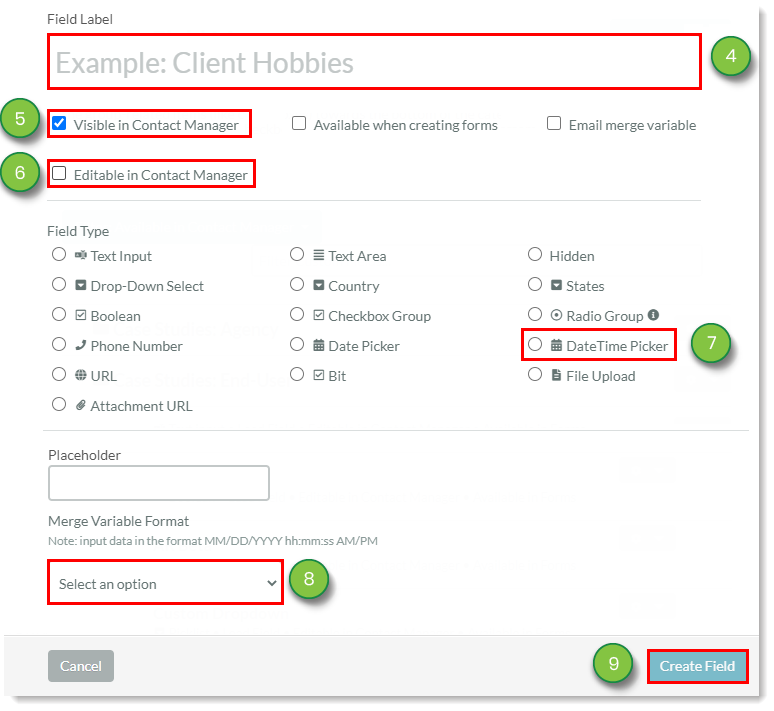
  4. Enter a name for the field in the Field Label text box.
  5. Click the Visible in Contact Manager checkbox.
  6. Uncheck the Editable in Contact Manager checkbox.
  7. Click the DateTime picker radial.
  8. Select the desired time format in the Merge Variable Format drop-down menu.
  9. Click the Create Field button.

    DateTime custom field settings 


Creating Visual Time-Based Action Groups

You can create time-based action groups based on DateTime Custom Fields.

Important: The Visual Workflow Builder is not supported in Internet Explorer 11. Use one of the other browsers supported by Lead Gen & CRM to create visual workflows.
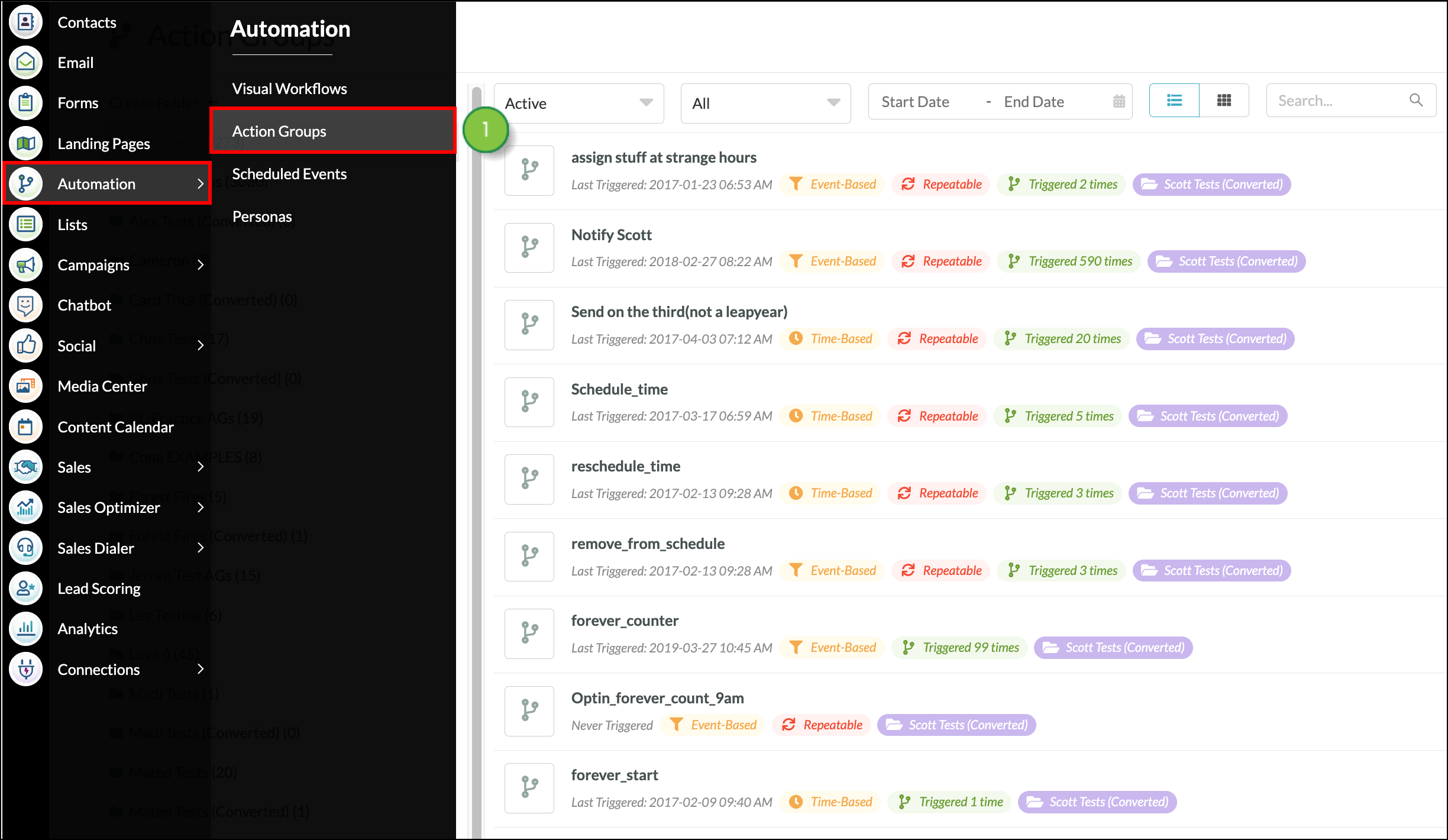
 

  1. Click Automation > Action Groups in the left toolbar.

    navigation menu expanded

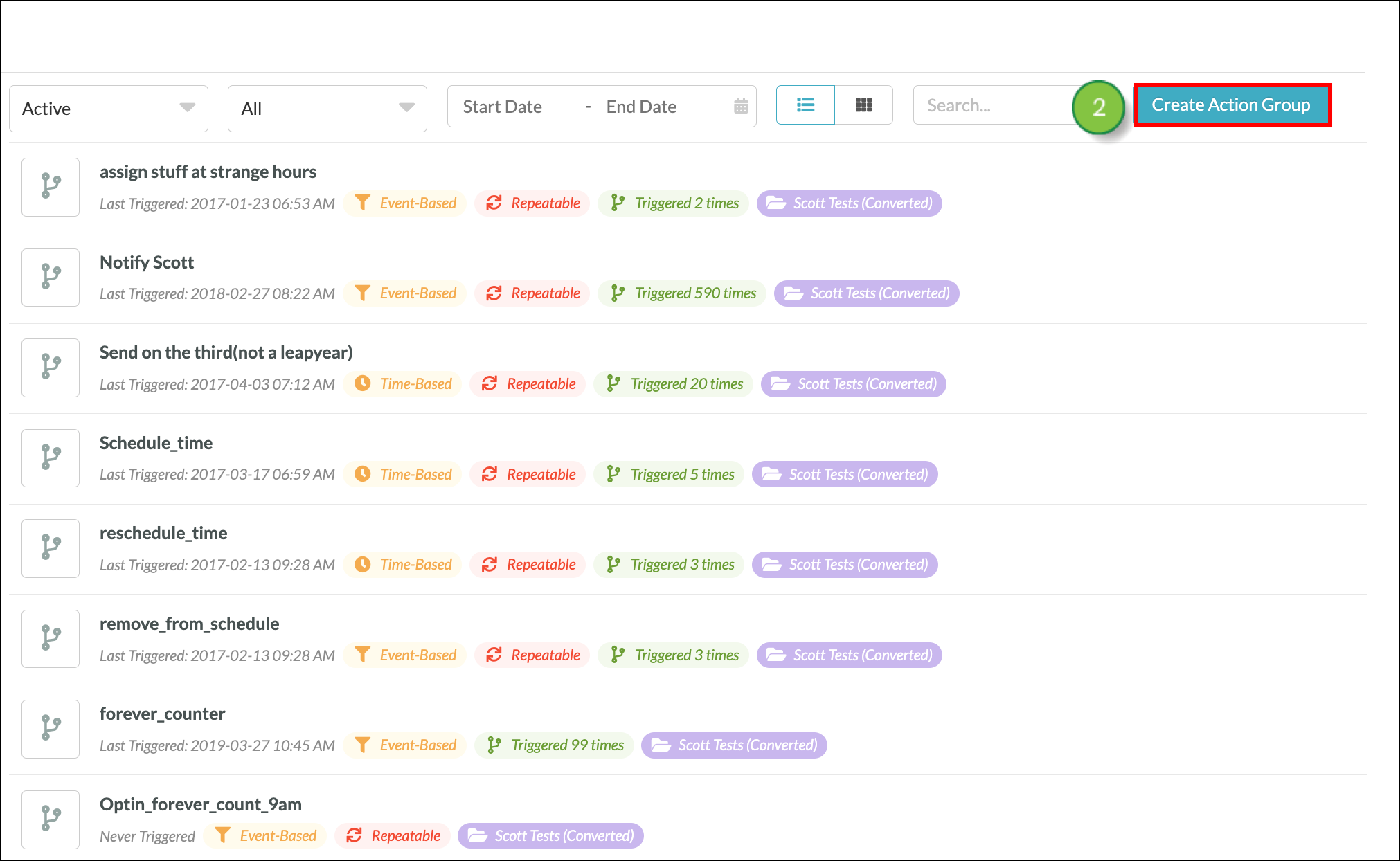
  2. Click Create Action Group.

    Blue Create Action Group button
     
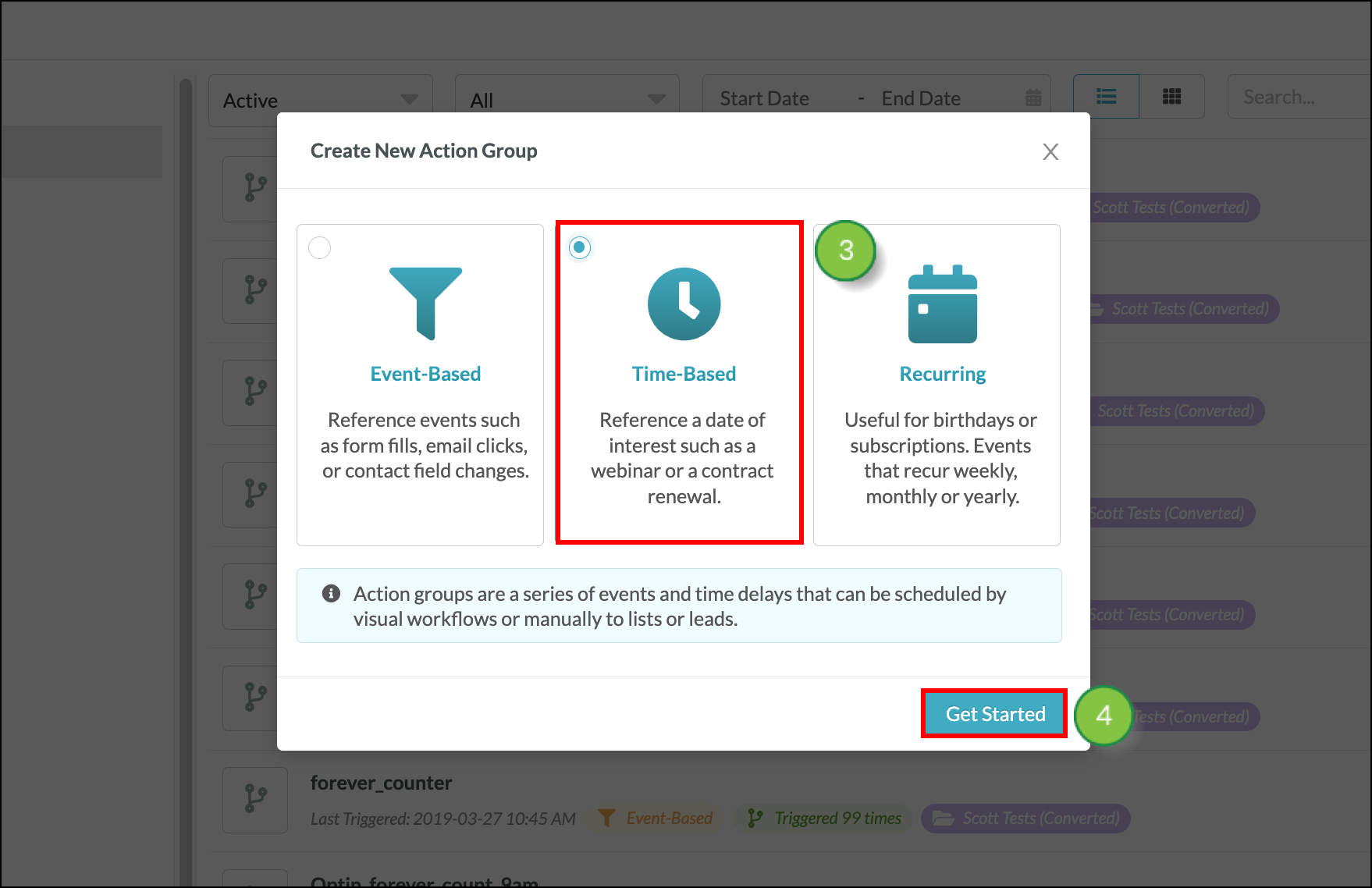
  3. Click the Time-based button.

    Note
    : Standard action groups are available on the Trial and the Essential plan. Standard, Time-based, and Recurring action groups are available on the Advanced and Ultimate plans.

  4. Click Get Started.

    Three button options-center option
     
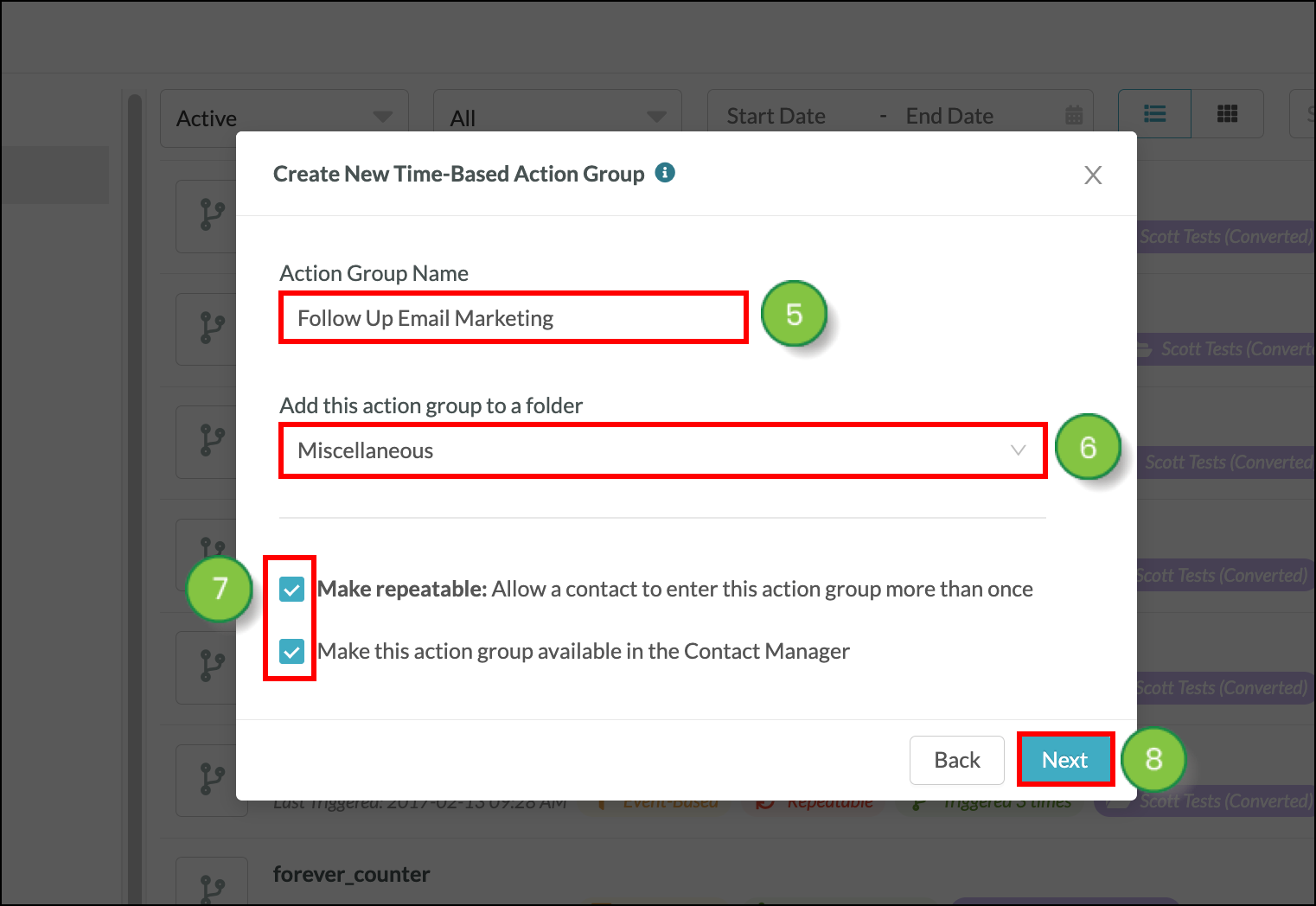
  5. Enter the name of your action group in the window that appears.
  6. Select a folder to include your action group in. 
  7. Check or uncheck the boxes to make your selections:
    • Optionally, choose to make your automation repeatable.
    • Optionally, make the automation available in the Contact Manager as well.
  8. Click Next.

    Selection fields and blue 'Next' button
     
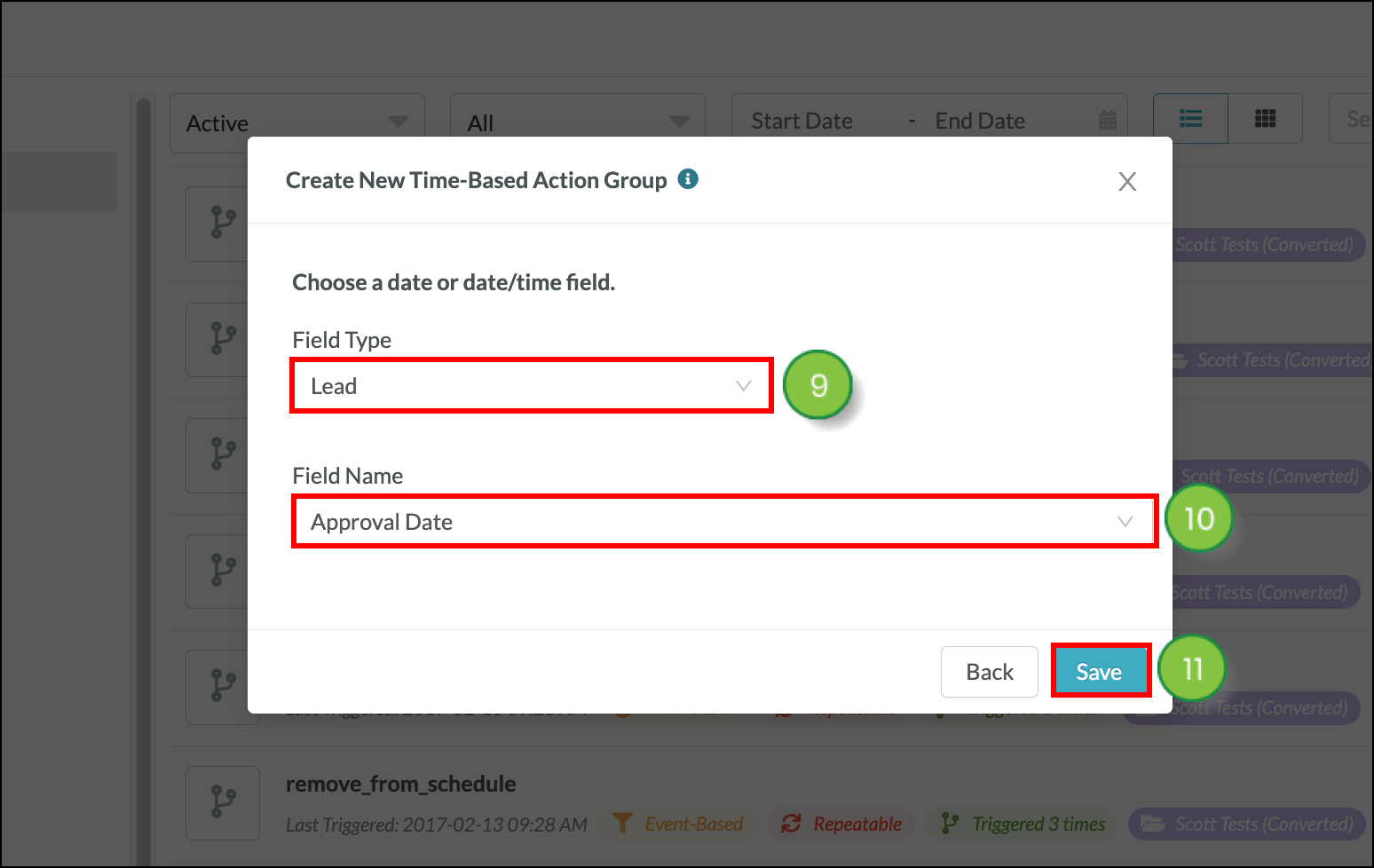
  9. Select Lead as the Field Type.
  10. Select a custom DateTime field. These fields are created from within your account Settings. 
  11. Click Save.

    Two fields and blue 'Save' button

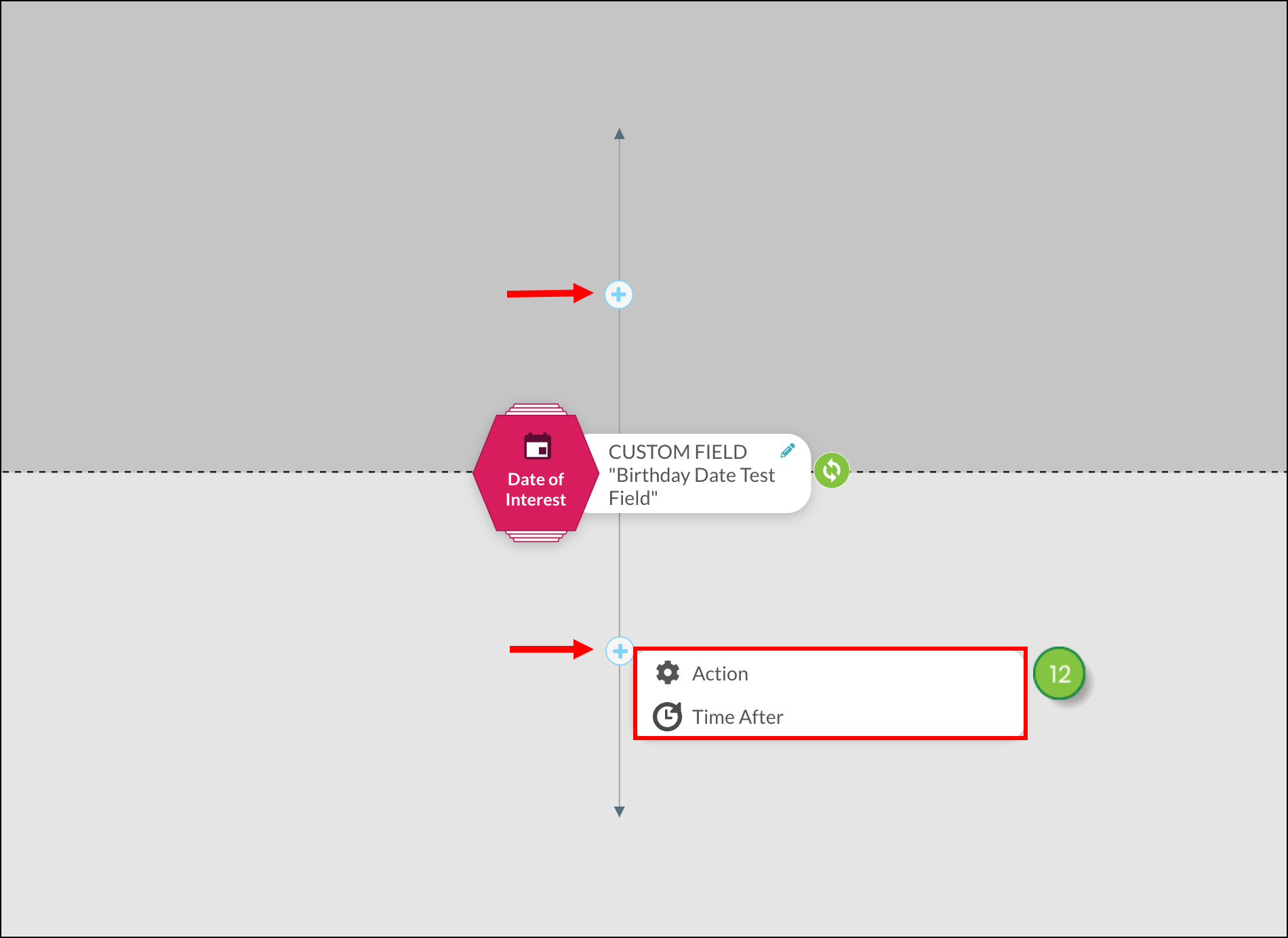
  12. Click + Add in either the Before date of interest or After date of interest section and select either Time Before or Time After.

    Small plus sign above and below date of interest
     
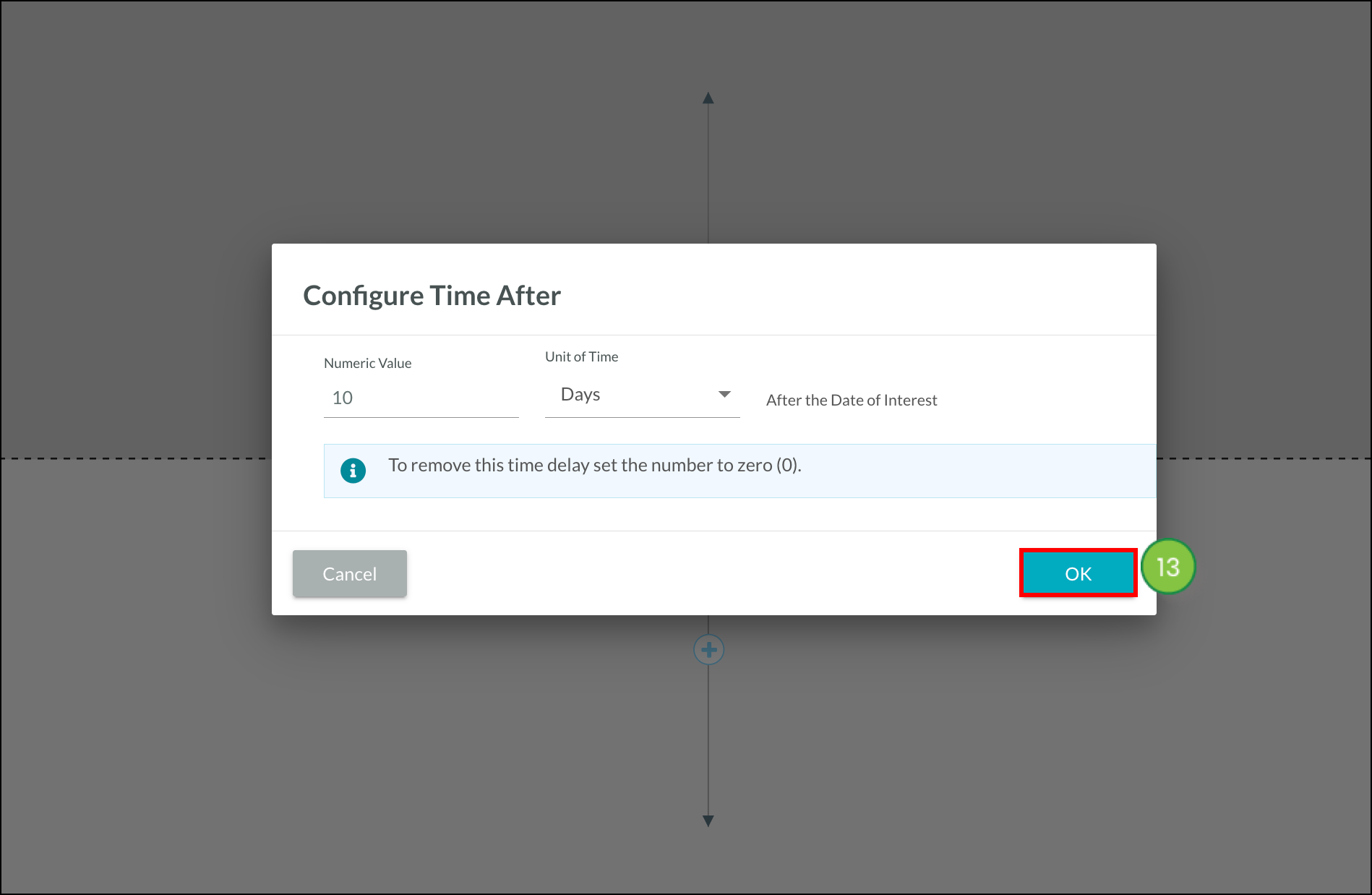
  13. Enter the desired unit of time and click OK.

    numerical value, unit of time, blue OK button
     
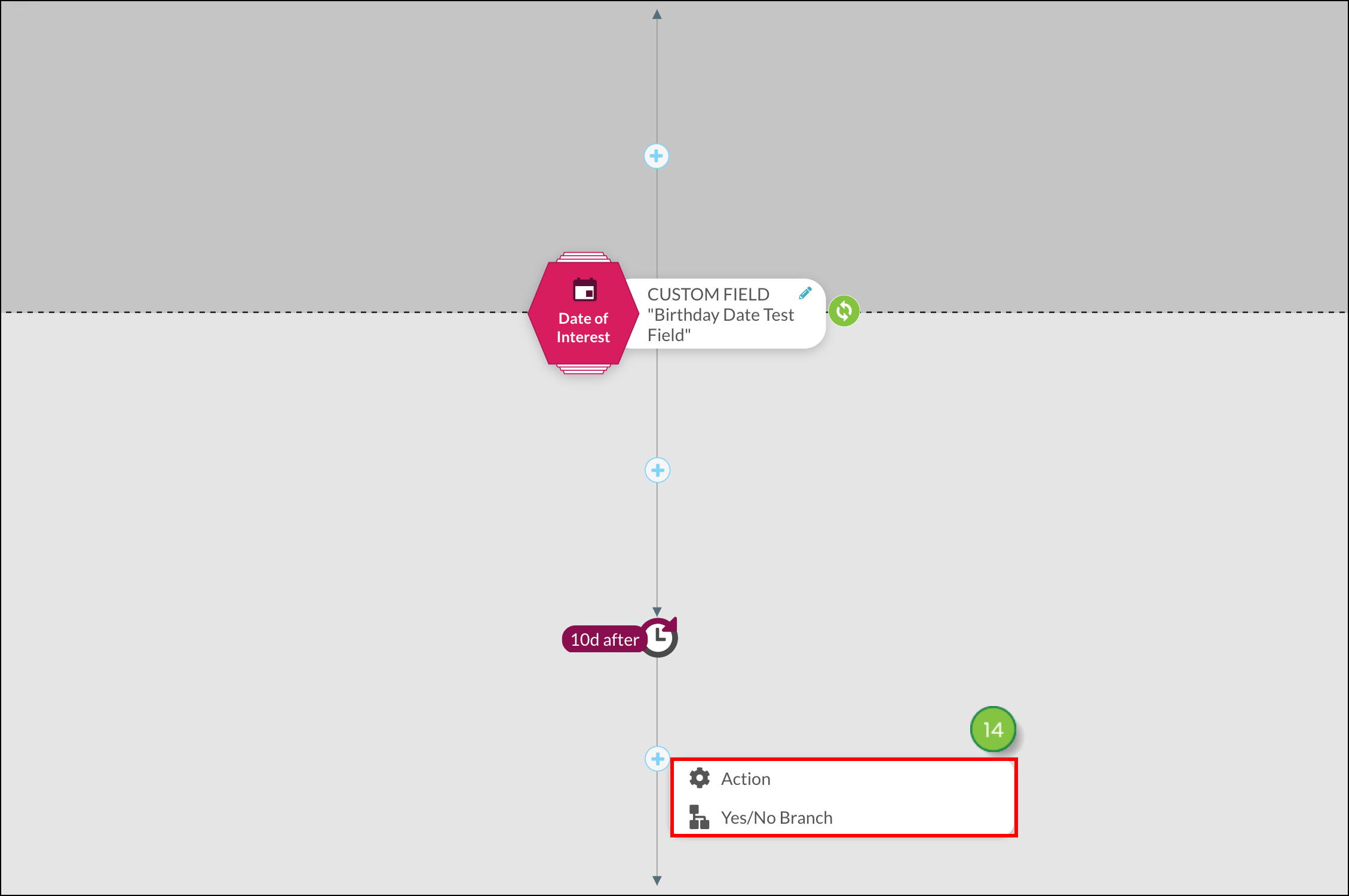
  14. Add actions, such as sending an email, before or after the time delays and repeating as necessary.

    plus sign popup below newly created time dely


Creating Automated Email Reminder Workflows

You can use time-based automations to create email reminders. To create an email reminder workflow, do the following: 
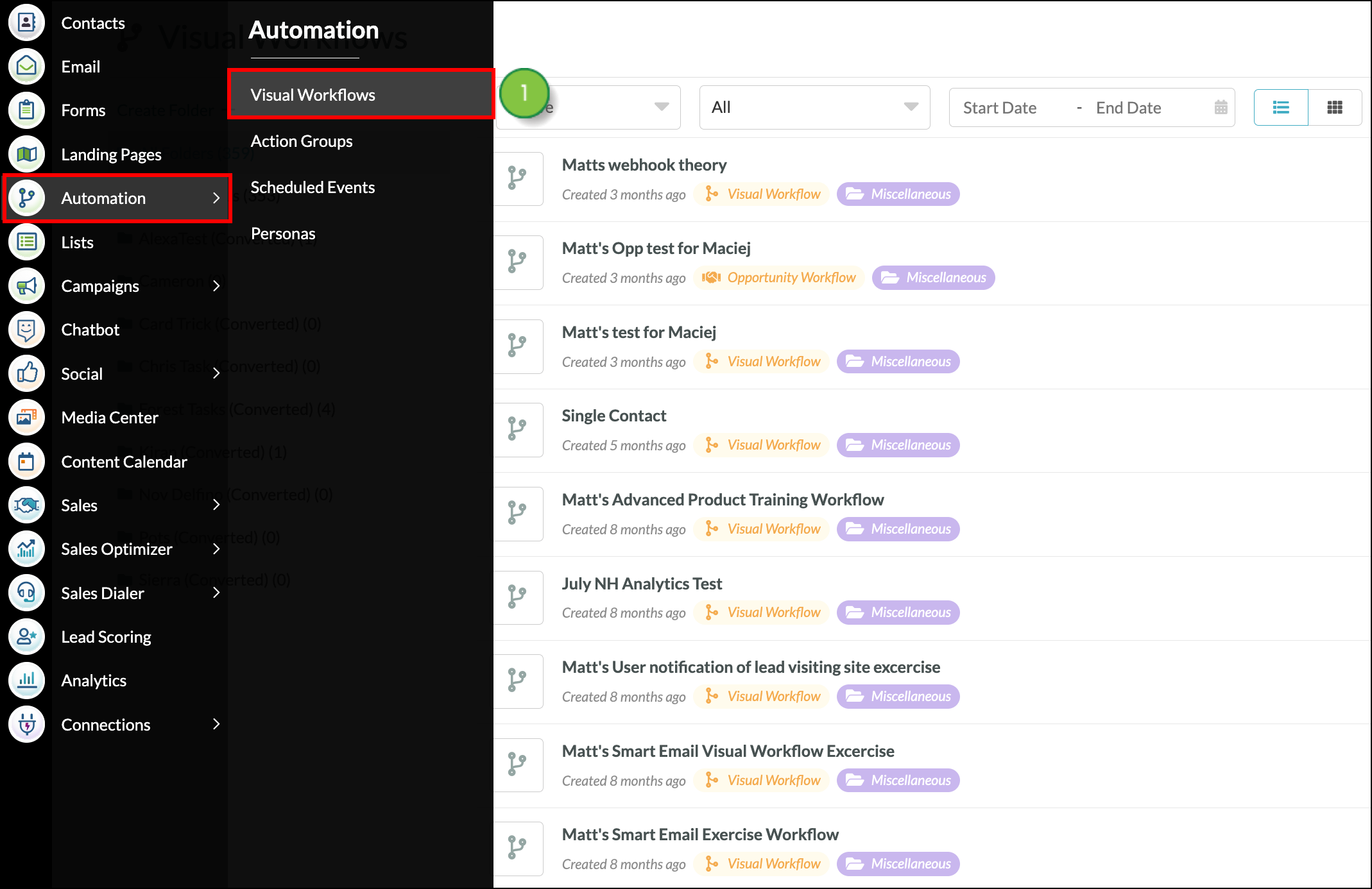
 

  1. In the left toolbar, click Automation > Visual Workflows.

    Expanded navigation menu
     
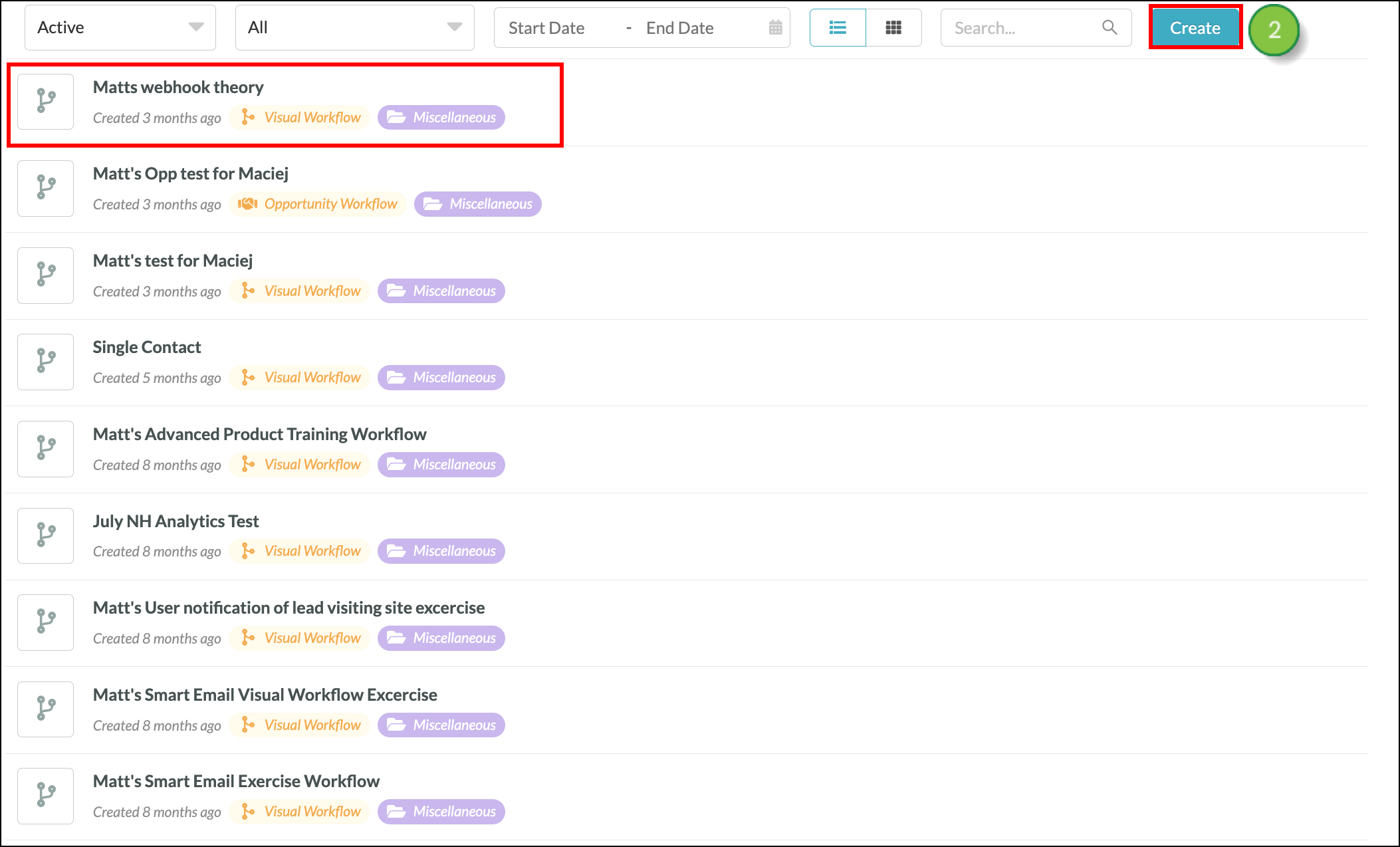
  2. Create a new workflow, or edit an existing one.

    Blue Create button
     
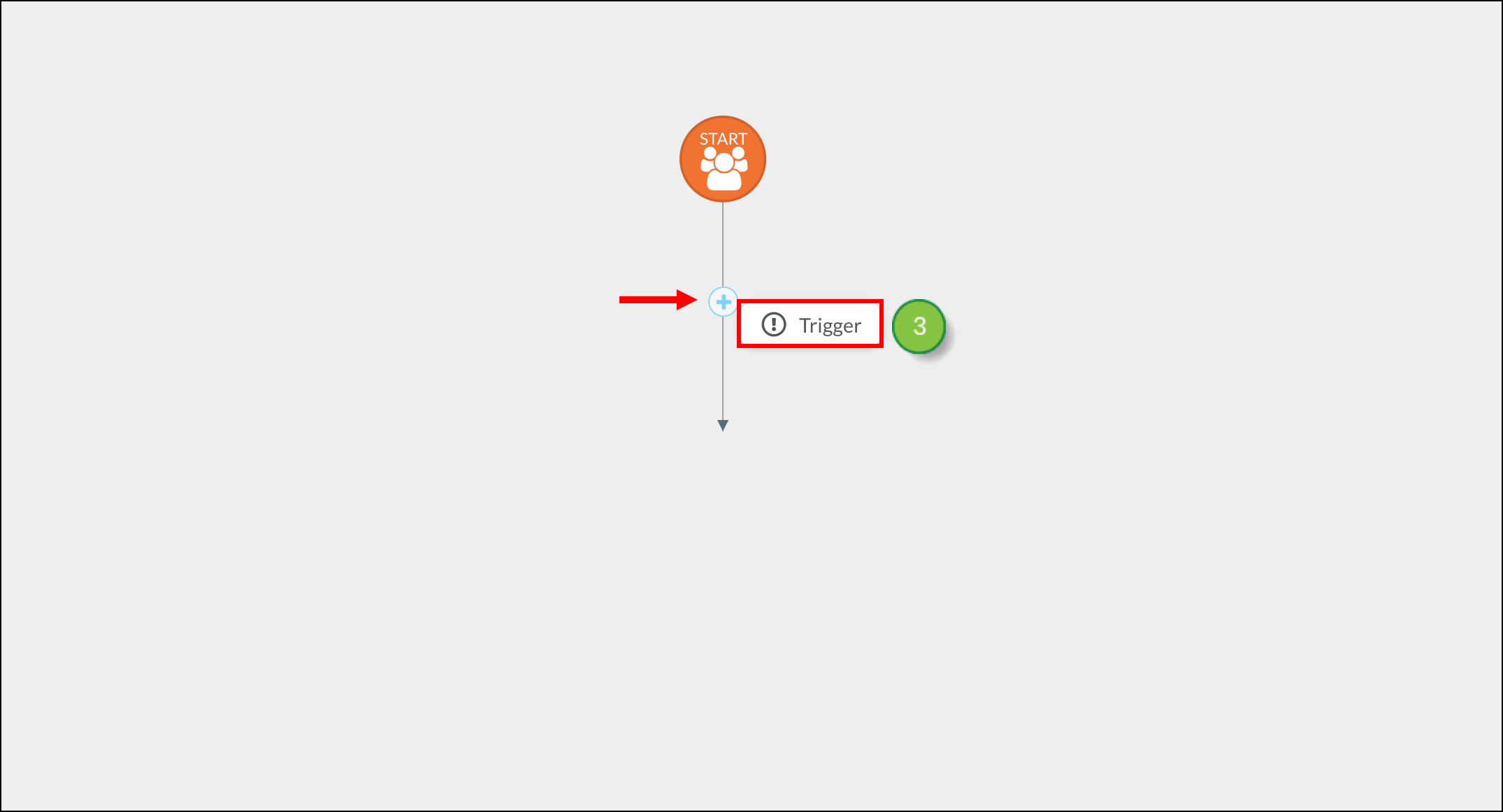
  3. Click + Add > Trigger under Start or an applicable workflow branch.

    Plus sign with Trigger popup
     
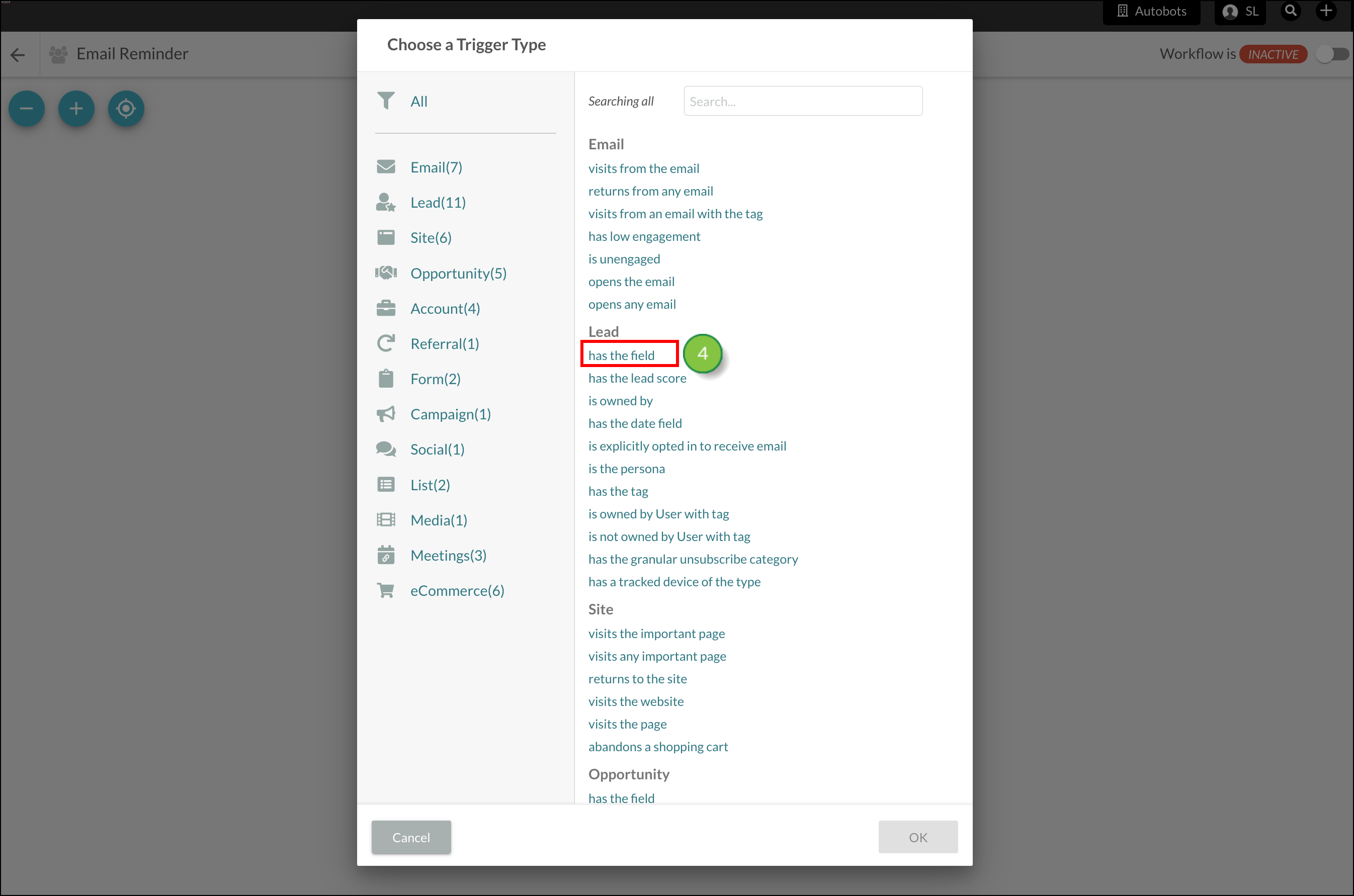
  4. Select has the field in the Lead section. 

    Popup with list of available fields
     
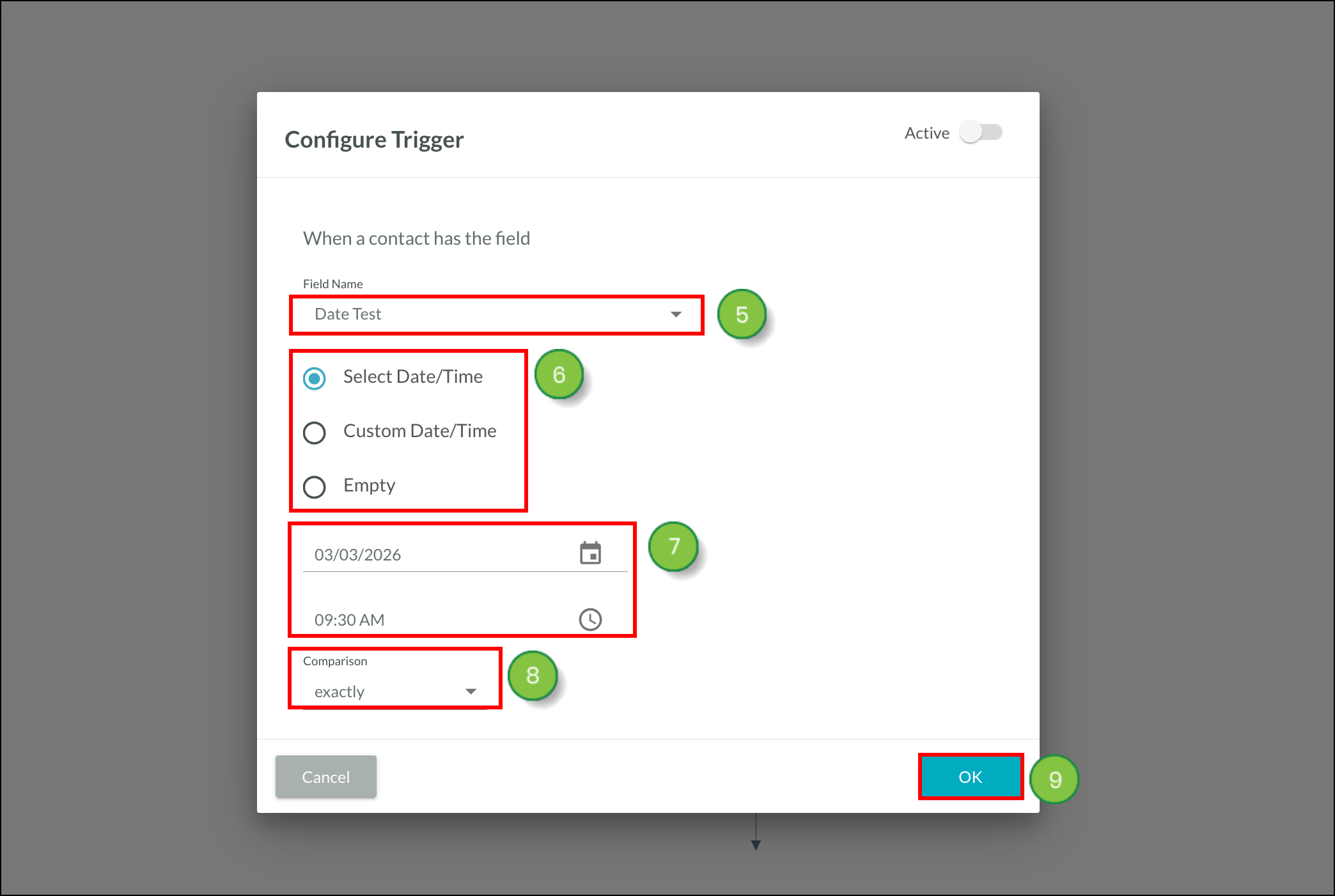
  5. Type the name of the desired custom DateTime field in the Field Name text box.
  6. Select the desired DateTime option.
  7. Select the desired dates and times. 
  8. Select the desired operator in the Comparison drop-down menu.
  9. Click OK.

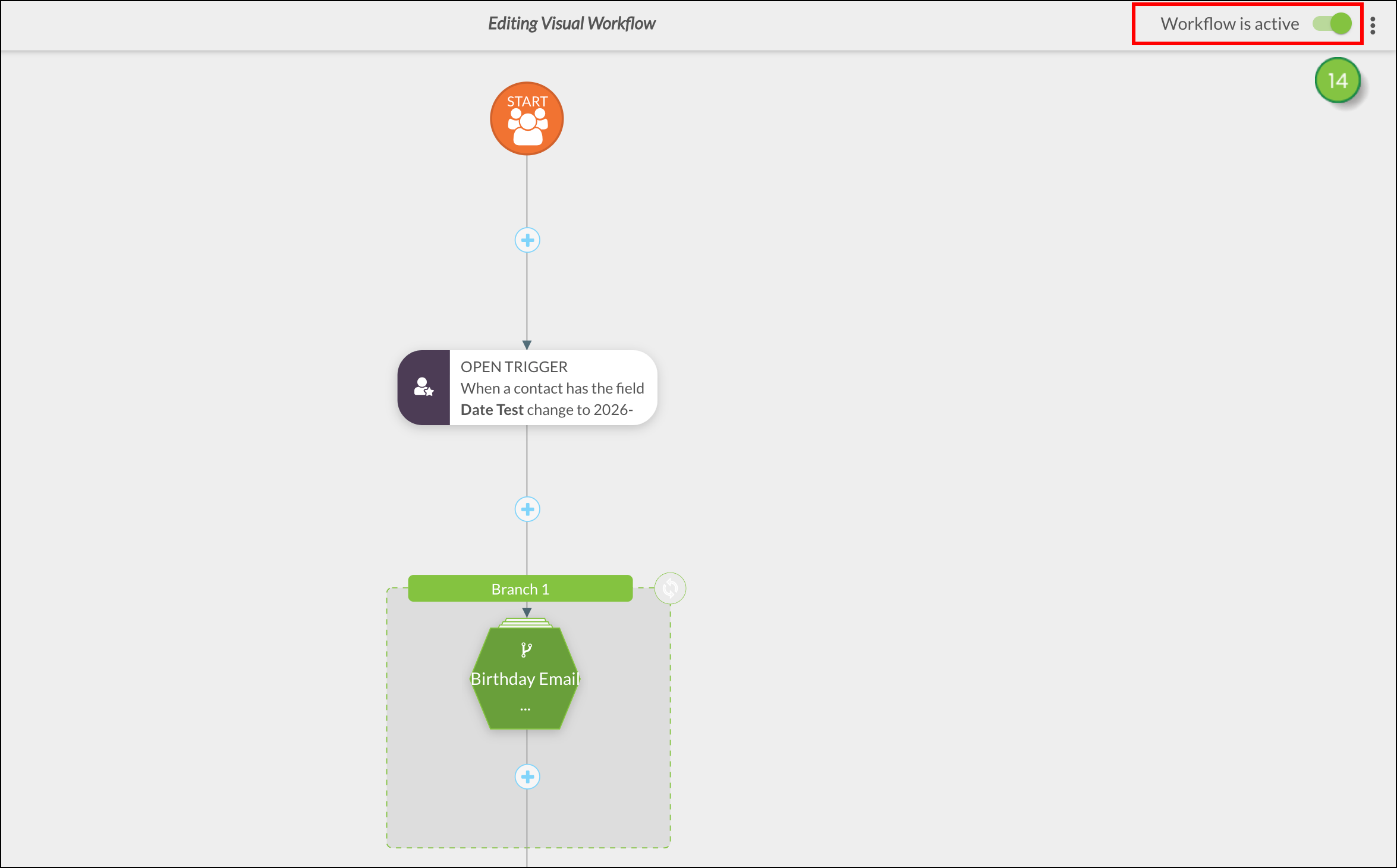
    Note: Clicking Active in the top right corner will make the entire workflow active, so wait until you've completed all of your triggers and actions before tapping the Active toggle (either within the trigger selection window or in the top right corner of the entire workflow). 

    Date and time fields - blue ok button
     
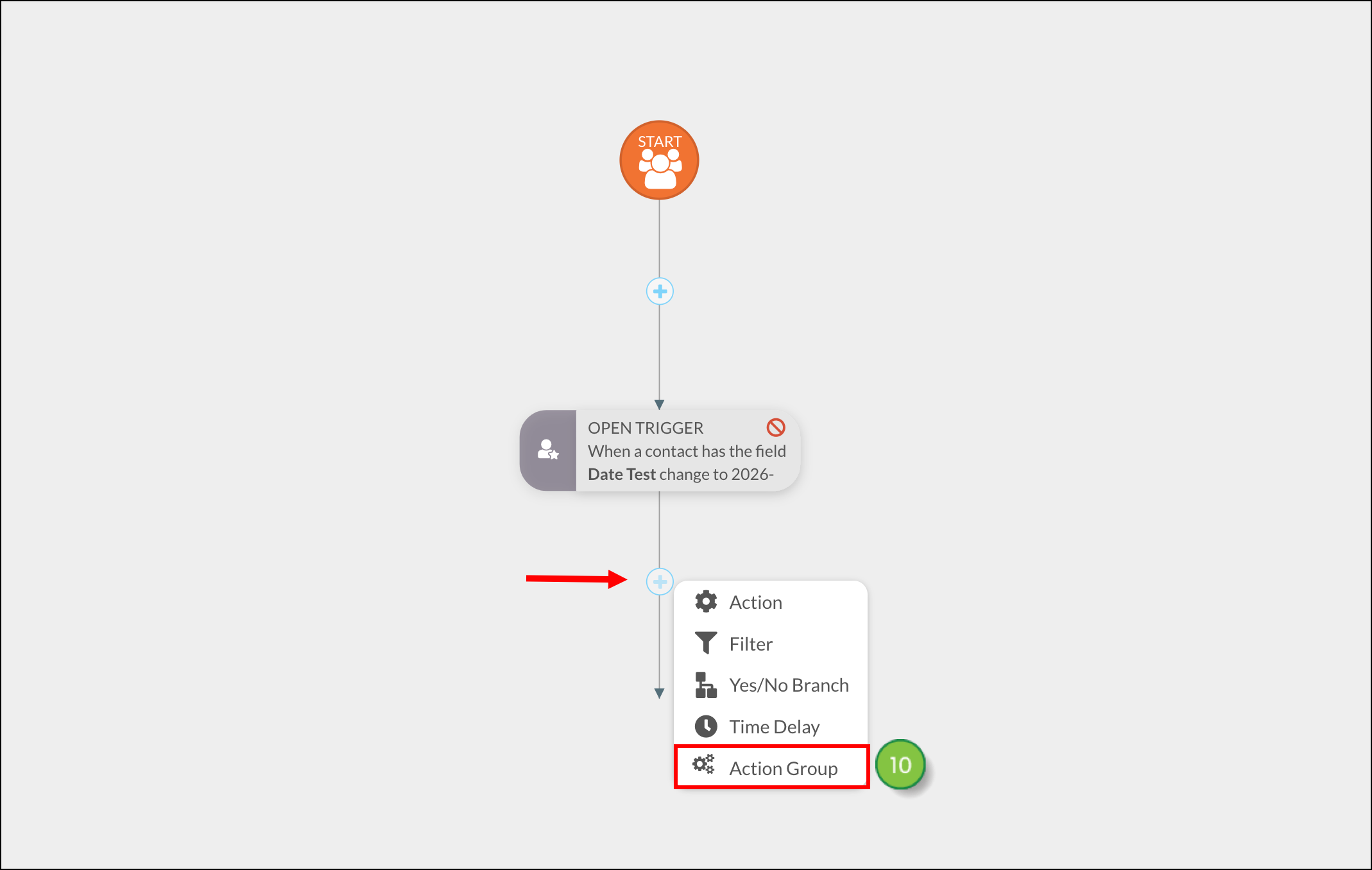
  10. Click + Add > Action Group under the added trigger.

    Expanded action menu-action group at the bottom of the list
     
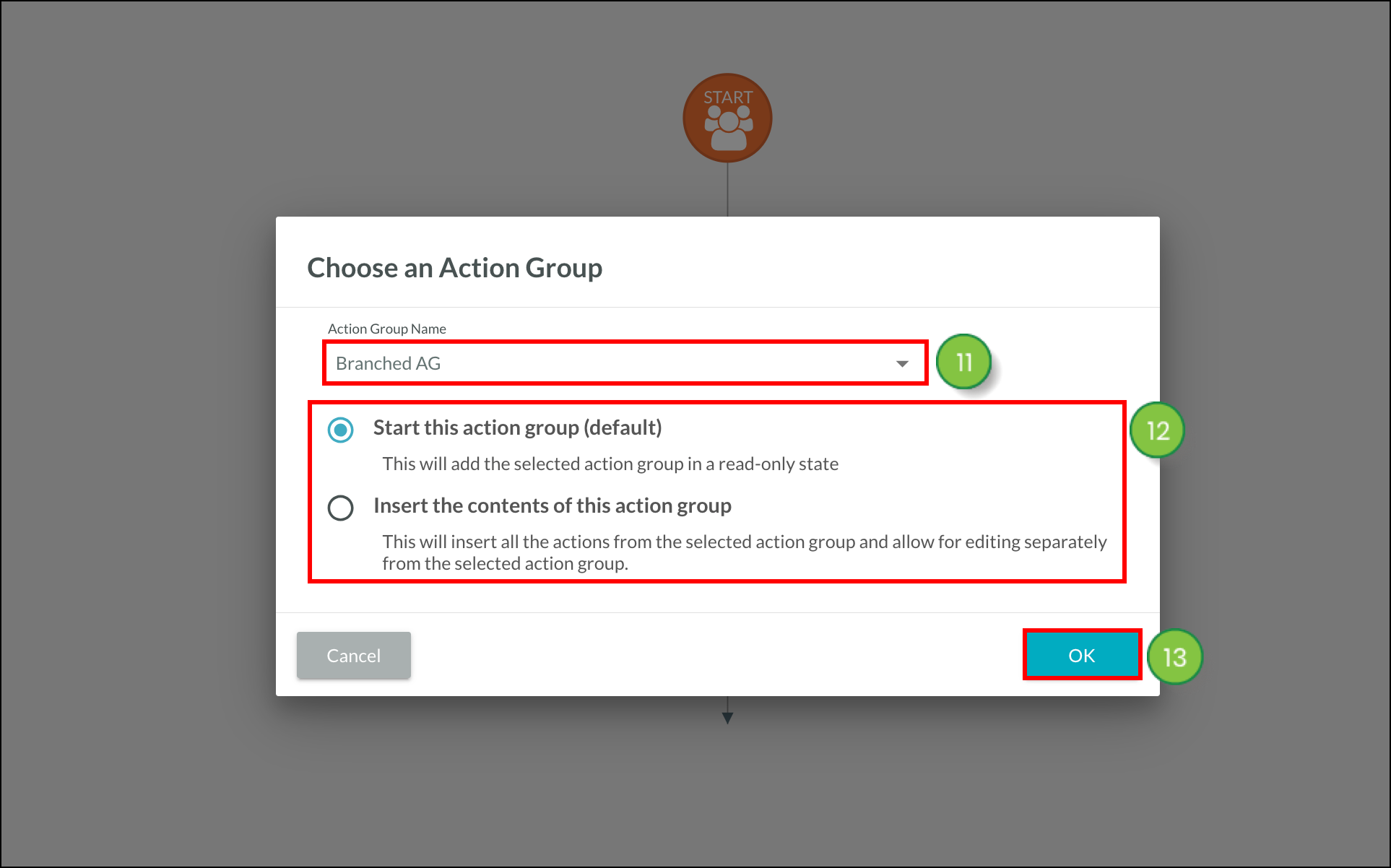
  11. Type the name of the desired active time-based action group.
  12. Select the way the action group should be included:
    • Start this action group (default) to add the group as read-only.
    • Insert the contents of this action group to add the group and allow for separate editing. This appears when your action group contains multiple child triggers and actions. 
  13. Click OK.

    Time based action fields and blue OK button
     
  14. Continue to edit the workflow as needed, and when it's complete, set the Workflow Toggle to Active.

    Green Active toggle in the top right corner


Available Date/Time Options

When creating Date/Time automation, the following options are available:
 

Option 

Description

Select Date/Time


All standard times that can be selected through Lead Gen & CRM's calendar date and time clock features.

Custom Date/Time


Allows for specific, custom dates and times to be entered. The date and time should be entered in the following format:

YYYY-MM-DD hh:mm:ss

This format requires a four-digit year value, a two-digit month value, a two-digit day value, a two-digit hour value, a two-digit minute value, and a two-digit second value

Empty 


Removes the Date/Time date and time information entirely.


Frequently Asked Questions

Q: What are the differences between action groups and branches?
A: Reusable action groups are a collection of standalone events that can be referenced within a visual workflow or be manually scheduled to a list. Branches are not action groups. Branches refer to a collection of actions created for use only within a visual workflow. As the name implies, this collection of actions branch out from the action group and are dependent upon additional criteria in order to function. Branches will not be added as reusable, standalone action groups.
 

Q: When is the cut-off period is for contacts entering the action group and receiving reminder emails?
A: Contacts will receive an email if they join the action group within 48 hours of the date and time of the event.
 

Q: I used a date field in my time-based action group, but something is not right. What am I doing wrong?
A: Often, a date field is used in place of a DateTime field. DateTime is required.
 

Q: Can I create a birthday email?
A: Yes. However, Lead Gen & CRM does not have a birthday custom field. You would have to manually change the DateTime field to reflect the birthday period. The year would have to be the current year or the next year the individual has a birthday. Consider the following example:

DateTime field has XX/XX/2018 00:00:00
The Action Group is
`one week after DateTime field send email "Birthday week"`
 

Q: How do I change the format of the DateTime field?
A: You can change this field in the Custom Field Manager.


Did this article answer your question?


Constant Contact Logo

Copyright © 2026 · All Rights Reserved · Constant Contact · Privacy Center