Email and Digital Marketing
How can we help you?
Search our help articles, video tutorials, and quickstart guides

You've got this. You've got us. Search our Knowledge Base to quickly find answers to your questions.

Forgotten username or password

Article: 000006224
Updated: October 28, 2026

Reset your account password or receive a username reminder email


If you've forgotten your username or password, follow the steps below to have it emailed to you or to reset it.

Before you begin:

  • Email access required: You'll need access to the inbox associated with the account's contact email address. If you can't access your email account, please contact Support, and they can help you regain access to your Constant Contact account.
  • Login lockout: After five failed login attempts, you'll be temporarily locked out of your account for five minutes. You can either wait five minutes and try logging in again or reset your password. If you continue to experience login issues, please contact Support for assistance.


Recover your username

If you don’t remember your username, follow these steps to retrieve it: 
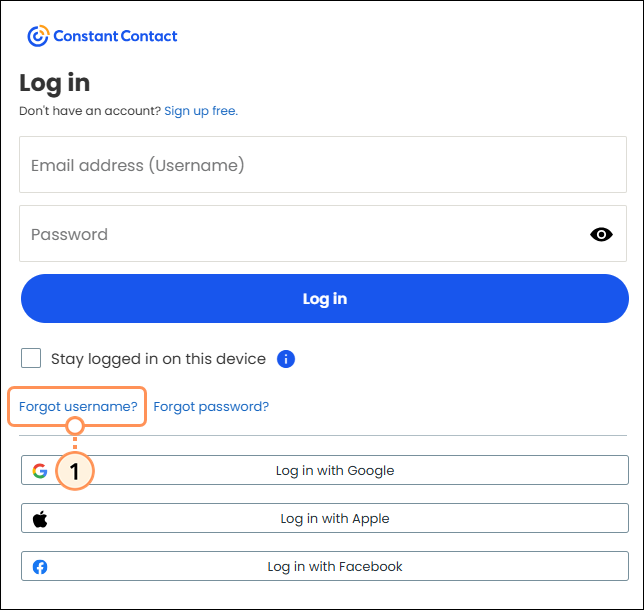
  1. On the Constant Contact login page, click the "Forgot username?" link.

    Constant Contact login page with Forgot Username link
     
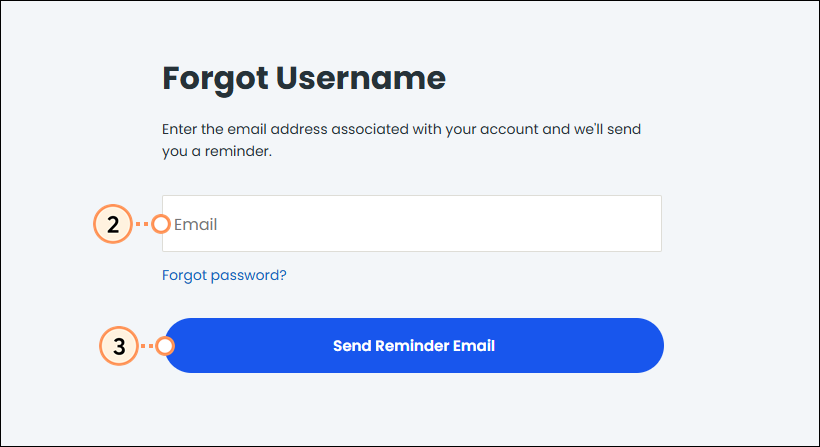
  2. Enter the user email address associated with your Constant Contact account in the field.
  3. Click the Send Reminder Email button.

    Forgot Username page, Email address field, and Send Reminder Email button
     
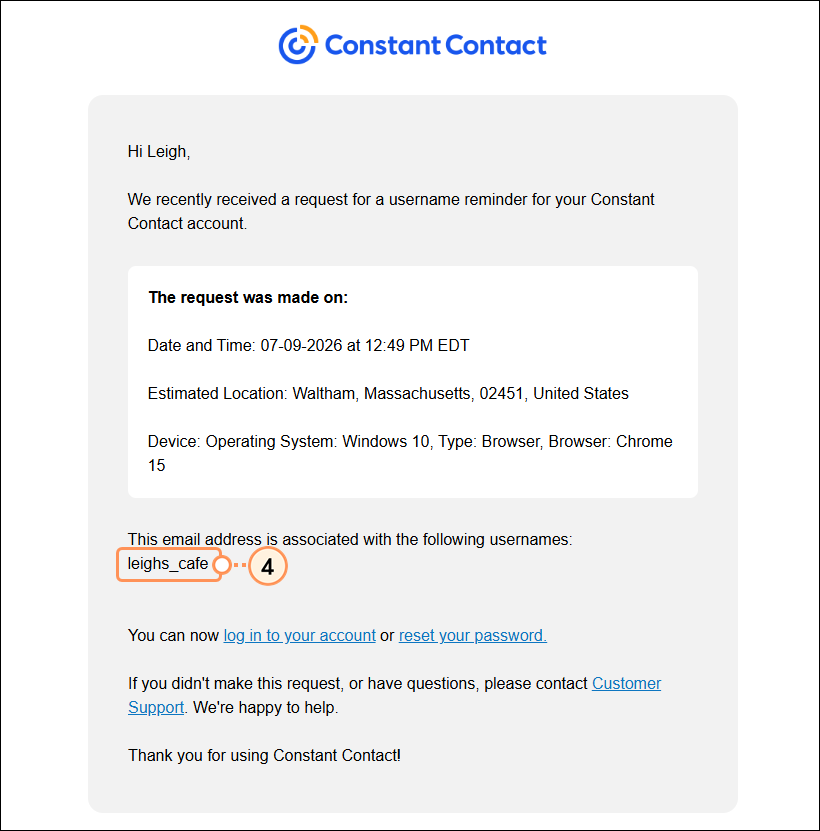
  4. Check your email inbox. Constant Contact will immediately send a Username Recovery email to the email address, listing all the usernames associated with it.
    Note: If you do not receive the email, try these suggestions. If you still haven't received it, please contact Support.

    Username Recovery email with account username listed


Reset your password

If you know your username but forgot your password, follow these steps to reset it:
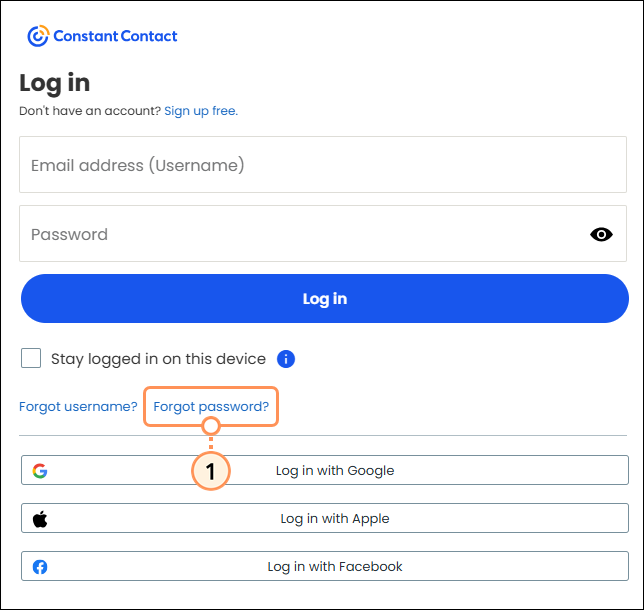
  1. On the Constant Contact login page, click the "Forgot password?" link.

    Constant Contact login page with Forgot Password link
     
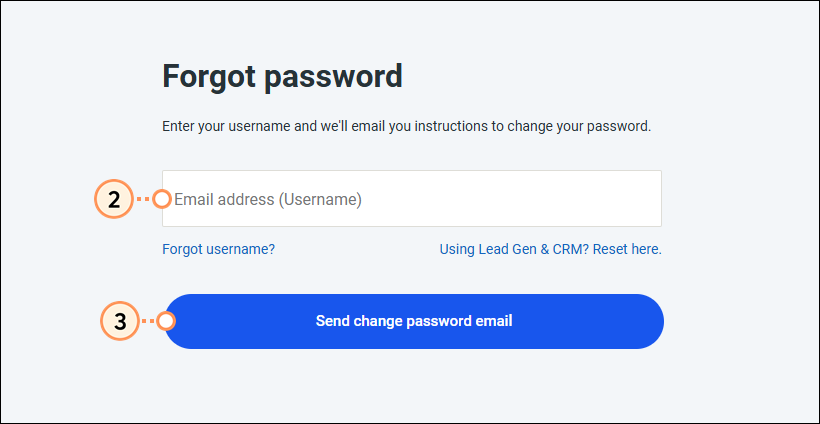
  2. Enter your username or account email address in the field.
  3. Click the Send change password email button.

    Forgot Password page with Email address or Username field and Send Change Password Email button
     
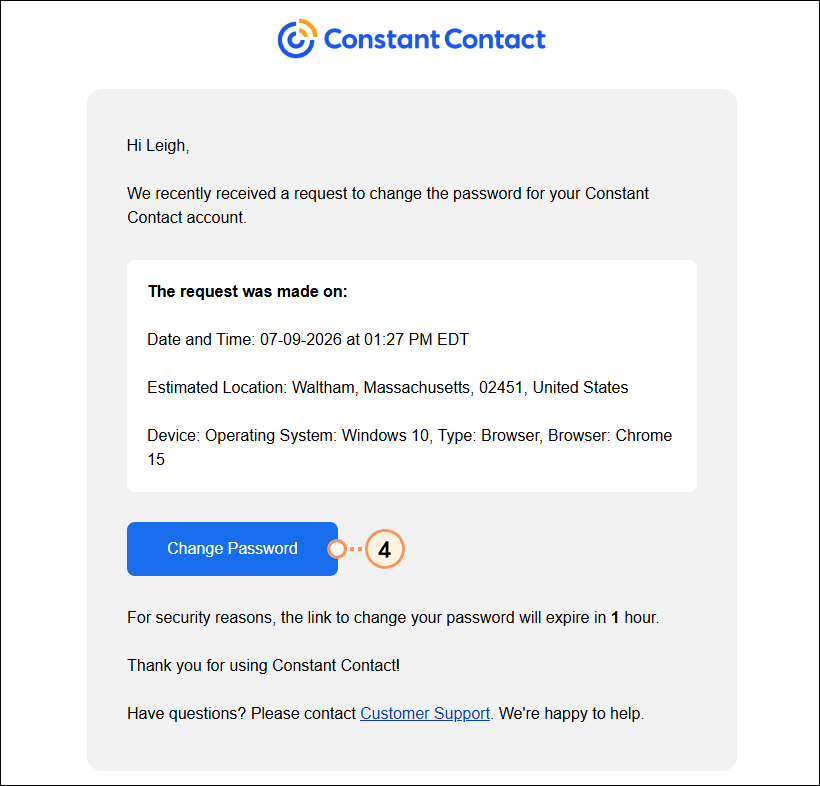
  4. Check your email inbox. Constant Contact will immediately send a Password Reset email to the user's email address. Click the Change Password button in the email.
    Note: This link can only be used once and will only work for 1 hour after it is sent. If you do not receive the email, try these suggestions. If you still haven't received it, please contact Support.

    Reset Password email with Change Password button
     
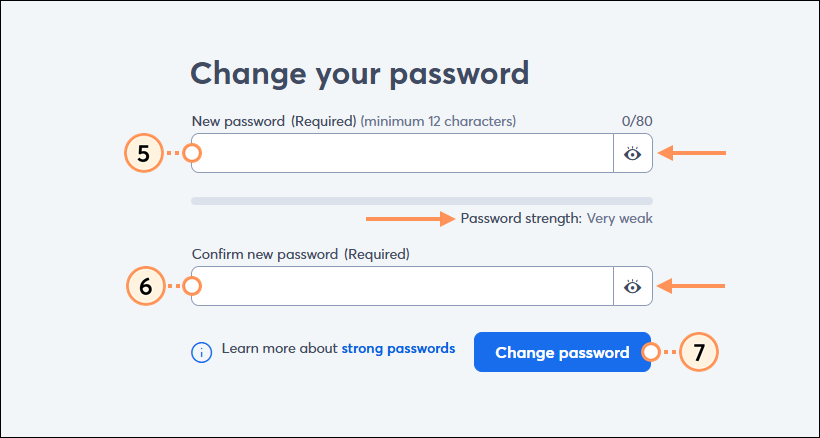
  5. Enter a new password into the New password field. Keep our password guidelines in mind and use the Password Strength meter to help you create a strong password.
    Tip: Click the eye icon to reveal what you're typing
  6. Re-enter your new password in the Confirm new password field.
  7. Click the Change password button.

    Change Your Password page, New Password and Confirm New Password fields, and Change Password button


Your account password will now be changed to the new password.


Questions?

Ask the Community

Did this article answer your question?


Constant Contact Logo

Copyright © 2026 · All Rights Reserved · Constant Contact · Privacy Center