Email and Digital Marketing
How can we help you?
Search our help articles, video tutorials, and quickstart guides

You've got this. You've got us. Search our Knowledge Base to quickly find answers to your questions.

Teams: View Contacts Reporting

Article: 000055282
Updated: August 25, 2026

See high-level contacts reporting across your entire organization in a single, aggregated view

On the Contacts Reporting dashboard, see at a glance contact list health, growth, and churn without having to impersonate into each workspace. Select a time frame, and view your contact metrics for your entire organization, or drill into one or more workspaces to see filtered, location-specific data.


To access the Contacts Reporting dashboard:
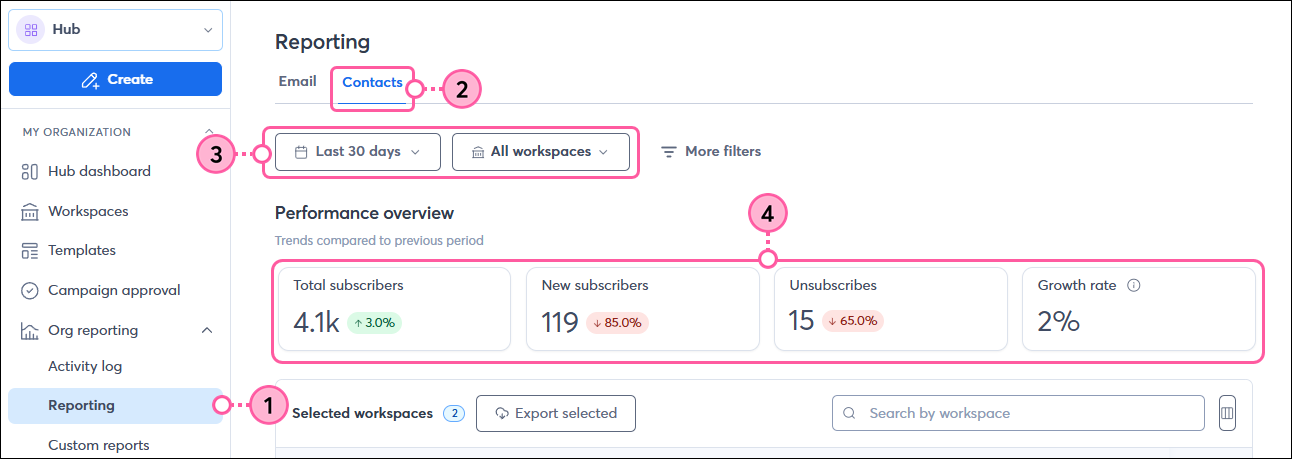
 

  1. Click Org reporting > Reporting.
  2. Click the Contacts subtab.
  3. Set your filters:
    • Select a date range to view.
    • View data for all of your workspaces or select specific workspaces from the dropdown.
  4. In the Performance Overview section, see high-level metrics for the selected time period and workspaces selected. Additionally, for each metric, you can see a comparison to the previous time frame.
    1. Total subscribers - The total number of subscribed contacts in your account to whom you can actively send emails.
    2. New subscribers - The total number of contacts added to your account within the time frame selected.
    3. Unsubscribes - The total number of contacts that have opted out of your mailing list within the time frame selected.
    4. Growth rate - The percentage of contacts that subscribed to your lists within the time frame selected.

    Reporting tab Contacts tab Filter options Performance Overview section

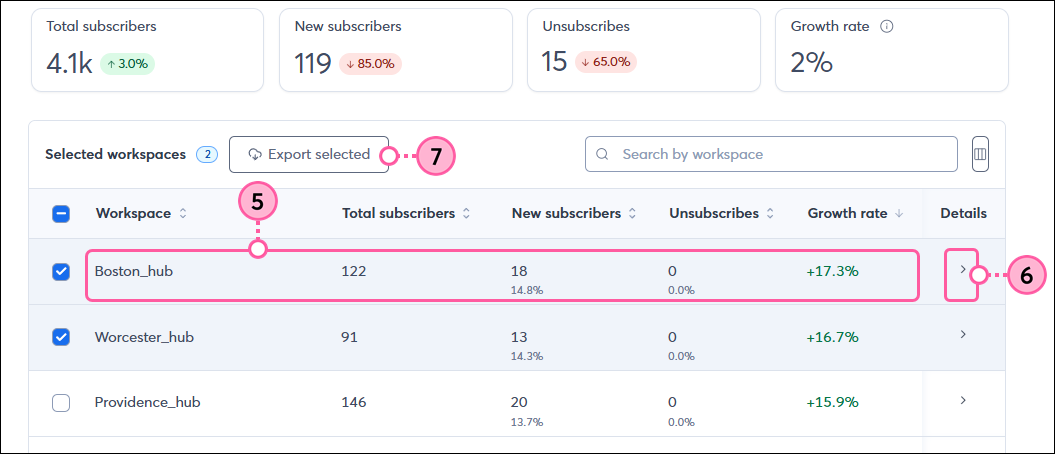
  5. Below the Performance Overview section, you'll see a table with these same metrics (Total subscribers, New subscribers, Unsubscribes, and Growth rate), listed by workspace. The workspaces that display will match your filter selections.
  6. Click the details arrow to be taken to that workspace's Contacts page.
  7. Optionally, to export the campaign data as a CSV, checkmark one or more campaigns and then click Export selected.

    Workspace contact details export option


Questions?

Ask the Community

Did this article answer your question?


Constant Contact Logo

Copyright © 2026 · All Rights Reserved · Constant Contact · Privacy Center