Email and Digital Marketing
How can we help you?
Search our help articles, video tutorials, and quickstart guides

You've got this. You've got us. Search our Knowledge Base to quickly find answers to your questions.

Teams: View Automations reporting

Article: 000055428
Updated: October 30, 2026

Take a look at Automations performance across the entire organization in a single, aggregated view

On the Automations Reporting dashboard, see campaign performance at a glance without having to impersonate each of your workspaces. View your entire organization's performance or drill into one or more workspaces to see filtered, location-specific data. Additionally, you can filter by Automation type (singe or shared) and channels (email or SMS).


To access the Reporting dashboard:
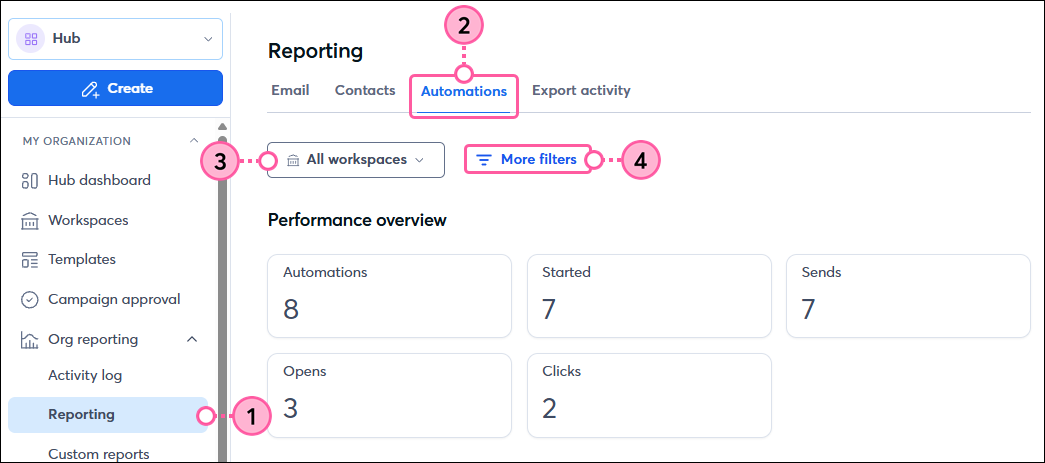
 

  1. Click Org reporting > Reporting.
  2. Click the Automations subtab.
  3. View data for all of your workspaces or select specific workspaces from the dropdown.
  4. Optionally, click "More filters" to select specific Automation types, channels, and/or set a metric threshold.

    Org Reporting dropdown Reporting Option Automations Tab Filters

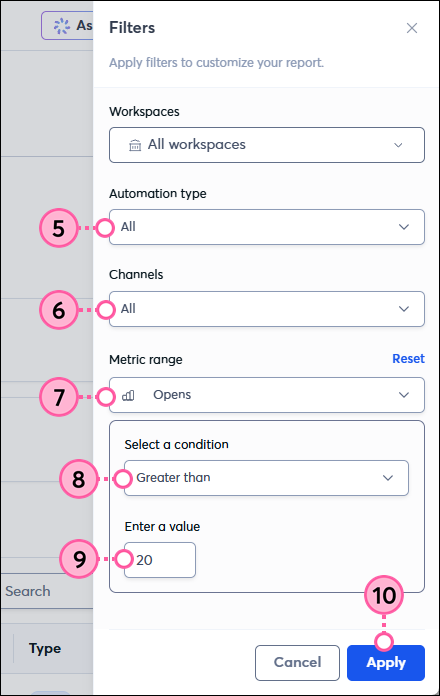
  5. To filter by Automation type, select "Single" or "Shared" from the dropdown.
  6. To filter by Channel, select "Email" or "SMS" from the dropdown.
  7. To set a metric threshold, select either Opens or Clicks from the dropdown.
  8. Select a condition from the dropdown, such as equals, greater than, less than, or between.
  9. Enter the value(s) to use as a threshold.
  10. Click Apply.

    Filter options Apply button

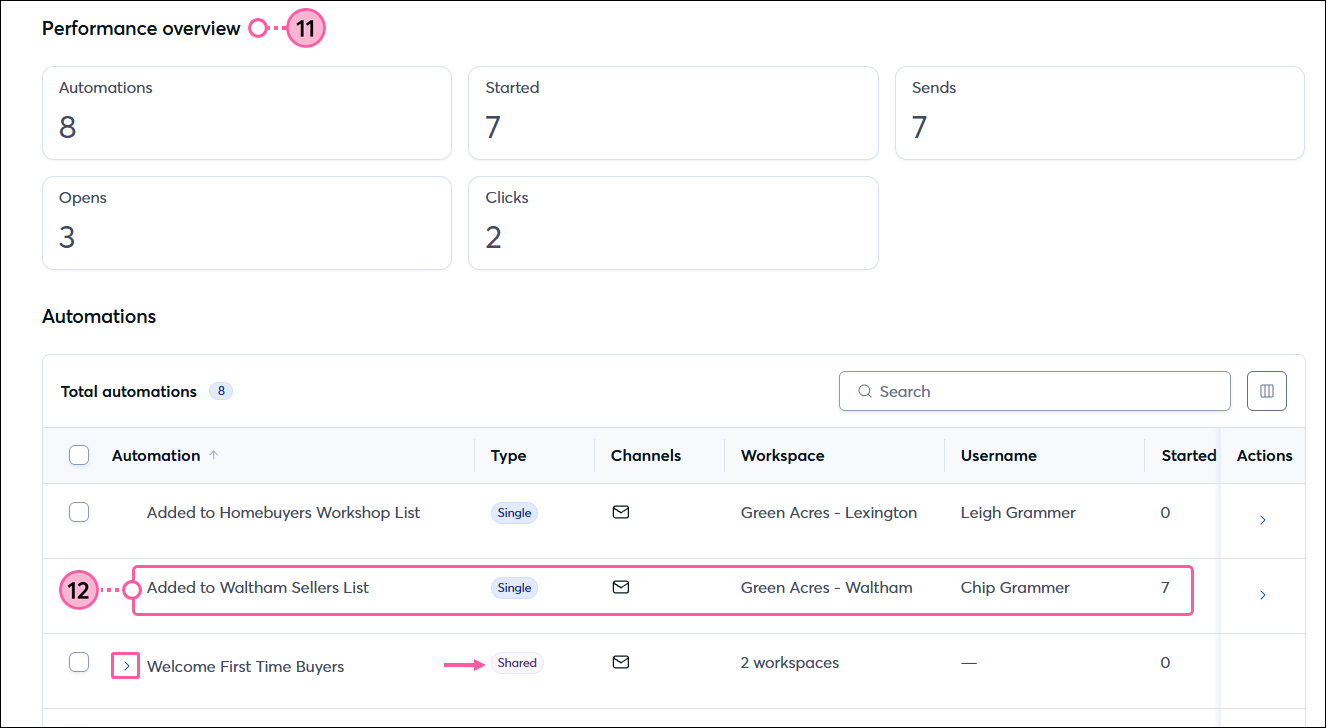
  11. In the Performance Overview section, see high-level metrics for the filtered set of Automations.
    • Automations - Total number of Automations.
    • Started - Total number of contacts who have triggered a path.
    • Sends - The total number of times that each individual email or SMS message was sent to your subscribed contacts. This doesn't always match the number of starts if contacts drop out of your path due to things like unsubscribing from email or SMS messages.
    • Opens - The total number of contacts who clicked a link in any email or SMS message in a path.
    • Clicks - The total number of contacts who clicked a link in any email or SMS message in a path. 
  12. Below the Performance Overview section, you'll see the Automations table. The Automations listed match your selected filters. For Shared Automations, click the dropdown arrow next to the Automation name to see the metrics for each individual workspace that the Automation was shared with. For each Automation, you can view the following metrics. Scroll to the right within the table to see all metrics:
    • Automation name
    • Type
    • Channels
    • Workspace
    • Username
    • Started
    • Sends
    • Opens
    • Clicks

    Performance Overview Sections Automations Metrics

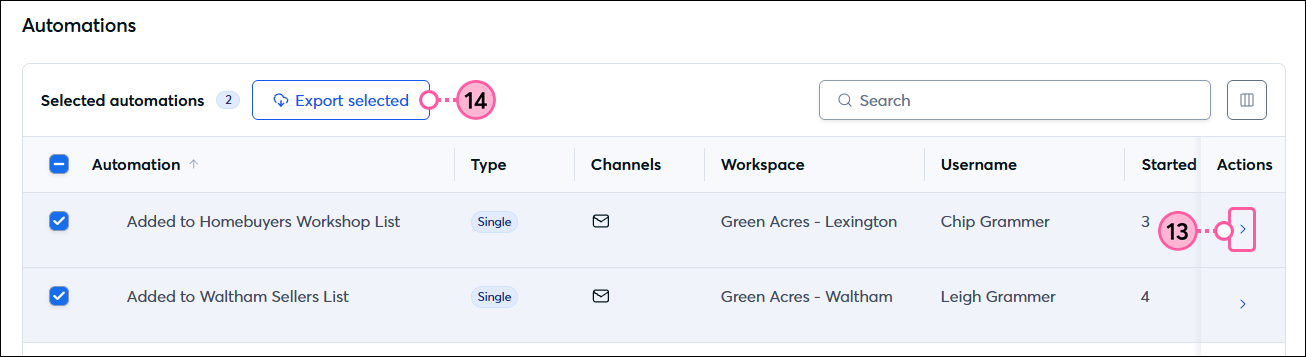
  13. Click "View details" to be access the Automation's path performance page.
  14. Optionally, to export selected Automation data as a CSV, checkmark one or more Automations and then click Export selected. 

    See Details arrow and Export selected button


Questions?

Ask the Community

Did this article answer your question?


Constant Contact Logo

Copyright © 2026 · All Rights Reserved · Constant Contact · Privacy Center