| Note: This article pertains to Starter Email customers. If you’re in our Lite, Standard, or Premium plans, please refer to this article instead. |
The Settings section of your account is where you can manage your organization details, login credentials, billing information, account email addresses, and more.
Within your account settings, everything can be found under the following tabs:
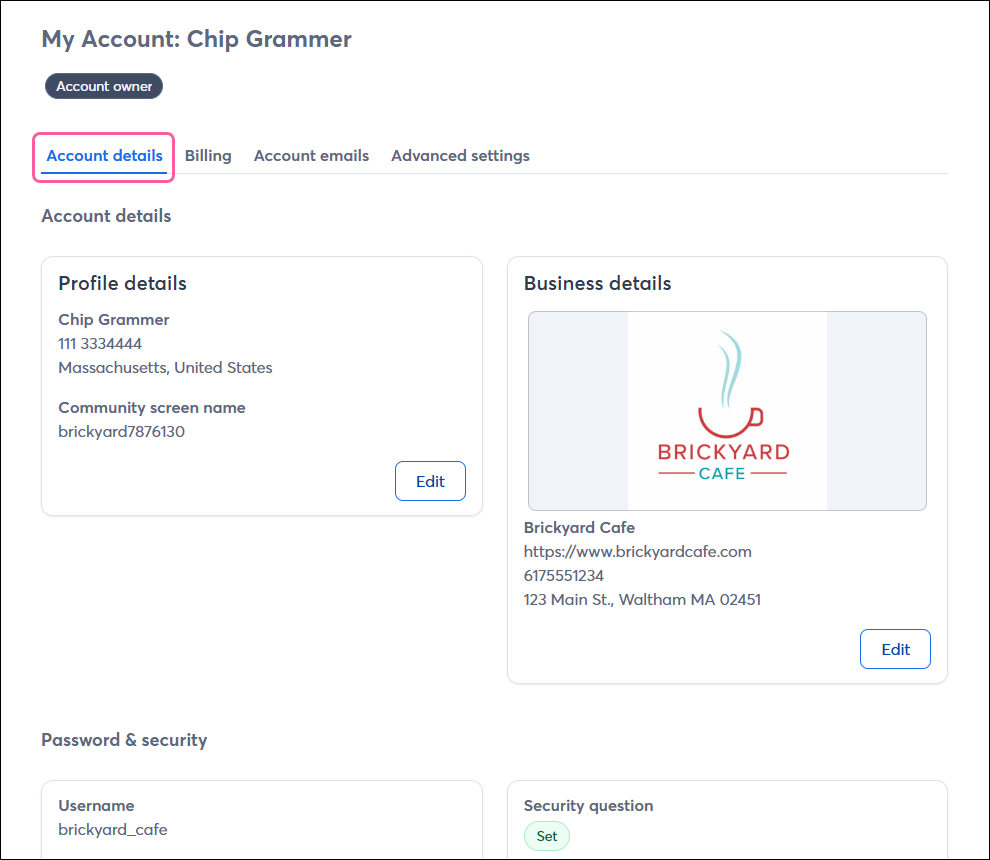
- Account details:
- Profile and business details
- Password & security
- Default email settings
- Time zone and language
- Billing:
- Email send usage
- Payment plan and invoice date
- Payment method and billing statements
- Cancel your subscription
- Account emails:
- Manage your domains and verify email addresses
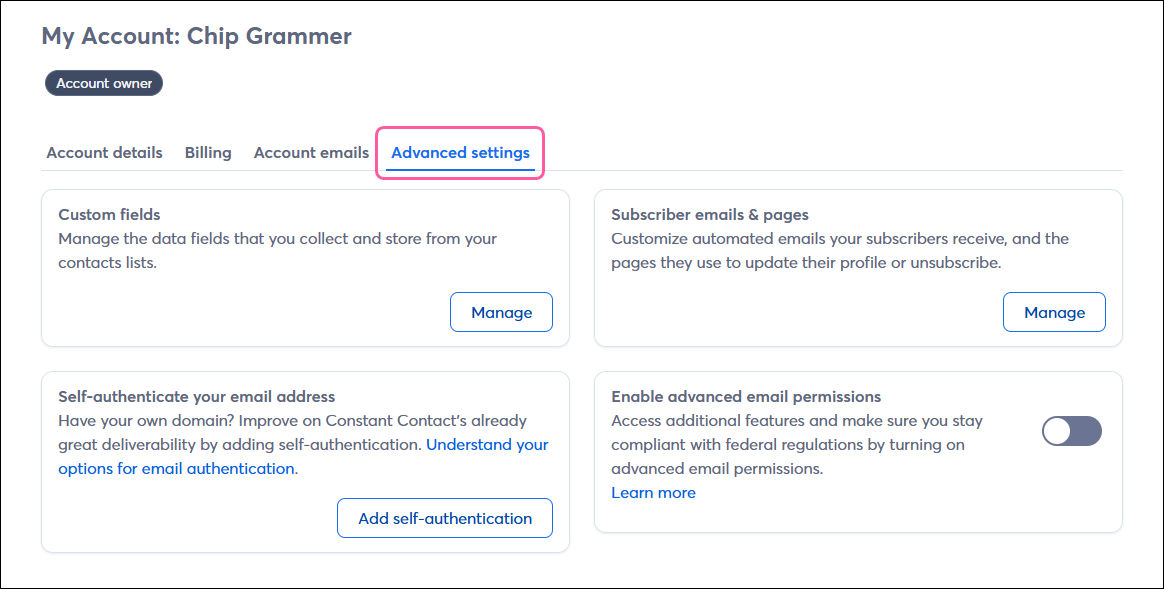
- Advanced settings:
- Custom contact fields
- Automated emails for new subscribers
- Email authentication
- Advanced email permissions for contacts
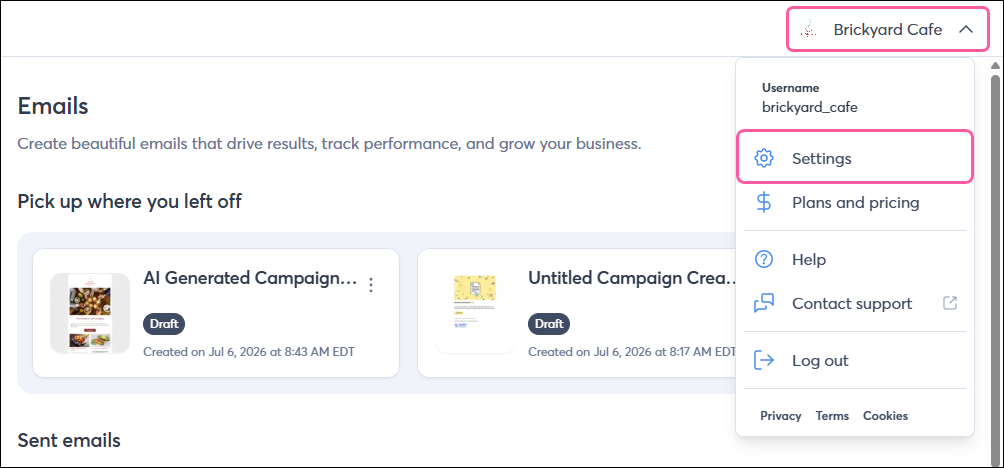
To manage your account, click the profile name in the upper-right and select Settings from the drop-down.
Account details tab
The Account details tab is where you can add or update your profile and business details, password and security settings, and other email settings.
Billing tab
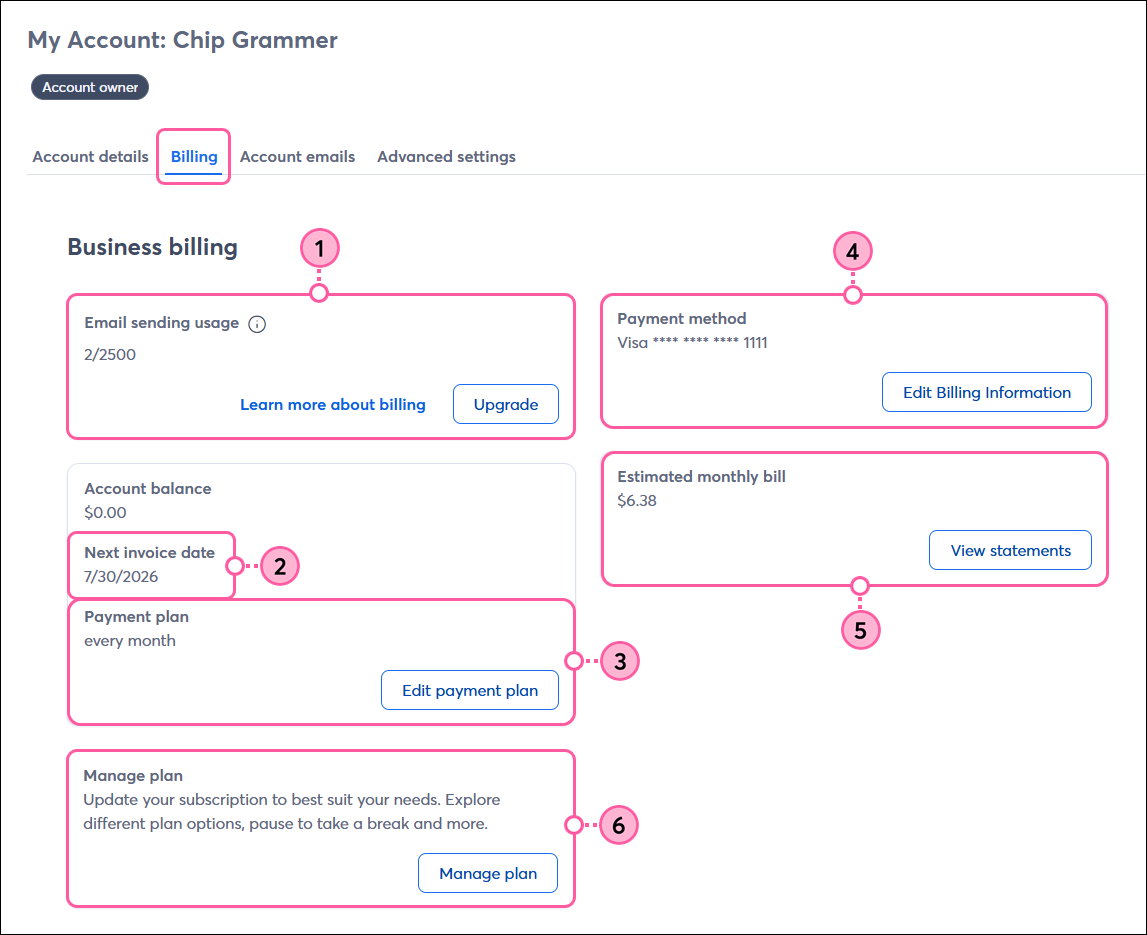
On the Billing tab, you can see your:
- Email sending usage - See how many emails you've sent during the current billing period compared to your email send allowance. If you reach the monthly limit, you can upgrade your plan by clicking Upgrade, or wait until the next billing cycle.
Note: One send is defined as one email sent to one contact, so an email sent to 10 contacts = 10 sends. Even if an email bounces, it still counts as a send. - Next invoice date - This is when we pull funds from your payment method for the next billing cycle.
- Payment plan - This indicates whether you pay monthly or annually. Your subscription automatically renews for the same payment plan at the end of the billing term. If you’re currently paying for your subscription on a monthly basis, you can switch to an annual subscription to receive a discount by clicking Edit payment plan.
- Payment method - Change or update the payment method used to pay for your Constant Contact Starter account by clicking Edit Billing Information. You can pay for your account using a credit card,
- Estimated monthly bill - This is how much we’ll charge the payment method on file on your next invoice date. To view past invoices, click View statements.
- Manage plan - If you wish to cancel your subscription, you can do so by clicking Manage plan or calling our Billing Support team at the appropriate number below. Your account will remain active until your next billing date, and you can continue using it until then.
- US: 855-339-2941
- UK: 0808-234-0945
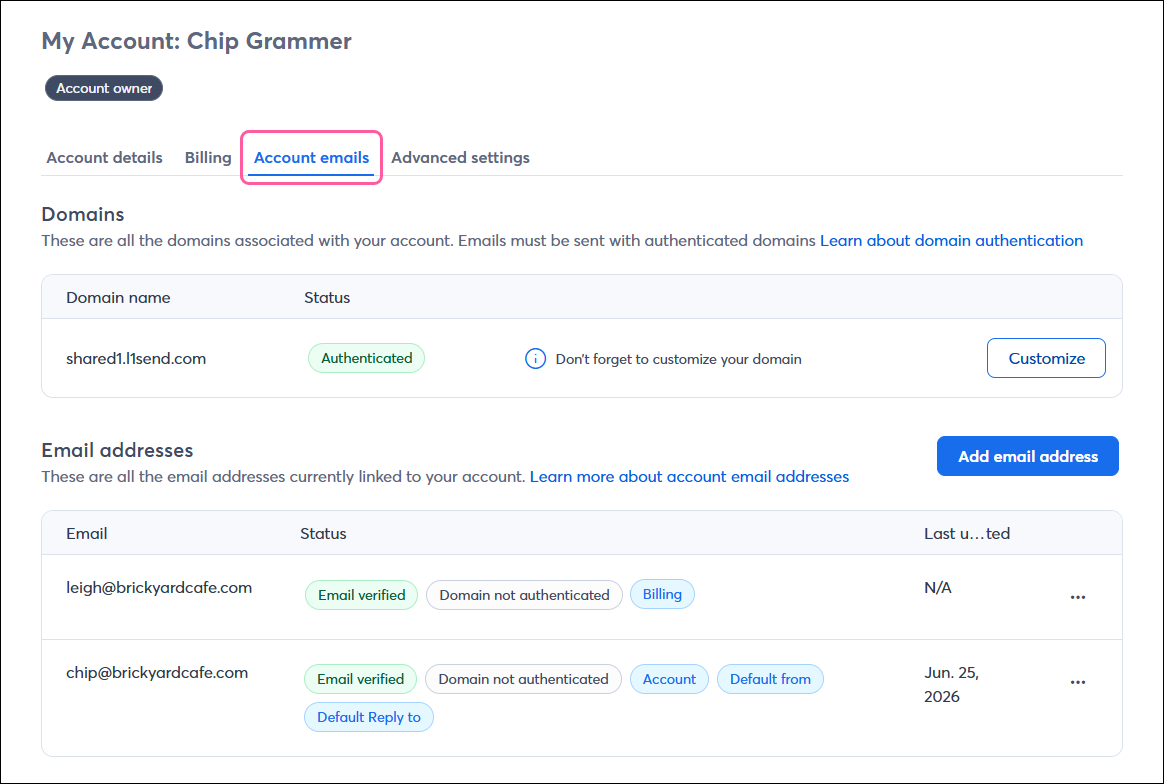
Account emails tab
On the Account emails tab, you can review your:
- Domains - These are the domains associated with your account. To use a custom domain for your "From" email address, it needs to be authenticated. If you don’t have a custom domain or can’t authenticate it, you’ll see our shared ccsend.com domain here, which you can customize to better reflect your organization.
Note: You can only have one authenticated domain in your account, whether that's a custom domain you've self-authenticated or our shared ccsend.com domain. - Email addresses - These are the email addresses currently associated with your account. You can see the ones that have already been verified, check the status of email addresses being verified, and verify additional email addresses to be used as the Account or Billing contact, “From" email address (if it's also been authenticated), or "Reply-to" email address for your outgoing emails. A verified email address proves that you’re the owner of the email address and can access its inbox.
Advanced settings tab
On the Advanced settings tab, you can update your:
- Custom fields - Manage the data fields that you collect and store from your contacts.
- Subscriber emails & pages - Customize the Update Subscriber Profile form to let your contacts update their personal information and email list preferences.
- Email authentication - If you have your own domain, build your sending reputation by self-authenticating your emails and adding DKIM and DMARC records to your DNS settings. This allows you to use your custom domain email address as the “From” email address when sending emails.
- Advanced email permissions - Enable advanced email permissions to see which contacts have granted express or implied permission to email them.