With Follow Up Boss, instantly transfer new leads and contact updates from Follow Up Boss to Constant Contact to keep your email lists up to date. Then, easily send campaigns to your contact lists with property listings of your choice. Select your desired template, edit the email design, and preview before sending your campaign.
Please note that this is a one-way sync. Newly added and updated contacts will not import from Constant Contact into Follow Up Boss. However, contacts that are unsubscribed in Constant Contact will sync back to Follow Up Boss.
Connect your Follow Up Boss account to Constant Contact
Connect your Follow Up Boss account to your Constant Contact account to import contact, user profile, and transactional data.
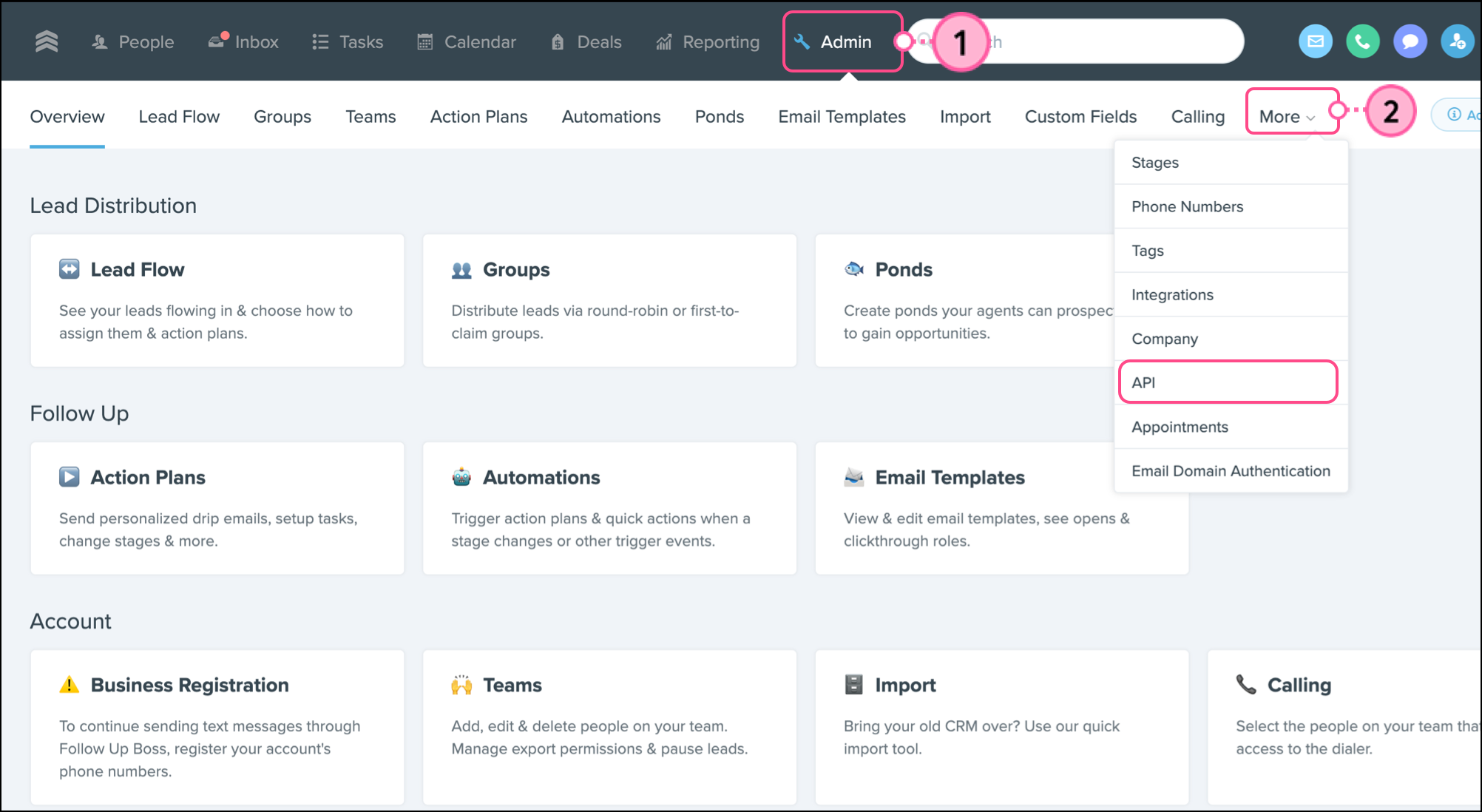
- Log in to your Follow Up Boss account and click on the Admin tab.
- Click to expand the More menu, then select API from the dropdown.
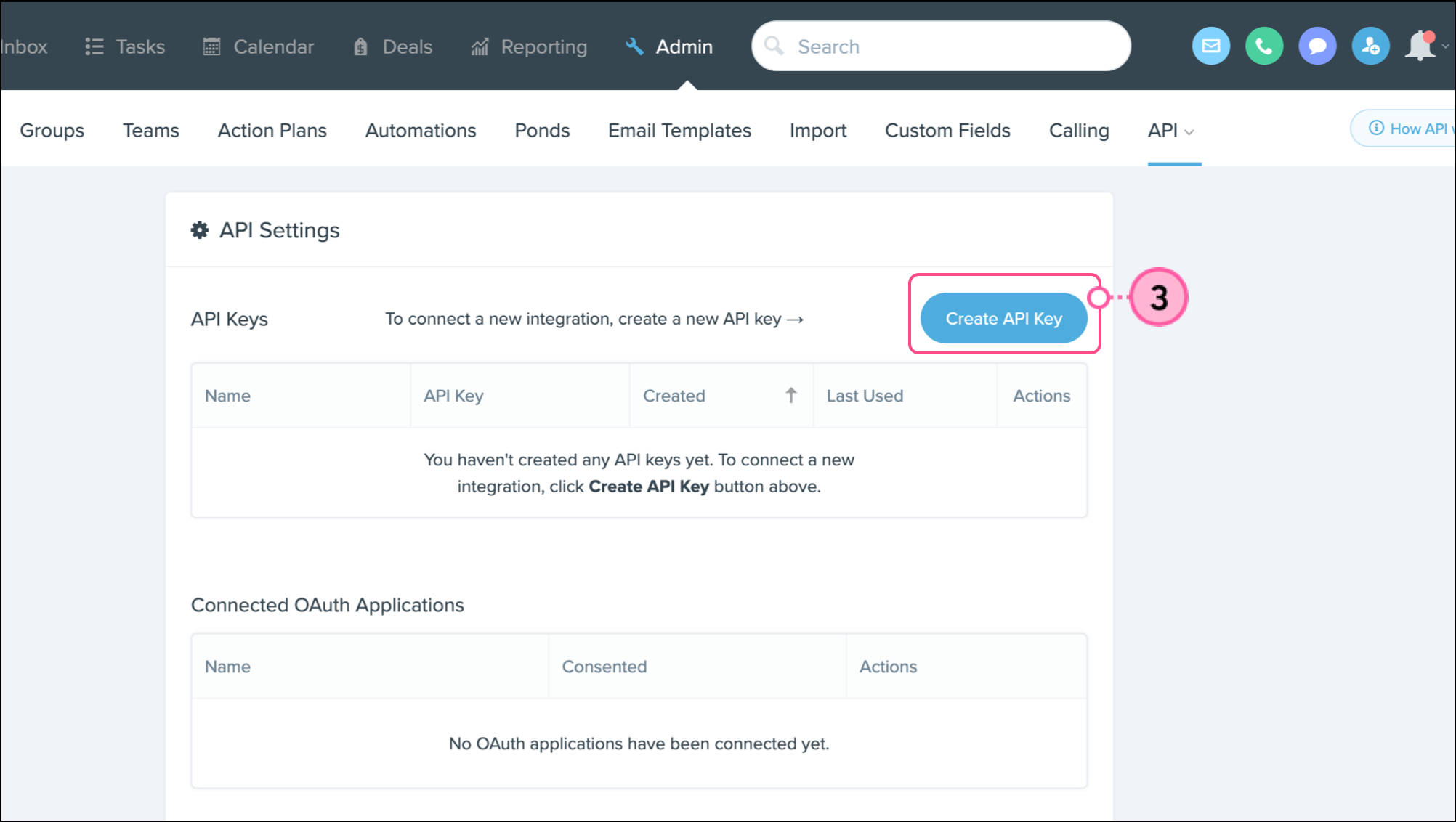
- Click Create API Key.
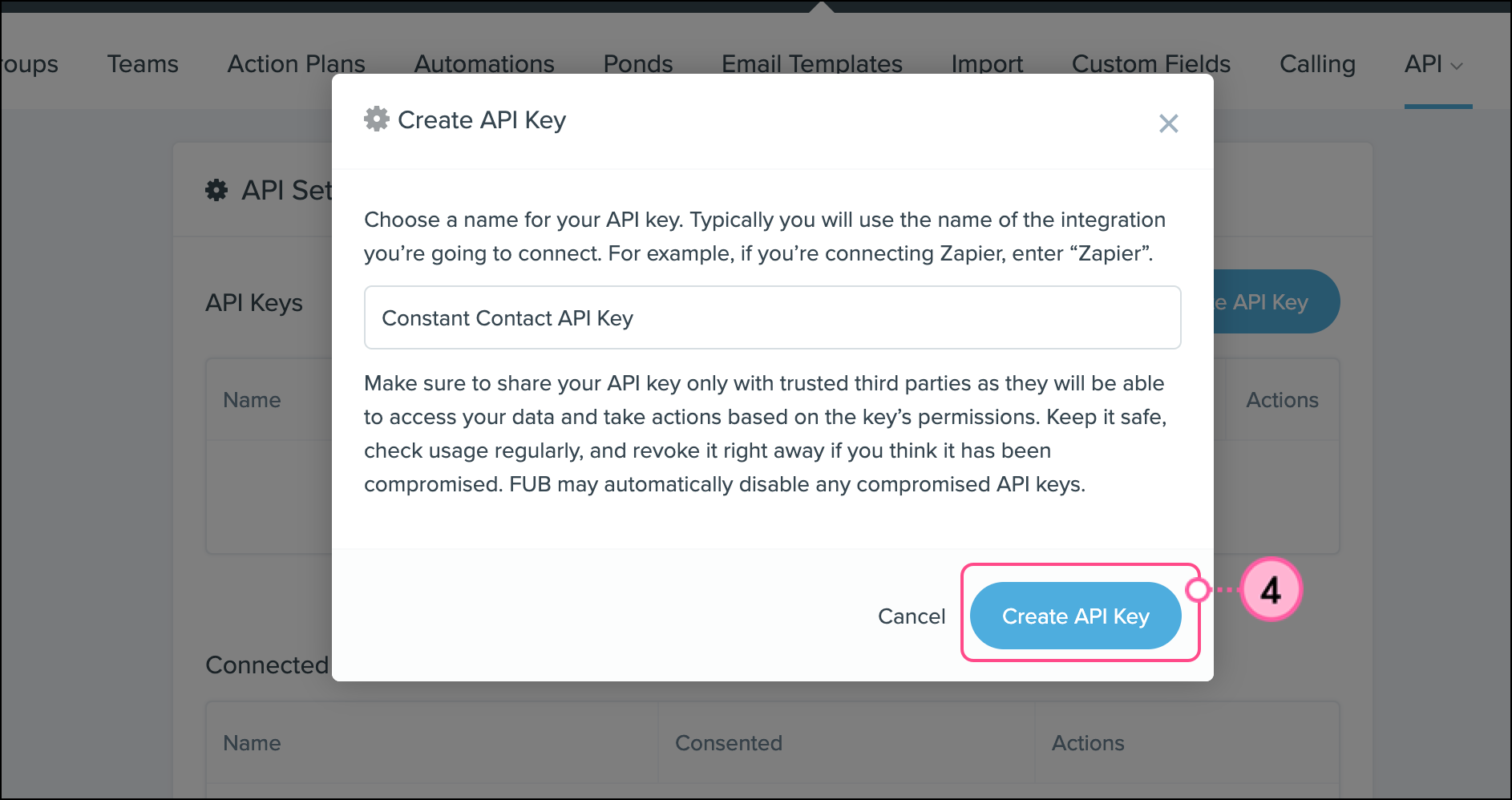
- Name your API key and click Create API Key.
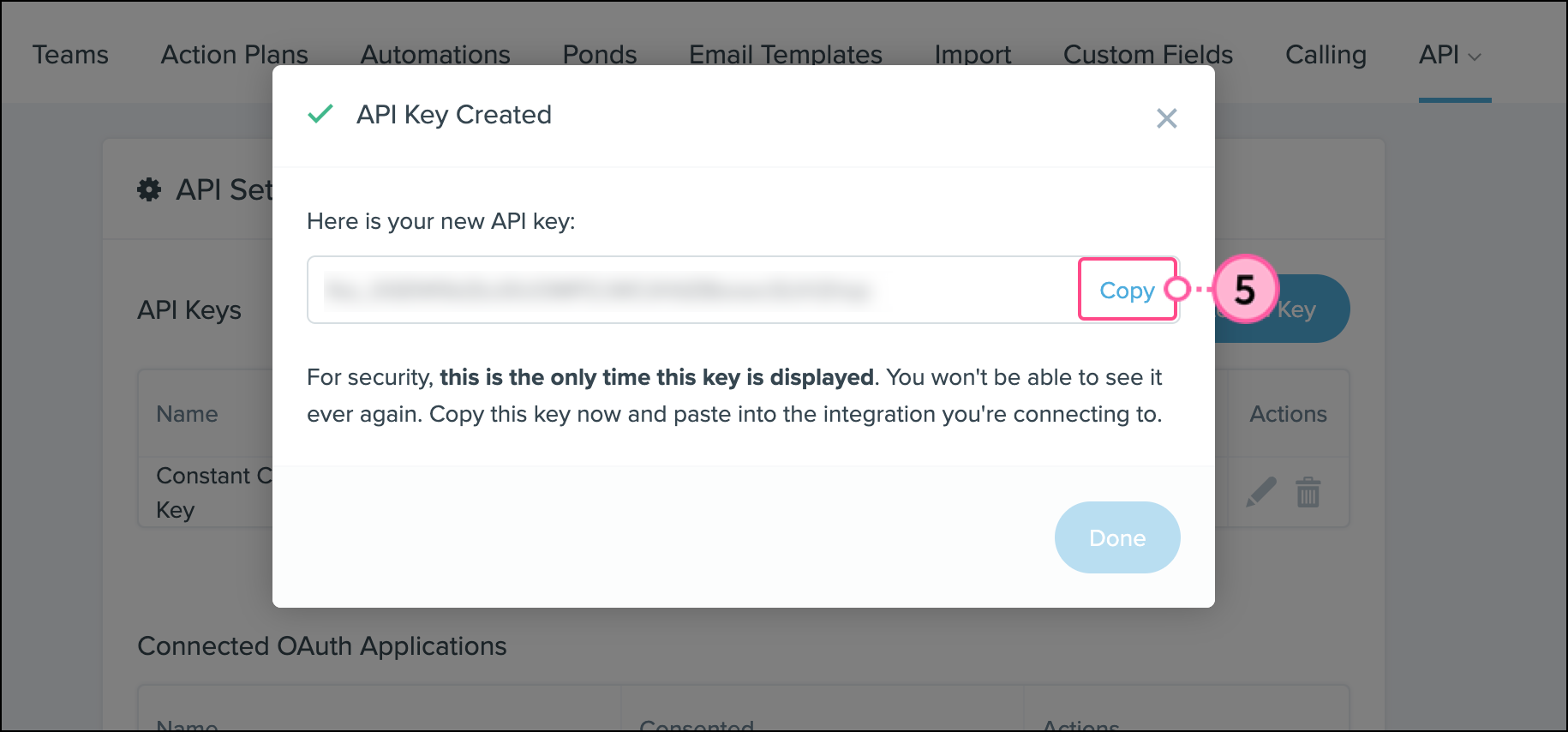
- Click Copy.
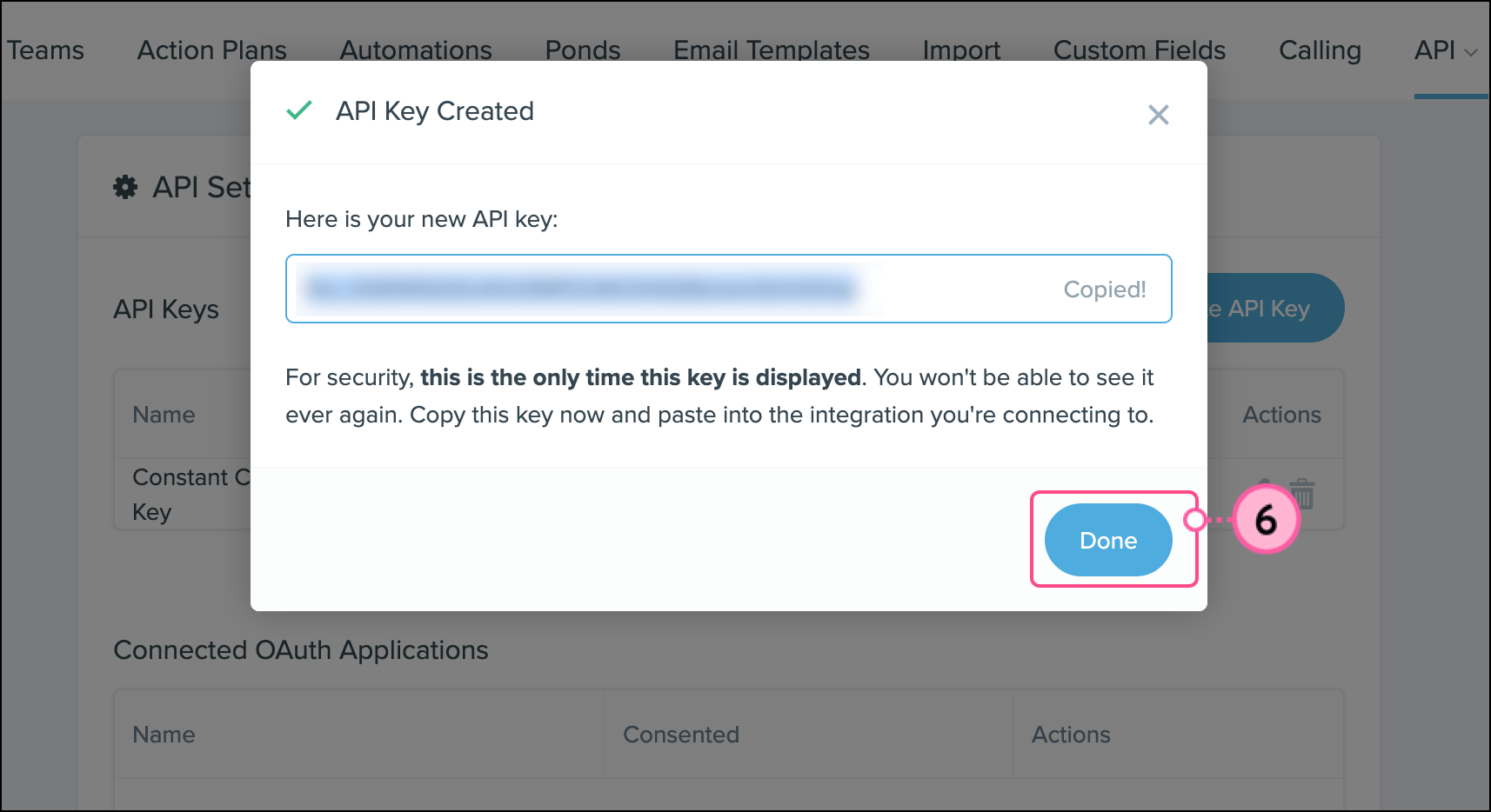
Important: When your API Key appears, use it right away, or write it down and store it in a secure location. Once you leave the pop-up window displaying the key, you will not be able to access it again.
- Click Done.
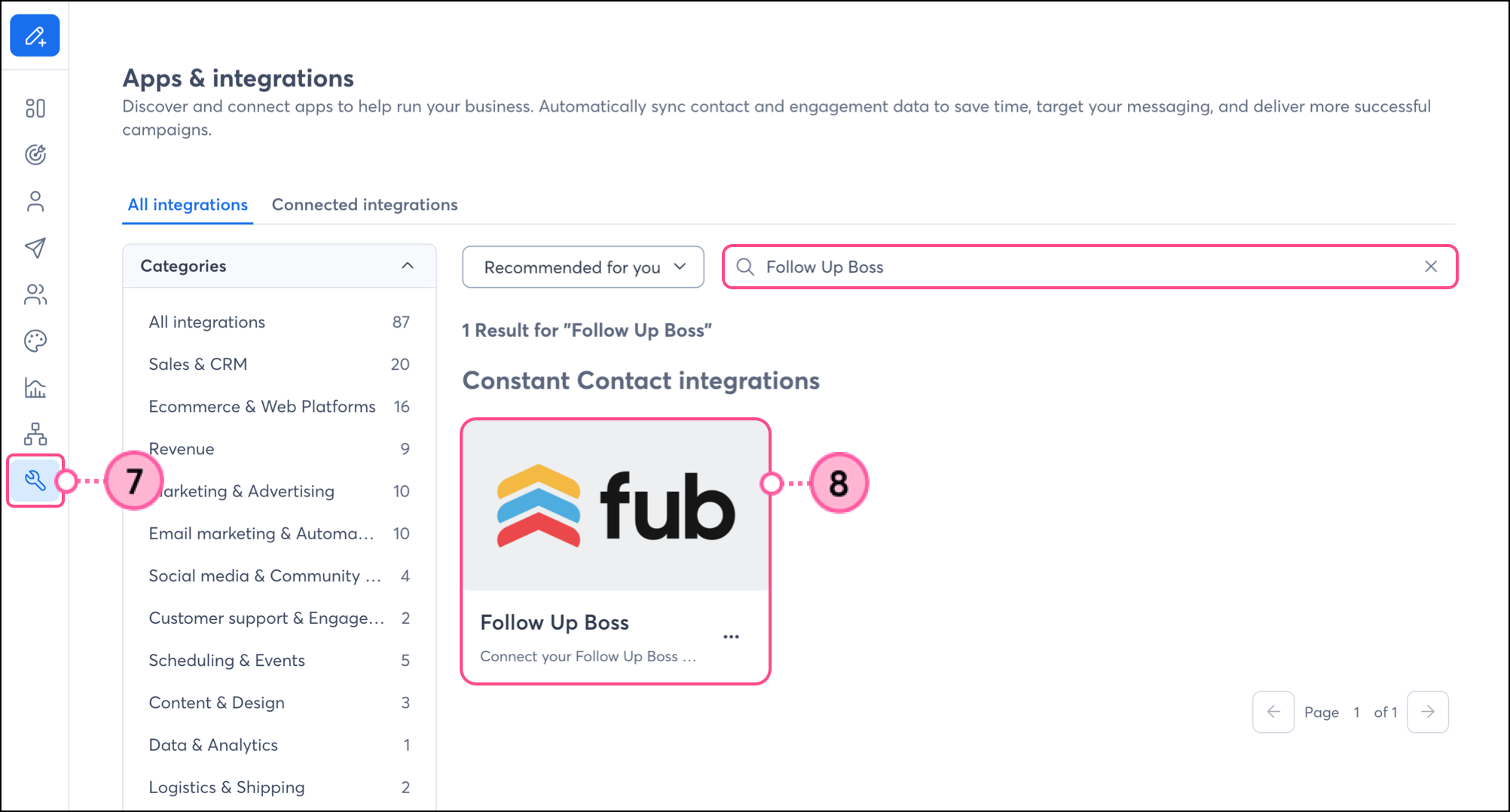
- Open Constant Contact in a new tab, then click Integrations from the left-hand navigation.
- Search for Follow Up Boss or scroll through the list of integrations to find and select the Follow Up Boss integration.
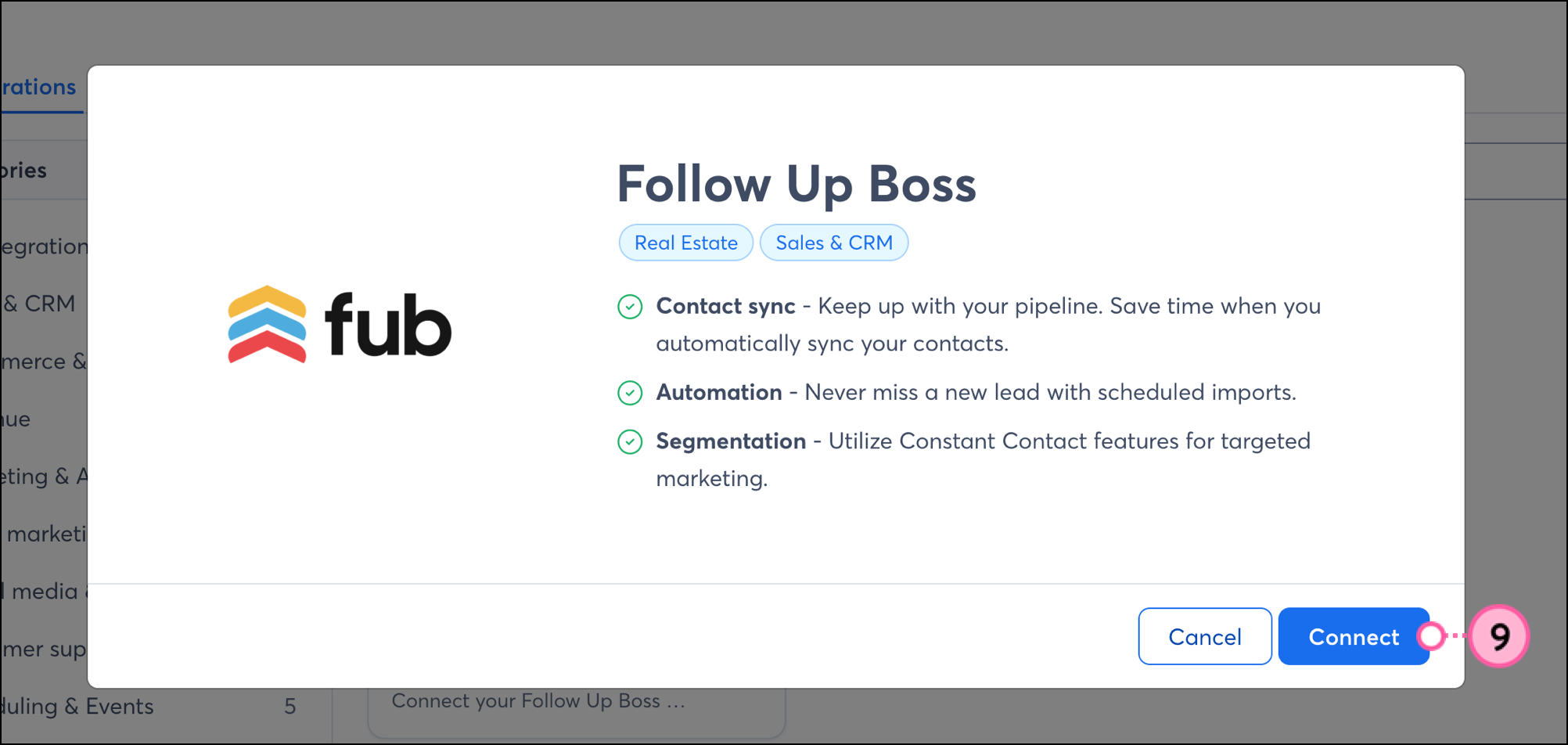
- Click Connect.
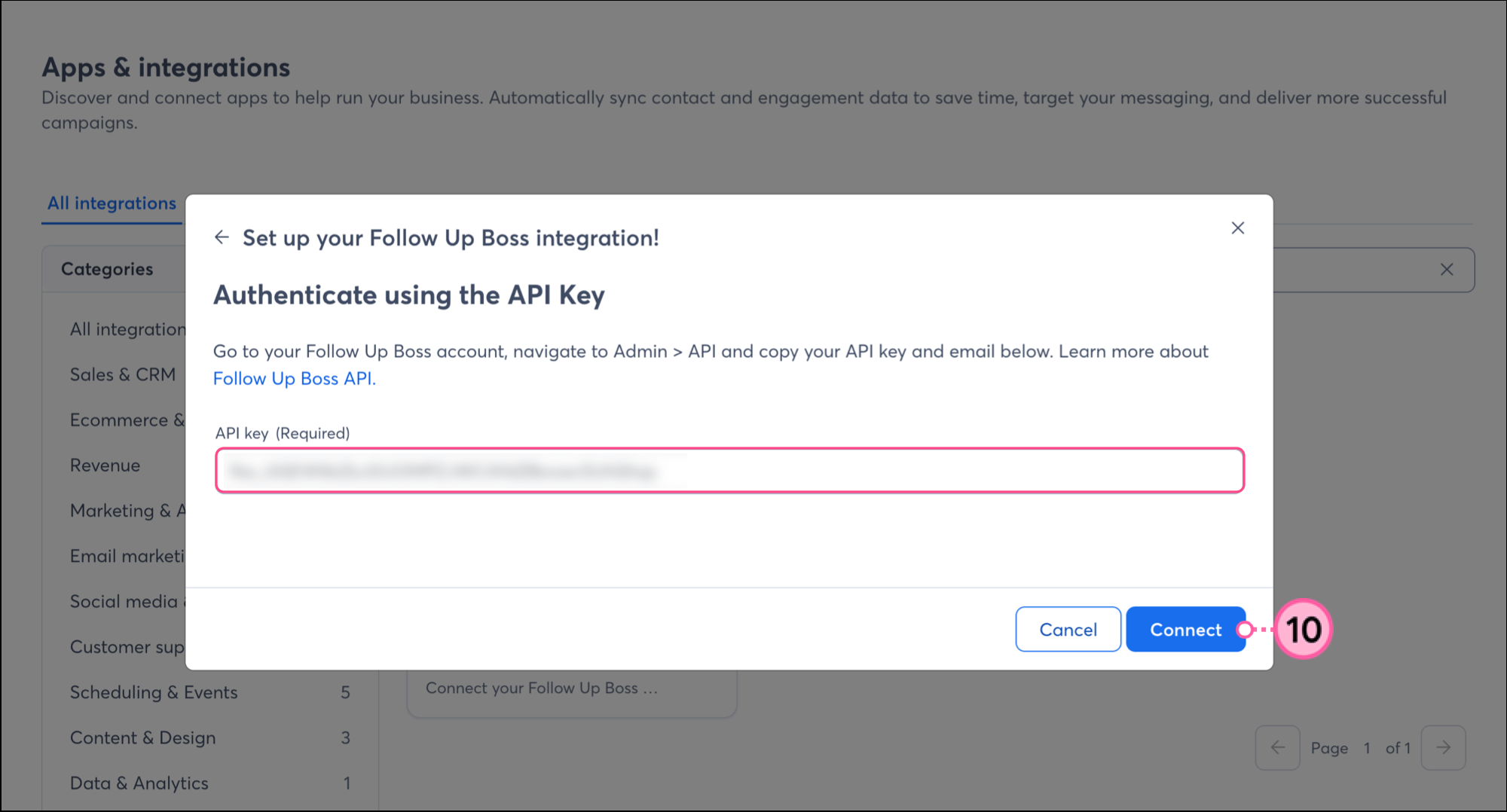
- Paste your API key, then click Connect.
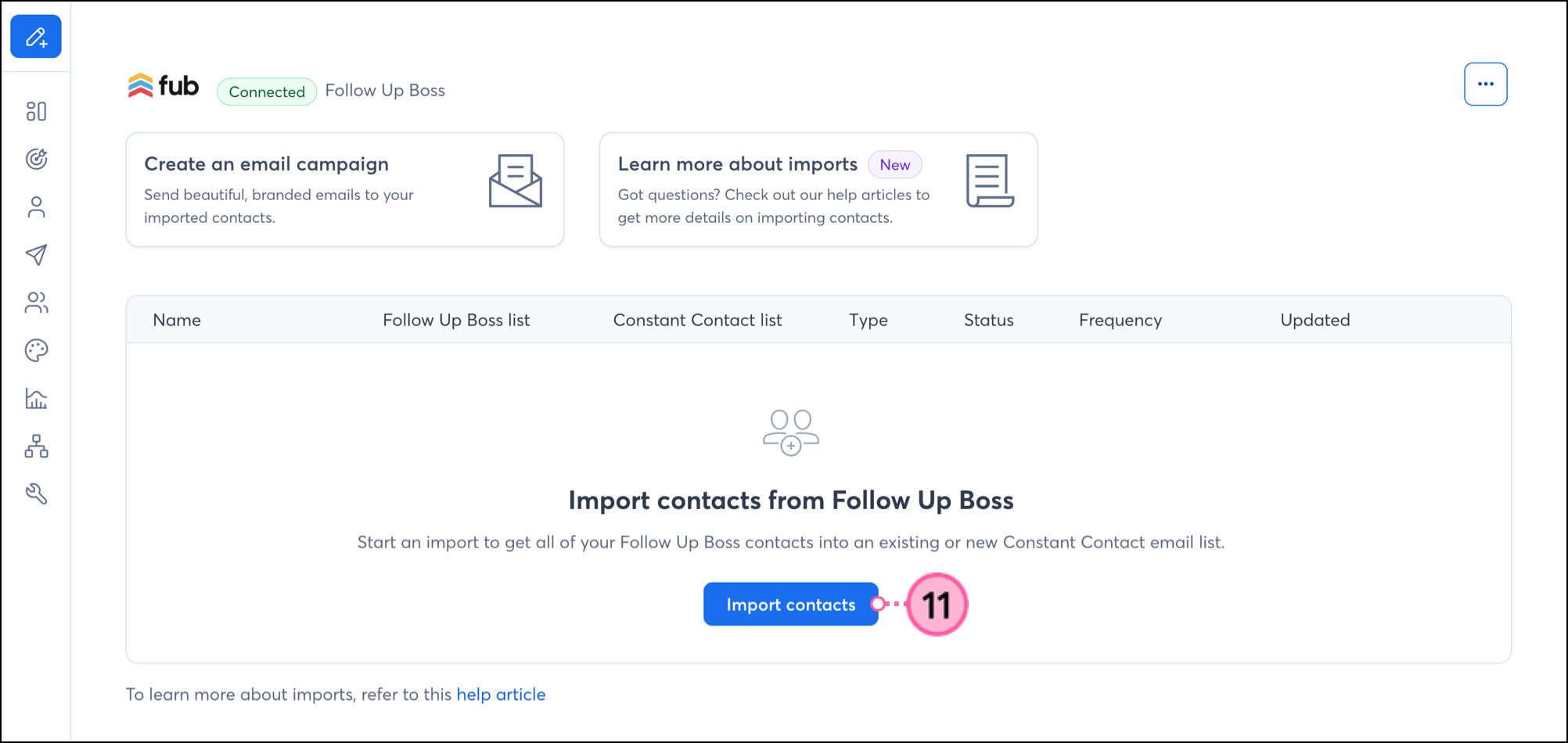
- Once connected, click Import contacts.
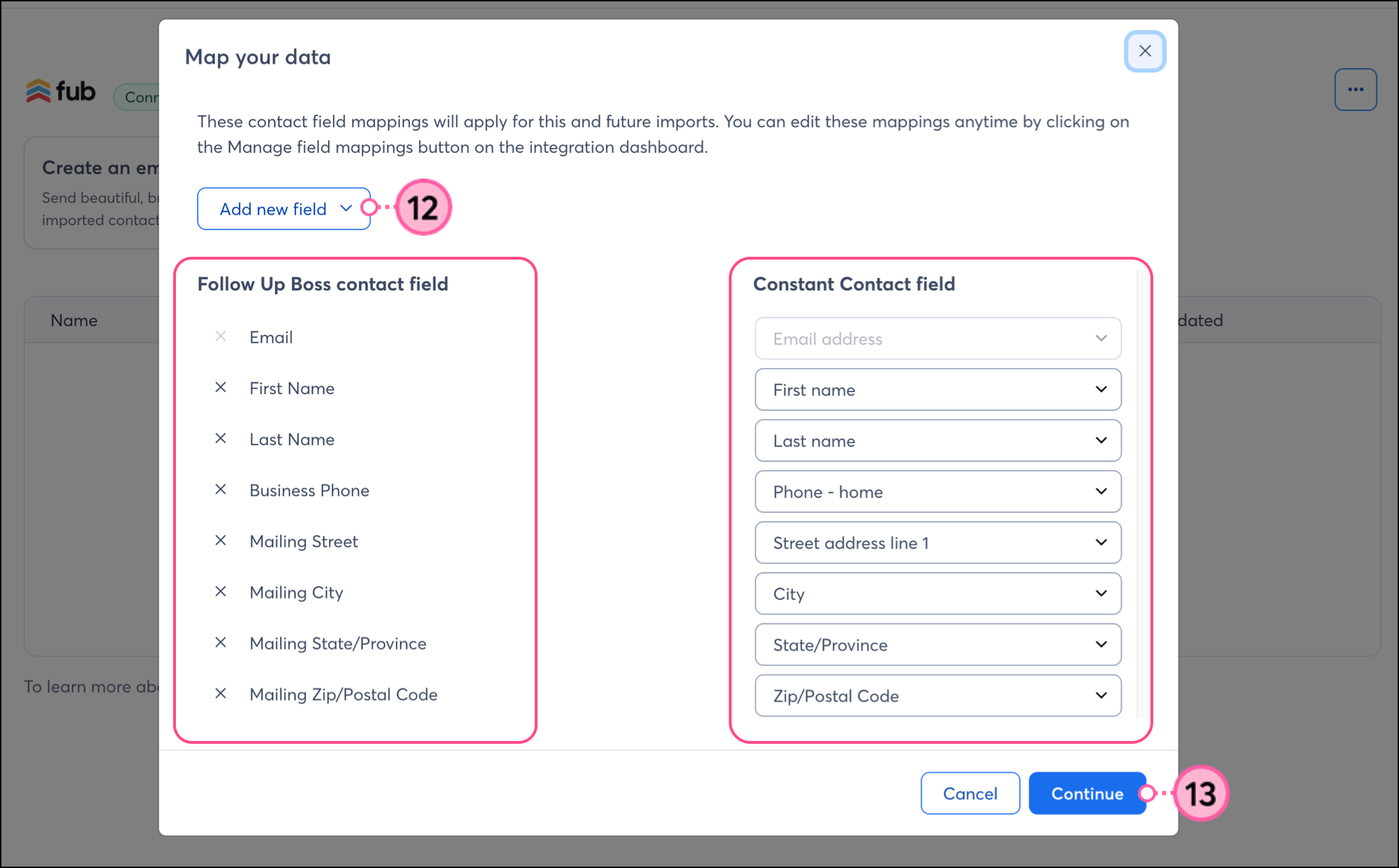
- Map your Follow Up Boss contact fields to the Constant Contact fields. Click Add new field to create a new custom field if needed.
- Use the dropdowns to map fields and then click Continue.
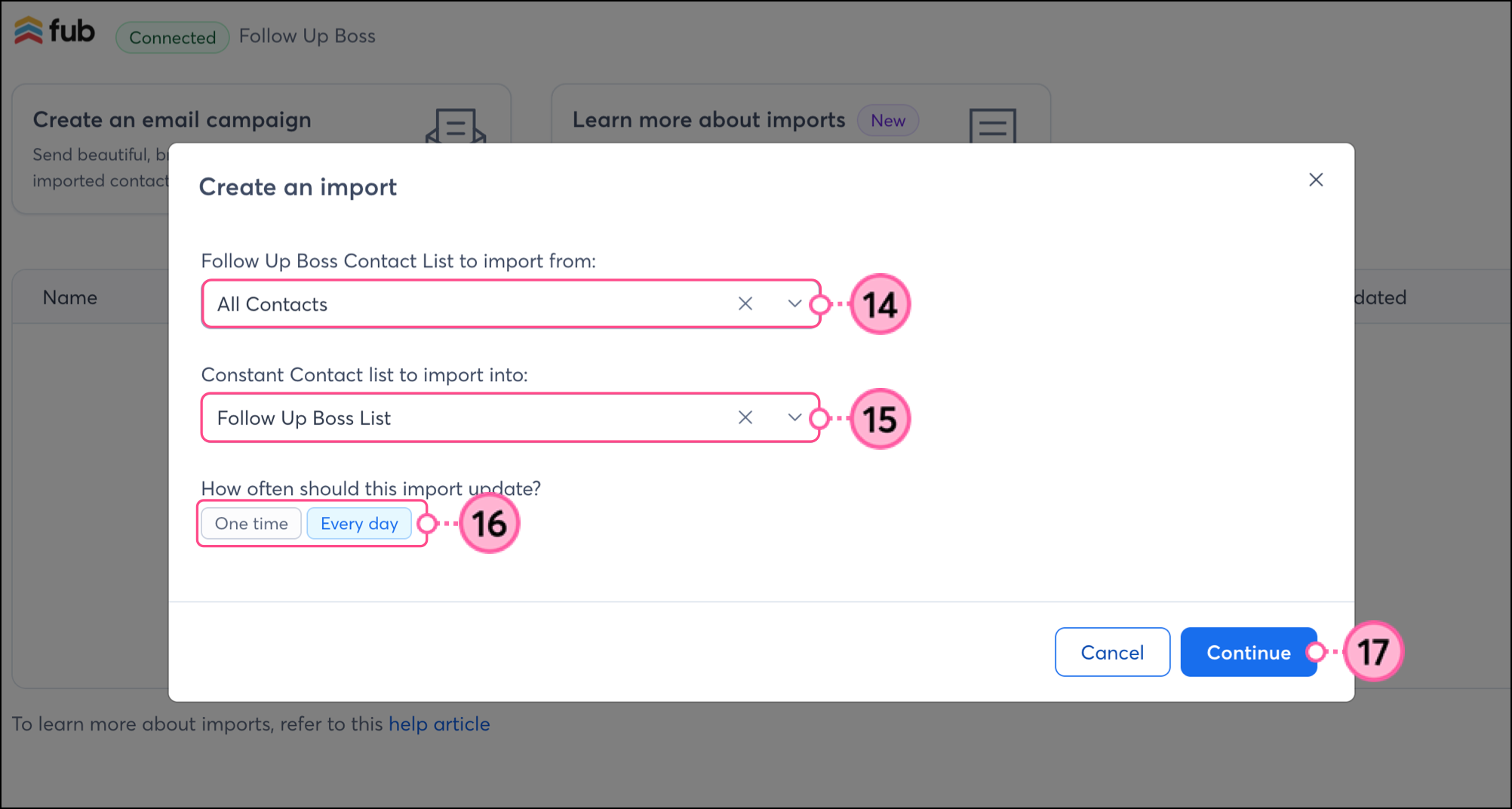
- Select the All Contacts list to import your contacts from Follow Up Boss.
Note: You may only import all contacts at this time.
- Select the Constant Contact list to import into.
- Select how often the import should update.
- Click Continue.
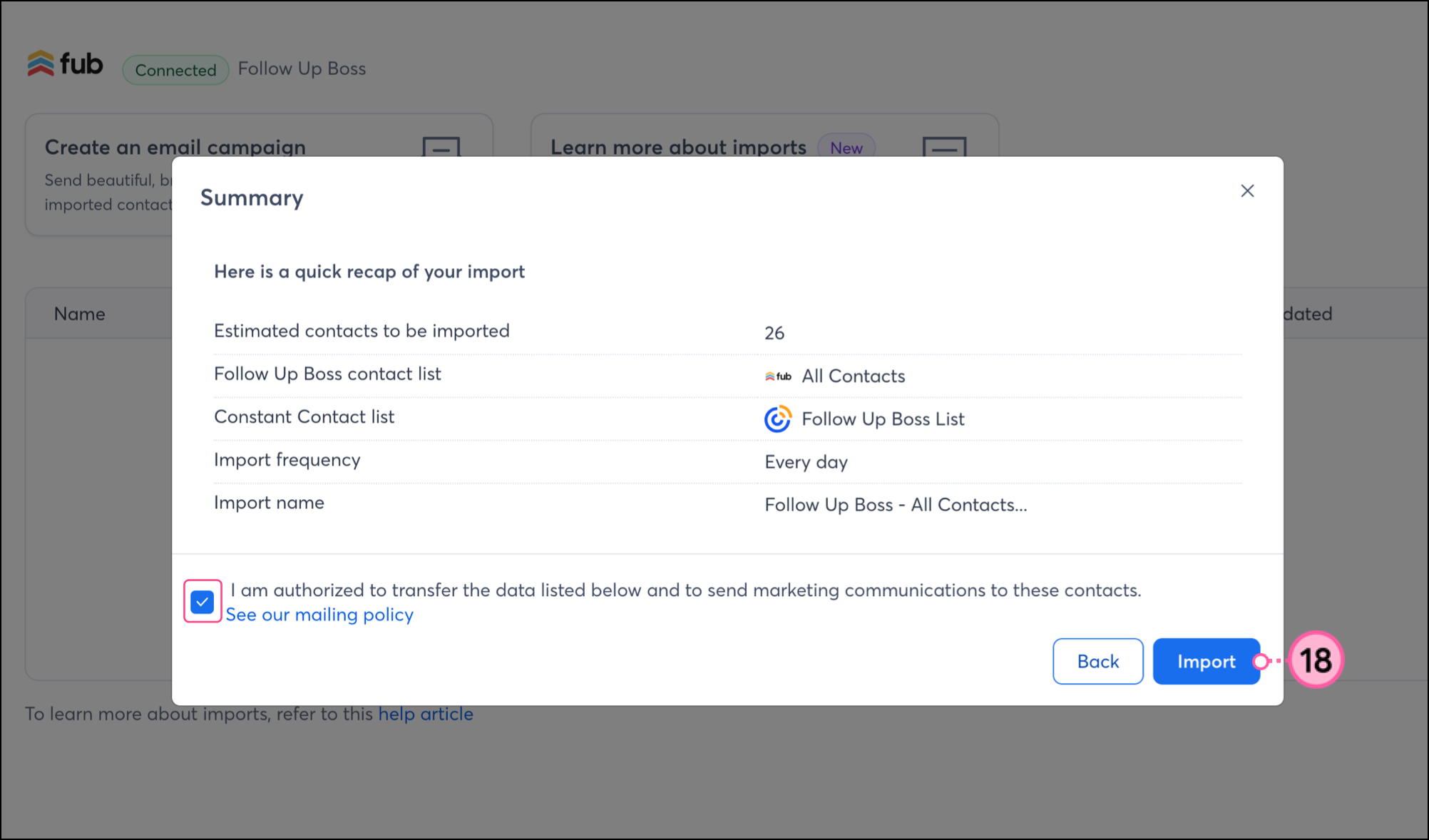
- Check the box to confirm that you have permission to transfer the data and send marketing communications to your contacts, then click Import.
- Wait for the import to complete. If needed, click Import contacts to import another list.
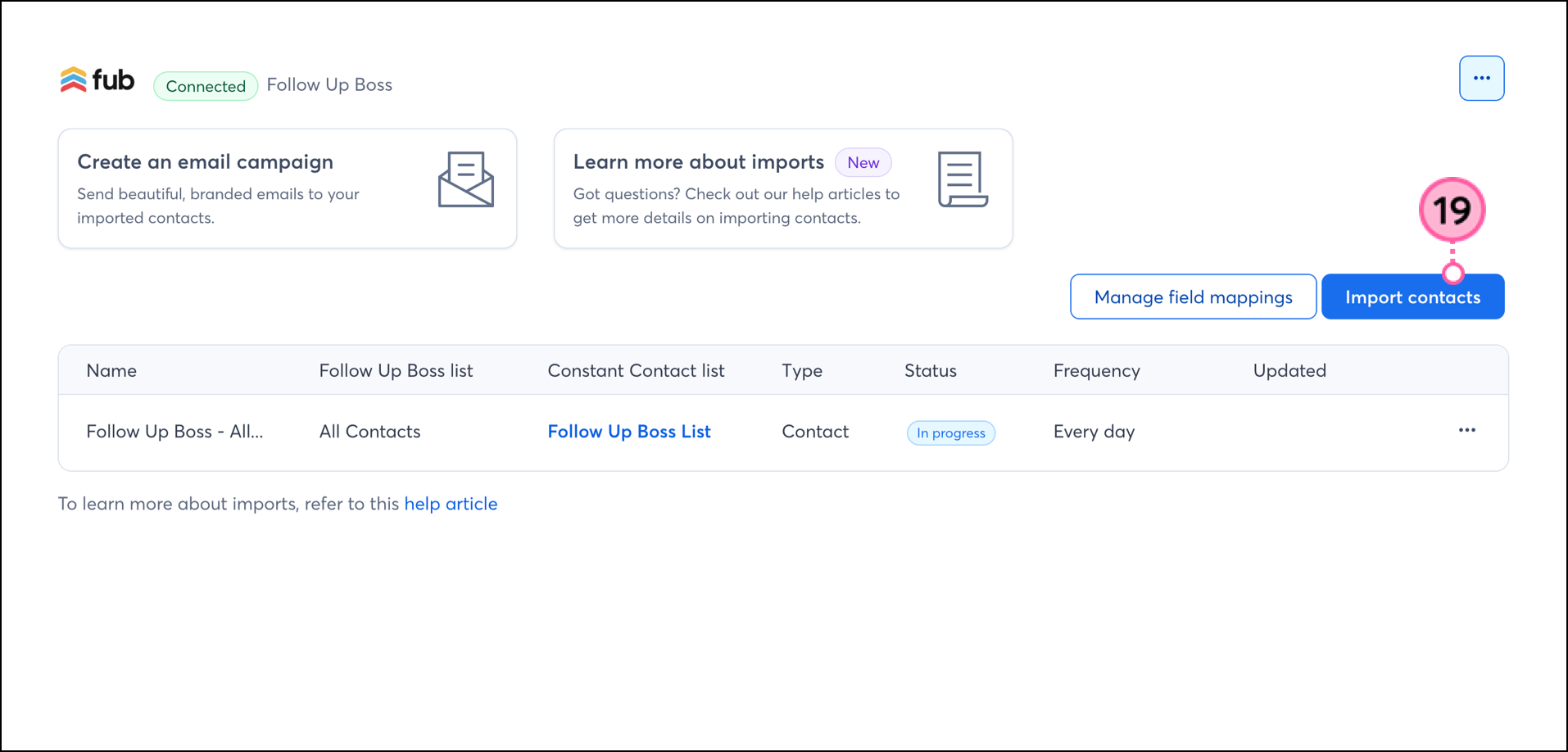
Once connected, you’re then brought back into Constant Contact and to the Follow Up Boss Integration dashboard, where you can review your imported leads. Depending on the number of leads being imported, the initial sync can take anywhere from 30 minutes (for imports of less than 100K contacts) up to 4 hours (for imports of more than 200K contacts).
Boost your marketing with the Follow Up Boss integration
Once your Follow Up Boss account is synced to Constant Contact, there are several ways to use the integration:
- Create a customized contact segment - When importing contacts from Follow Up Boss, they'll be synced into segmented lists for you. But perhaps you want to segment these contacts even further to send specific, targeted messaging. You can do so by creating a custom segment of contacts.
- Create an automated Welcome Path - Automatically send an email or SMS message to welcome newly added contacts when your list syncs.
- Create an automated Anniversary Path - Send annual emails or SMS messages to your customers based on the date of their first visit to your business.
Disconnect Follow Up Boss from your Constant Contact account
If you disconnect the Follow Up Boss integration, your imported contacts will remain in your Constant Contact account. New Follow Up Boss data will no longer be imported into Constant Contact, nor will unsubscribes be sent back from Constant Contact to Follow Up Boss:
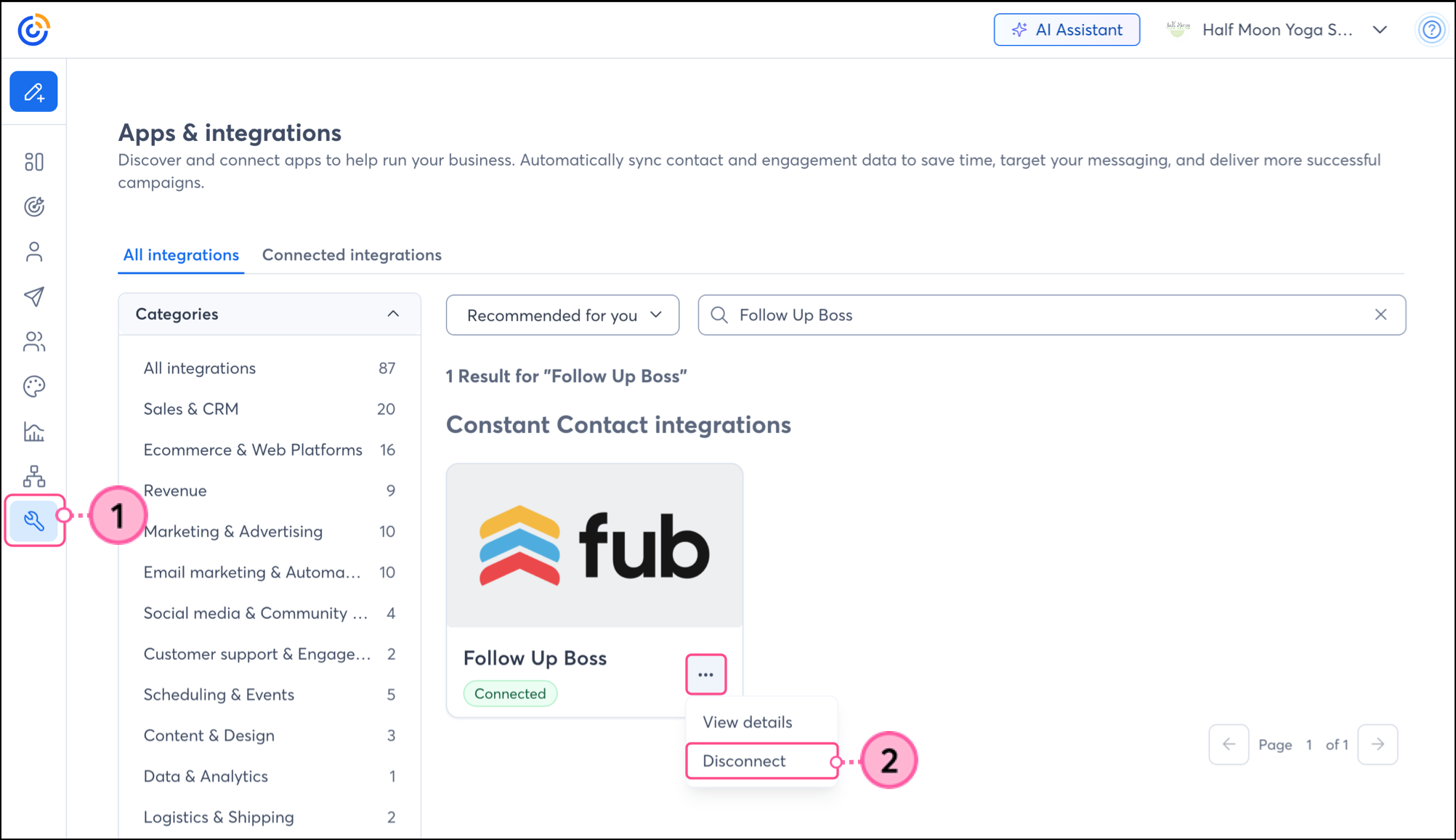
- From the left-hand menu, click Integrations.
- Search for the Follow Up Boss integration, click the three dots, and click Disconnect.
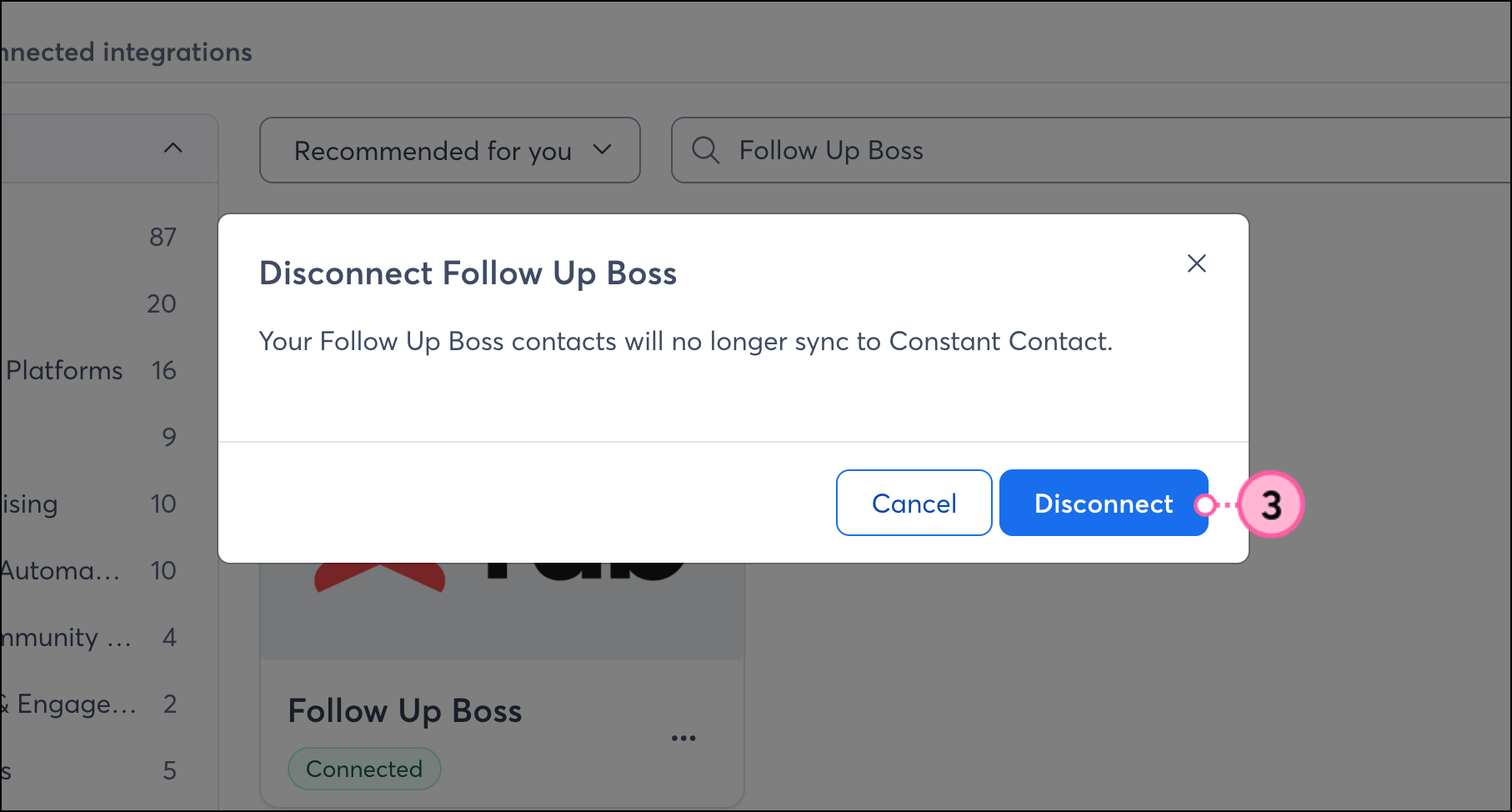
- Click Disconnect to confirm.
Any links we provide from non-Constant Contact sites or information about non-Constant Contact products or services are provided as a courtesy and should not be construed as an endorsement by Constant Contact.