With the Jotform integration, transfer new leads and contact updates from your Jotform form submissions to your Constant Contact account, keeping your email lists up to date.
Next, send campaigns to your contact lists. Select your desired Constant Contact template, edit the email design, and preview before sending your campaign.
Please note that this is a one-way sync. Newly added and updated contacts will not import from Constant Contact into Jotform. However, contacts that are unsubscribed in Constant Contact will sync back to Jotform.
Connect your Jotform account to Constant Contact
Connect your Jotform account to your Constant Contact account to import contact information from your form submission, including name, email address, phone number, and more.
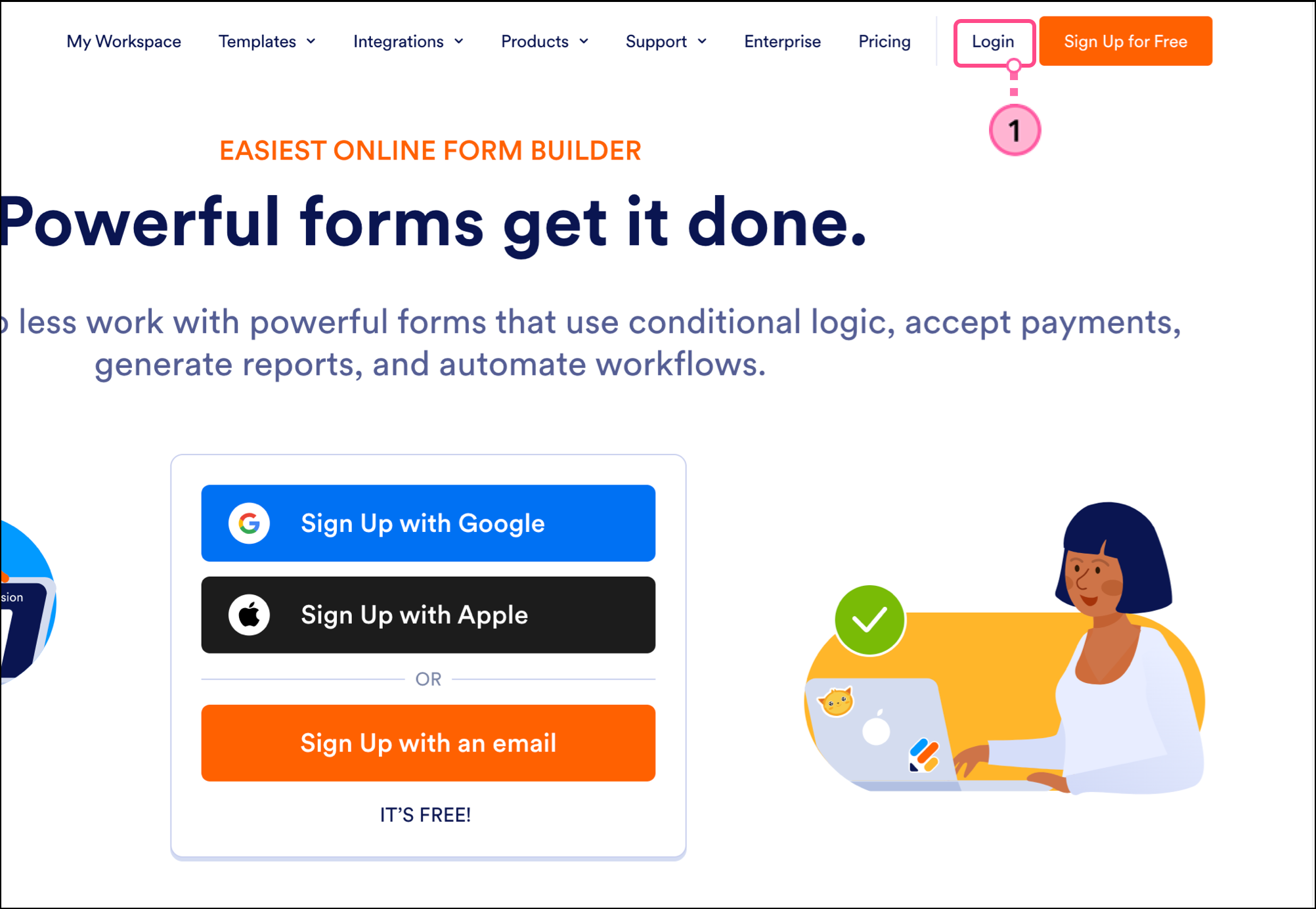
- Visit the Jotform website and click Login.
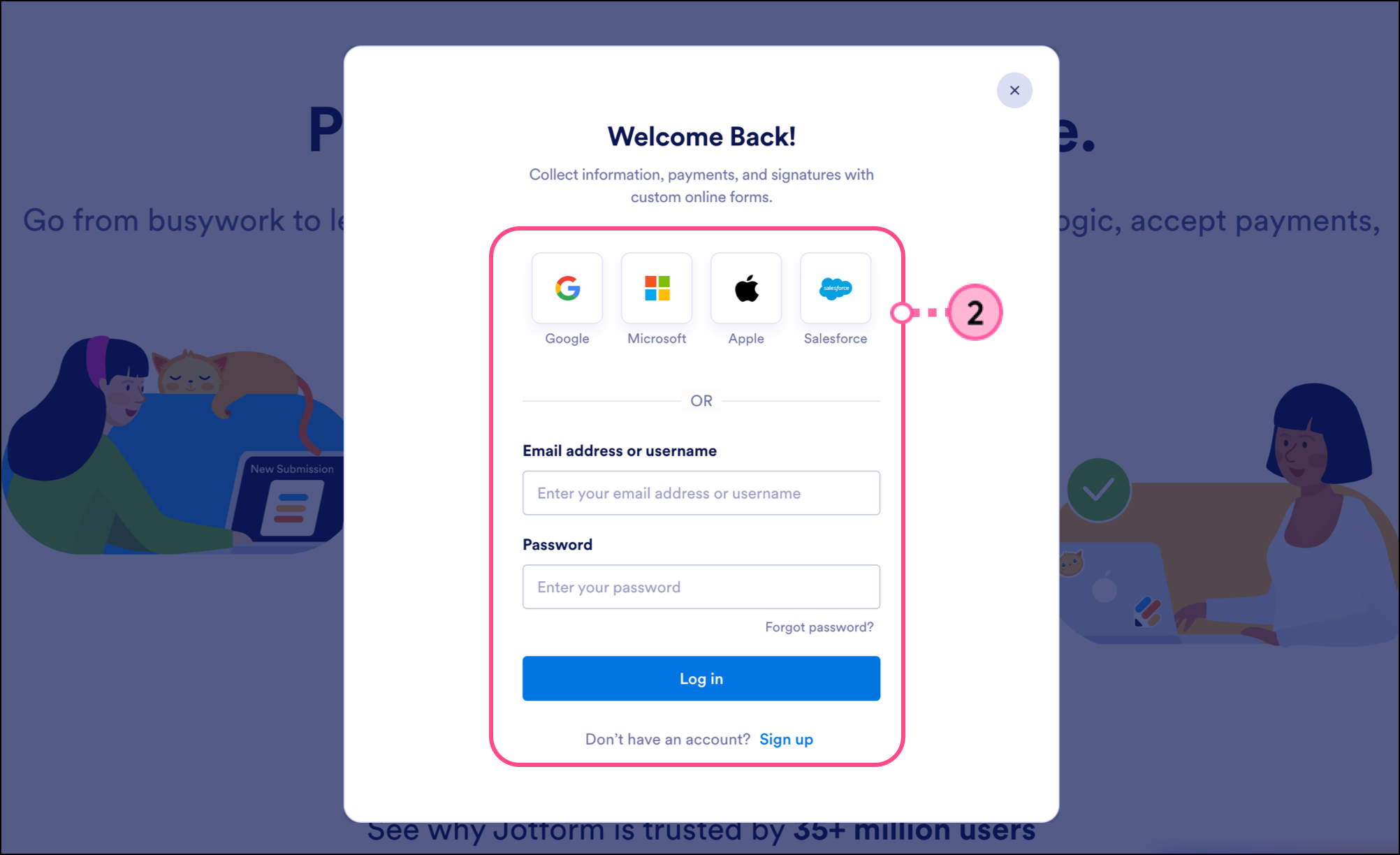
- Log in to your Jotform account.
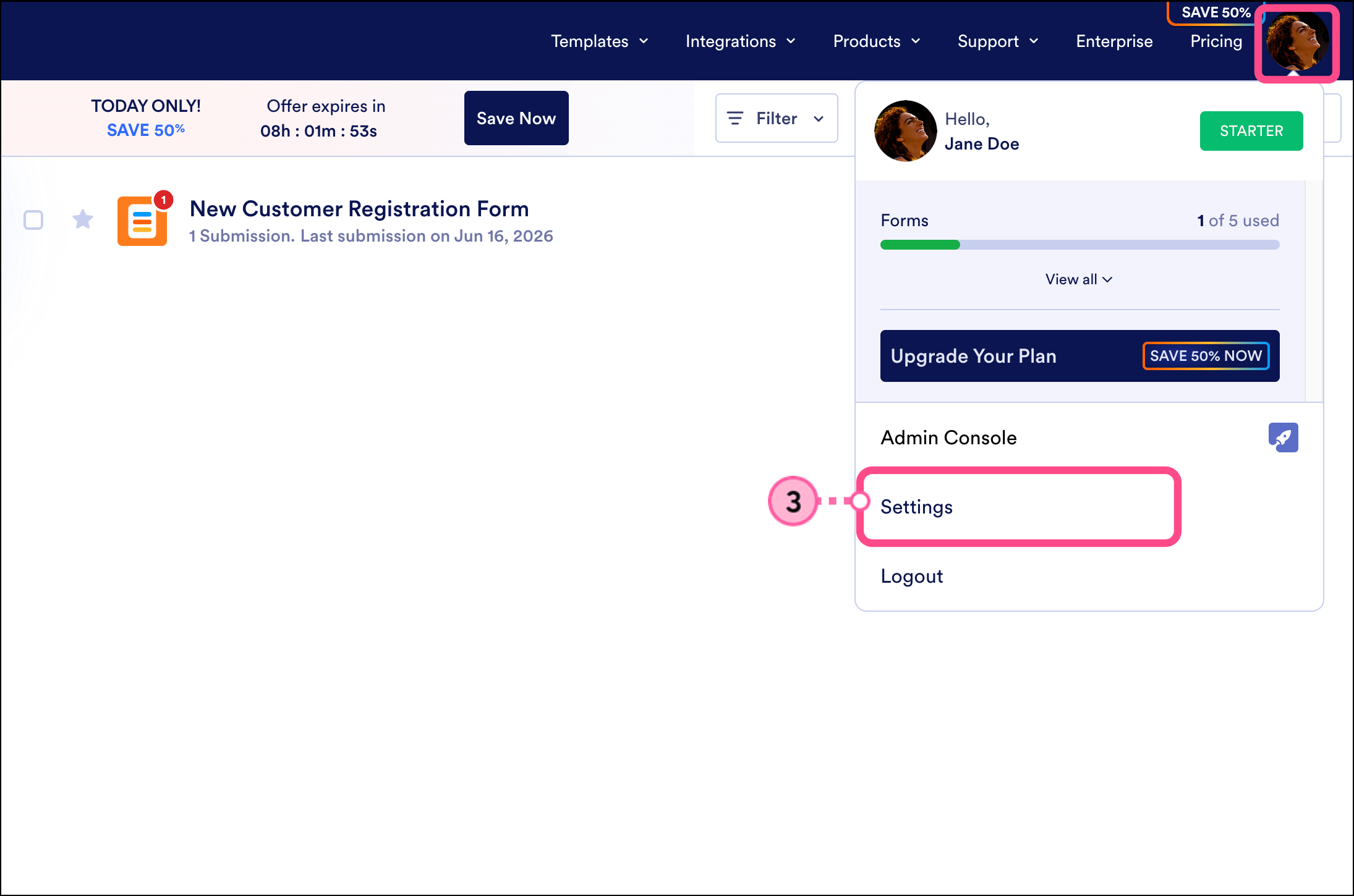
- Click your profile icon in the top right corner and then select Settings from the dropdown menu.
- Click the API button in the navigation menu on the left.
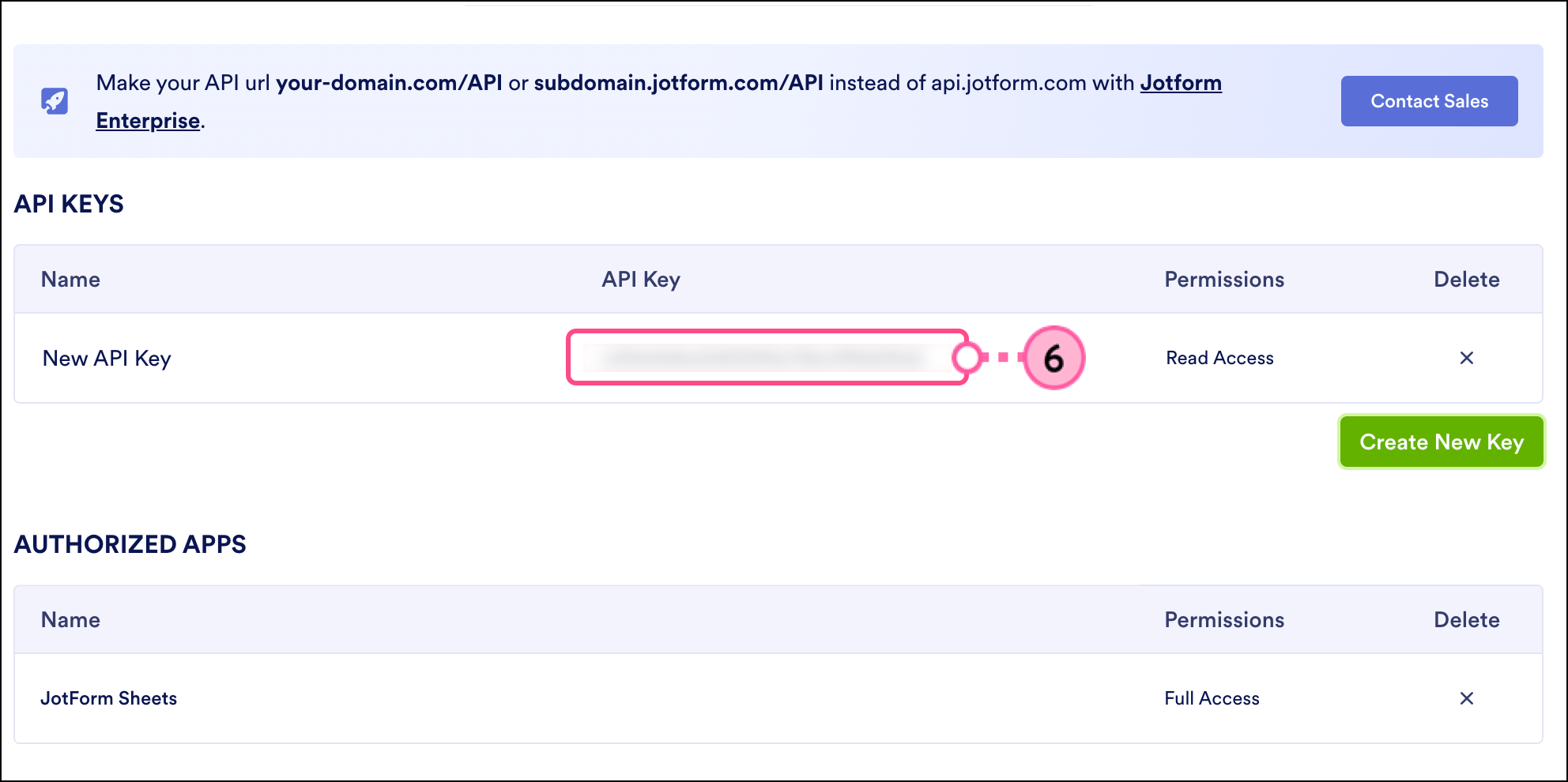
- Click Create New Key.
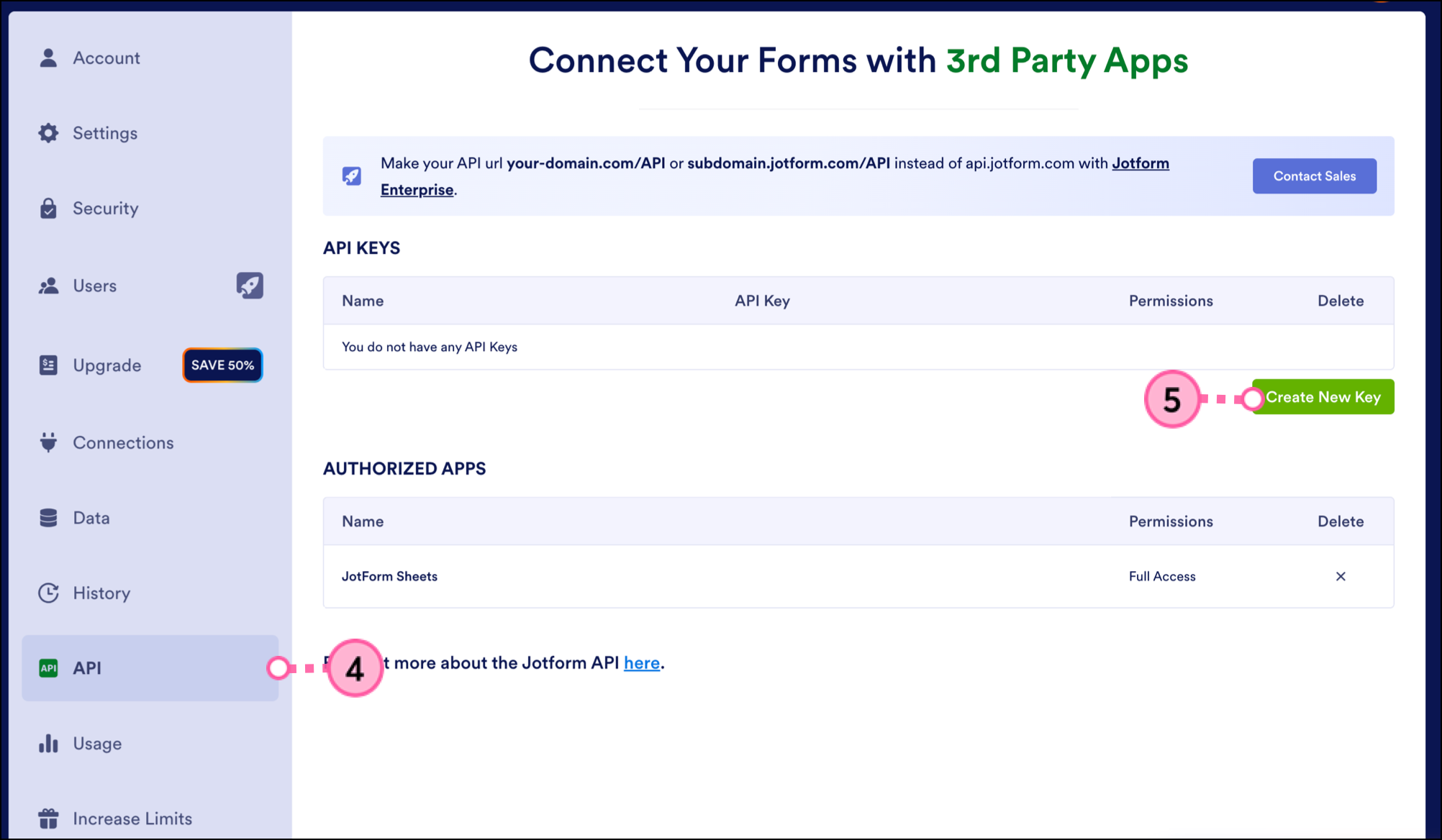
- Copy the API key that is generated.
- Open Constant Contact in a new tab, then click Integrations from the left-hand navigation.
- Search for Jotform or scroll through the list of integrations to find and select the Jotform integration.
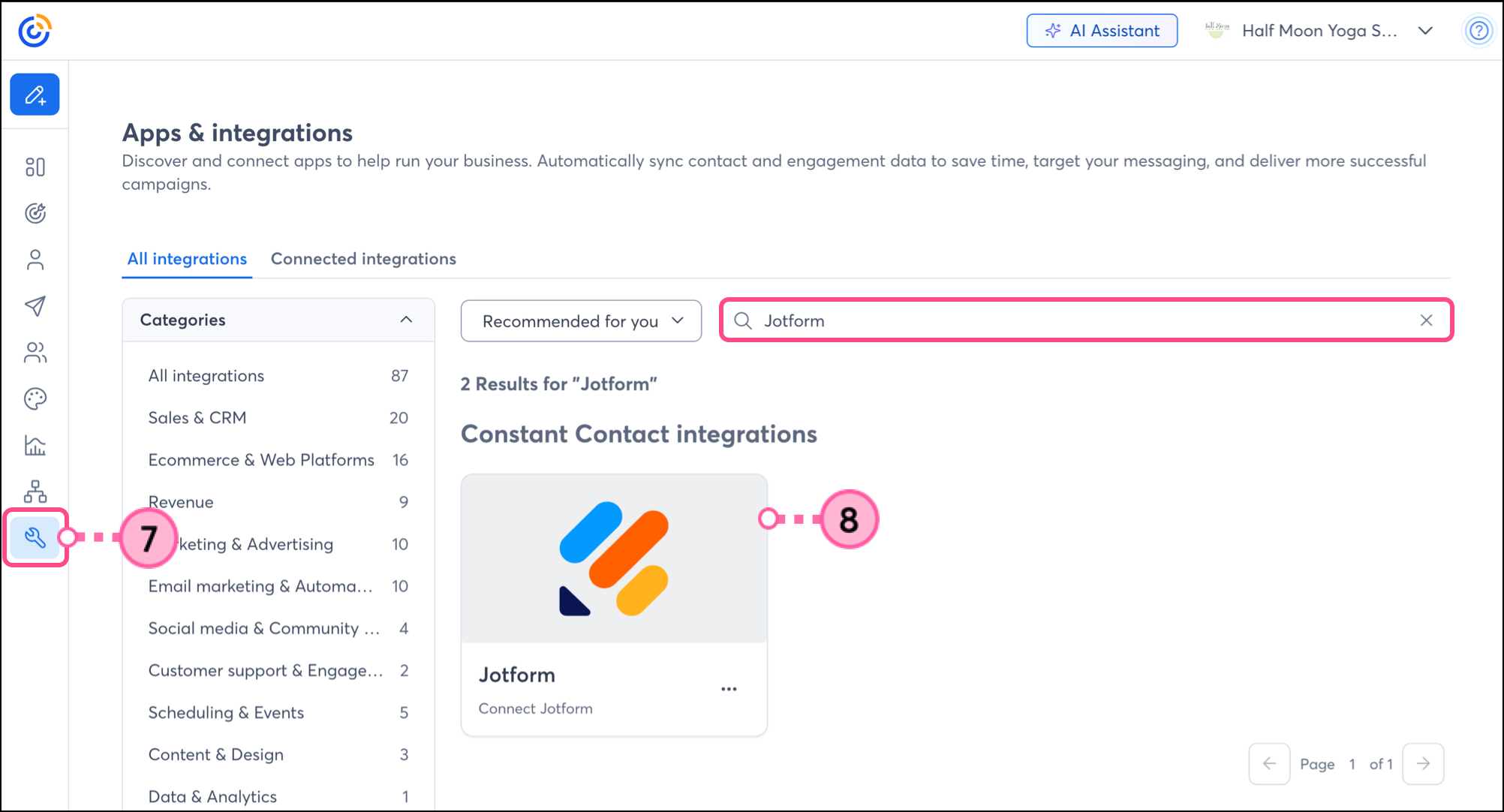
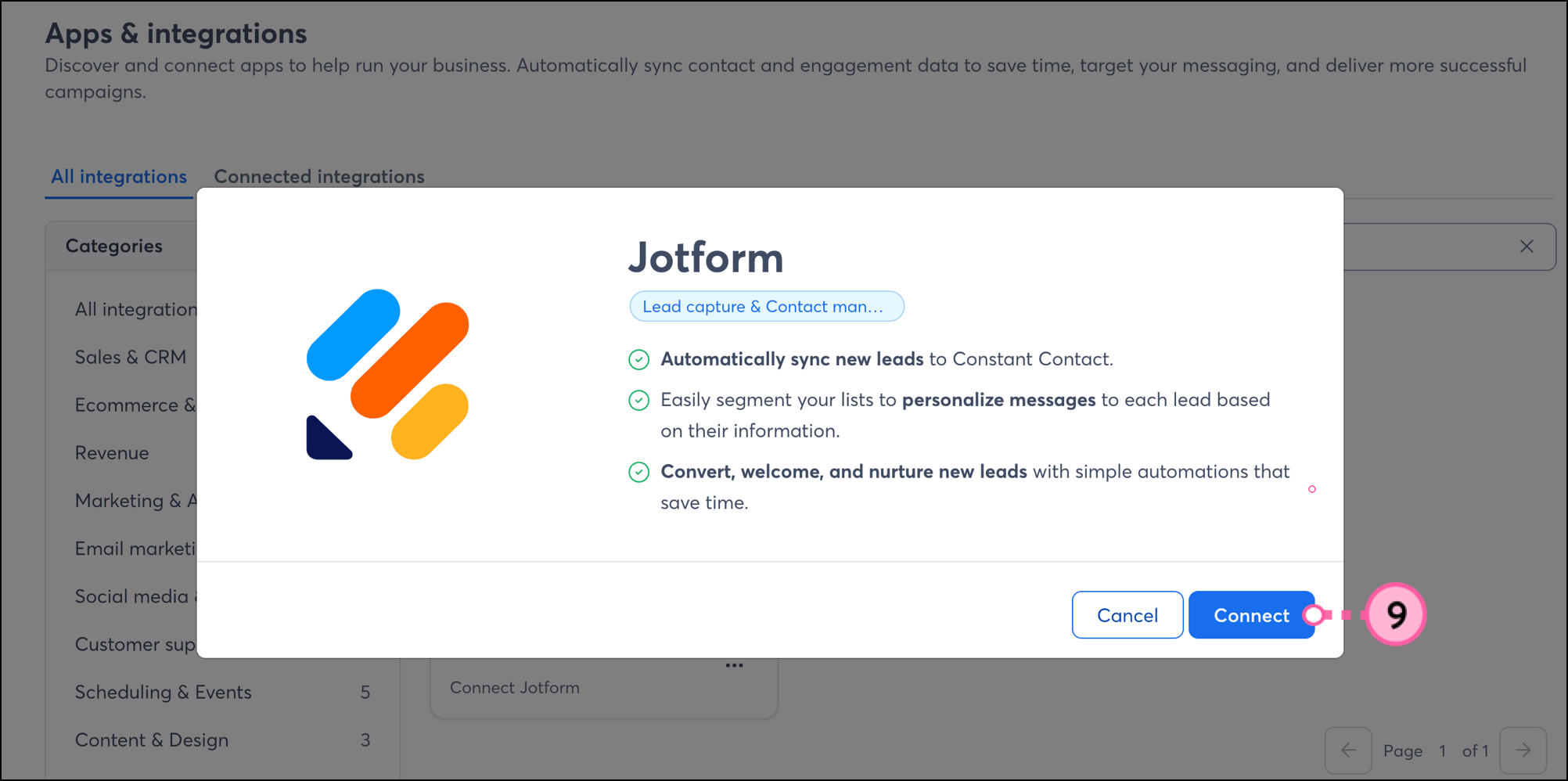
- Click Connect.
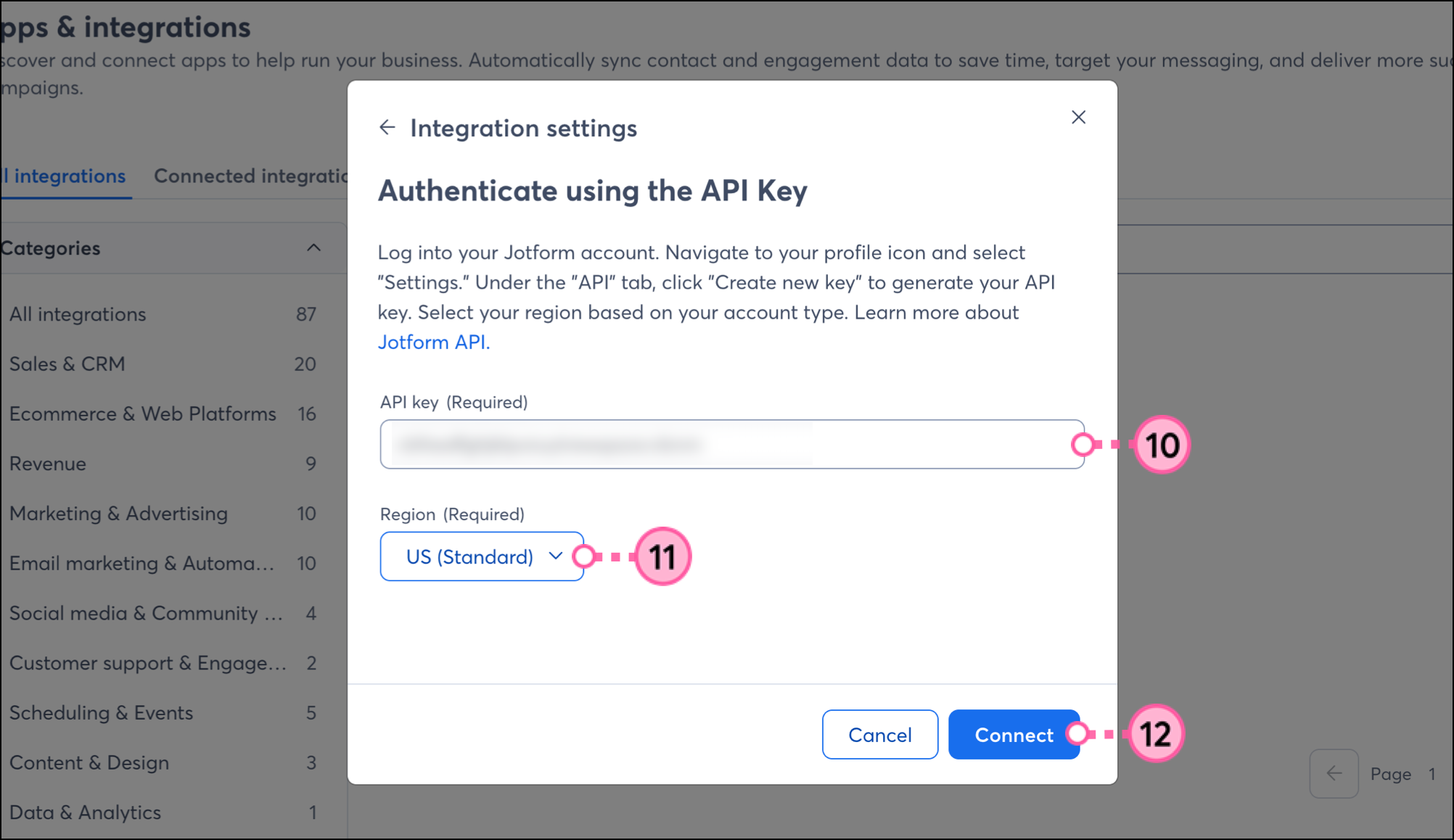
- Paste the copied key in the API Key field.
- Select the Region where you are located.
- Click Connect.
- Once connected, click Import contacts.
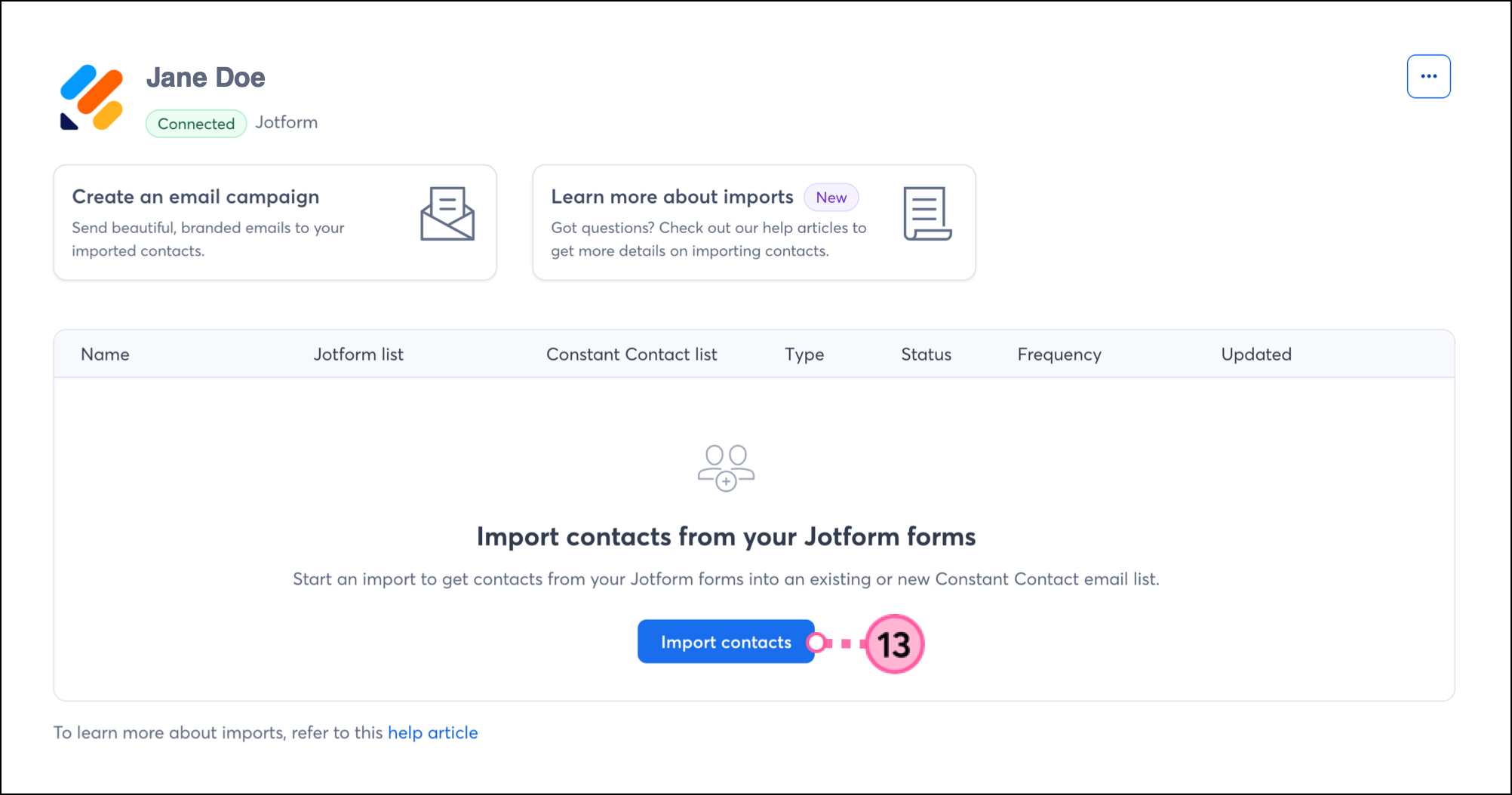
- Select the Jotform list to import from.
- Select the Constant Contact list to import into.
- Select how often the import should update.
- Name your import.
- Click Continue.
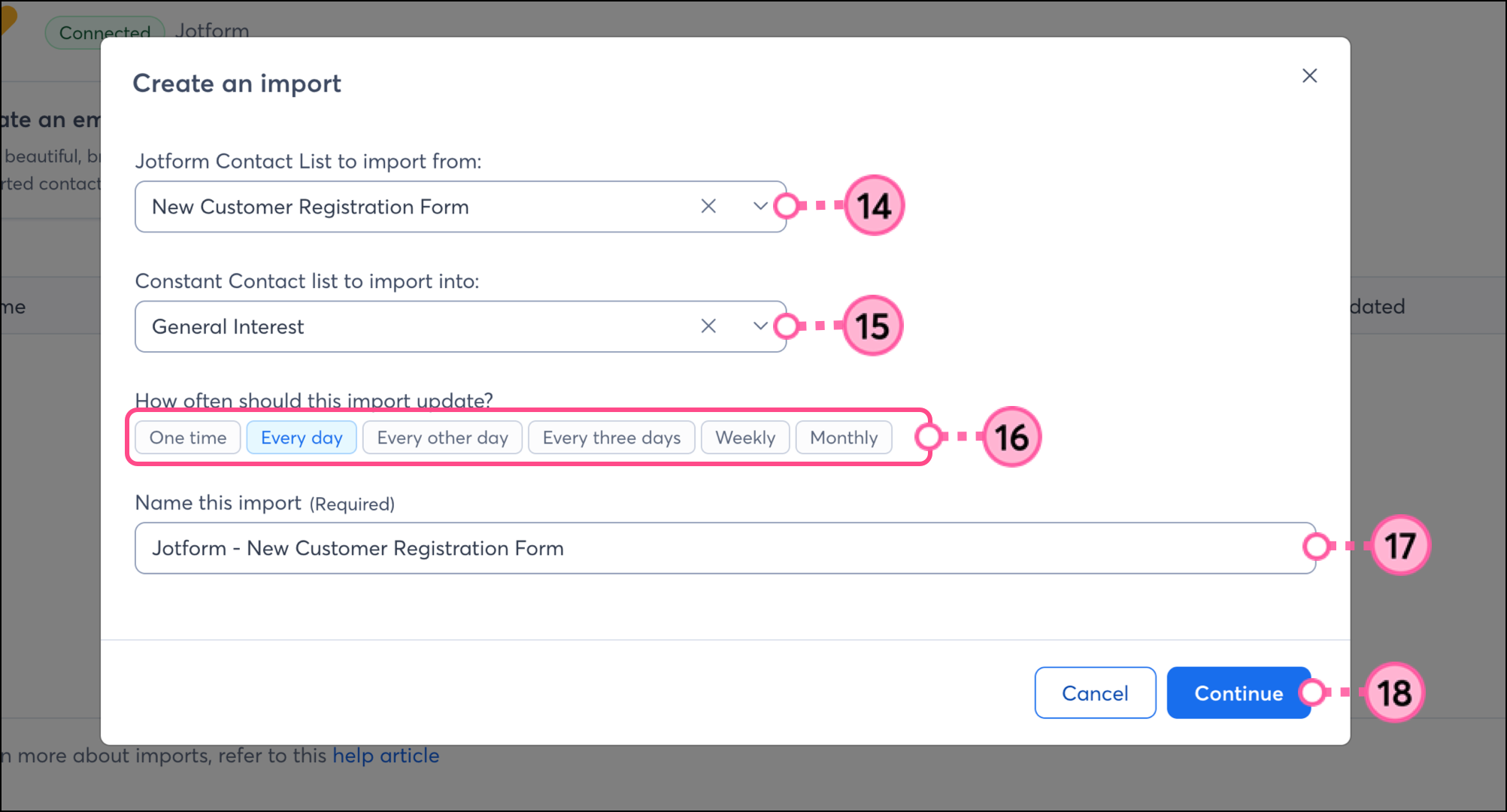
- Check the box to confirm that you are authorized to transfer this data and that you have permission to send marketing communications to these contacts.
- Click Import.
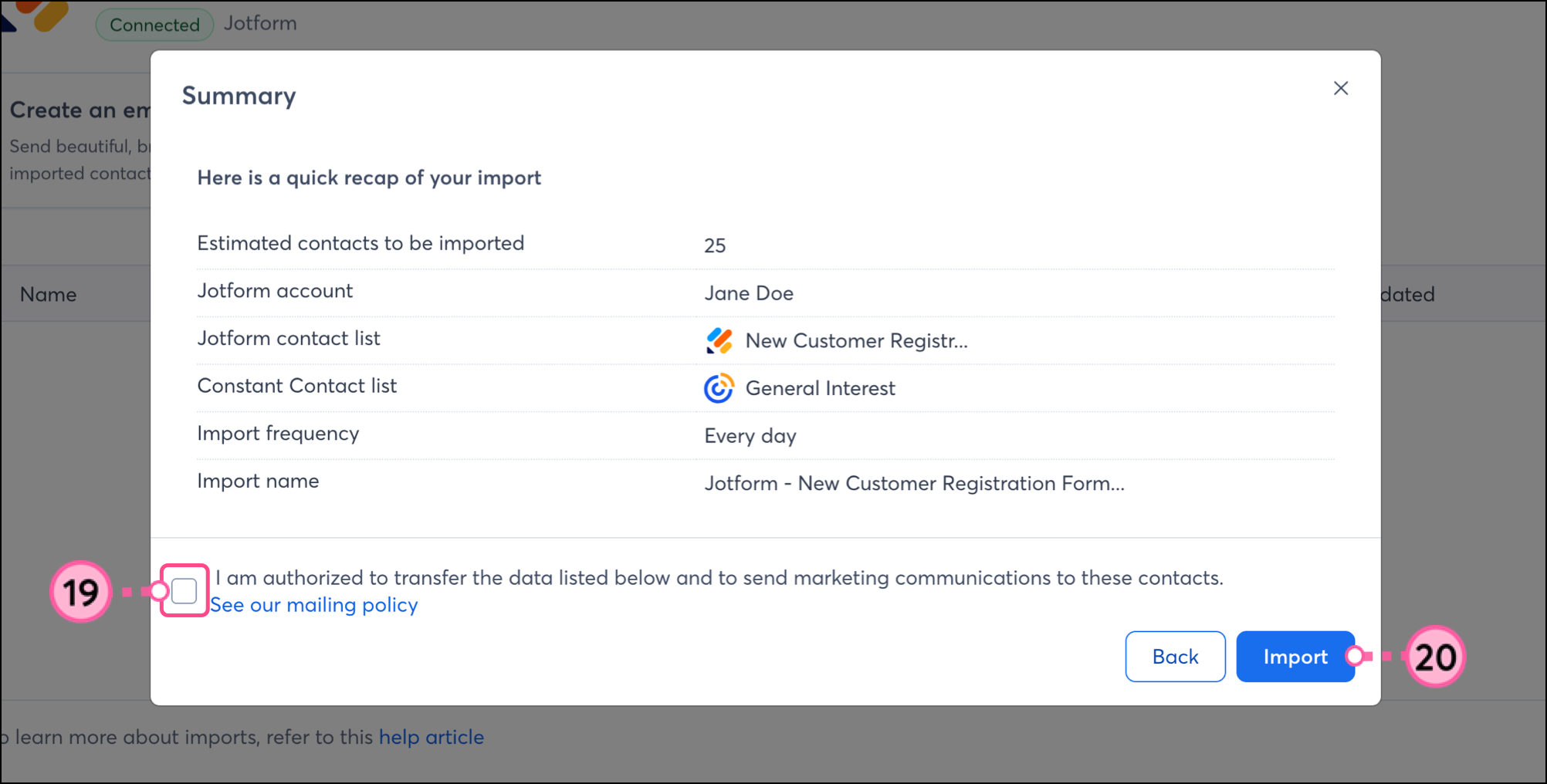
- Wait for the import to complete. If needed, click Import contacts to import another list.
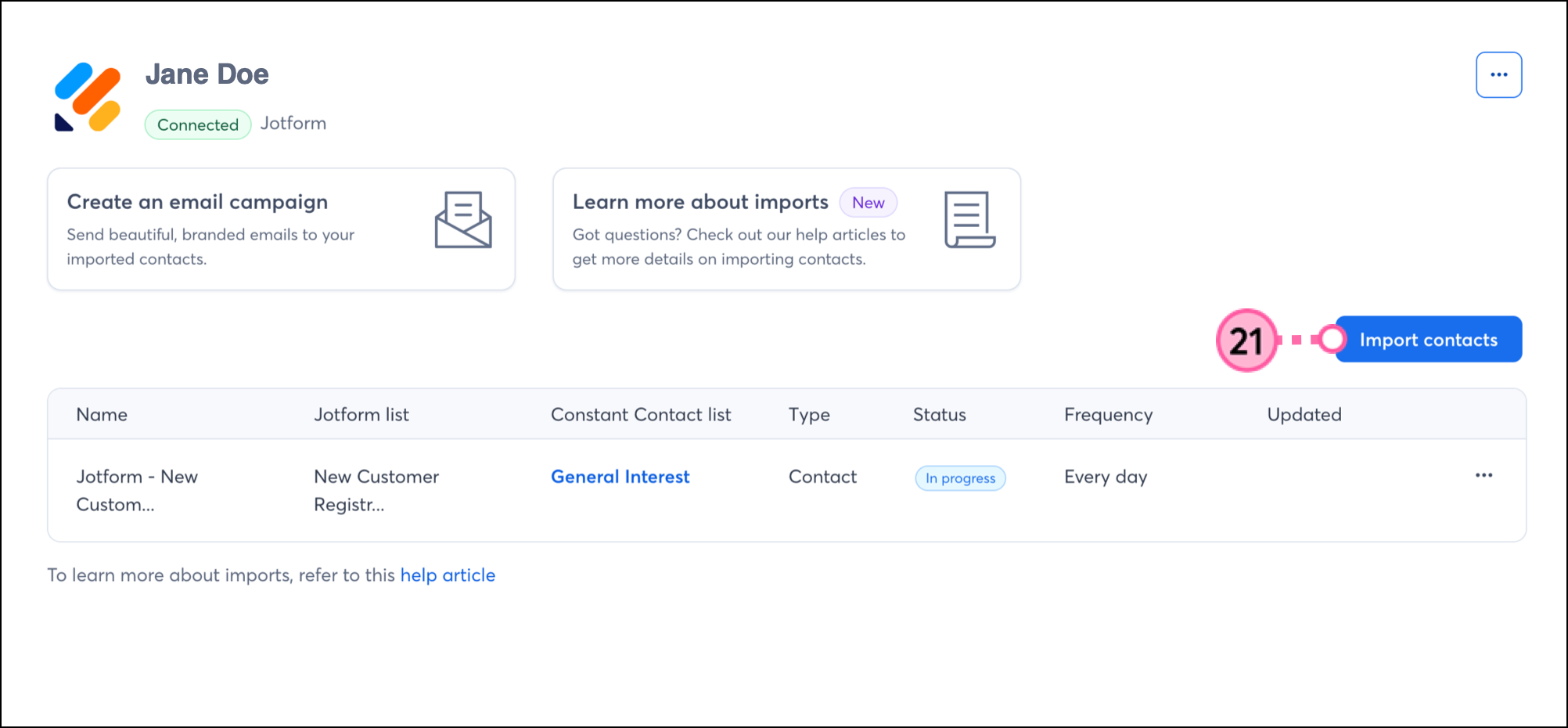
Once connected, you’re then brought back into Constant Contact and to the Jotform Integration dashboard, where you can review your imported leads. Depending on the number of leads being imported, the initial sync can take anywhere from 30 minutes (for imports of less than 100K contacts) up to 4 hours (for imports of more than 200K contacts).
Boost your marketing with the Jotform integration
Once your Jotform account is synced to Constant Contact, there are several ways to use the integration:
- Create a customized contact segment - When importing contacts from Jotform, they'll be synced into segmented lists for you. But perhaps you want to segment these contacts even further to send specific, targeted messaging. You can do so by creating a custom segment of contacts.
- Create an automated Welcome Path - Automatically send an email or SMS message to welcome newly added contacts when your list syncs.
- Create an automated Anniversary Path - Send annual emails or SMS messages to your customers based on the date of their first visit to your business.
Disconnect Jotform from your Constant Contact account
If you disconnect the Jotform integration, your imported contacts will remain in your Constant Contact account. New Jotform data will no longer be imported into Constant Contact, nor will unsubscribes be sent back from Constant Contact to Jotform:
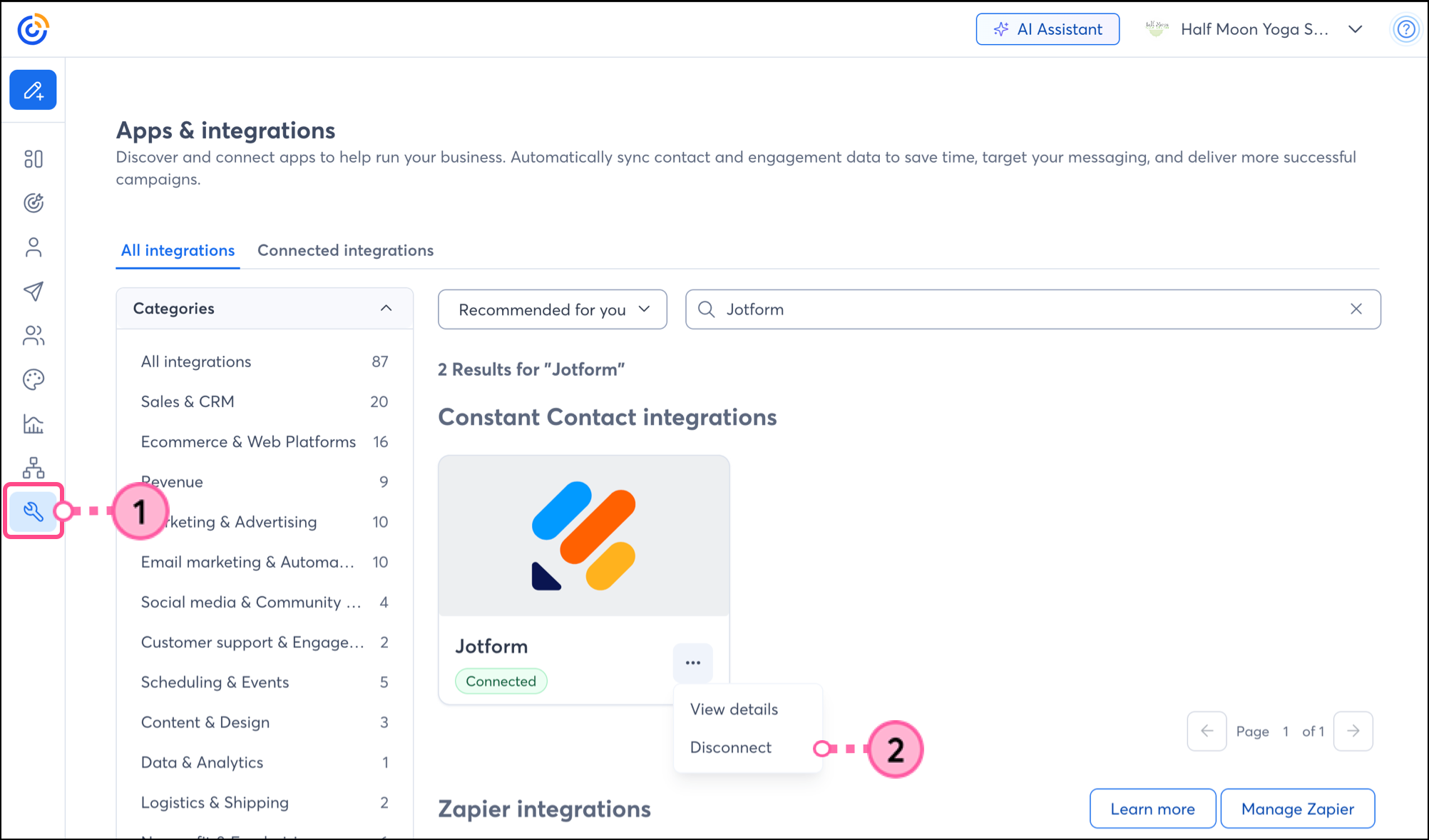
- Click Integrations.
- Search for the Jotform integration, click the three dots, and click Disconnect.
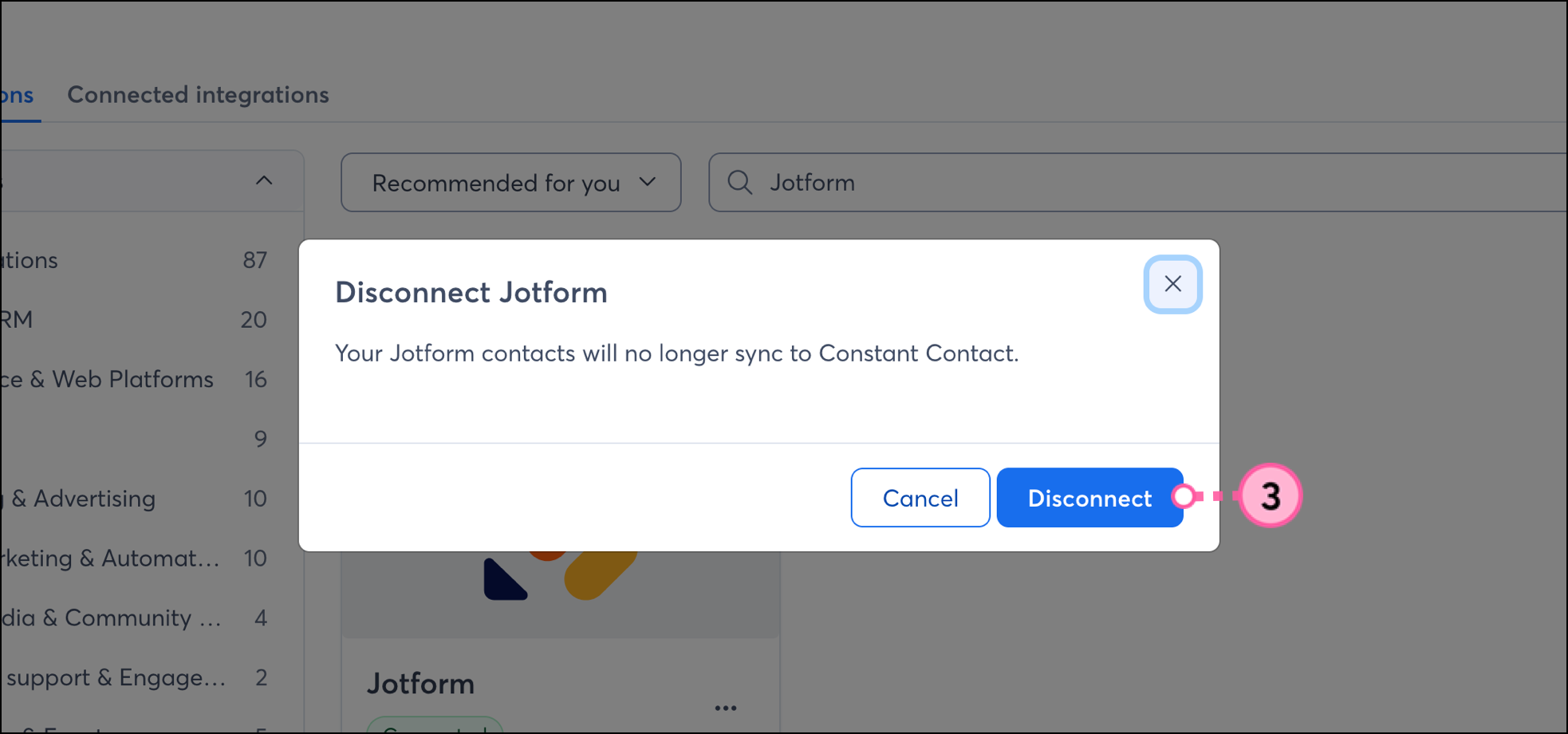
- Click Disconnect to confirm.
Any links we provide from non-Constant Contact sites or information about non-Constant Contact products or services are provided as a courtesy and should not be construed as an endorsement by Constant Contact.