Constant Contact has launched a Claude AI connector that lets you create and preview new emails and social posts in minutes, incorporating assets from your Library.
Connectors let you chat about your business use cases in the Claude AI interface, with context from the business or product that launched the connector, making it faster and easier to complete projects.
With the Constant Contact connector, you can generate an email or social post, optimize your subject line, preheader text, captions, and other email or social post details, and get a live desktop or mobile preview to see how those emails and posts will look to customers.
The Constant Contact Claude connector is available for installation on Claude’s Customize page.
To start, you’ll need a Claude Individual, Developer, Team, or Enterprise account:
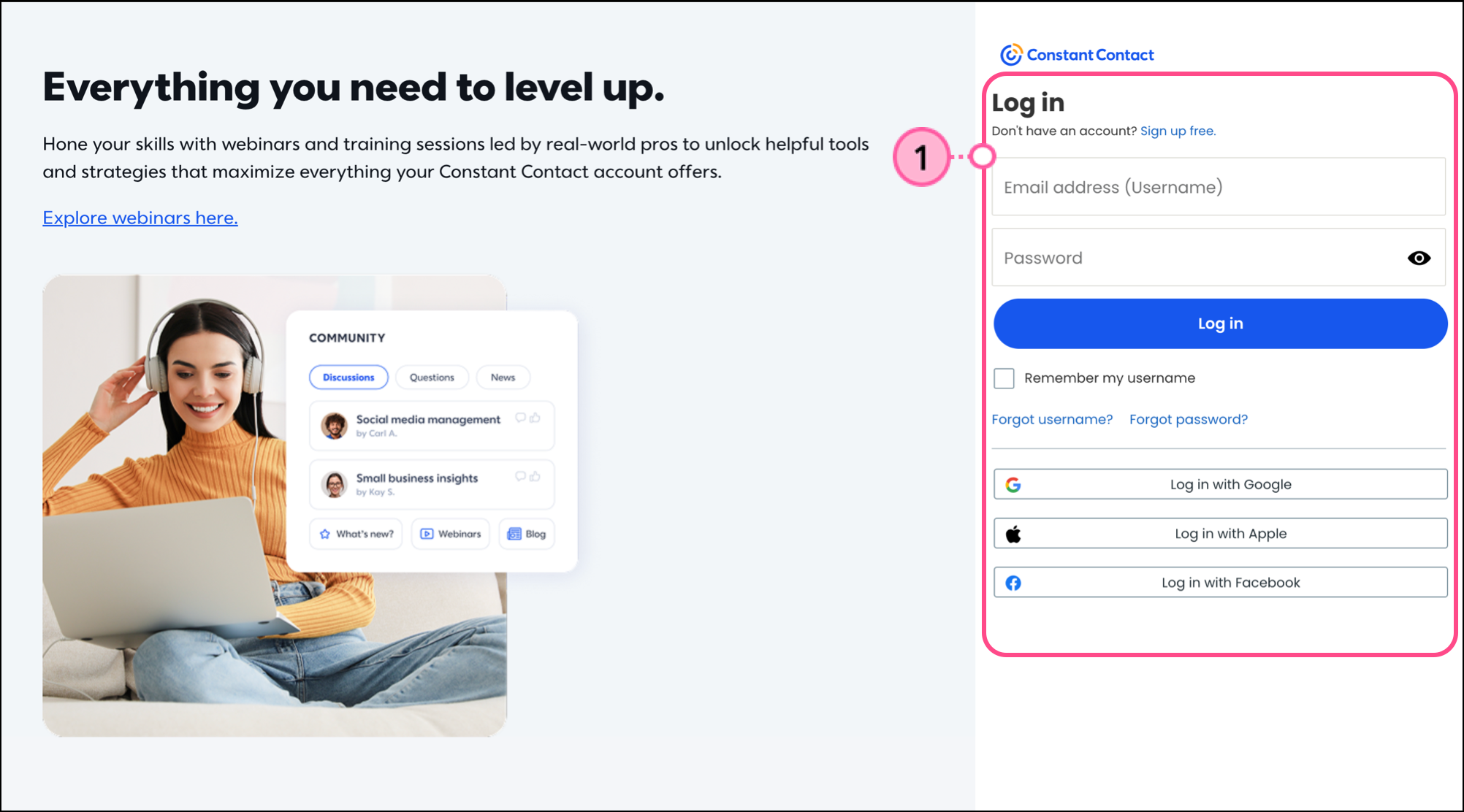
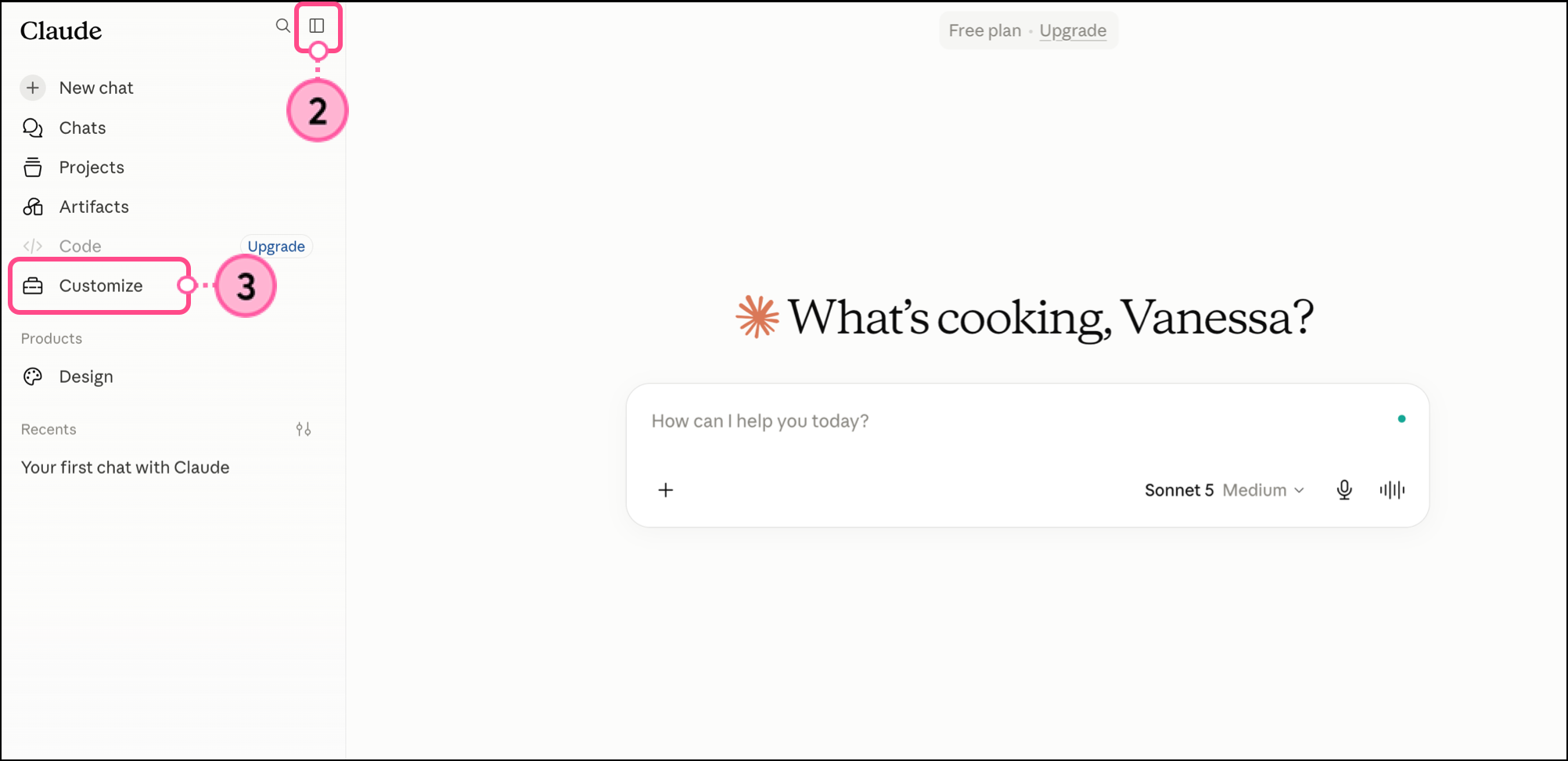
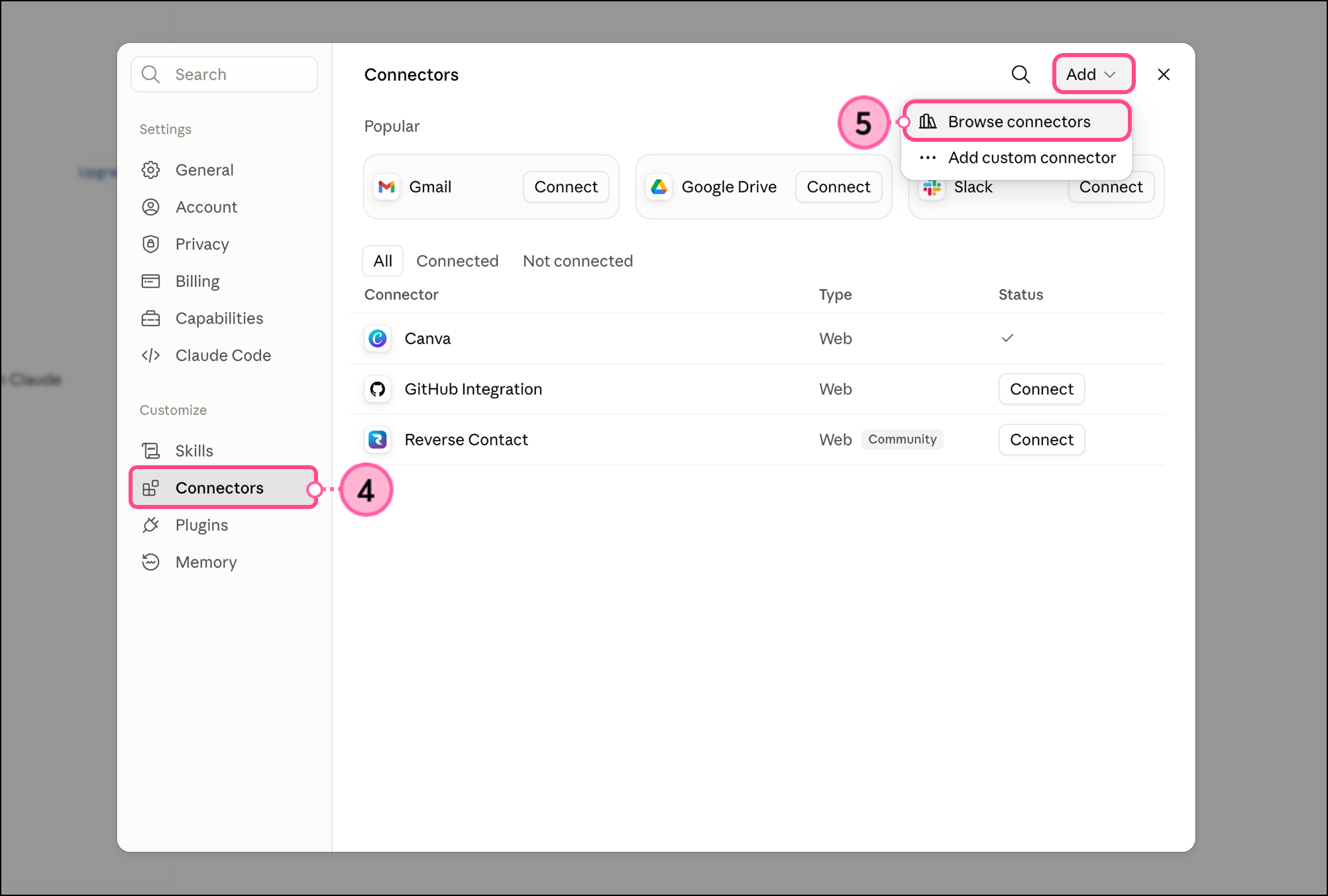
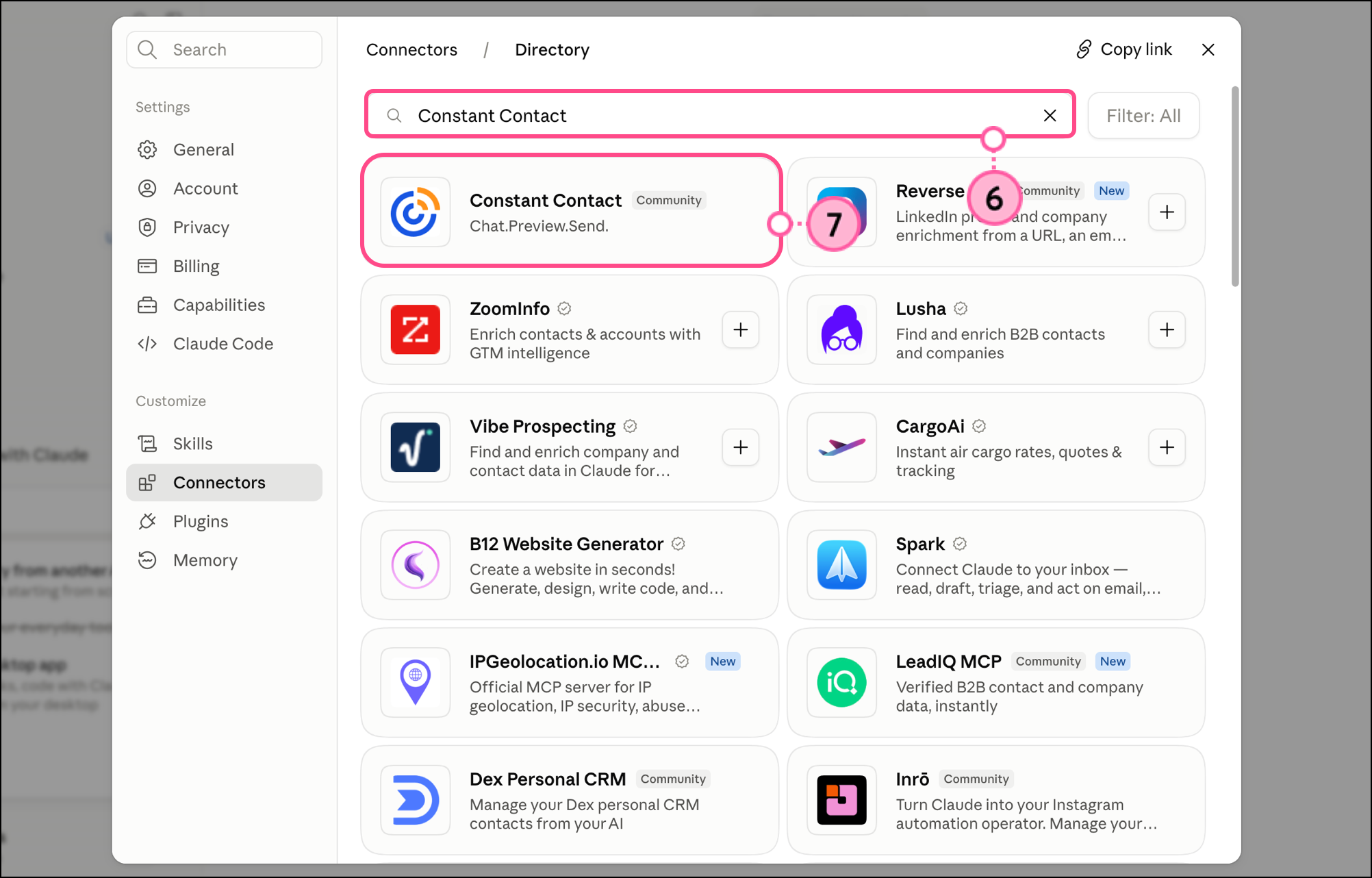
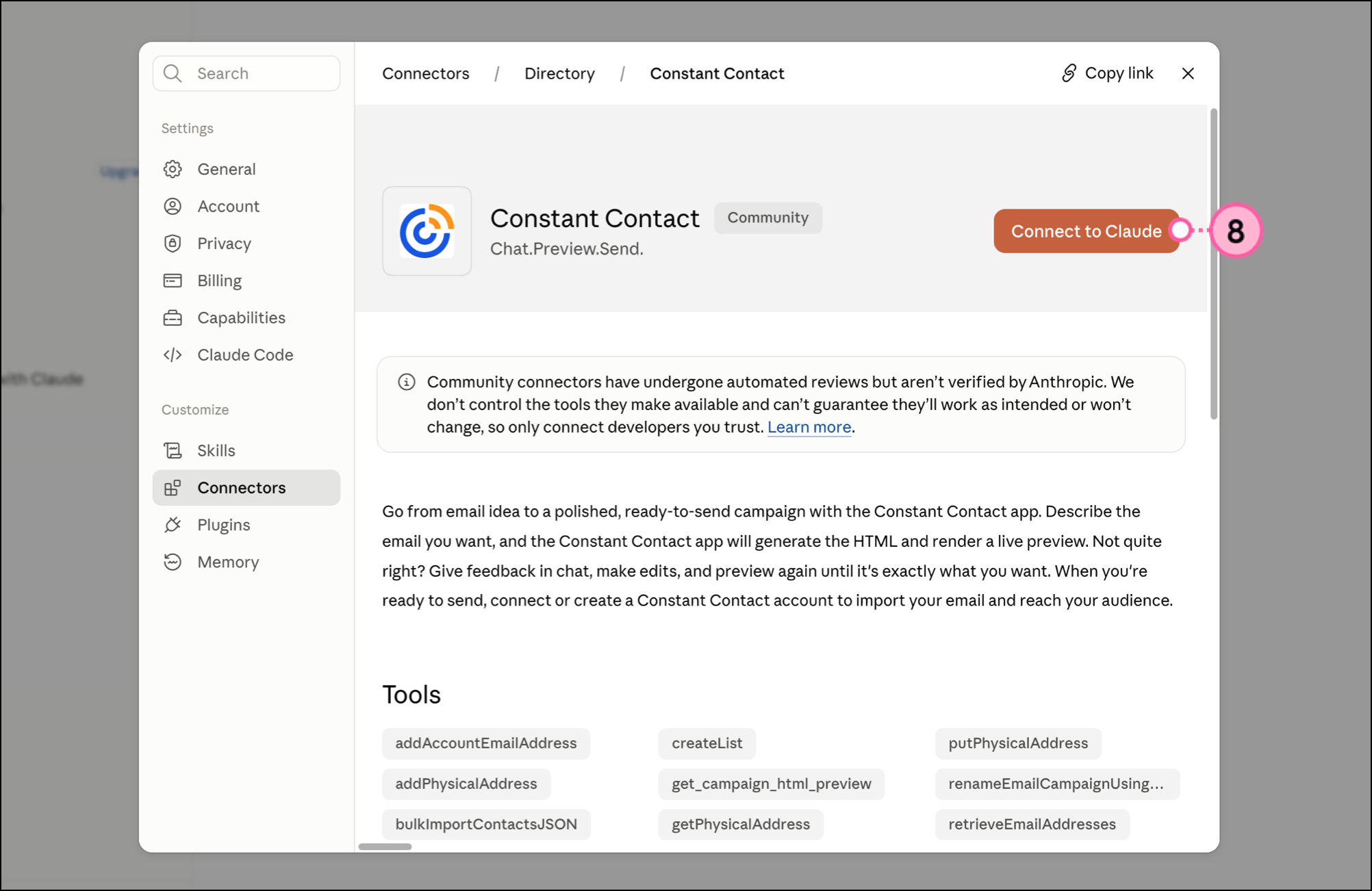
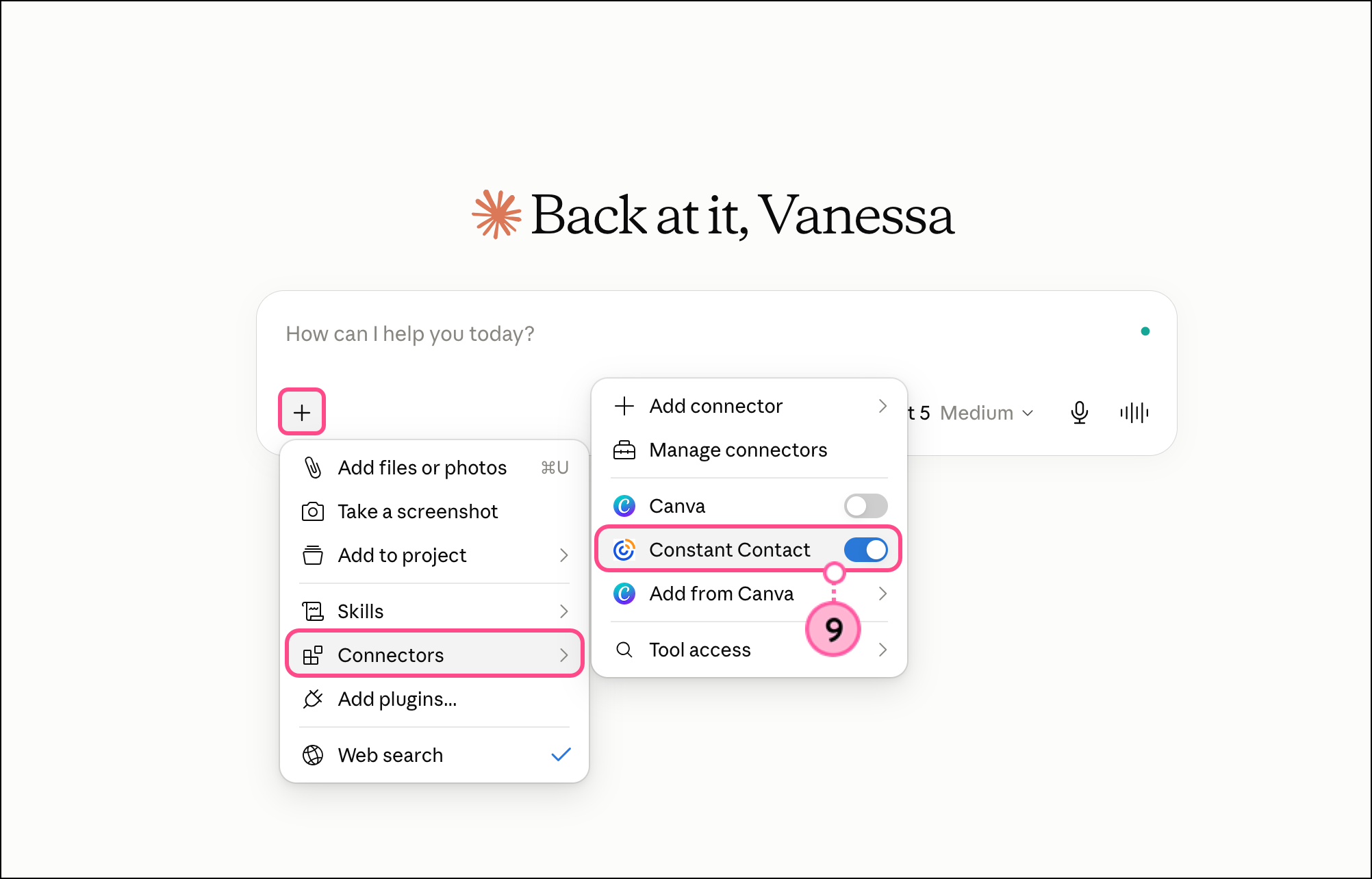
Once the connector is installed, it'll be available to apply to future conversations in Claude. Type @ConstantContact to apply the connector to the conversation.
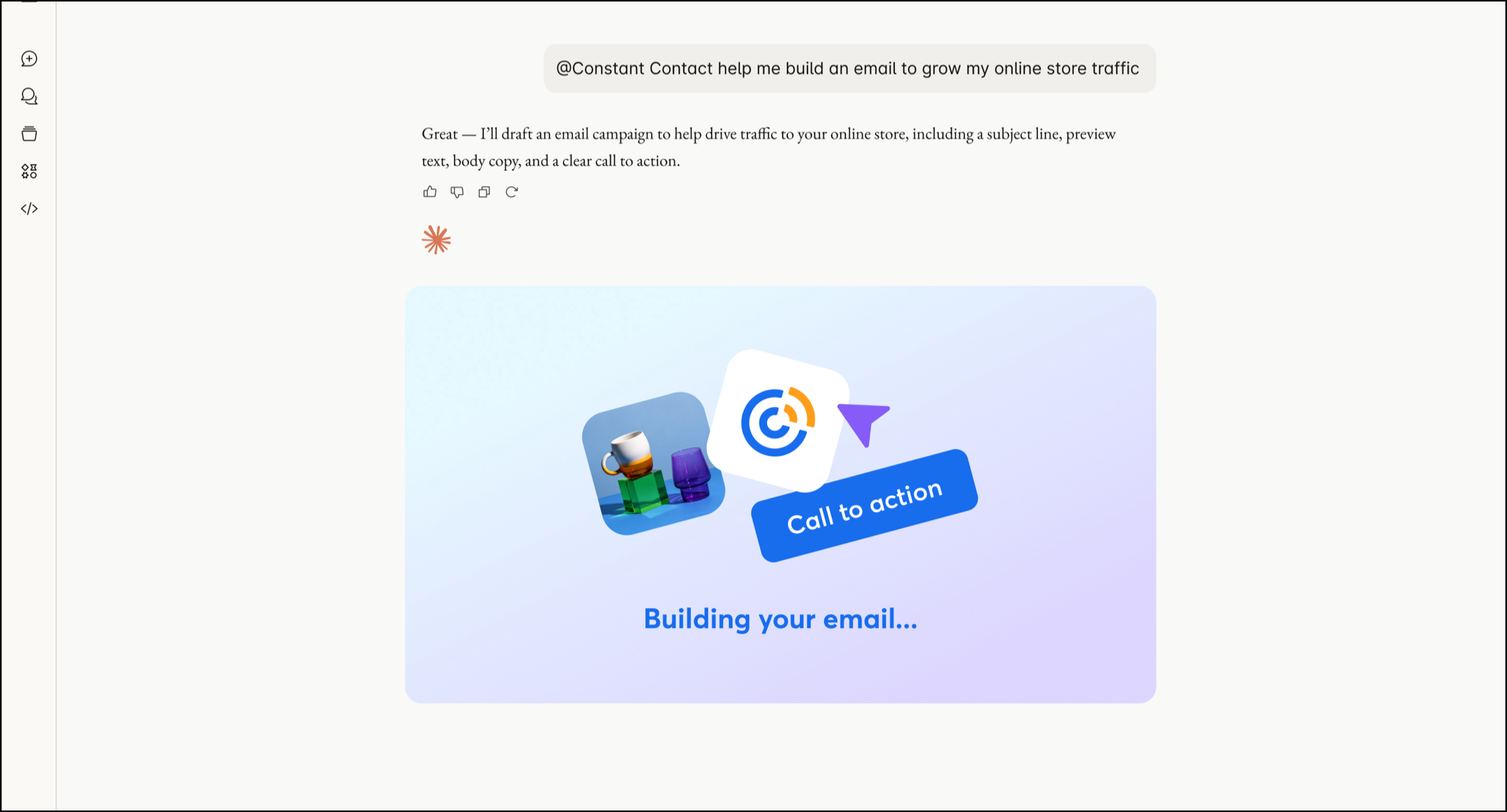
To generate an email campaign using the Constant Contact Claude connector, start by describing your business and the primary goal of your email. Briefly mention who the audience is and what’s important to them (are they previous customers, new customers, churning customers, etc.).
Include the URL to any images or assets you’d like to add to your emails from your Library. Be sure to include the link to your logo image!
You’ll be able to get a look at both desktop and mobile views in the live preview. If you know the call to action or tone you want, be sure to include those details; if you’re not sure, the Constant Contact Claude connector can recommend a tone based on your goals. It can also help you with the subject line, preheader text, and any other email details you need.
With the connector, Claude can identify and generate global elements, such as your email footer, and automatically include them in your generated email. When the template is generated, Claude will give you a recap of the following email details:
How to build an email campaign using the Constant Contact Claude AI connector:
@ConstantContact to call the Constant Contact connector.Clicking that link takes you to Constant Contact, where you can finalize your sending details and launch the campaign. Read Schedule and send an email to learn more about scheduling or sending an email.
To generate a social post using the Constant Contact Claude connector, start by describing your business and the primary goal of your post. Briefly mention who the audience is and what’s important to them (are they previous customers, new customers, churning customers, etc.).
Explain what you want the post to communicate or what you want the post to advertise. Finally, discuss the type of engagement you want from your audience — do you want viewers to like, click, comment, or share?
Be sure to include links to any image files or videos (hosted in your Constant Contact Library or elsewhere) you would like to include:
@ConstantContact to call the Constant Contact connector.Read Create a Social Post and schedule it to publish on social media to learn more about scheduling social posts in Constant Contact.
You can upload a hosted image or an image file to your Constant Contact Library while working in Claude AI. Provide Claude with the hosted image URL, or prompt a Library upload and select an image file (or drag and drop one) from your computer.
To upload an image that is hosted somewhere else on the web:
@ConstantContact to apply the Constant Contact connector to the conversation.The connector will inform you when the upload is finished. When you navigate to your Constant Contact Library, you will see the image as the latest upload.
To upload an image saved on your computer, simply prompt Claude to help you add it to your Library.
@ConstantContact to apply the Constant Contact connector to the conversation.The connector will inform you when the upload is finished. When you navigate to your Constant Contact Library, you will see the image as the latest upload.
Any links we provide from non-Constant Contact sites or information about non-Constant Contact products or services are provided as a courtesy and should not be construed as an endorsement by Constant Contact.
Copyright © 2026 · All Rights Reserved · Constant Contact · Privacy Center