Email and Digital Marketing
How can we help you?
Search our help articles, video tutorials, and quickstart guides

You've got this. You've got us. Search our Knowledge Base to quickly find answers to your questions.

Install and use the Constant Contact App in Stripe

Article: 000046416
Updated: May 16, 2026

Review your campaign data and contact engagement activity within your Stripe account using the Constant Contact app

We've teamed up with Stripe and launched a Constant Contact app, available for you to install via the Stripe Marketplace! The app will allow you to see your Constant Contact campaign data, including opens and clicks, as well as email engagement activity for each user, in an easy-to-access sidebar directly within your Stripe account. Tracking the performance of your emails and seeing how individual Stripe customers are engaging with them will allow you to see what's working best.

All of this information is displayed in your Stripe account, but if you want to see further reporting on the Constant Contact side, you can easily launch from Stripe directly to the appropriate pages within Constant Contact, with just a click of a button.
 

best practiceDid you know? You can automatically sync your Stripe contacts into your Constant Contact account. Customers will be imported into segmented contact lists based on payment activity, making it easy for you to send targeted emails.


Install the app in Stripe

To install the Constant Contact app in your Stripe account, log in to your Stripe dashboard, and visit marketplace.stripe.com/apps/constant-contact, or complete the following steps to access it.
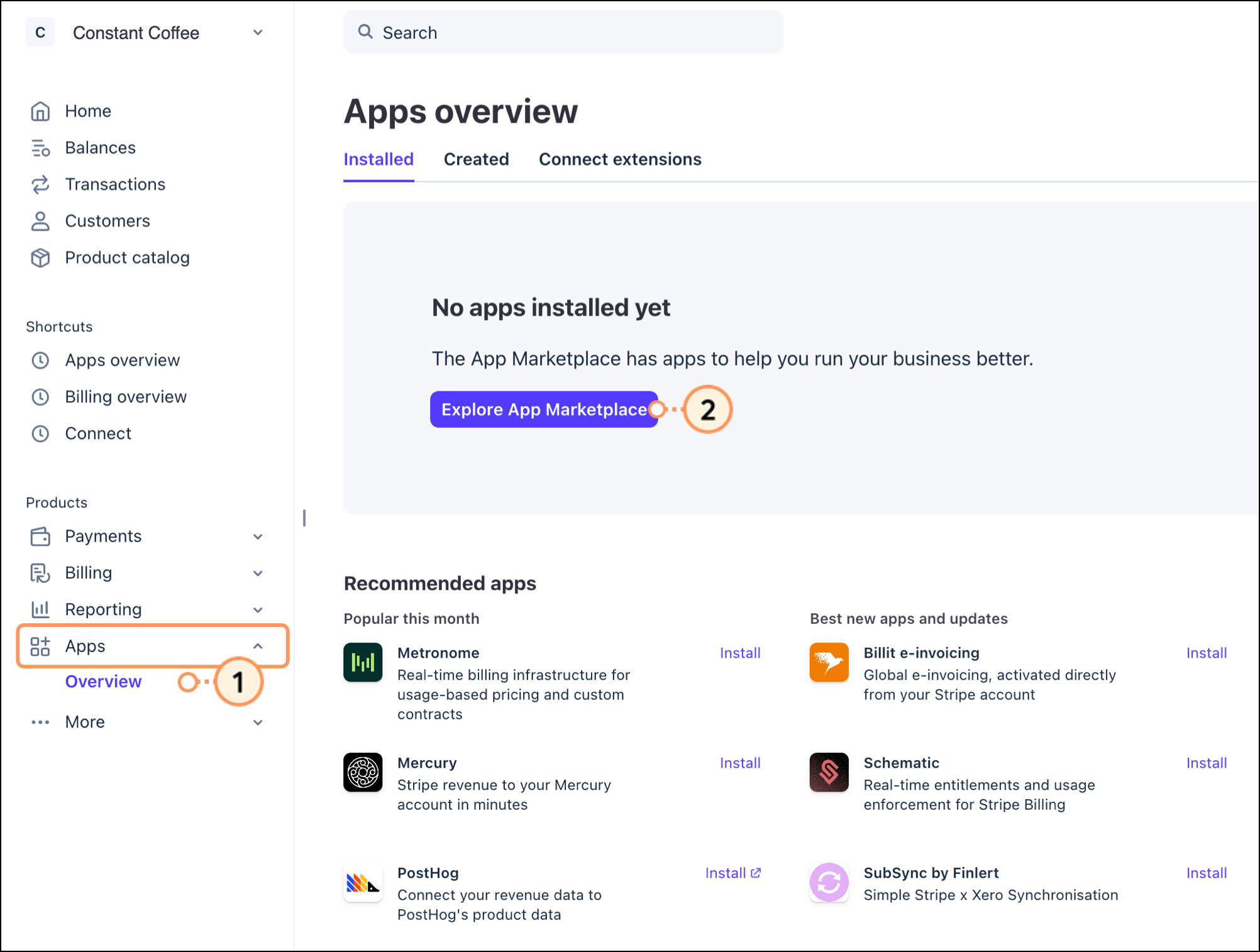
  1. Click Apps > Overview
  2. Click Explore App Marketplace

    Left-sided navigation menu

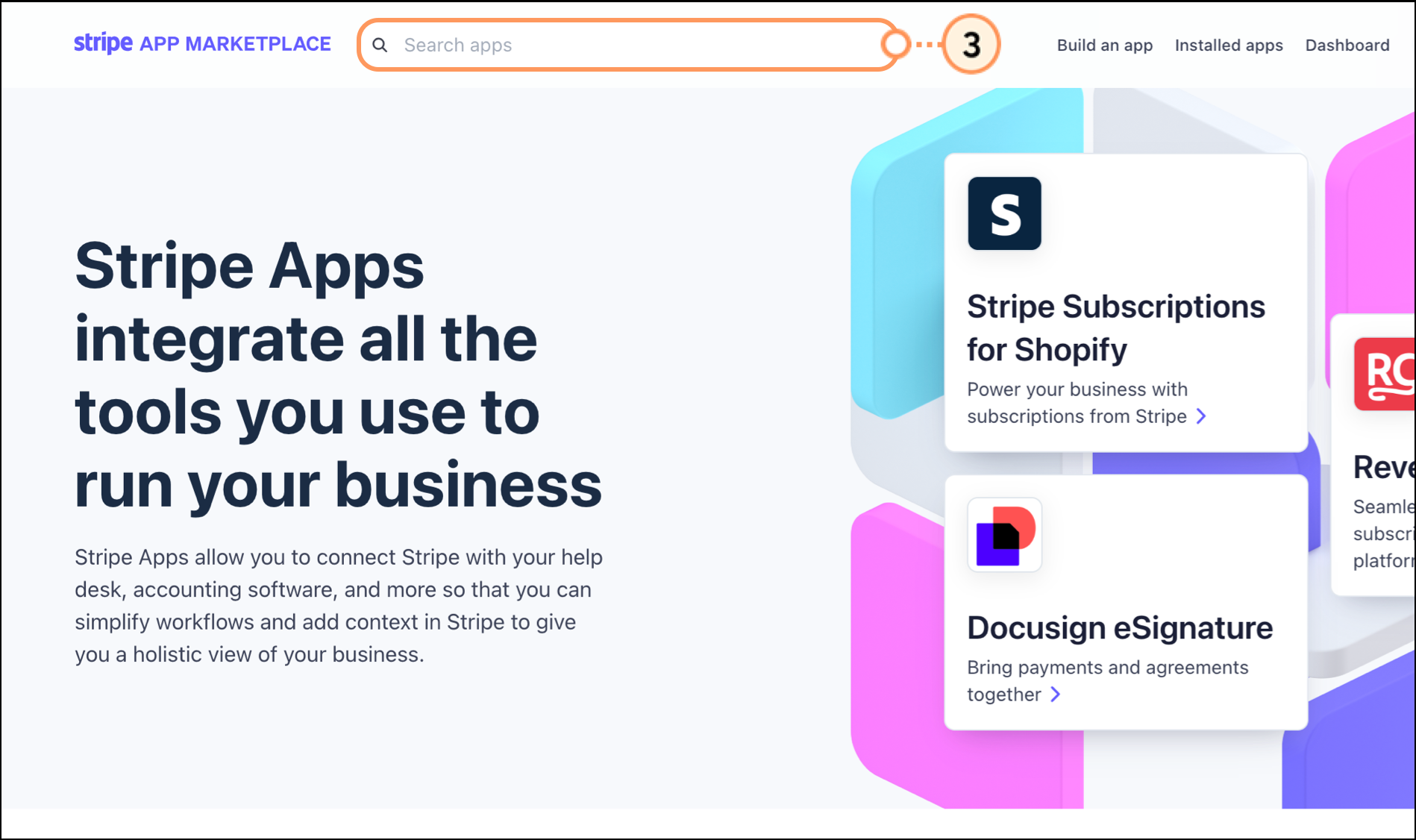
  3. Use the Search field to search for the Constant Contact app. 

    Search field at the top of the page
     
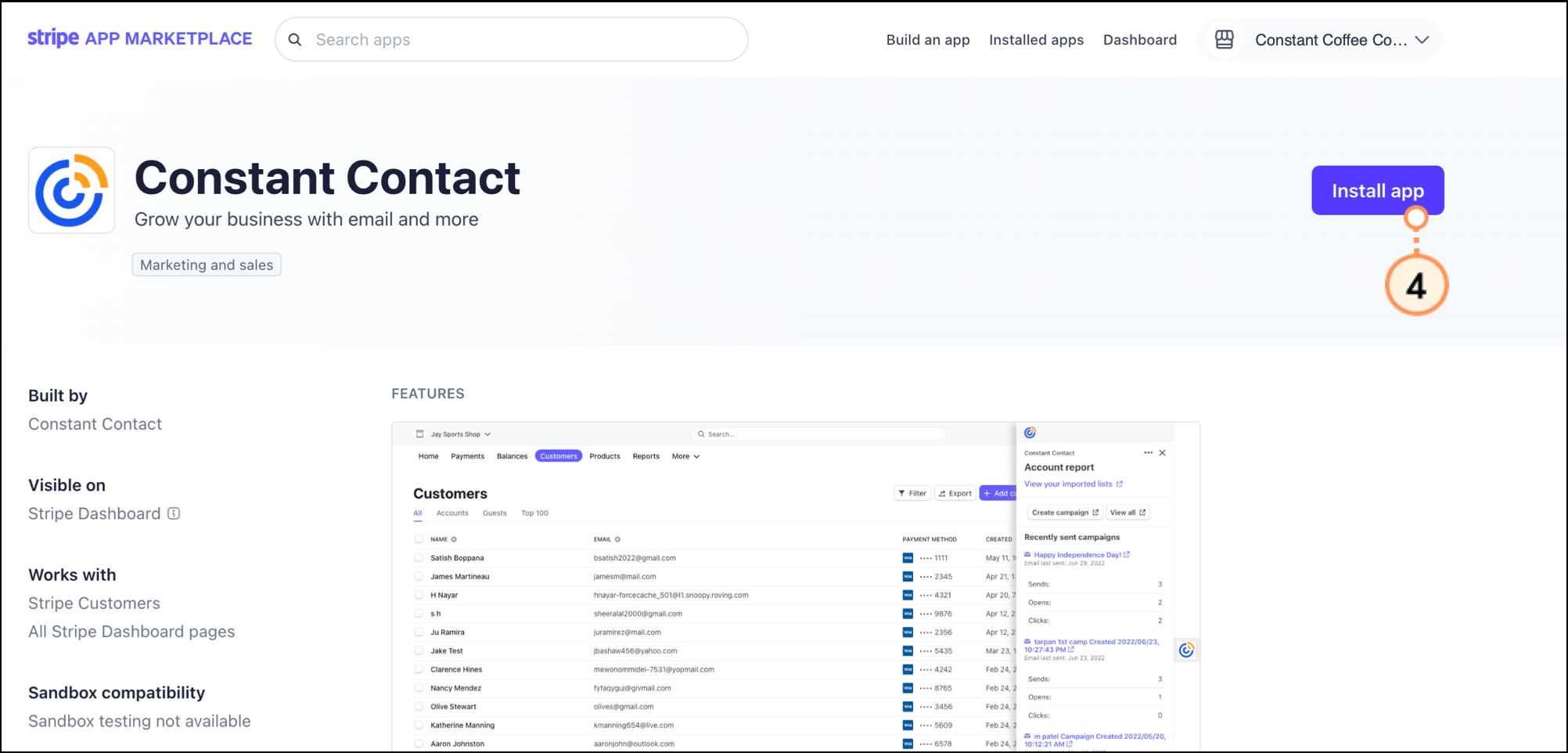
  4. Click Install app.

    Purple Install App button on the top right hand side of the page
     
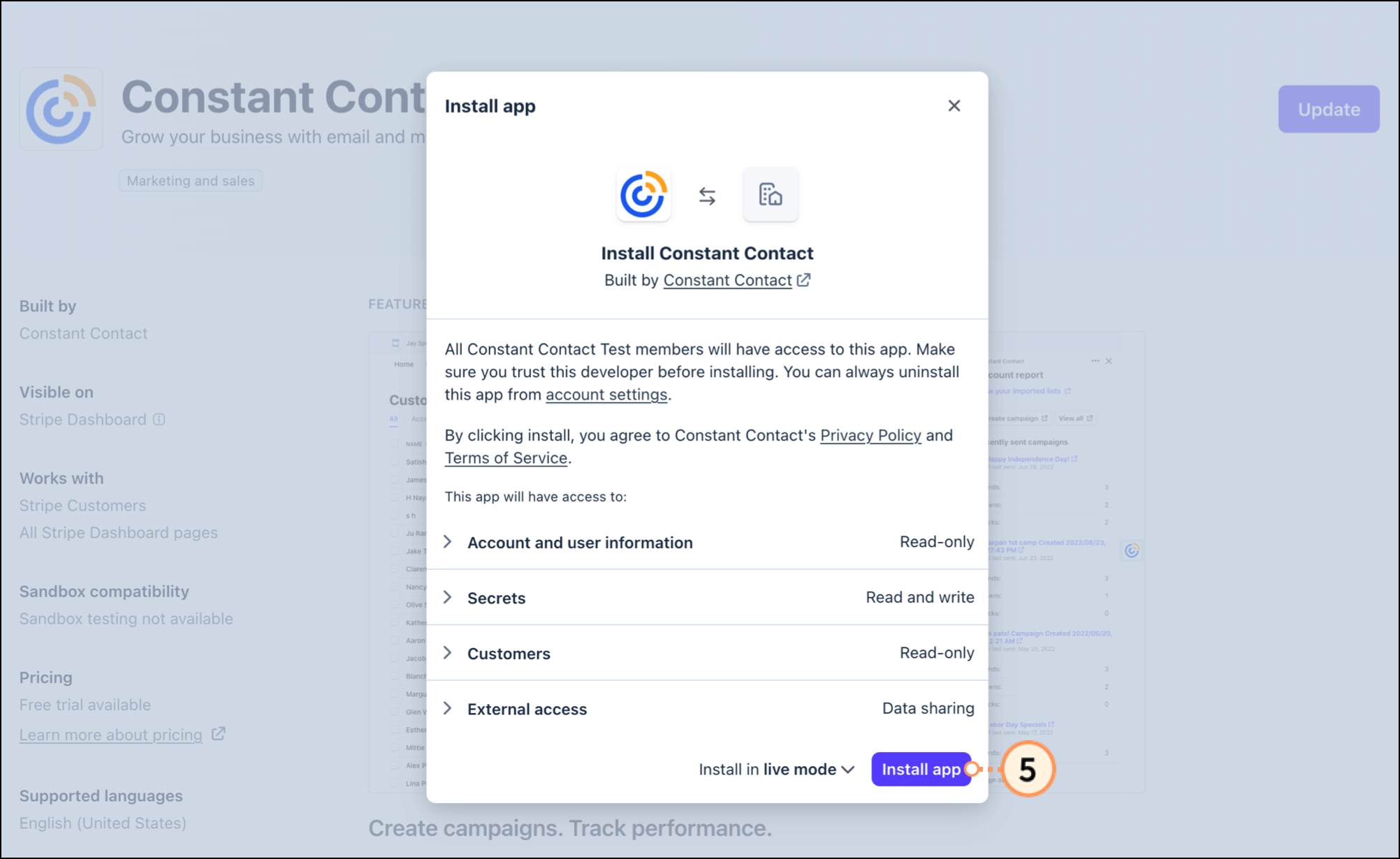
  5. Review the permissions and then click Install app to proceed. 

    List of app permissions purple Install App button

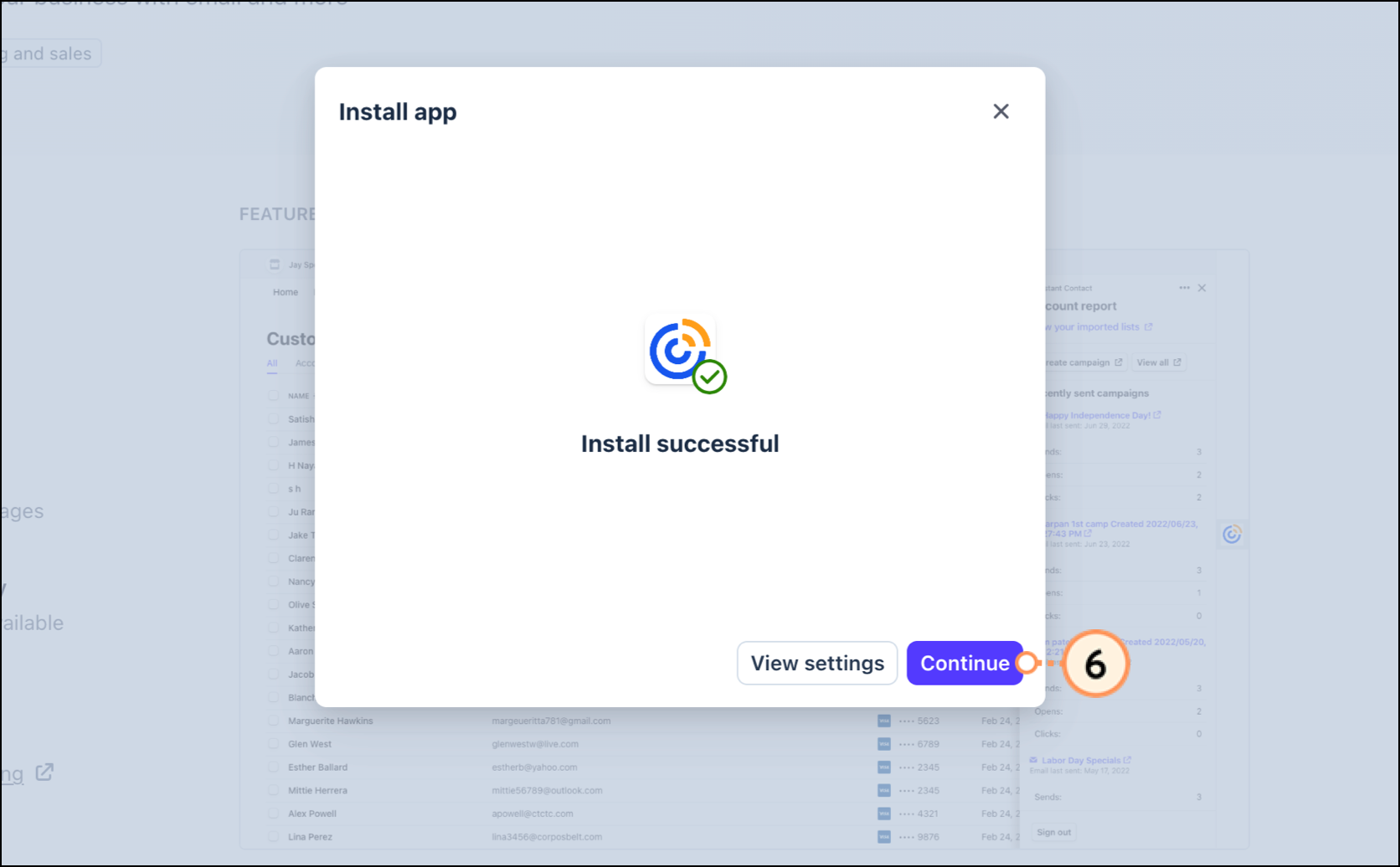
  6. Click Continue

    Purple Continue button


Navigate and use the app

To access the installed Constant Contact app, return to the Apps > Overview page.
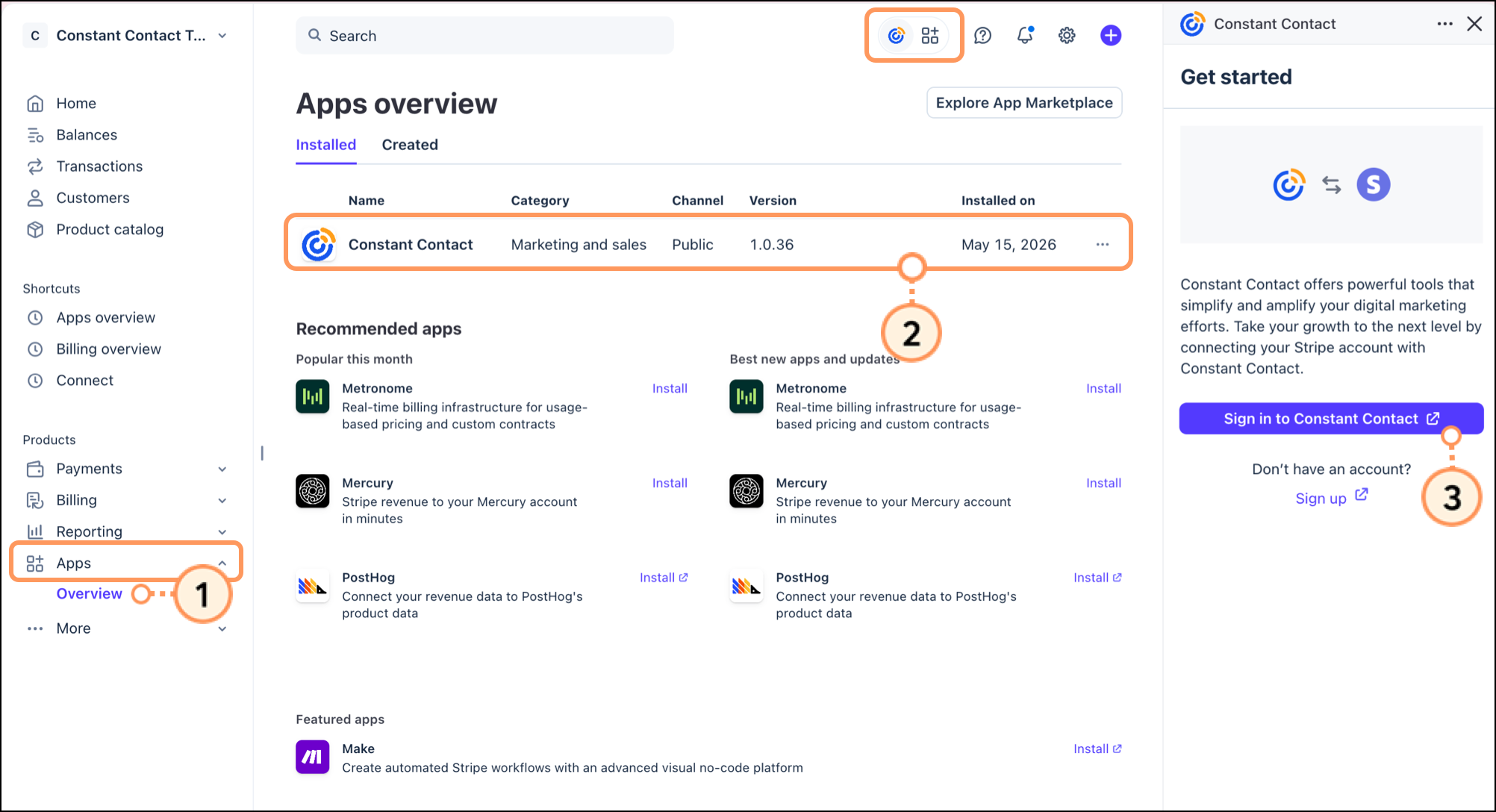
  1. Tap on Apps > Overview
  2. Tap the Constant Contact application to open the login window in the right-side bar, or tap the Constant Contact icon at the very top of the page.

    Note: You can tap the Constant Contact icon at the top of the page from various pages in your Stripe dashboard to open the Constant Contact panel for relevant insights.

  3. Click Sign in to Constant Contact, then enter your sign-in credentials. 

    Apps Overview page

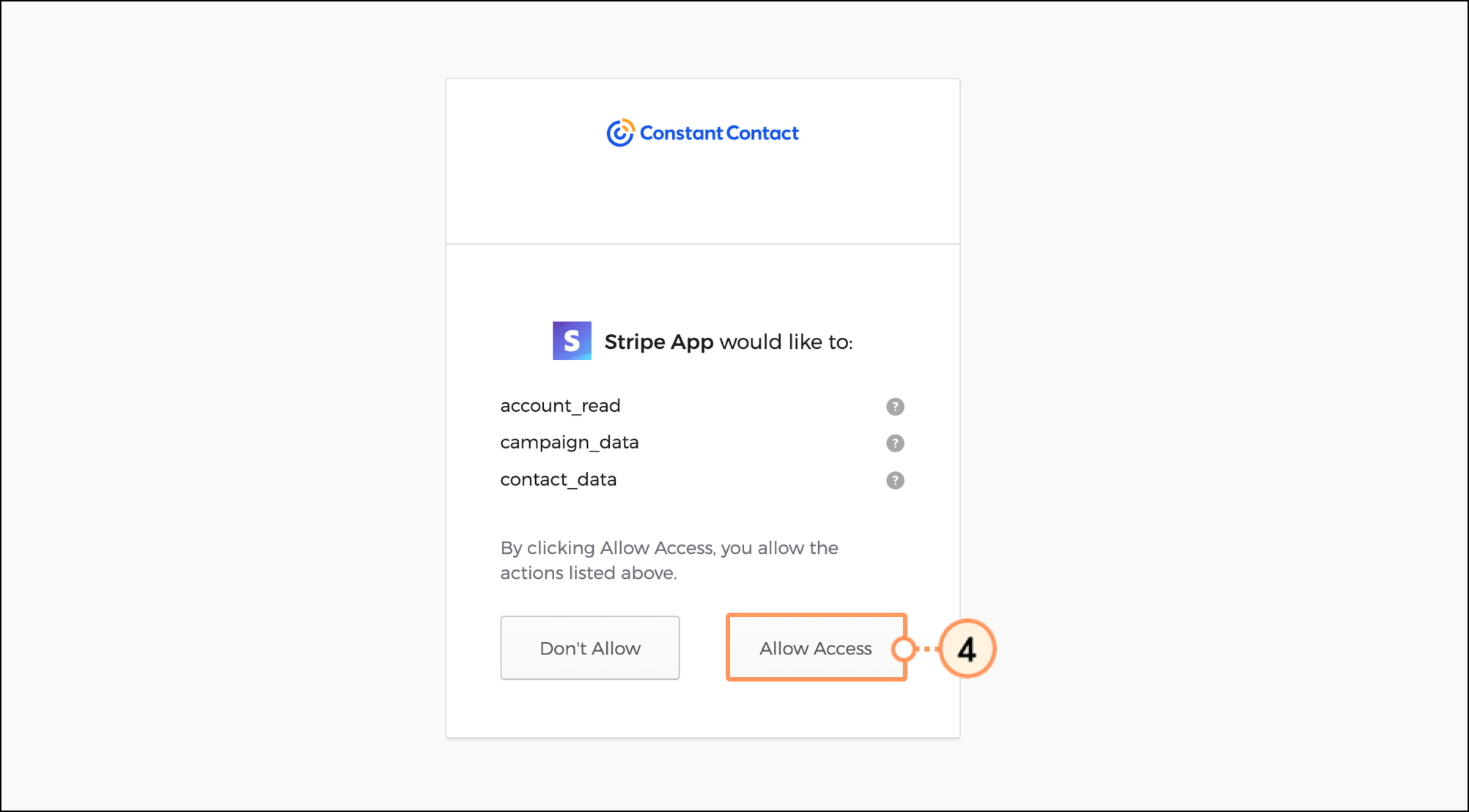
  4. Read the permissions and click Allow Access to proceed.

    Permissions and grey Allow Access button


Explore Reports

Account Campaign Report

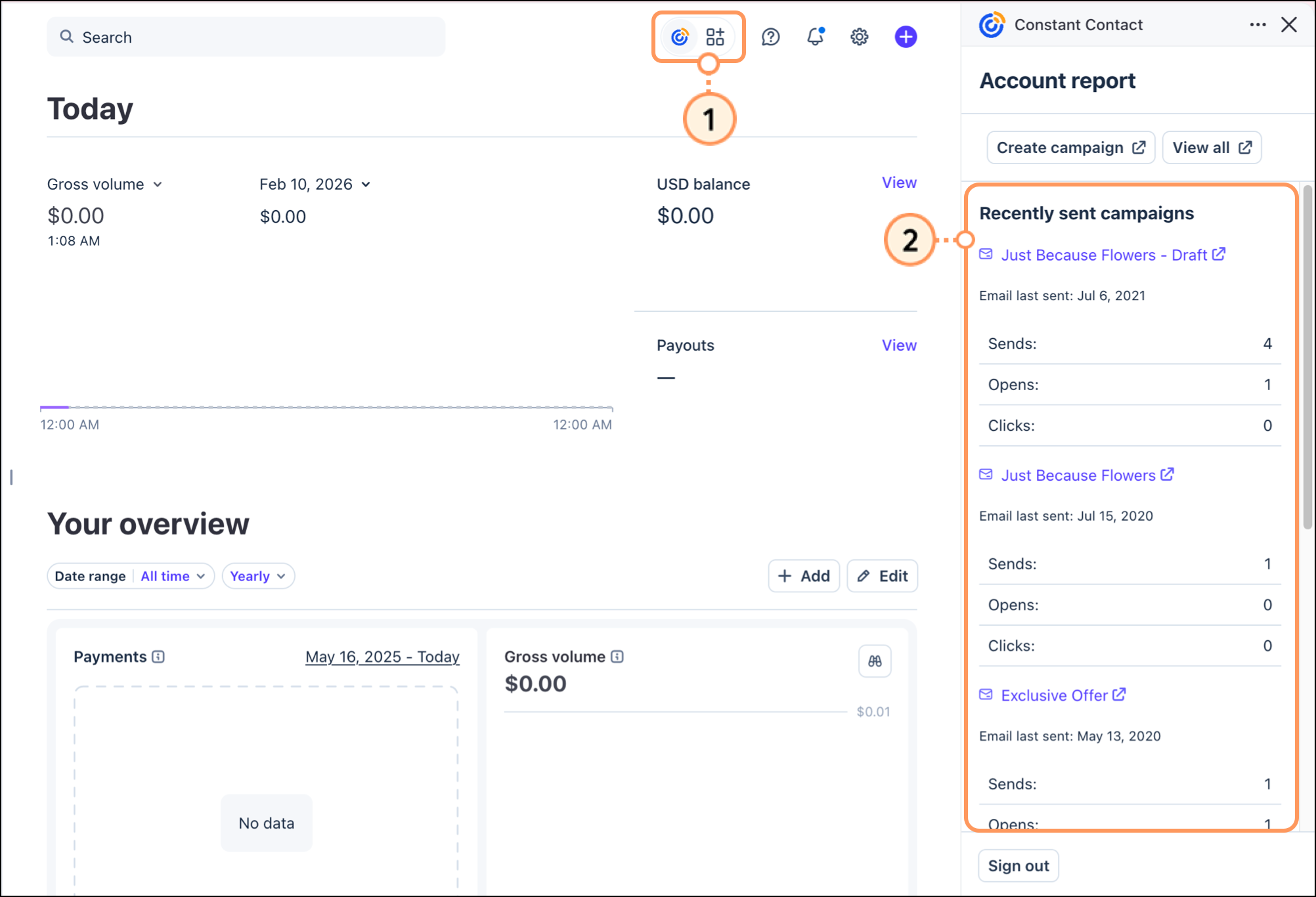
  1. To view your Account Campaign Report, click the Constant Contact icon at the top of the Stripe dashboard.
  2. A panel will open displaying your most recently sent campaigns. For each campaign, the total number of sends, opens, and clicks will display. To see additional information on the Constant Contact side, click the name of an email. A new tab will open to the reporting page for the email campaign in Constant Contact.

    Email Campaign in the right side Constant Contact app panel


Contact Email Engagement

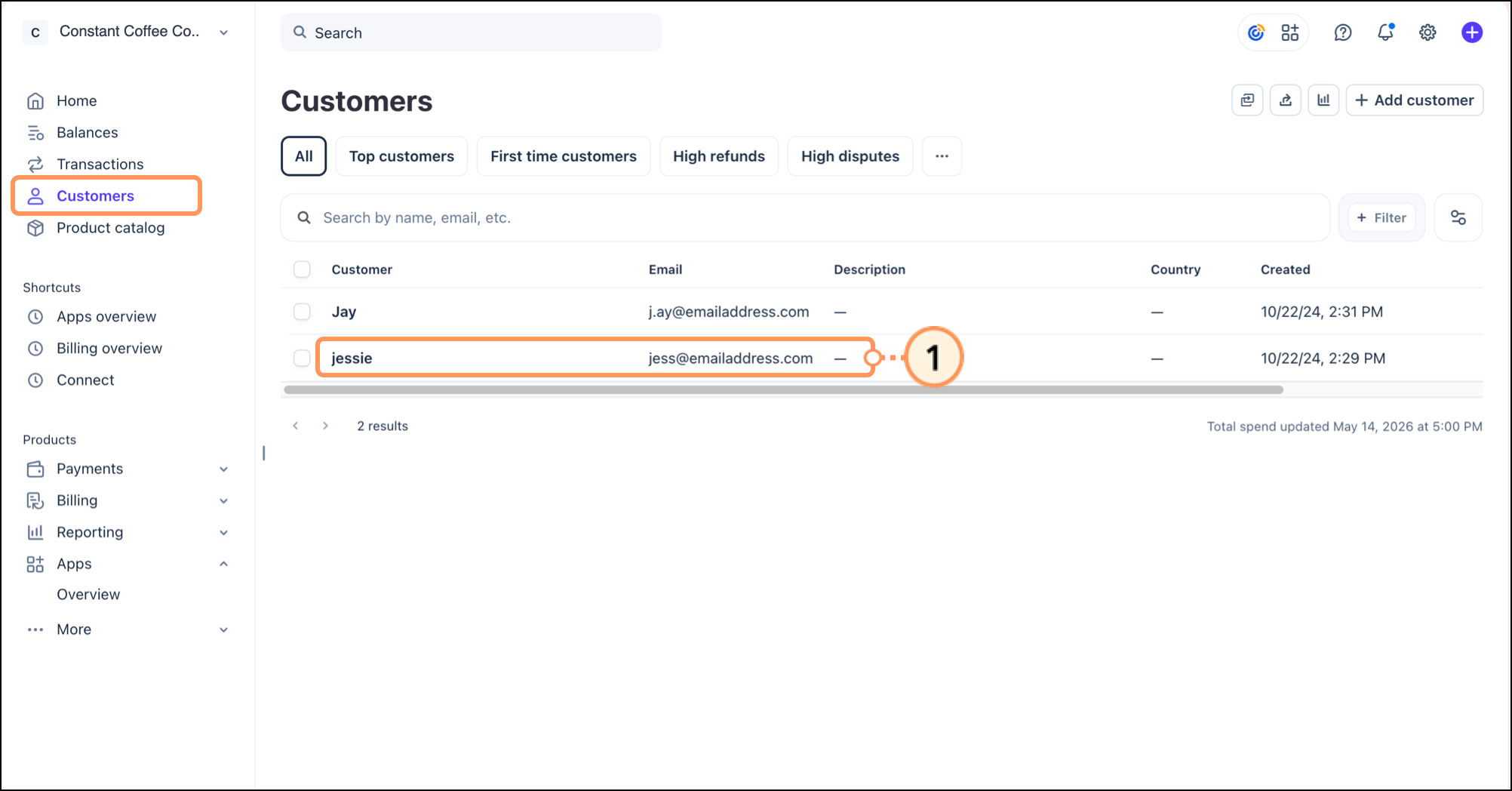
  1. To see email engagement for a specific contact, click the Customers tab, and then click on the name of the contact. 

    Customer page

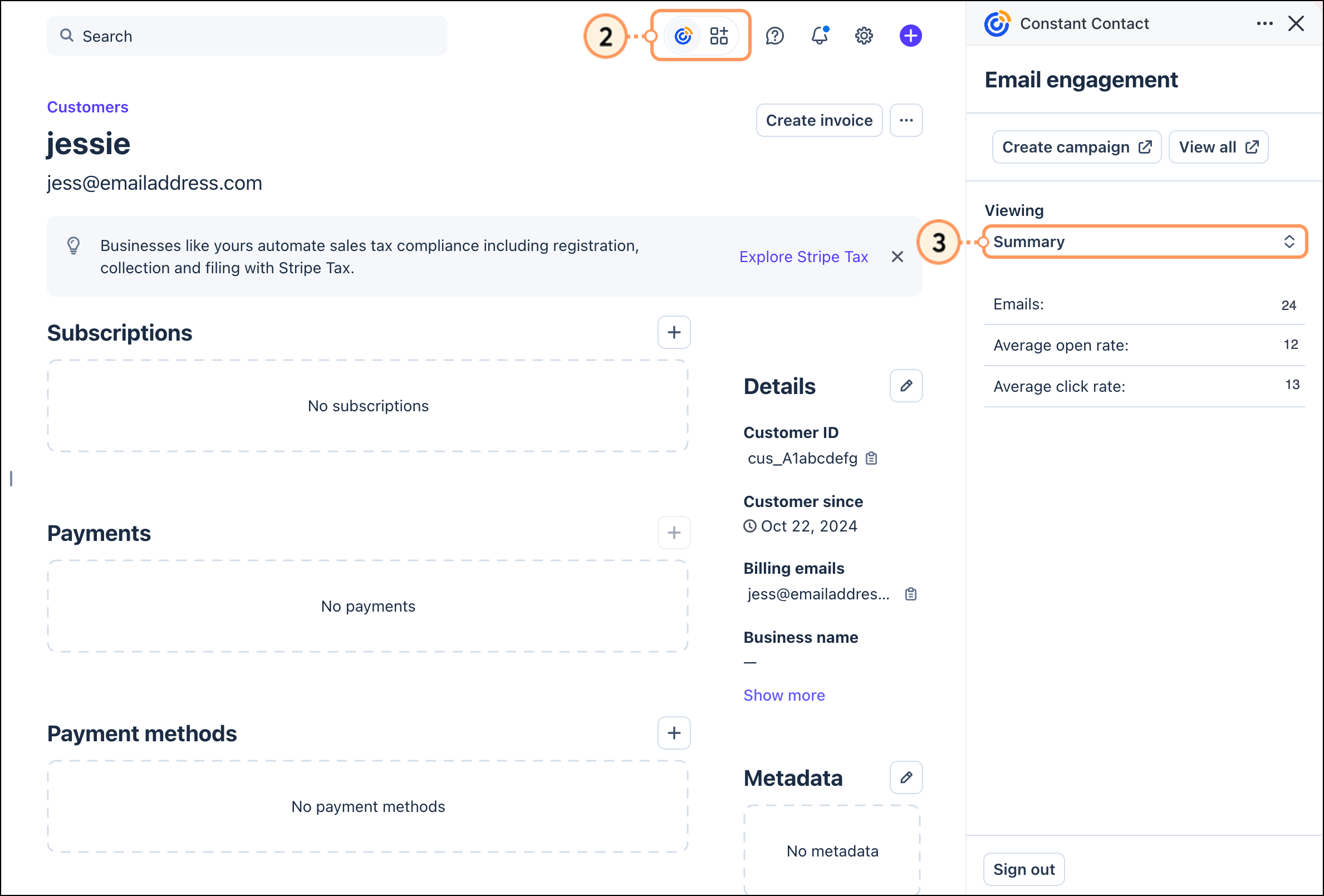
  2. Click the Constant Contact icon at the top of the Stripe dashboard. A panel will open displaying a summary of the contact's email engagement, including the number of emails that have been sent to them, their average open rate, and their average click rate.
  3. To view recent activity for the contact, click the Viewing dropdown and select Recent activity.

    Email contact details

The panel will update to display the contact's recent activity, including sent emails, opens, and clicks. To see additional information on the Constant Contact side, click on the name of an email, and a new tab will open, bringing you to the reporting page for the email campaign within Constant Contact


Questions?

Ask the Community

Did this article answer your question?


Constant Contact Logo

Copyright © 2026 · All Rights Reserved · Constant Contact · Privacy Center