Email and Digital Marketing
How can we help you?
Search our help articles, video tutorials, and quickstart guides

You've got this. You've got us. Search our Knowledge Base to quickly find answers to your questions.

Create a social post in Canva and share it through Constant Contact

Article: 000055197
Updated: April 16, 2026

Use Canva to design a social post and then share it to your social media profiles through your Constant Contact account

If you use Canva to create graphics and emails, you can now design a social post within Canva and share it through your Constant Contact account! Once shared, you’re able to track the reporting like you would any other social posts that are created and sent from within Constant Contact.
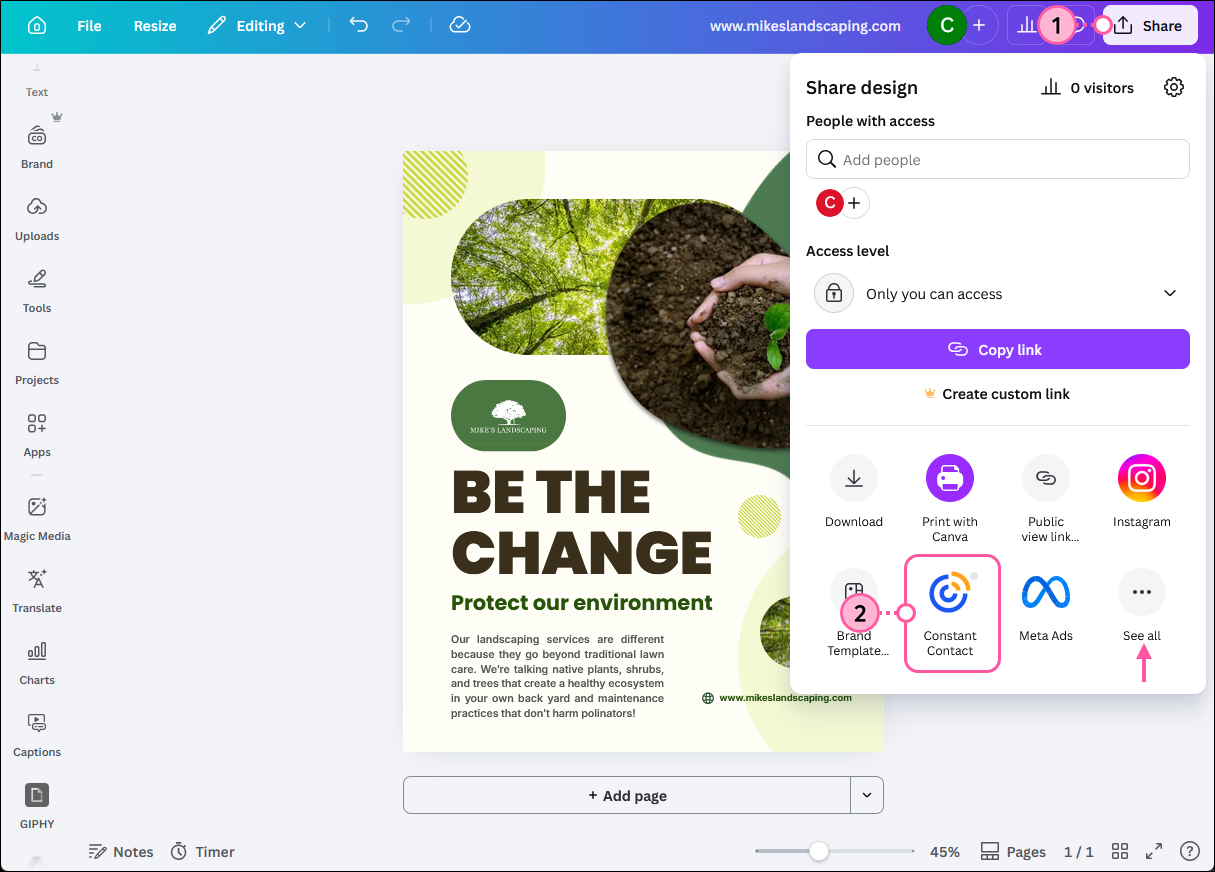
  1. From your completed Canva design, click the Share button in the upper right-hand corner.
    Important: Constant Contact doesn’t support Instagram stories at this time. Your Canva post can include up to 1 image that has either a 4:5 (portrait) or 1.91:1 (landscape) image ratio, and can’t be larger than 8MB in order to post through Constant Contact.
  2. Select "Constant Contact" from the list of options.
    Note: If you don't immediately see it, click on the "See all" option and then search for "Constant Contact."

    Canva editor with social post template, Share button, and Share design panel with Constant Contact option selected

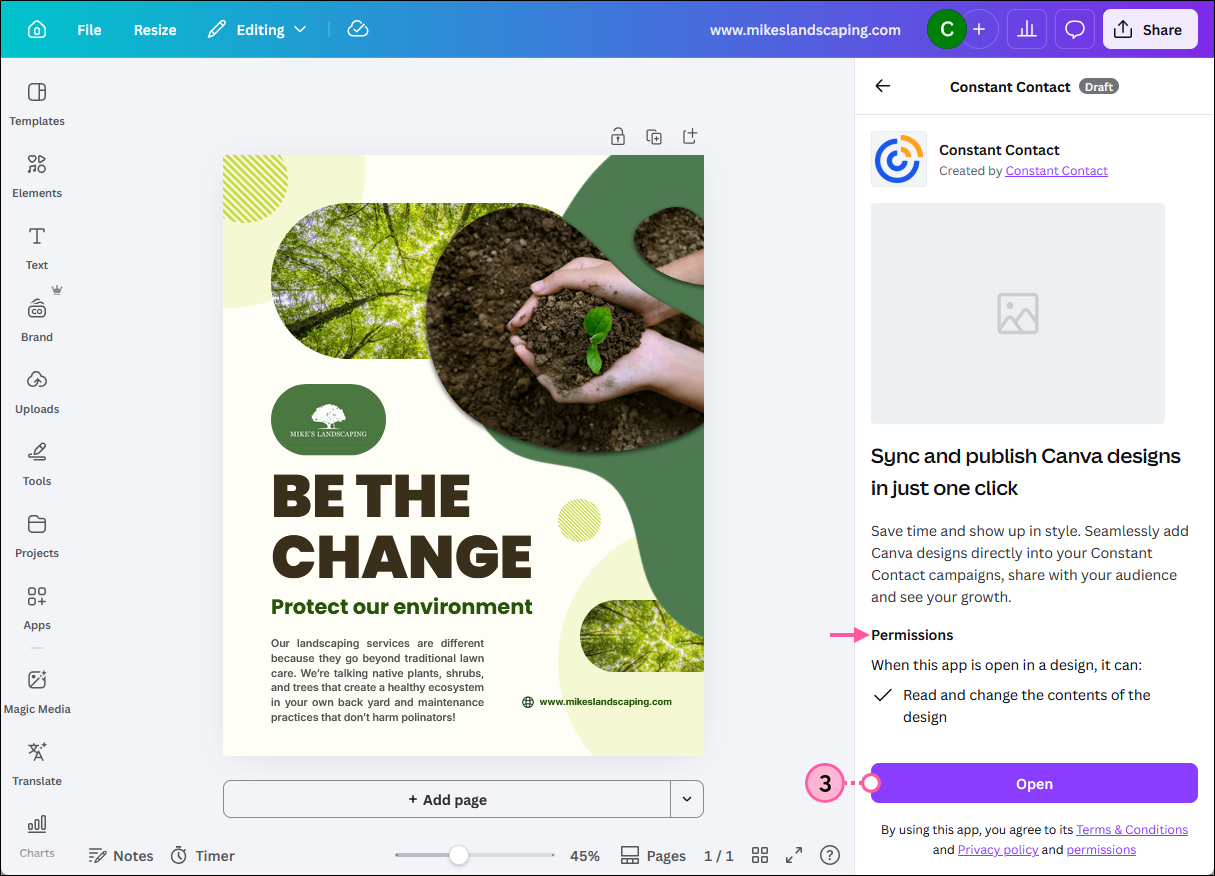
  3. Review the Constant Contact permissions and click the Open button.

    Canva social post with Constant Contact panel expanded, app permissions, and Open button

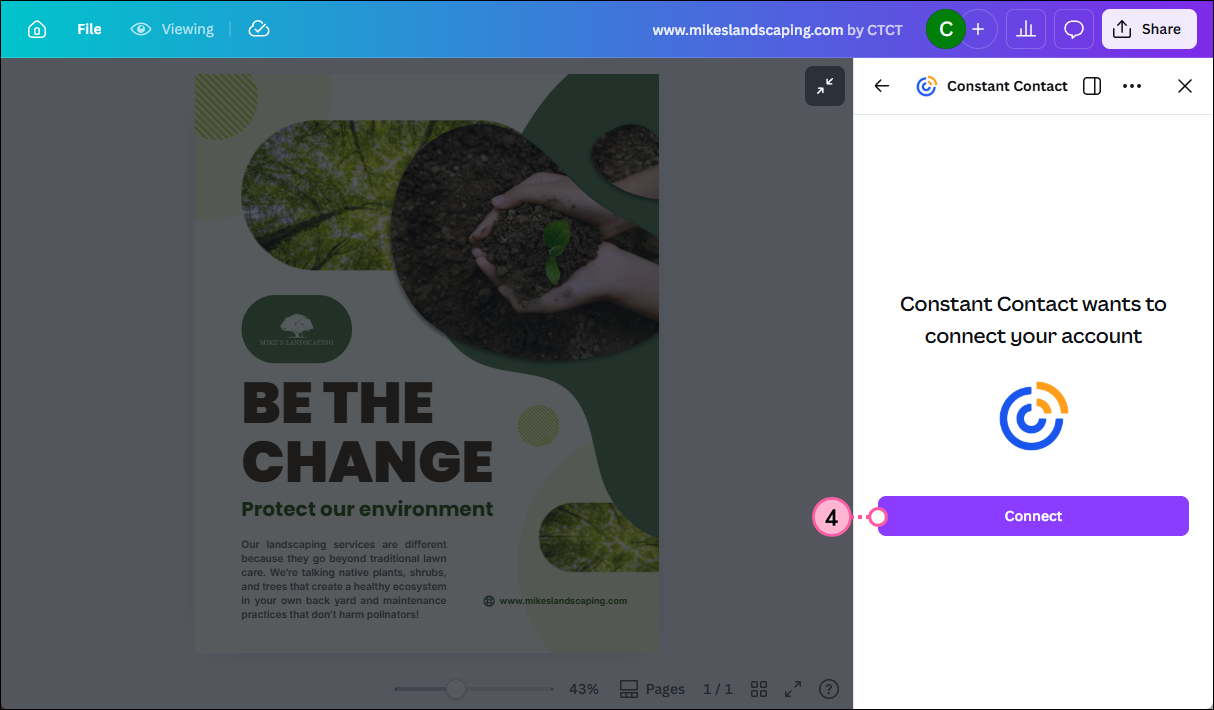
  4. Click the Connect button.

    Canva social post with Constant Contact panel expanded and Connect button

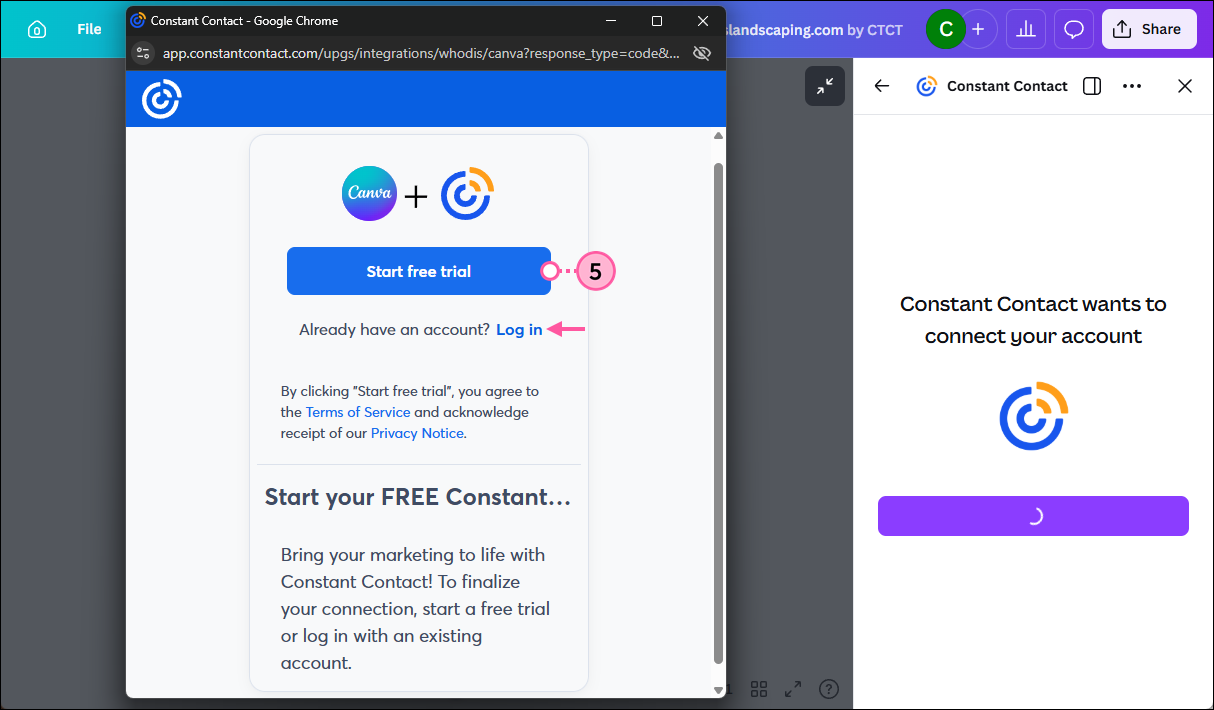
  5. Click the Start free trial button.
    Note: If you already have a Constant Contact account, click "Log in" to enter your username and password. If your social media accounts are already connected in your Constant Contact account, you're all set and can skip down to step 8.

    Canva social post with Constant Contact panel expanded and Start free trial overlay with Start free trial button and Log in link

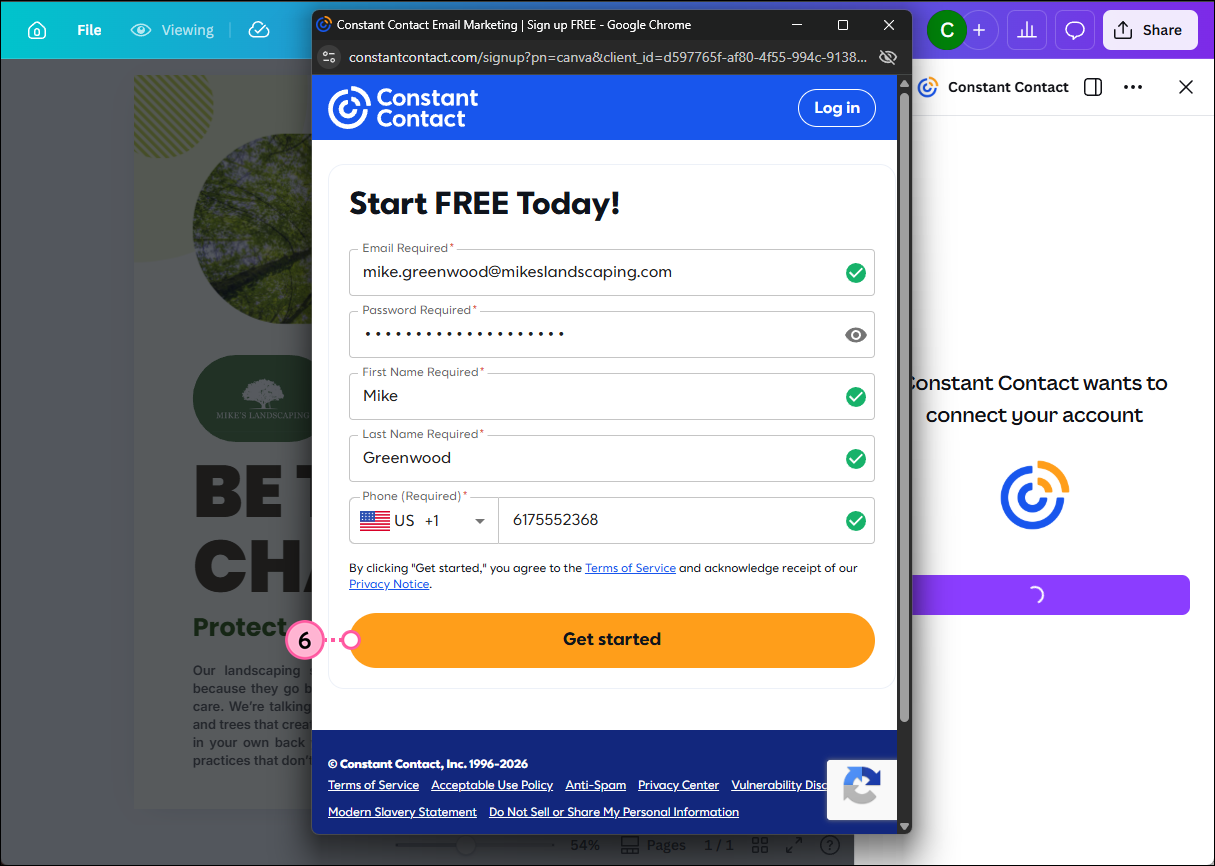
  6. Enter your information and click the Get started button to create your new Constant Contact account.

    Canva social post with Constant Contact account sign-up form and Get started button

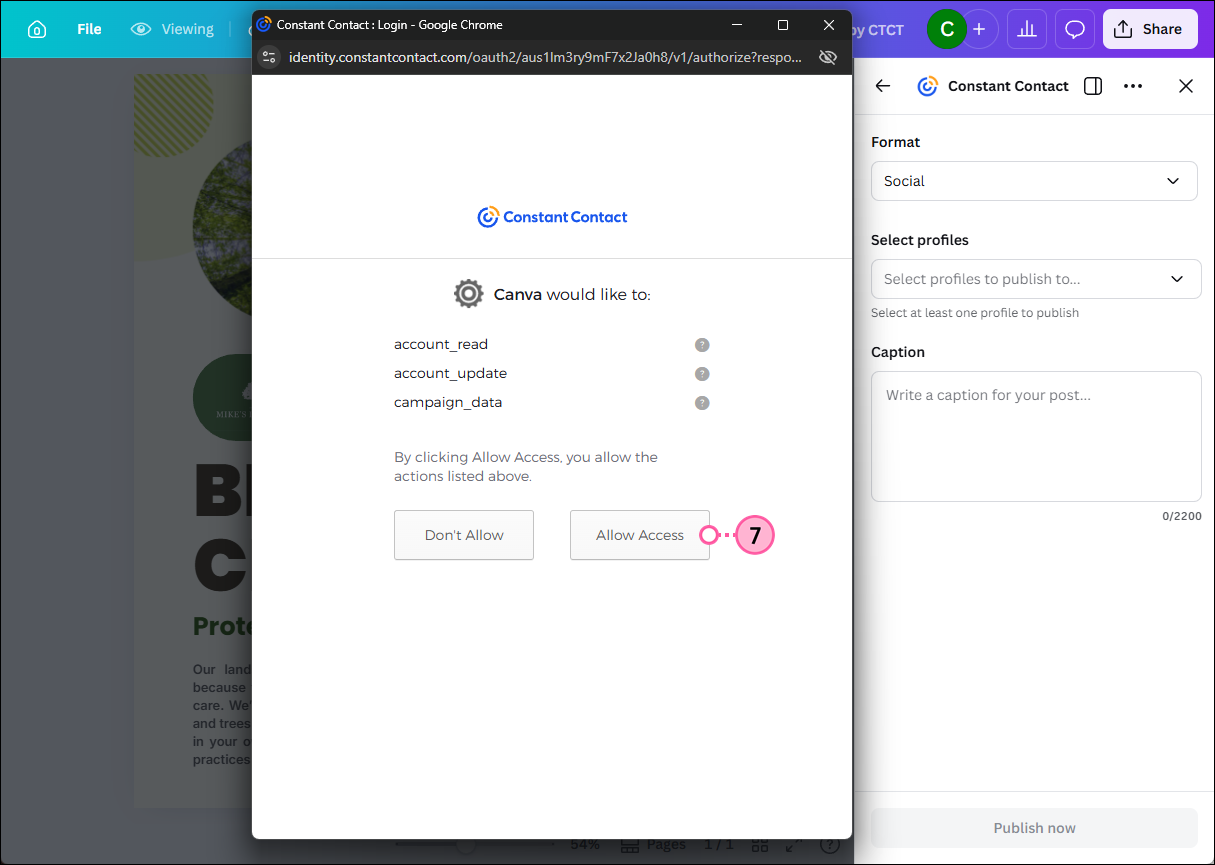
  7. Review the app permissions and click the Allow Access button. You're directed back to your Canva account, but before you can post you need to log into your new Constant Contact account, answer a few questions to complete your account registration, and then connect your Facebook, Instagram, LinkedIn, and TikTok accounts.

    Canva social post with Constant Contact panel expanded with permission overlay and Allow Access button

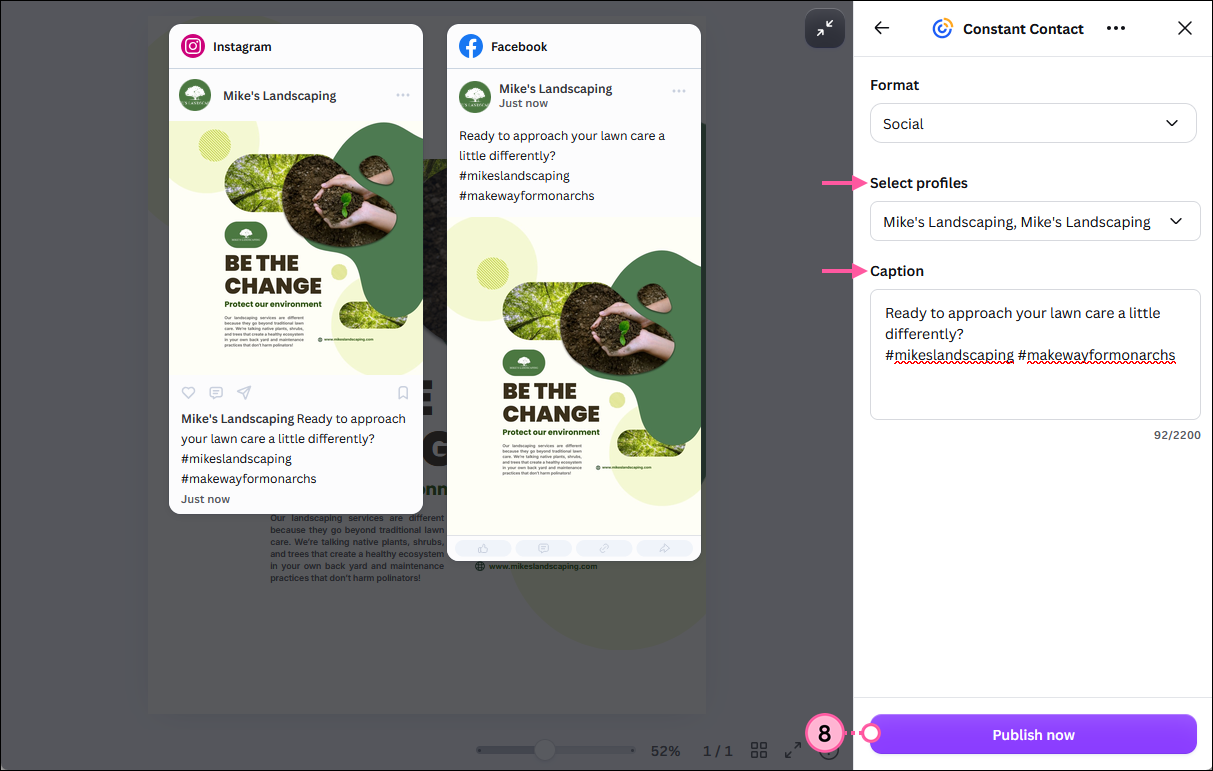
  8. Back in your Canva account, select the social profiles you want to share your post on, add some caption text, and then click the Publish now button.

    Canva social post with Constant Contact panel expanded with Format section and Social option pre-selected, Select profiles section with Facebook and Instagram profiles selected and post previews displayed, Caption section with text entered, and Publish now button

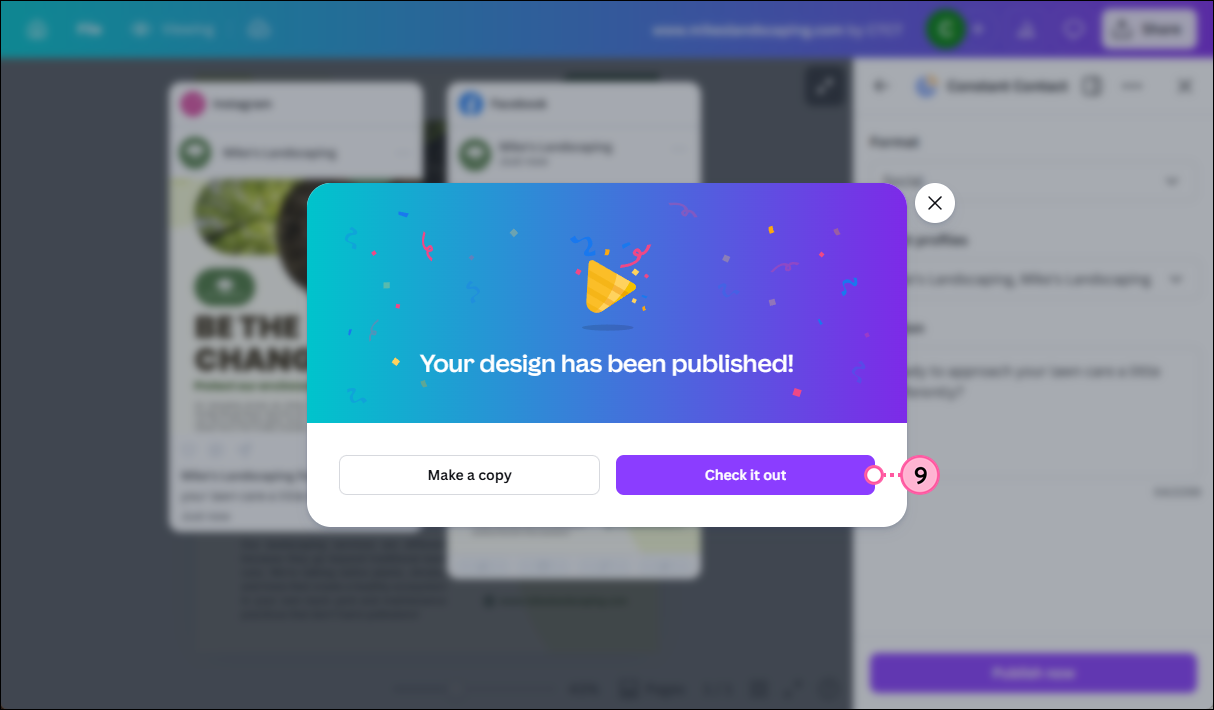
  9. Once your post has been shared, click the Check it out button to view the reporting for your post within your Constant Contact account.

    Canva Your design has been published! overlay and Check it out button

From within your Constnat Contact account you can check the reporting for your social post to compare the results on each of the social profiles you shared it on. The post can also be copied and re-shared from within your Constant Contact account too!
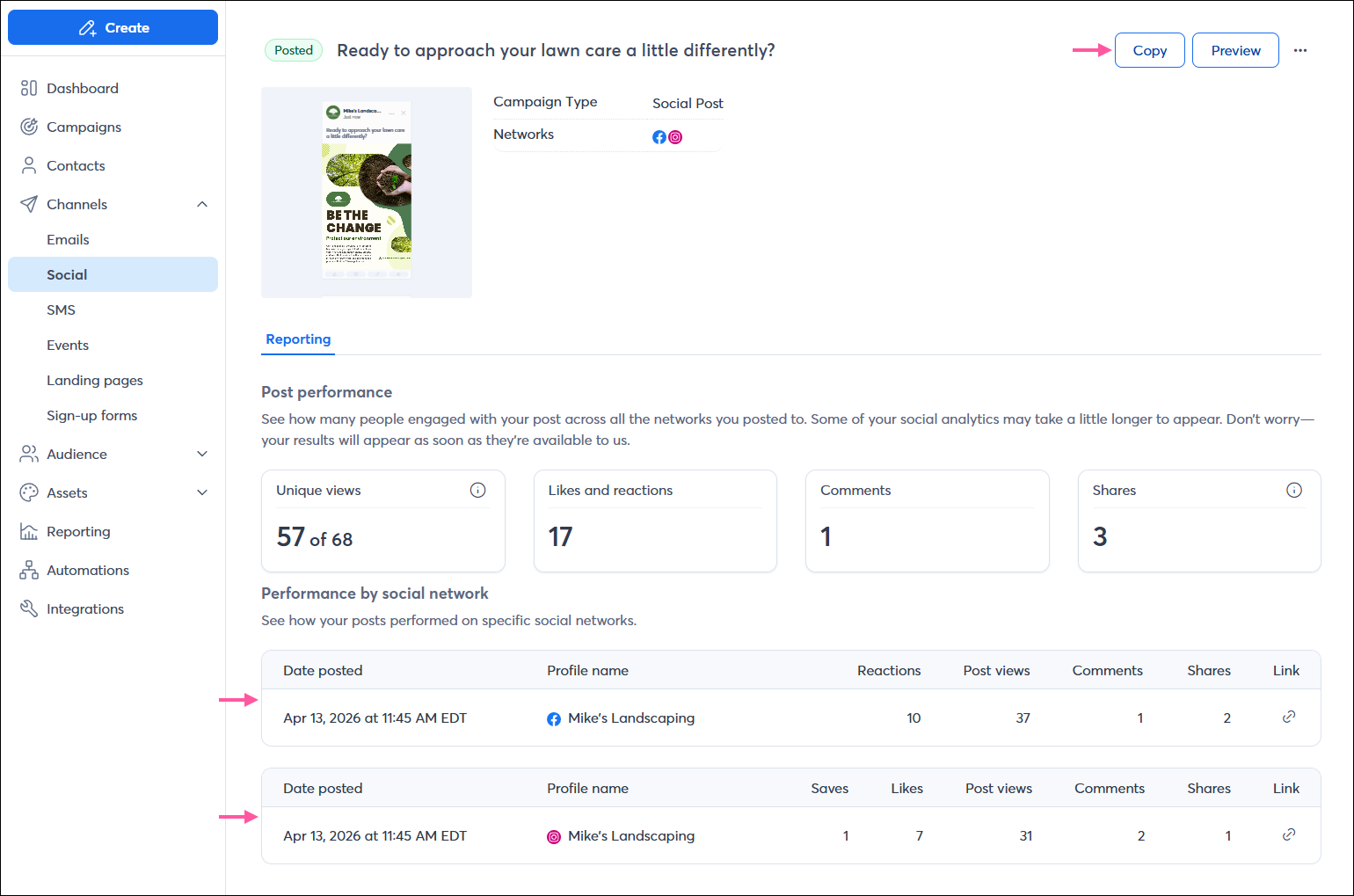
Constant Contact Social post details page with Reporting tab and results for post on Facebook and Instagram, and Copy button


Any links we provide from non-Constant Contact sites or information about non-Constant Contact products or services are provided as a courtesy and should not be construed as an endorsement by Constant Contact.


Questions?

Ask the Community

Did this article answer your question?


Constant Contact Logo

Copyright © 2026 · All Rights Reserved · Constant Contact · Privacy Center