Email and Digital Marketing
How can we help you?
Search our help articles, video tutorials, and quickstart guides

You've got this. You've got us. Search our Knowledge Base to quickly find answers to your questions.

Connect your Instagram business profile to create social posts through Constant Contact

Article: 000054046
Updated: October 13, 2025

Sync an Instagram business profile to your Constant Contact account so you can start creating social posts and then review your engagement

Exclamation Point IconImportant: This article covers connecting your Instagram account to Constant Contact. If you manage your Instagram account through the Meta Business Suite, or want to use Facebook and Instagram Ads or Lead Ads, follow these steps to connect Facebook instead.


Connecting your Instagram business profile to your Constant Contact account allows you to create posts and reels, share emails and events, and view your public-facing posts and reporting statistics.  Connect a single business profile or multiple accounts; all you need is the login credentials for each account you want to connect.
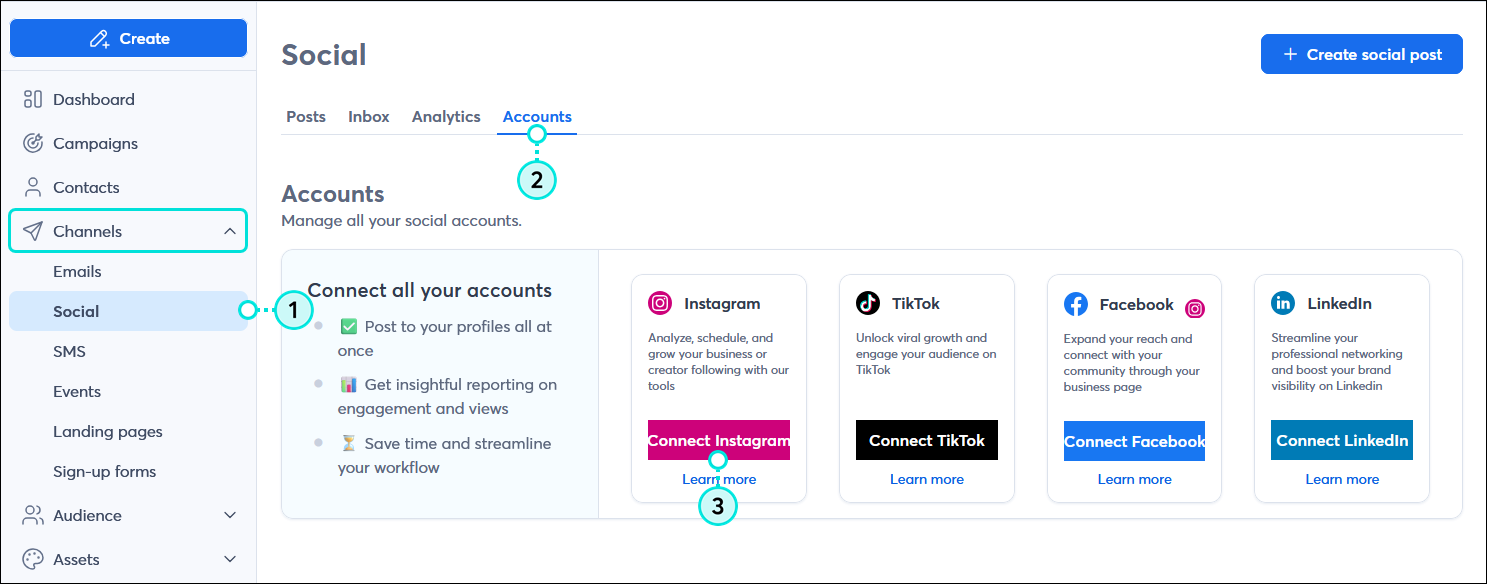
  1. In the menu on the left-hand side, click Channels > Social.
  2. Click the Accounts tab.
  3. Click the Connect Instagram button.
    Note: You can connect to Facebook, LinkedIn, and TikTok, too!

    Channels menu expanded with Social option selected, Social dashboard with Accounts tab selected, and Accounts options with Instagram tile and Connect Instagram button 

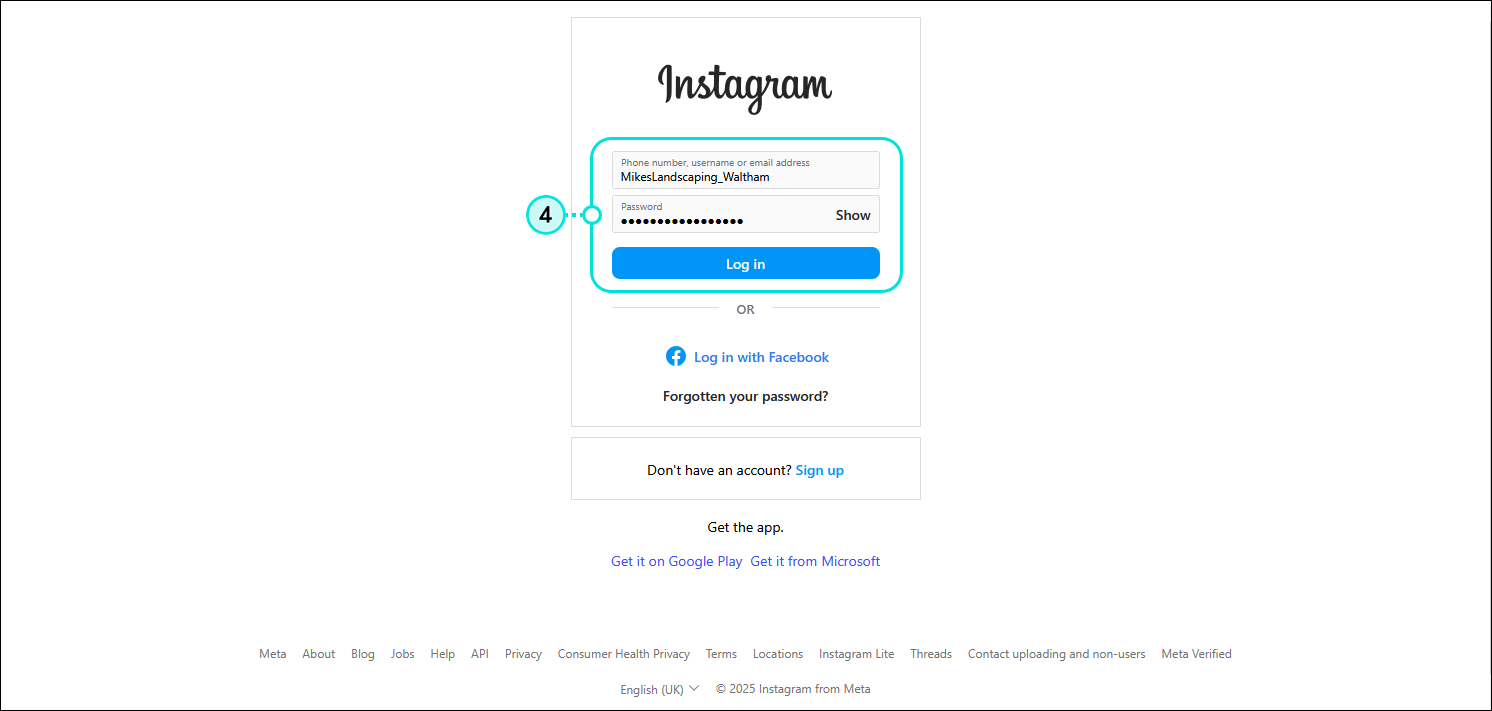
  4. If you're not already logged into your Instagram account within the same browser, you're prompted to log in. If you're already logged in, skip to step 5.

    Instagram login page with user name field, Password field, and Log in button

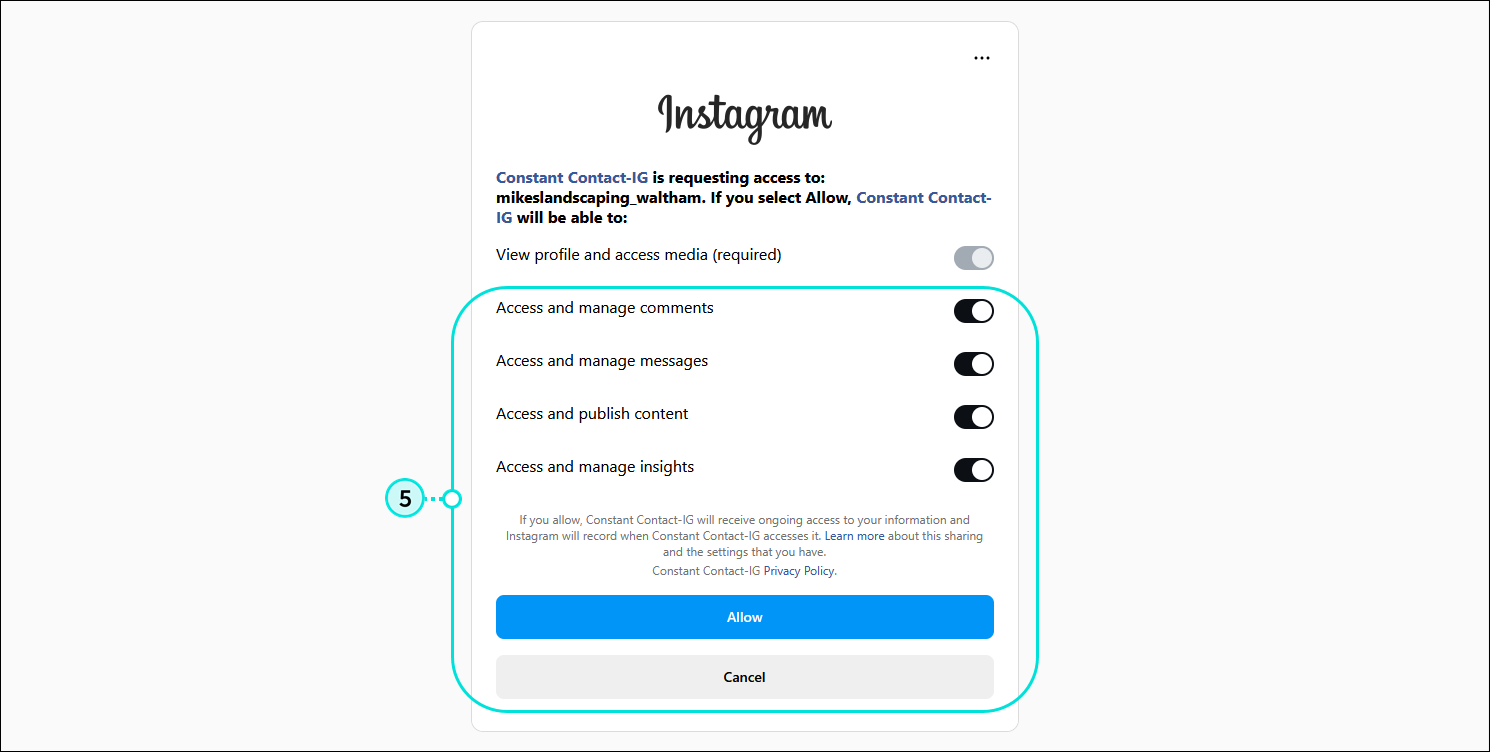
  5. Review the app permissions and click the Allow button. This allows Constant Contact permission to integrate with your account to create posts and import engagement activity. This doesn't give Constant Contact permission to access any of your personal account information.
    Note: You can revoke access for specific permissions, but we recommend accepting them so you can use the full range of social features.

    Instagram permissions page with Access and manage comments, Access and manage messages, Access and publish content, and Access and manage insights options and Allow button

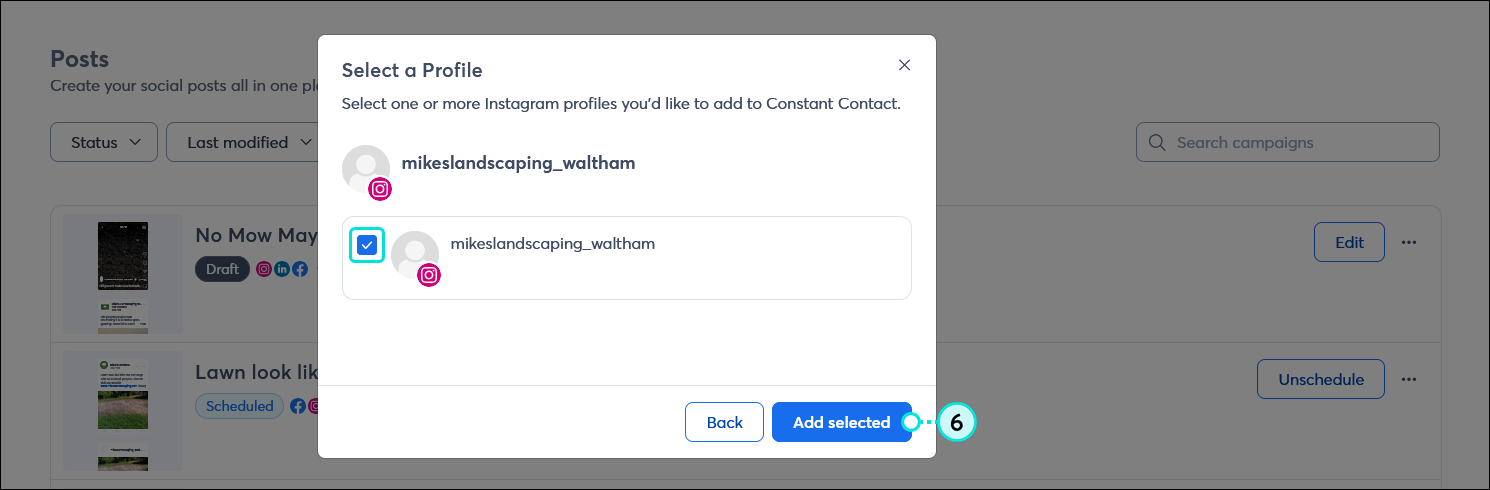
  6. Select the business profile you want to connect and click the Add selected button.

    Select a Profile overlay with Instagram business profile selected, and Add selected button

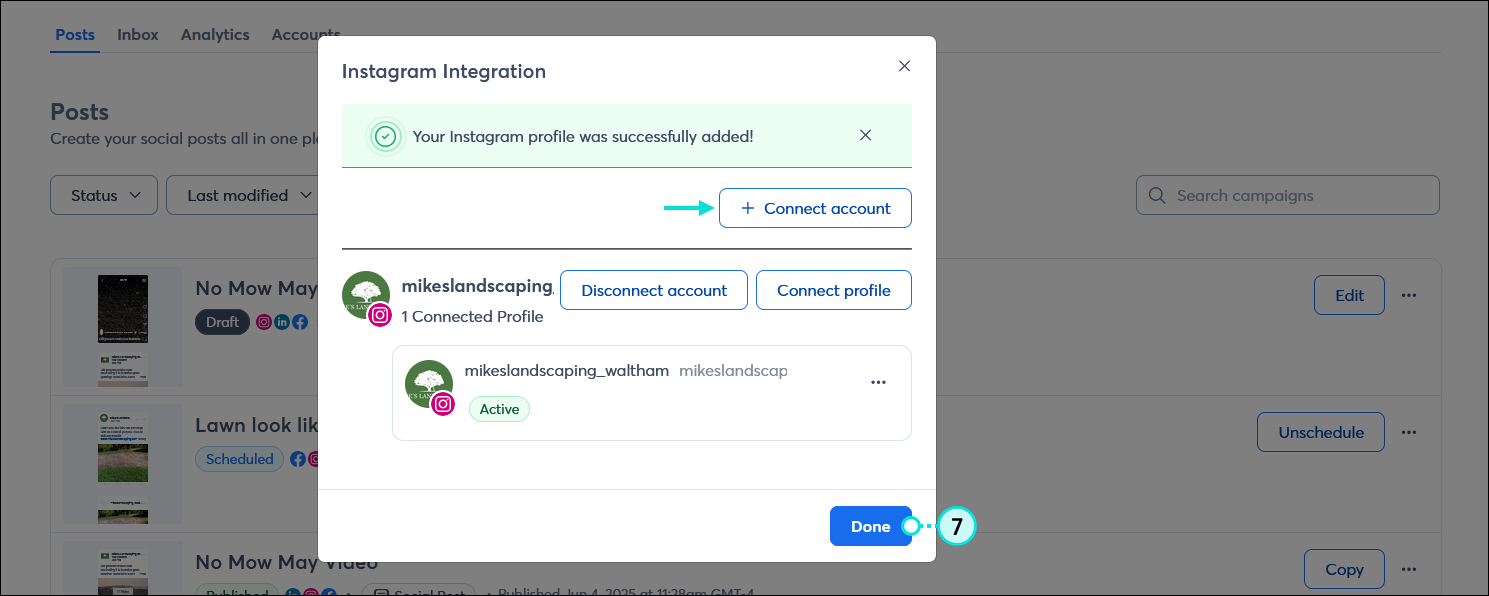
  7. Your account is successfully connected and you can either click the + Connect account button if you have multiple Instagram accounts to connect, or click the Done button to return to the Social dashboard.

    Instagram Integration overlay with connection success banner, + Connect account button, and Done button

Once your Instagram accounts are connected, you can create and share a post. Then, after your posts are published, you can review what kind of engagement you're getting and respond to likes and comments too!


Megaphone IconBe a better marketer: New to social media marketing or using Instagram? Learn how to promote your business with Instagram and find strategies for boosting customer engagement!


Any links we provide from non-Constant Contact sites or information about non-Constant Contact products or services are provided as a courtesy and should not be construed as an endorsement by Constant Contact.


Questions?

Ask the Community

Did this article answer your question?


Constant Contact Logo

Copyright © 2025 · All Rights Reserved · Constant Contact · Privacy Center