Email and Digital Marketing
How can we help you?
Search our help articles, video tutorials, and quickstart guides

You've got this. You've got us. Search our Knowledge Base to quickly find answers to your questions.

Adding images to a social post

Article: 000054804
Updated: January 29, 2026

Add images from your Library, choose images from the Stock Image Gallery, or use Canva to design images for your social post

No two social media platforms are exactly the same, but they all allow images in posts! Your images are what draw your friends and followers' eyes, encouraging them to engage further with your post content, so you want them to be both striking and relevant.


Image limits within a social post

Each social platform treats images a little bit differently, and the number of images that you can include in one social post varies:

  • Facebook - 30 images, and images can be JPEG, PNG, or GIF
  • Instagram - 10 images, and images can be JPEG, PNG, or GIF
  • LinkedIn - 20 images, and images can be JPEG, PNG, or GIF
  • TikTok - 35 images, and images must be JPEG. If you have an image-only post, you can also include music.


Light Bulb IconDid you know? There are different image sizes and ratios that are ideal for each social media platform, too!


Steps to add images to a social post

Light Bulb IconDesign tip: By selecting the option to "Edit each platform separately," you can choose different images based on the audience for each social profile, and use a different number of images for each social platform. You can also opt for a short-form video for platforms like Instagram and TikTok while sharing images on Facebook and LinkedIn!


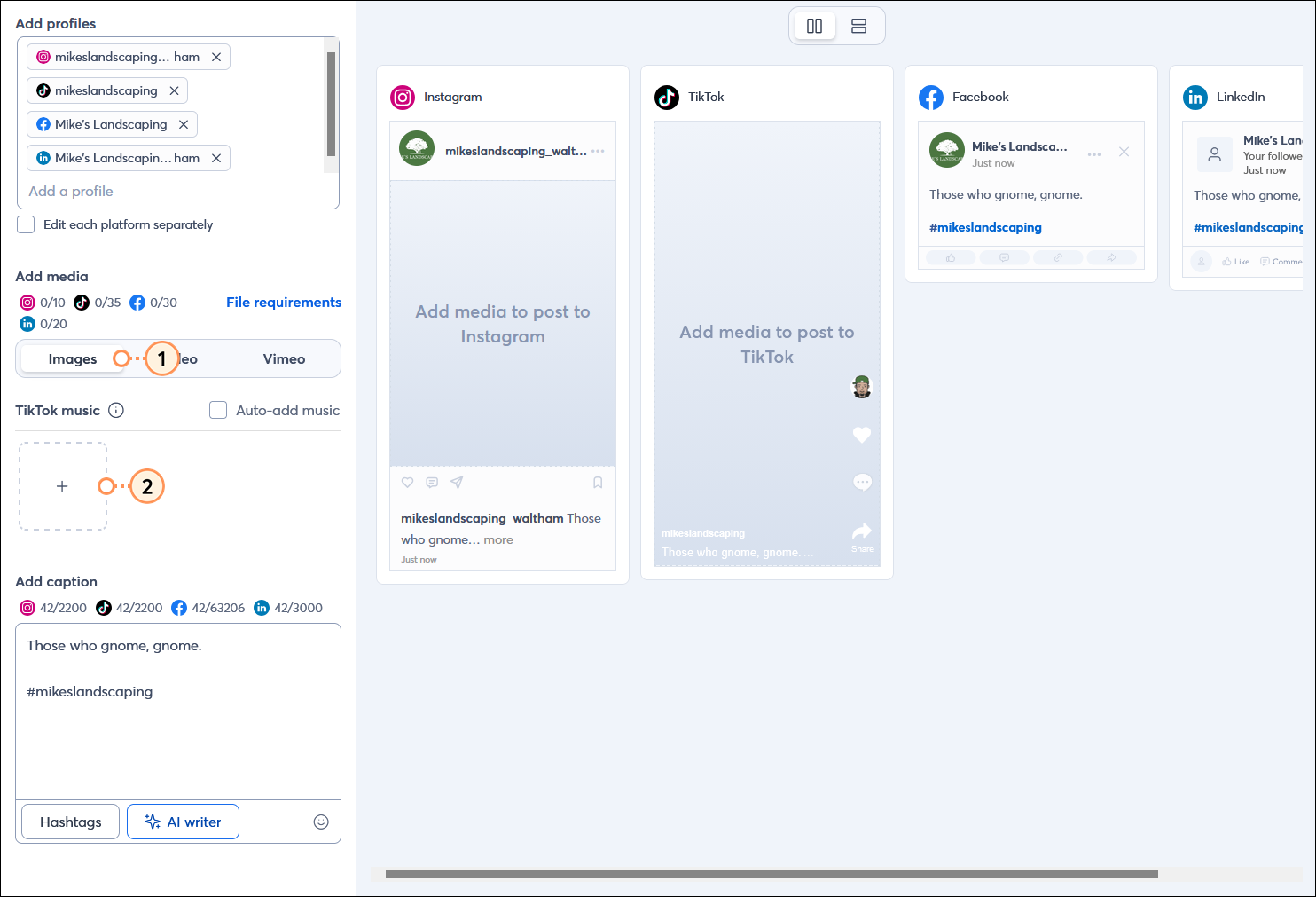
  1. While creating a social post, click the Images option in the Add media section.
  2. Click the + (Add) button.

    Social post editor with Add media options, Images option selected, and Add button

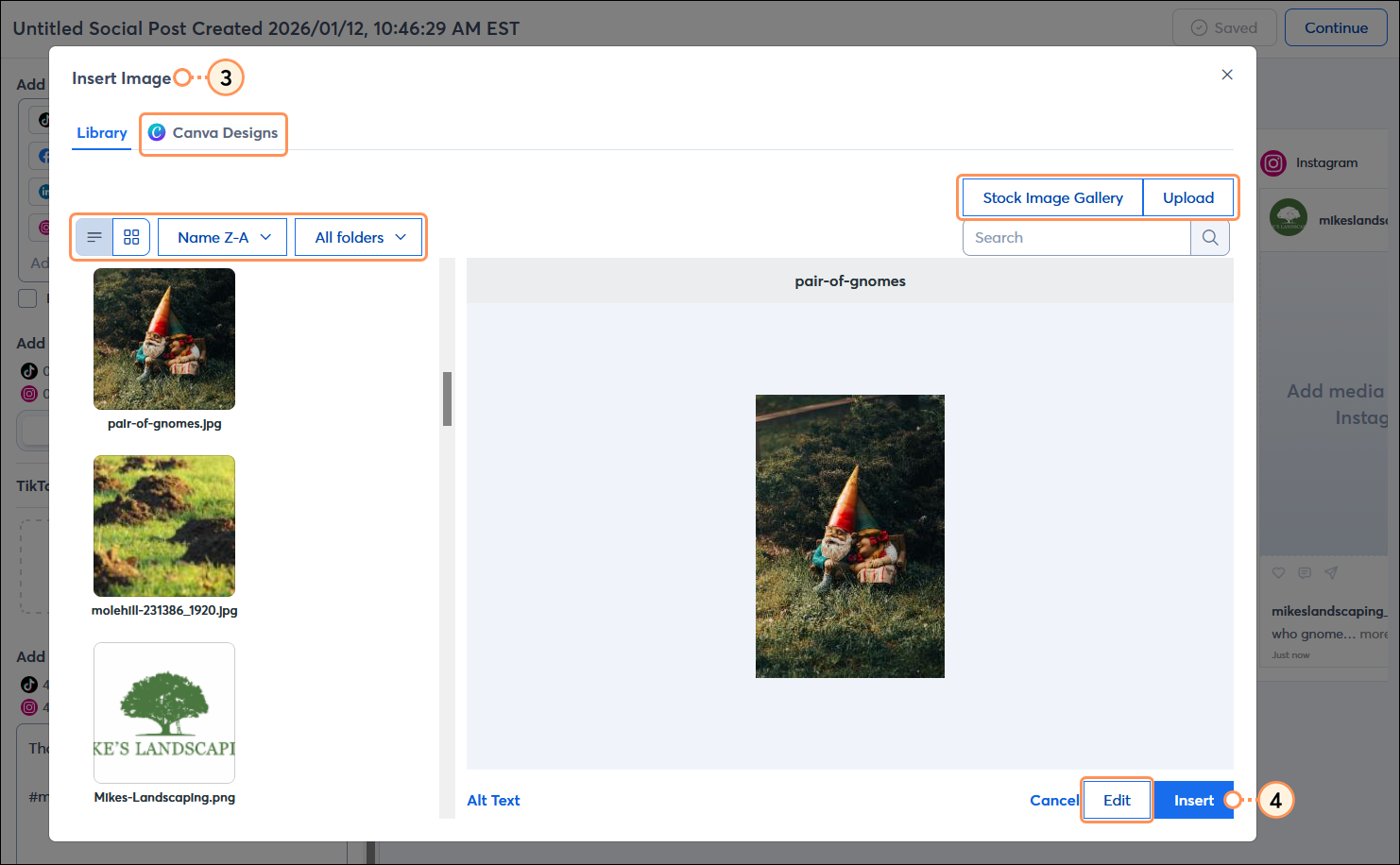
  3. From the Insert Image overlay, you can:
  • Select an existing image from your Library. You can also use the image editing tools in the Library to crop the image, add filters, layer text over it, and more.
  • Import a new image into your Library.
  • Design an image in Canva. Canva has templates for social media images, ensuring the right size and ratio for each social platform you post to. You're prompted to connect your Canva account if you haven't already.
  • Look for an image (free or for purchase) from the Stock Image Gallery, including Shutterstock images.
  1. Click the Insert button.

    Insert Image overlay with Library tab selected and image selected, Canva Designs tab, Stock Image Gallery button, Upload button, and Insert button

Repeat for each image you want to include in your social post.


Questions?

Ask the Community

Did this article answer your question?


Constant Contact Logo

Copyright © 2026 · All Rights Reserved · Constant Contact · Privacy Center