Videos are a great way to drive engagement with your social posts, especially when they're short! MP4 or MOV videos that are under 4GB in size and under 15 minutes in length can be added to a social post and shared to Facebook, Instagram, LinkedIn, and TikTok. Each social post can include a single video. Still, you're able to use post variations to change the video, text, URL, hashtags, or emoji so that you can customize your content for your audience on each social platform.
Understand video requirements before posting
If a video doesn't meet certain requirements, you're prevented from selecting it to share in a social post.
- Video file type - Your video must be in either an MP4 or MOV format.
- Video file size - Your video must be under 4GB.
- Video length - Your video can't be longer than 15 minutes. For the best engagement with your social post, videos that are 90 seconds or less are ideal.
- Video orientation - Both horizontal and vertical orientations are compatible.
Image files aren’t compatible with a social post that includes a short-form video. If you want to include images, they must be shared in a separate post.
 | Important: TikTok is compatible with social posts, but has its own video limits. The maximum file size for a video is 1GB, and TikTok determines the video duration for each unique user. Video duration ranges between 15 seconds - 10 minutes. |
Know who sees a video when you share it
Each social platform handles videos in its own way. Here's who generally sees a video when you post it to:
- Facebook - Your friends can see the videos you post on Facebook from the feed in their Home tab or in the Video tab, and if your audience is set to "Public," anyone can watch your videos. Facebook lets you control who can view your content by selecting an audience.
- Instagram - Videos posted in Instagram are Reels. The Reels and Explore tabs let Instagram users view videos from accounts that they aren't following, and your followers can find your videos in their feed from the Home tab. Instagram lets you control who can view your content by making your account public or private.
- LinkedIn - Your 1st degree connections see your posts in their feed from their Home tab. However, anyone can follow you without being a connection, and your post may also be seen by 2nd degree connections (connected to a 1st degree connection) and 3rd degree connections (connected to a 2nd degree connection) too! LinkedIn lets you control who can follow you by changing your visibility settings.
- TikTok - Your friends and followers can see your video posts on TikTok from their For You page (FYP) if your post privacy settings are set to "Friends," and anyone can see your videos if your post privacy settings are set to "Everyone." TikTok lets you control who can view your content by changing your post privacy settings.
For more social platform-specific information about posting videos, please see the support pages for Facebook, Instagram, LinkedIn. and TikTok.
Choose different videos for each social platform in a single post
A video posted to one social media platform may not perform as well on another because each audience is a little bit different. When you select multiple social profiles and choose to edit each platform separately, you can include a different video for each platform, letting you target your content to each audience without having to create multiple posts. You can also customize your copy text, hashtags, and emoji for each variation of your post, and add URLs to the platforms that support them.
Share a video through a social post
 | Did you know? We're currently rolling out an updated social editor to customers. If your social post editor looks different, please see the steps below. |
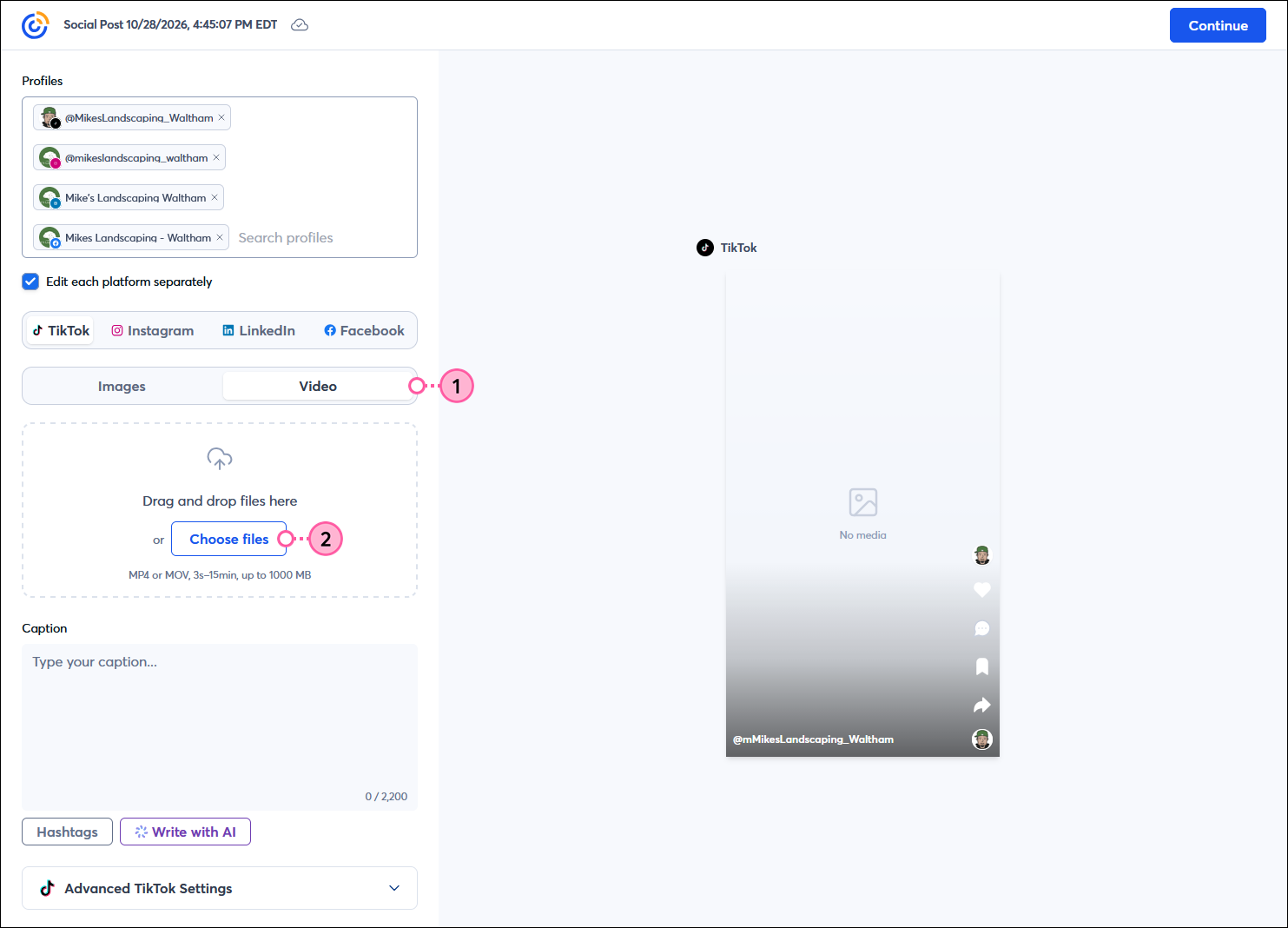
- While creating a social post, click the Video option.
- Click the Choose files button to select a video from your device, or drag and drop the video file into the field. If the video is too large or too long, you won't be able to use it in your social post.
Note: A video thumbnail is generated from the first frame of the video and then added into the post preview. The thumbnail is clickable, so you can preview your video in each version of your post.
Share a video through a social post for Teams
- While creating a social post, click the Video option in the Add media section.
- Click the + button and select a video from your device. If the video is too large or too long, you won't be able to use it in your social post.
Note: A video thumbnail is generated from the first frame of the video and then added into the post preview, but the thumbnail isn't clickable or playable in the social post editor; it's just there to give you an idea of what your post will look like.

Any links we provide from non-Constant Contact sites or information about non-Constant Contact products or services are provided as a courtesy and should not be construed as an endorsement by Constant Contact.