Email and Digital Marketing
How can we help you?
Search our help articles, video tutorials, and quickstart guides

You've got this. You've got us. Search our Knowledge Base to quickly find answers to your questions.

Partners: Managing your pipeline

Article: 000045174
Updated: October 13, 2025

Leverage the All Accounts Summary Report to see your open or cancelled accounts, and expired trials, and the Managed Account Details Report to check the status and activity of your customers to ensure you're making the most of your partnership

Add People IconIn need of multiple accounts? Our multi-account solution is designed for organizations seeking unique accounts for their various locations, departments, or users. Take advantage of bulk pricing, product features for brand control, customized onboarding, and more!


As a Partner, knowing the status and activity of your customers can make a big difference in earning monthly incentives. There are different reports you can run to tell you the whole story. Leveraging these reports can help you manage your pipeline and ensure you are making the most of your partnership.

To access your reports, log into your personal Constant Contact account—the one given to you when you became our partner, then follow these steps:
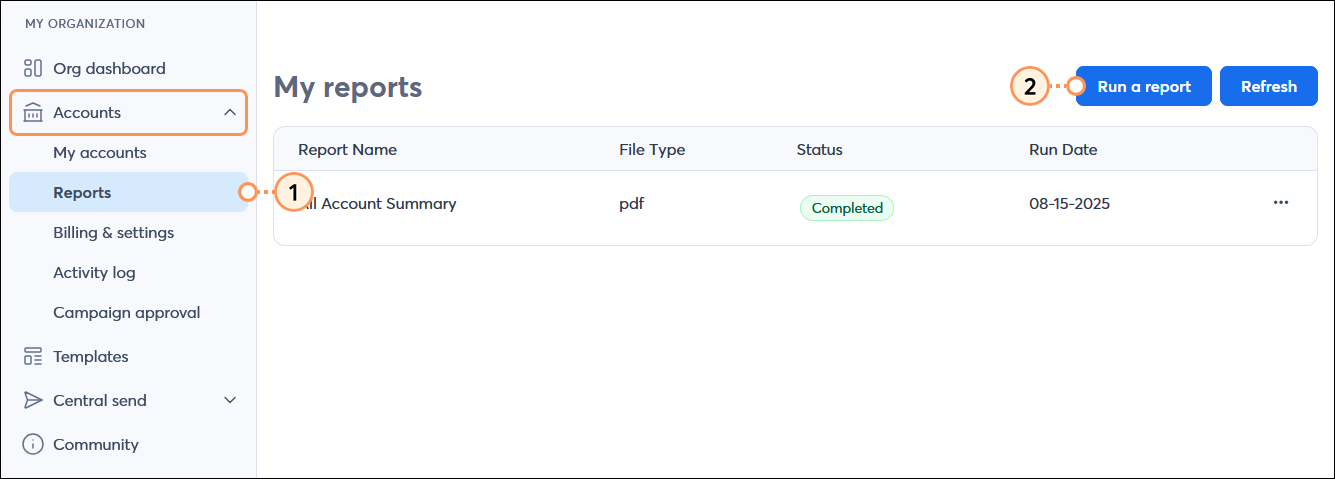
  1. In the MY ORGANIZATION menu on the left hand side, click Accounts > Reports.
  2. Click the Run a Report button in the upper right-hand corner of the page.

    MY ORGANIZATION menu with Accounts menu expanded and Reports option selected, My reports page with Run a report button

  3. From the Generate Report overlay, choose one of the following reports from the drop-down menu:


All Accounts Summary

The All Accounts Summary report provides a high-level overview of your partnership with Constant Contact. It shows the number of open accounts, trials, expired trials, and canceled accounts you have, further broken down by managed or referred accounts.
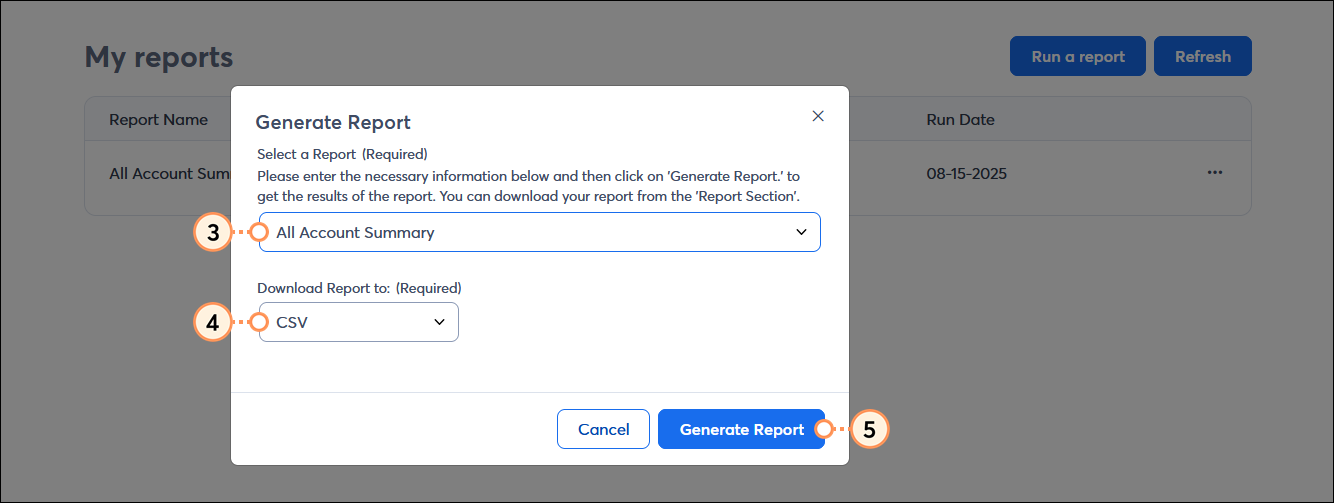
  1. Select the type of file you want to export. You can choose from:
  • PDF
  • HTML
  • CSV
  • XLS
  1. Click the Generate Report button.

    Generate Report overlay with Select a Report drop-down menu and Managed Account Details option selected, Download Report to option with XLS option selected, and Generate Report button


Managed Account Details

The Managed Account Details report displays account information including first payment date, list size, plan type, and actions the accounts have taken. This data can be exported and filtered to create targeted lists you can then upload to your account. For example, you can pull a list of customers who do not have a list, a list of a certain size, have never logged in, or have never sent a campaign. You can also pull a list of expired trialers and send them a special offer!
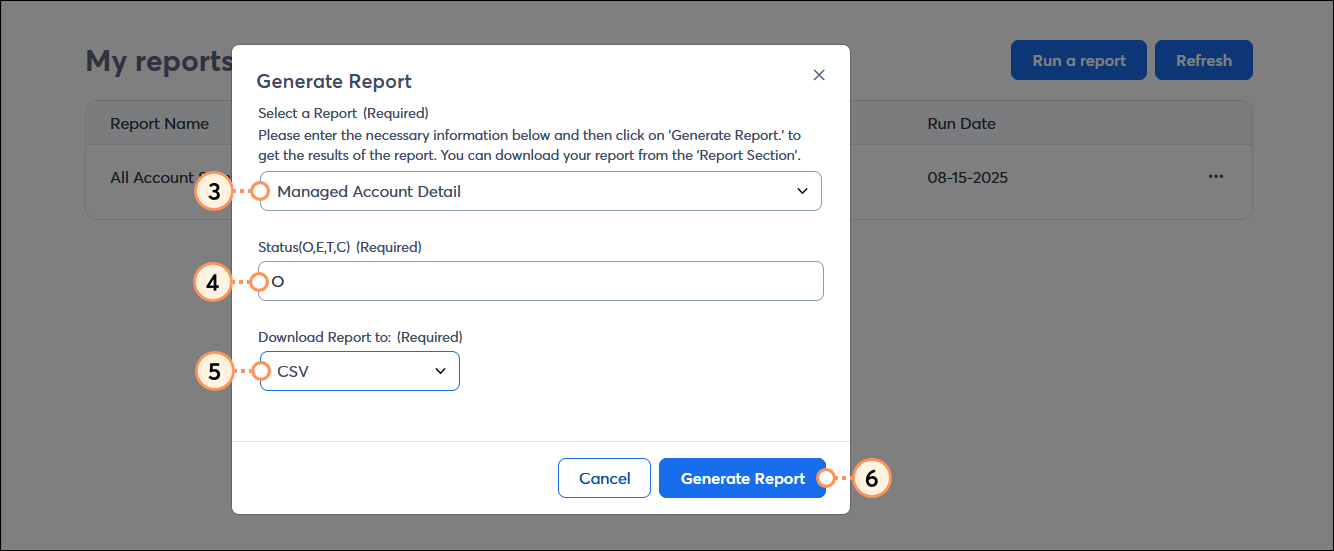
  1. From the Generate Report overlay, enter one of the following into the Status field:
  • O for Open Accounts.
  • T for Trials.
  • E for Expired Trials.
  • C for Canceled accounts.
    Note: This field is case sensitive, so make sure to use capital letters.
  1. Select the type of file you want to export. You can choose from:
  • PDF
  • HTML
  • CSV
  • XLS
  1. Click the Generate Report button.

    Generate Report overlay with Select a Report drop-down menu and Managed Account Detail option selected, Donwload Report to drop-down menu with CSV option selected, and Generate Report button


New Account Bonus Tracker

The New Account Bonus Tracker report keeps track of the accounts usernames, NAB status/eligibility, and number of days since initial upgrade. A bonus is earned at 95 days.
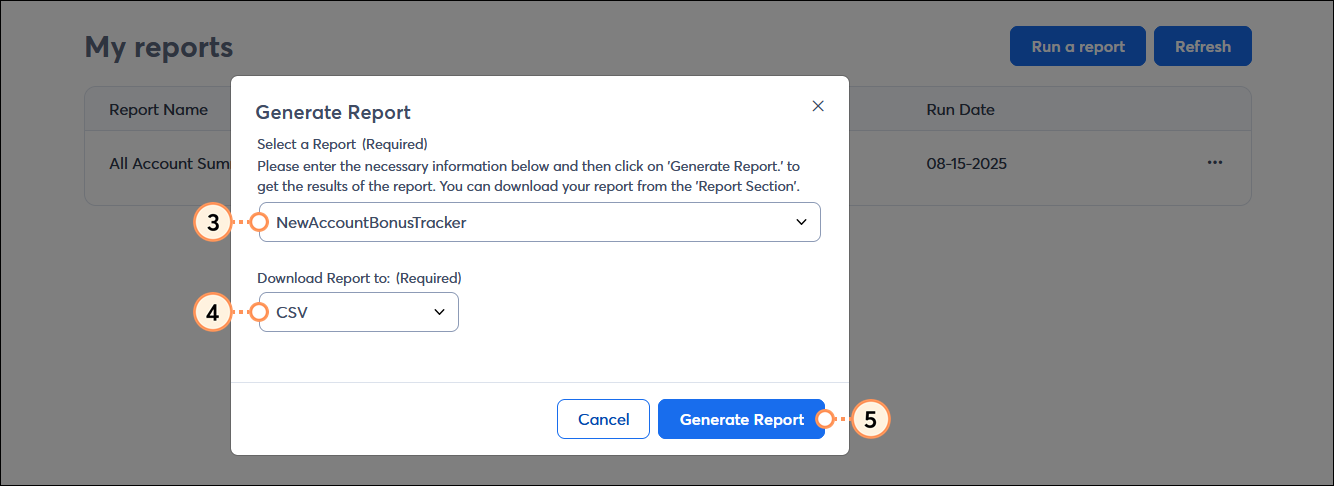
  1. Select the type of file you want to export. You can choose from:
  • PDF
  • HTML
  • CSV
  • XLS
  1. Click the Generate Report button.

    Generate Report overlay with Select a Report drop-down menu and NewAccountBonusTracker option selected, Donwload Report to drop-down menu with CSV option selected, and Generate Report button


Cancels and Move-Outs

The Cancels and Move-Outs report lists accounts that have moved out of the partnership or canceled in the last 90 days. Customers might move out if they need to go into another partnership, or cancel for a variety of reasons.
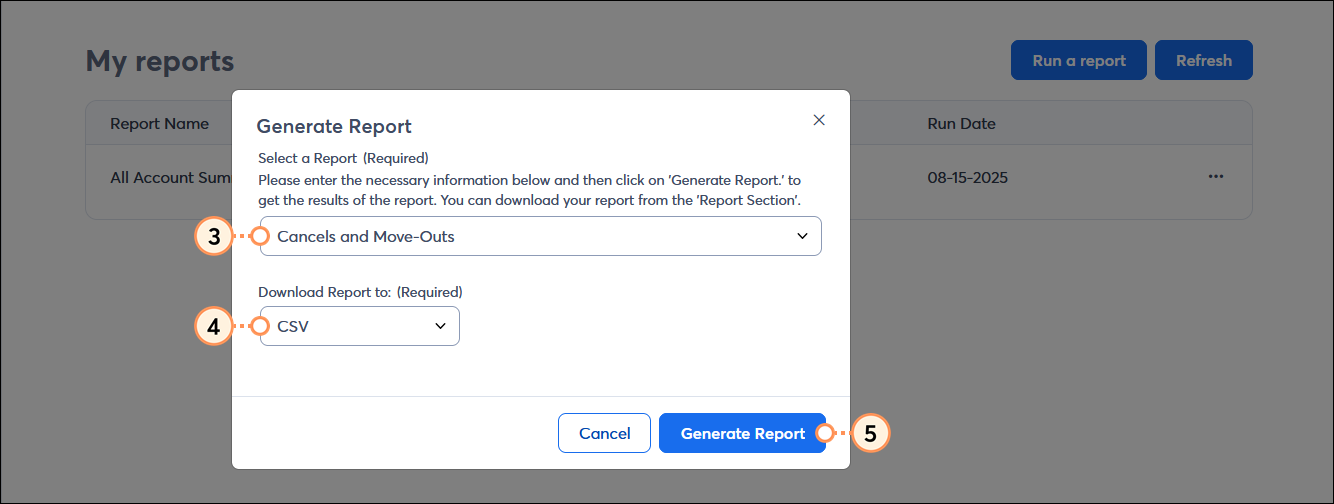
  1. Select the type of file you want to export. You can choose from:
  • PDF
  • HTML
  • CSV
  • XLS
  1. Click the Generate Report button.

    Generate Report overlay with Select a Report drop-down menu and Cancels and Move-Outs option selected, Donwload Report to drop-down menu with CSV option selected, and Generate Report button


Questions?

Ask the Community

Did this article answer your question?


Constant Contact Logo

Copyright © 2026 · All Rights Reserved · Constant Contact · Privacy Center