We're making it easier to get around Constant Contact with a brand new left navigation. Not all accounts have that change yet, so if your navigation looks different from our articles, that's why–but everything from the top can now be found on the left!

Email and Digital Marketing
How can we help you?
Search our help articles, video tutorials, and quickstart guides

You've got this. You've got us. Search our Knowledge Base to quickly find answers to your questions.

Partners: Using the Financial Benefit Report

Article: 000045175
Updated: October 13, 2025

Track everything you’ve earned and been paid using the financial benefit report

Add People IconIn need of multiple accounts? Our multi-account solution is designed for organizations seeking unique accounts for their various locations, departments, or users. Take advantage of bulk pricing, product features for brand control, customized onboarding, and more!


The financial benefit report is the best way to keep track of all that you have earned through your partnership with Constant Contact. The report contains a breakdown of your revenue share, incentives, earnings, disbursements of those earnings, and any other adjustments that may apply.

To access your Financial Benefits Report, log into your personal Constant Contact account—the one given to you when you became our partner, then follow these steps:
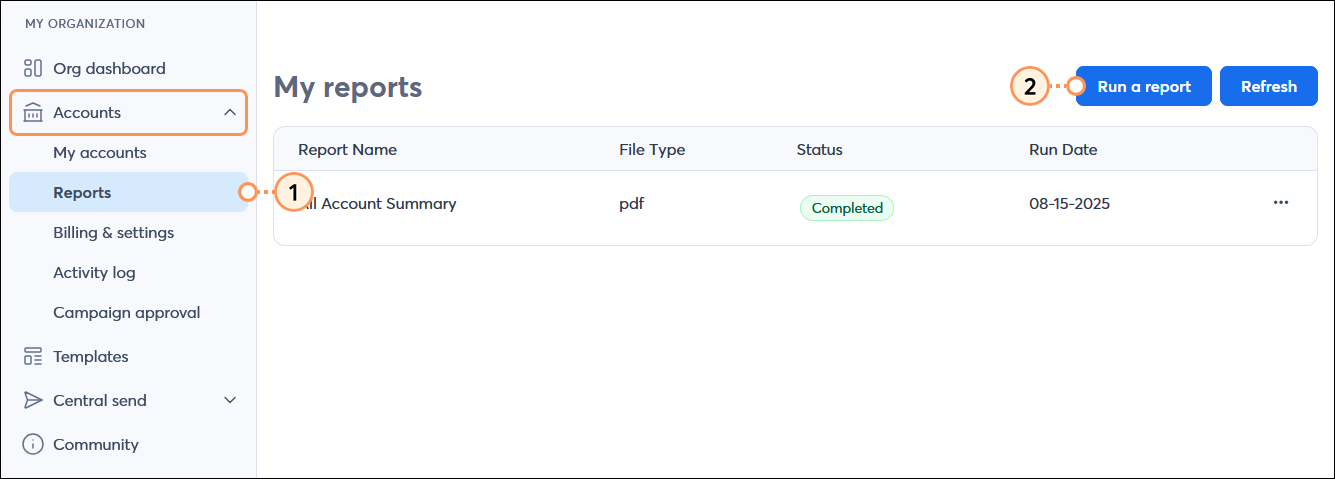
  1. In the MY ORGANIZATION menu on the left hand side, click Accounts > Reports.
  2. Click the Run a Report button in the upper right-hand corner of the page.

    MY ORGANIZATION menu with Accounts menu expanded and Reports option selected, My reports page with Run a report button

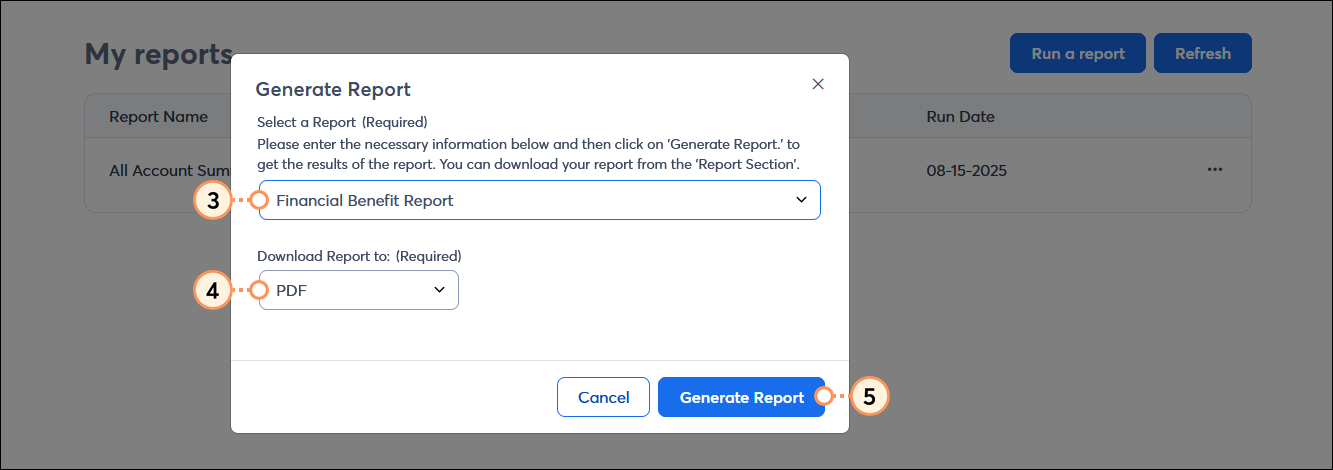
  3. From the Generate Report overlay, choose the Financial Benefit Report from the Select a Report drop-down menu.
  4. Select the type of file you want to generate.
  5. Click the Generate Report button.

    Generate Report overlay with Select a Report drop-down menu and Financial Benefit Report option selected, Download Report to option with XLS option selected, and Generate Report button

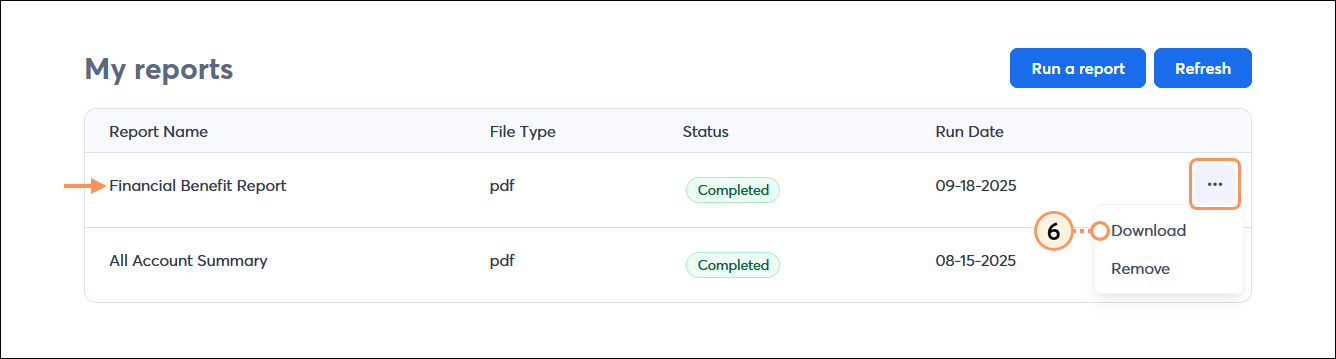
  6. Wait a few minutes for the report to generate. Once complete, click the three dots to expand the menu next to the "Financial Benefit Report" and click Export to download it.

    My reports page with Financial Benefit Report menu expanded and Download option selected 

Each month's earnings are calculated and posted at the beginning of the following month. Disbursements of funds payable to you are made at the end of each month. Earnings describe the source of the revenue (new account bonus, revenue share, etc.). Payments include a document number.


Light Bulb IconDid you know? In addition to the Financial Benefit Report, there are lots of different reports you can use to help manage your pipeline!


Questions?

Ask the Community

Did this article answer your question?


Constant Contact Logo

Copyright © 2025 · All Rights Reserved · Constant Contact · Privacy Center