 | In need of multiple accounts? This feature is currently only available to Constant Contact Partners who have multiple Constant Contact accounts. If you're interested in learning more, visit our multi-account page. |
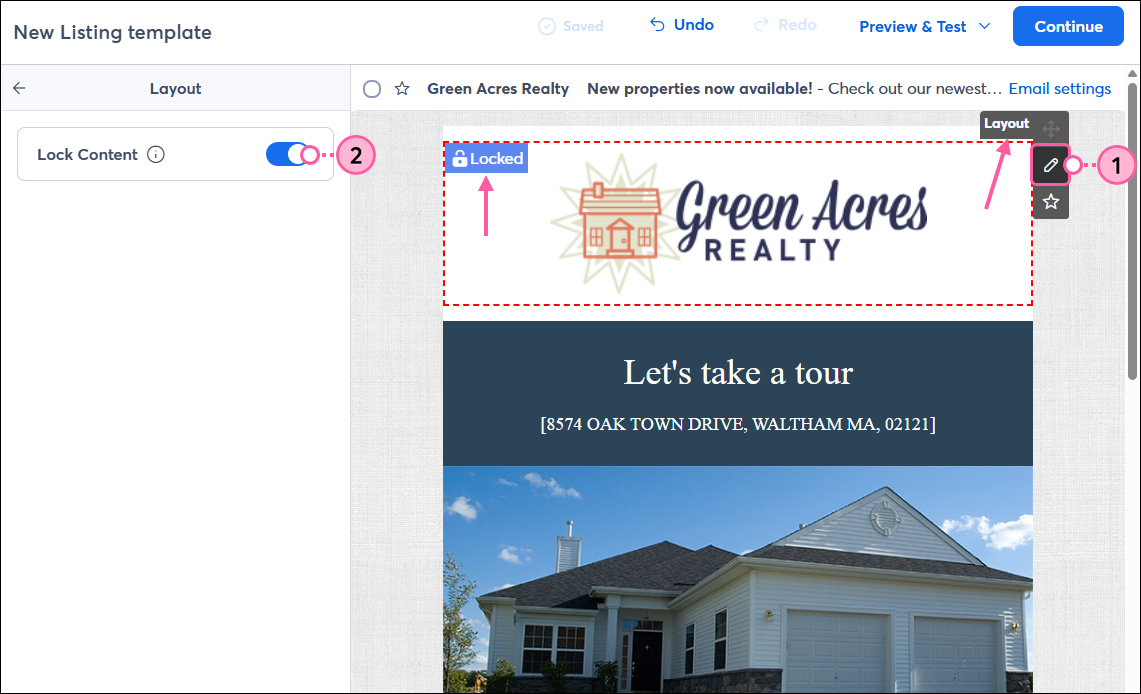
Lockable layouts allow Teams and Partners to create content within an email or landing page and lock the group of blocks (or layout) to prevent the content from being edited, moved, or removed when the email or landing page is copied from a primary account to subaccounts. The content within a locked layout can be anything you want to stay consistent, such as your branded logo, contact information, specific offer copy, and legal disclaimers. Every block type available in the Content tab of the email or landing page editor can be locked.
When the email or landing page is ready, you can share it with your subaccounts without worrying about the content being changed or removed.
Locking a layout prevents you from adding blocks to it, editing the content within a block in the layout, and moving the layout within the template. Blocks can be added above or below a layout that has been locked, but blocks can't be added to the left or right-hand side to form columns while a layout is locked.
 | Design tip: Your email template is built from a combination of blocks, layouts, and sections that can be configured to form the perfect design. A block can sit within its own layout, or multiple blocks can be added to create a layout, and a combination of blocks and layouts forms a section. |
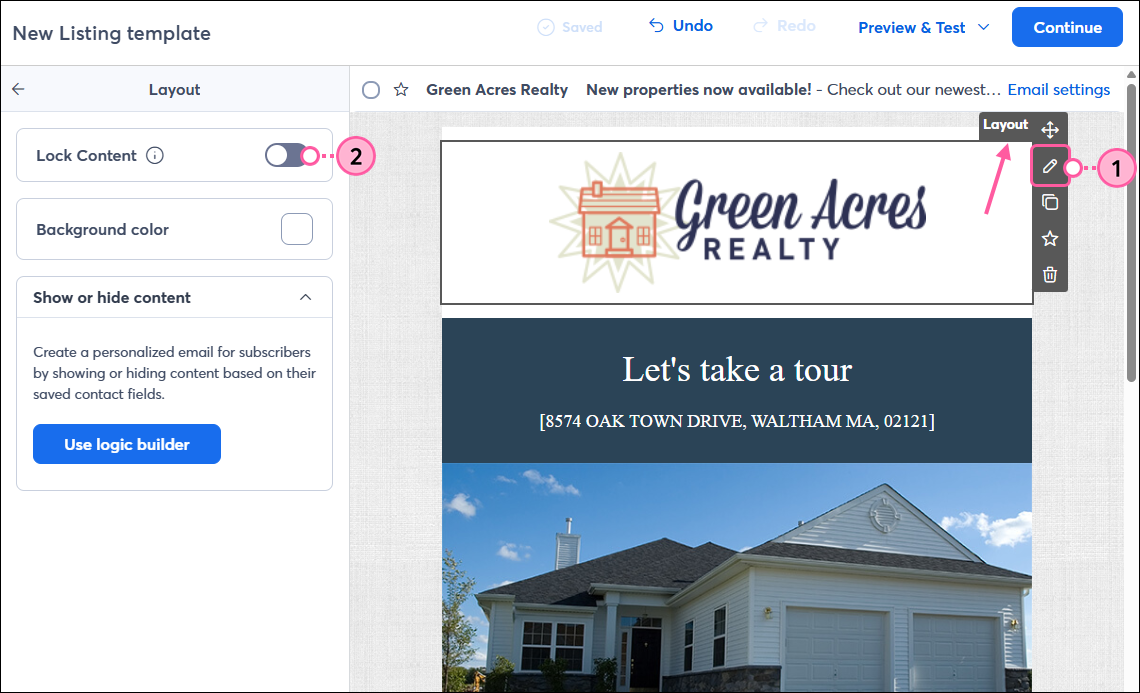
If you need to make further edits to your content or move the layout to a new location, you can unlock it and then re-lock it at any time.
Copyright © 2026 · All Rights Reserved · Constant Contact · Privacy Center