 | Important: You worked hard to create a contact list full of contacts that gave you permission to send email or SMS messages to them. With a little TLC, you can earn their attention back, so before you delete your disengaged contacts, check out ways to reengage them! |
While managing your contacts and cleaning up your lists, you may need to delete a contact or a group of contacts from your account. When you delete contacts from your account, the action can't be undone; however, the contacts can rejoin your list at any time through a sign-up form.
Most contact deletions end up being permanent, but contacts can be re-added to an account at any time, either manually by you or if a contact re-joins your list through a sign-up form. When a contact is re-added to your account, not all of their information is retained. We recommend exporting the information before deleting contacts to prevent permanent loss.
 | Did you know? Contacts that have been deleted are indicated with a strike-through across their email addresses within your email reporting: |
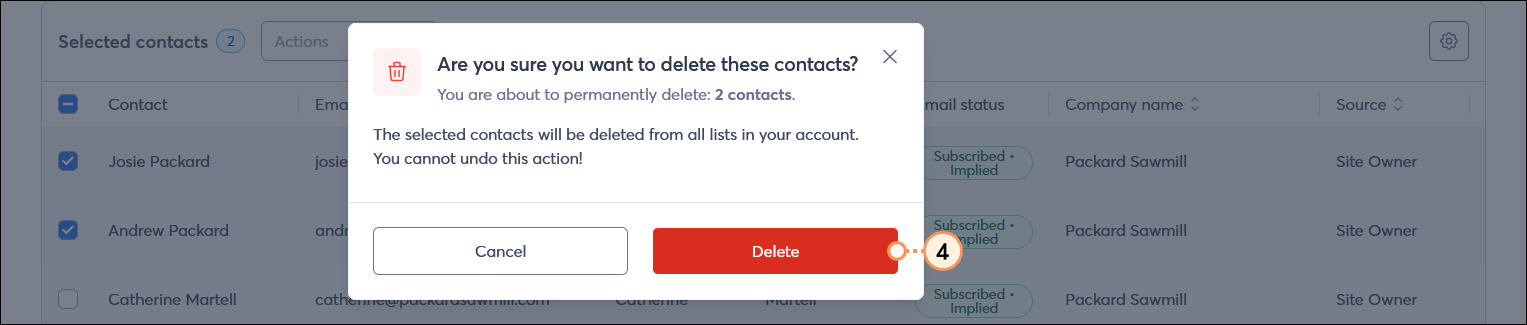
It only takes a couple of clicks to remove an unwanted contact from your account. Depending on the number of contacts you're deleting, it may take a few minutes for the change to be reflected in your account.

If you are looking to temporarily archive or remove a contact from your list(s) but think you might need that contact data again in the future, consider placing the contact in a temporary hold status. Placing a contact on a temporary hold prevents you from sending to them until you're ready to remove the hold and start sending to them again. The temporary hold can be removed at any time.
 | Did you know? Contacts can also end up with a temporary hold if they were created using a sign-up form that lacks a method to verify the sign-up is indeed from a human, such as CAPTCHA, and you experience a fraudulent sign-up attack. These contacts should be left alone so that if another fraudulent attack is made with the same group of email addresses, they aren't added to your account again. |
Copyright © 2026 · All Rights Reserved · Constant Contact · Privacy Center