Email and Digital Marketing
How can we help you?
Search our help articles, video tutorials, and quickstart guides

You've got this. You've got us. Search our Knowledge Base to quickly find answers to your questions.

Import and delete Library images in the Constant Contact mobile app

Article: 000024399
Updated: January 20, 2026

Add images from your mobile device into the Library and remove outdated images

Images bring your campaigns to life! Whether you're working with JPGs, PNGs, or GIFs, multiple images can be uploaded at a time and stored in your Library before you even start drafting an email, social post, landing page, ad, survey, or event. Pull from your Library for use in your Campaigns.

With the mobile application, you can add images from your camera roll or take a photo to upload directly into your Library. 


Access the Library

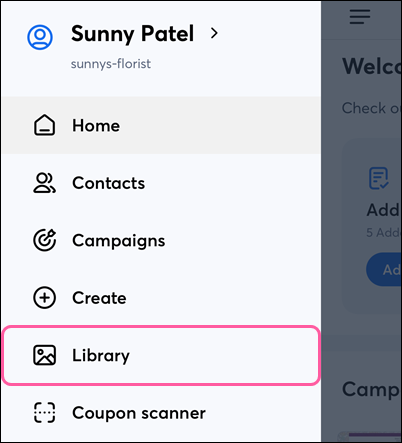
On Android, complete the following steps to get to the Library:

  1. Tap the Menu icon, Menu icon then tap Library.

    Menu with Library option

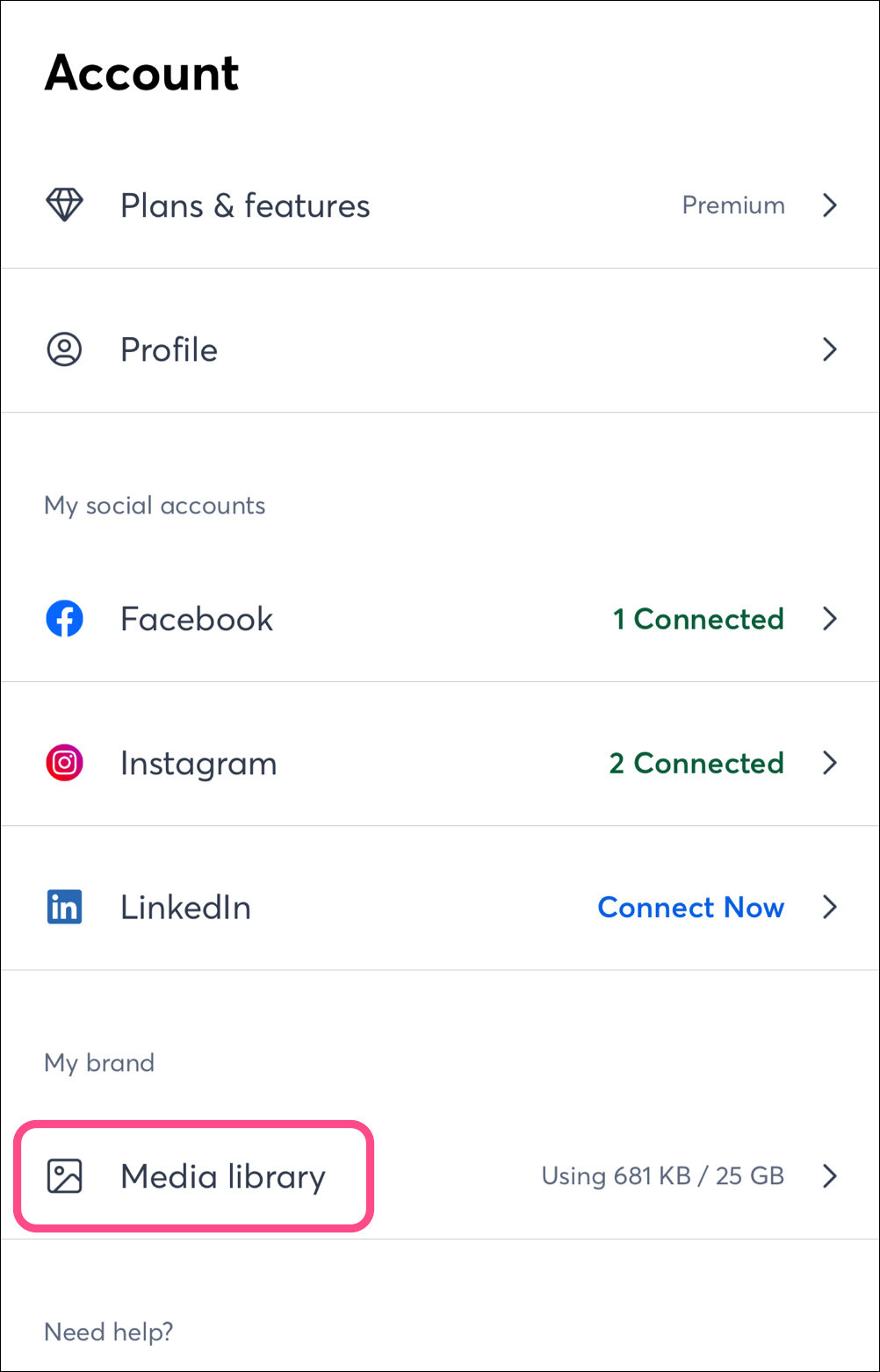
On iOS, complete the following steps to get to the Library:
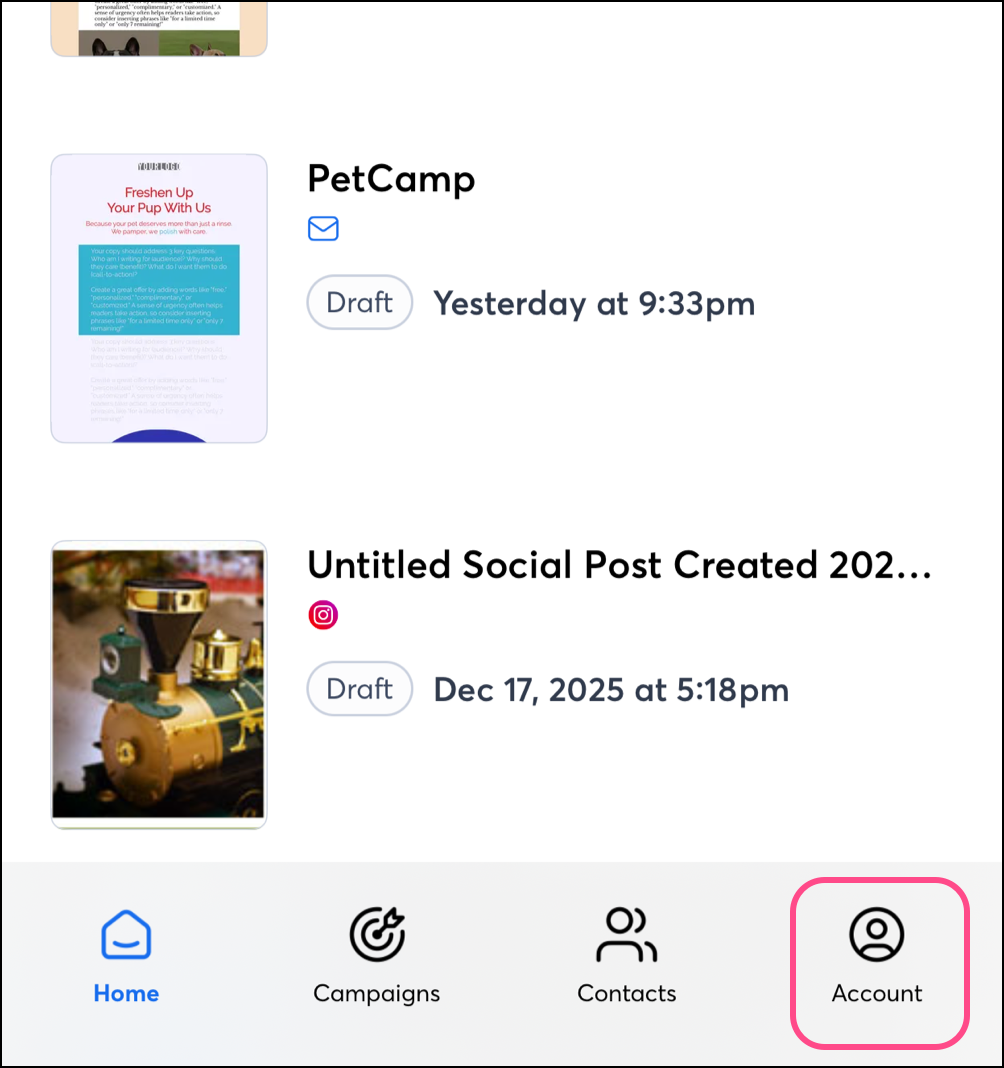
  1. Tap Account in the navigation menu at the bottom of the screen. 


  2. Tap on Media Library


Add Images to the Library

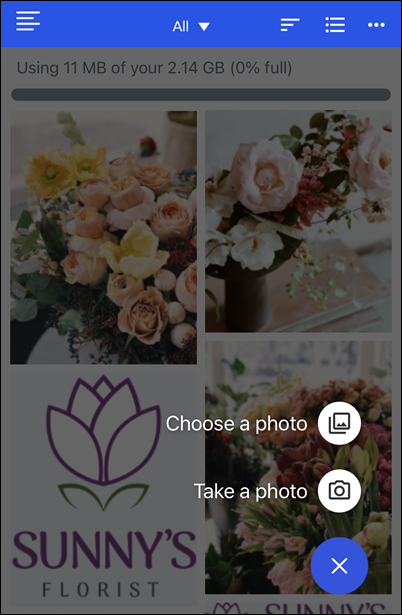
  1. Tap the plus symbol Plus symbol in the bottom-right of your screen.
  2. Choose how you’d like to add an image:
    • Choose a photo - Import an image you have stored on your device.
    • Take a photo - Use your device’s camera to take a picture. 

      Image Library with options for adding photos

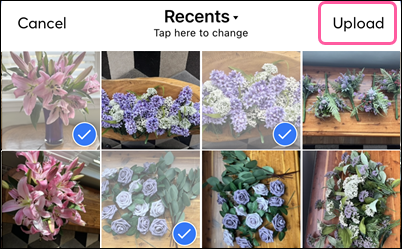
  3. Select the image or images you want to add. To upload multiple images at once, checkmark each image.
  4. Tap Upload in the top-right. 

    Device photos selected and Upload button


Remove images from your Library

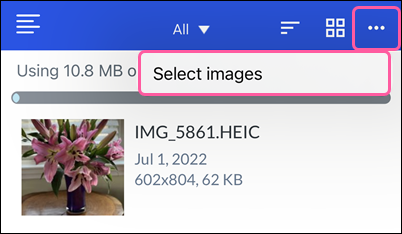
  1. While viewing your Library images, tap the three dots in the top-right and click Select images.

    Library More drop-down with Select Images option
     
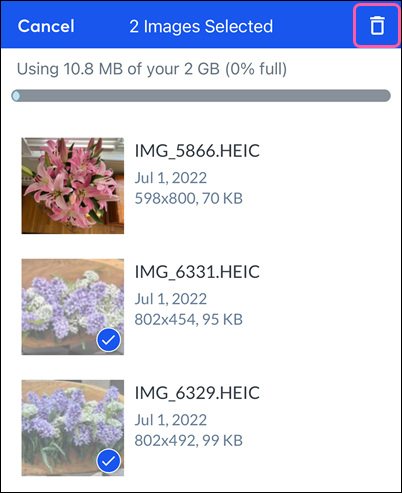
  2. Tap the image or images you'd like to delete from the Library. To delete multiple images at once, select each image by checking the box.
  3. Tap the Trash Can icon in the top-right.

    Images selected and Trash can icon
     
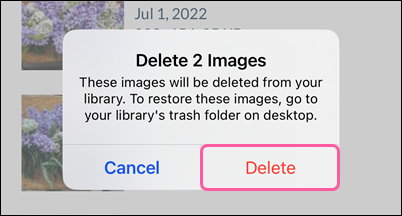
  4. Tap Delete to confirm.

    Delete confirmation


Ask A Question IconAsk a question: Want to explore this topic even further? Our Community can help! Post your question here to get started.


Questions?

Ask the Community

Did this article answer your question?


Constant Contact Logo

Copyright © 2026 · All Rights Reserved · Constant Contact · Privacy Center