After you've added an image to your Library, you have access to a robust suite of editing tools in Constant Contact and Canva!
Use our image editor
Uploading images to your Library and editing them before you start working on your email saves you time, but you also have access to the full image editor while you're editing your email. You can make tons of enhancements to your image, including cropping, rotating, adding filters, frames, text, and more!
- Click Assets > Library.
- Click the pencil icon next to the image you want to edit.
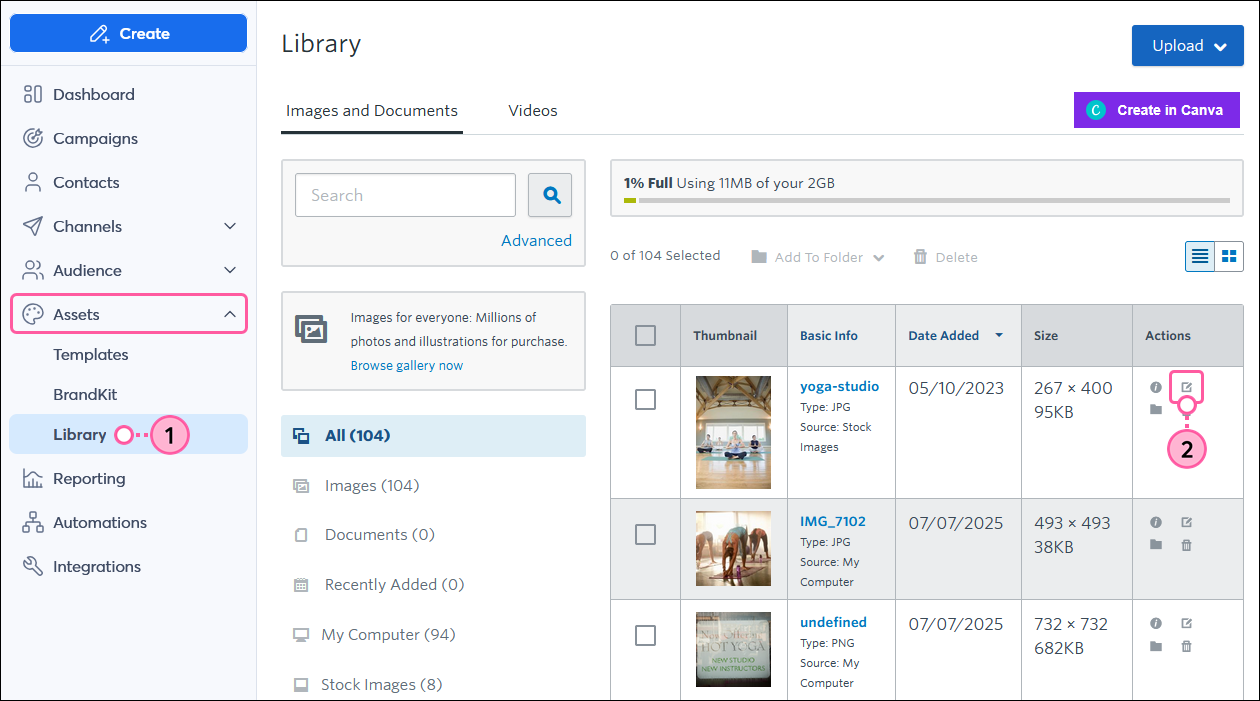
- Use the icons along the side of the screen to enhance your image:
- Transform - Tools for cropping, rotating, or flipping an image.
- Filters - Choose from a list to change an image's color or tone.
- Adjust - Tools for adjusting the brightness, saturation, contrast, and more.
- Focus - Select an area of the image to focus on and blur the rest.
- Text - Tools for adding custom text on top of an image. Choose the font style, color, and spacing.
- Stickers - Choose from a variety of shapes and emoticons to embellish your image.
- Brush - Add freehand text or drawings to an image. Choose color, brush width, and line hardness.
- Frames - Add a decorative border around an image. Choose style, width, and opacity.
- Overlays - Select from a list of subtle image textures to layer on top of an image, like a double exposure, and adjust the effect's subtleness.
- When you're finished with your edits, click Export to return to your Library.
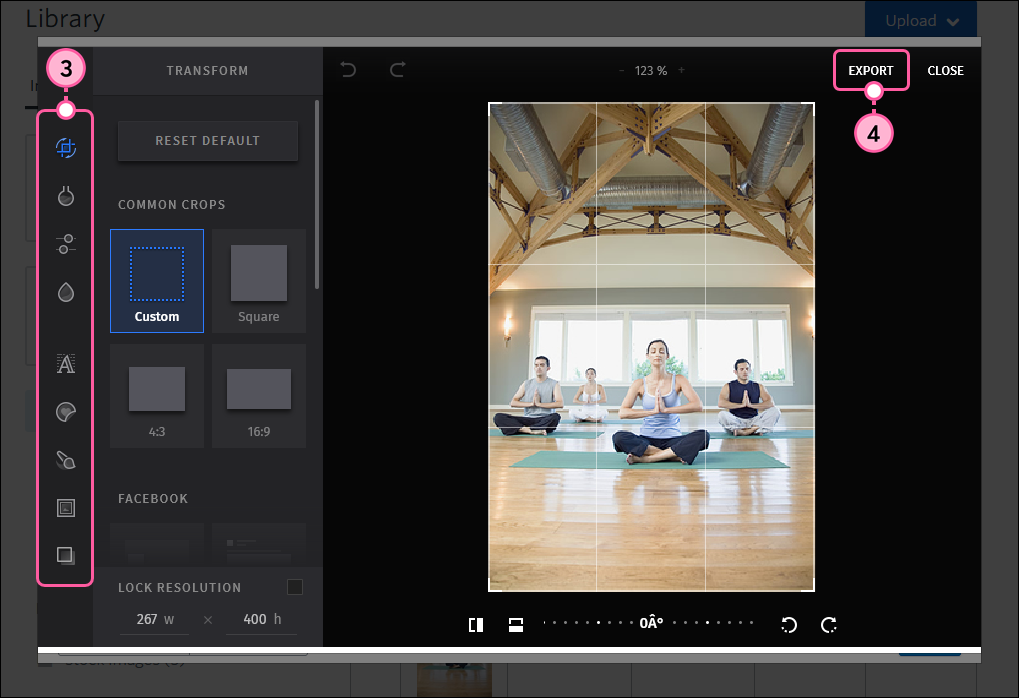
The edited image will be saved as a new image in your Library on the Images and Documents tab, and will be available to insert into your campaigns.
Edit an image with Canva
You can seamlessly edit any image with Canva, whether it was created in Canva or not! The edited image will be automatically saved to your Canva account and Constant Contact Library.
 | Did you know? Canva offers a free plan for everyone, and non-profits can enjoy the Pro plan at no cost! |
- Click Assets > Library.
- Click the Canva icon next to the image you want to edit.
Note: The option to edit with Canva isn't available for stock images or GIFs.
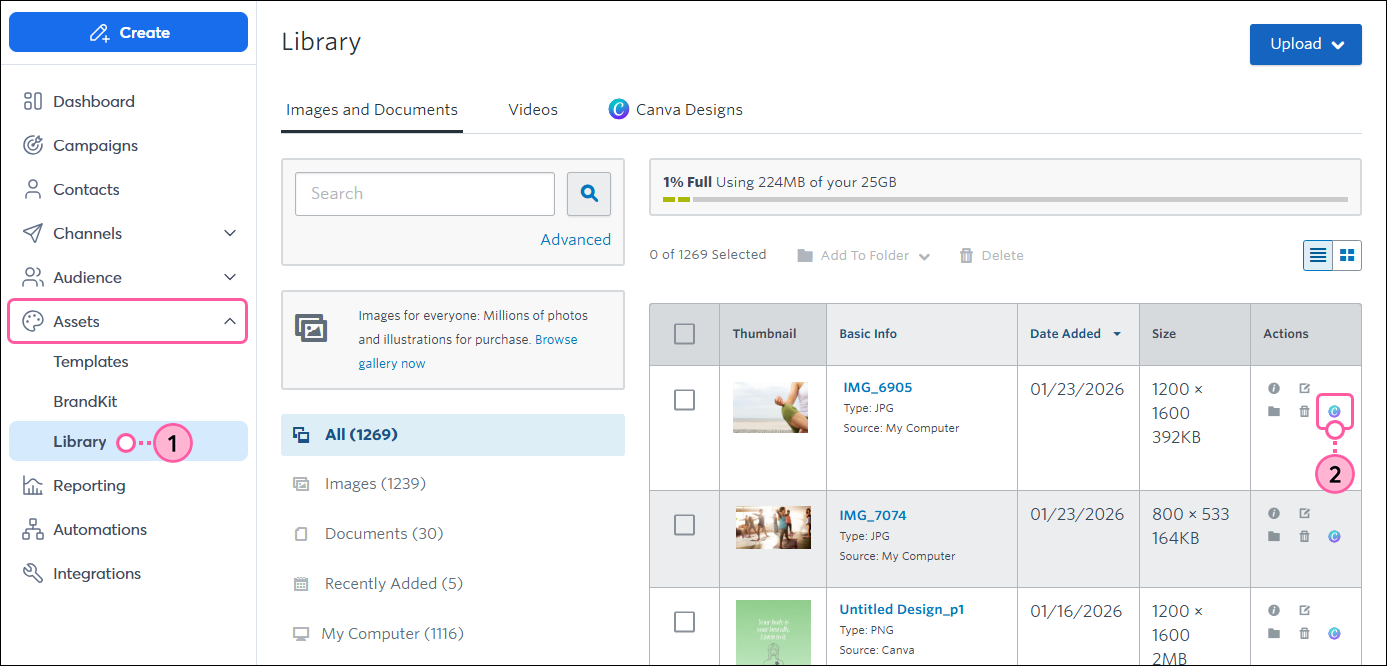
- If prompted, log in to your Canva account. Then make your changes to the image and click Return to Constant Contact in the upper-right when you’re finished.
- Click Return to Constant Contact from the drop-down to import your design into your Constant Contact Library.

- From the drop-down, select the file type you want your design to be imported as—PNG, JPG, or PDF.
- Click Import.
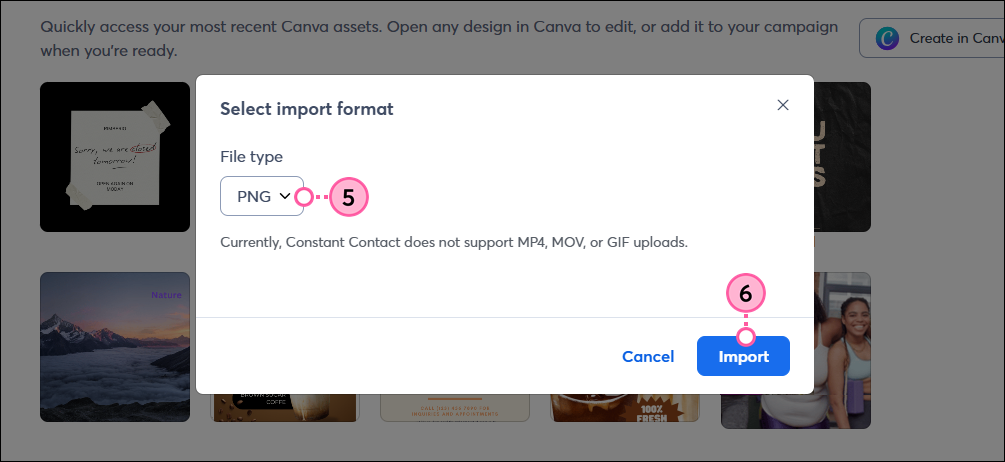
- Click Done.
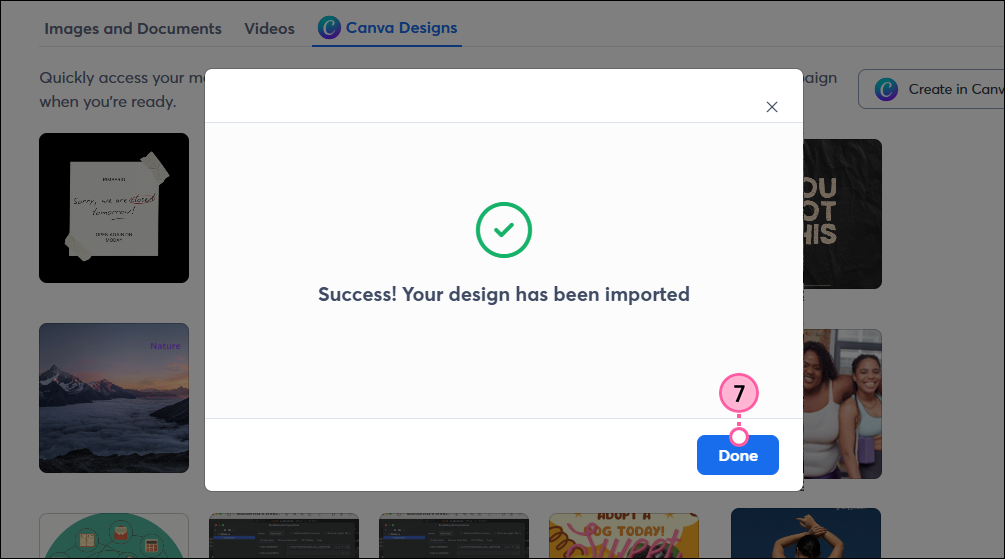
Your design will be saved in your Constant Contact Library on the Images and Documents tab and Canva Designs tab, where you can customize it further using our image editor or Canva. It will be available to use in your campaigns.
Any links we provide from non-Constant Contact sites or information about non-Constant Contact products or services are provided as a courtesy and should not be construed as an endorsement by Constant Contact.