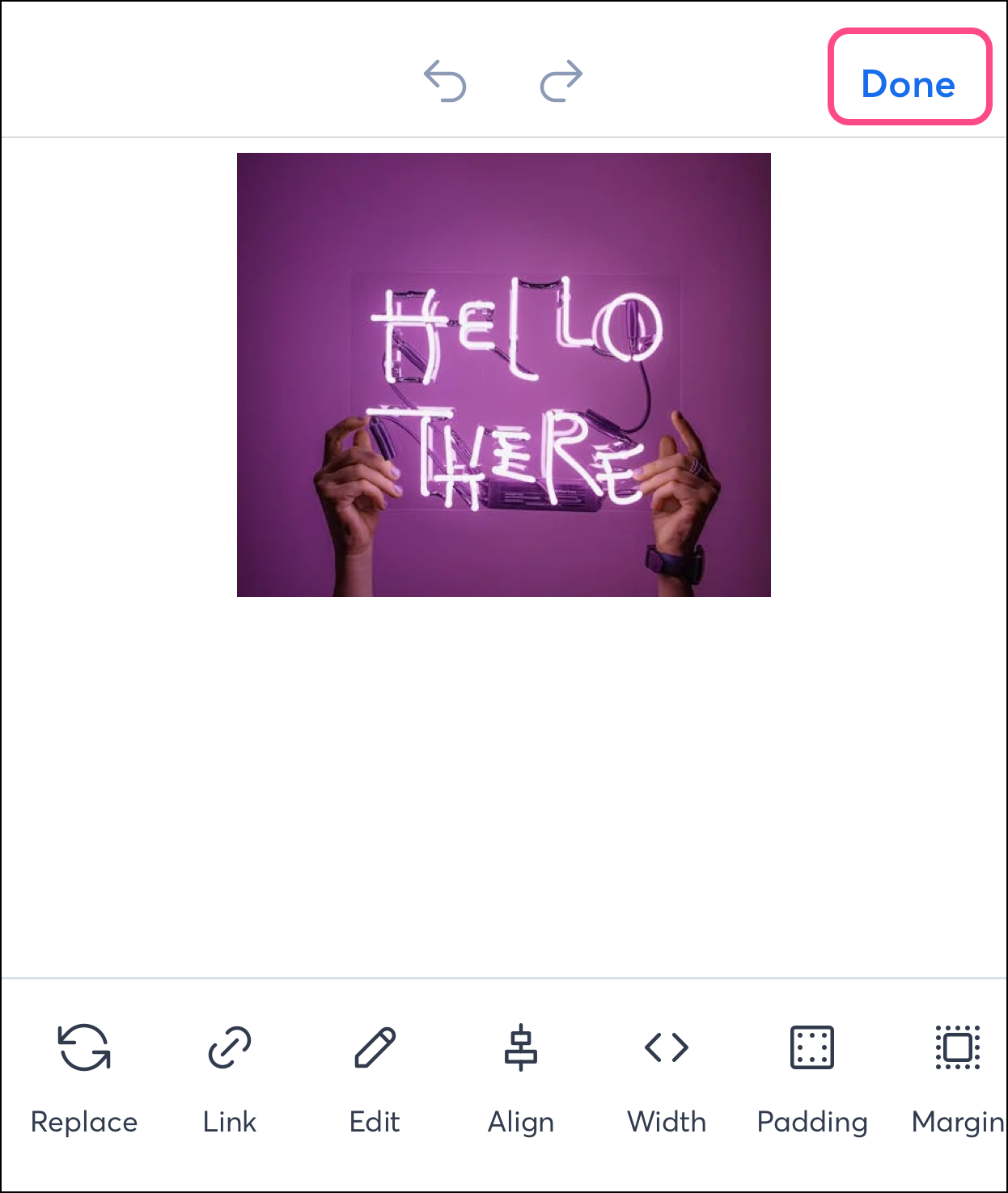
Rotate or crop images, apply filters, add text and stickers, and more, right from within the Constant Contact mobile application.
Edit an image from the Library
You can easily edit your Library images with Constant Contact's mobile app. No need to be at your computer—make edits directly on your phone.
On Android, complete the following steps to edit an image:
- From the
 Menu, tap Library.
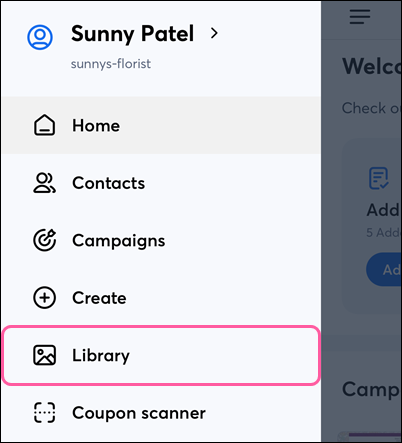
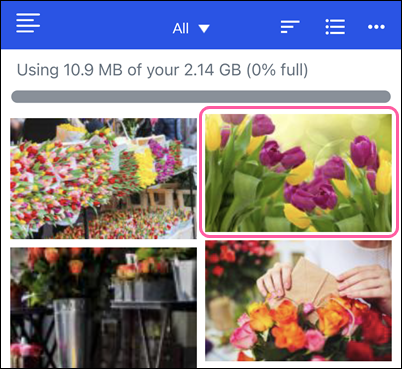
- Tap on the image you'd like to edit.
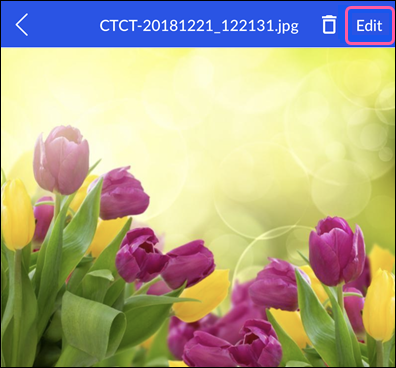
- Tap Edit to modify your image using editor tools.
- Select the image editing tool you want to use and make your edits.
Note: Swipe to the left to see all of the editing tools.
- When you're finished, tap the download icon in the bottom-right to save the new image.
On iOS, complete the following steps to edit an image:
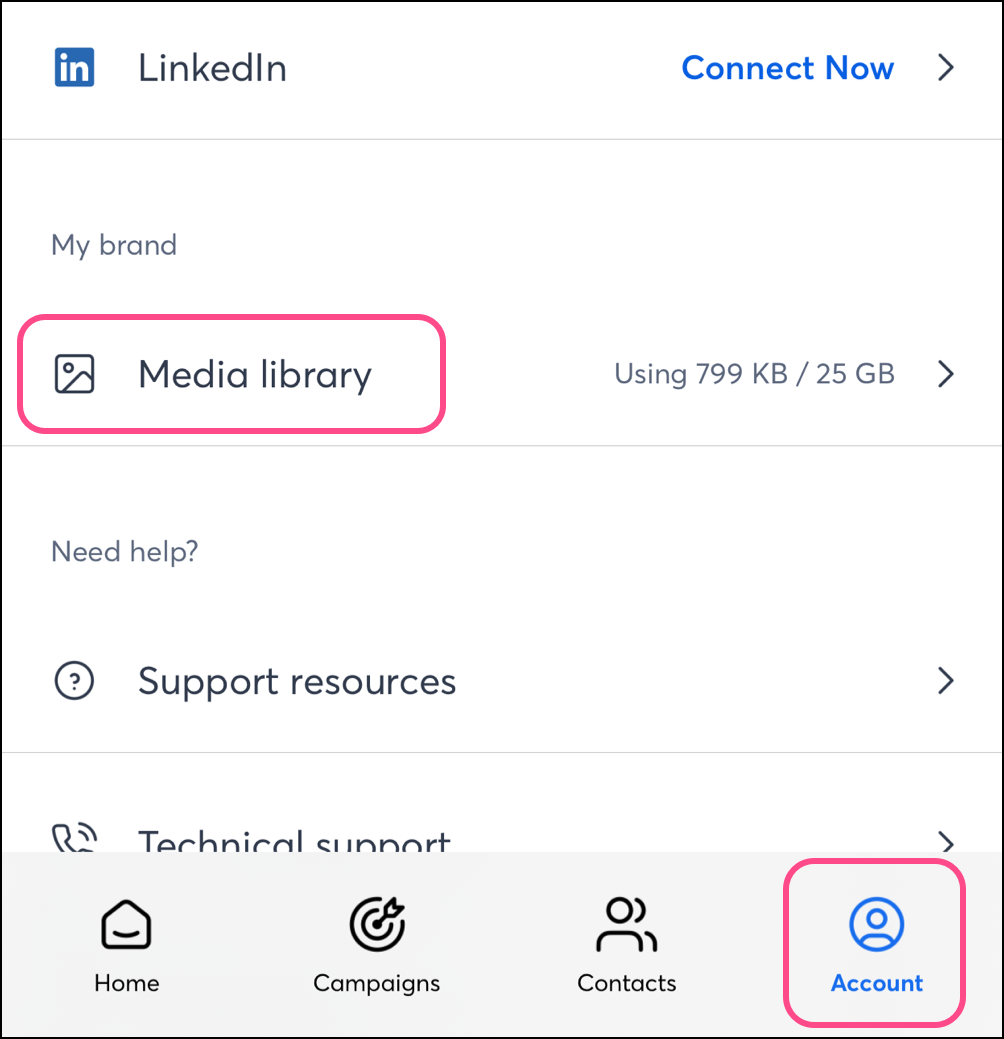
- Tap Account in the bottom navigation menu, then tap Media Library.
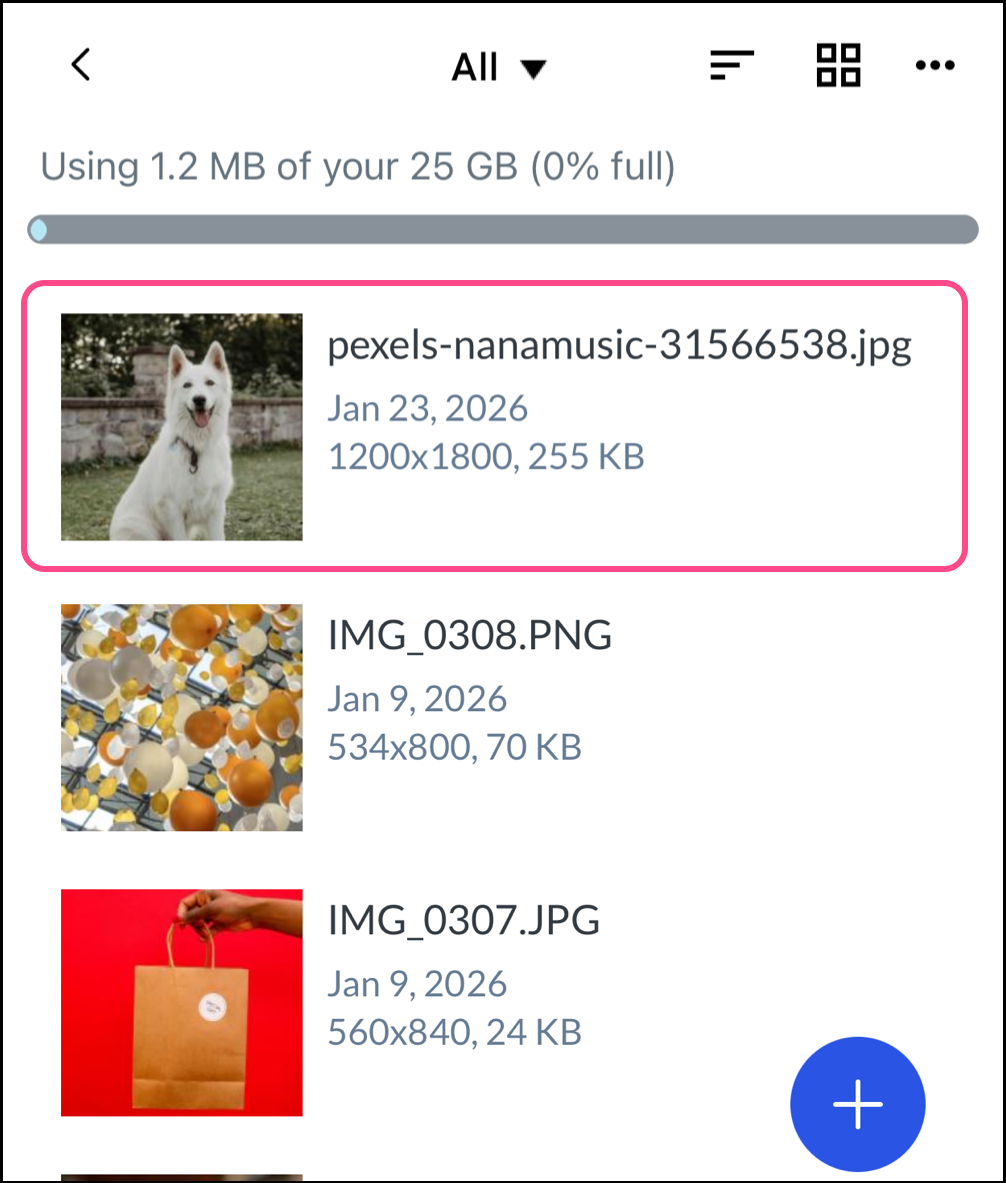
- Tap the image you'd like to edit.
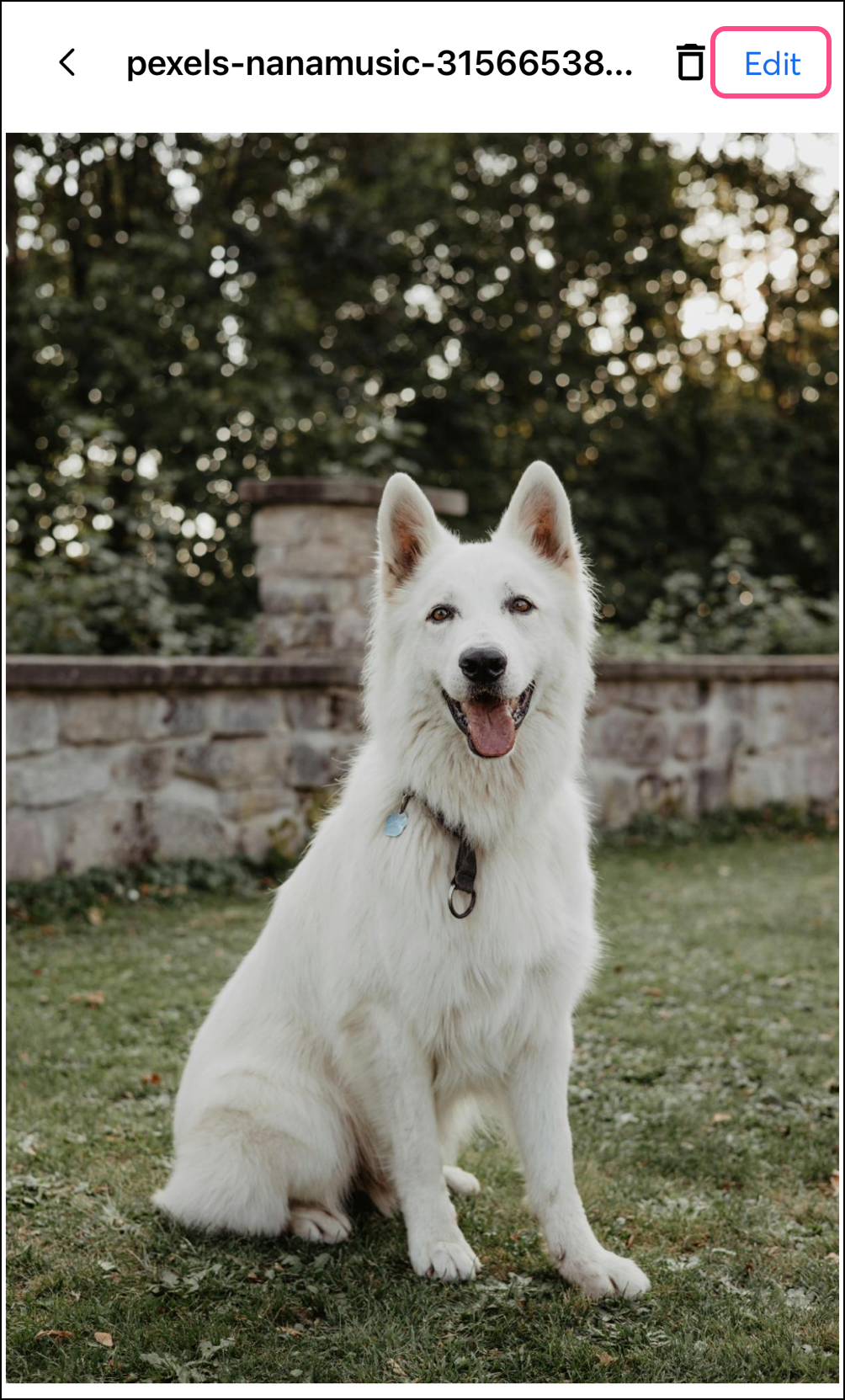
- Tap Edit.
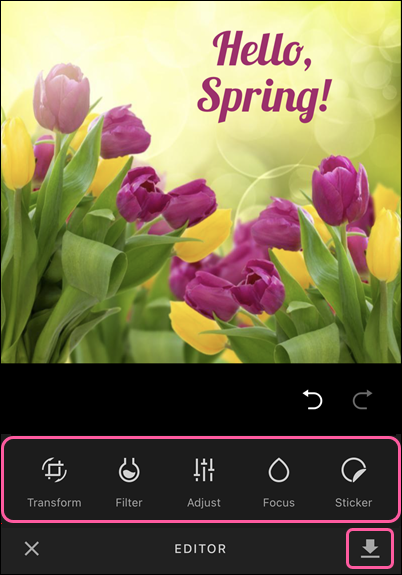
- Select the image editing tool you want to use and make your edits.
Note: Swipe to the left to see all of the editing tools.
- When you're finished, tap the download icon in the bottom-right to save the new image.
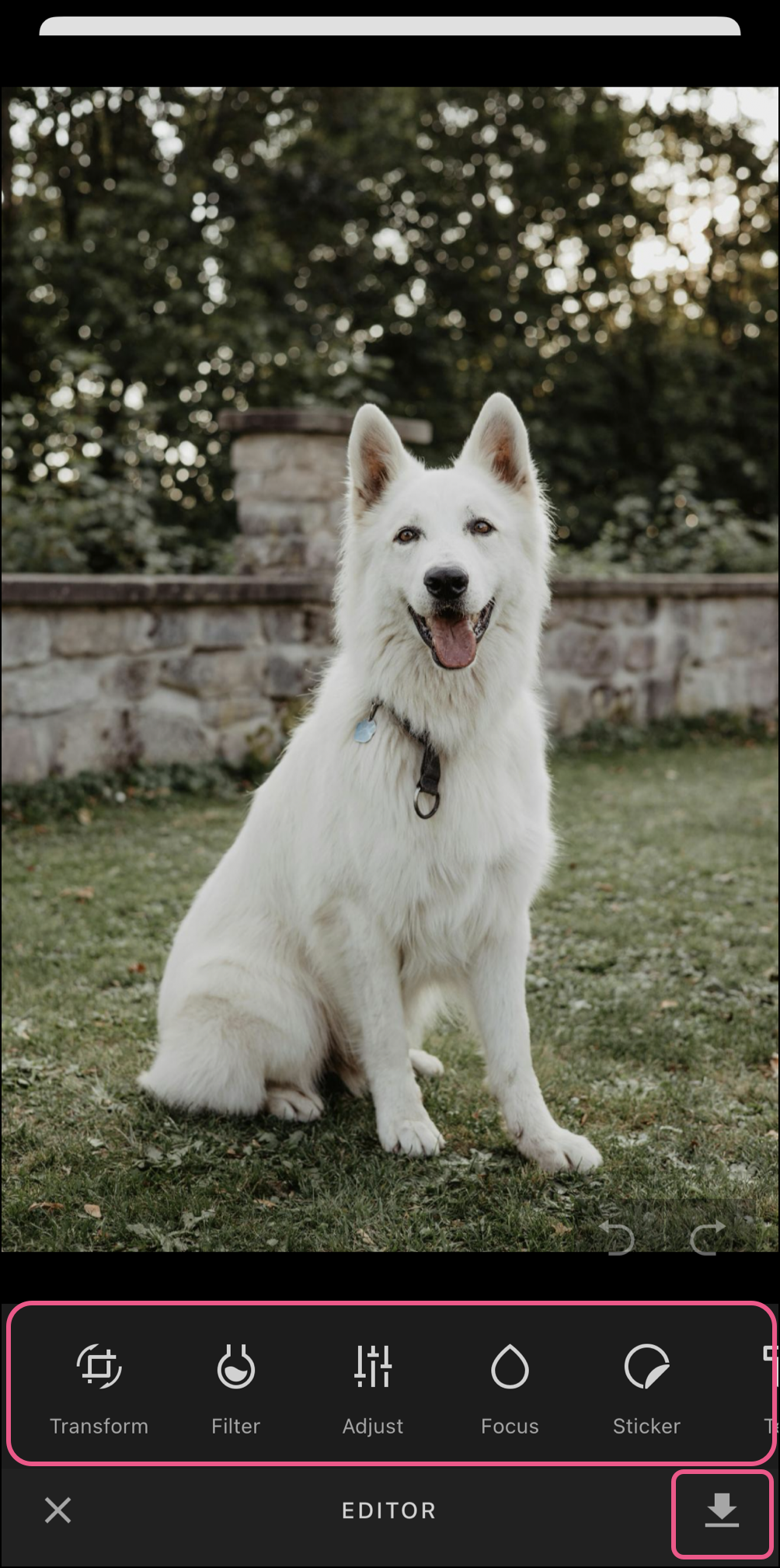
Your updated image is now at the top of the Library in the mobile app. It's also accessible from the Library on your desktop, so you can insert it into an email.
Available Editing Tools
The following tools are available when you edit an image. Swipe left to right to see all tools:
- Transform - Allows you to rotate and crop your images.
- Filter - Allows you to apply common filters, including black-and-white, vintage, warm (sepia-toned), and more, to your images.
- Adjust - Offers further editing functionality, allowing you to increase or decrease the image brightness, contrast, saturation, clarity, shadows, highlights, exposure, gamma, blacks, whites, temperature, and sharpness of the image.
- Focus - Allows you to set a focal point and blur the surrounding area.
- Sticker - Offers a variety of emojis and shapes to add to your images.
- Text - Allows you to add text to your images and adjust the font, size, color, background color, and text alignment.
- Overlay - Provides a variety of transparent images to lay over your image, allowing you to adjust the style and feel.
- Frame - Offers a variety of frames to add around your images.
- Brush - Allows you to paint or draw freehand on your image, with options to modify line color, size, and hardness.
When you are done with your changes, the modified copy of your image will be downloaded into your library. Your library will contain both the original image and the modified copy. If you'd like to edit the image further, you'll need to open your original image and start from there—modified images cannot be returned to the editor.
Edit an image from an email
You can also enhance your image while you’re working on an email draft.
On Android or iOS, complete the following steps:
- Tap the image you want to edit. If the image block is within a layout, tap the image again to outline only the image.
- Tap Edit at the bottom of your screen.
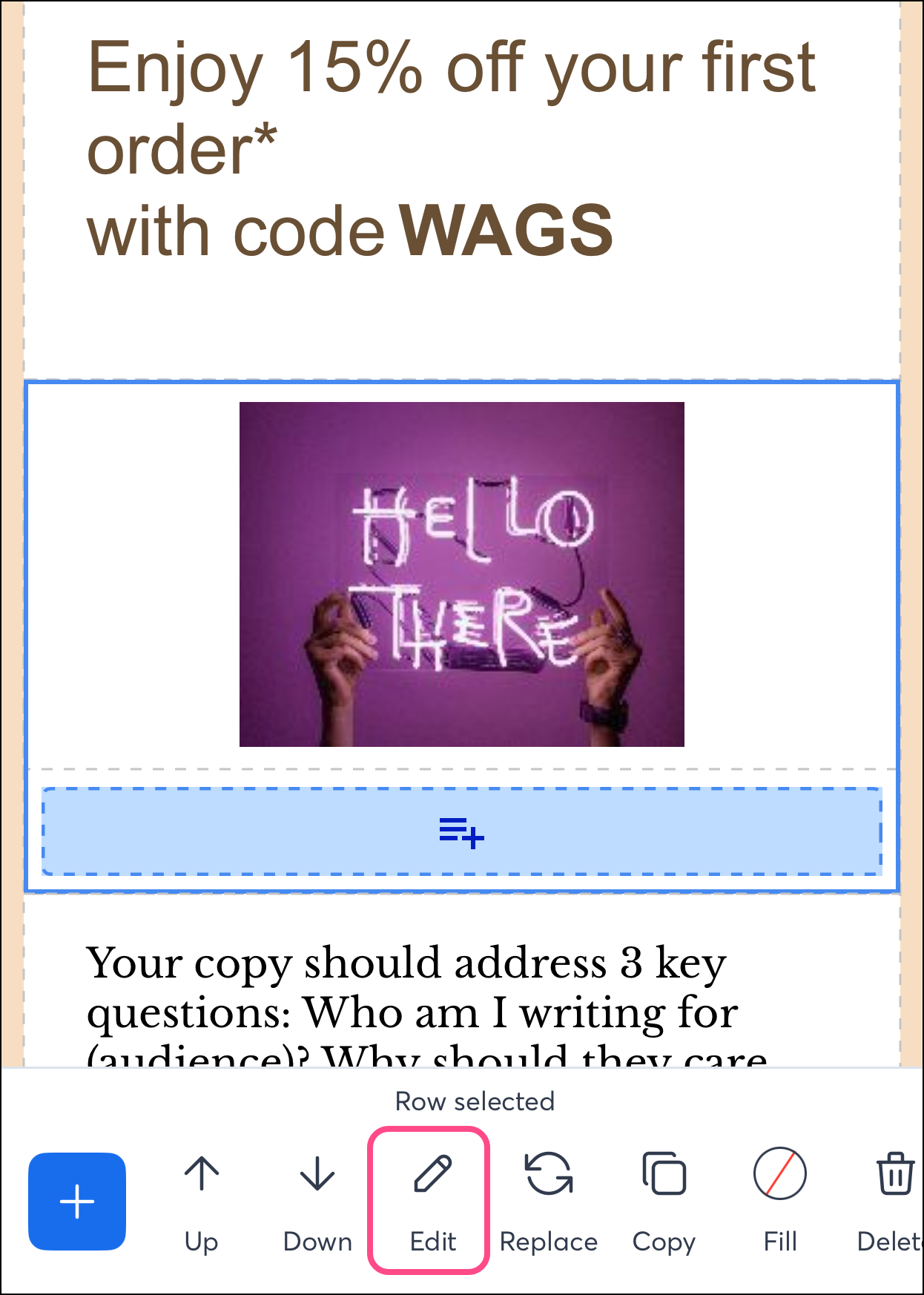
- Tap Edit again to access the image editing tools.
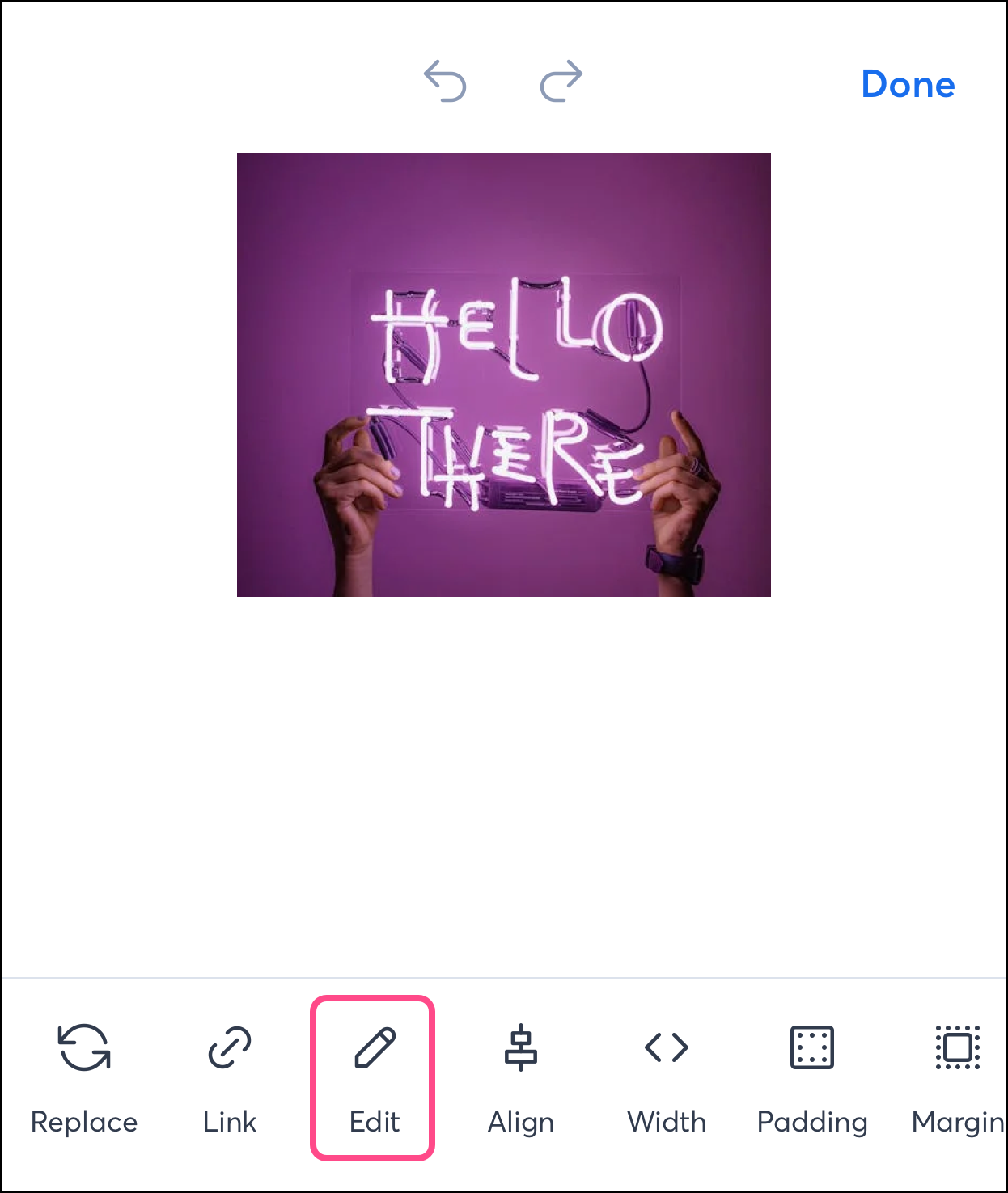
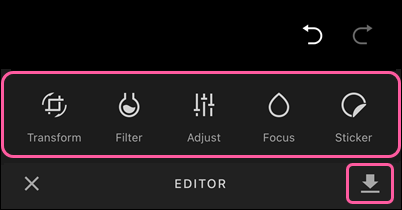
- Use the image editing tools to make your edits.
Note: Swipe to the left for additional tools.
- When you're finished, tap the download icon in the bottom-right to save the new image.
- Tap Done or tap the checkmark in the top-right of your screen to insert the edited image into your email.