People unsubscribe from mailing lists for all sorts of reasons. Sometimes they no longer need what you've been providing them, sometimes they're not getting value from your content, and sometimes it's even a mistake. While it can sting, managing unsubscribed contacts correctly is crucial for deliverability, compliance, and maintaining a healthy email list. Here's what you need to know:
How do contacts unsubscribe from my contact list?
When one of your contacts no longer wants to receive your emails, they can leave your list at any time by clicking the "SafeUnsubscribe®" link in the footer of any of your emails. This link is a mandatory requirement for email service providers to ensure compliance with anti-spam laws.
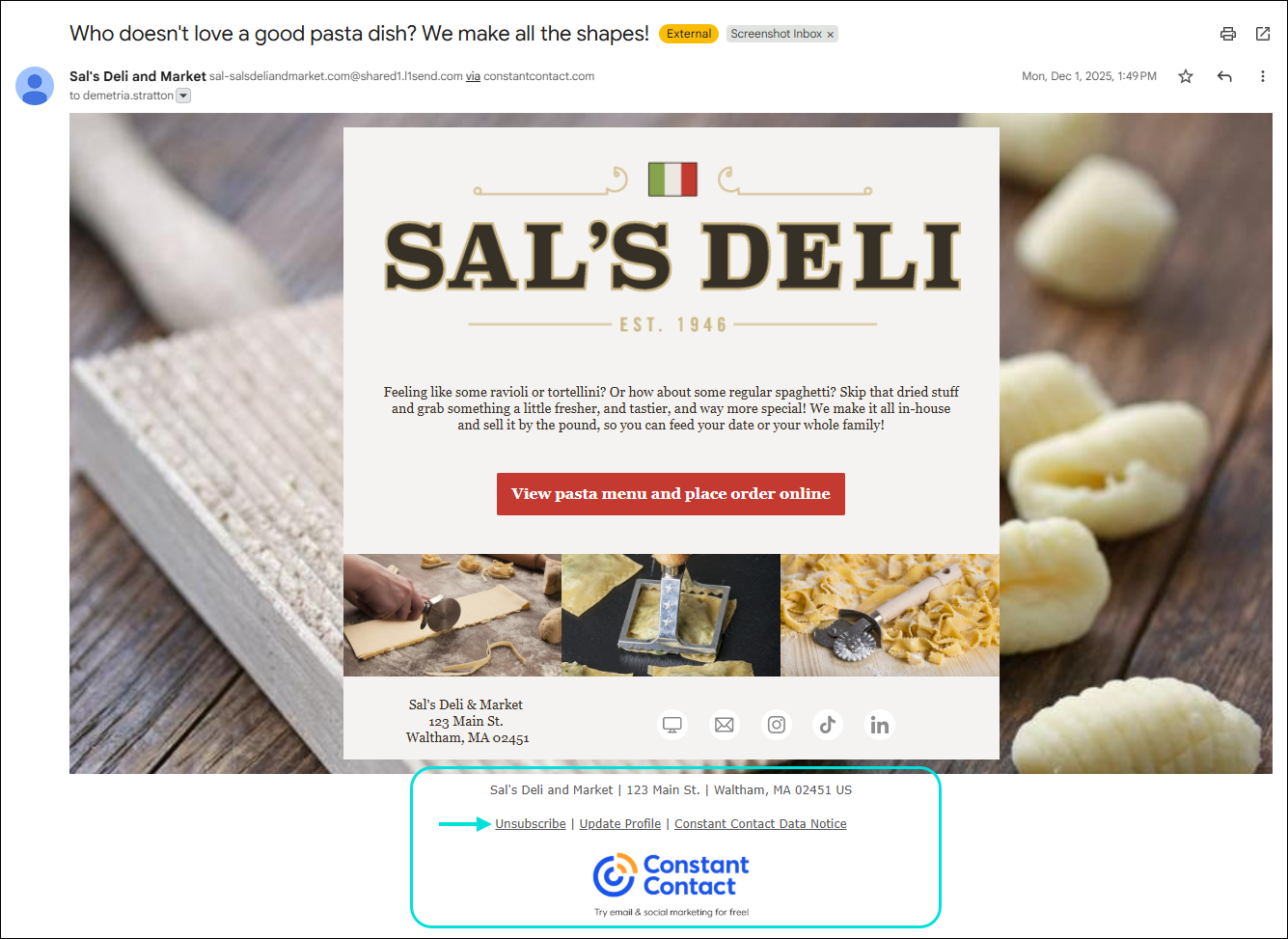
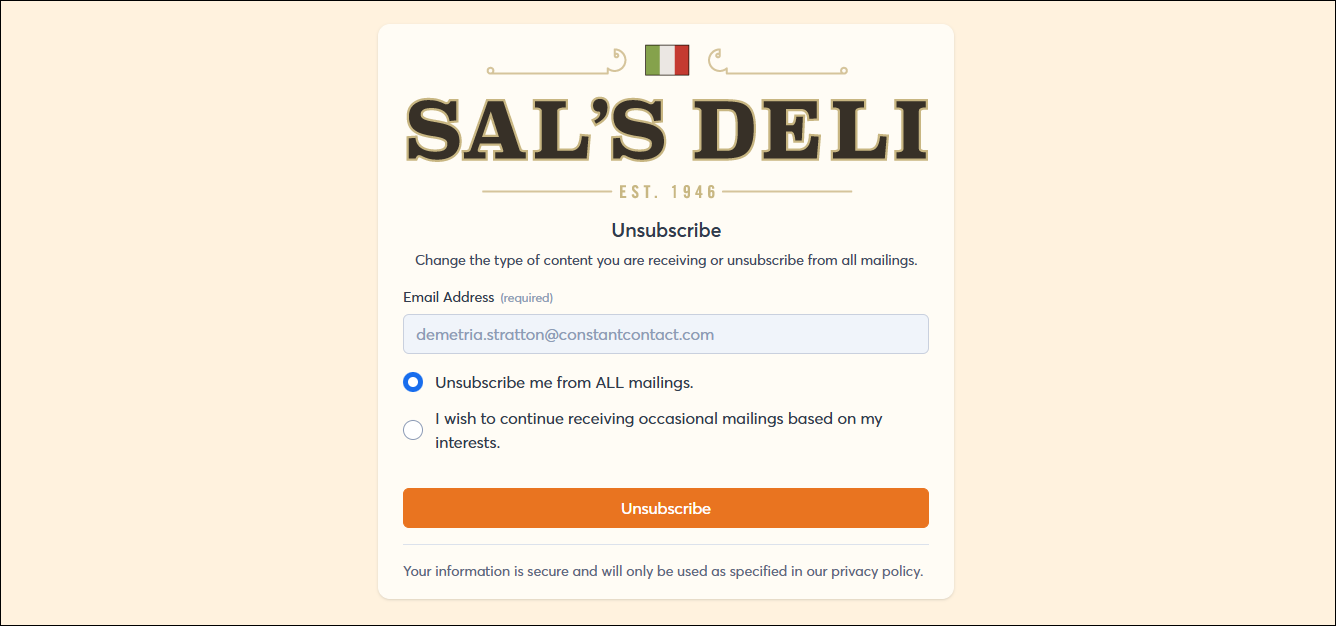
After clicking the "SafeUnsubscribe®" link, your contacts can confirm that they want to be removed from all future mailings or select the lists they want to be removed from or added to, and provide feedback as to why they want to unsubscribe.
- Unsubscribe from all mailings option - This option unsubscribes a contact from all of your email lists and prevents you from sending them any email. This option is the default setting for your email footer.
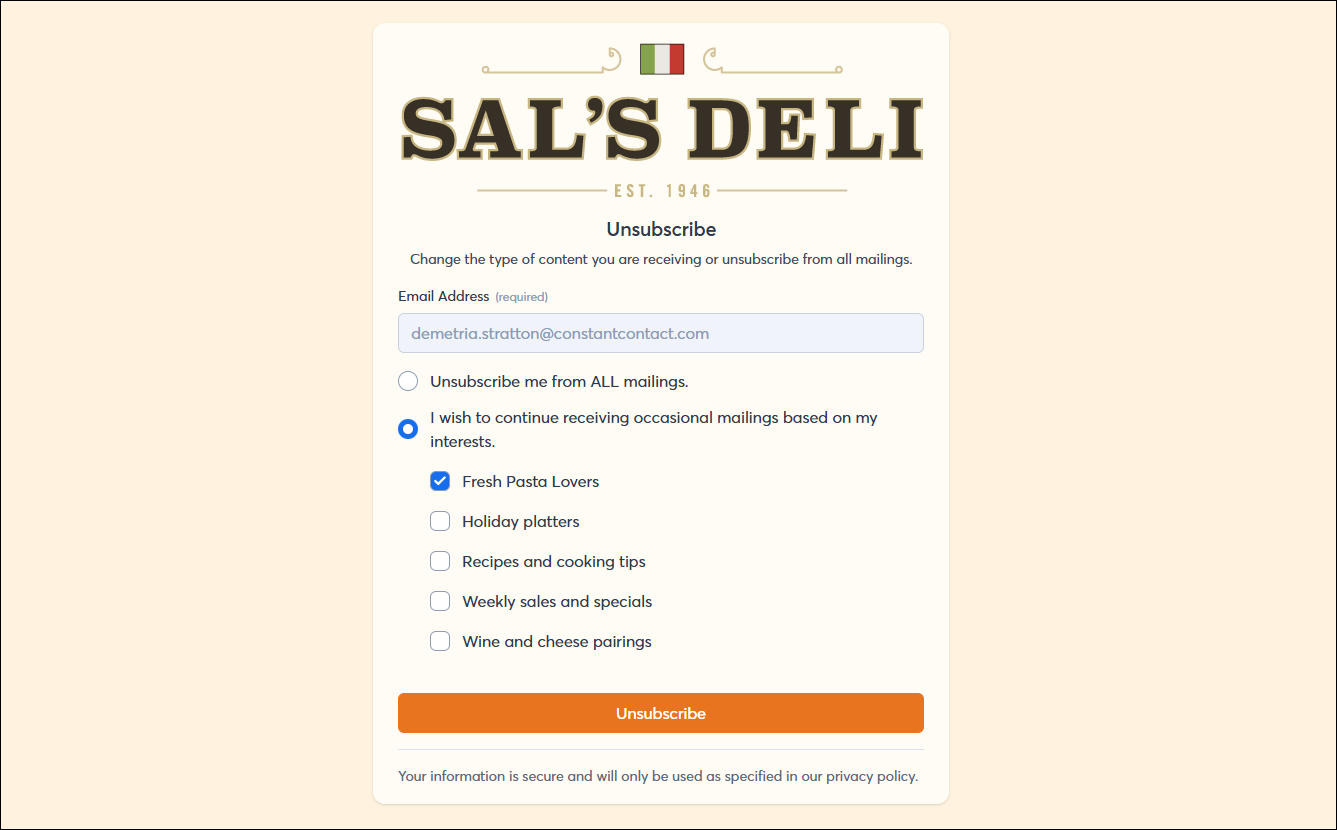
- Unsubscribe from all mailings or choose list options - If you have the "Update Profile" link enabled in your email footer, they can choose to unsubscribe from certain lists and continue receiving emails based on their interests. This is a great way to retain subscribers who just want to adjust their content preferences.
Note: To offer list options, your "Update profile" link must be enabled in your email footer. You can then manage the lists they see by editing the subscriber form in your account settings.
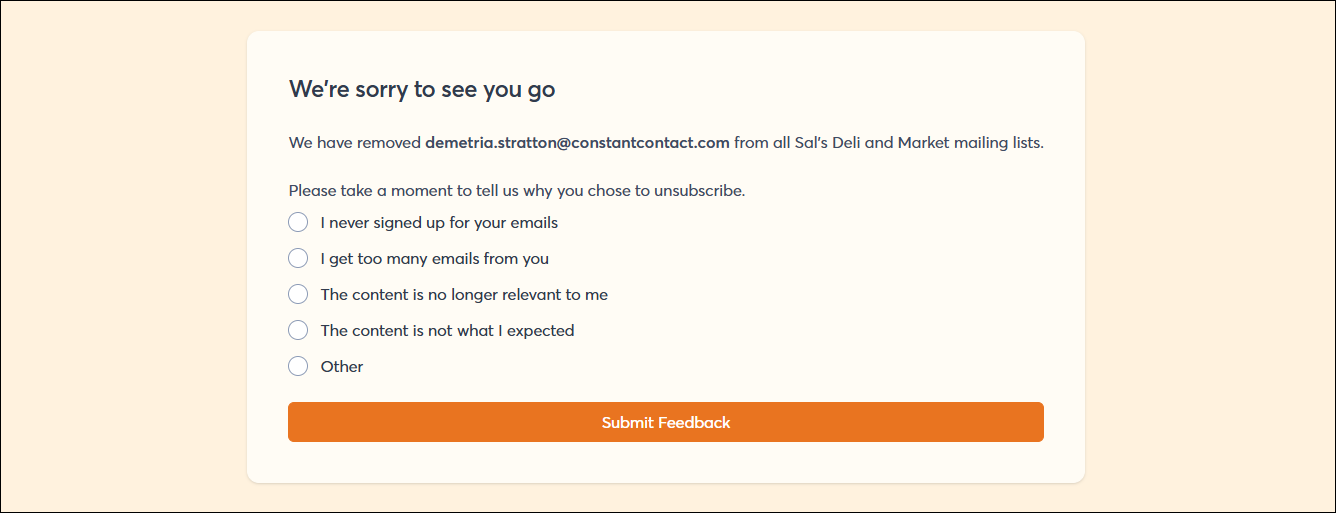
- Give feedback - If you include the "Unsubscribe" comment box in your footer settings, contacts see an additional option, letting them select a reason and submit feedback. This qualitative data is gold for improving your content strategy!
 | Did you know? If a contact asks you directly to unsubscribe them, you must honor that request promptly. You can do it for them manually within your account. |
What happens when a contact unsubscribes?
When contacts choose to stop receiving emails from you and opt out of your contact list:
- They're marked as "unsubscribed" in your account and can no longer receive emails. If you send an email to a list that includes an unsubscribed contact, we prevent the email from being sent to that contact. This is non-negotiable for compliance.
- The email and SMS reporting and engagement history stays in your account, providing a complete picture of past activity.
If a contact later re-joins your contact list through one of our sign-up tools, we remove the "unsubscribed" status, and they can start receiving emails again as an "active" contact. Their history picks up right where they left off.
What happens if I upload a list with contacts that previously unsubscribed?
Once a contact unsubscribes, their status changes to "Unsubscribed" permanently until they give explicit permission to email them again.
If you upload a contact list that includes individuals who have previously opted out, they remain in the "Unsubscribed" status. You will receive a notification of this during the import process. This is a critical safety measure to protect your reputation and compliance.
 | Did you know? If you have a list of contacts that have previously unsubscribed from a previous email marketing provider, it's a good idea to import them into your Constant Contact account. This ensures Constant Contact is aware of their preference and prevents any accidental mailings, protecting your standing with ISPs. |
How does an unsubscribed contact resubscribe?
If an unsubscribed contact changes their mind, or believes they became unsubscribed by accident, there are three compliant ways they can re-join your contact list:
- Sign up again - If you're using any of our sign-up tools (via your website, social media, etc.), an unsubscribed contact can use them to re-opt-in to your list.
- Use the email footer - Your contact can use the links in a previous email footer to resubscribe by triggering the Update Profile Form. This can be done by clicking the "Update Profile" link. (See footer image above.)
- Confirm their interest - If the contact doesn't have access to one of your sign-up forms or previous emails, you can view their contact record and click the Resubscribe button to send an opt-in email. Once your contact clicks the link in that confirmation email, they can successfully opt back into your list.
When a contact resubscribes, they're marked as "subscribed," can begin receiving emails from you again, and are considered "active."
How do I see which contacts have unsubscribed?
There are a couple of ways to see which contacts have unsubscribed from your list:
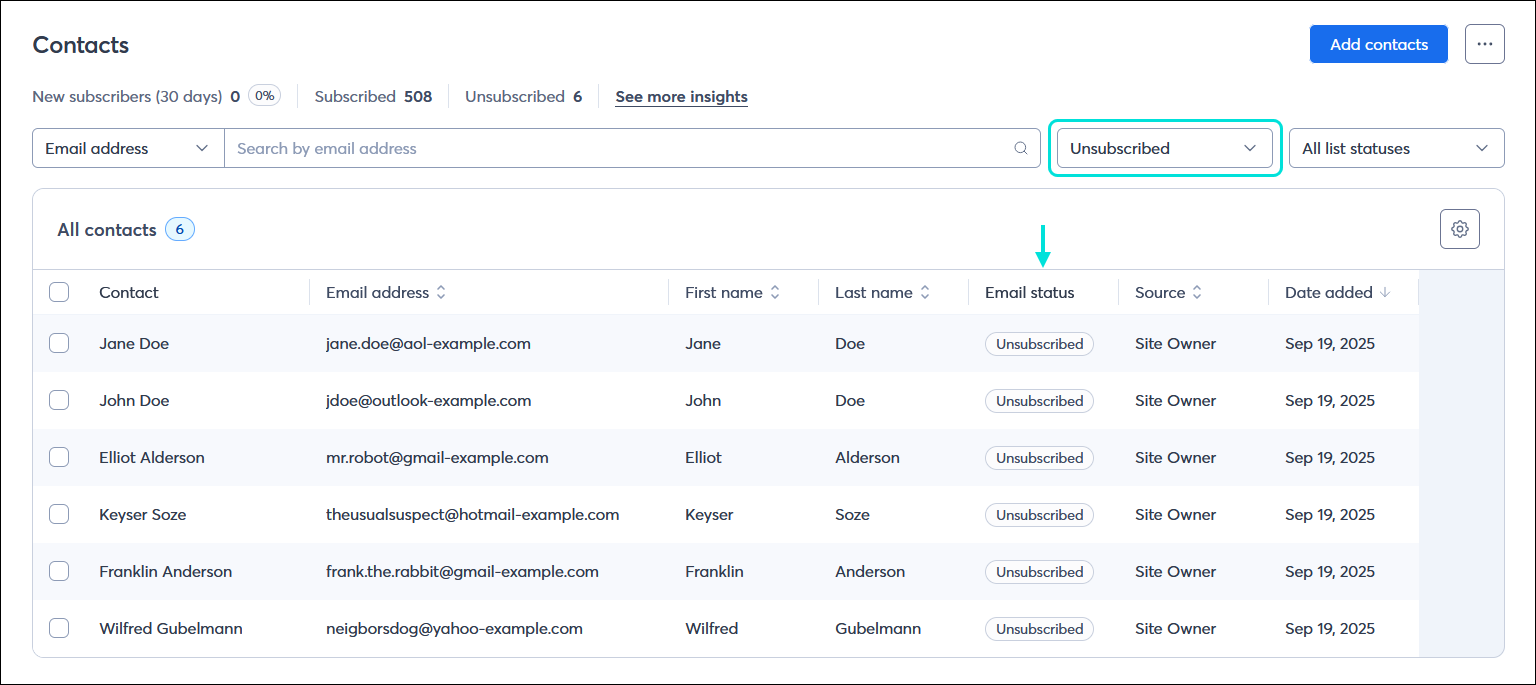
From the Contacts tab
- Filter your contacts by status to see a complete list of all the unsubscribed contacts in your account.
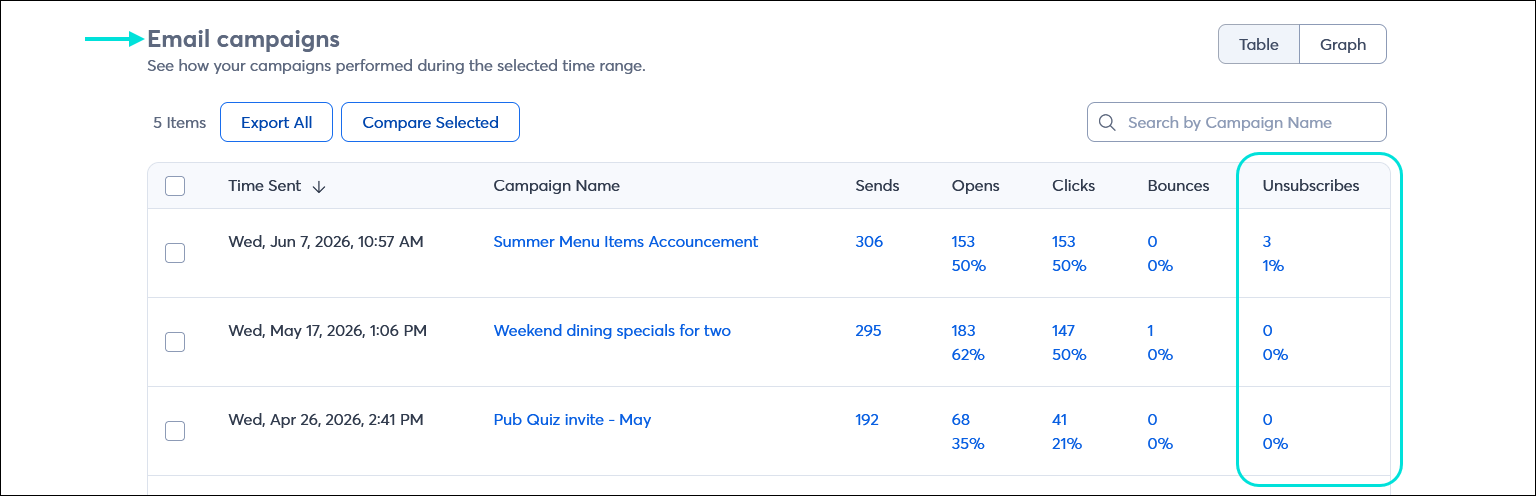
From the Reporting tab
- View the reporting for a specific email and see which contacts unsubscribed after opening it. Clicking the hyperlinked number in the Unsubscribed column shows you the specific contacts and, if provided, the reason they unsubscribed.
What should I do with my unsubscribed contacts?
When you have unsubscribed contacts, you can:
- Leave them in your account - Since we prevent you from sending them emails, you don't have to do anything with them. They remain as a permanent record of their opt-out.
- Delete them from your account - If you delete your unsubscribed contacts, they are removed from your account. If you later upload a contact list that includes contacts who previously unsubscribed, they're uploaded back into your account with the unsubscribed status. The unsubscribed status is removed only when the contact gives you permission to email them again.
- Export a file of unsubscribed contacts - You can export a file of your unsubscribed contacts at any time. If you leave Constant Contact, you need to take this list with you. When a contact revokes permission to email them, it carries through to any other email marketing service or tool that you use.
- Import a file of unsubscribed contacts - If you're bringing lists into Constant Contact from another email marketing service, or you've kept your own lists, you need to upload your unsubscribed list to Constant Contact so we can ensure you're complying with these contacts' wishes not to be emailed.
