Email and Digital Marketing
How can we help you?
Search our help articles, video tutorials, and quickstart guides

You've got this. You've got us. Search our Knowledge Base to quickly find answers to your questions.

Customize the Subscriber form used with the Unsubscribe and Update Profile links within an email footer

Article: 000054806
Updated: January 27, 2026

Add a logo and customize the appearance of the Profile Page and Unsubscribe Page, and select the lists you want to display so your contacts can self-select the lists they want to be a part of

The Profile Page, associated with the "Update Profile" link in an email footer, and the Unsubscribe Page, linked directly to the "Unsubscribe" link in the email footer, can be customized at the same time by updating the Subscriber form in your account settings. Both forms include a logo, visual theme, and list affiliation options, and the Profile Page also includes contact fields so that you can choose the information you want your contacts to update when they click the "Update Profile" link.
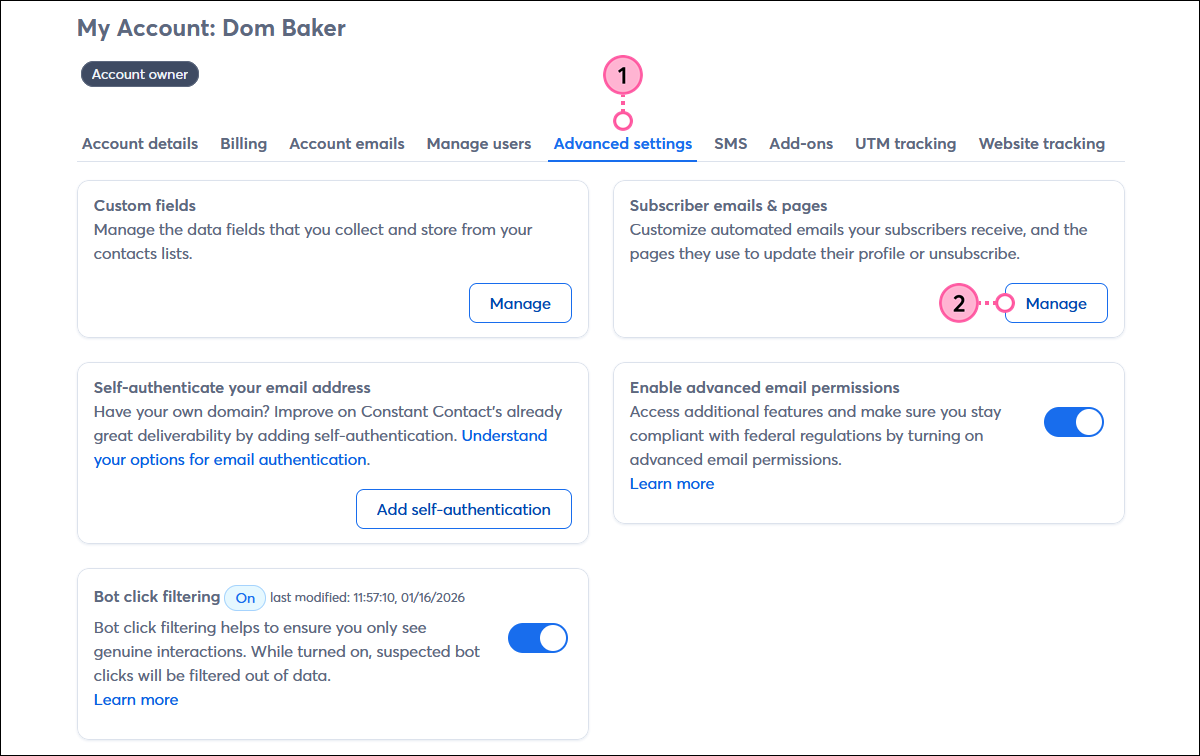
  1. From your account settings, click the Advanced settings tab.
  2. In the Subscriber emails & pages section, click the Manage button.

    Settings page with Advanced settings tab selected,Subscriber emails & pages section and Manage button

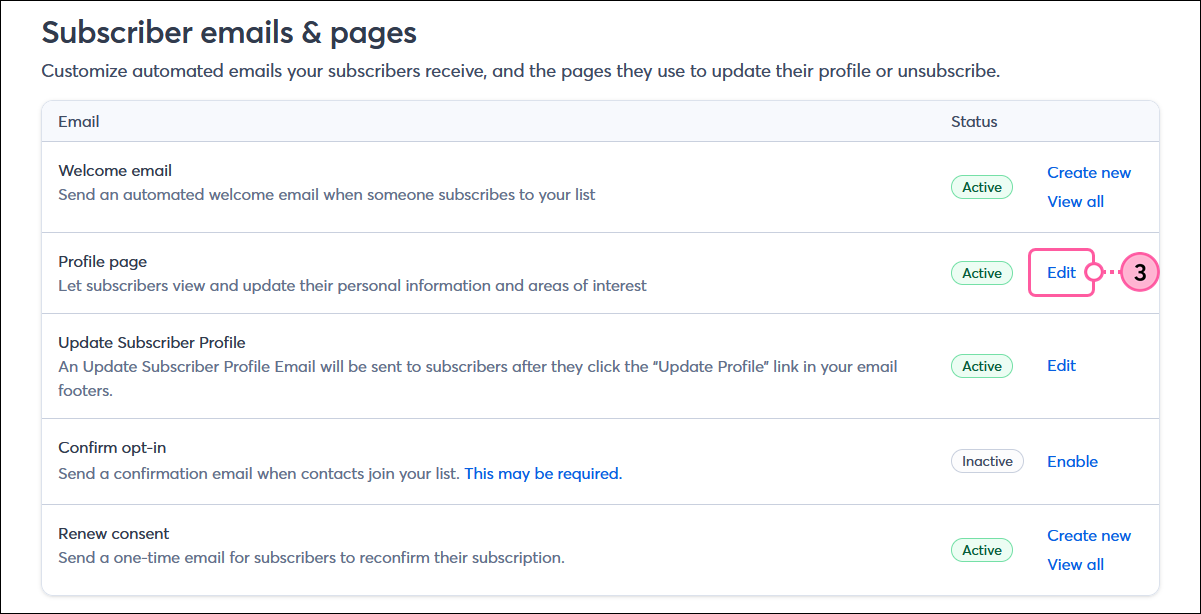
  3. Next to the Profile page option, click "Edit."

    Subscriber emails and pages page with Profile page section and Edit option

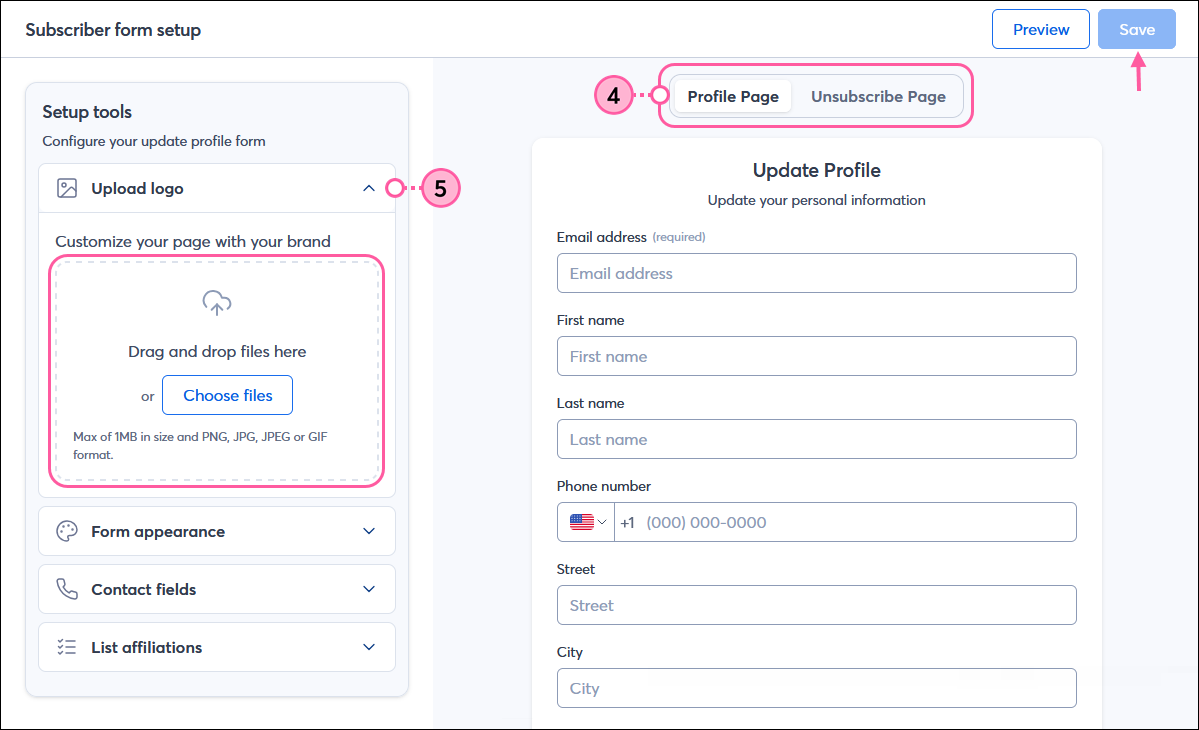
  4. Click the Profile Page tab or Unsubscribe Page tab. You can click the Save button in the upper right-hand corner at any time to save your progress as you move through the form.
    Note: Your Setup tools options are applied to both forms, but in order to select Contact fields, you must have the Profile Page option selected.
  5. Click the Upload logo section to expand the section and import your logo image. The image size must be 1 MB or less, and the file type can be in the PNG, JPG, JPEG, or GIF format. The logo is applied to the top of both the Profile Page and Unsubscribe Page.

    Subscriber form setup page with Profile Page tab selected, and Setup tools section with Upload logo section expanded and Choose file button

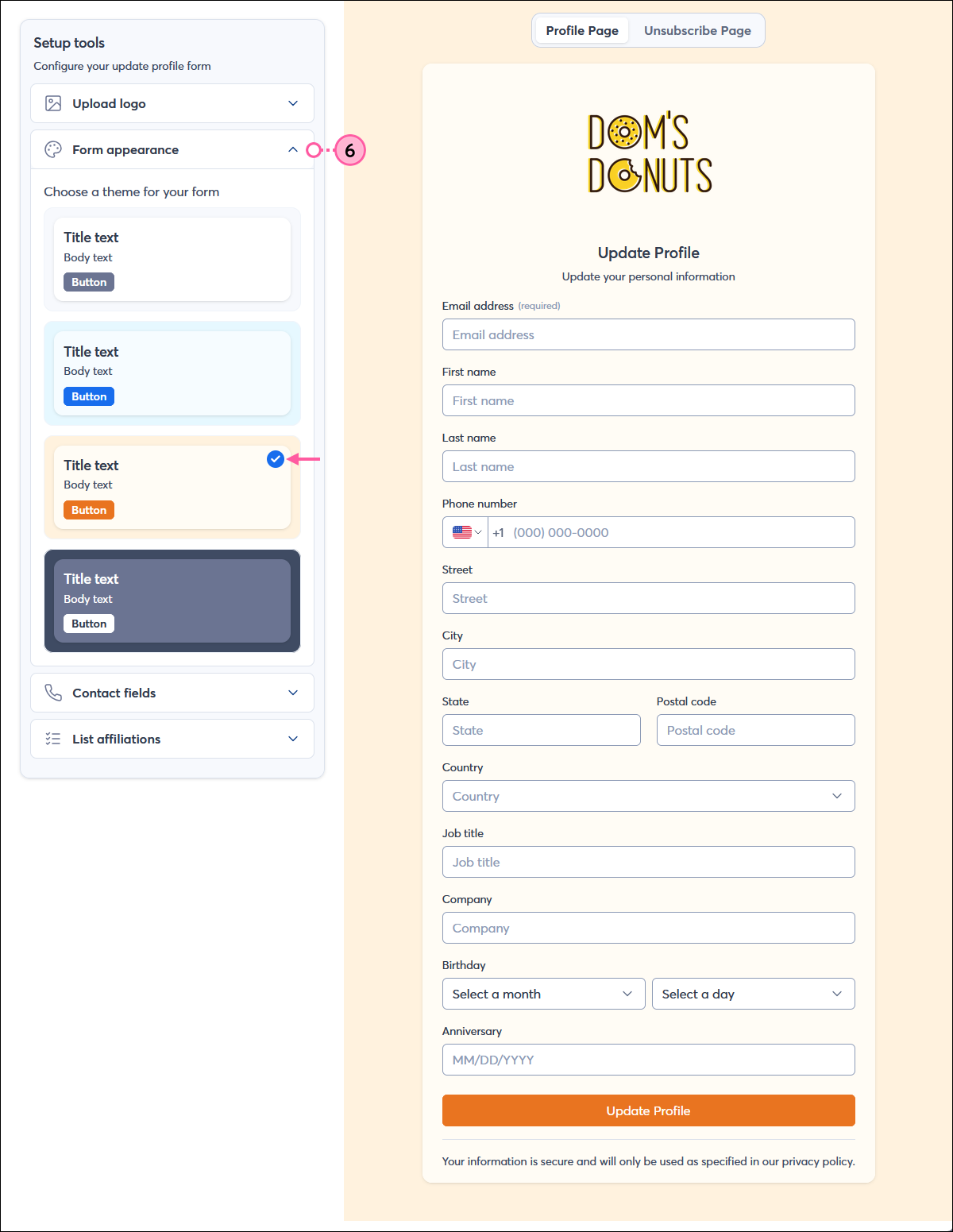
  6. Click Form appearance to expand the section and select a theme. The theme is applied to both the Profile Page and Unsubscribe Page.

    Subscriber form setup page with Profile Page tab selected, and Setup tools sectiib with Form appearance section expanded

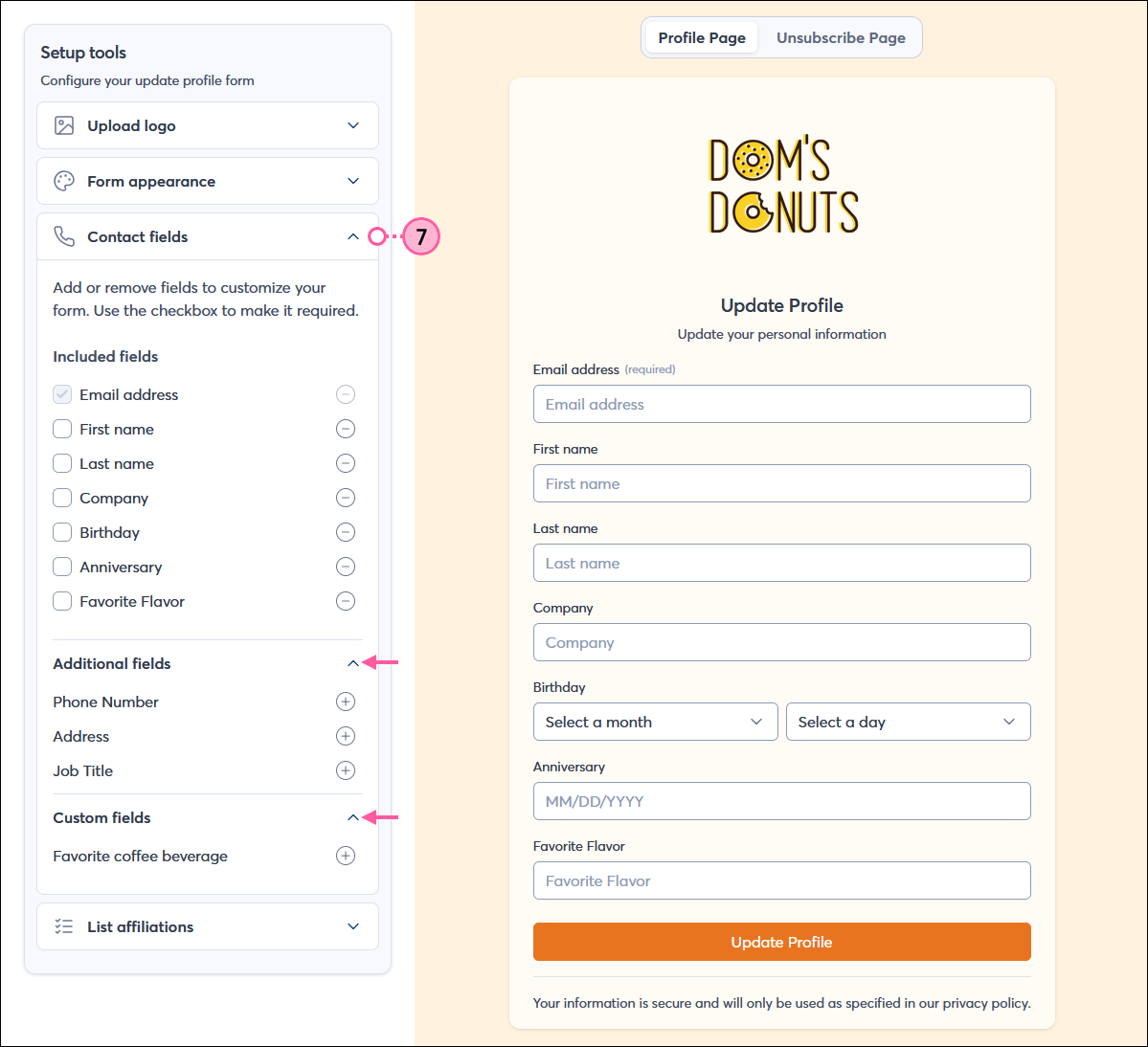
  7. Click Contact fields to expand the section and select or remove fields from your form. When fields are removed, they are added to the Additional fields section. Custom fields are found in their own section. Contact fields only apply to the Profile Page and give your contacts the option of adding or updating the contact information you have on file for them.

    Subscriber setup page with Profile Page tab selected, Cotnact fields section expanded with Included fields, Additional fields, and Custom fields options

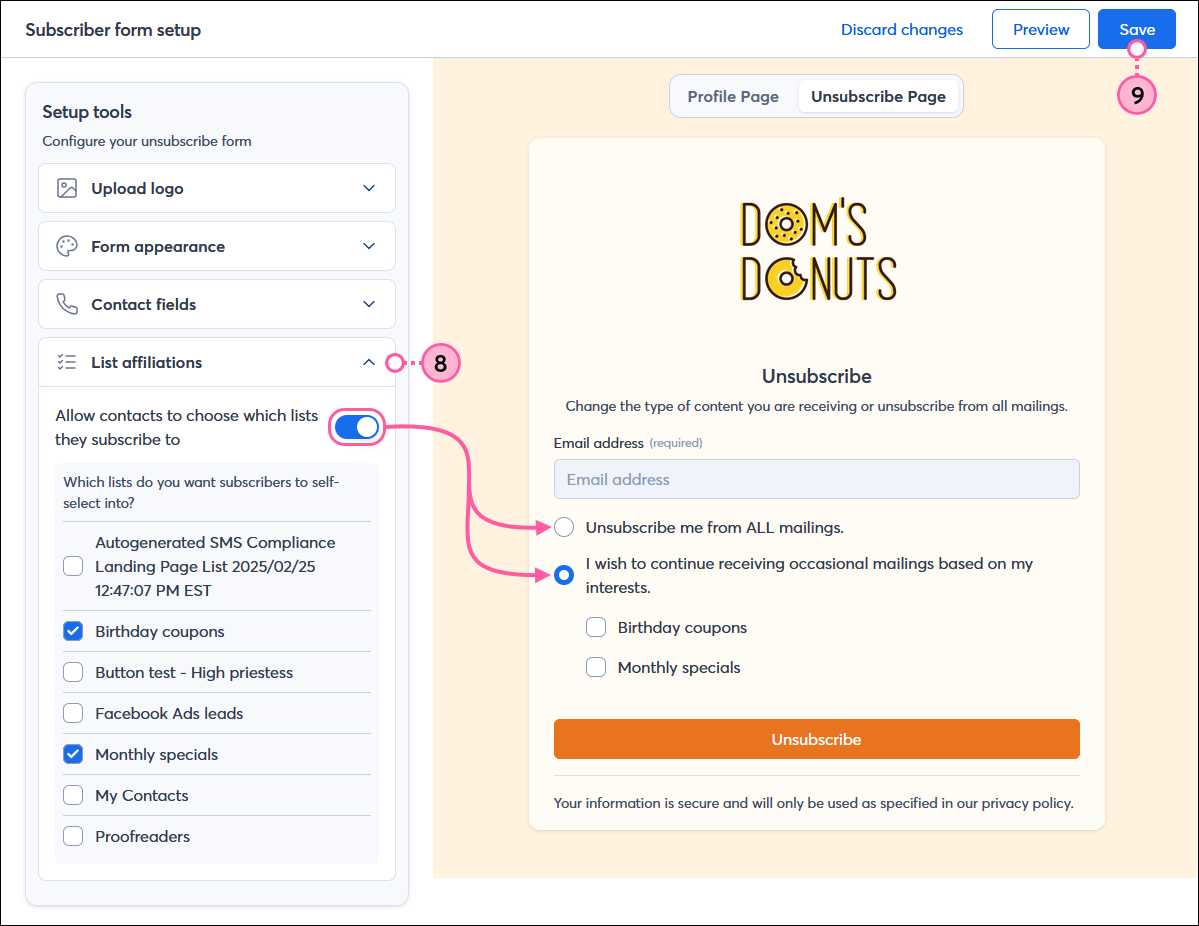
  8. Click List affiliations to expand the section, click the "Allow contacts to choose which lists they subscribe to" toggle, and choose the lists you want your contact to be able to self-select on the Update Profile form, and to unsubscribe from through the Unsubscribe form. When the option is enabled, your Unsubscribe form provides your contacts  the choice of opting out completely from all of your lists, or they can choose the lists they unsubscribe from.
  9. Click the Save button.

    Subscriber setup page with Unsubscribe Page tab selected, List affiliations section expanded with Allow contacts to choose which lists they subscribe to option enabled, list options selected, and Unsubscribe Page preview with Unsubscribe from ALL mailings option, and I wish to contineue receiving occassional mailings based on my interests option


Light Bulb IconDesign tip: The email that is sent to your contacts when they click the "Update Profile" link within the email footer can also be customized to include your branding!


Questions?

Ask the Community

Did this article answer your question?


Constant Contact Logo

Copyright © 2026 · All Rights Reserved · Constant Contact · Privacy Center