Email and Digital Marketing
How can we help you?
Search our help articles, video tutorials, and quickstart guides

You've got this. You've got us. Search our Knowledge Base to quickly find answers to your questions.

Export your email or SMS contacts into a spreadsheet

Article: 000033114
Updated: November 4, 2025

Create a back-up file of your email and SMS contacts by exporting their information into a downloadable CSV file or Excel spreadsheet

Exclamation Point IconImportant: If you need to track the permission status of your contacts for CASL or the GDPR, make sure the Advanced Email Permissions are enabled before you export your contacts. The exported spreadsheet doesn't include the permission status unless the permissions are enabled.


Exporting your contacts doesn't remove them from your account, but gives you a hard copy of their information that you can open in Excel or other spreadsheet programs.
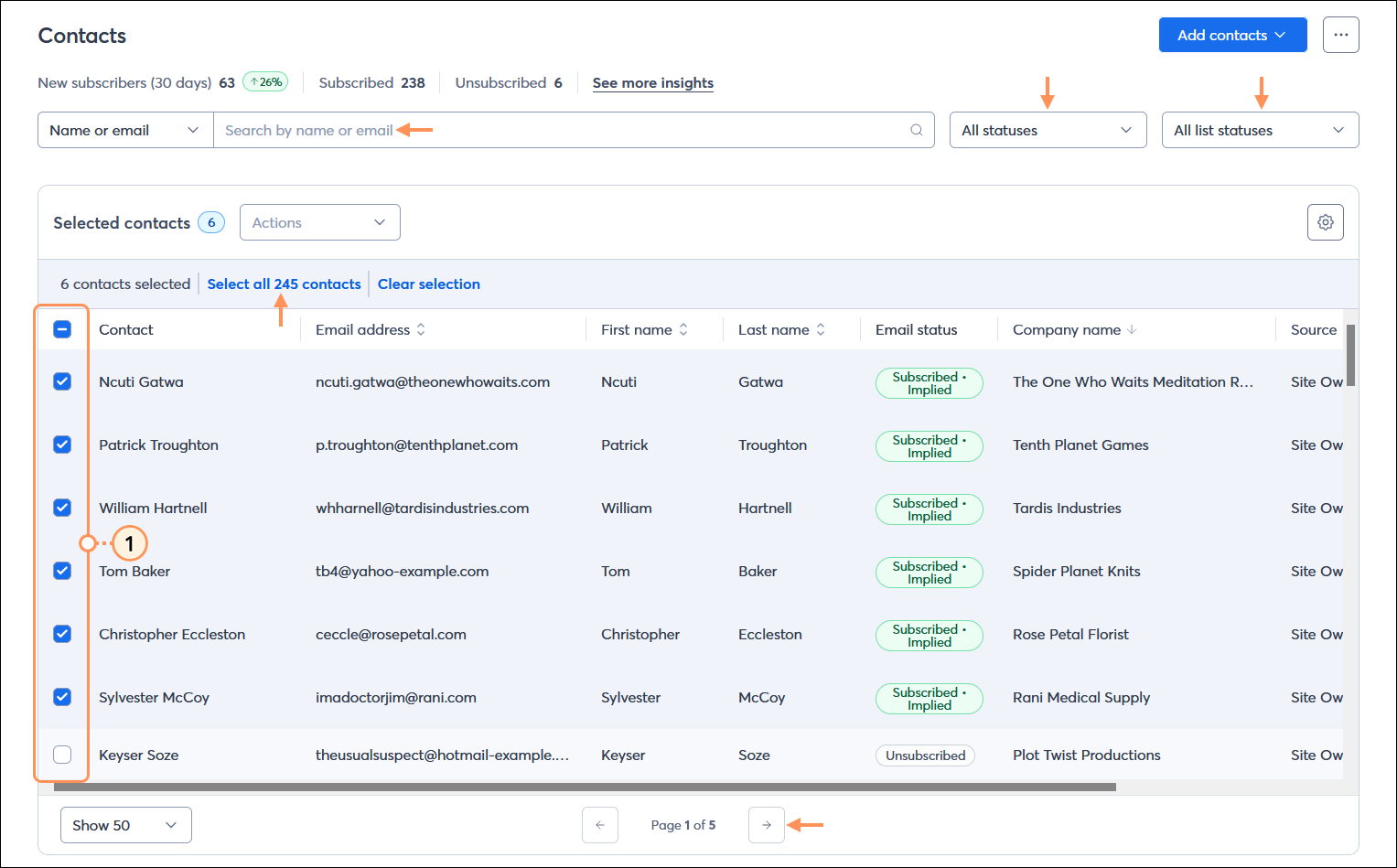
  1. Open the Contacts page, and select the contacts you want to export; if you have multiple pages of contacts, you won't lose your contact selection as you navigate from page to page. You can search for specific contacts, filter your contacts by their email or SMS status or list status first to help narrow your search, and if you want to select all contacts, select any contact and then click the "Select all contacts" link.

    Contacts page with All contacts table and multiple contacts selected, Search field, All statuses drop-down menu, and All list statuses drop-down menu, and page options

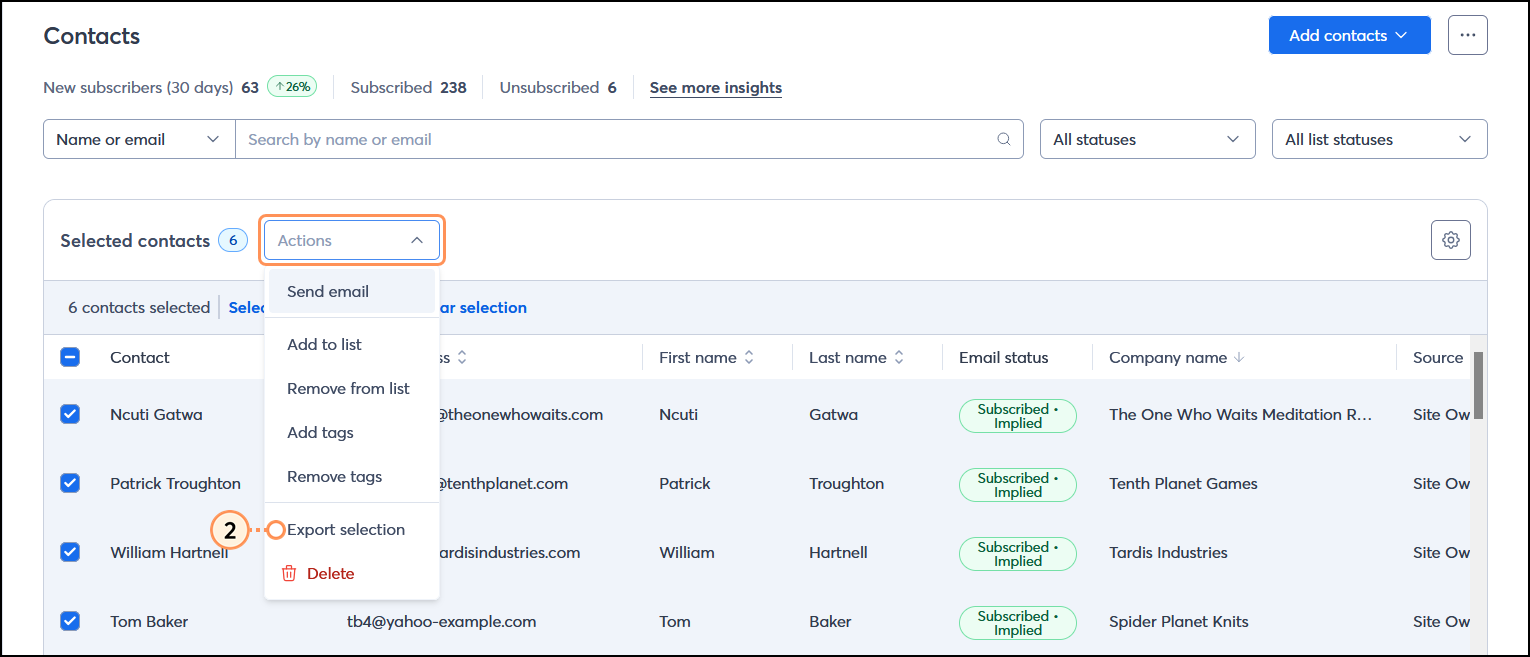
  2. Click Actions > Export selection.

    Contacts page with All contacts table and multiple contacts selected, and Actions drop-down menu expanded with Export selection option selected

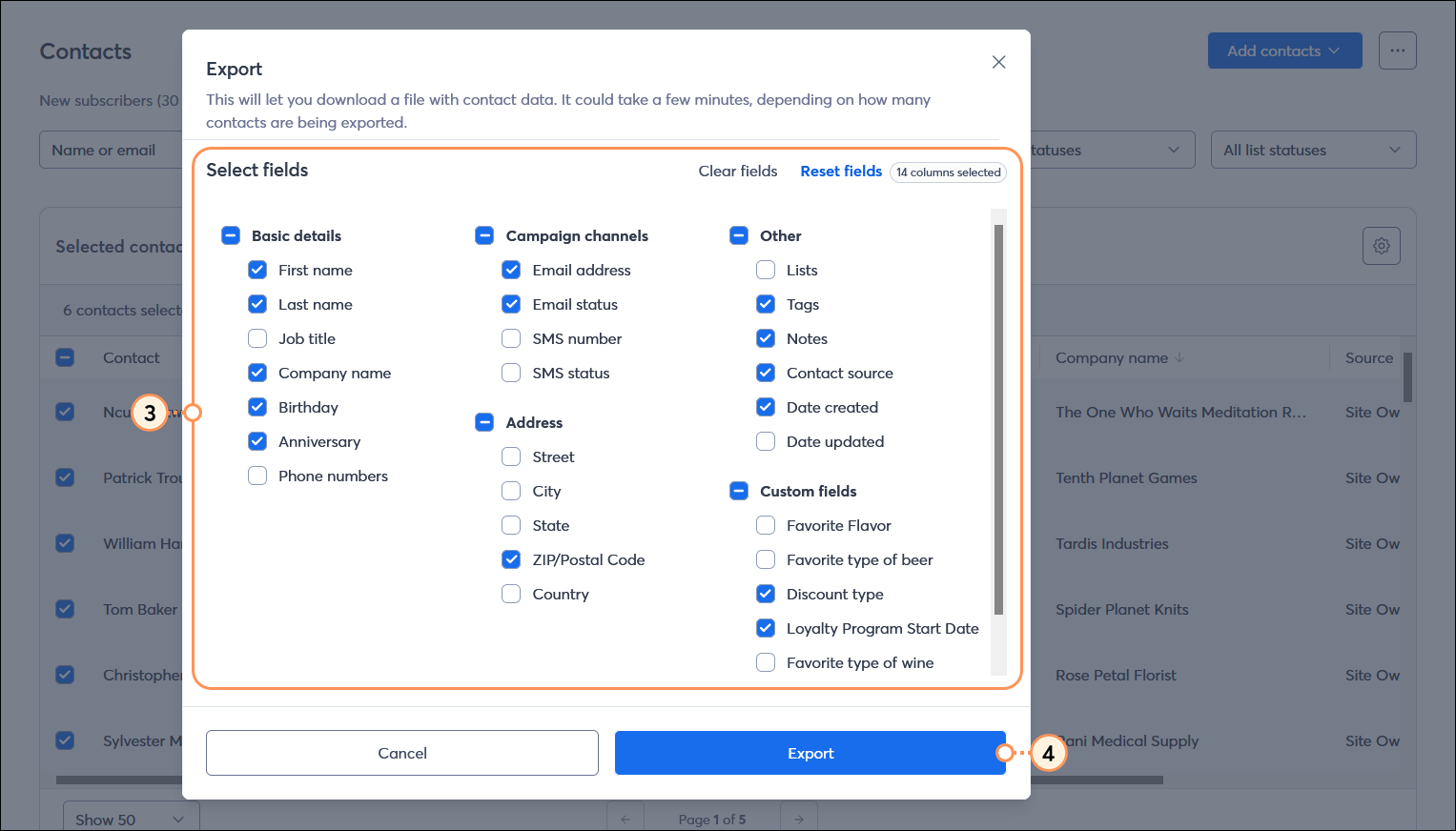
  3. From the Export overlay, select all the contact information you want to include in your exported file.
  4. Click Export.

    Export overlay, contact information options, and Export button

When your export is complete, you can find your CSV or Excel file and download it by viewing your import/export activity. CSV files can be opened with Microsoft Excel and Google Sheets.


Light Bulb IconDid you know? Instead of choosing individual contacts, you can also export contacts that are part of a specific list or segment, or that are assigned a particular tag.


Questions?

Ask the Community

Did this article answer your question?


Constant Contact Logo

Copyright © 2026 · All Rights Reserved · Constant Contact · Privacy Center