Email and Digital Marketing
How can we help you?
Search our help articles, video tutorials, and quickstart guides

You've got this. You've got us. Search our Knowledge Base to quickly find answers to your questions.

Select a contact list or segment to export into a spreadsheet

Article: 000037424
Updated: October 30, 2025

Create a backup file of a specific contact list or segment by exporting it onto a downloadable CSV file or Excel spreadsheet

Exclamation Point IconImportant: If you need to track the permission status of your contacts for CASL or the GDPR, make sure the Advanced Email Permissions are enabled before you export your contacts. The exported spreadsheet doesn't include the permission status unless the permissions are enabled.


When you need to export your contact lists, you've got flexibility! First, choose your list or segment, and then select the contact information you want to include in your exported file.
If you have over 300 contacts, or if you want to download an Excel spreadsheet instead of a comma separated value (CSV) file, the download is available on the Import and Export Activity page for 7 days after you export the data. CSV files can be opened with Excel.


Export a single list or segment

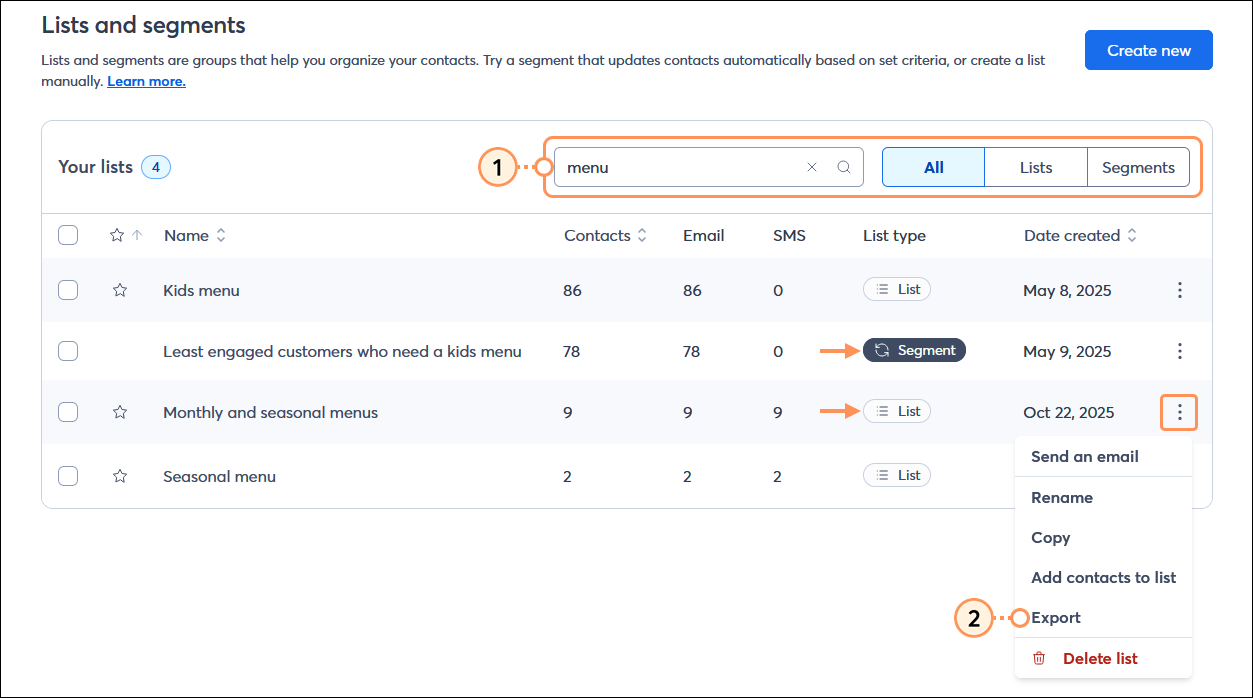
  1. From the Lists and segments page, search for the list or segment you want to export.
  2. Next to the list or segment you want to export, click the three dots and select the "Export" option from the drop-down menu.

    Lists and segments page with Search field and search results, and Segment with menu expanded and Export option selected

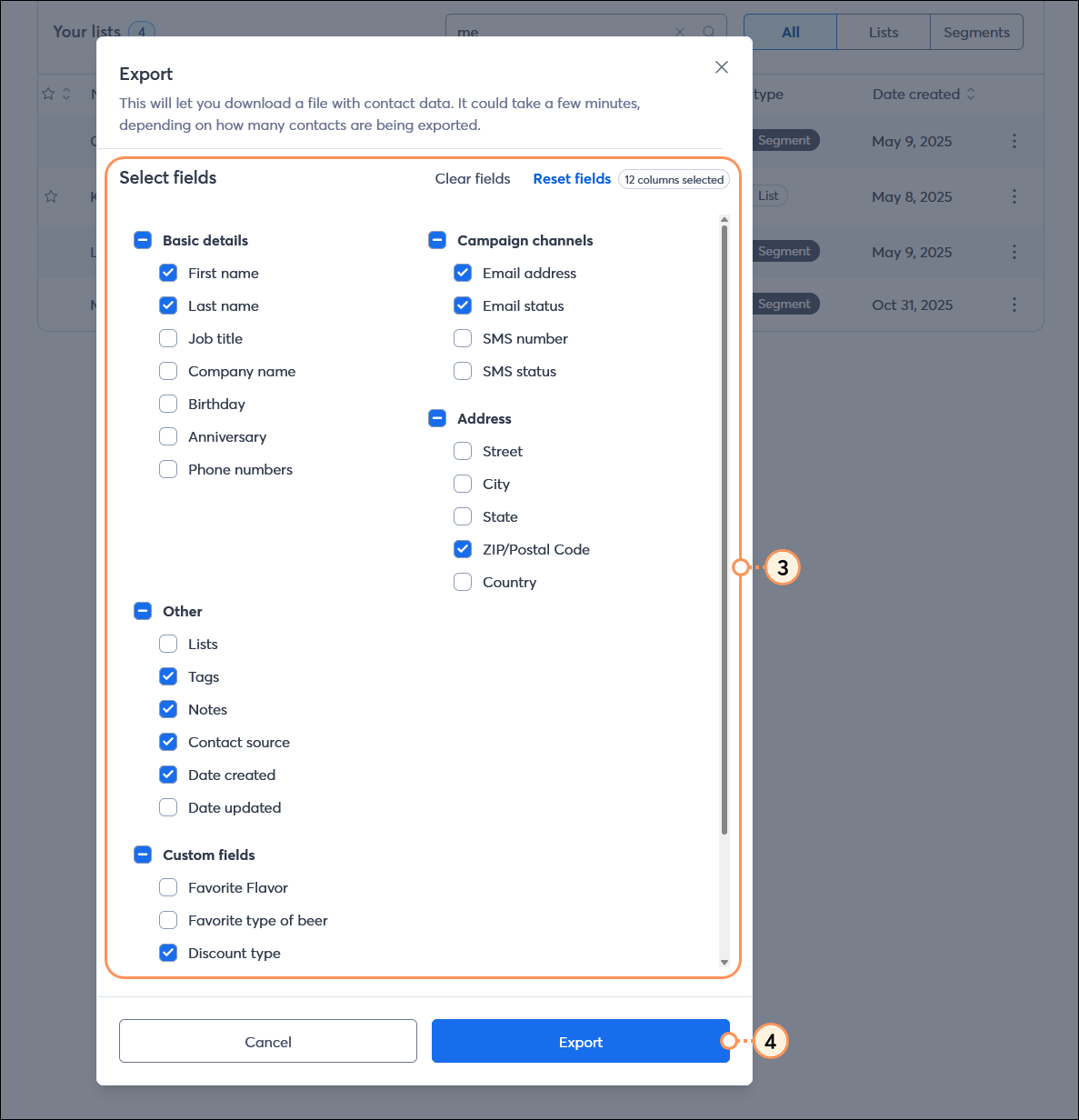
  3. From the Export overlay, select all the fields you want to include in your exported file.
  4. Click the Export button.

    Export overlay with field options, and Export button


Export multiple lists or segments

Multiple contact lists or segments can be exported one at a time, following the steps above, and the results can then can be combined into a single spreadsheet.


Questions?

Ask the Community

Did this article answer your question?


Constant Contact Logo

Copyright © 2026 · All Rights Reserved · Constant Contact · Privacy Center