Email and Digital Marketing
How can we help you?
Search our help articles, video tutorials, and quickstart guides

You've got this. You've got us. Search our Knowledge Base to quickly find answers to your questions.

Filter your contacts by tags when sending an email

Article: 000017873
Updated: November 13, 2025

Send your email to a subgroup of contacts by selecting or excluding tagged contacts

Segmentation helps you group different contacts together based on their behavior, interests, or information they have in common. When your contacts are separated into defined groups, it makes it easier to create targeted email content that appeals to them. Tags are labels you can apply to contacts across different lists so that you can create a segment without moving the contacts off the list they're currently part of. When you're ready to schedule your email, you can select multiple lists and then send directly to the contacts who are tagged, or exclude those tagged contacts.



Narrow your contacts by tag when sending an email

  1. While scheduling your email, click the Time and audience section to expand it.
  2. From the Audience section, select the lists you want to send to and then click the "Filter by tag" option.
    Note: The link is only visible if you have already created tags, or if you are sending to 10,000 contacts or less (see below).

    Email schedule page with Time and audience section expanded, Audience section with List option selected and lists, and Filter by tag option

  3. Choose how you want to narrow by tag:
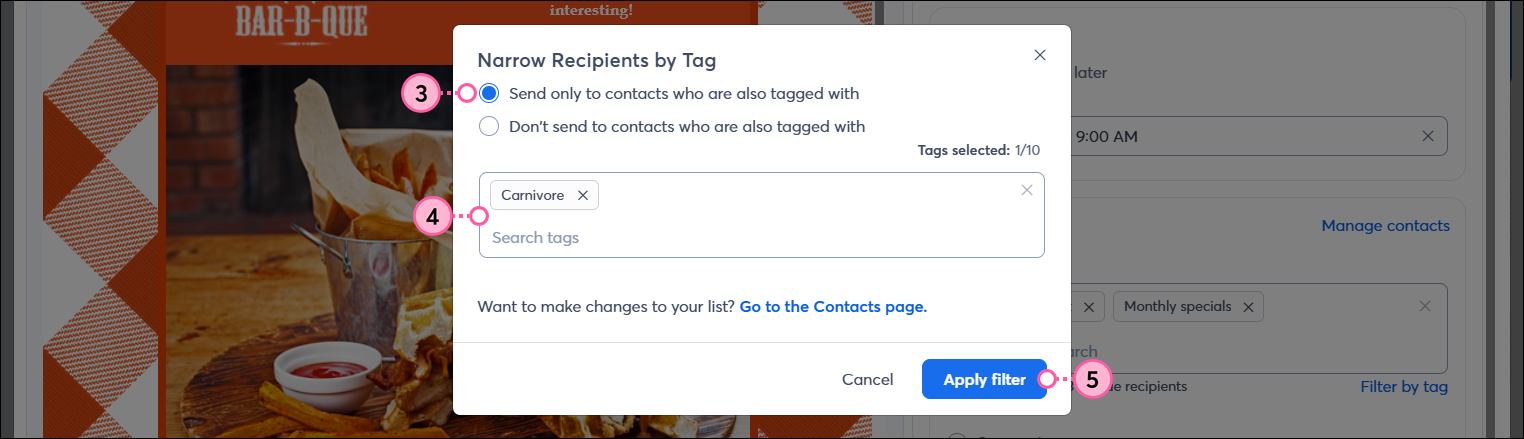
  • Send only to contacts who are also tagged with - This option sends your email only to the contacts on your selected lists who have been tagged with your selected tags. For example, in the image below, the email about a chicken sandwich is only sent to the contacts on the General Interest or Monthly specials lists who are tagged as carnivores.

    Narrow Recipients by Tag overlay with "Send only to contacts who are also tagged with" option selected, tag selected, and Apply filter button

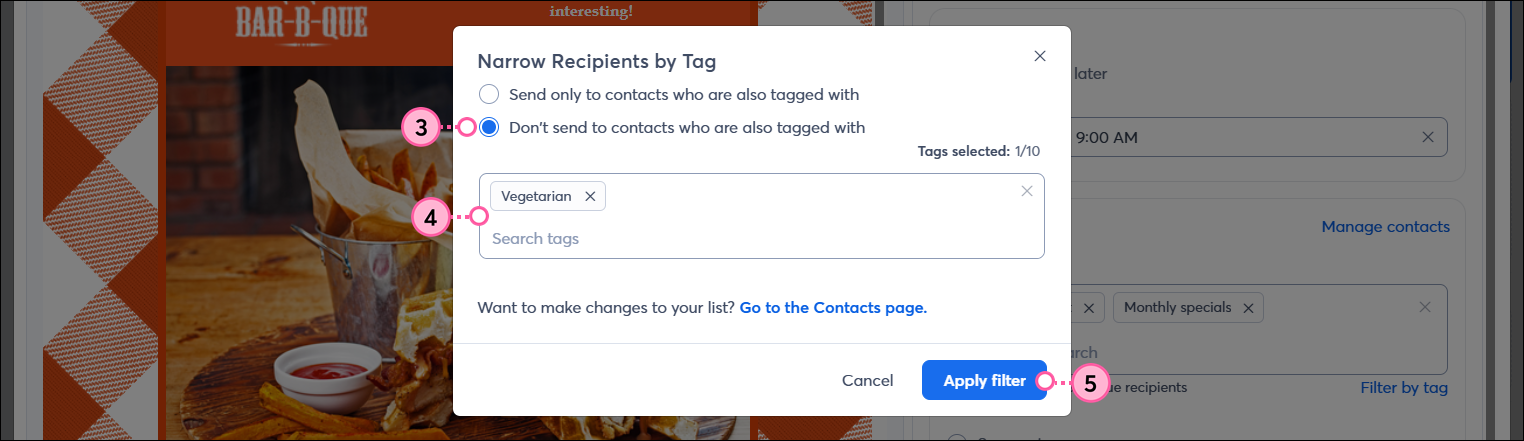
  • Don't send to contacts who are also tagged with - This option excludes the contacts on your selected lists from receiving your email if they have been tagged with your selected tags. For example, in the image below, the email about a chicken sandwich is sent to everyone on the General Interest or Monthly specials lists unless they are tagged as vegetarians.

    Narrow Recipients by Tag overlay with "Don't send to contacts who are also tagged with" option selected, tag selected, and Appy filter button

  1. Click anywhere in the Search tags field to select the tags you want to send to or exclude.
  2. Click the Apply filter button. You can edit or remove the tag filter up until you send the email.

After you send your email, give your contacts a little time to open it, and then check your reporting on the Email Details page.


Sending an email to tagged contacts in accounts with over 10,000 contacts

If you have over 10,000 contacts, the tag feature isn't available when you schedule your email, but you can segment your contacts by tag and then send to the segment instead. You still have the same flexibility to include all the contacts with a tag or to exclude them:


Questions?

Ask the Community

Did this article answer your question?


Constant Contact Logo

Copyright © 2026 · All Rights Reserved · Constant Contact · Privacy Center