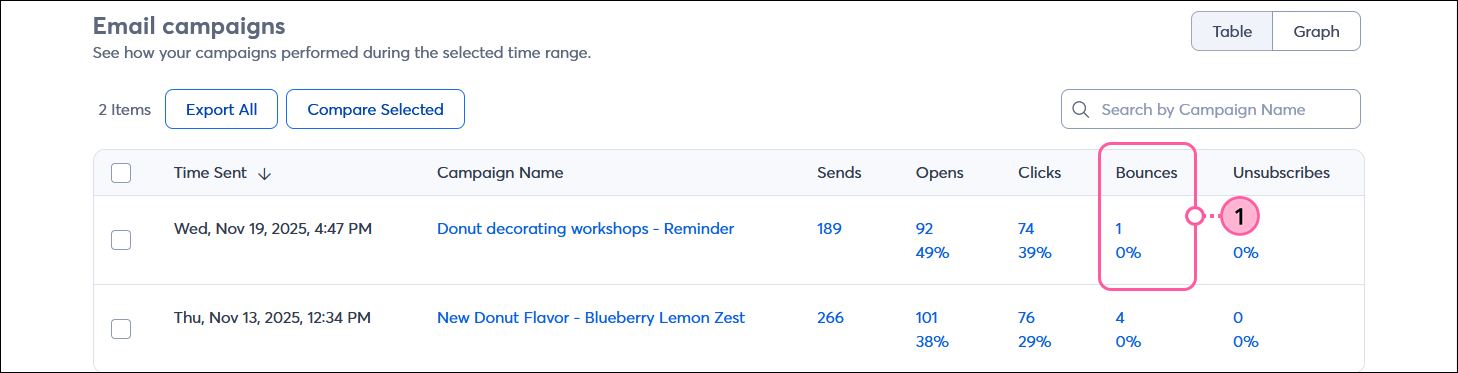
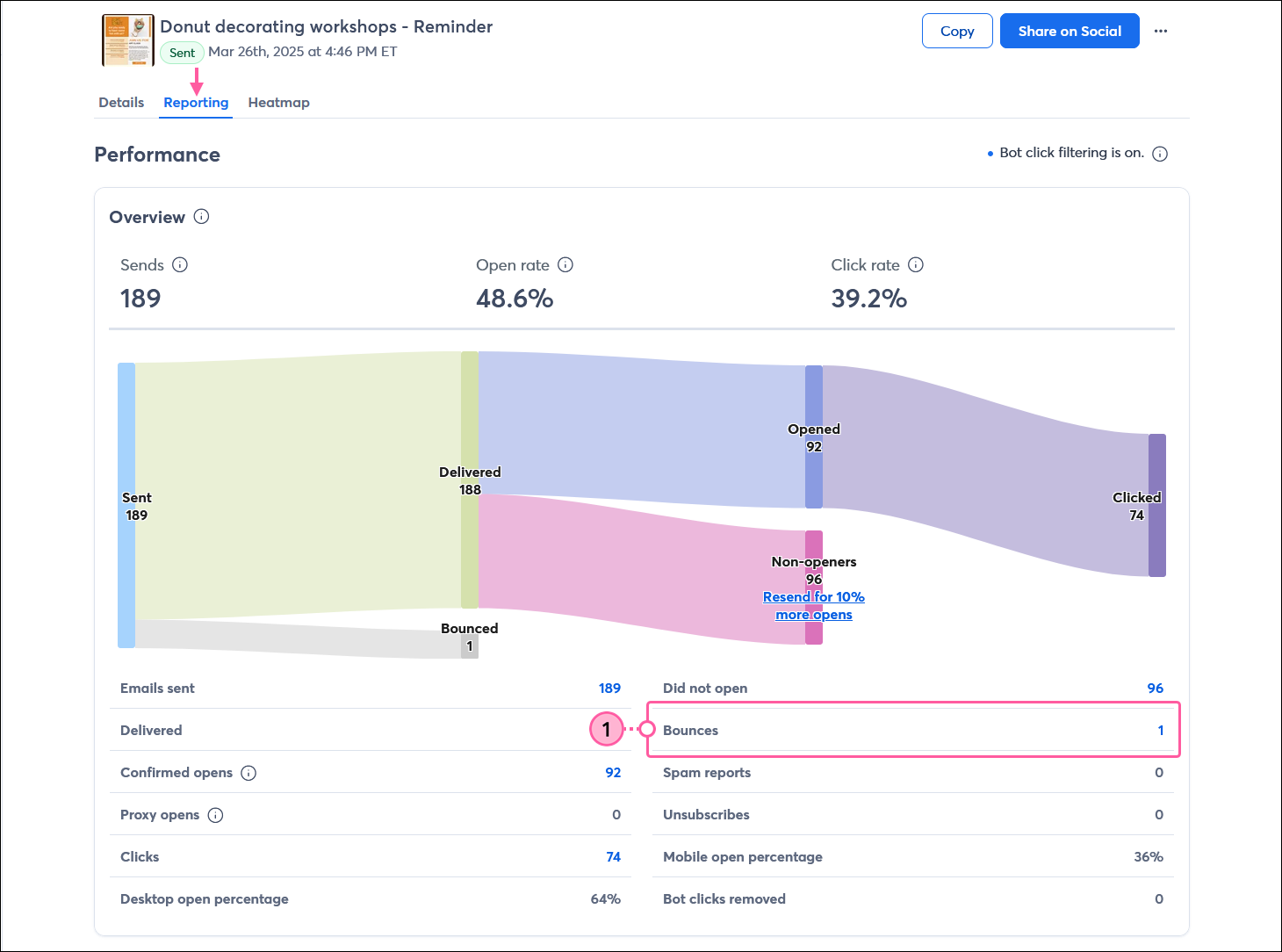
After you've sent your email, the reporting might show that some of your email addresses bounced; bounces are contacts who didn't receive your email for various reasons. In order to keep your email lists clean and full of high-quality contacts, it's important to know why an email address bounced, how to manage bounces, and when to remove a contact from your list.
We recommend that you try to resolve the issue a contact might have first, then remove those email addresses that just aren't working. We can help you figure out which ones those are:
Important: If a contact tells you they aren't receiving your email and they aren't on your bounce list, ask the contact to check their spam folder. If the email isn't in the spam folder, you can have your contact safelist your "From Email" address in their email account or security program.
Types of bounces and what to do about them
When an email address bounces, the mailbox provider sends back a reason, telling us why it bounced. It may sound simple, but it can be complicated because different mailbox providers and different types of mail servers all use different "response codes" to let us know why the email address is bouncing. We attempt to categorize the bounce into one of seven different bounce types to help you determine how to handle it.
Taking action to clean up bounced email addresses helps your deliverability! If a mailbox provider sees repeated send attempts to an email address that's bouncing, they're more likely to treat your email as spam. Listed below are the different bounce types you might see and suggestions for what to do about them:
Non-existent bounces
- What it means - The mailbox provider says the email address does not exist.
- What to do - Double-check the address for obvious typos. If possible, reach out to the contact directly to see if they have a new email address. After making a correction, try sending an email to it again. If it continues to bounce, remove the contact. If you are certain the address is correct, contact our Support Team to troubleshoot.
- For more information, please see: Resend an email to addresses that bounced as non-existent
Suspended bounces
- What it means - The email address has repeatedly bounced as "Non-existent" across any Constant Contact account. To protect your deliverability, Constant Contact will no longer attempt to send to it.
- What to do - We recommend removing these contacts from your list. If you know the address is correct (for example, you recently emailed them outside of Constant Contact), you can unsuspend the address in your account once. If the error persists, contact our Support Team to troubleshoot.
- For more information, please see: The Suspended email address bounce category.
Undeliverable bounces
- What it means - The mailbox provider did not respond when we attempted to deliver the email. We will keep trying to deliver it for up to three days. If there is still no response, it becomes "Undeliverable."
- What to do - Try sending to the address again later. If your email keeps bouncing, remove the contact from your lists and try to contact the person for a new address.
- For more information, please see: Mailbox providers and blocked email
Blocked bounces
Vacation / Auto-reply bounces
- What it means - The contact has enabled an automatic out-of-office message. The email was delivered to their inbox, but they may not see it right away. You might also see this if a contact forwarded your email to someone with an auto-reply on, or if you sent it to a shared role address.
- What to do - No action is needed. These are not actual bounces.
- For more information, please see: The Vacation/Auto-Reply bounce category
Mailbox full bounces
- What it means - The recipient's inbox has reached its storage capacity and cannot accept new messages.
- What to do - Reach out to the contact to let them know their mailbox is full or ask for a new email address. If the address keeps bouncing over time, remove the contact from your list.
Other bounces
- What it means - The mailbox provider sent back an unreadable message or used non-standard error coding.
- What to do - If you are using a free "From Address," try switching to a custom domain. If you already use a custom domain and know the address is correct, contact our Support Team.
Steps you can take to check for bounce types that are recommended for removal
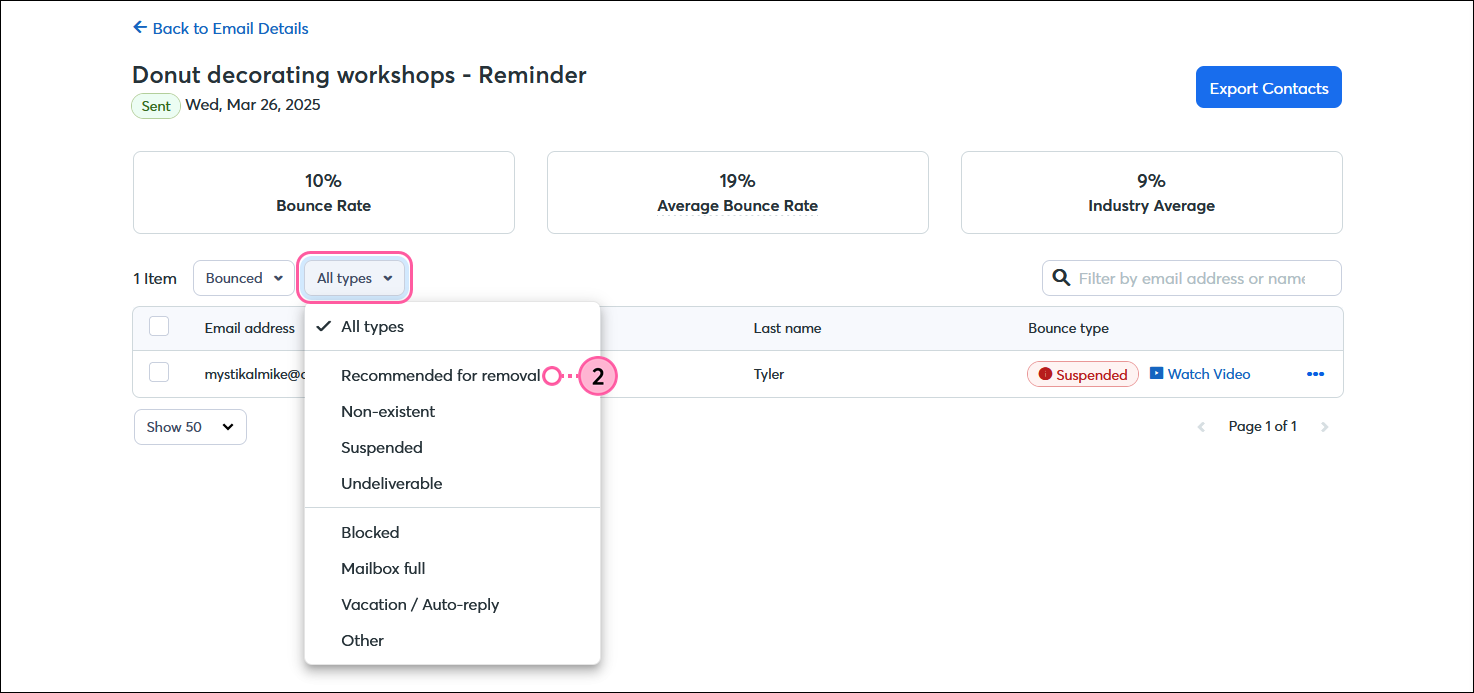
Some bounce types are almost always permanently invalid, and the best way to maintain good list hygeine is to remove them. Constant Contact groups these contacts into the “Recommended For Removal” categorywithin your email reporting. The category includes:
- Non-existent bounces
- Undeliverable bounces
- Suspended addresses
While the remaining bounce types may only bounce due to a temporary issue, we've found that these three categories are rarely valid email addresses.
View the recommended for removal bounce report:
After you send an email, check your reporting for bounces; they typically show up right away if you have any.
- Open the bounce report for your email from either the:
- In the All types drop-down, select "Recommended for removal."
Important: To review and manage bounces for subject line A/B Test emails, follow the process outlined here.
Steps you can take to remove problematic email addresses
Removing email addresses that consistently bounce is an important part of keeping your contact lists clean. The best way to remove them is to unsubscribe them because:
- It prevents you from accidentally sending to problematic email addresses if you re-upload a spreadsheet containing the old address.
- Removing bad addresses improves your open rates.
- Unsubscribed contacts can always re-subscribe themselves later via your sign-up form.
- You're prevented from accidentally sending emails to that contact and therefore won't cause an unintended bounce.
For more information about unsubscribing contacts, please see: Understanding unsubscribed contacts.
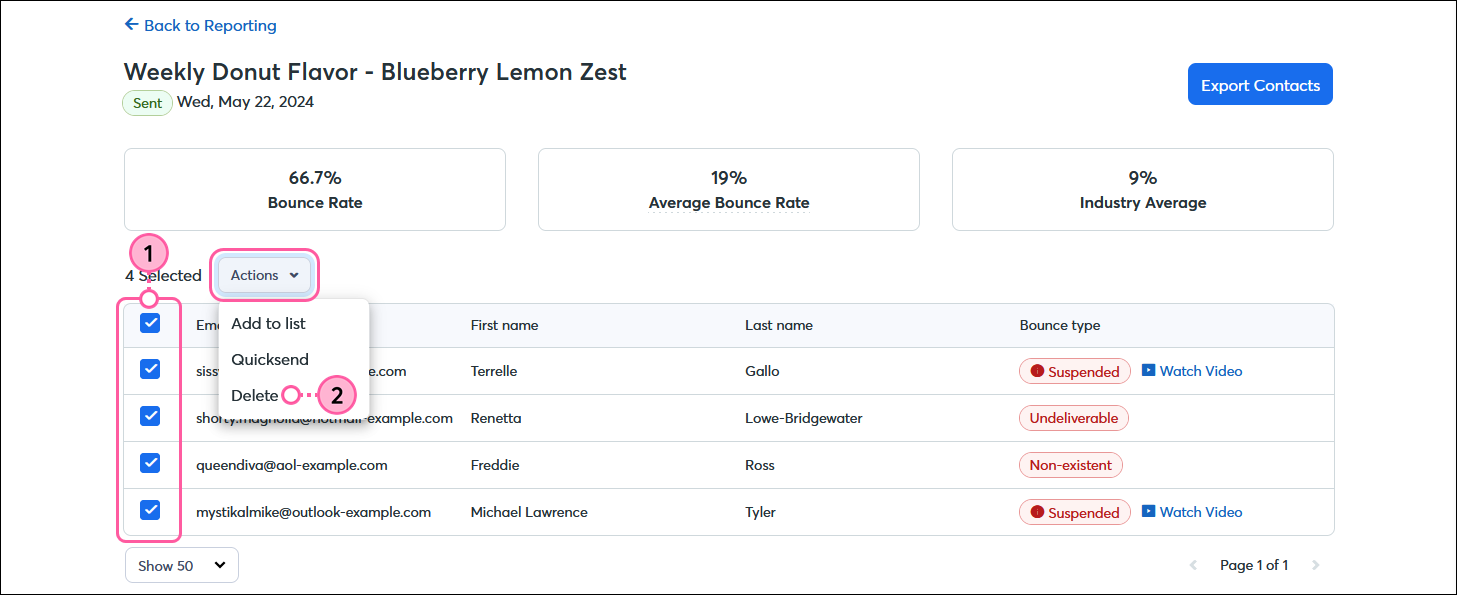
Deleting and unsubscribing contacts on the recommended for removal report:
Deleting contacts doesn't remove them from your reporting. However, you'll see strike-throughs running through the email addresses and you aren't able to click to view or edit the contact records of deleted contacts.
- From the "Recommended for removal" view of your email reporting, select some or all of the contacts.
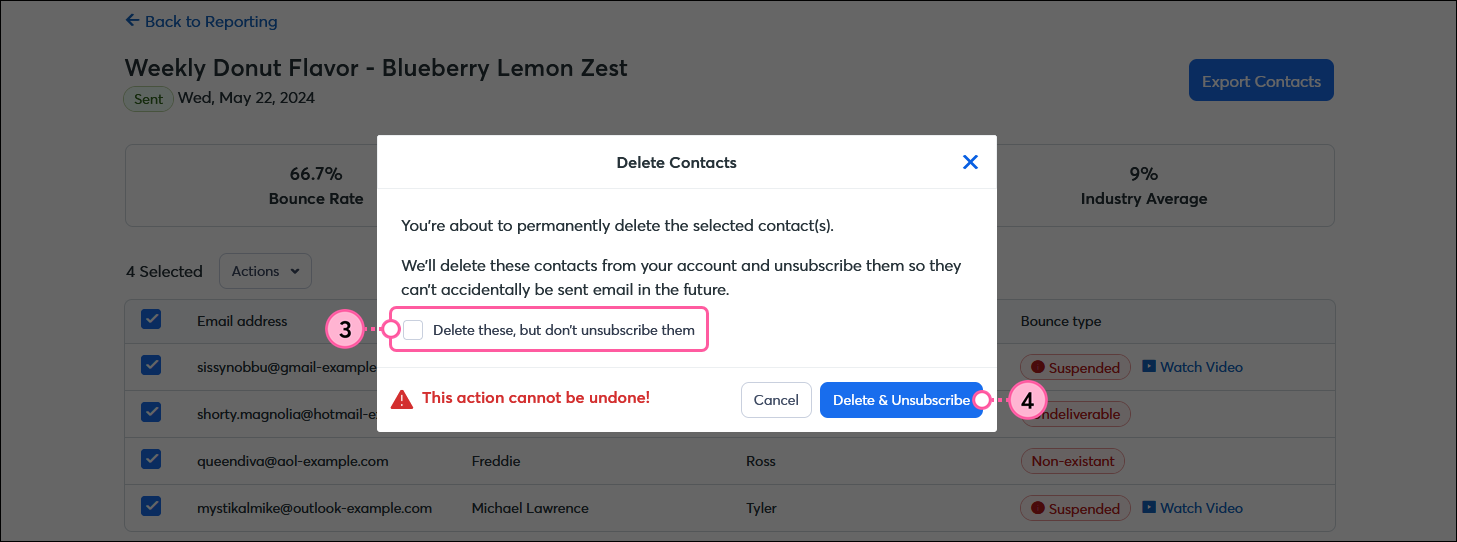
- Click Actions > Delete.
- (Optional) Delete your unwanted contacts:
- Delete and unsubscribe - Click the Delete & Unsibscribe button to permanently remove the unwanted contacts and unsubscribe them. Unsubscribing the contacts prevents you from accidentally re-uploading and sending email to these bad email addresses. However, the contact can resubscribe themselves at any time by signing up for your list through any of our sign-up tools.
- Delete - By checking the "Delete these, but don't unsubscribe them" option and then clicking the Delete button, your contacts are deleted but you're able to manually add them back to your list at any time by creating a new contact or importing a file of contacts that includes the deleted contact's information.
Tips to prevent future bounces from happening
Not all bounces are preventable, but you can reduce them by following these best practices:
- Don't purchase a list - Buying a list may seem like an easy way to grow the number of contacts you mail to, but it's against our email permission policy, it's something that spammers do, and you don't know how old the email addresses are. We have tons of sign-up tools to help you grow your list organically with people who are actually giving you permission to email them.
- Check your reporting after every send - Take the time to manage your bounces. If you have bounces, moving them to your list of unsubscribes prevents any continuous or accidental mailings to a bad address in the future.
- Enable Confirmed Opt-in - Keep bad email addresses out of your account from the start! Confirmed Opt-in asks new contacts to click a confirmation link in an email sent to the address they provided when they signed up for your list. If they don't click the link, they won't receive your emails.
- Groom your Update Profile Form - There's an "Update Profile" link that lives in your email's footer. When your contacts click the link, they're sent an email asking them to update their contact information and to choose the mailing lists they want to be part of. You can customize the form so that it only asks for the information you need—asking for too many details turns people off. Nothing will happen to the contacts who don't take action, but keeping the form simple won't scare your contacts away from updating their email addresses.