Email and Digital Marketing
How can we help you?
Search our help articles, video tutorials, and quickstart guides

You've got this. You've got us. Search our Knowledge Base to quickly find answers to your questions.

Subject line A/B test results

Article: 000022449
Updated: December 10, 2025

View the send, open, and click information for each version of a subject line A/B test

When you send a subject line A/B test, the content of your email doesn't change, but you're essentially sending two versions of your email - each with a different subject line. The reporting found on the Email Details page gives you a breakdown of the total sends, opens, and clicks for each version of your subject line, and then takes it a step further by showing you the click-through distribution for each subject line.

Reviewing bounces for a subject line A/B test send is different than how you'd manage bounces for other types of email sends. Bounce information is accessed through the Email Details page, instead of directly from the Reporting tab.


Review subject line A/B test overall results

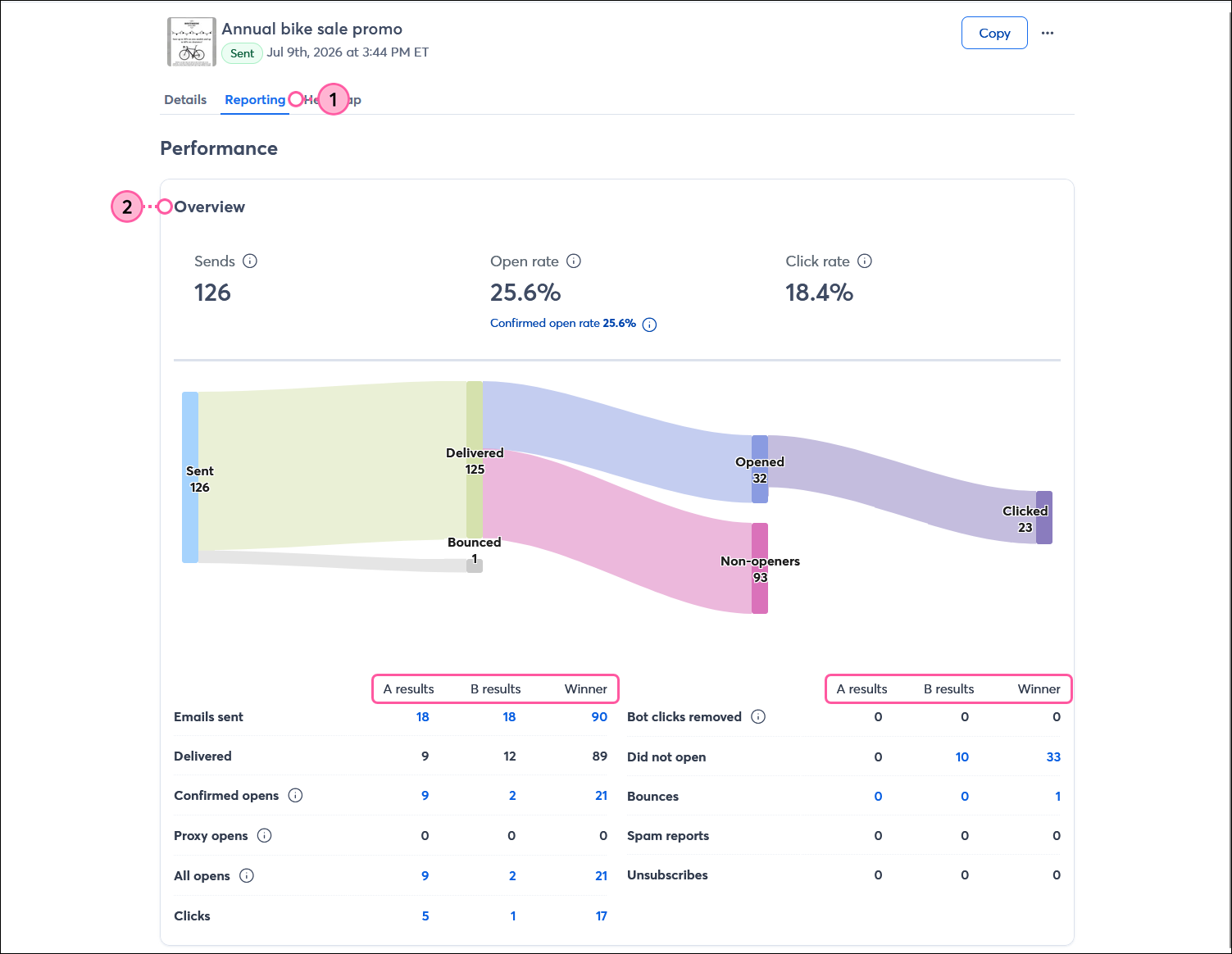
  1. Access the reporting for your email
  2. Use the drop-down to choose if you want to view the results for the A version, B version, winning subject line, or all results combined.

    Email details page with filter drop-down
     
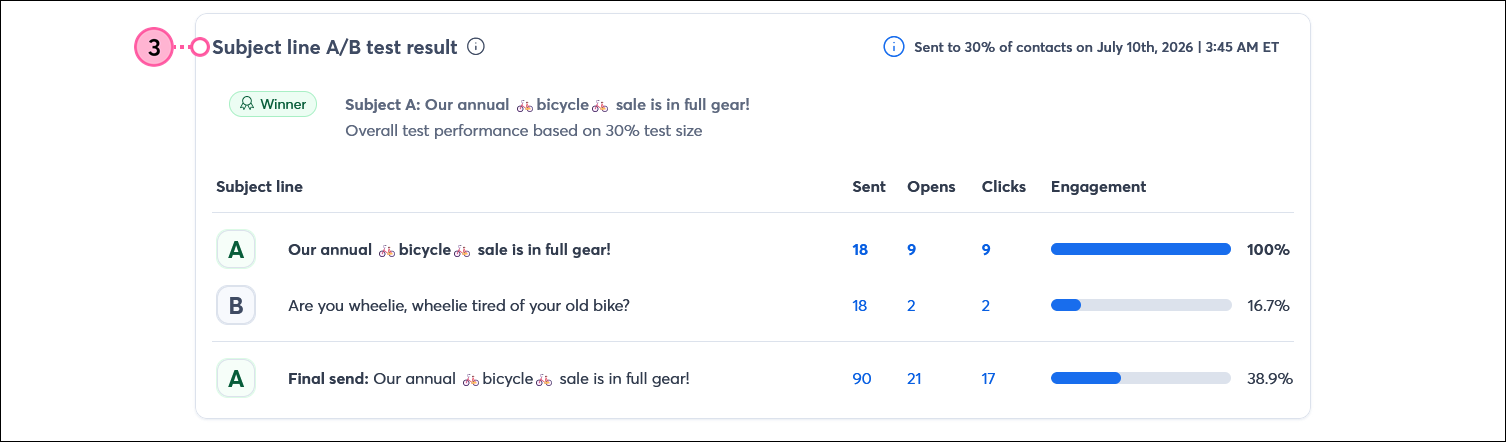
  3. Scroll down to the Subject line A/B test result section to see the total sends, opens, and clicks for each version of your subject line, including the winning subject line once it's declared. Click the hyperlinked numbers to see more detailed reporting for each version of your subject line.

    A/B Test Results and hyperlinked numbers
     
  4. Scroll down to the Clickthrough distribution section to see the unique clicks for each link in your email. Click the hyperlinked numbers to see which contacts clicked on each link.
    Note: If you’re viewing the combined results for your A/B test, the numbers won’t be clickable.

    Click-through Distribution and hyperlinked numbers
     
  5. Click Heatmap to see where your most clicked links are in your email.
    Note: Use the filter at the top of the page to view the heat map for a different subject line version.
  6. Click on the highlighted areas in the heat map to view the URL linked to the text or image. 

    Heat Map tab and highlighted clicked links


Use the winning subject line to help inform your next subject line, and consider using the information from your click-through distribution to further segment your contact list. Use the information from the click heat map to plan out your email design with more effective links.
 

lightbulb iconDid you know? You can extend the reach of your email by sharing it on your Facebook, Instagram, or LinkedIn social media accounts. When you create a post, the A version of your subject line is shared, so you don't have to wait for a winner to share on your social networks.


Review subject line A/B test bounces

To determine whether bounces resulted from your subject line A/B test email, review the reports for each subject line sent.

From the Email Details page:

  1. Scroll down to the Subject line A/B test result section and click one of the hyperlinked numbers for the first email version listed.

    A/B Test Results section with hyperlinked numbers
     
  2. Select Bounced from the drop-down.

    Bounced Filter
     
  3. Review the email addresses that were sent this version of the email that bounced and why. Use the All types drop-down to filter by bounce type.

    Bounced Type Drop-down


Repeat these steps for each version of the subject line A/B test to review all bounces that occurred. 


Questions?

Ask the Community

Did this article answer your question?


Constant Contact Logo

Copyright © 2026 · All Rights Reserved · Constant Contact · Privacy Center