Your Sign-up Landing page can be customized for your target audience. This way, you can add only the fields necessary for your organization, keeping your form shorter.

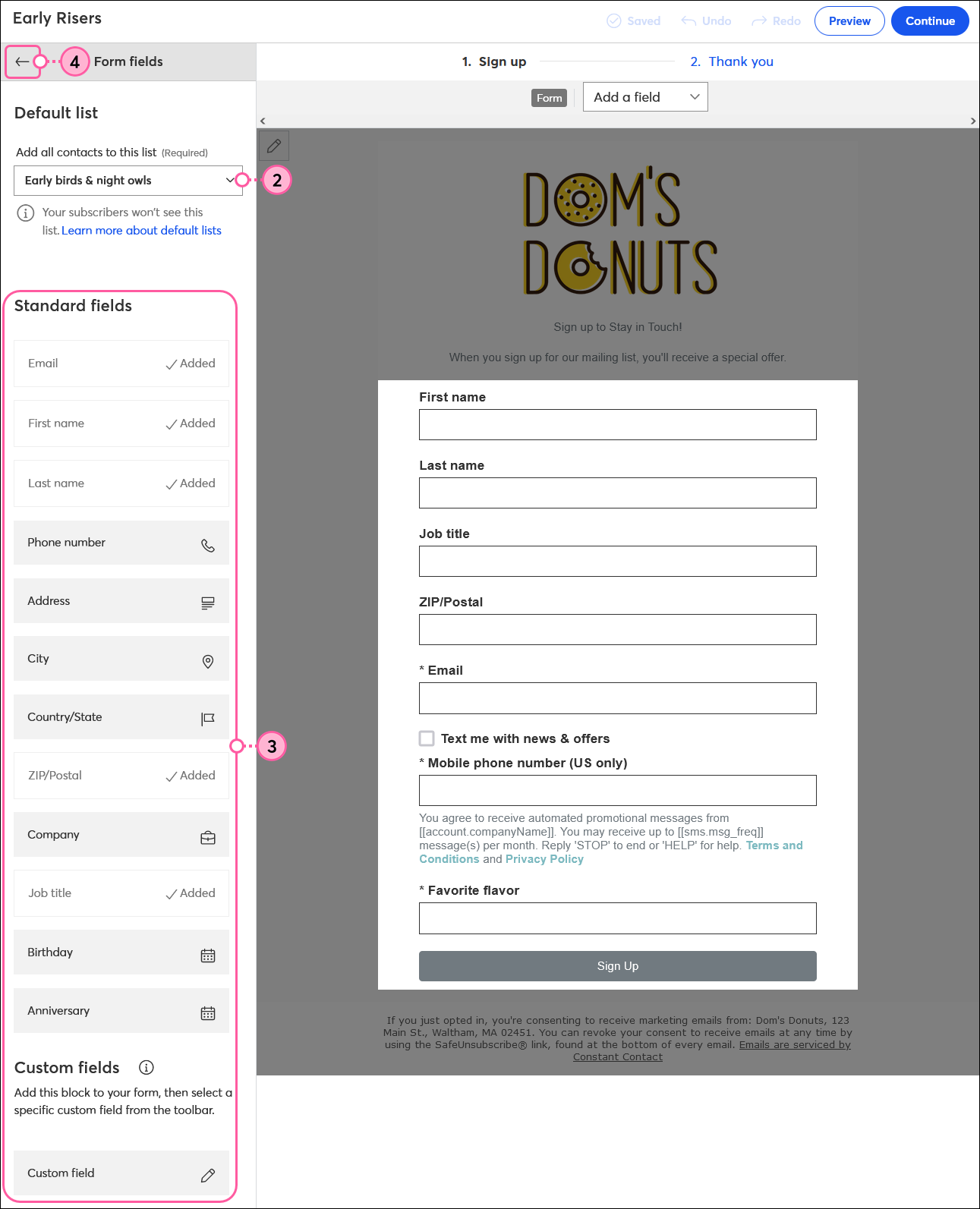
Standard fields are the bits of contact information common to most contacts and that Constant Contact automatically accommodates when you add or import contacts into your account. There are three ways you can add them to your form:
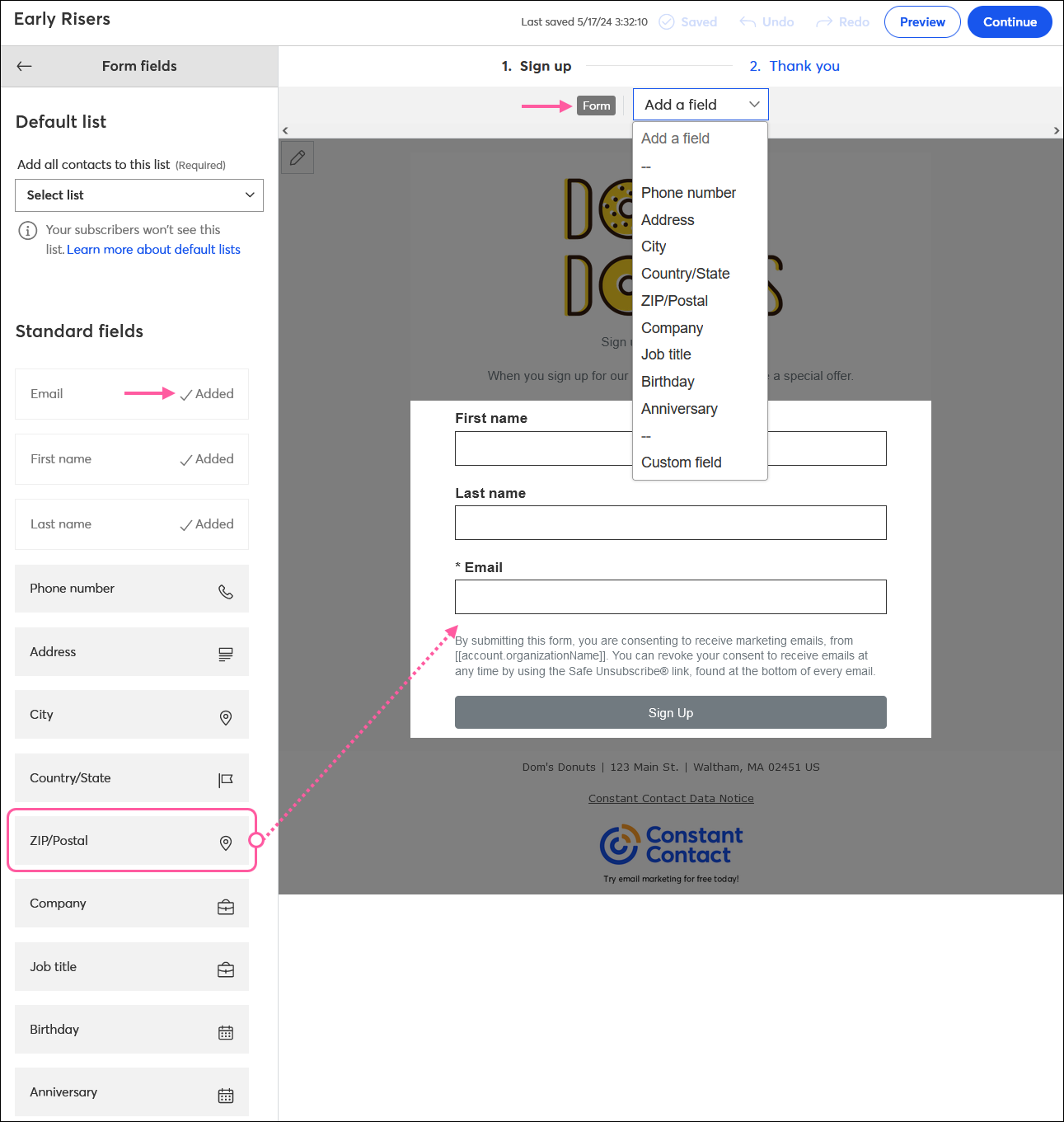
Each field can only appear in your form once. Once it's in the form, it's noted with the "Added" label in the Form fields menu, and removed from the drop-down menu in the Form toolbar. If a field is deleted from the form, the "Added" label is removed, and the field is available in the Form fields menu to add back into your form, if you want to.
 | Important: In order to collect SMS contacts, you have to add SMS marketing to your email plan and successfully complete the SMS registration. Contacts can only be messaged through an SMS message if they provide consent for SMS marketing and provide a valid phone number. Learn more. |
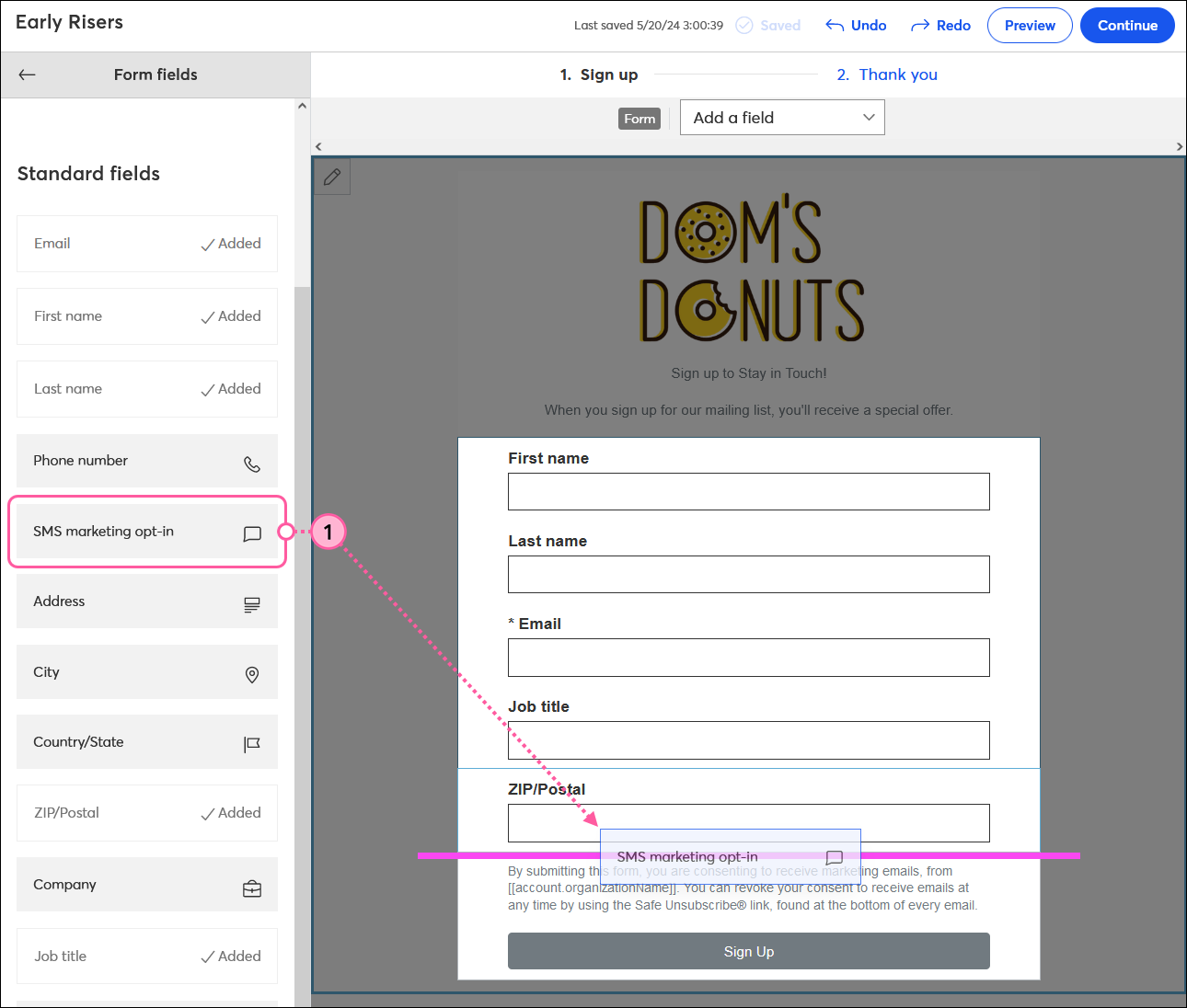
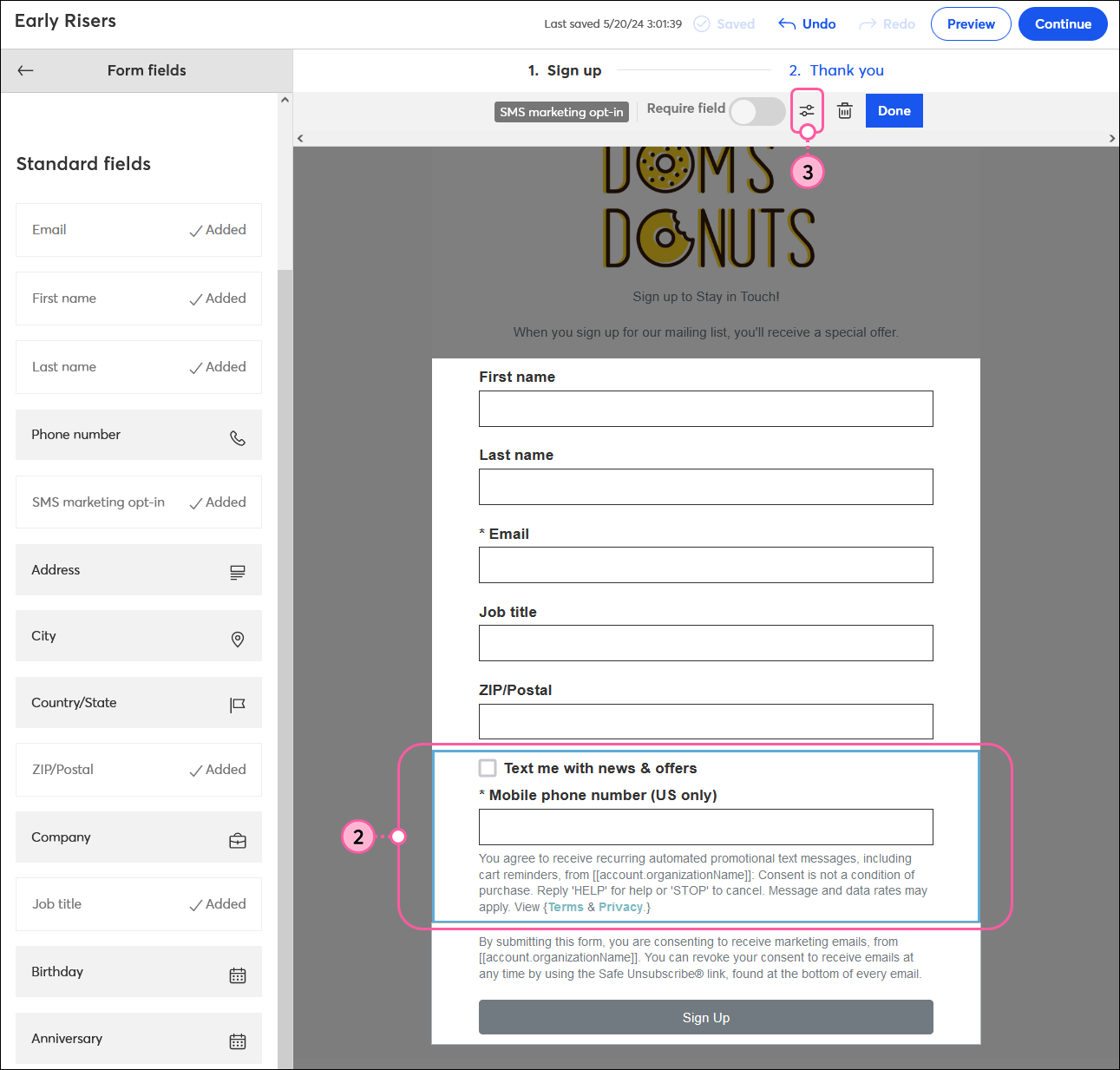
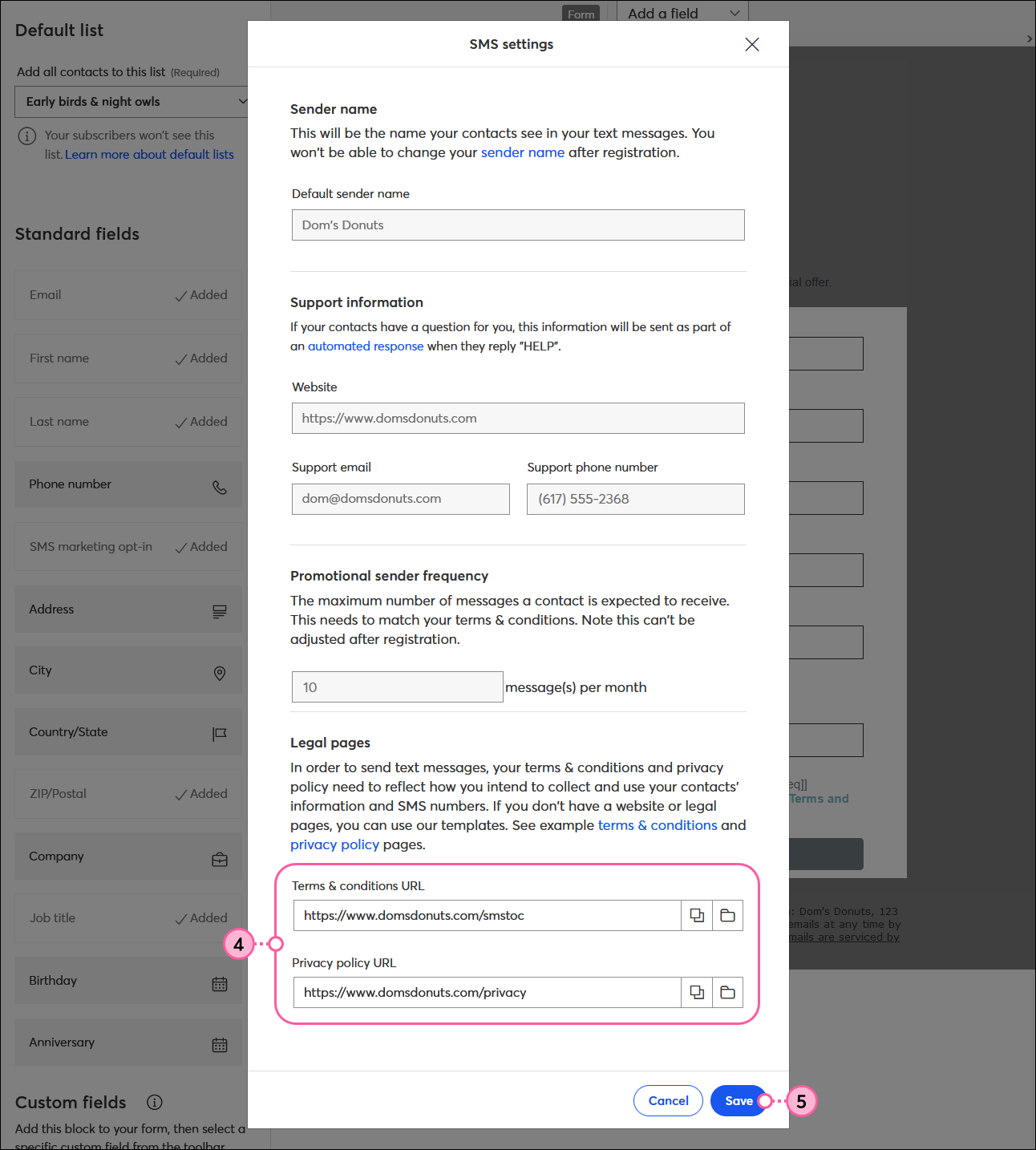
You can collect email and SMS contacts or just email contacts through your Sign-up Landing Page. Here's how to enable it in your form:
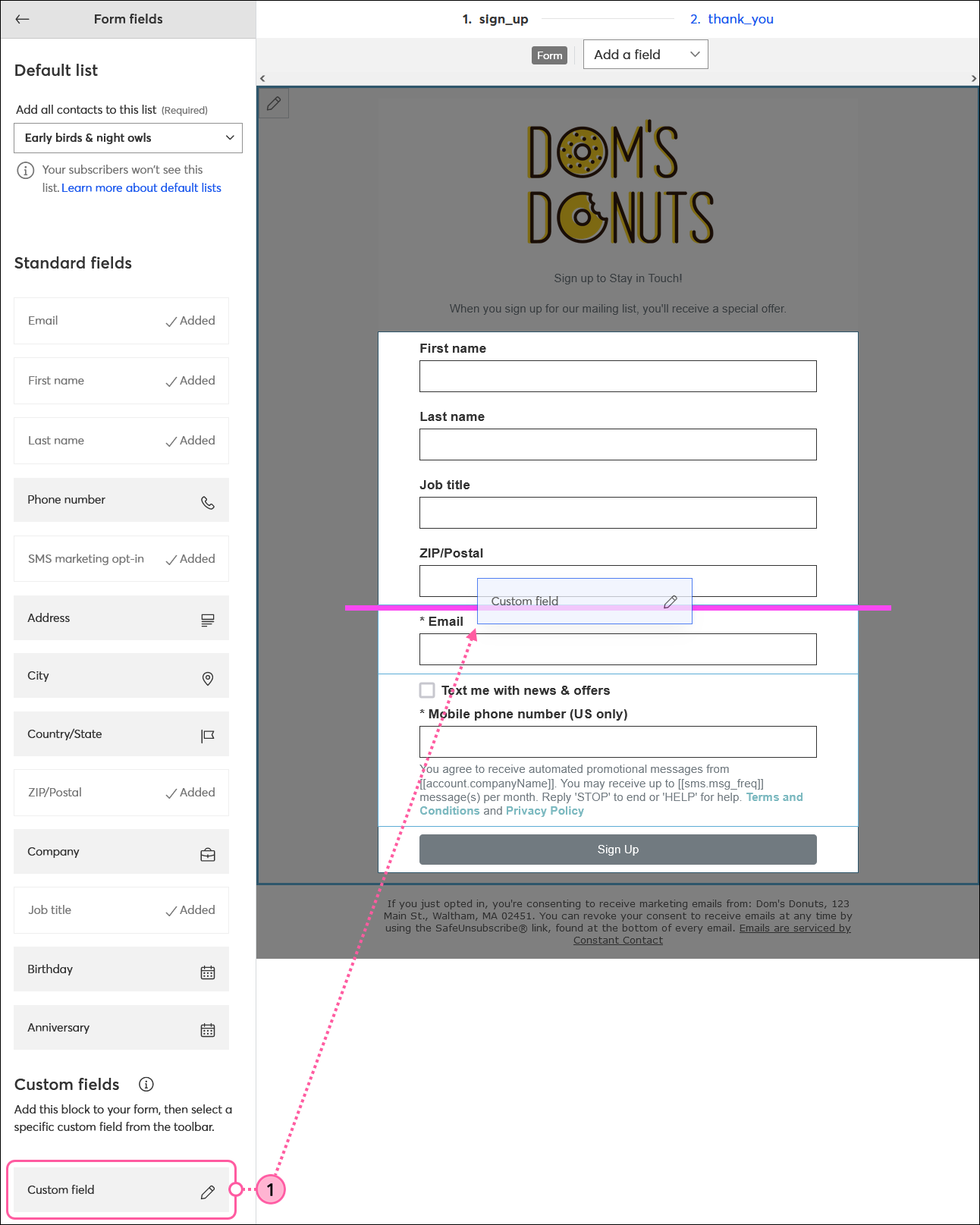
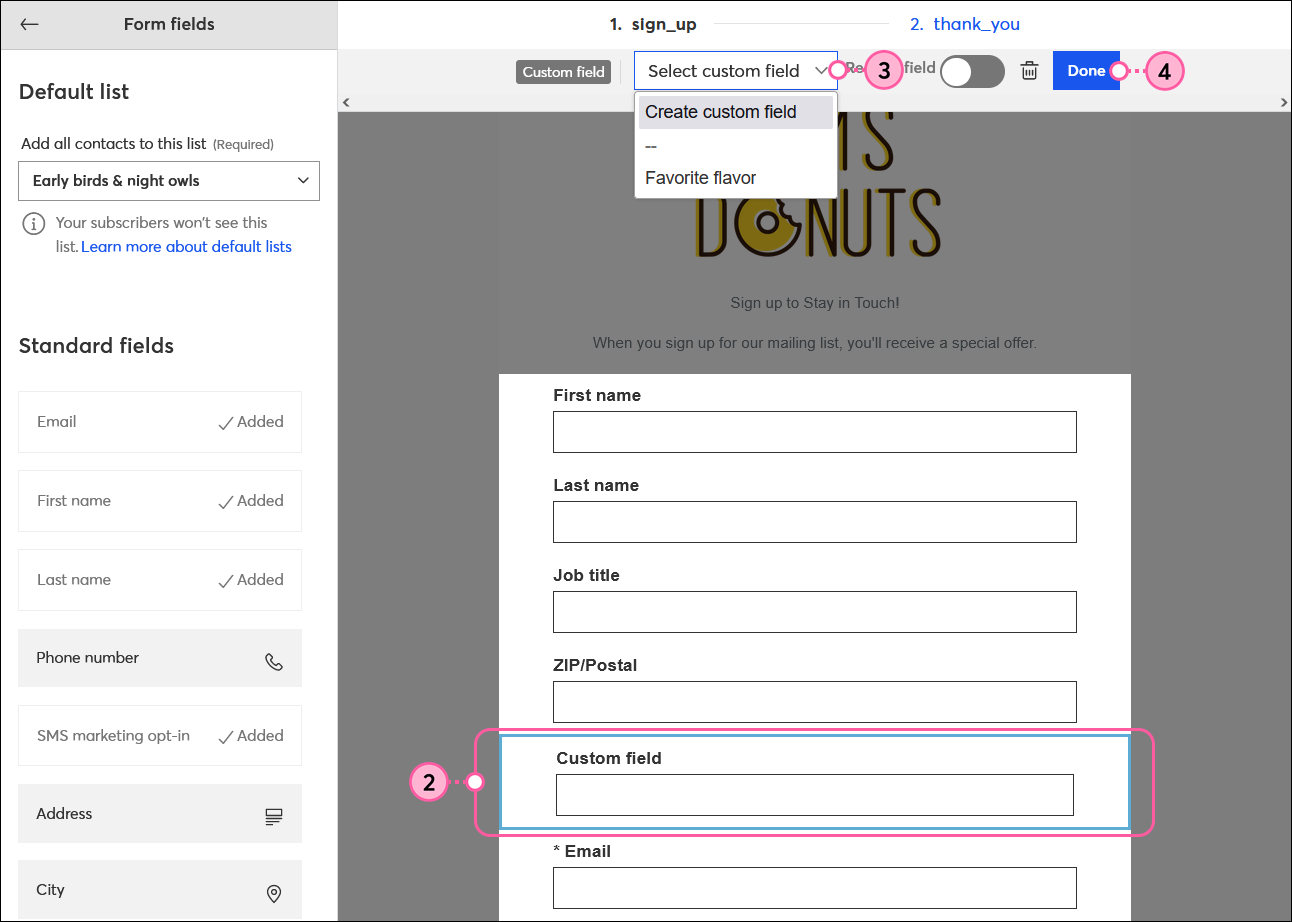
Custom fields are the fields you create yourself based on your organization's unique needs. Here's how to create them for your form:
Required fields are the fields that a contact has to answer, or they won't be able to submit the sign-up form. Here's how to set them as required after they've been added to your form:
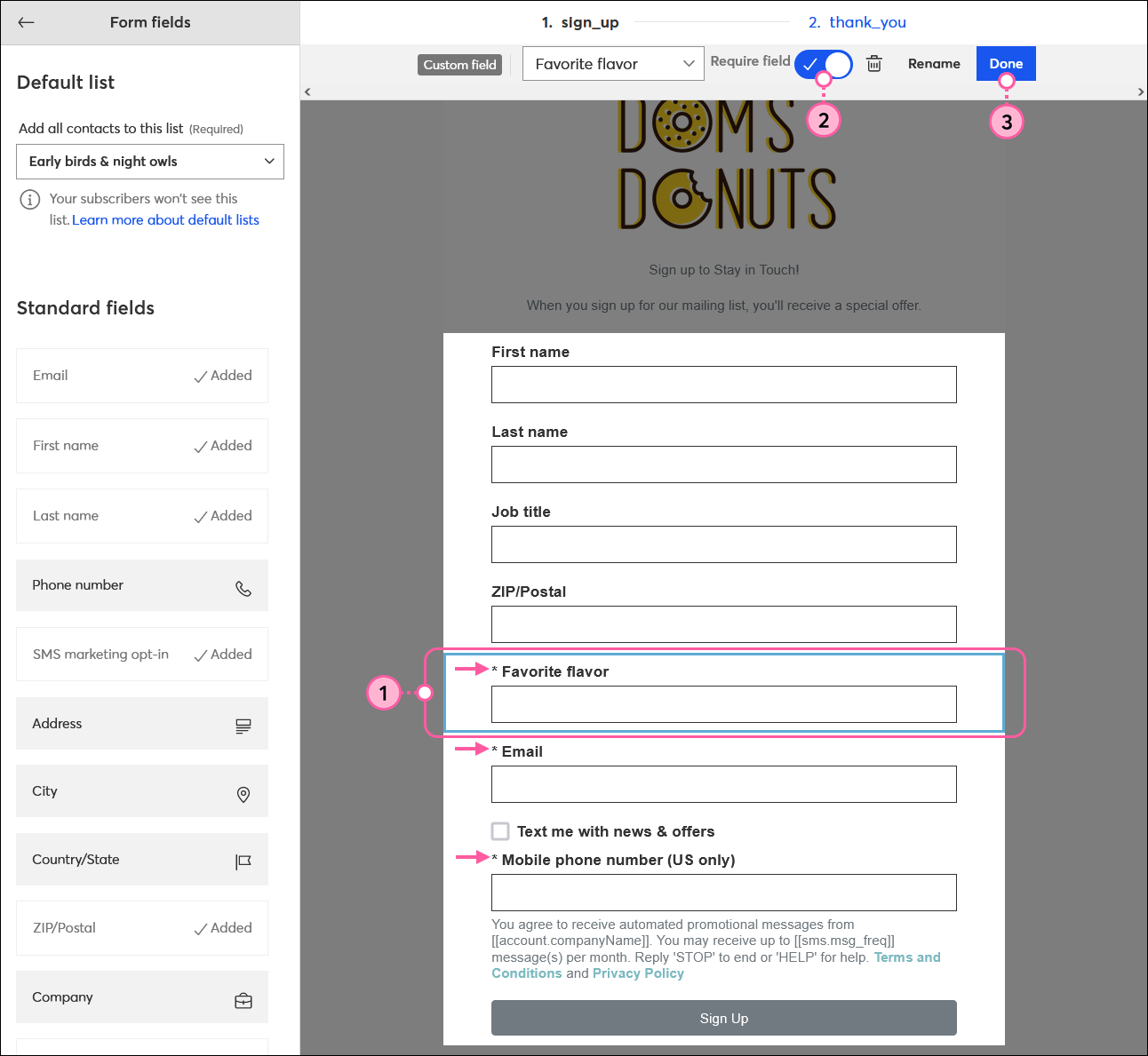
Required fields are marked with an asterisk. Repeat for each field you want to require.
 | Design tip: Requiring too many fields can discourage potential contacts from providing their information. It's better to require only those fields that are essential for your marketing. |
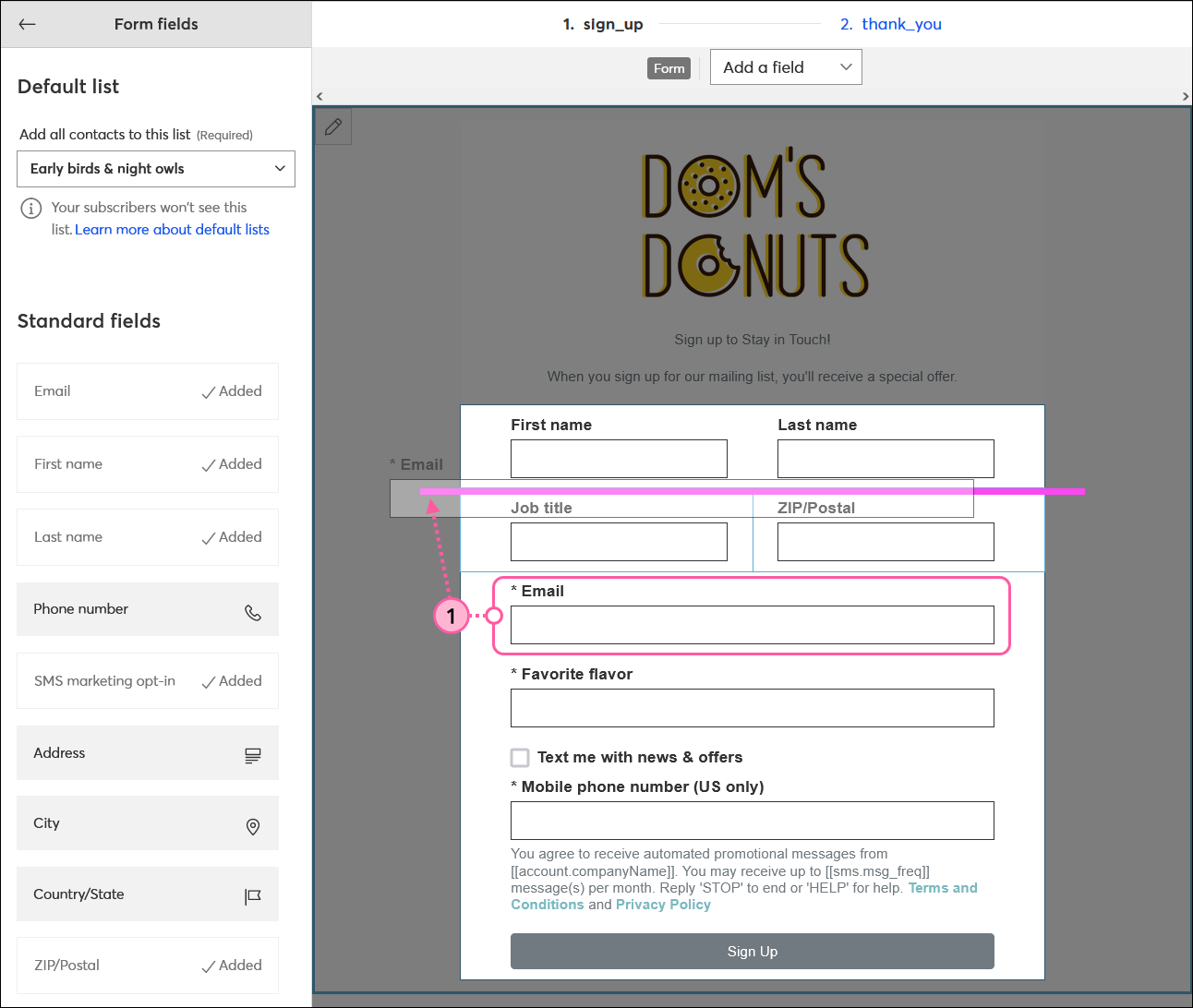
The form fields aren't set in stone. You can change and move them around to customize the order any time you want, even after the form has been activated. The guideline is there to help you find the proper placement, as long as it's above the Sign Up button:
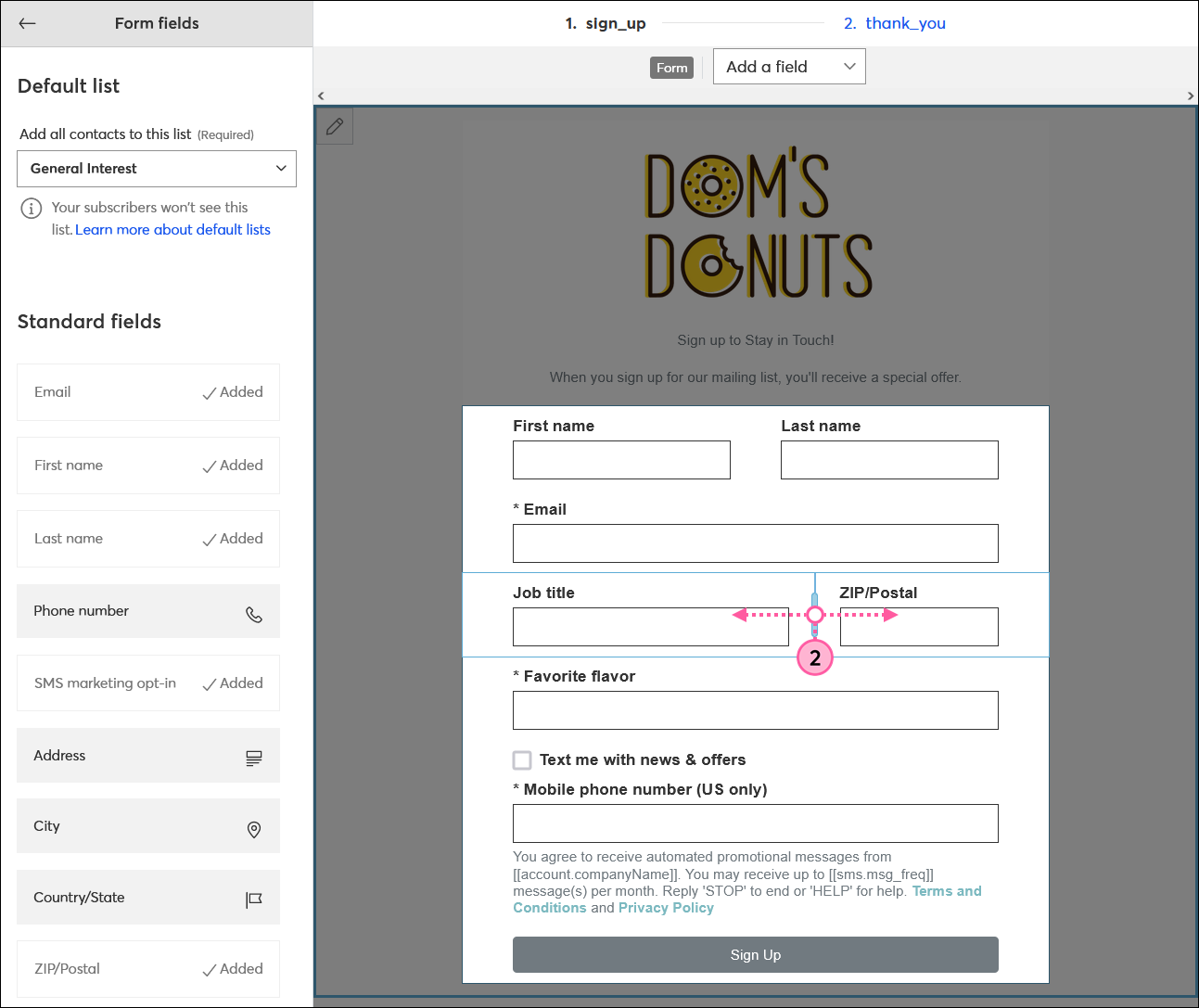
| Important: The size of the form fields is only visual. Each field has its own maximum character count no matter if it's on its own line or in a dual-column layout. Learn more. |
Copyright © 2026 · All Rights Reserved · Constant Contact · Privacy Center