If you use Canva to create graphics, you can easily connect your account to Constant Contact to instantly access all of your Canva designs or create a new one to insert directly into your emails, Custom Landing Pages, and Survey Pages.
 | Did you know? Canva offers a free plan for everyone, and non-profits can enjoy the Pro plan at no cost! |
Need to disconnect your Canva account? You can do so from the Integrations tab in your Constant Contact account.
Connect your Canva account
If you’re currently working on a campaign draft, you're able to connect your Canva account to Constant Contact when inserting an image.
- Depending on how you want to insert your image:
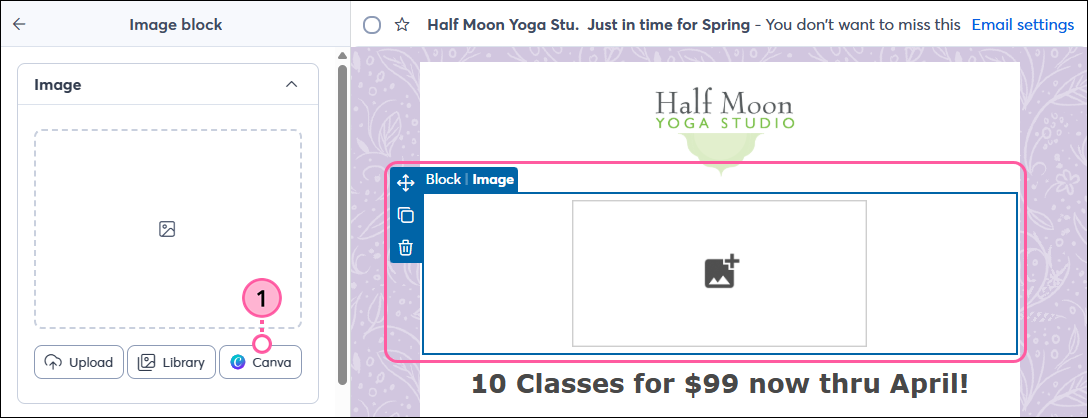
- Click on a placeholder image and then click the Canva button in the left-hand panel.
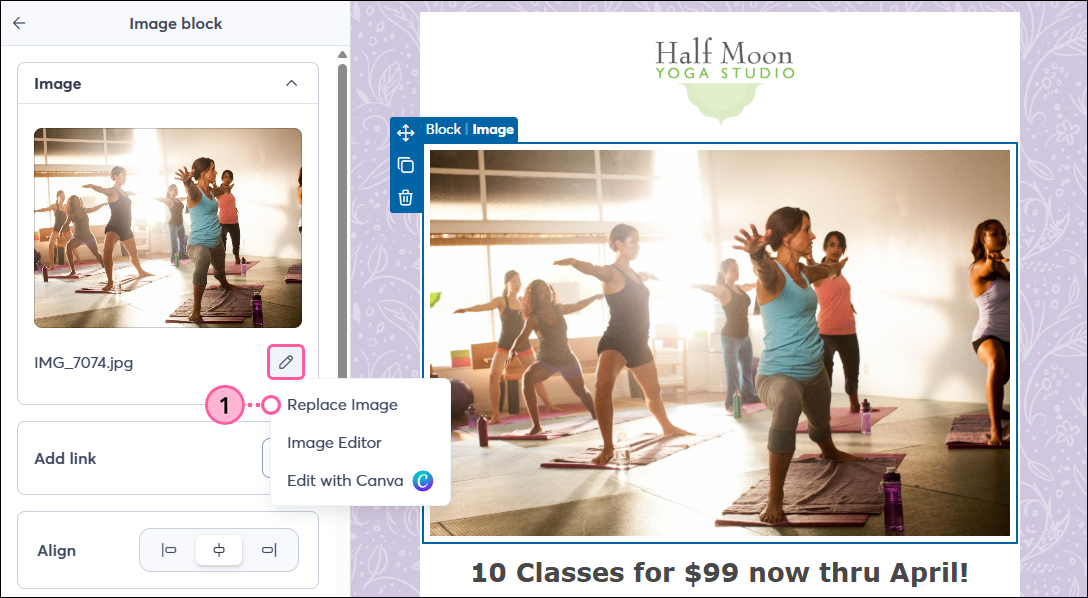
- Click on an existing image, then click the pencil icon and select Replace image.
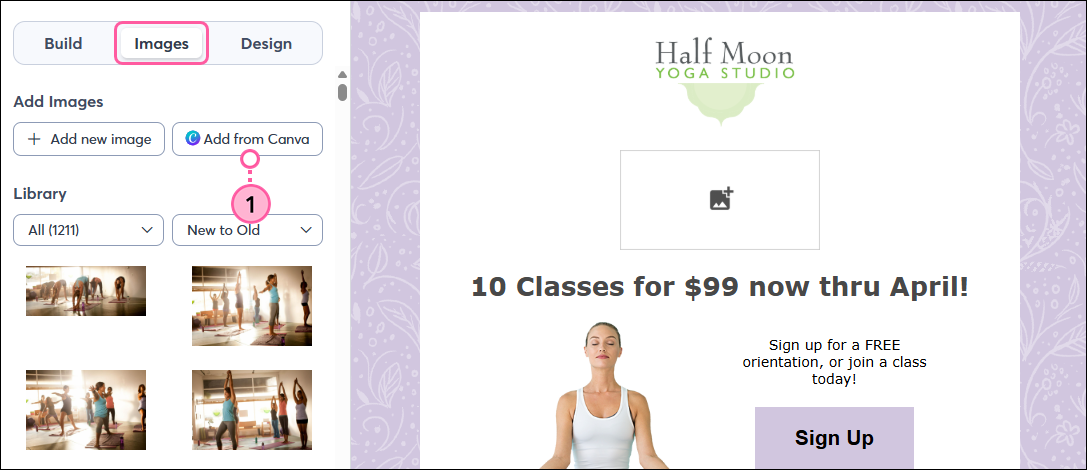
- Click the Images tab and then click Add from Canva. Then skip to step 3.
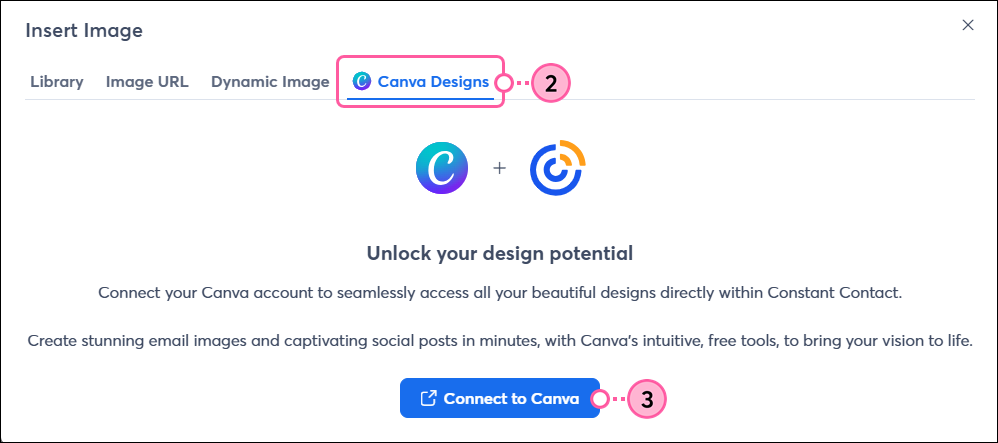
- Click the Canva Designs tab.
- Click Connect to Canva.
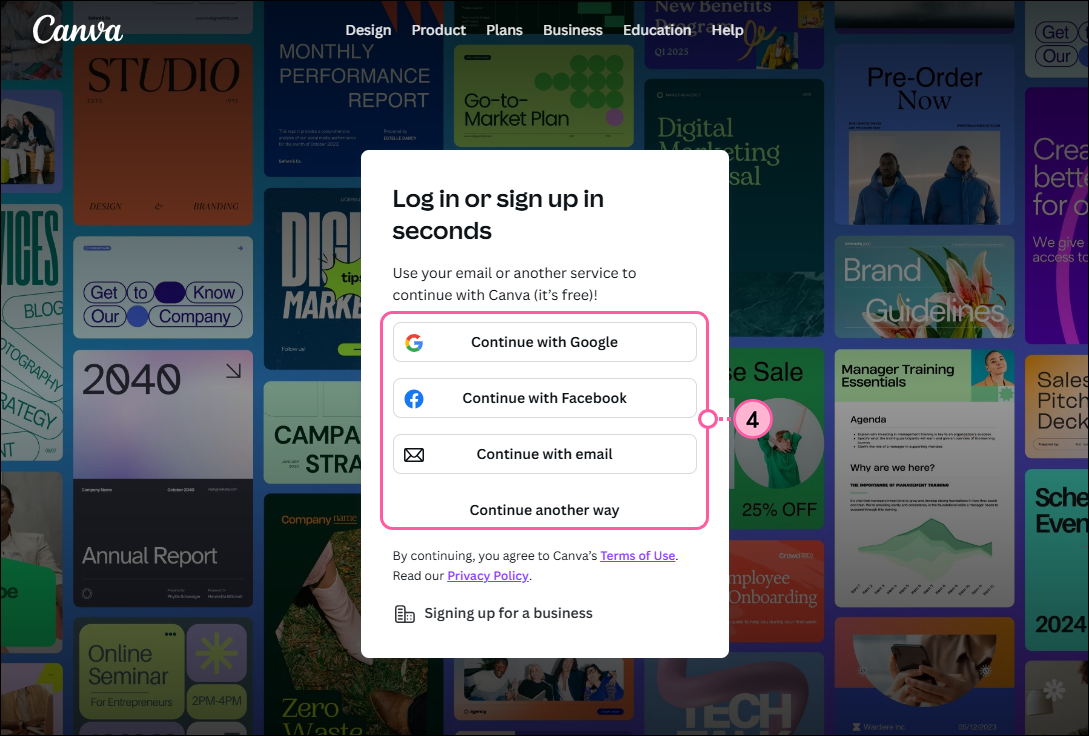
- Log in to your Canva account. If you don’t already have a Canva account, you can sign up for free with Google, Facebook, or an email address.
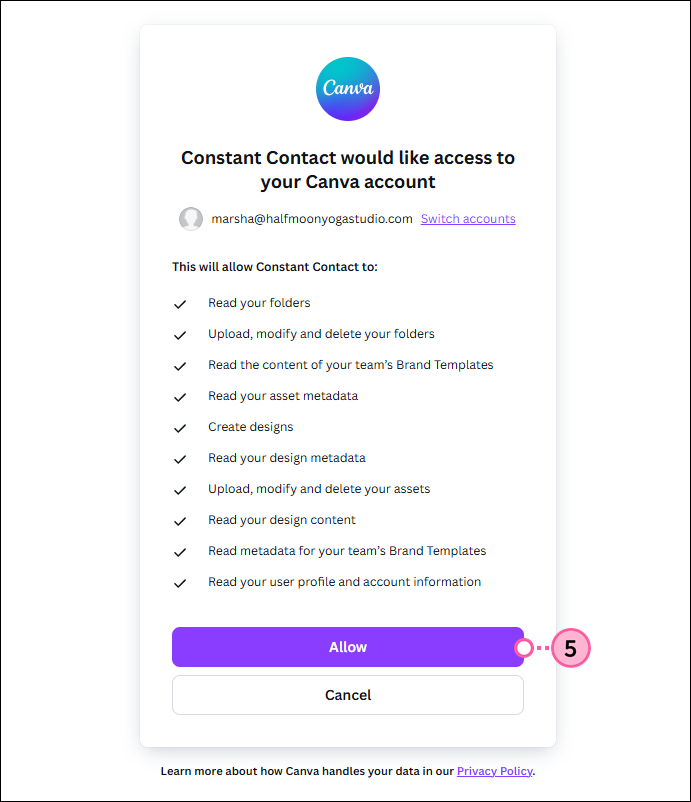
- Click Allow to grant Constant Contact permission to access your Canva account.
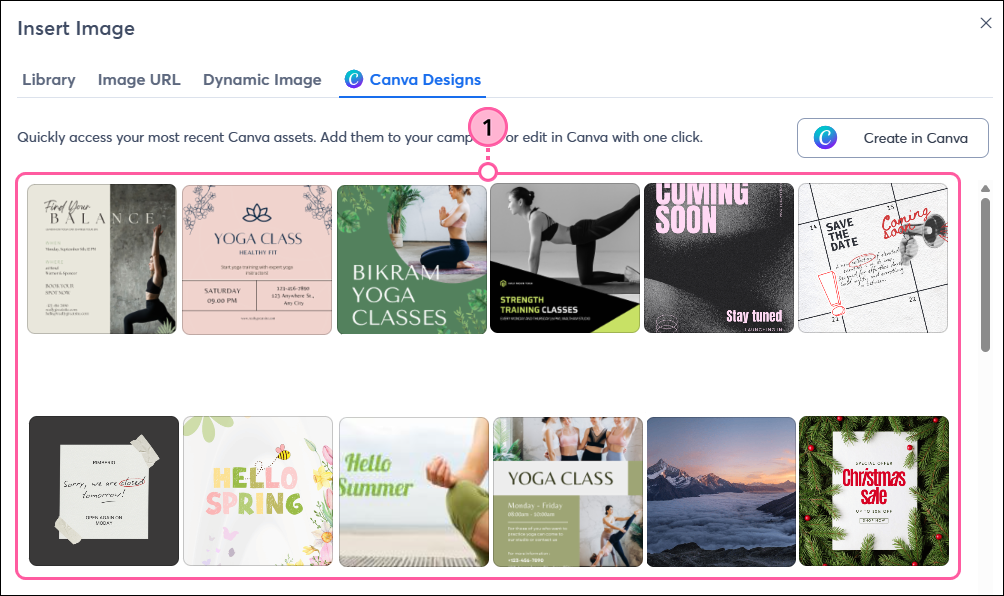
You'll now have access to all of your Canva designs and can select one or create a new one to insert into your campaign!
Insert a Canva design into your campaign
Once you’ve connected your Canva account to Constant Contact, you can quickly access all of your Canva designs right from the editor to insert into your campaign.
Note: We currently only support importing designs from Canva in PNG, JPG, or PDF format into Constant Contact.
- Repeat steps 1-2 above to return to the Insert Image screen. On the Canva Designs tab, you’ll now see all the designs from your Canva account, and you can select the one you want to use.
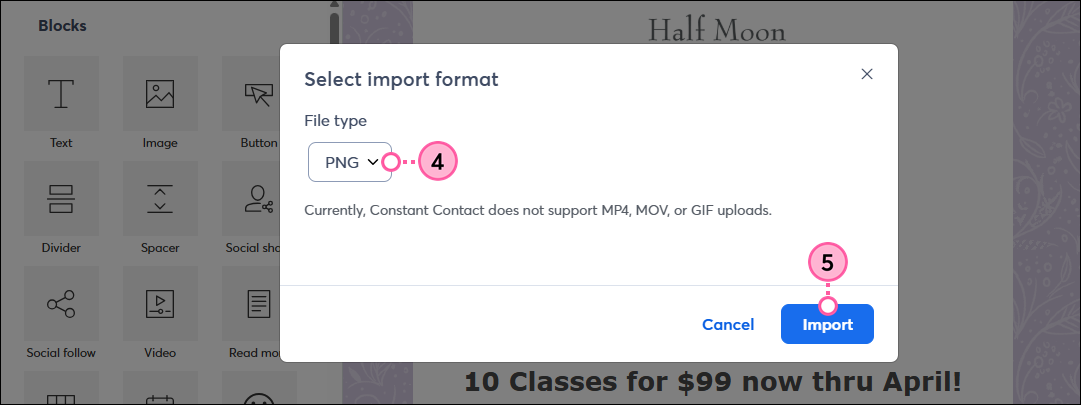
- Click Import.
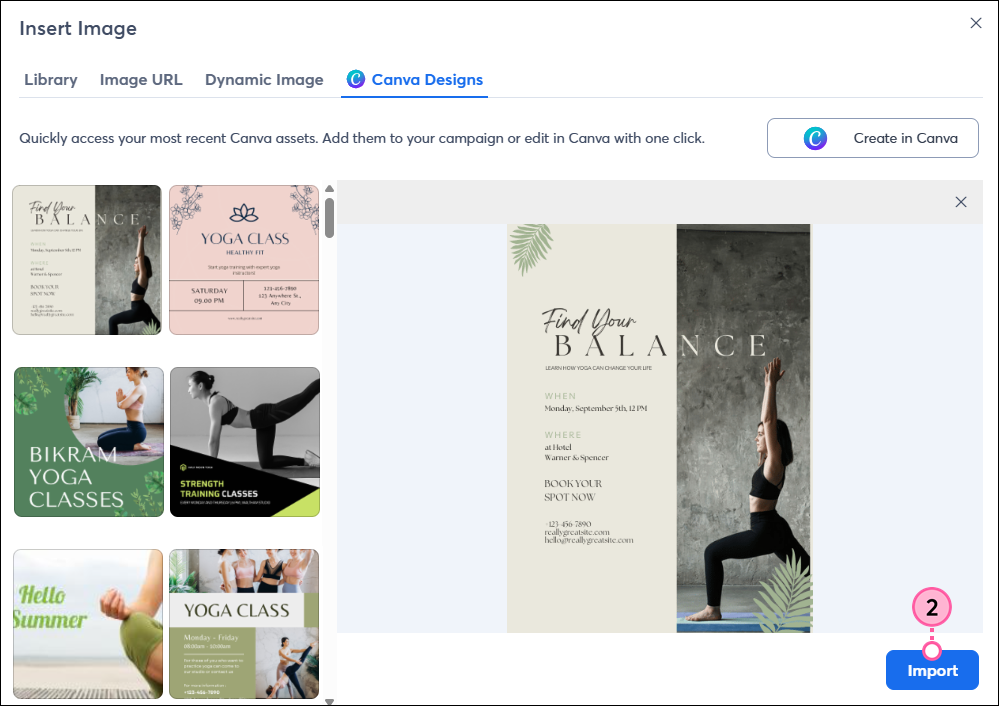
- From the drop-down, select the file type you want your design to be imported as—PNG, JPG, or PDF.
Note: If you import your design as a PDF, it won’t be available to insert into your campaign, but it will be saved in your Constant Contact Library and available to link to in your email. - Click Import.
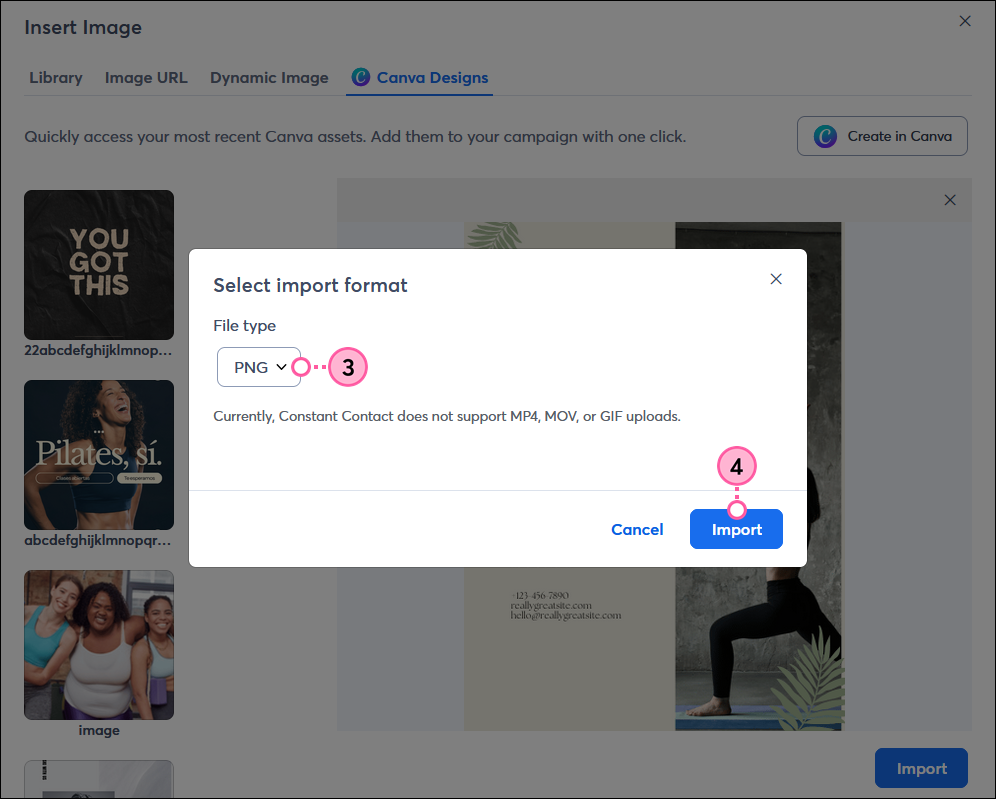
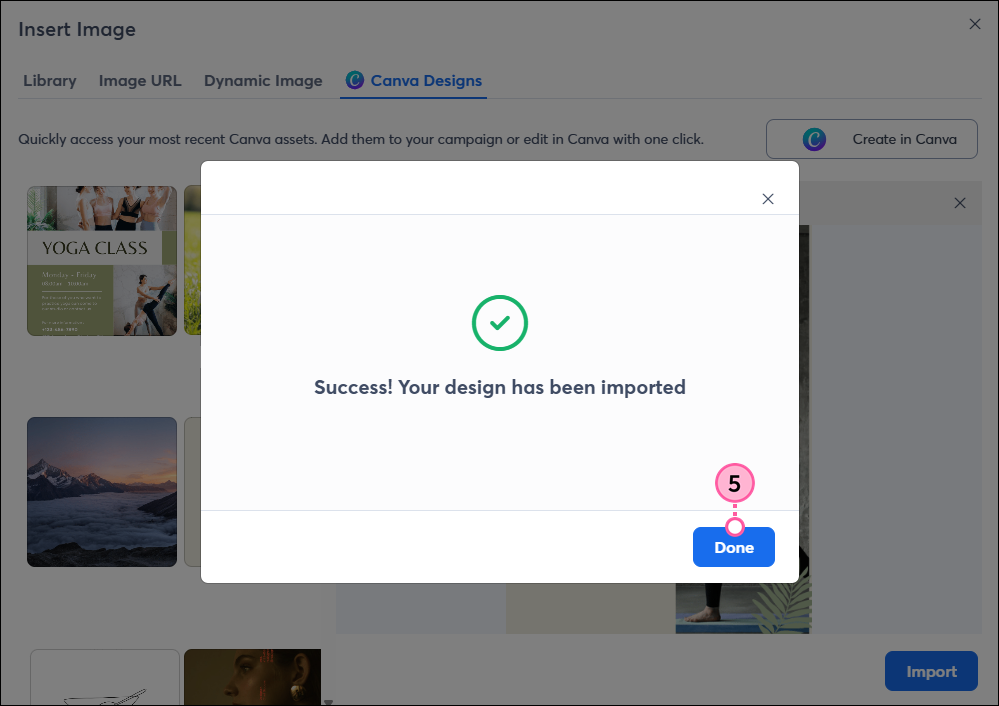
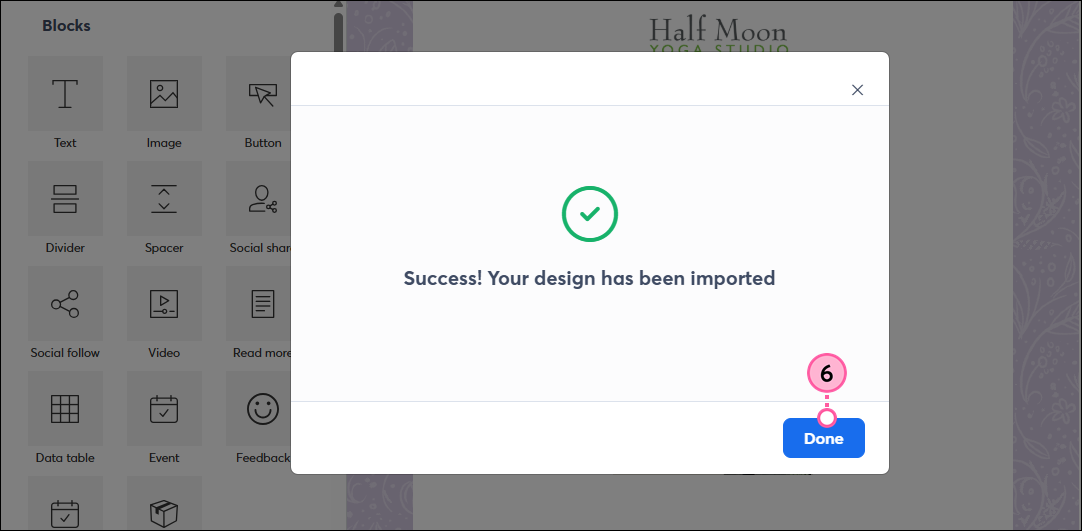
- It may take a minute to import your design. Once it’s finished, click Done. The image will now be available in your Constant Contact Library for future campaigns.
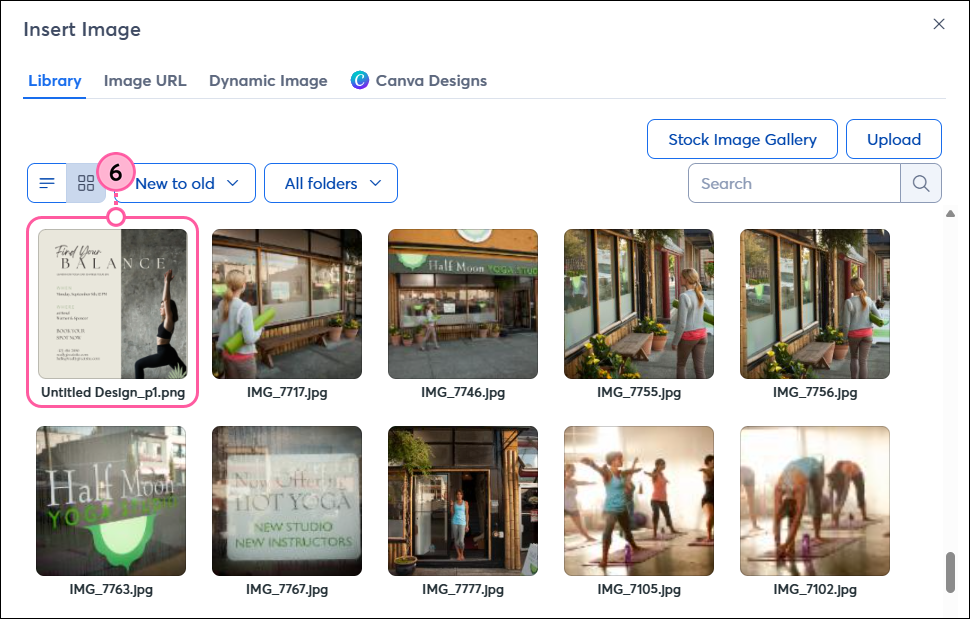
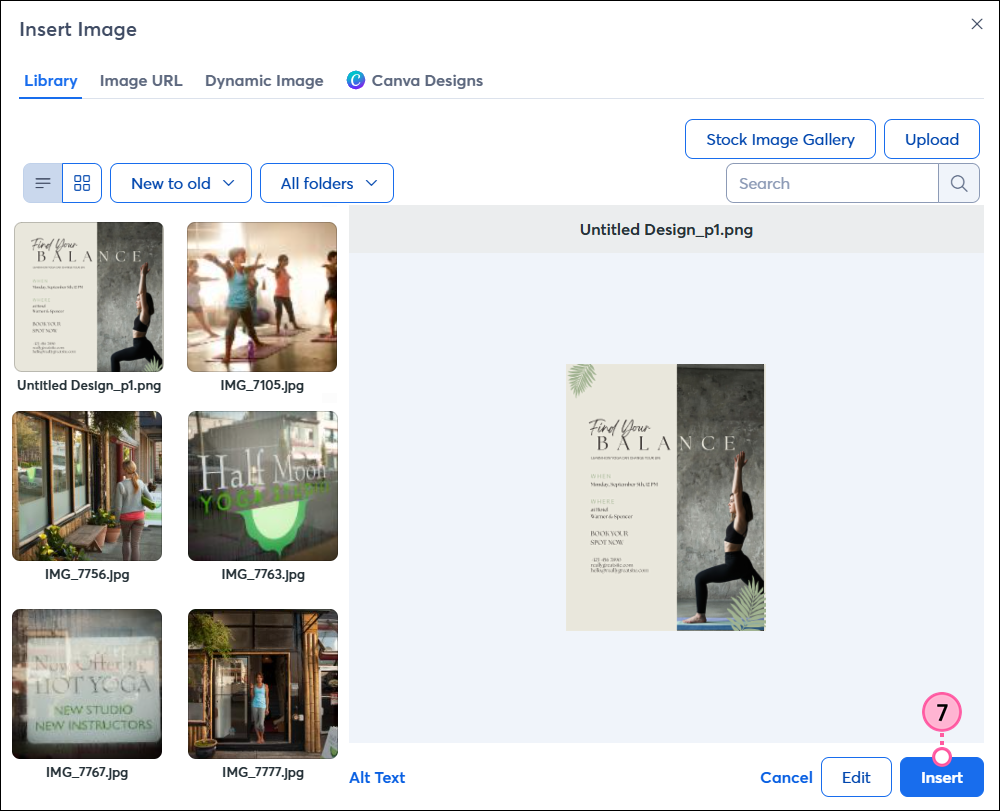
- Select the image you just imported.
- Click Insert to add the image to your campaign.
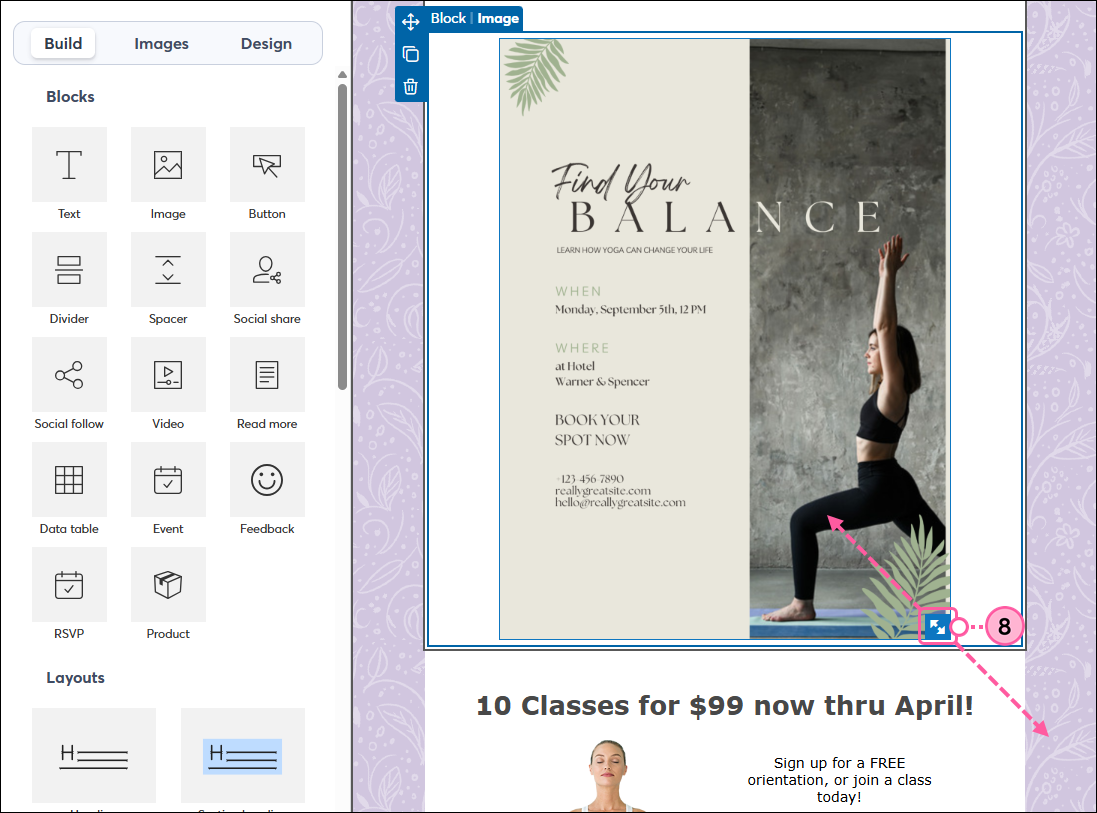
- (Optional) Drag the arrows to resize your image.
Create a new design in Canva to insert
If you want to create a new design for your campaign, you can seamlessly access your Canva account to work on it and then insert it into Constant Contact, without leaving Constant Contact!
Note: We currently only support importing designs from Canva in PNG, JPG, or PDF format into Constant Contact.
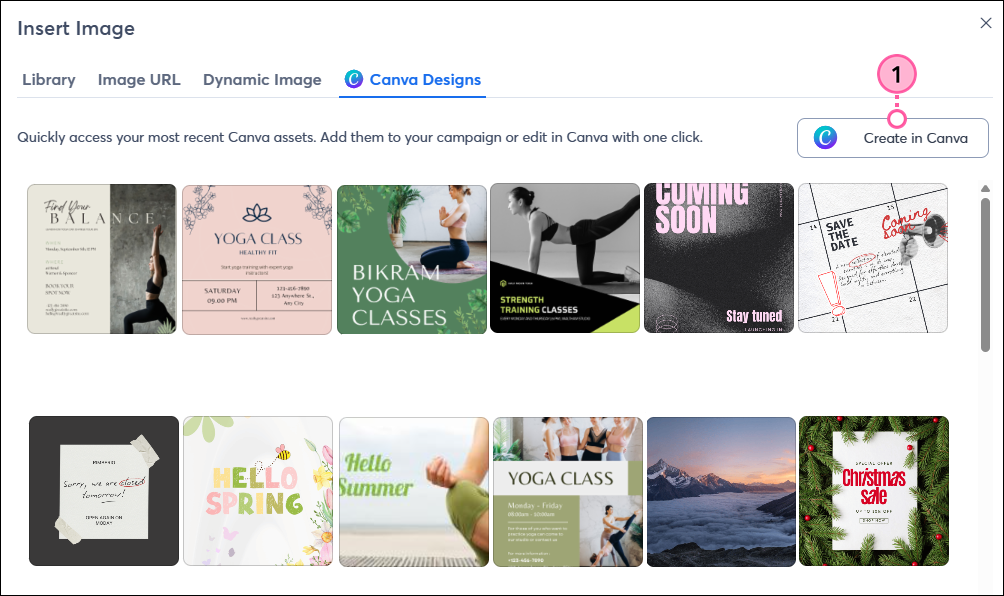
From the Insert Image screen:
- Click Create in Canva.
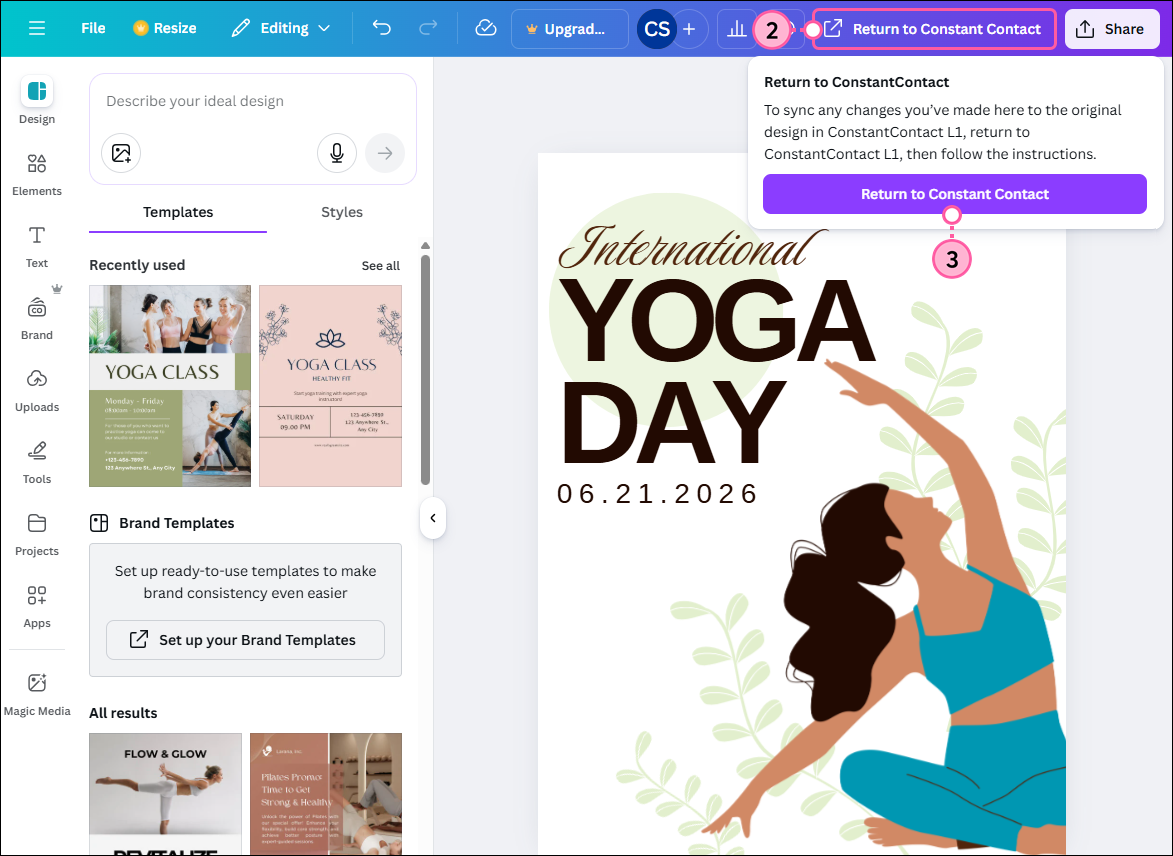
- Create your graphic, then click the Return to Constant Contact button in the upper-right when you’re done.
- Click Return to Constant Contact from the drop-down to import your design into your Constant Contact Library.
- From the drop-down, select the file type you want your design to be imported as—PNG, JPG, or PDF.
Note: If you import your design as a PDF, it won’t be available to insert into your campaign from the Images tab, but it will be saved in your Constant Contact Library and available to link to in your email. - Click Import.
- Click Done.
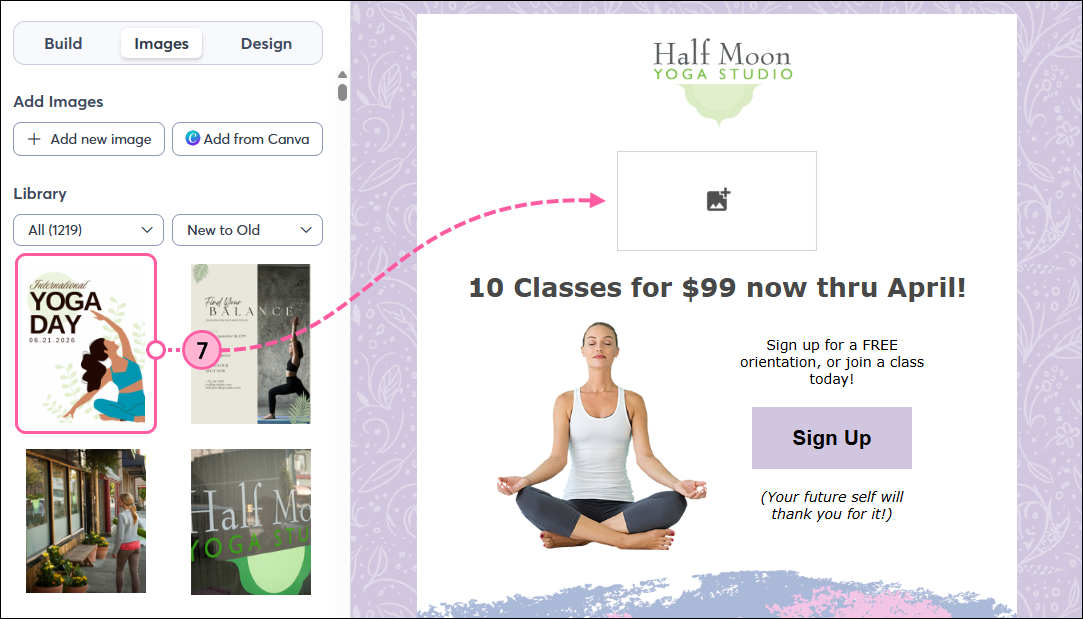
- You’ll see your latest design right at the top of the Images tab. Click and drag it into your campaign to insert it.