Email and Digital Marketing
How can we help you?
Search our help articles, video tutorials, and quickstart guides

You've got this. You've got us. Search our Knowledge Base to quickly find answers to your questions.

Import contacts from Office 365 into Constant Contact

Article: 000021831
Updated: October 23, 2025

Sync an Office 365 account with Constant Contact to import your contacts


Looking for a quick and easy way to bring your contacts from Office 365 into your Constant Contact account? With just a few clicks, you can move all your contacts stored in Outlook 365 into an existing or new list in your Constant Contact account. You can do a one-time import or set a frequency to have contacts automatically imported on a regular basis.


Connect your Office 365 account

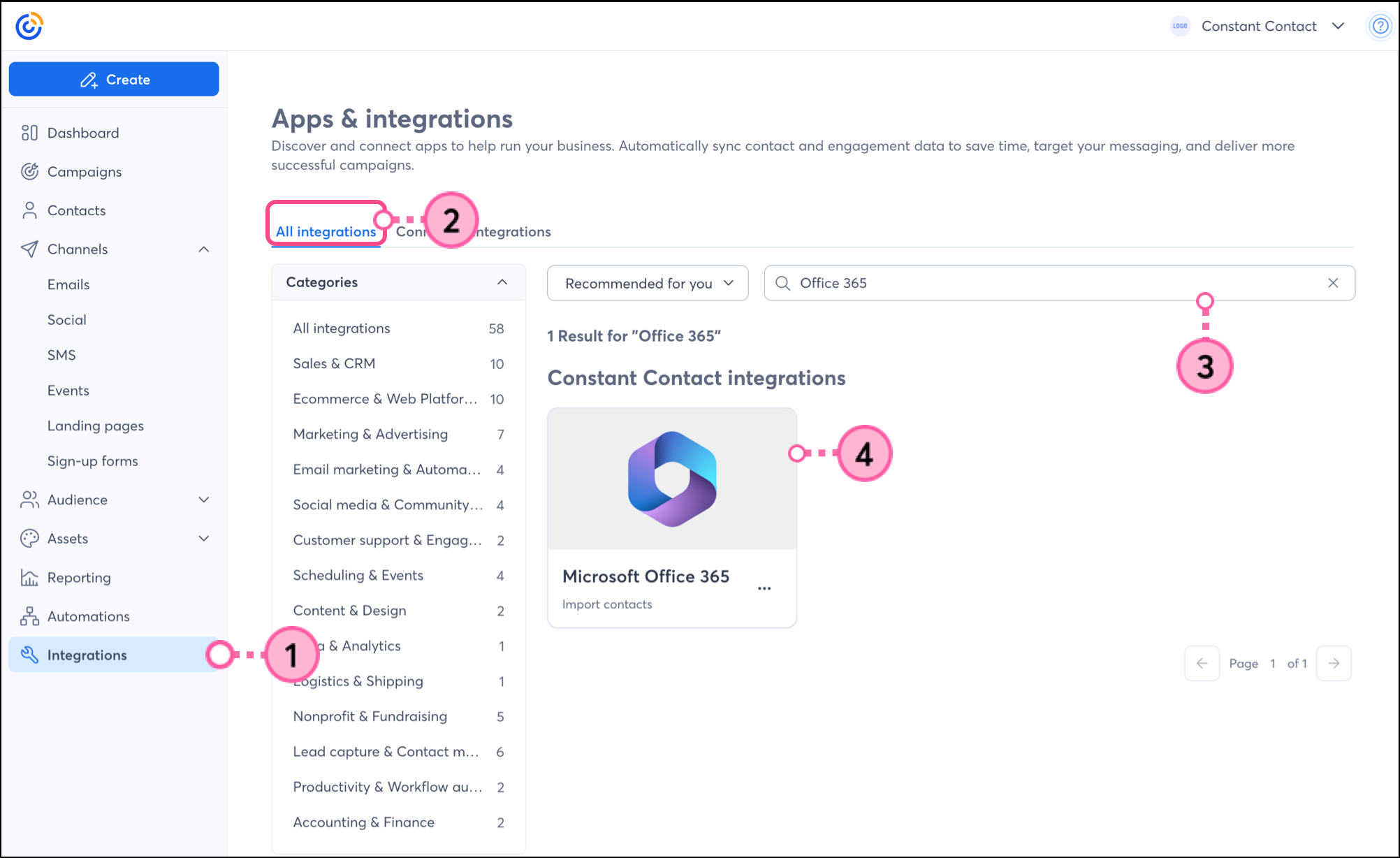
  1. Click Integrations.
  2. Click All integrations.
  3. Search for Office 365.
  4. Click on the Office 365 block.


  5. Log in to your Office 365 account and click Next.

    Microsoft Sign in page with username field and Next button
     
  6. Enter your Office 365 password and click Sign in.

    Microsoft Enter password page with Password field and Sign in button
     
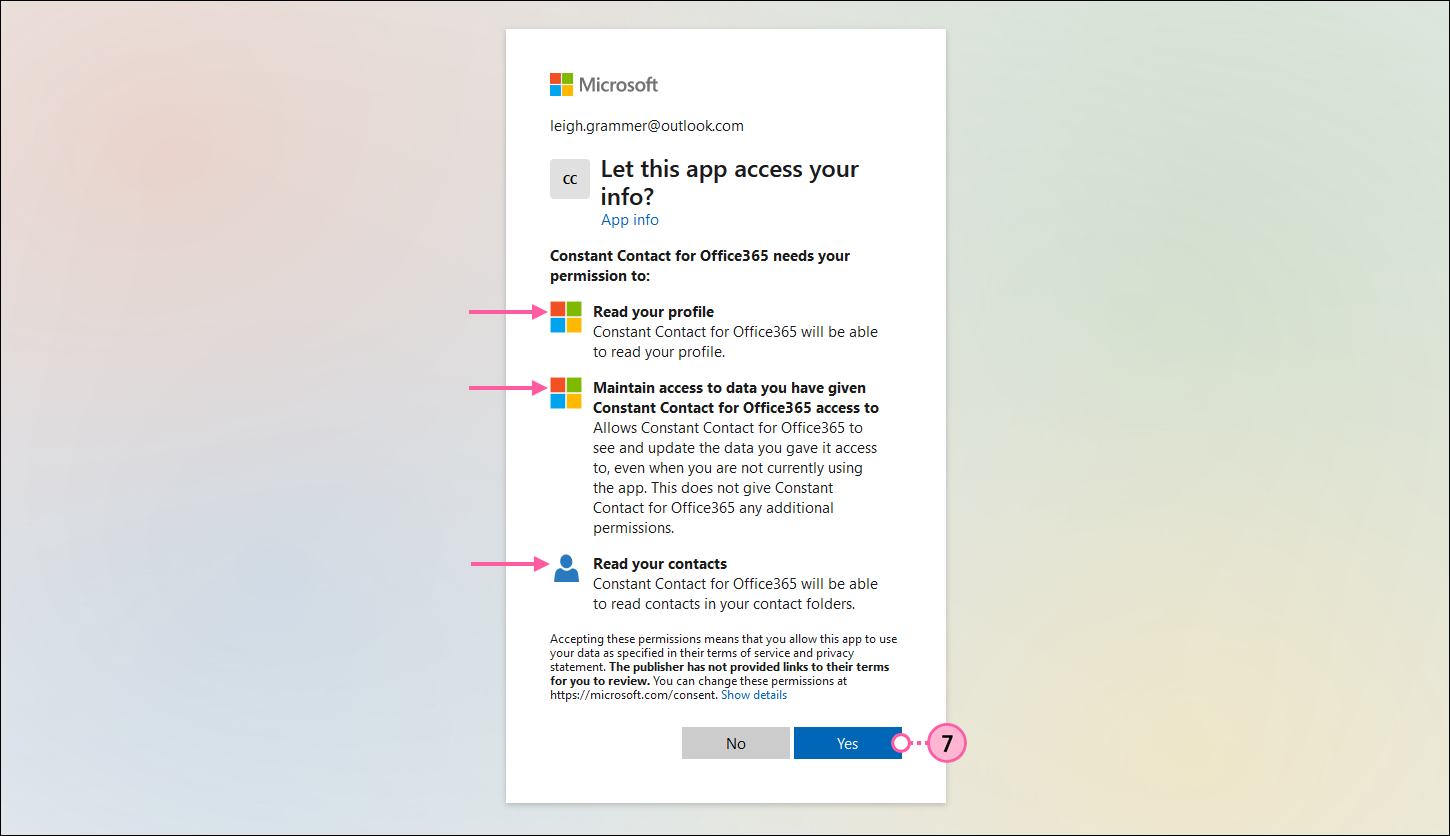
  7. Click Yes to allow the app permission to access your contacts. This lets Constant Contact pull the contacts from Office 365 and enables you to keep your Office 365 account connected for the next time you want to import contacts..

    Microsoft Let this app access your info page with Ready your profile, Maintain access to data you have given Constant Contact for Office 365 access to, and Read you contacts options, and Yes button selected
     
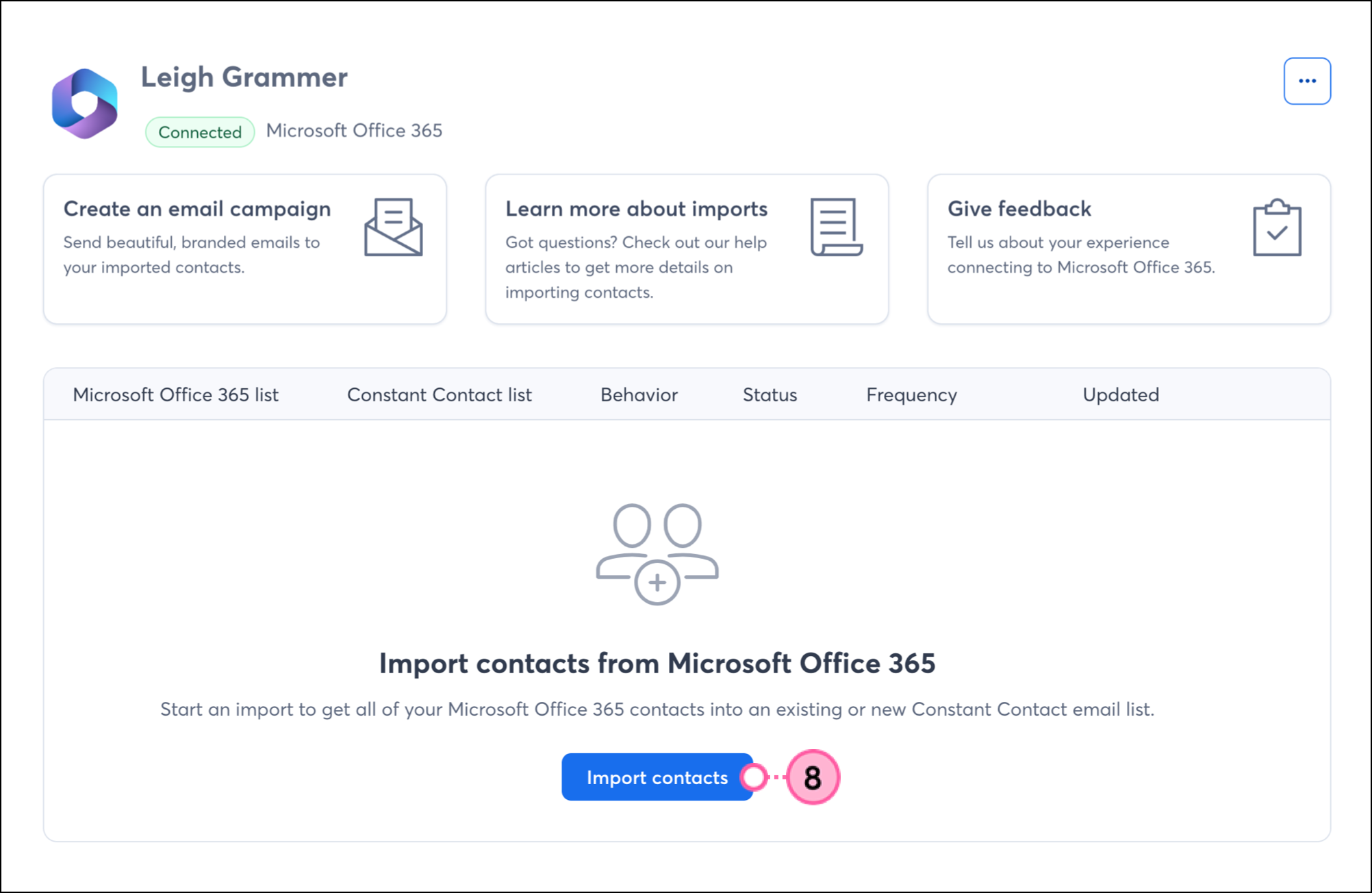
  8. You'll be brought to the Office 365 integration dashboard. Click Import contacts.


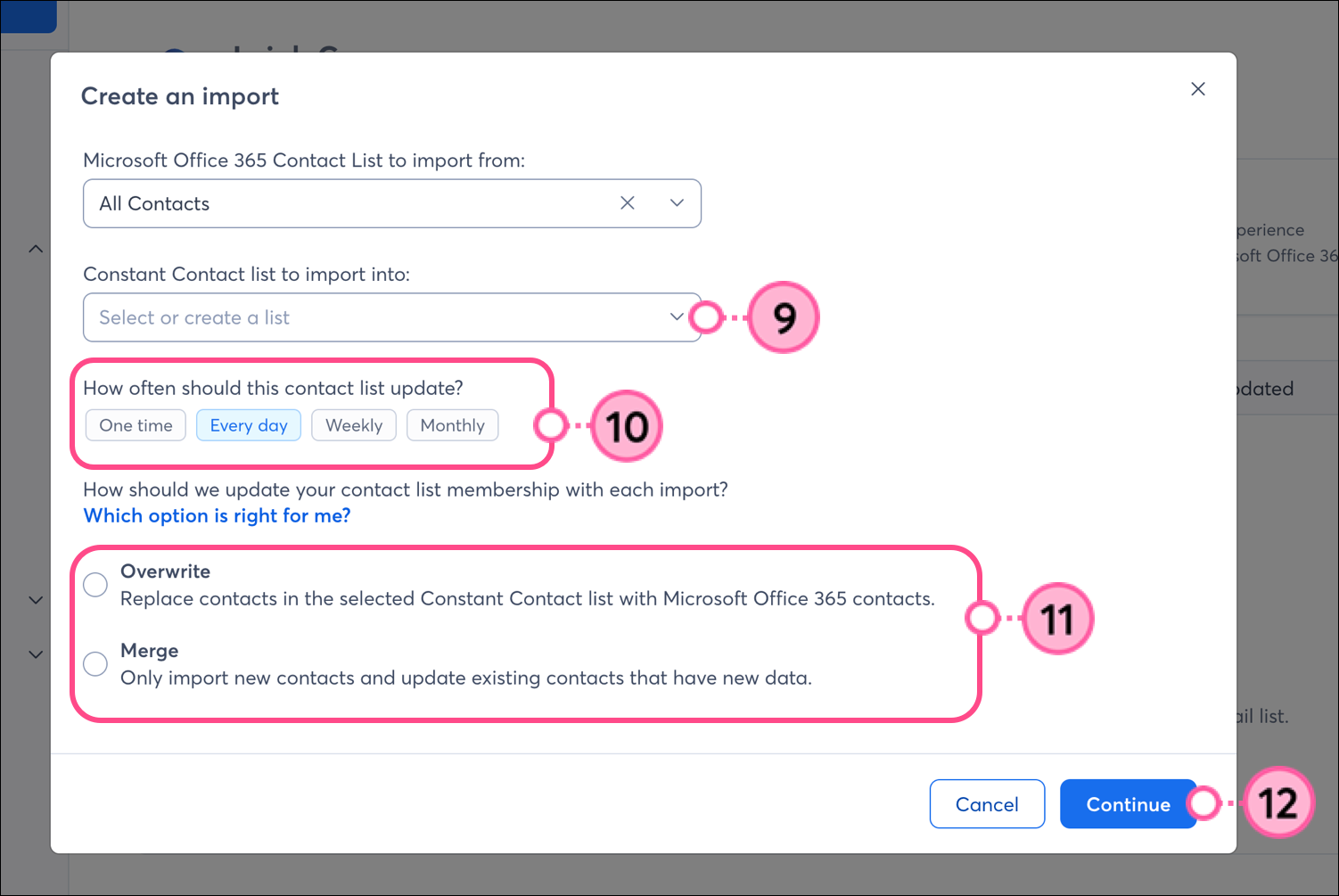
  9. You can select an existing contact list to import into, or create a new one.
  10. Select how often the list should be updated from Office 365: one time, every day, weekly, or monthly. If you frequently add contacts to your Office 365 account, it's a good idea to choose the "every day," "weekly," or "monthly" frequency to stay current. 
  11. Choose whether to overwrite or merge contacts.
  12. Click Continue.


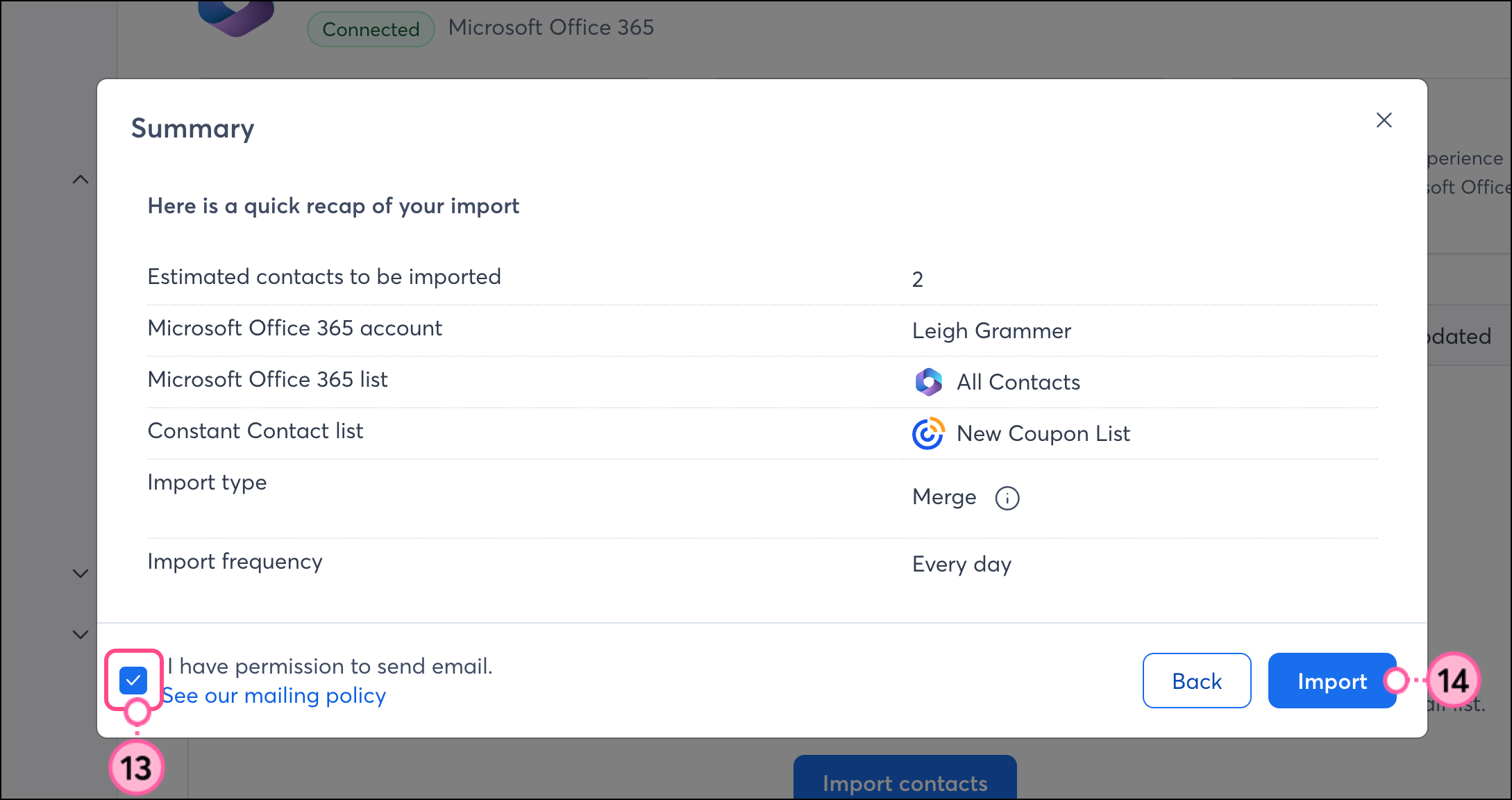
  13. Check the box to confirm you have permission to send.
  14. Review the import summary and then click Import.


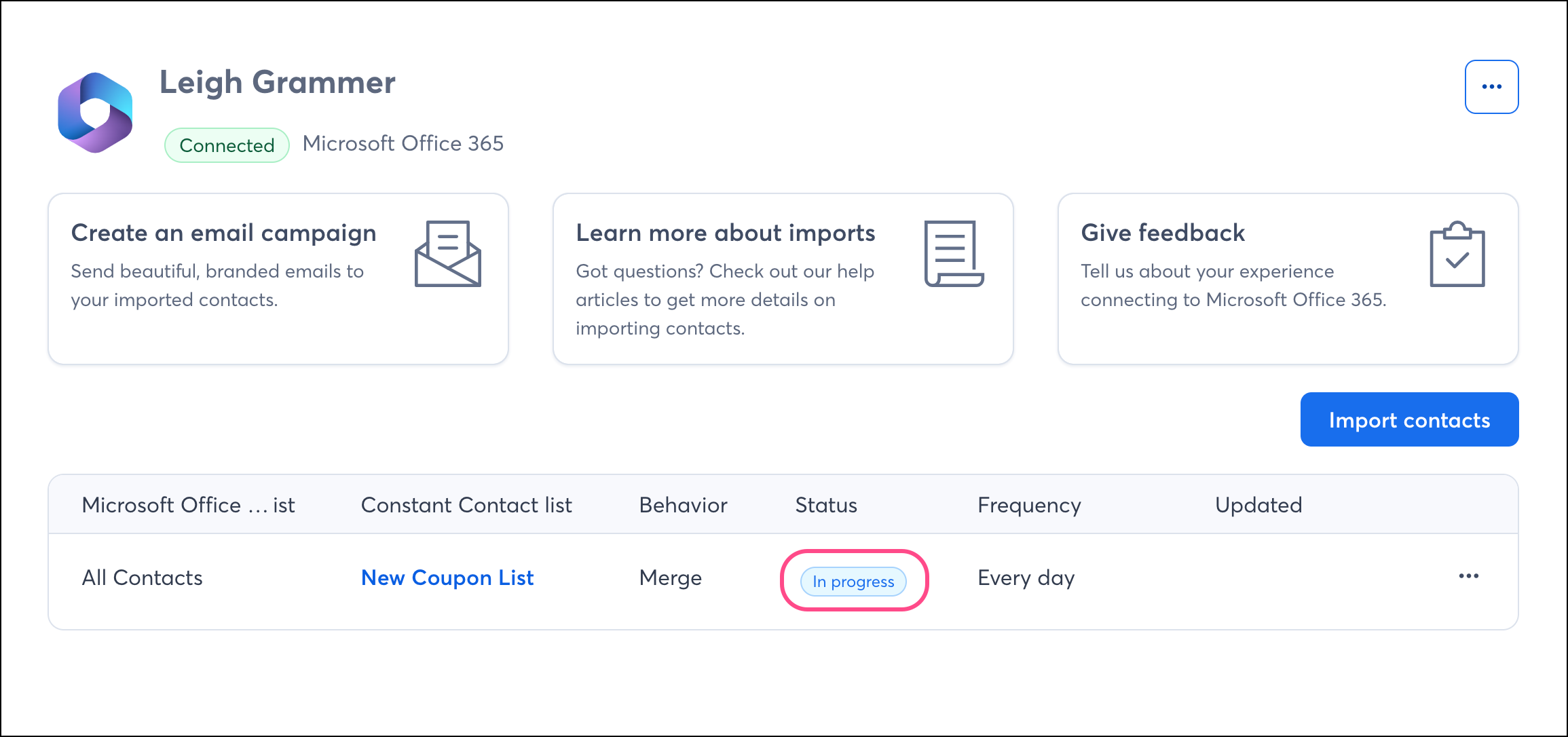
You're then brought to your Office 365 integration dashboard, where you can see a list of all your imports, along with their status and details. When you create a new import, it's initially listed as In progress.


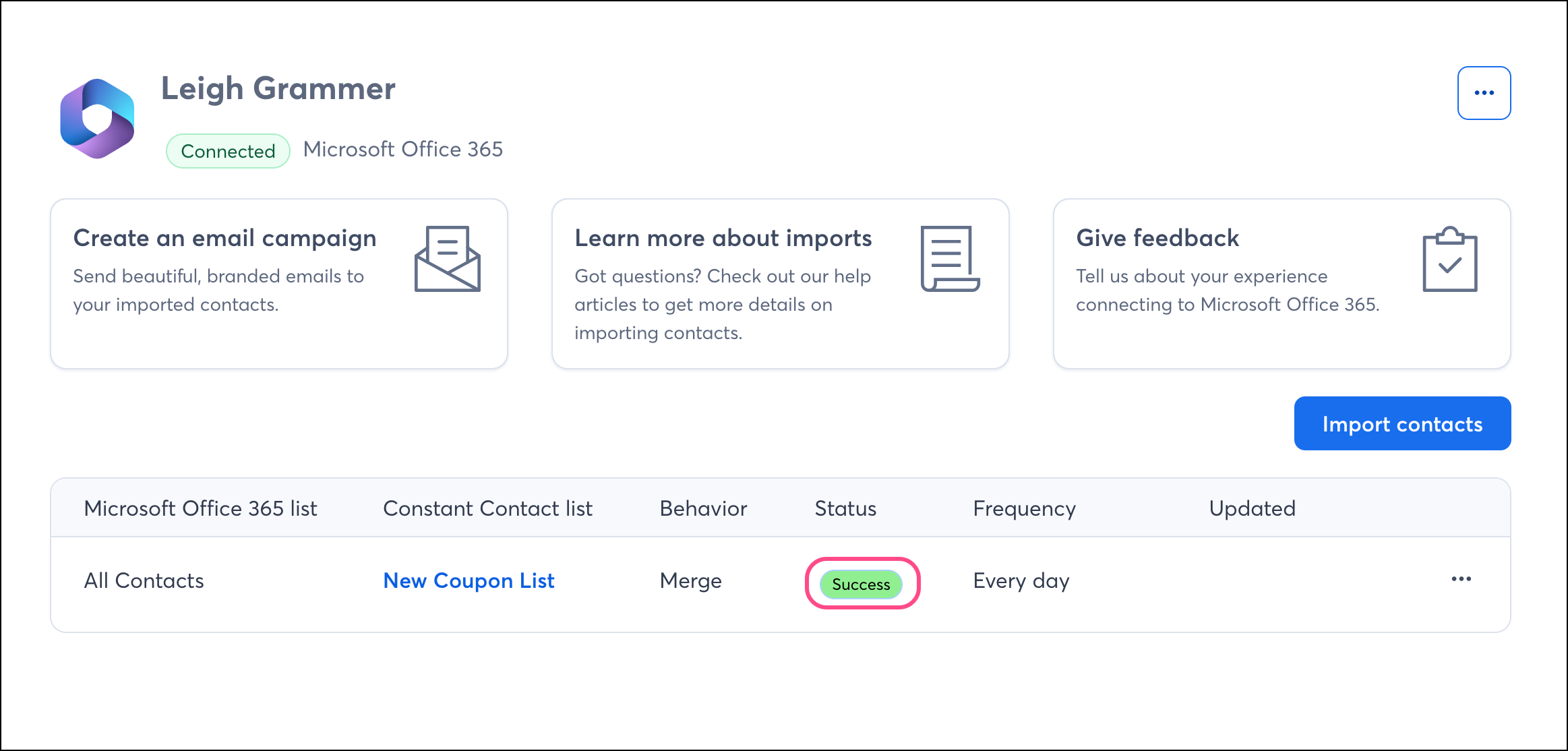
Once the import is complete, the status updates to Success.


Boost your marketing with the Office 365 integration

Once you've set up your imports and your Office 365 contacts are successfully syncing into Constant Contact, there are a couple of ways to target those contacts with customized messaging.


Create a customized contact segment

When importing from Office 365, you can choose which Constant Contact list to import into. You can also create a custom segment of contacts to send even more targeted messaging.


Send automated communications

Create personalized automated communications via email and SMS for your customers based on their actions, including welcome emails, thank you series, review requests, and more.


Megaphone IconBe a better marketer: Do more in less time by incorporating our email marketing best practices into your email marketing strategy!


Questions?

Ask the Community

Did this article answer your question?


Constant Contact Logo

Copyright © 2026 · All Rights Reserved · Constant Contact · Privacy Center