When you're ready to import a contact list into Constant Contact, it's worth taking the time to format your spreadsheet to prevent import errors. Constant Contact recognizes individual columns for first and last name. If your spreadsheet contains both first and last names in a single column, it's best to separate them before importing your list.
Once the "First Name" and "Last Name" columns are updated in your spreadsheet, you can upload it into your Constant Contact account.
Formatting tips
Names are as unique as the people who possess them, but you can accommodate lots of different naming styles in your spreadsheet. When you separate names, the spreadsheet bases the separation points on the spaces between names, and you need to add an appropriate number of empty columns for each space:
- A standard name with just a first name and last name only needs one additional column. The first name stays in the original column, and the last name moves to the new column.
- Compound names with a hyphen are treated as a singular first name (Mary-Margaret) or last name (Smith-Jones). You only have to add one extra column to your spreadsheet, and the names will be separated accordingly.
- Compound first names (Mary Margaret) or last names (Smith Jones) without a hyphen are treated as two distinct names, and you need to add two extra columns to your spreadsheet so that both parts of the name end up in their own column. After the names are separated, the compound names need to be manually updated so that both parts of the name are in the "First Name" or "Last Name" column. After the names are recombined, you can delete the extra column. It's also up to you if you want to add the hyphen to these names.
- Middle names (Mary Margaret Jones) aren't recognized as a standard contact heading, and you need to add two extra columns to your spreadsheet, so that the first name and middle name end up in their own columns. (For a name with a compound first name, middle name, and last name, like "John Michael Alexander Smith" you need to add three additional columns.) The middle name can then either be manually added to the "First Name" column, or you can keep the "Middle Name" column and import it as a custom field.
- Couples who share a single email address and are treated as a single contact (Mary and John Jones) also need to be manually updated so that both first names (Mary and John) are in the "First Name" column. You need to add a column for the extra first name and a column for the "and." Once the names are recombined, you can delete both of the extra columns.
Microsoft Excel Spreadsheet
Here's how to separate first and last names in Excel 2003, 2007, 2010, 2013, 2016, and Office 365:
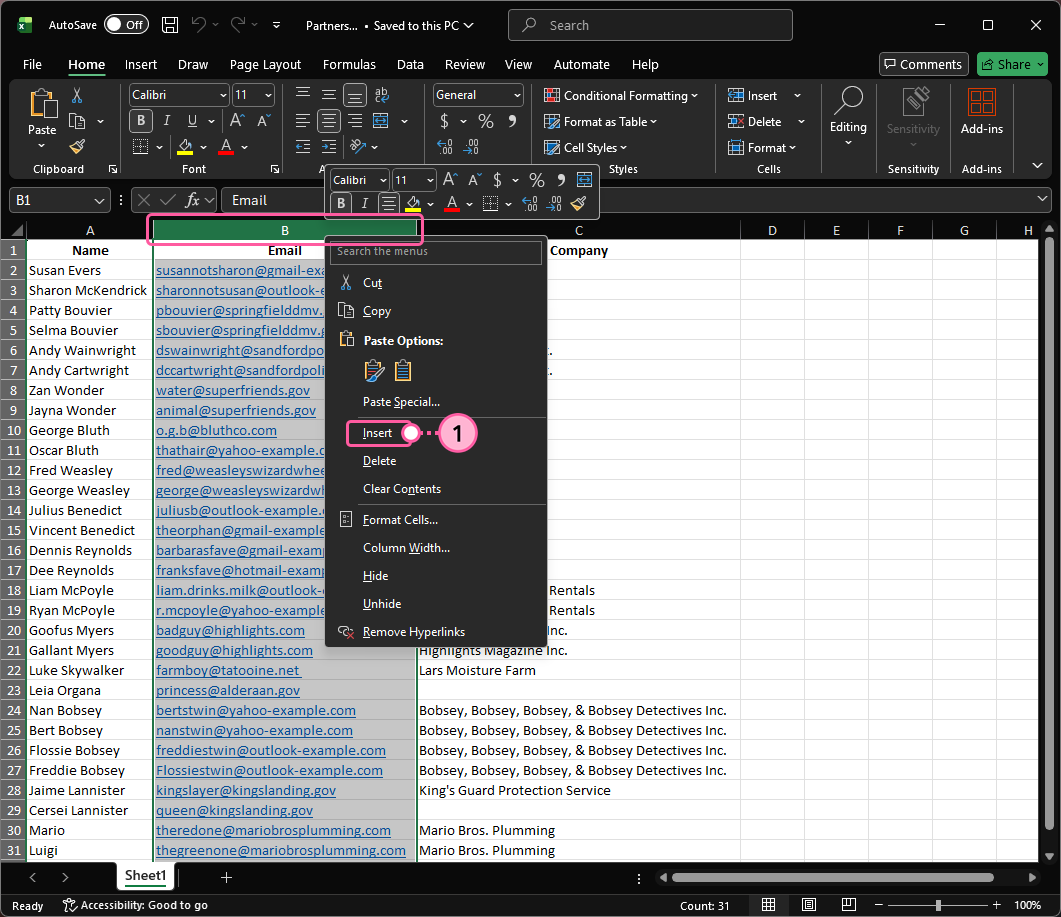
- Add an empty column by right-clicking on the top of the column next to the existing column of names, then select the Insert button.
Note: If your spreadsheet includes compound and hyphenated names, middle names, or even couples, add an extra column for each part of the name. (See above.)
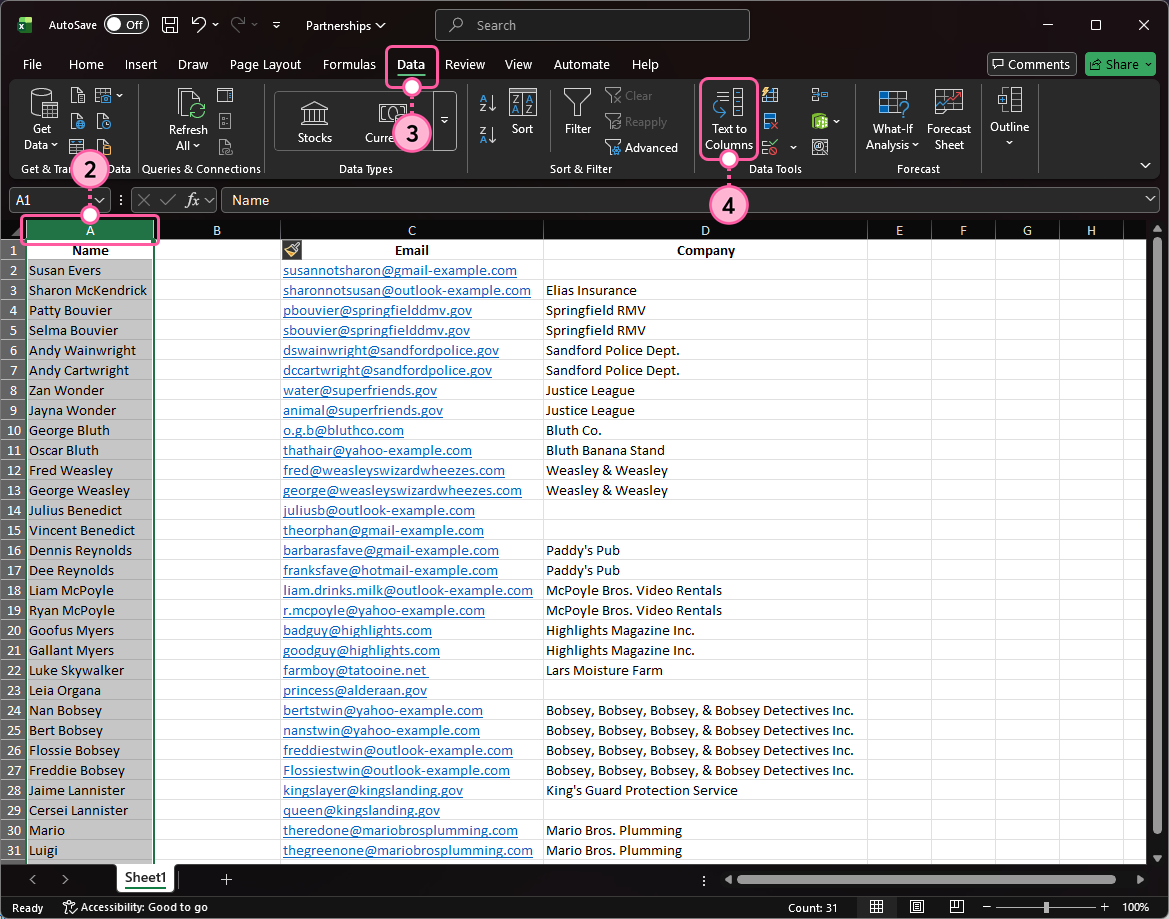
- Click on the top of the column with your contacts' names to highlight the whole column.
- Click the Data tab.
- Click Text to Columns.
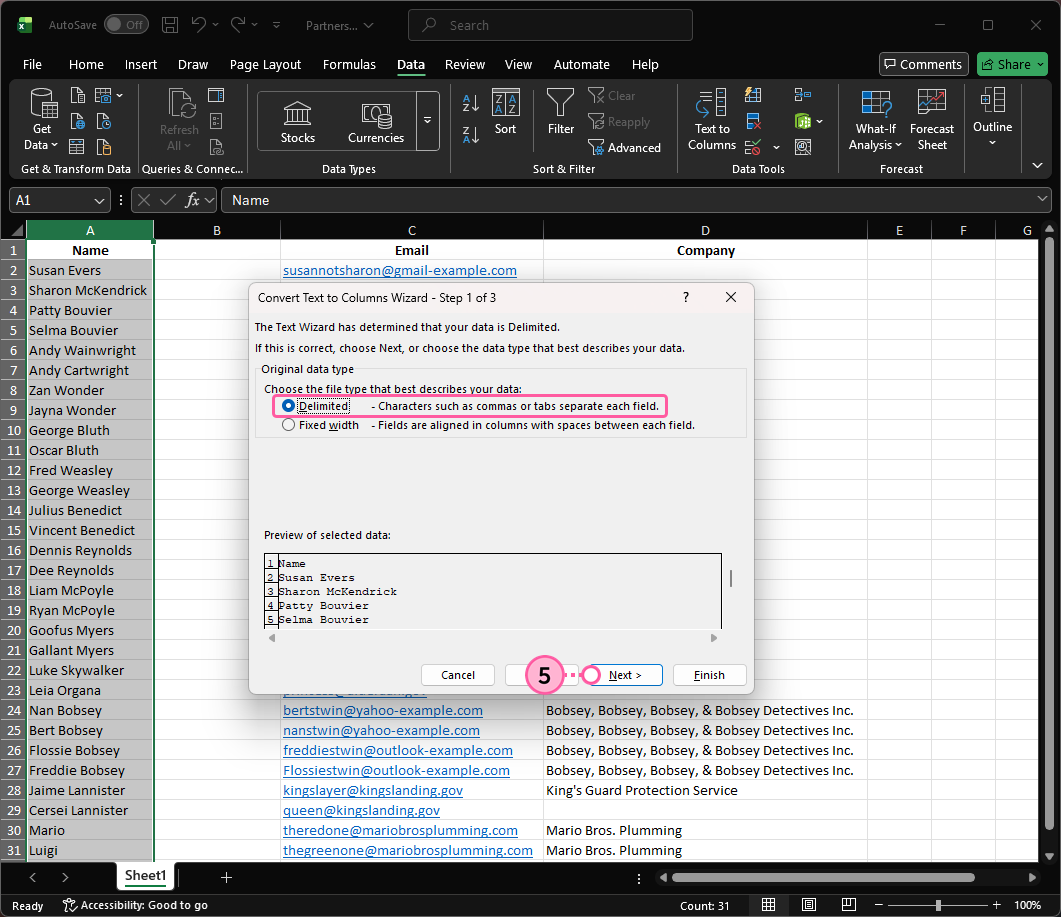
- Select the "Delimited" option and click the Next button.
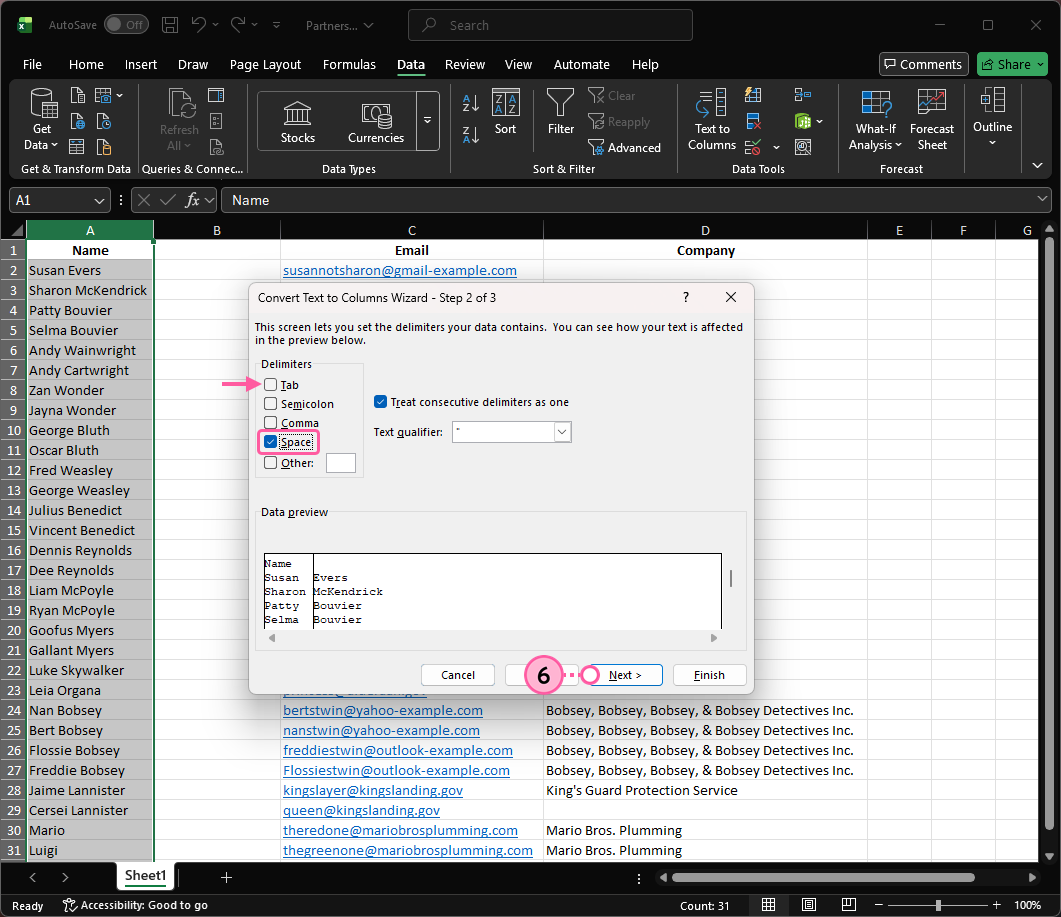
- Deselect the "Tab" option and select the "Space" option, then click the Next button.
- Click the Finish button.
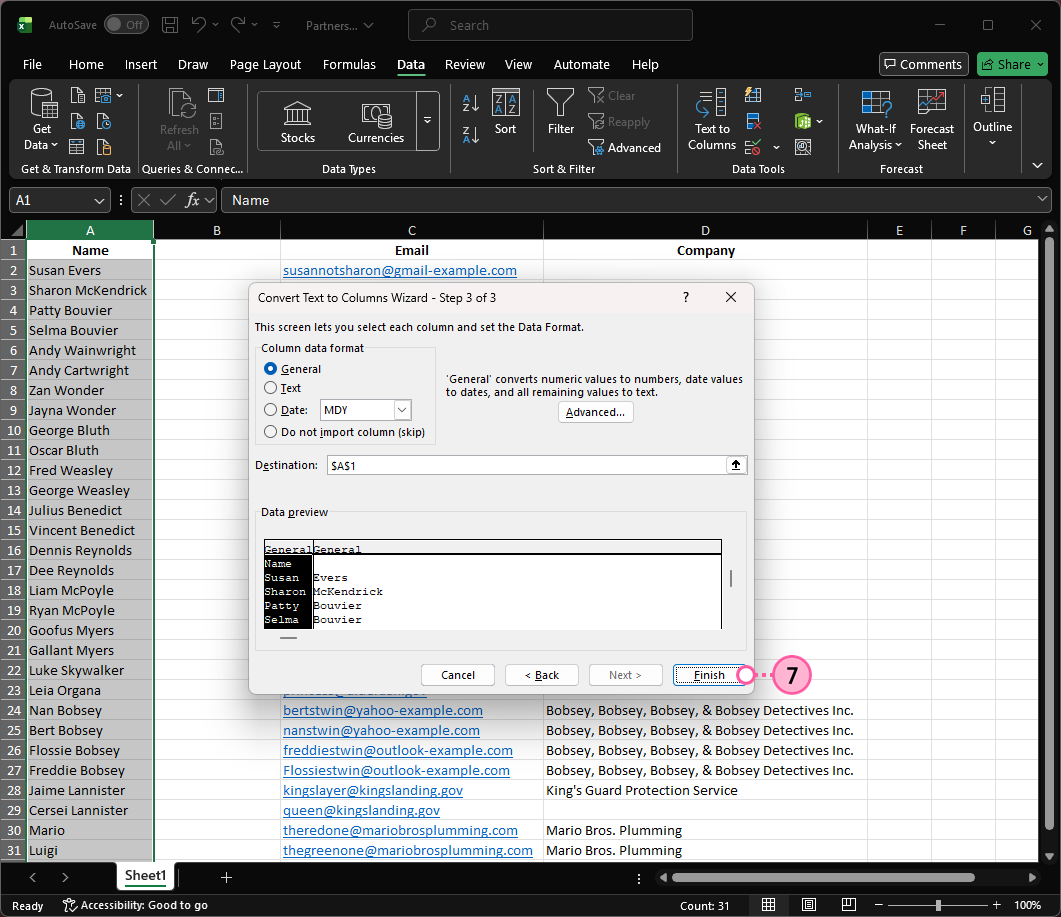
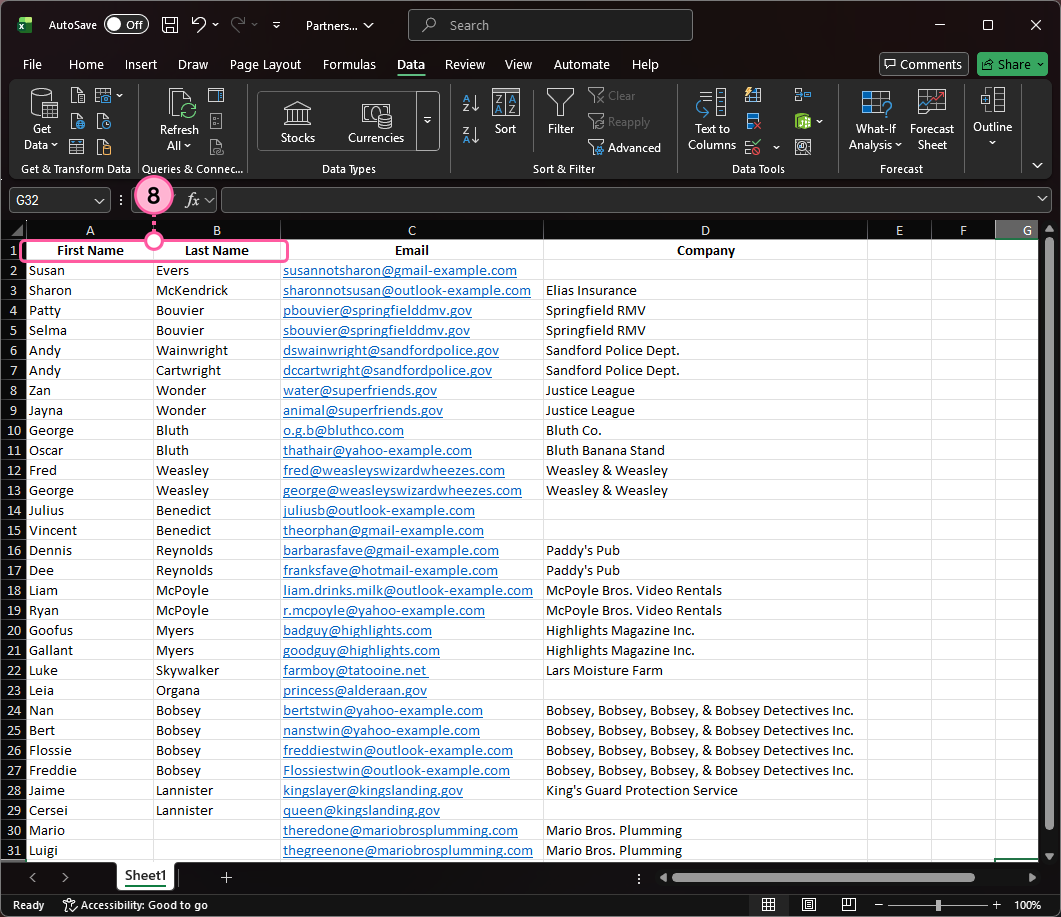
- Update the column headers so that each column is clearly named "First Name" or "Last Name."
Note: Non-hyphenated, compound names are broken into two columns and have to be recombined into the "First Name" column manually. When you're done combining, delete the empty column. If you have a column for "Middle Name", you can create a custom field for it when you import your file into Constant Contact.
For additional help using Excel, please see Microsoft Office Support.
Google Sheet
Here's how to separate first and last names in Google Sheets:
- Add an empty column to the right-hand side of the column with the existing names. You can do this by right-clicking on the top of the column with the names or the column next to the existing column of names, then selecting the "Insert 1 column left" or "Insert 1 column right" option.
Note: If your spreadsheet includes compound and hyphenated names, middle names, or even couples, add an extra column for each part of the name where there is a space. (See above.)
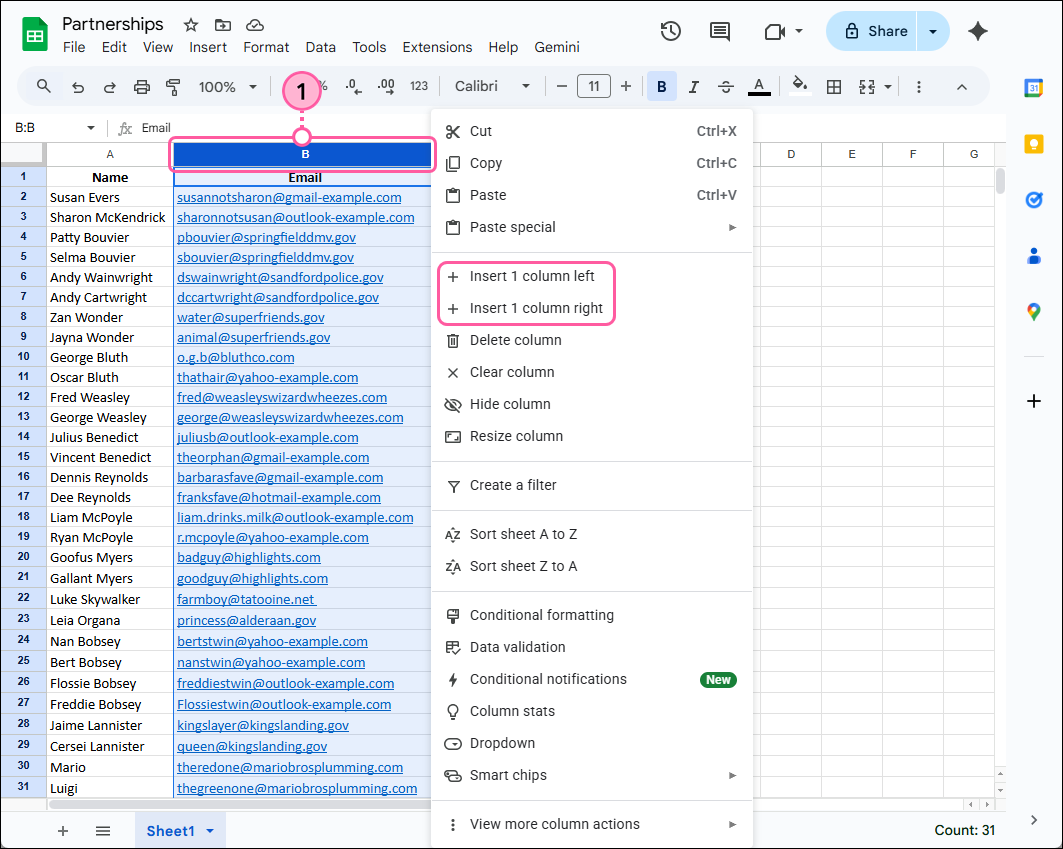
- Click on the top of the column with your contacts' names to highlight the whole column.
- Click on the Data tab and select the "Split text to columns" option.
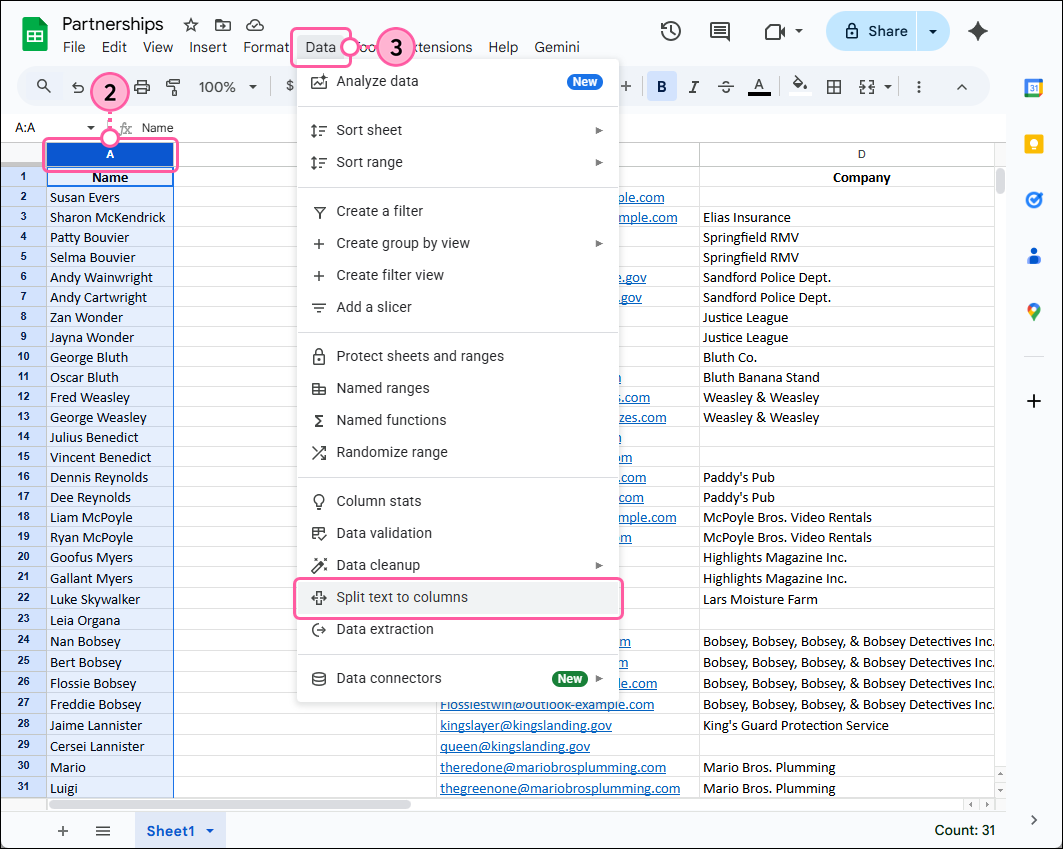
- From the Separator menu, select the "Space" option.
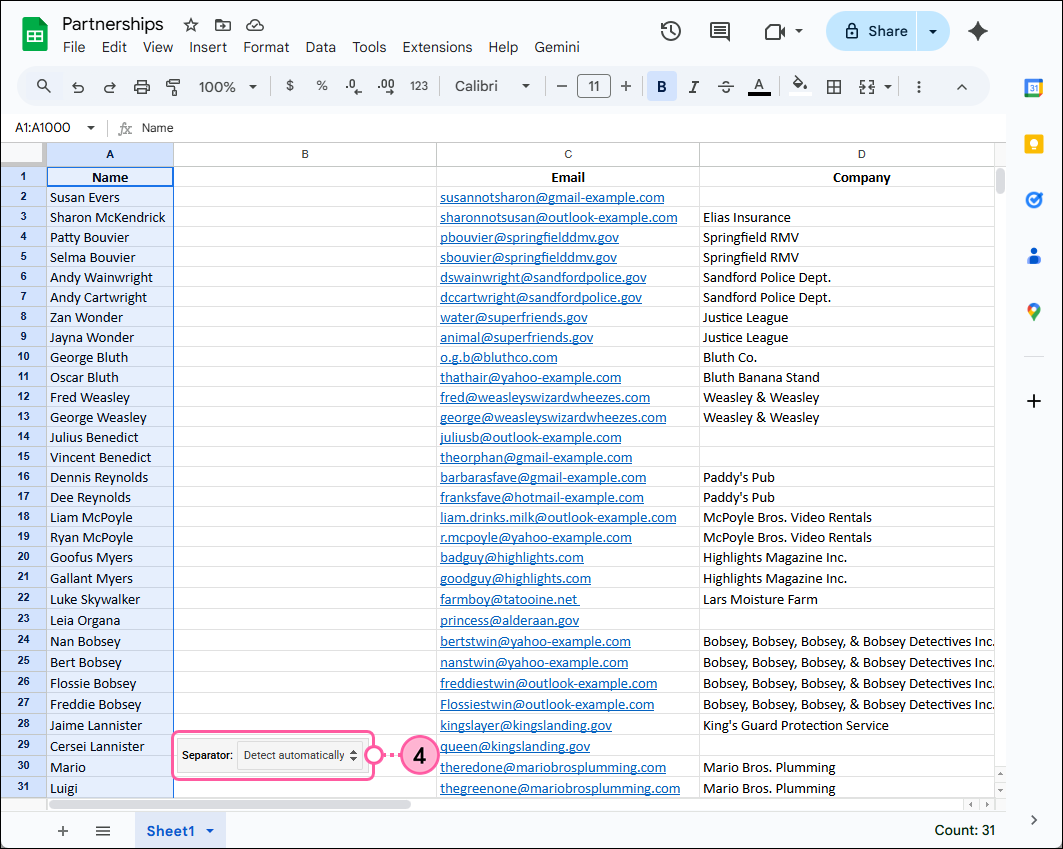
- Update the column headers so that each column is clearly named "First Name" or "Last Name."
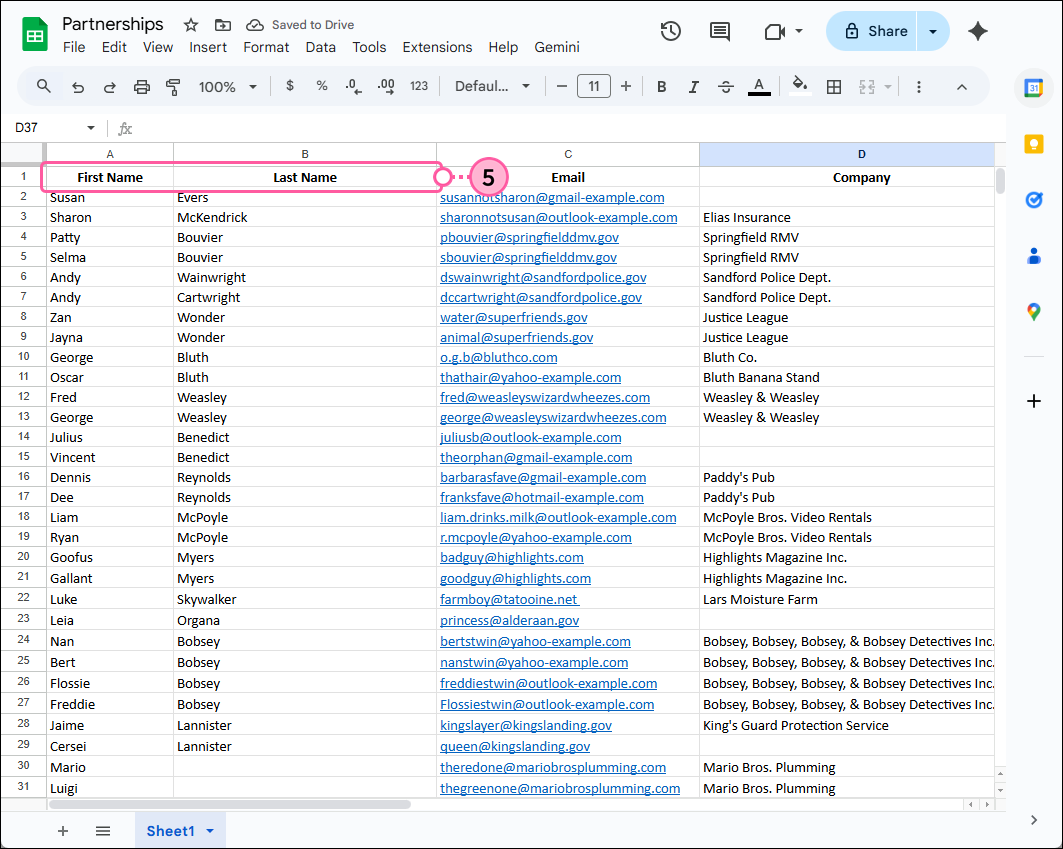
Google Sheets can't be directly imported into your Constant Contact account, but when you download the sheet, you can save it as an Excel file or CSV file. Both of these file types are compatible for uploading.
For additional help using Sheets, please see Google Support.
Any links we provide from non-Constant Contact sites or information about non-Constant Contact products or services are provided as a courtesy and should not be construed as an endorsement by Constant Contact.
