You may run into import errors if you have more than 500,000 contacts in your Excel spreadsheet. It can be helpful to check the formatting and then save your Excel spreadsheet (XLS, XLSX) as a Comma-Separated Value file (CSV) instead. CSV files are similar to Excel spreadsheets, except they strip out the excess formatting that causes some import errors. A Google Sheet can't be imported directly into Constant Contact, but it can be converted into a CSV file that is compatible.
When you open your CSV file, you have the choice to open it with Excel or use Notepad to make additional edits. If you choose the Excel option, the file appears as an Excel spreadsheet, with any excess formatting removed. When you're ready, your CSV file can be imported into your contact list in Constant Contact.
 | Did you know? When importing into Constant Contact, CSV files can accommodate up to a million rows of contacts or up to 50 MB of data, depending on your account settings. Excel spreadsheets and TXT files can accommodate up to 40,000 rows of contacts or up to 2 MB of data. |
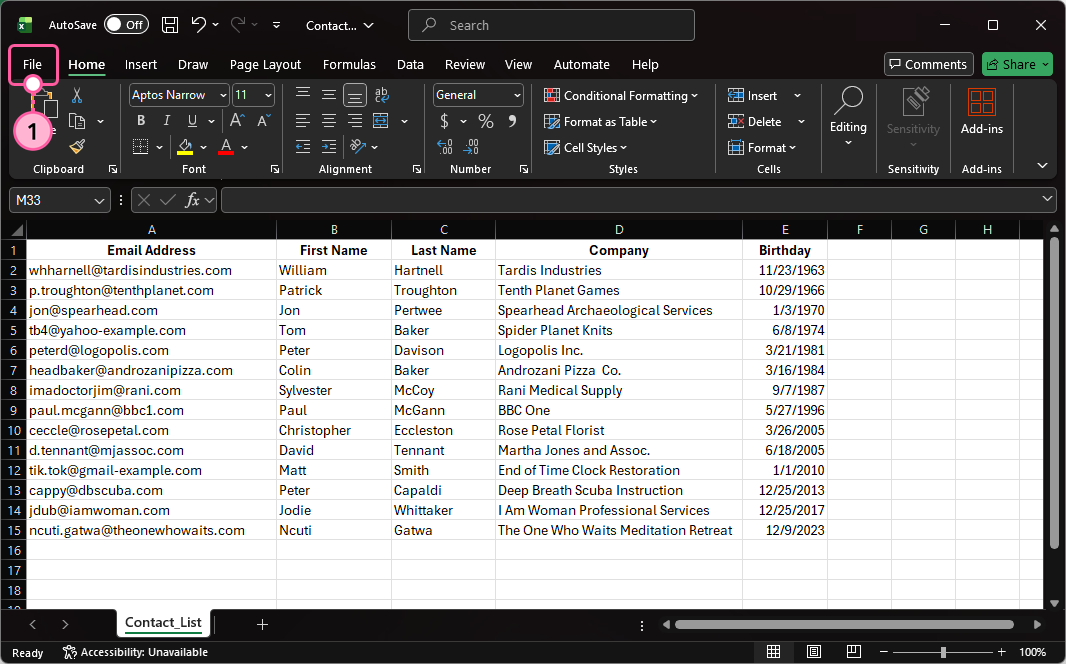
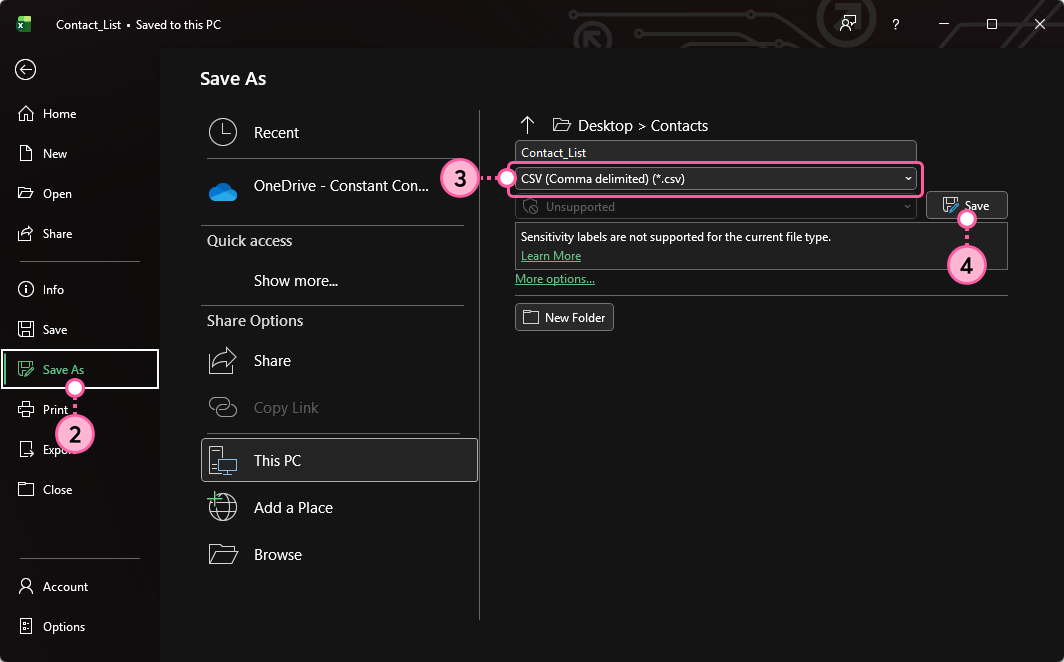
For help with older versions of Excel, please see Microsoft Office Support.
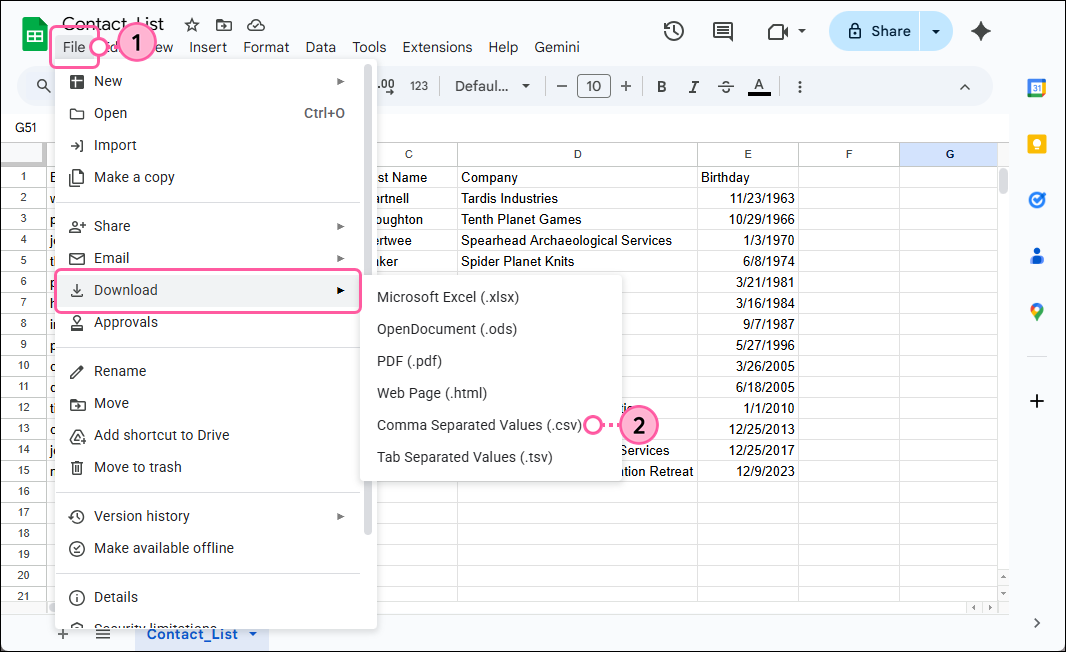
Need more help converting a Google Sheet into an Excel file? Please see Google's Support.
Any links we provide from non-Constant Contact sites or information about non-Constant Contact products or services are provided as a courtesy and should not be construed as an endorsement by Constant Contact.
Copyright © 2026 · All Rights Reserved · Constant Contact · Privacy Center