Constant Contact fully supports uploading a text file (TXT) or comma-separated value file (CSV), but there may be times when you want to convert a TXT or CSV file of contact information into an Excel spreadsheet (XLS or XLSX) first. Using an Excel spreadsheet makes it much easier to read and work with your data if you need to make edits before you import it, especially if your contact list is on the larger side.
Differences between TXT, CSV, and XLS file types and Google Sheets
Text files, CSV files, Excel spreadsheets, and Google Sheets are great ways to store data, depending on your needs:
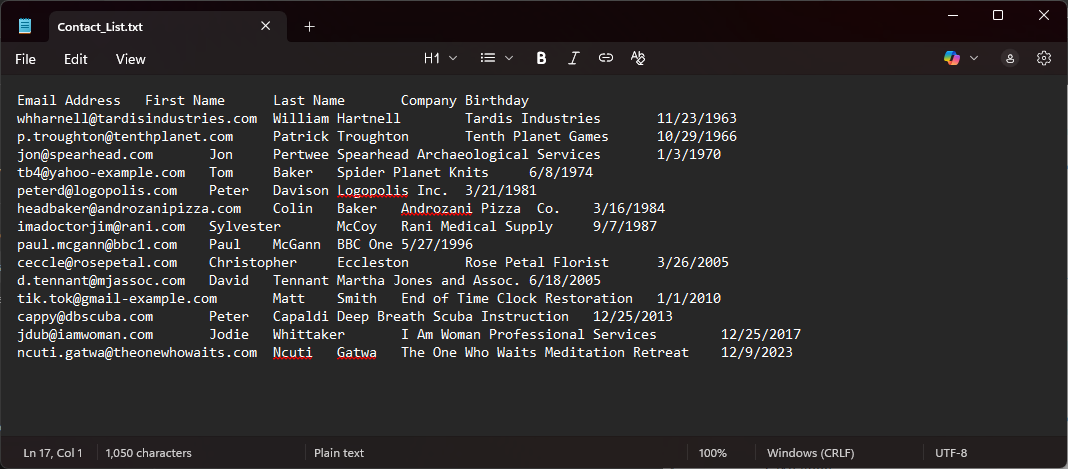
- Text File (TXT) - Text files contain plain text and are commonly created with NotePad (PC) or TextEdit (Mac). If you paste content into a text file, all the styles and formatting are stripped out, leaving you with plain text. This makes it easy to copy and paste data without formatting issues. If you paste spreadsheet data into a TXT file, it's separated by tabbed spaces.
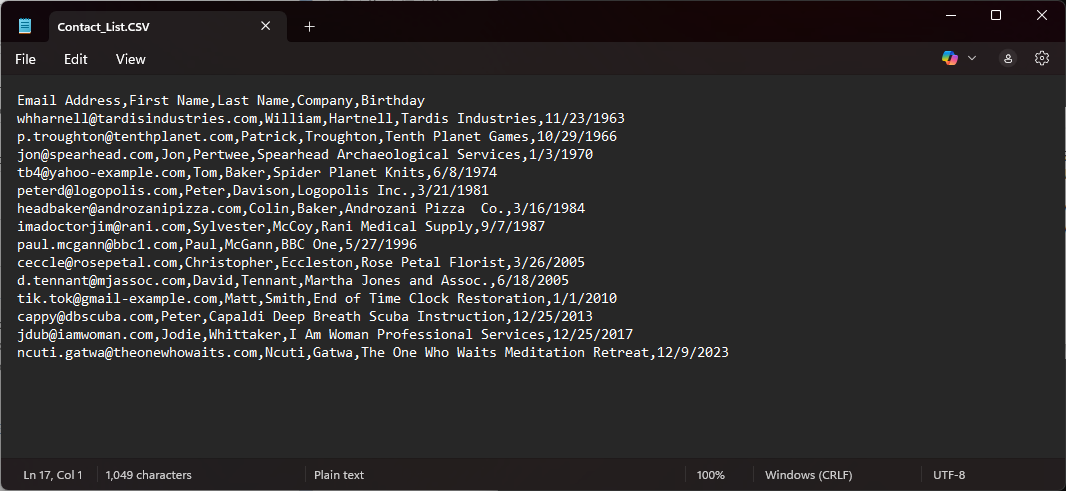
- Comma-Separated Value File (CSV) - A CSV file also contains plain text and is versatile because it can be opened on any operating system, in any text editor, and also in spreadsheet applications, like Excel. If you paste spreadsheet data into a CSV file, it's separated by commas.
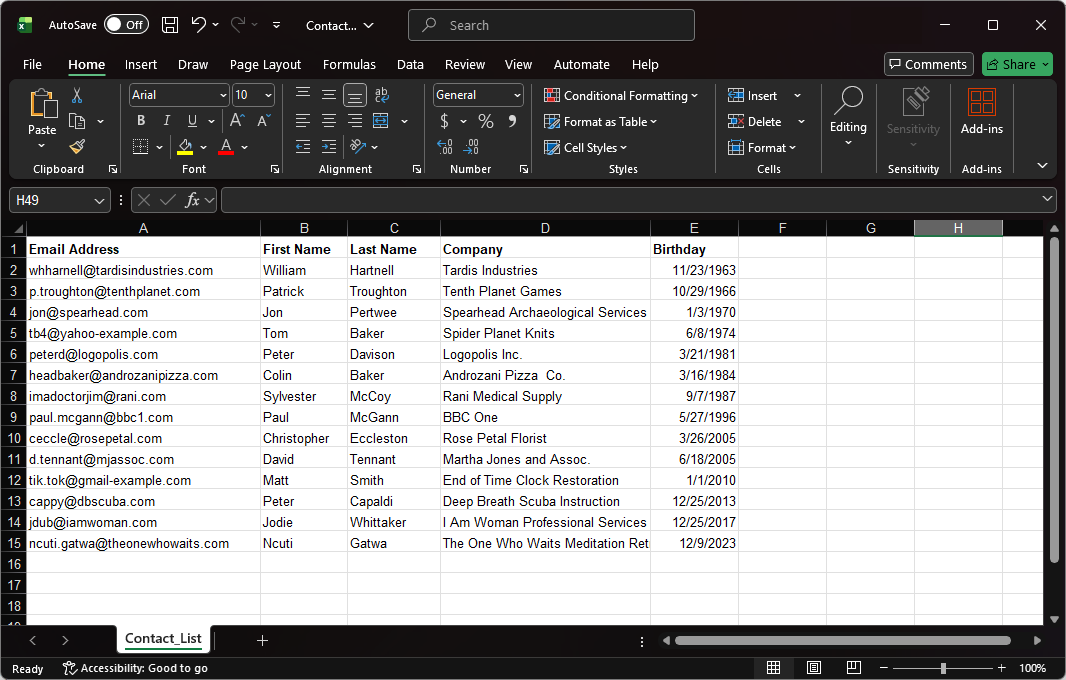
- Excel Spreadsheet (XLS or XLSX) - Excel spreadsheets can only be opened by other spreadsheet applications, such as Google Sheets or OpenOffice Calc. However, they offer numerous formatting options, data calculation capabilities through functions, and visual data presentation options via charts and tables. Information pasted into a spreadsheet is separated into cells, rows, and columns.
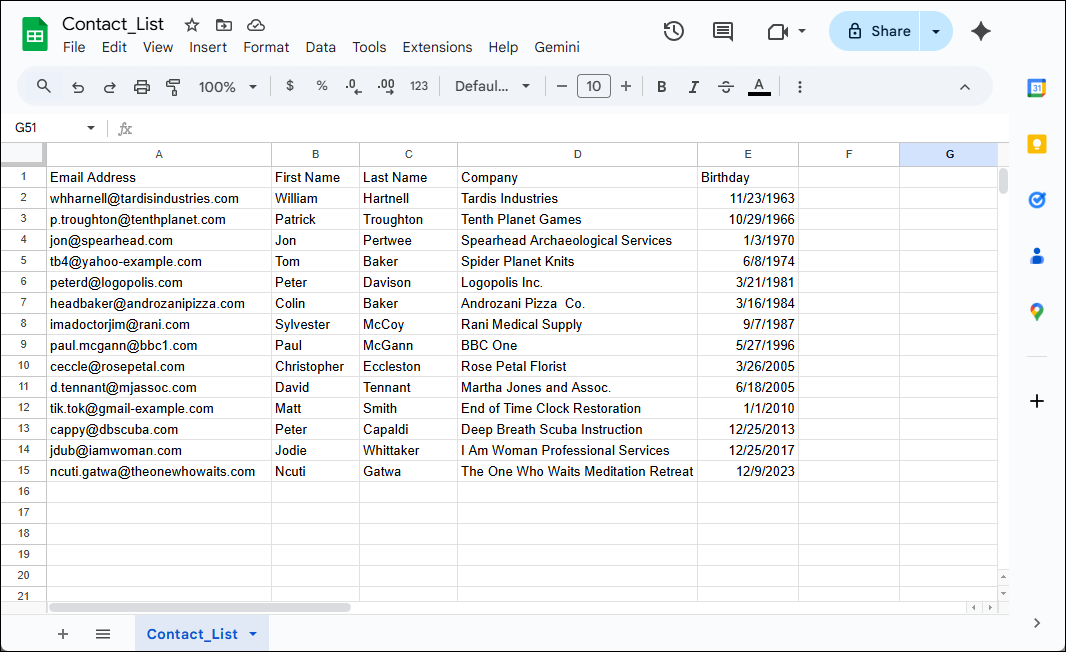
- Google Sheet - Google Sheets are the native spreadsheet program used within your Google Account and are fairly similar to spreadsheets created with Excel. Text files, CSV files, and Excel spreadsheets can all be opened from within your Google Drive and can also be converted to a Google Sheet. Google Sheets can't be saved outside of Google Drive and are not a compatible file type for importing into your Constant Contact account, but they can be downloaded as an Excel sheet.
 | Did you know? CSV files are very versatile because they have a basic format, allowing them to be opened or exported by most programs. If you need to strip out extra formatting and just save your data, it's easy to convert an Excel file or Google Sheet into a CSV file, too! |
Convert a TXT or CSV file into an Excel file (Office 365)
The steps to import a TXT or CSV file into the Office 365 version of Excel:
- Open the Excel spreadsheet where you want to save the data and click the File tab.
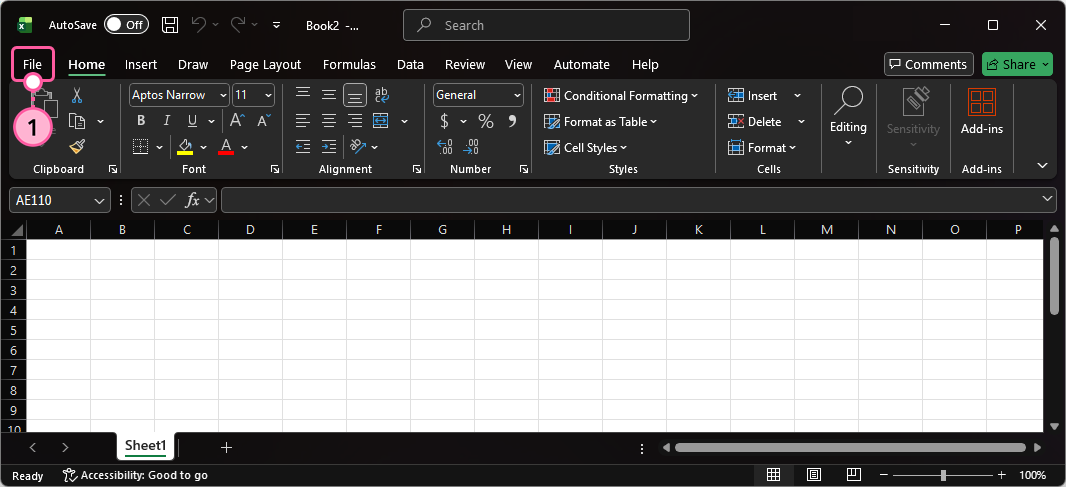
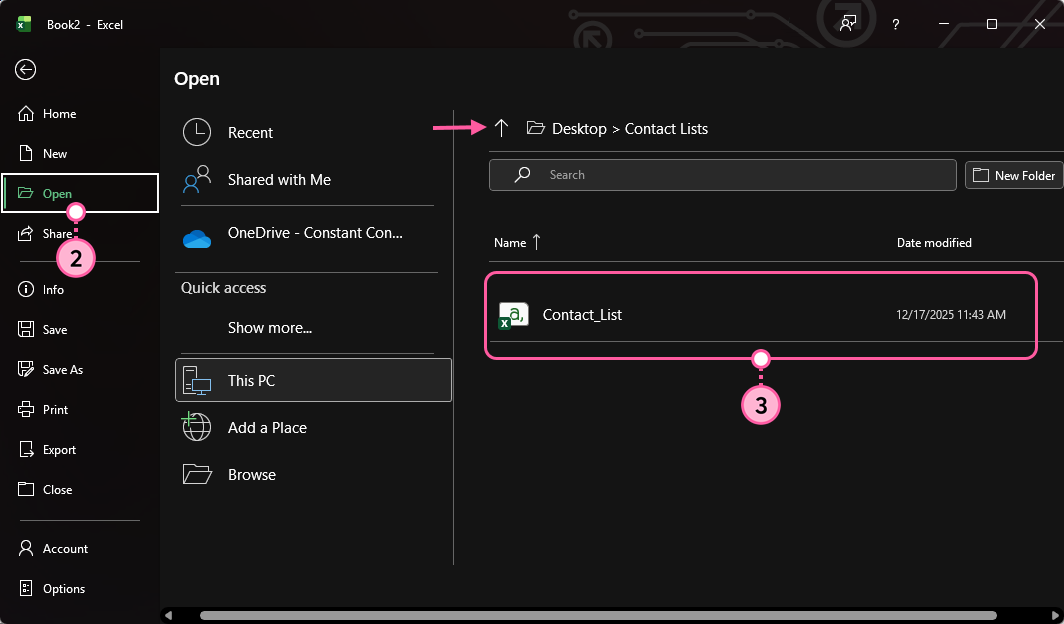
- Select the Open option.
- Browse the files on your computer and select the TXT or CSV file you want to convert.
- Review your data and ensure the information is displaying as expected. Then, click the Save icon to save the Excel file.
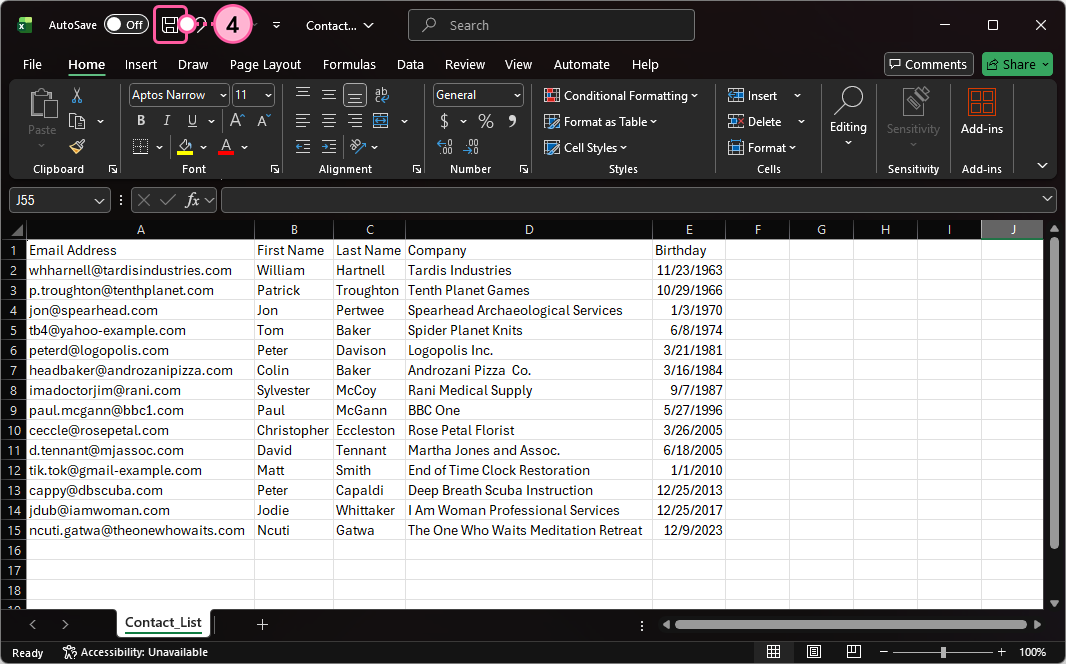
You can now make edits to the column headers to make sure they match the standard contact headings in Constant Contact, correct spelling, or update the formatting and remove special characters to prevent import errors. When you're ready, save your file and import your contacts.
Need more help saving a supported file as an Excel file? Please see Microsoft's Support.
Convert a TXT or CSV file into Excel file (Excel 2016 and earlier)
Convert a Google Sheet into an Excel file
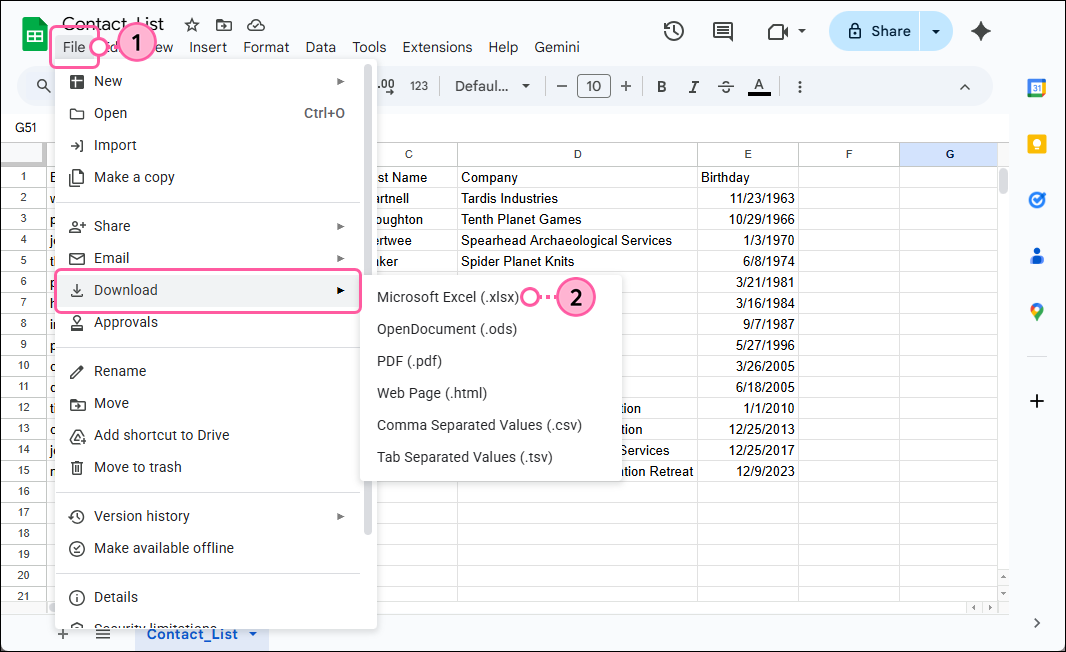
Google Sheets can be downloaded and saved in the XLSX format.
- Click the File tab.
- Click Download > Microsoft Excel (.xlsx).
Need more help converting a Google Sheet into an Excel file? Please see Google's Support.
Any links we provide from non-Constant Contact sites or information about non-Constant Contact products or services are provided as a courtesy and should not be construed as an endorsement by Constant Contact.
