Email and Digital Marketing
How can we help you?
Search our help articles, video tutorials, and quickstart guides

You've got this. You've got us. Search our Knowledge Base to quickly find answers to your questions.

Using click segmentation in an email

Article: 000020817
Updated: June 5, 2026

Automatically add the contacts who click on a specific link or button in your email to a list for later use


If you're not sure how to go about segmenting your contacts, click segmentation is a great place to start! Click segmentation lets you add the contacts who click a specific link, button, or clickable image in your email to a list of your choosing so that you can send more targeted content to those contacts later. 


Enable click segmentation for a link in your email

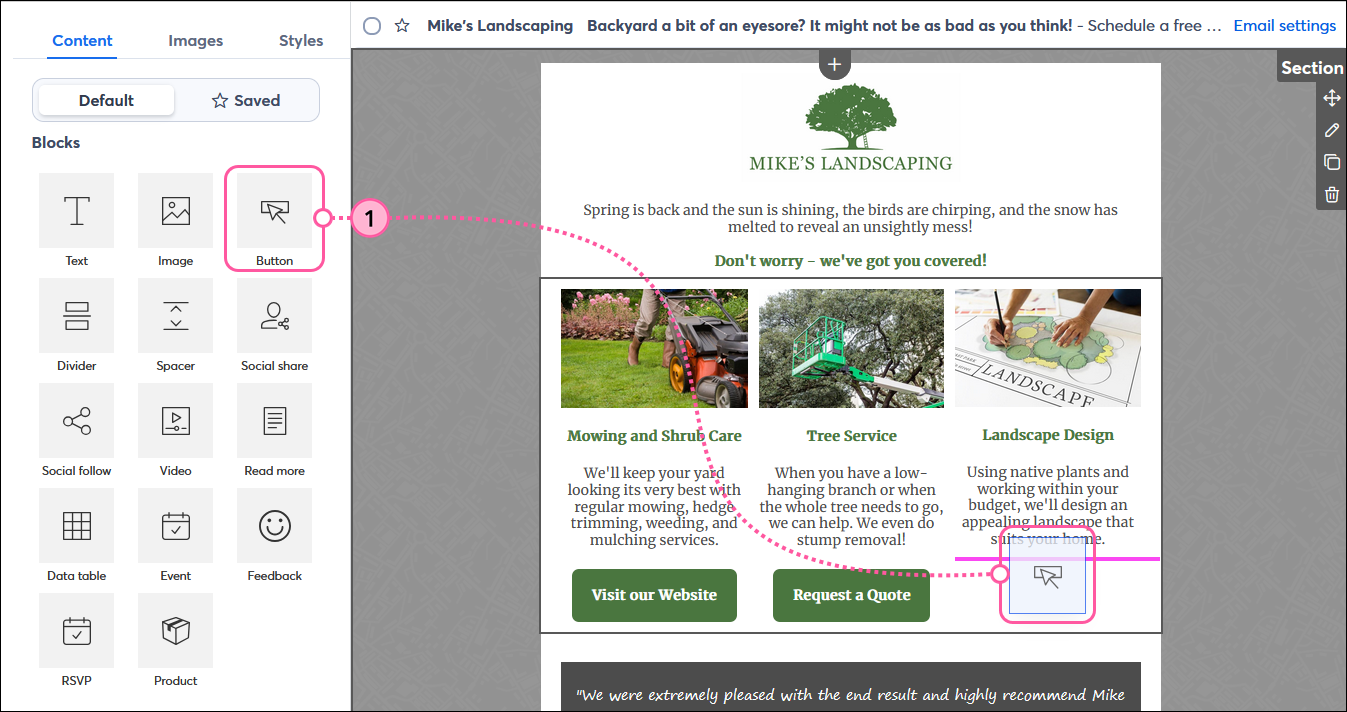
In the example below, a landscaper offers three different services in one email. Each button link is segmented so that when contacts click on it, they're automatically added to a list for the specific service they clicked on. When the landscaper is ready, he can send an email to only the contacts interested in landscape design and email his contacts interested in mowing or tree service at another time with content unique to their interest.

  1. While creating your email, insert a text link, button, or clickable image into your template.

    Email editor with Content tab selected, Blocks menu with Button block drag-and-dropped into template

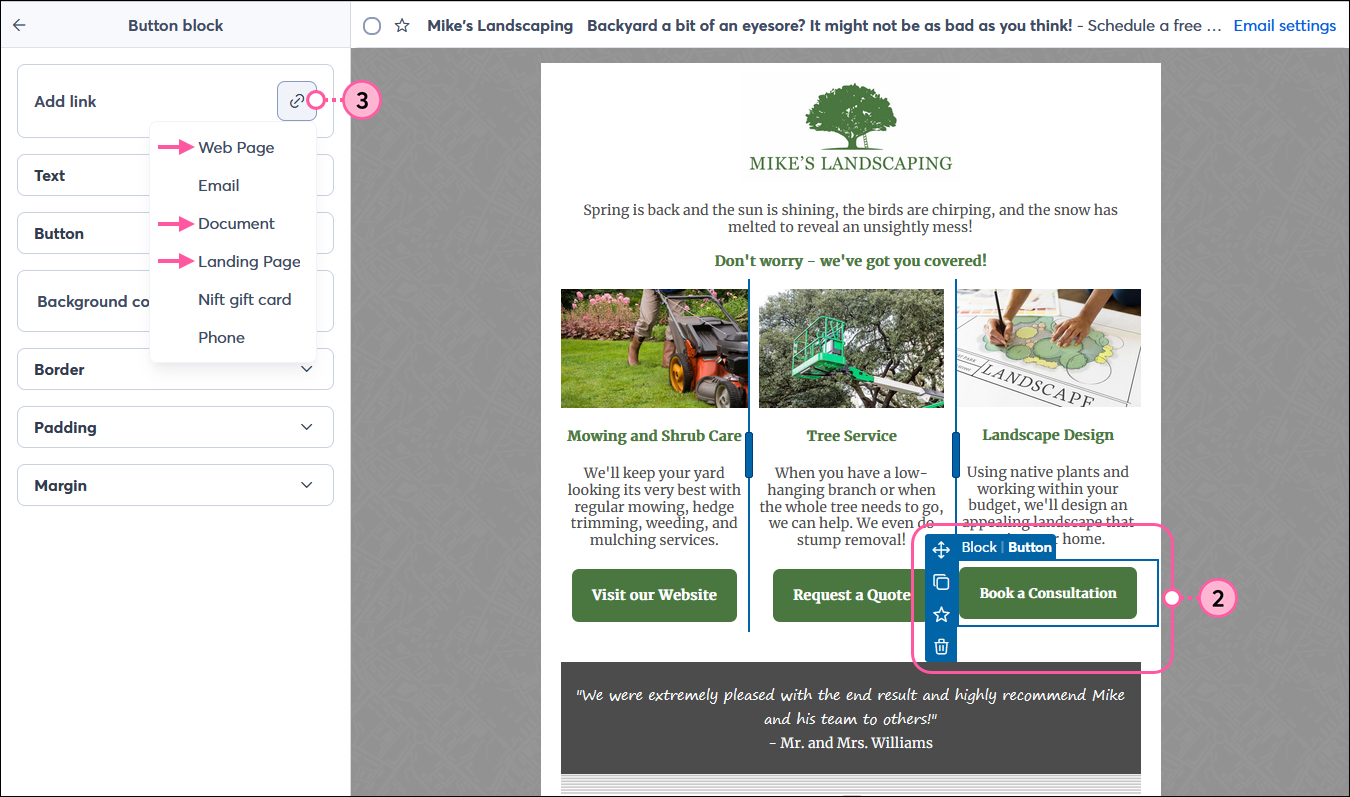
  2. Click the button, text link, or image to expand the Button block, Text block, or Image block panel.
  3. Click the Add link button and select the type of link you want to insert. You can enable click segmentation for a webpage, Constant Contact landing page, or document hosted in your library.
    Note: For text links, the link icon is in the bar at the top of the editor and not in the Text block panel.

    Email editor with Button block panel expanded, Add link section and Link button with drop-down menu expanded

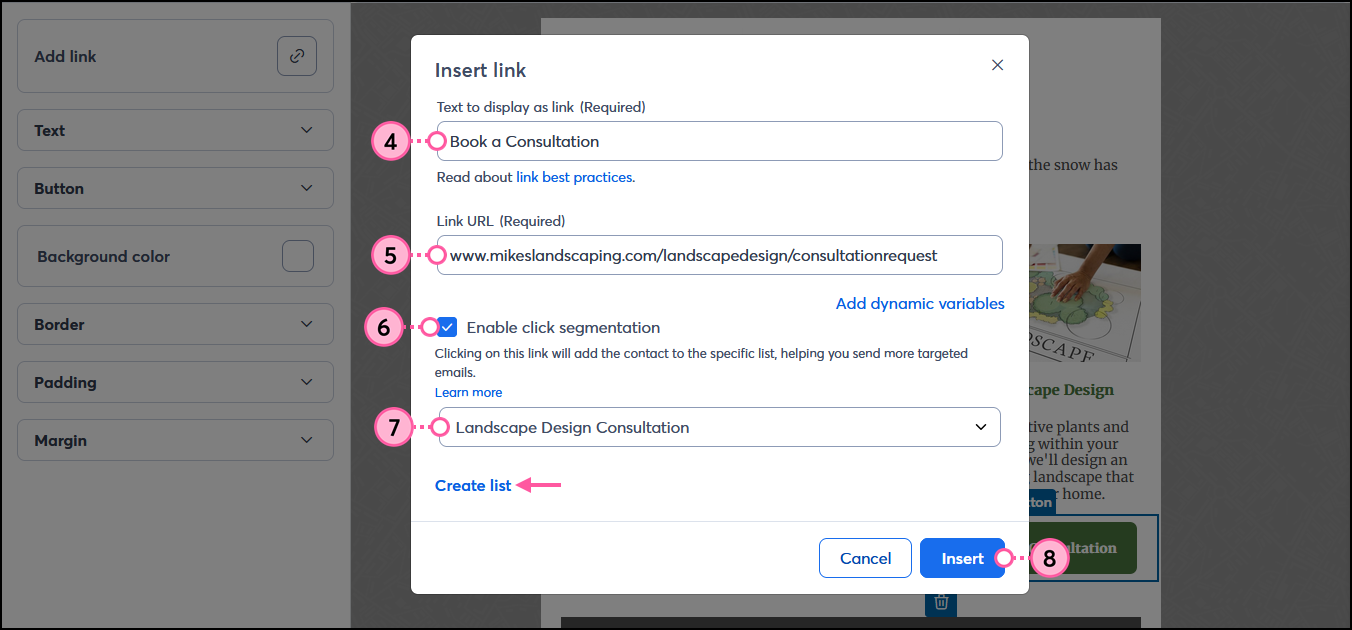
  4. Update the text to display as the link or on the button.
  5. Enter the URL for your webpage into the Link URL field, or select the document or landing page you want to link to.
  6. Check the "Enable click segmentation" box.
  7. From the drop-down, select the list you want to add your contacts to when they click on the link or button. You can create a unique list for your email too!
    Important: If you have the same URL in multiple places throughout your email, you don't have to apply click segmentation to each instance, but you absolutely can if you want to.  The list you choose much be the exact same for each instance of the URL in your email;  if you select different lists for each instance of the same URL, the segmentation for all the links defaults to the list chosen for the link positioned first within the email.
  8. Click the Insert button.

    Insert link overlay with Link URL field, Enable click segmentation option, List drop-down menu and Create list option, and Insert button


Exclamation Point IconImportant: Click segmentation does not work when you send a test version of your email; it only works with a live send.


Use tools in conjunction with click segmentation

Now that you're using click segmentation, how do you make the most of it to get the right content in front of your contacts at the right time?

  • Manually send an email - Having the contacts on the right list sets you up for success when you're ready to share content. You can create a new email at your own pace and select the click segmentation list to send it to whenever you're ready.
  • Set up an automation - With a little effort up-front, you can use our Automation Path Builder to automatically send targeted content to the contacts that are added to a list through click segmentation. You choose the timing and create the content in advance; it can be a single email, or a series of emails, and you can even incorporate SMS messages too!
  • Build a more complex segment - When you want to target your audience with specific content, creating your segment helps you find exactly the right contacts to share it with. You can combine list membership, with lots of different criteria, like contact details and ecommerce activity, to make your email content super meaningful, and more likely to be engaged with.


handshakeNeed help getting started with email marketing? Our recurring services will allow you to get started with confidence. We’ll set up your account, provide you with list growth tools, and create professionally designed emails just for you. Sign up for recurring services today!


Questions?

Ask the Community

Did this article answer your question?


Constant Contact Logo

Copyright © 2026 · All Rights Reserved · Constant Contact · Privacy Center