Different email clients display content differently, which can affect how your email appears if it exceeds a certain size limit. By being mindful of your message length and image sizes, you can prevent clipped content and distorted images in Gmail and Outlook.
 | Design tip: To see how your email will display in Gmail and the other top email clients, so you can catch design issues before sending, try using Inbox Preview. |
When your email message exceeds 102KB or is too content-heavy, Gmail clips it and makes the reader click a "View entire message" link to read the rest of your email.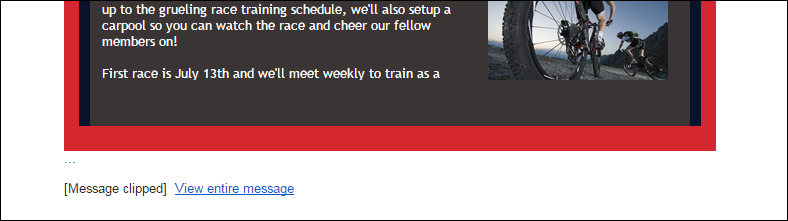
To decrease the chance that part of your email appears hidden:
Message clipping can also occur when the Conversation view is enabled in Gmail. Multiple messages with the same subject line (both received and replies) are grouped into a single thread, and Gmail collapses duplicate emails and clips duplicate content, so you have to click to expand them. If you send lots of test emails to a Gmail address, change the subject line or disable the Conversation view to prevent clipping.
For more information about enabling or disabling Gmail's conversation view, please see Google's support.
Outlook uses an engine that has a 1728-pixel height limit for images displayed in an email. If an image is larger than 1728 pixels high, Outlook will manipulate the image - either by cropping the extra pixels from the top or bottom of the image, condensing it, or omitting the image entirely.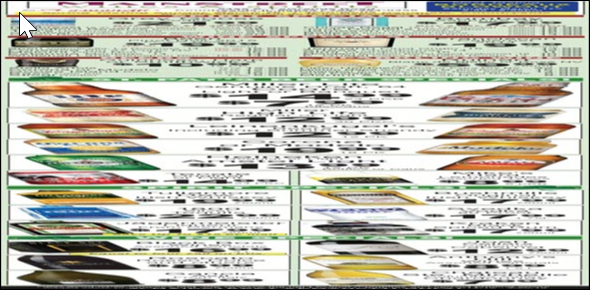
To decrease the chance your image will be distorted:
Any links we provide from non-Constant Contact sites or information about non-Constant Contact products or services are provided as a courtesy and should not be construed as an endorsement by Constant Contact.
Copyright © 2026 · All Rights Reserved · Constant Contact · Privacy Center