When you copy an email, the copy includes all aspects of the original, including the template, colors and font styles, images, links, content, and the header and footer information. Copying is a great way to save time and stay consistent with your emails while still having the flexibility to make changes.
 | Tip: When copying an email, it's always a good idea to send a test version to yourself or those you trust to proofread it, and ensure that any outdated content is removed before you send the final version to your contacts. |
The Email page helps you find the email you want to copy in several ways. If you know you're looking for a draft or a sent email, you can narrow it down by status, or you can search by keyword.
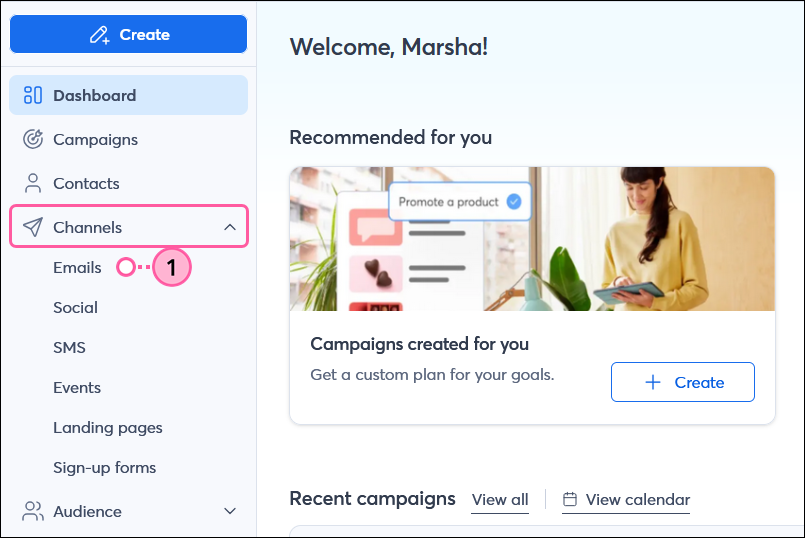
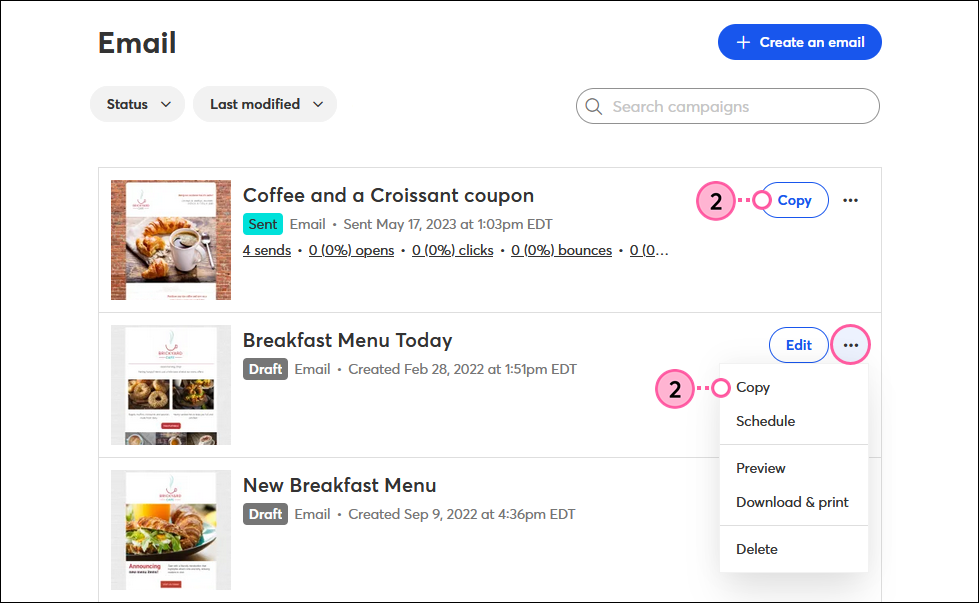
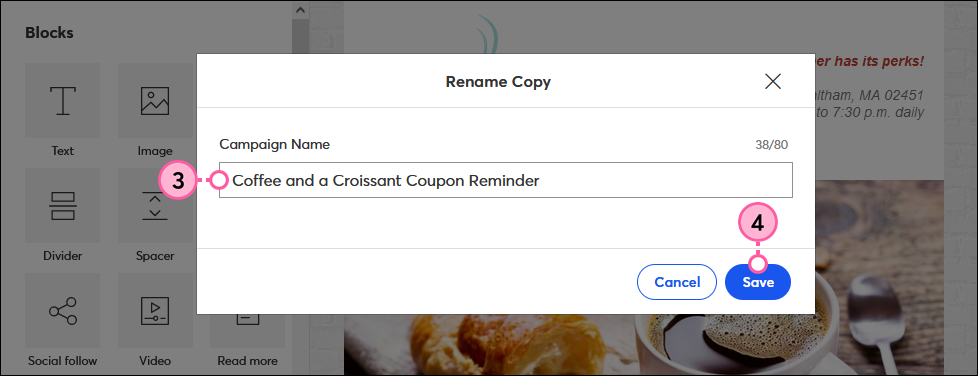
Once you've copied your campaign, update the content as you'd like - modify the layout, edit the text, swap out images, or change colors. Don't forget to check your email's subject line to ensure it isn't outdated.
The great thing about copying an email from the Calendar View is that when you're ready to send, the date you select on the calendar will be pre-filled on the schedule page.
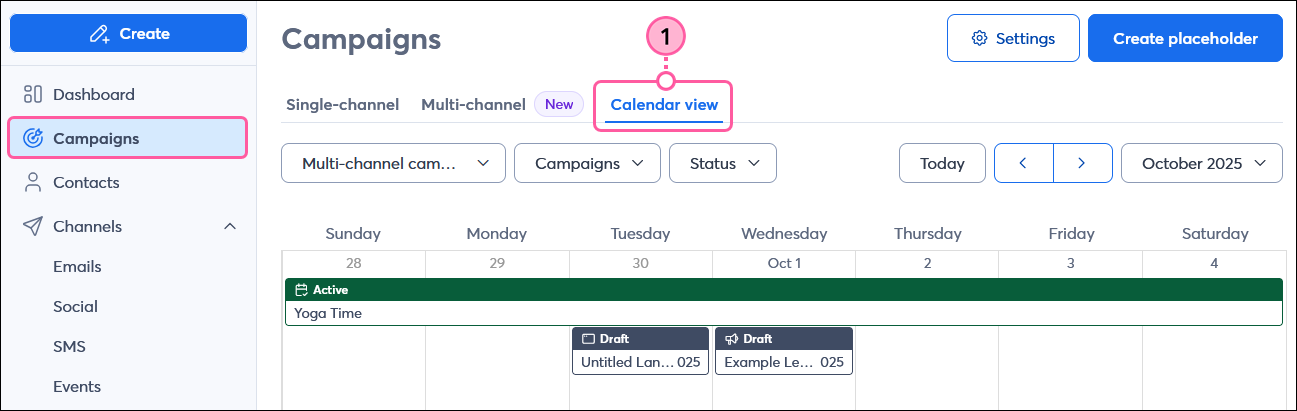
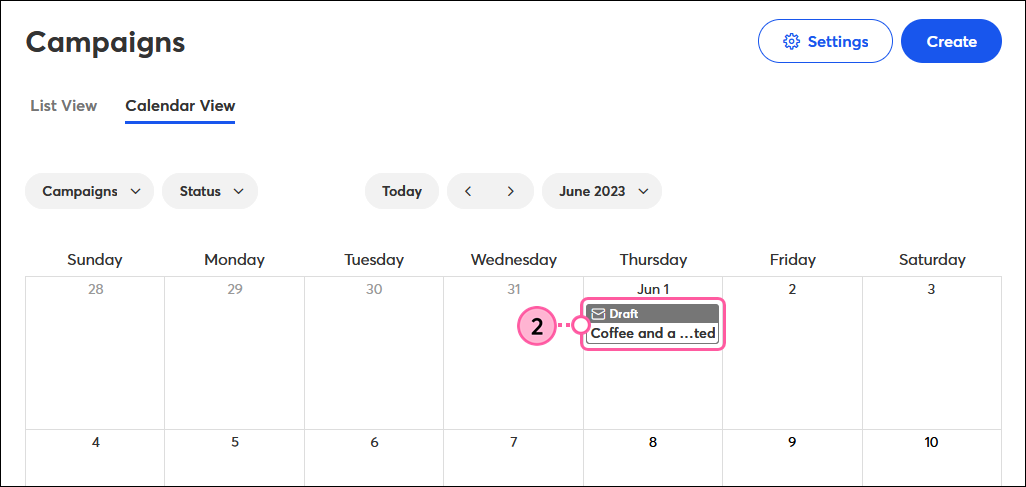
| Sent campaign | Draft campaign |
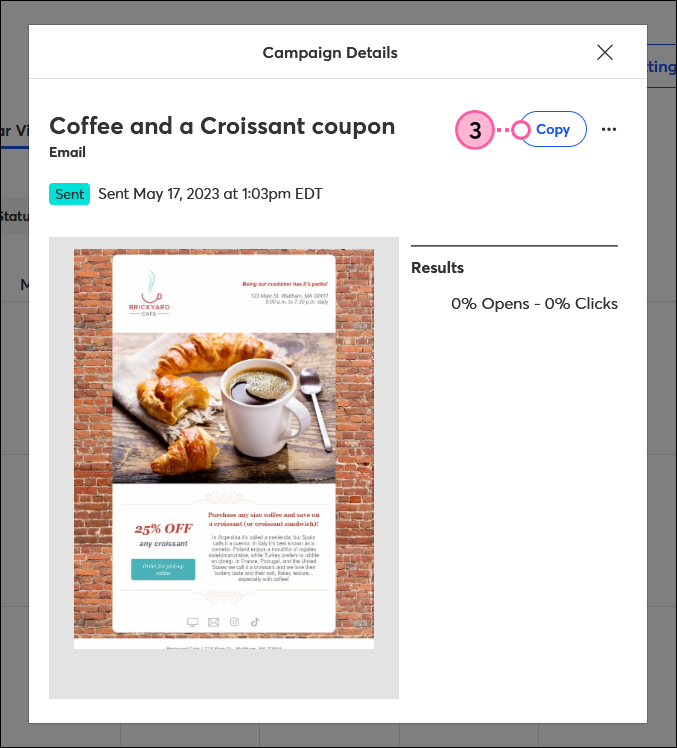 | 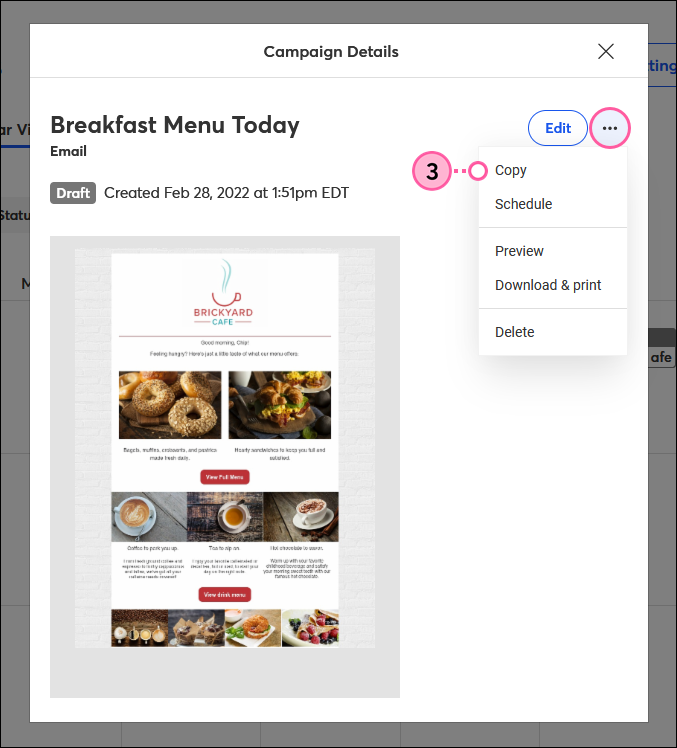 |
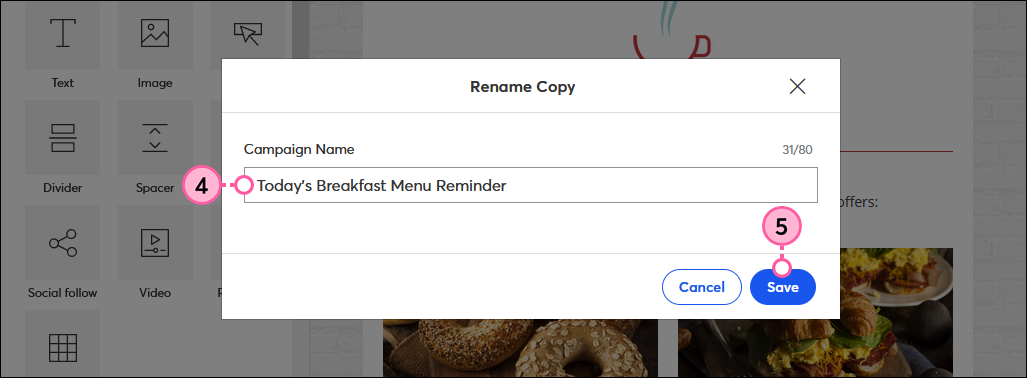
Once you've copied your campaign, update the content as you'd like—modify the layout, edit the text, swap out images, or change colors. Don't forget to check your email's subject line to ensure it isn't outdated.
Copyright © 2026 · All Rights Reserved · Constant Contact · Privacy Center