Email and Digital Marketing
How can we help you?
Search our help articles, video tutorials, and quickstart guides

You've got this. You've got us. Search our Knowledge Base to quickly find answers to your questions.

Teams: View and manage your Workspaces

Article: 000055265
Updated: August 3, 2026

Access your workspaces page to view a list of all workspaces in your organization and easily impersonate into your workspaces using the Workspace Navigator

Your Teams account is organized into a central Hub and individual Workspaces. From within the Hub, you can view and manage your workspaces on the My workspaces page. Additionally, you can easily navigate between workspaces using the Workspace navigator.


Hubs and Workspaces

Workspaces page

Workspace navigator


Hubs and Workspaces


Within the product, there are references to Hubs and Workspaces.


  • Hub = This is the home for all administrative activities for multiple workspaces. Within the Hub, monitor organizational health, view aggregated data, and create and share branded assets down to your workspaces.
  • Workspaces = The individual accounts or locations nested within your organization where campaigns are created and sent.


Workspaces page 


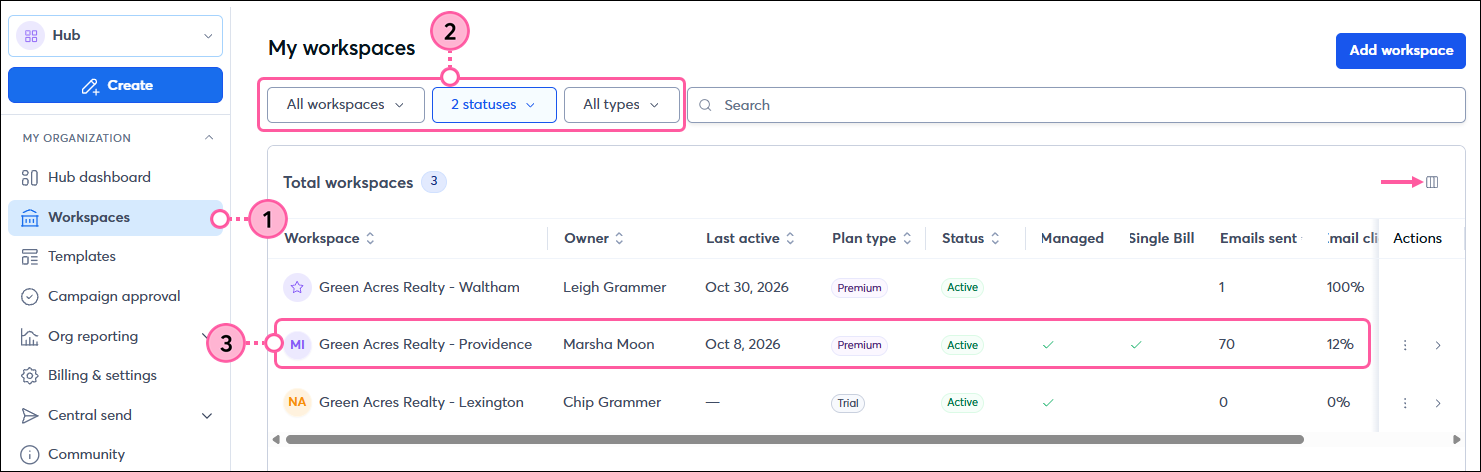
To view and manage your Workspaces:


  1. From the menu on the left-hand side, click Workspaces.
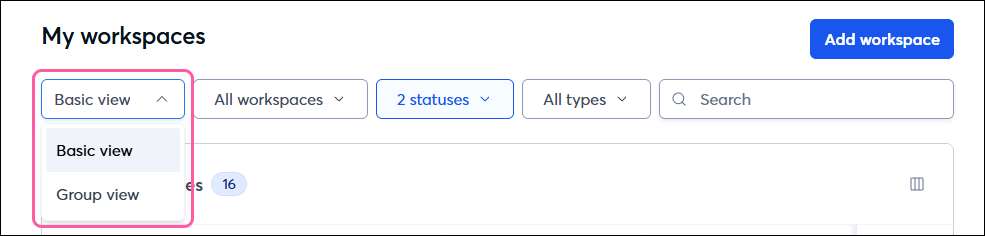
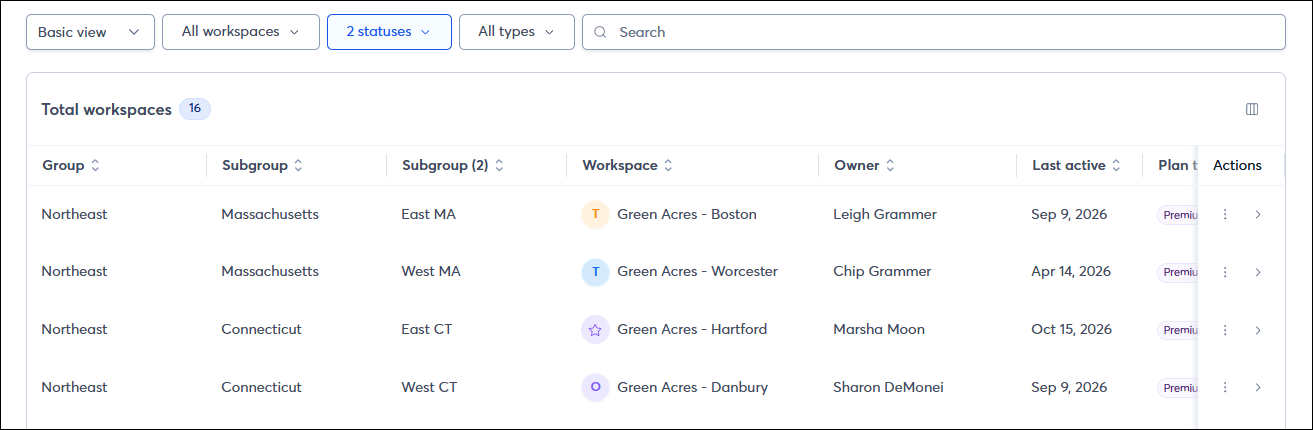
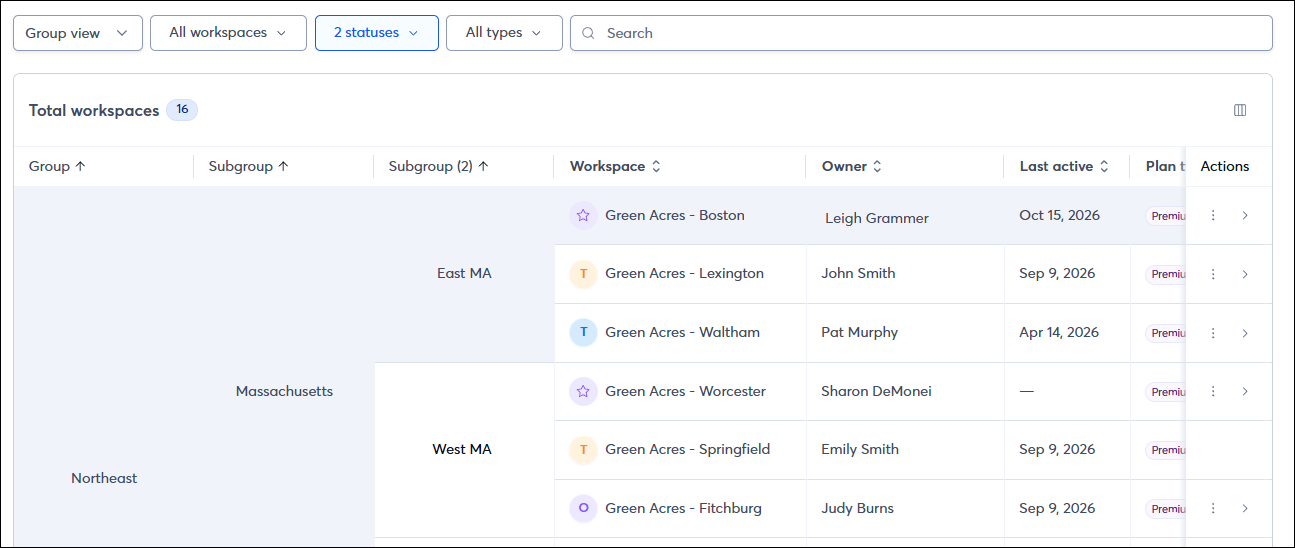
  2. You are brought to a complete list of the Workspaces within your Teams account. Optionally, filter by status (Active, Trial, Single Bill, etc) or type (Managed or Referred). You can also perform a search if you are looking for a specific workspace.
  3. For each workspace, see pertinent information, including
    • Logo (if it's updated) in the sub-account's settings
    • Workspace name
    • Workspace status and type
    • Username for the workspace
    • Start date for the workspace
    • Date of the last login (managed accounts only)
    • Date of the last campaign created (managed accounts only)
    • Metrics for the last 30 days, including the number of new contacts, the number of campaigns sent, the open rate, and the click rate (managed accounts only)


    Workspaces page


Workspace navigator


Use a single dropdown to instantly jump into and impersonate any workspace with a single click. The dropdown is available on all pages from the left navigation menu, even while already impersonating a workspace. All workspaces and hubs are displayed in a consistent list - search by workspace/group name and expand/collapse groupings. The first two initials of the workspace name appear in the icon for quick identification.
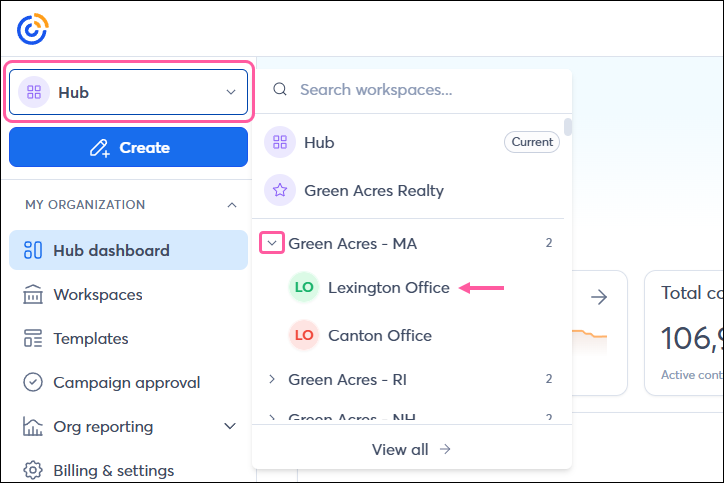
 

Workspace navigator left nav


Questions?

Ask the Community

Did this article answer your question?


Constant Contact Logo

Copyright © 2026 · All Rights Reserved · Constant Contact · Privacy Center