Email and Digital Marketing
How can we help you?
Search our help articles, video tutorials, and quickstart guides

You've got this. You've got us. Search our Knowledge Base to quickly find answers to your questions.

Teams & Partners: Reactivate Cancelled Subaccount or Child Account through Single Bill

Article: 000055263
Updated: July 17, 2026

Add a canceled child/subaccount to your Single Bill in order to reactivate their account

If you use Single Bill, you can reactivate a cancelled child/subaccount from the My accounts page:


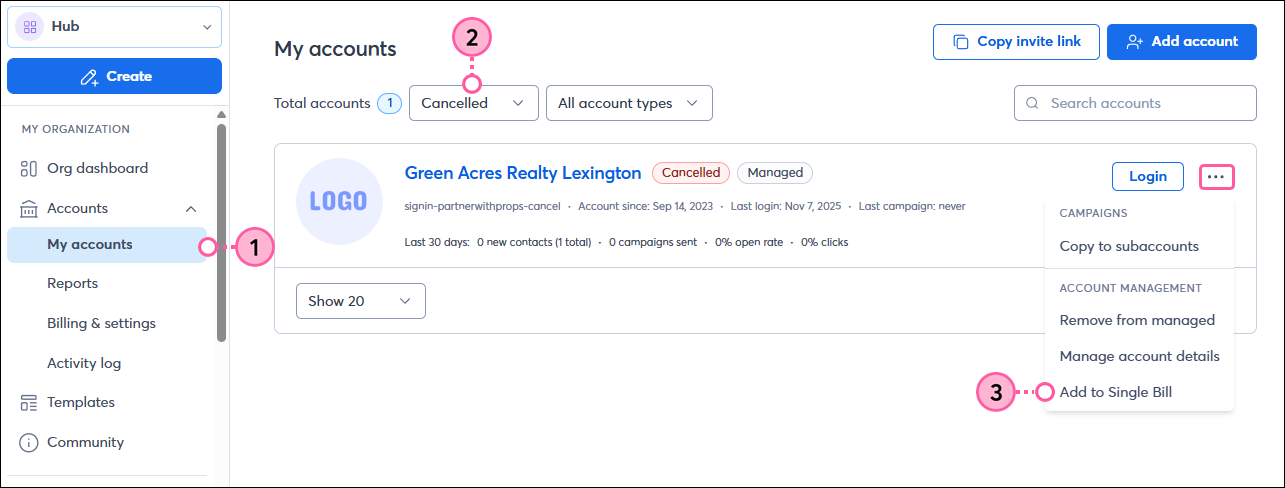
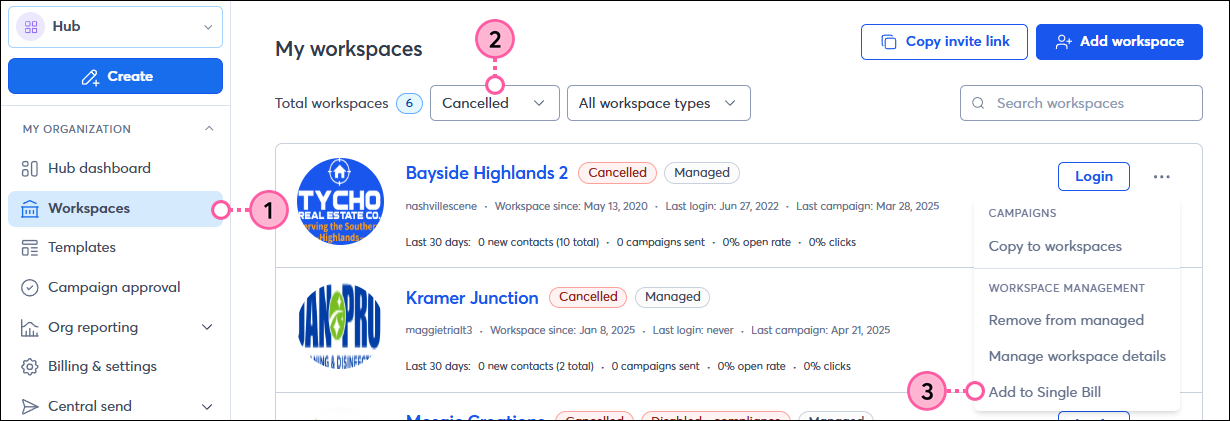
  1. Within the left-hand menu, click Accounts > My Accounts to view all accounts within your organization.
  2. In the Account Status dropdown, choose Cancelled to view all cancelled accounts
  3. To the right-hand side of the Cancelled account, click the three dots and then click Add to Single Bill.

    My Accounts page cancelled status dropdown menu add account to single bill option

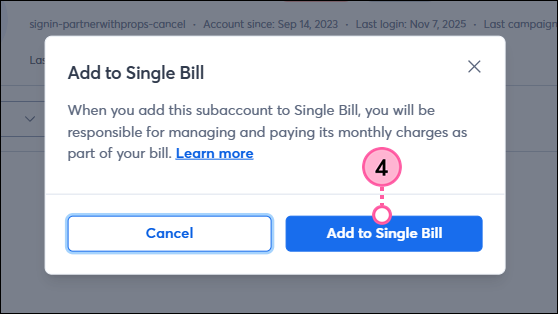
  4. Click Add to Single Bill within the confirmation window.

    Confirmation window Add to Single Bill button

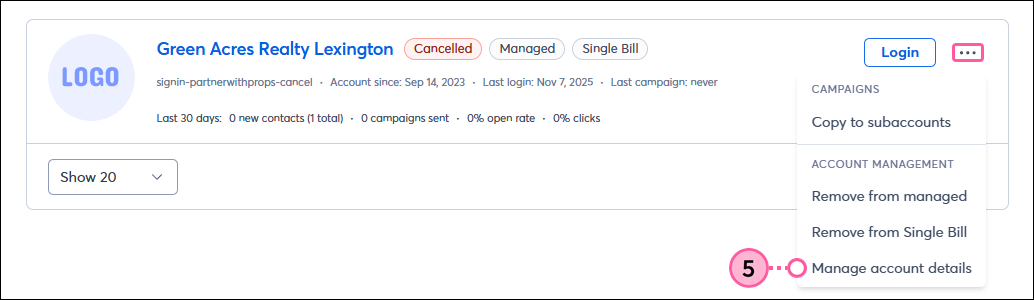
  5. Once added back to Single Bill, click the three dots to open the dropdown again and click Manage account details.

    Dropdown menu Manage account details option

     
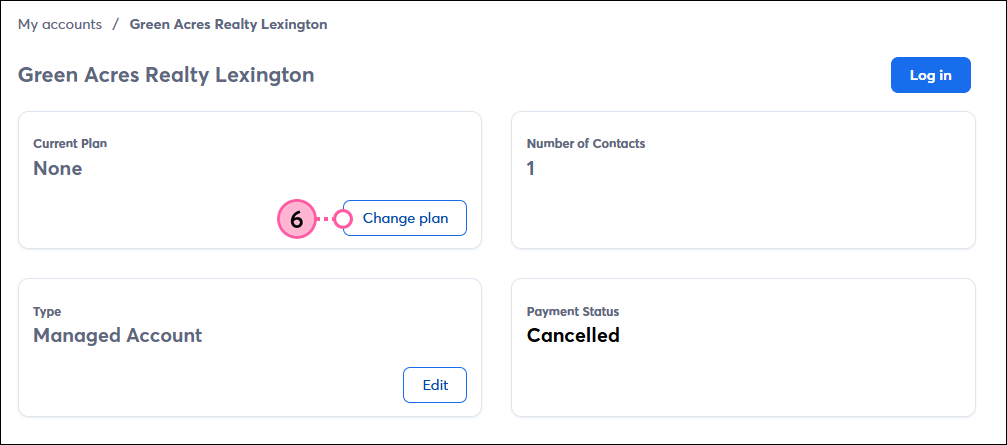
  6. In the "Current Plan" section, click Change Plan.

    Change plan button

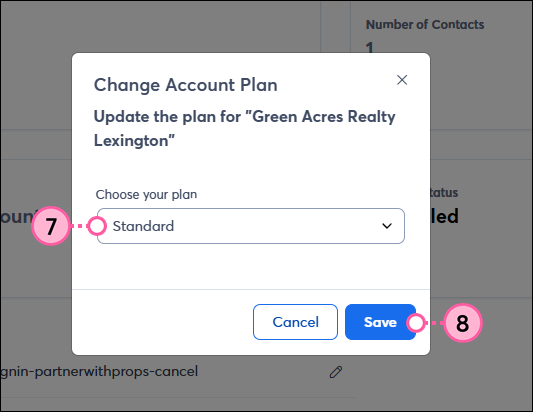
  7. Choose the specific plan you would like the account to be on
  8. Click Save.

    Plan dropdown menu Save button


Questions?

Ask the Community

Did this article answer your question?


Constant Contact Logo

Copyright © 2026 · All Rights Reserved · Constant Contact · Privacy Center