Email and Digital Marketing
How can we help you?
Search our help articles, video tutorials, and quickstart guides

You've got this. You've got us. Search our Knowledge Base to quickly find answers to your questions.

Coming soon: New and improved Canva integration

Article: 000054782
Updated: December 1, 2025

Easily view, create, and edit Canva designs, and edit non-Canva images with Canva, directly in Constant Contact

Email Plus iconComing soon! Our enhanced Canva integration will be available to all customers by late January.


With our current Canva integration, you can import individual designs one at a time from your Canva account into Constant Contact, but it requires jumping back and forth between platforms, and if you want to make a change to a design, you need to re-import it to Constant Contact.

With our enhanced Canva integration coming soon, you’ll be able to instantly access all of your Canva designs directly in Constant Contact, as well as edit any image with Canva, with just one click! And you’ll always stay in sync—any changes you make in Canva will automatically reflect within Constant Contact.


Light bulb iconDid you know? Canva offers a free plan for everyone, and non-profits can enjoy the Pro plan at no cost!


Add from Canva 

Whether you’re inserting an image into your email from the Images tab, editing an Image block, or viewing your Constant Contact Library, you’ll be able to instantly view all your Canva designs and select the ones you want to import and insert into your email.

  • Within the email editor:

    Images tab in email editor with Add from Canva buttonImage block panel in email editor with Canva button

    Insert image pop-up in email editor with Canva Designs tab

  • From the Library:

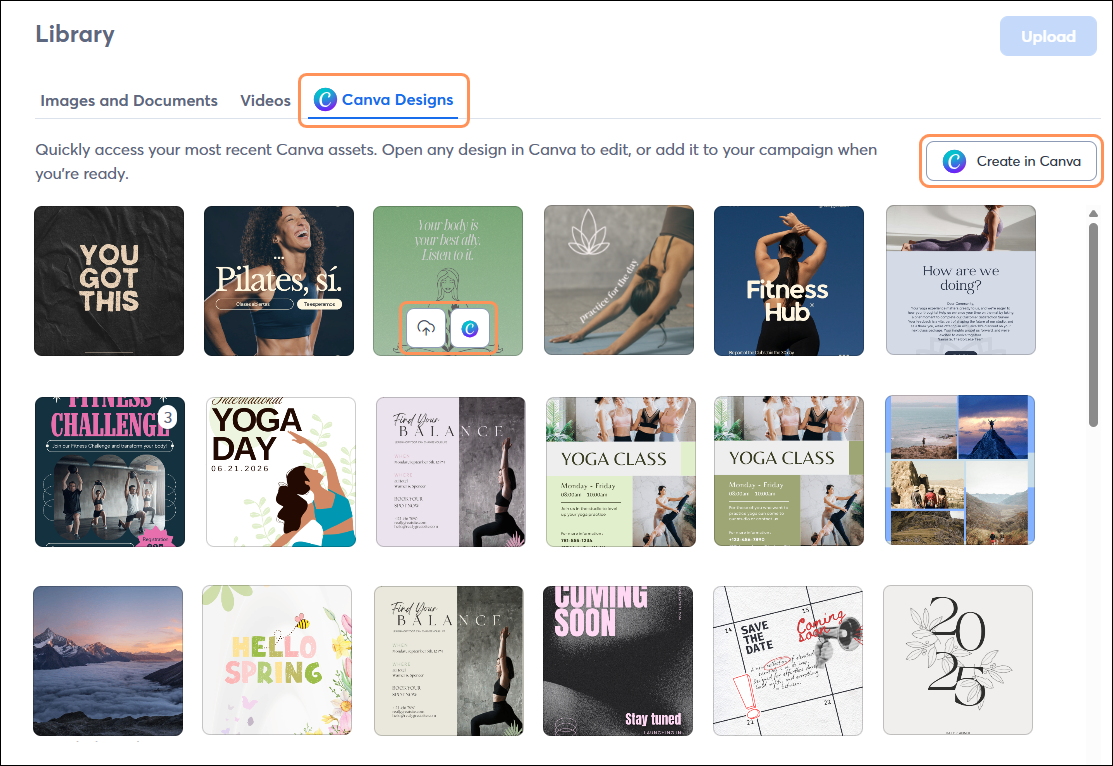
    Constant Contact Library with Canva Designs tab and Add to Library option


Edit with Canva 

Need to make changes to an image? From the email editor or Library, you’ll be able to edit any image with Canva, whether it was originally created in Canva or not! Then you can insert the edited image directly into your email, and it’ll be automatically saved to your Constant Contact Library.

  • Within the email editor:

    Image block panel in email editor with Edit with Canva option

  • From the Library:

    Constant Contact Library, Images and Documents tab, and image with Edit with Canva option

    Constant Contact Library, Canva Designs tab, and Edit in Canva option


Create in Canva 

From your Constant Contact Library or when selecting an image to insert into your email, you can choose to create something brand new in Canva and then come right back to where you left off in Constant Contact, with access to it in your Library.

  • Within the email editor:

    Insert image pop-up in email editor with Create in Canva button

  • From the Library:

    Constant Contact Library with Create in Canva button


Questions?

Ask the Community

Did this article answer your question?


Constant Contact Logo

Copyright © 2026 · All Rights Reserved · Constant Contact · Privacy Center