Email and Digital Marketing
How can we help you?
Search our help articles, video tutorials, and quickstart guides

You've got this. You've got us. Search our Knowledge Base to quickly find answers to your questions.

Identify and merge duplicate contact information

Article: 000005306
Updated: November 19, 2025

Find duplicate contact records across multiple lists and merge their information into one

Constant Contact takes steps to make sure that duplicate contacts aren't added to your account. For example, there can only be one contact record for each unique email address. If a contact gets added with a different name, but the same email address, we'll update the existing record with the new information.

There are times when duplicate contacts can slip through due to different spellings, typos, or multiple email addresses for the same contact. When that happens, you can find them and merge their information together.


Finding duplicate contacts

To find duplicate contacts in your account, all you have to do is search for them.
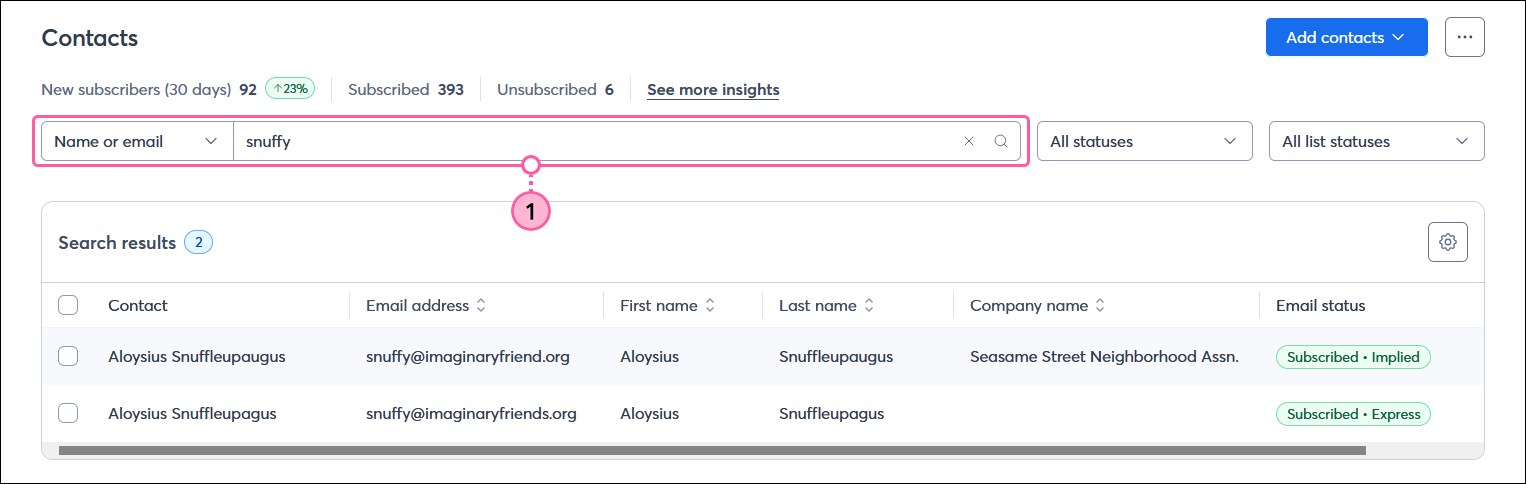
  1. From the Contacts page, use the Search field to find your duplicate contacts. The search is very flexible and lets you look across many different contact details:
  • Name, Email Address, or Email Domain
  • Job Title or Company Name
  • City, State/Province, or Zip/Postal Code
  • Custom Fields

    Contacts page with Search field and search results with duplicate contacts


Light Bulb IconDid you know? If you need to find multiple sets of duplicate contacts, you can also export all of your contacts and use the sort or filter features in your spreadsheet program.


Merging duplicate information

When you're ready to merge the duplicate information, you have a couple of options. Copying and pasting contact information is great for when you have just a single contact. If you have lots of contacts to update, you can export them, make your updates, and then import them again to automatically update all their contact records at once.


Copy and paste

If you only have a small number of contacts, it's easy to manage them one at a time by manually combining their information.
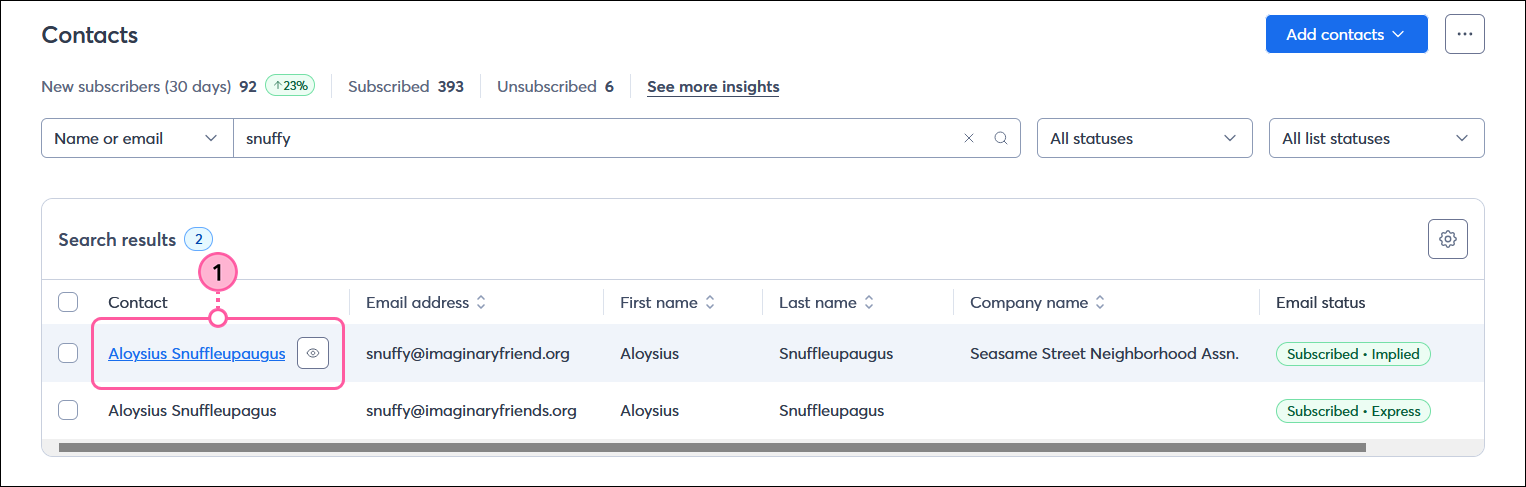
  1. View the contact record of the contact with the email address you want to delete and copy any of the details that you want to keep. Don't forget to note the lists, tags, and custom fields that are associated with the contact too!

    Contacts page with contact highlighted and Preview button visible

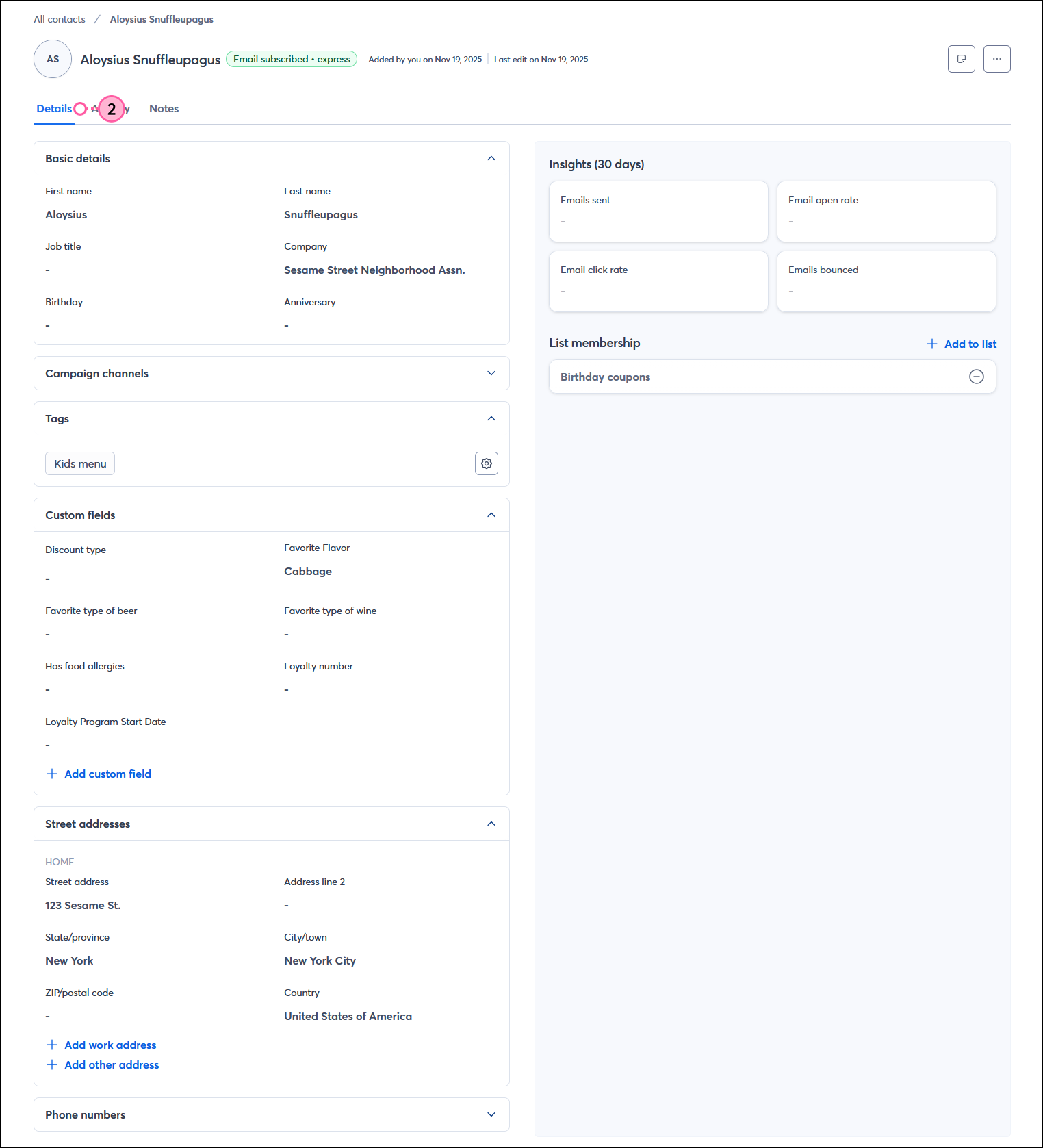
  2. View the contact record of the contact you want to keep and add the missing details to their contact record.

    Contact record with Details tab selected

Repeat these steps until all the information is copied over and then you're ready to delete the outdated contacts from your account


Export and import

If you have a large number of duplicates, managing them with a spreadsheet is easier than updating them individually. Importing a file lets you update the contact information of the contacts you want to keep in a bulk action so you can delete the duplicates without losing information.
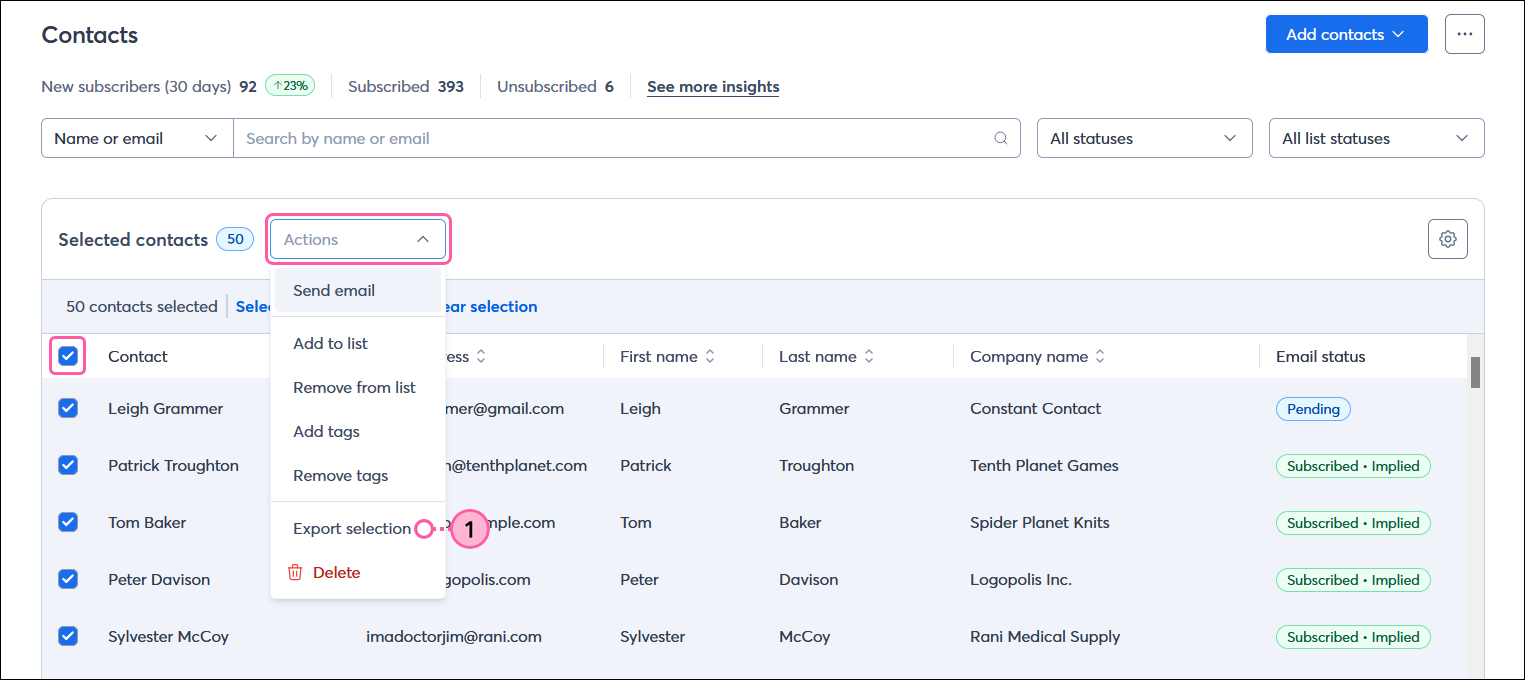
  1. Export all of your contacts.

    Contacts page with all contacts selected, Action menu expanded, and Export selection option selected

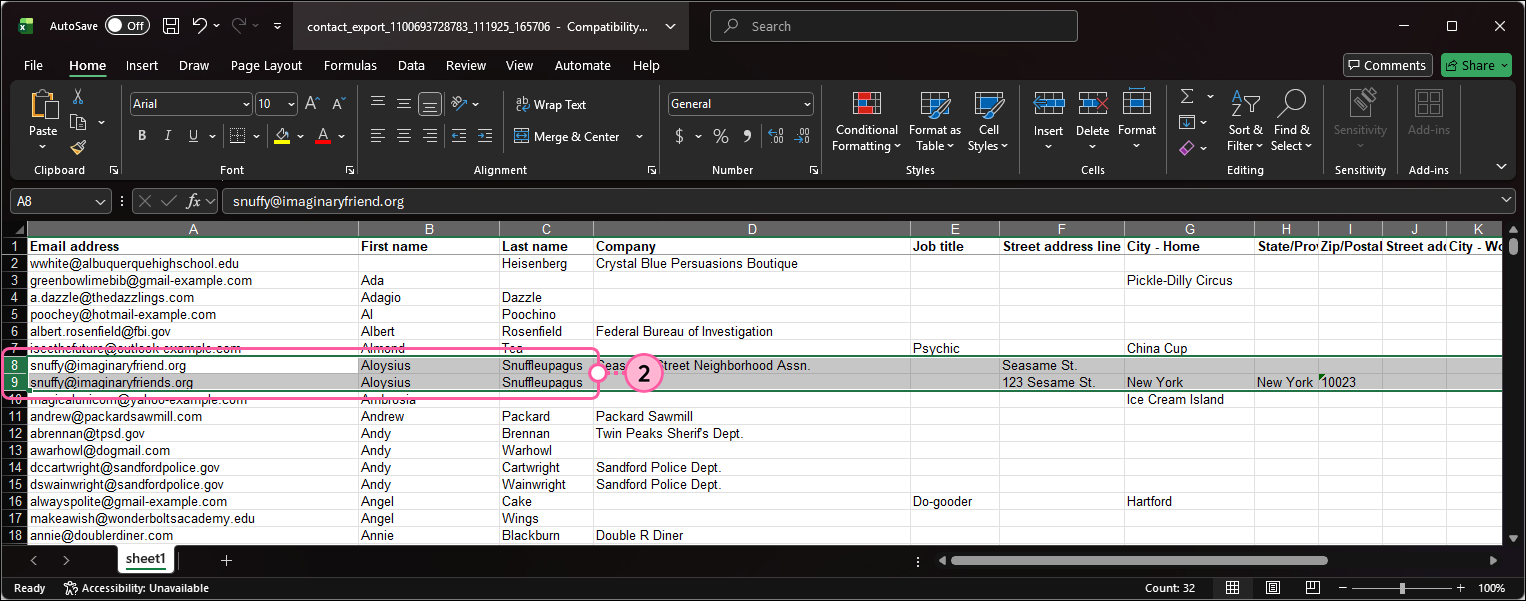
  2. In your spreadsheet, use the sort or filter features to help you combine the information for each duplicate contact.
    Tip: Add a column called "Delete" to your file and use it to label the duplicate contacts that you don't want to keep. It doesn't matter what you put in the cell as long as there is something to mark the contacts for deletion. When you import the file, you can create a custom field for the "Delete" column, and when you're ready to delete, you can manage your custom fields and select all of the contacts associated with the "Delete" field and delete them all at once.

    Excel Spreadsheet with duplicate contact information and misspelled email address

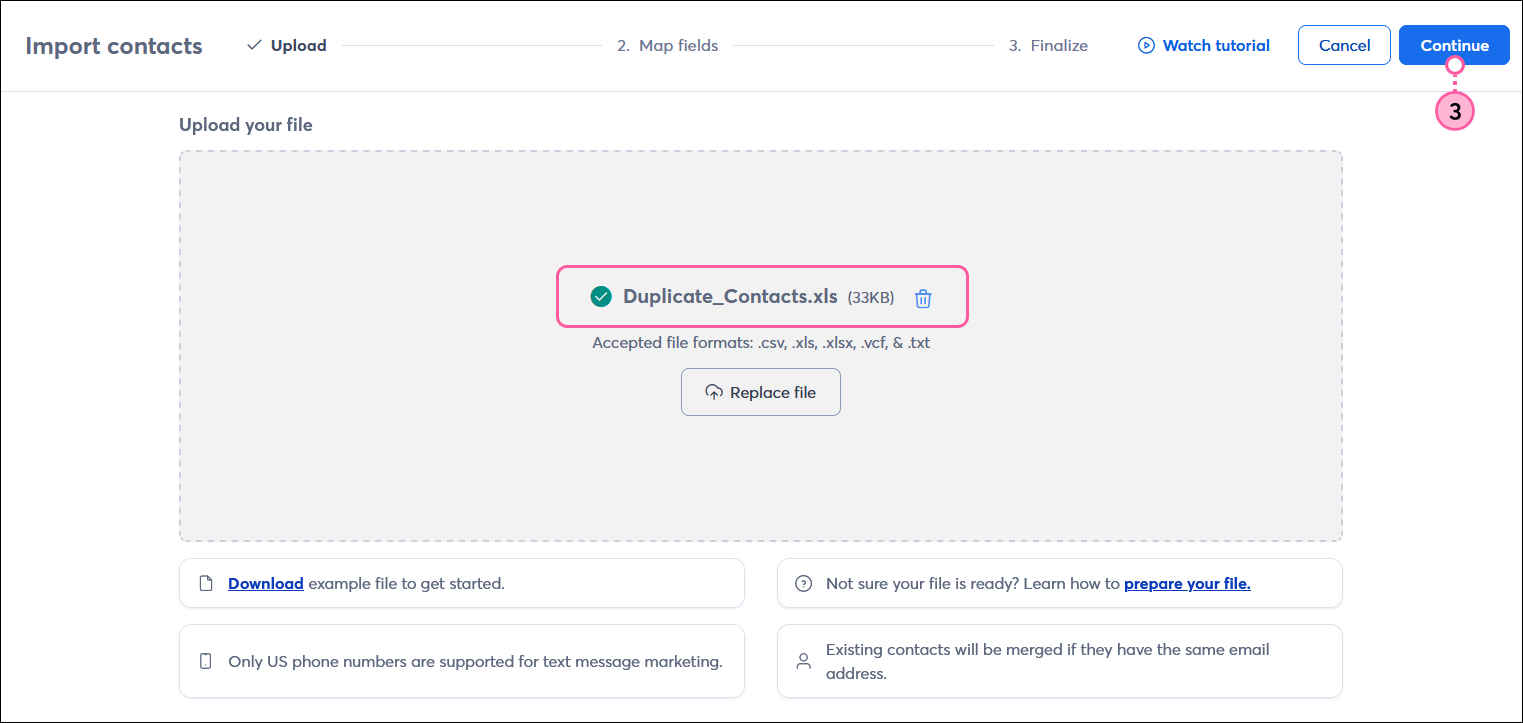
  3. Import your spreadsheet with the corrected contact information.

    Import contacts page on Upload step with file of corrected duplicate contacts selected and Continue button

The contact records you want to keep are automatically updated with the new information from your spreadsheet and you're ready to delete the outdated contacts from your account.

For help sorting or filtering your Excel spreadsheet, please see Microsoft's Support.


Deleting the duplicate contact

Exclamation Point IconImportant: When you delete a contact record, all of the email engagement information found in the contact record is deleted with it. Your email reporting isn't altered and the deleted contact appears with a strikethrough through their email address.


When your contact record for the contact you want to keep is updated with the correct information, it's time to delete the outdated contact.
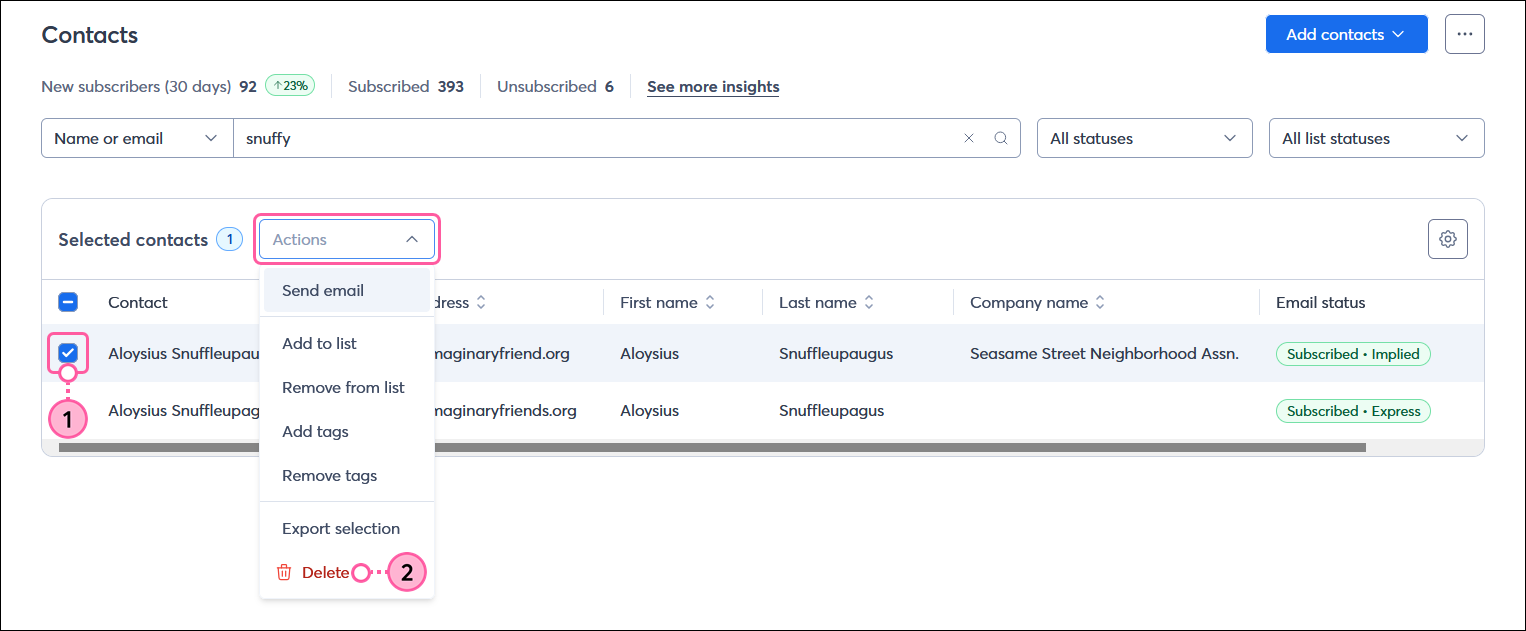
  1. Select the contact that you want to delete.
  2. Click on the Actions menu and delete the contact.

    Contacts page with contact selected, Actions menu expanded, and Delete option selected


Any links we provide from non-Constant Contact sites or information about non-Constant Contact products or services are provided as a courtesy and should not be construed as an endorsement by Constant Contact.


Questions?

Ask the Community

Did this article answer your question?


Constant Contact Logo

Copyright © 2026 · All Rights Reserved · Constant Contact · Privacy Center