If you would like to reactivate your cancelled Constant Contact account, you can do so directly within your account. Prior to reactivating, please review the important information below.
If you previously suspended or canceled your Constant Contact account, and have reactivated it, please review the following. Action may be necessary, depending on the features you use. In some cases, certain functions will not be available after you suspend or cancel your account, but will automatically resume once your account is reactivated.
Automation Path Builder
If you use our Automation Path Builder, no action will be needed when reactivating your account. The automation path will automatically resume and send to eligible contacts added after reactivation. It's important to note that contacts added during suspension, Account Review, or if the account is disabled due to billing reasons will be considered ineligible.
Automated Email Series
If you use our automated email series feature, when you reactivate your account, you must either create a copy of the automated email series and activate the copy, or reach out to our support team for assistance.
Event
Any open event registrations will be closed when your account is suspended or canceled, but will re-open when the account is reactivated.
SMS
If you suspend or cancel your account, we immediately release your phone number. Upon reactivating your account, you will need to re-register your account for SMS, which will result in getting a new SMS Phone Number.
Survey Pages
If you have an active survey, you will not able to collect responses while your account is suspended. When your account is reactivated, responses will resume being collected.
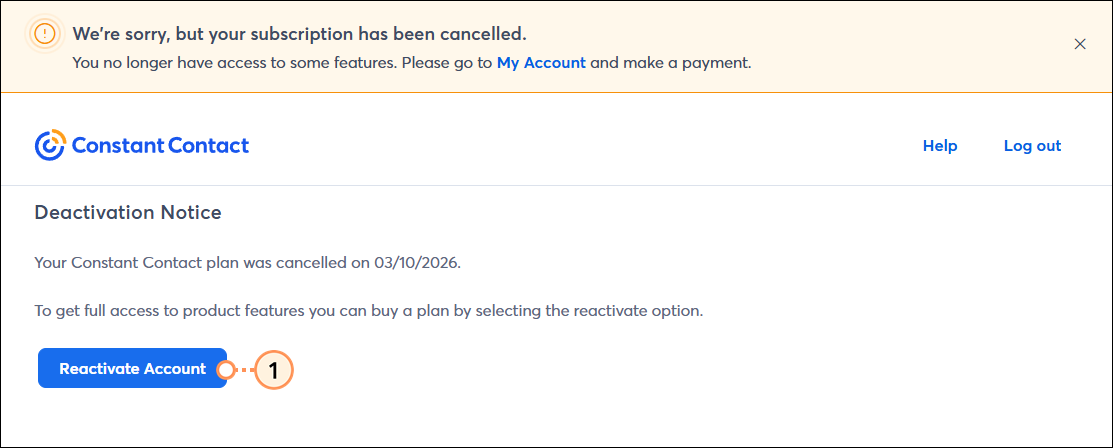
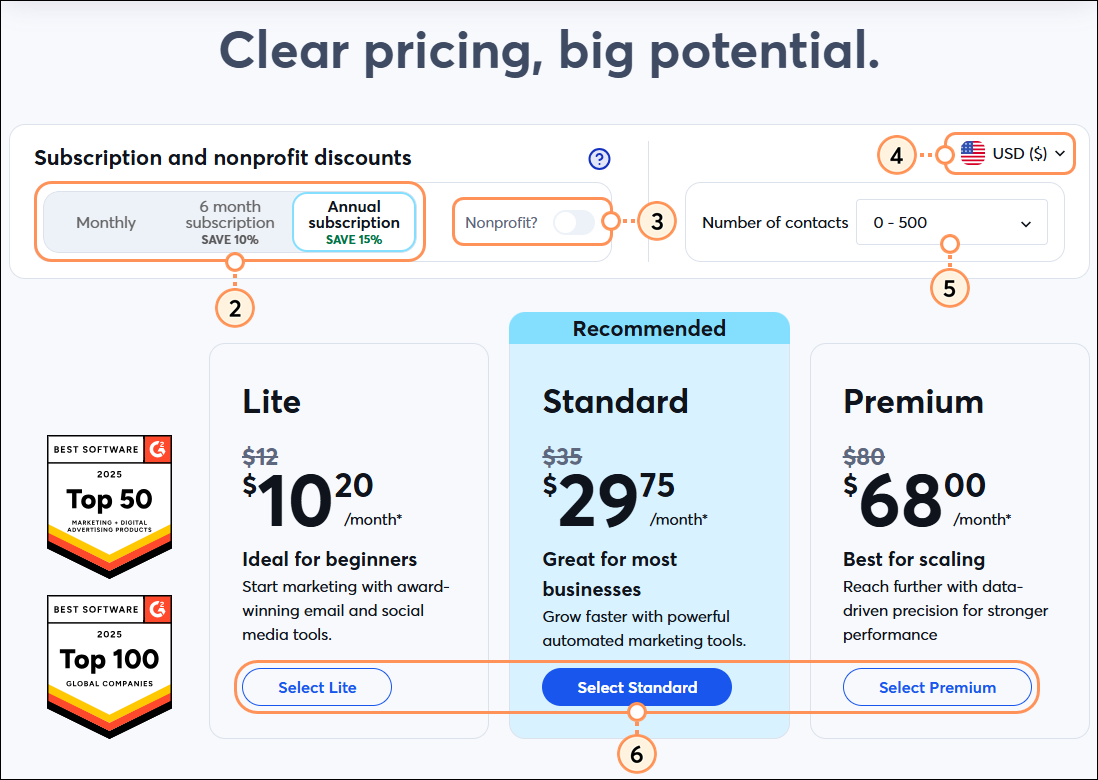
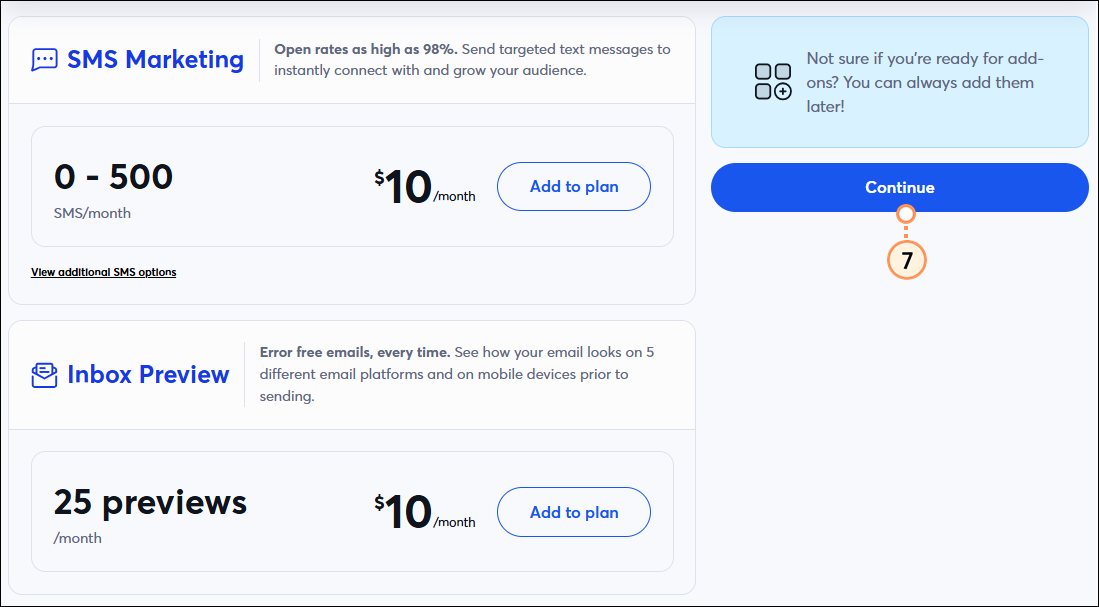
To reactivate your account, first log in. Upon reactivating, you will be prompted to make a plan selection.
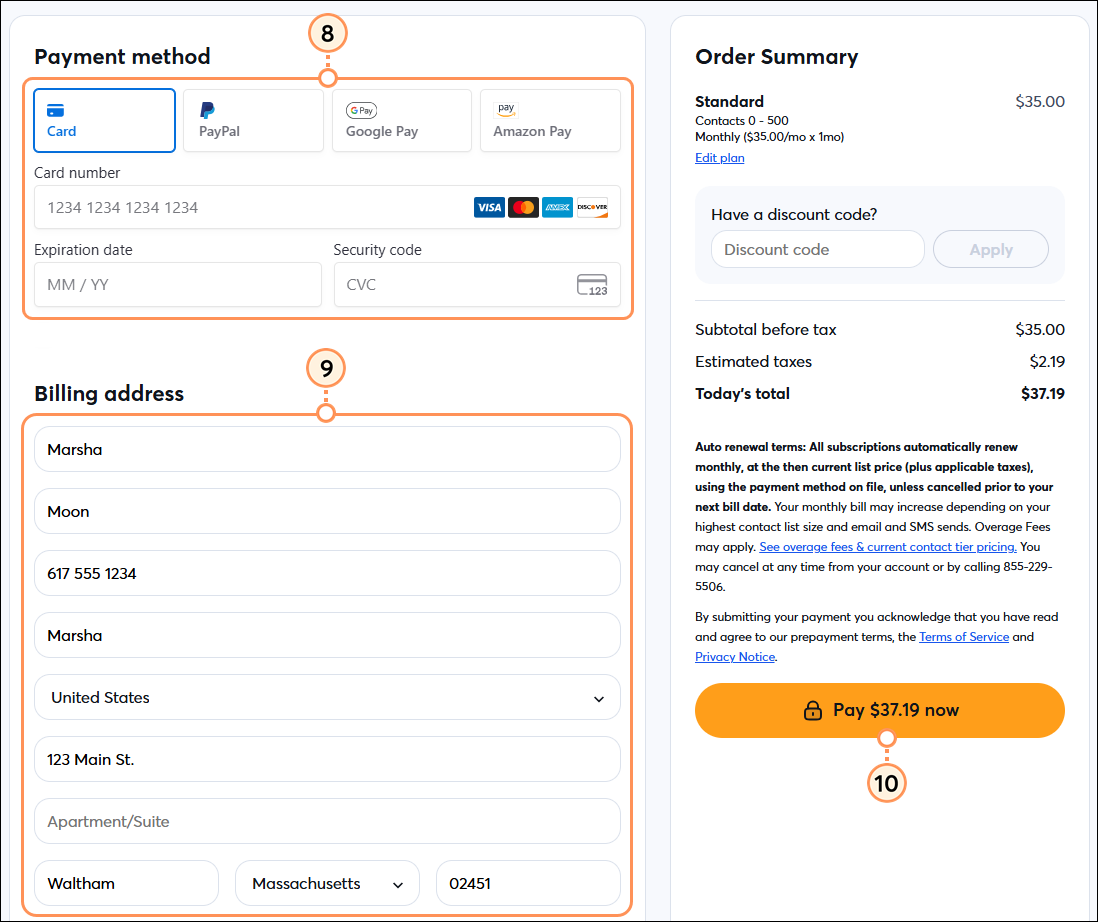
Once reactivated, your information, including contacts, previous campaigns, and reporting, will be accessible immediately.
Copyright © 2026 · All Rights Reserved · Constant Contact · Privacy Center