If you're charging admission for your event or selling add-ons, you can offer multiple payment methods to make registration easy and convenient for people with different payment preferences. In the "Payment" step of the Events builder, you can configure Stripe and/or PayPal for digital payment processing.
 | Did you know? If you're hosting a free event, it's okay if you have a payment processor connected to your account. If you create a $0 ticket or a ticketless event, you'll be able to activate your event without selecting a payment method. During registration, your attendees won't have to input any payment information. |
Connect a Stripe account to Constant Contact and accept payments via credit/debit card, Google Pay (registrant must be using Google Chrome or an Android device), Apple Pay (registrant must be using Mac OS or an iOS device), or 1-click checkouts with Stripe Link payments.
 | Important: Stripe charges a fee of 2.9% + $0.30 for each order/transaction conducted, and Constant Contact collects an additional fee of 2.9% for any draft/published events created before 8/1 and 3.5% for events created on or after 8/1. When setting up your event payment methods, you can either add the Constant Contact platform fee (but not the Stripe fee) to your registrant's order total or deduct it from your total revenue. |
Once connected, enable payments via Stripe for your event by selecting the Stripe radio button.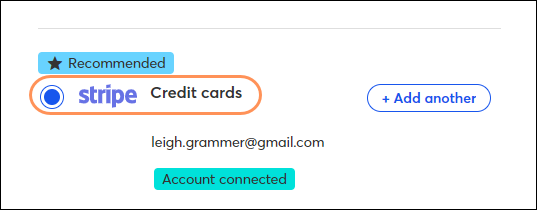
During checkout, registrants can pay via Google Pay or Apple Pay, manually enter a credit or debit card, or complete a one-click checkout with Stripe Link payments.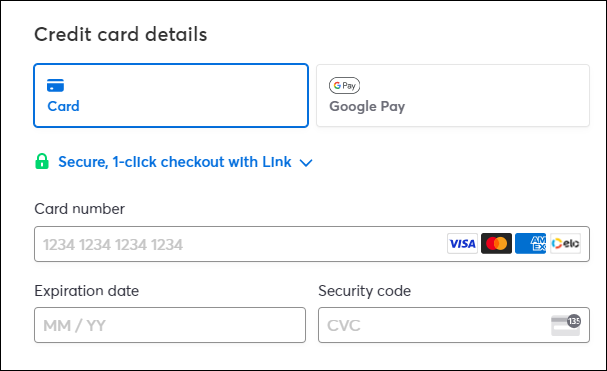
For more information about Stripe, please see Stripe's support.
Connect PayPal to Constant Contact and accept payments via PayPal, credit card, Venmo, and Pay Later. Only one PayPal account is needed to offer each of these payment methods—you do not need to set up separate Venmo or Pay Later accounts.
| Important: PayPal charges a fee of 3.49% + $0.49 for each order/transaction conducted, and Constant Contact collects an additional fee of 2.9% for any draft/published events created before 8/1 and 3.5% for events created on or after 8/1. Please note that the PayPal fee may vary depending on your specific agreement with PayPal. Please follow up with PayPal with any questions. When setting up your event payment methods, you can either add the Constant Contact platform fee (but not the PayPal fee) to your registrant's order total or deduct it from your total revenue. |
Once your PayPal account is connected, select the PayPal radio button to enable PayPal, credit card, Venmo, and Pay Later payments for your event.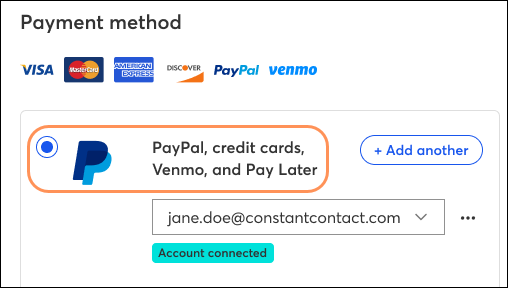
When transacting with PayPal, if eligible, you can choose to accept payments via Venmo or Pay Later. PayPal will determine your eligibility for both, and it depends on several factors.
If you've chosen to accept Venmo and Pay Later payments for your event, registrants can check out with one of these payment methods, or via PayPal or a debit/credit card. Regardless of which method they choose, the payment will be made to your PayPal account.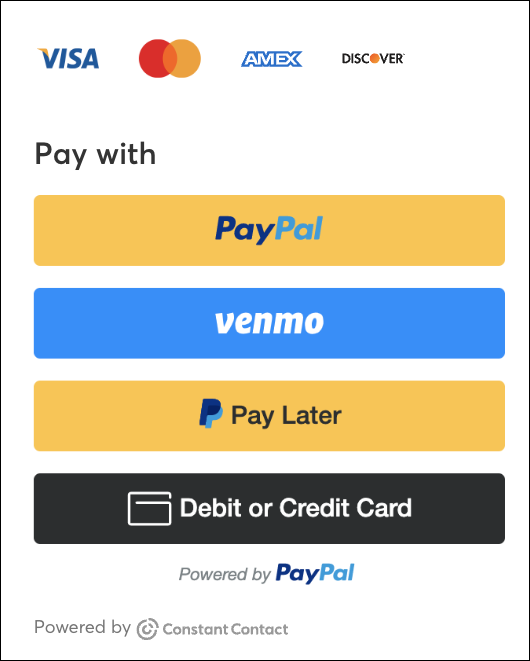
If Venmo and Pay Later are not enabled for your event, registrants can check out using PayPal or pay via debit/credit card.
For more information about PayPal, please see PayPal's support.
Any links we provide from non-Constant Contact sites or information about non-Constant Contact products or services are provided as a courtesy and should not be construed as an endorsement by Constant Contact.
Copyright © 2026 · All Rights Reserved · Constant Contact · Privacy Center