Email and Digital Marketing
How can we help you?
Search our help articles, video tutorials, and quickstart guides

You've got this. You've got us. Search our Knowledge Base to quickly find answers to your questions.

Partners: How to sell product plans and features

Article: 000044323
Updated: November 25, 2025

Enable Managed and Referred clients’ accounts for each of our product types.

Add People IconIn need of multiple accounts? Our multi-account solution is designed for organizations seeking unique accounts for their various locations, departments, or users. Take advantage of bulk pricing, product features for brand control, customized onboarding, and more!


Once you start selling our various products, you need to enable your clients’ accounts. Below are steps to follow for both Managed and Referred accounts for each of our product types.


Lite, Standard, and Premium

For Managed Client Accounts

Follow these steps to create a new child/sub account:


For Referred Client Accounts

Follow these steps to customize and share your invite link:


Add-ons

Your referred and managed clients have the option to use our add-on features at an additional charge. These add-ons include SMS, SEO, Inbox Preview, and Newsletter Archive.
 

For Managed Client Accounts (Single Bill)

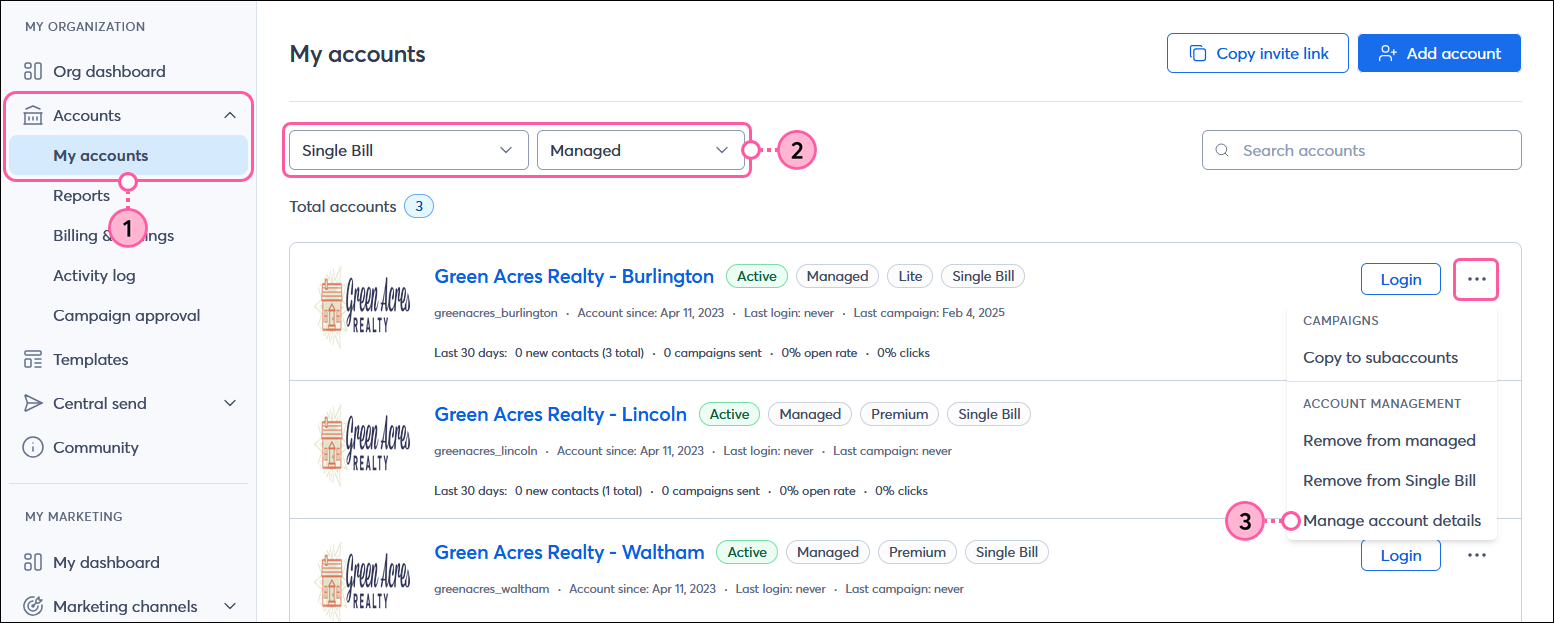
  1. From the MY ORGANIZATION menu on the left-hand side, click Accounts > My accounts.
  2. (Optional) Narrow your account search by selecting the "Single Bill" option from the Status drop-down menu, and the "Managed" option from the Account type drop-down menu.
  3. Next to the account you want to update, click the three dots to expand the menu and select Manage account details.

    MY ORGANIZATION menu with Accounts menu expanded and My accounts option selected, My accounts page with Status drop-down menu and Single Bill option selected and Account type drop-down menu and Managed option selected, Active account with menu expanded and Manage account details option selected

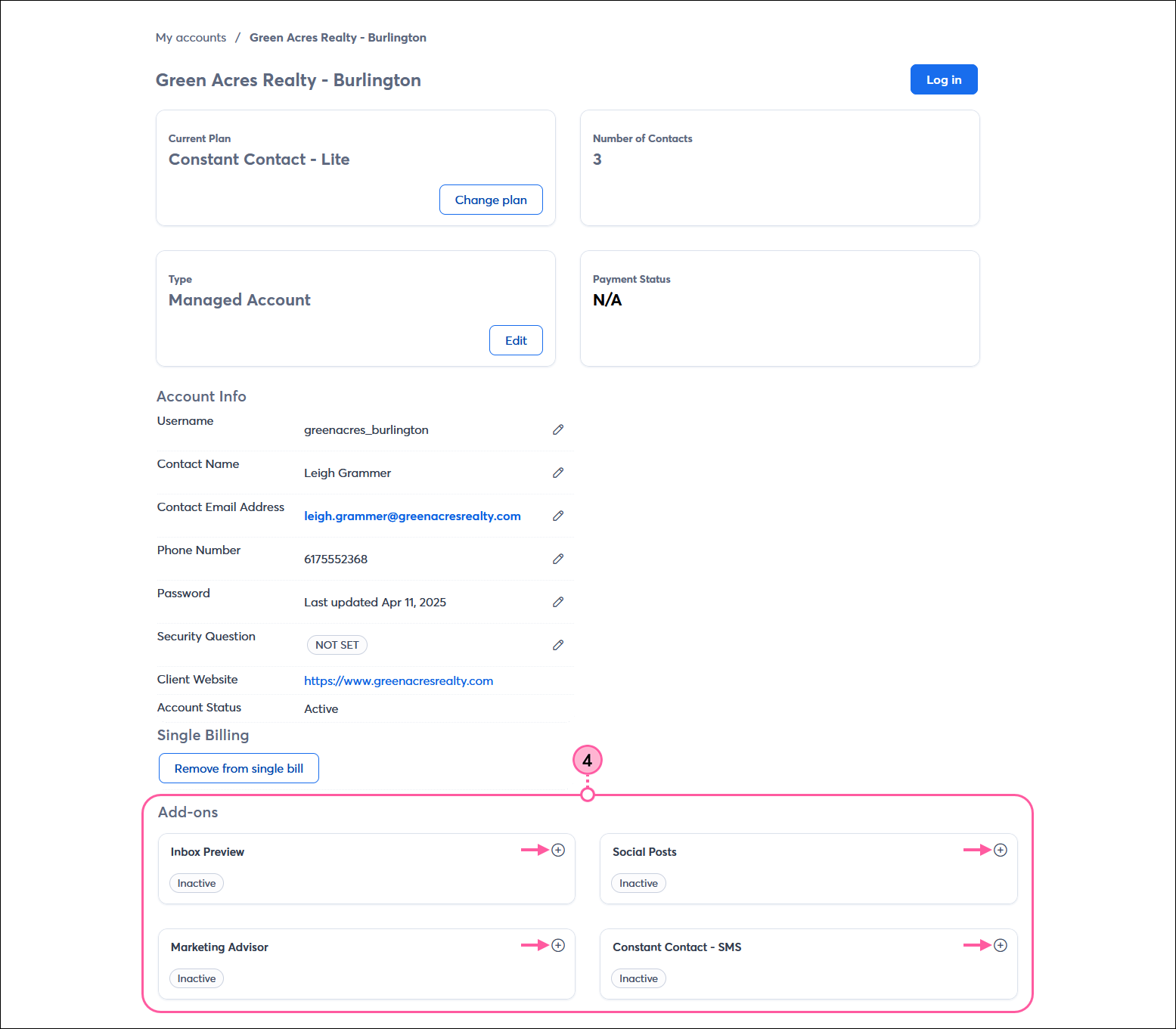
  4. Scroll to the Add-ons section at the bottom of the page and either activate (or deactivate) the add-on.
    Note: Newsletter Archive is included free in the Premium plan.

    User-added image


Exclamation Point IconImportant: For Single Bill accounts, after adding SMS, each child account is required to have a completed SMS registration for their organization.


For Managed Client Accounts (Non-Single Bill)

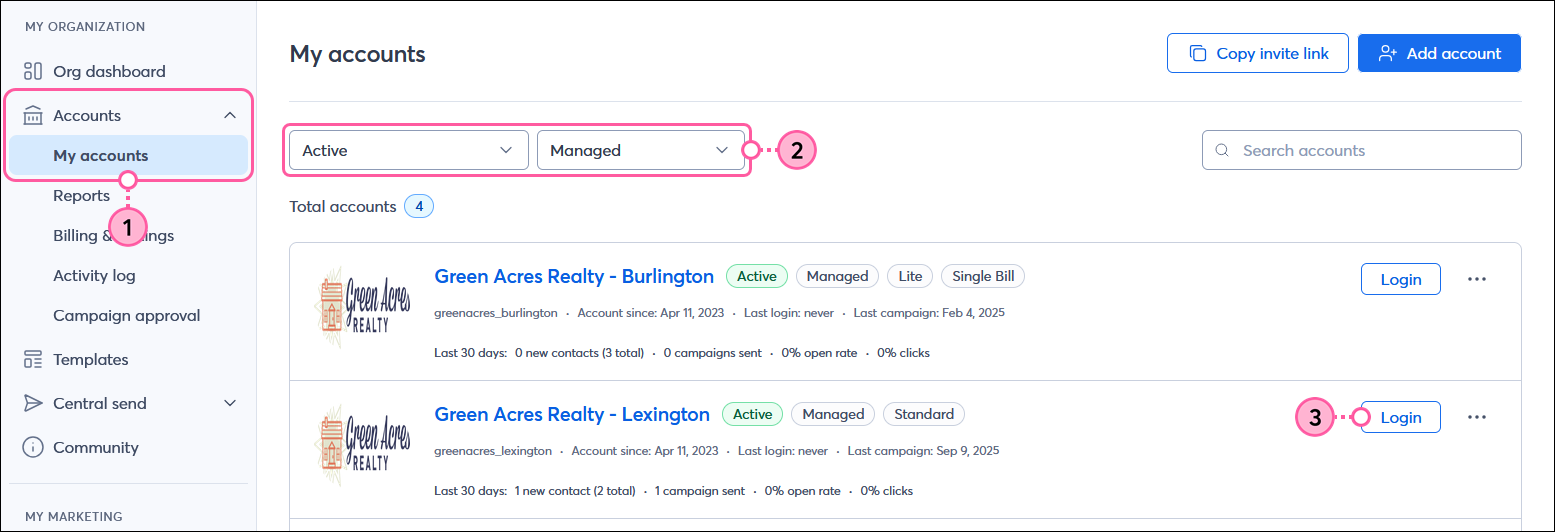
  1. From the MY ORGANIZATION menu on the left-hand side, click Accounts > My accounts.
  2. (Optional) Narrow your account search by selecting the "Active" option from the Status drop-down menu, and the "Managed" option from the Account type drop-down menu.
  3. Click the Login button next to the account you want to enable with an add-on, and then navigate through the account to enable features like SMS marketing or Inbox Preview.
     
    MY ORGANIZATION menu with Accounts menu expanded and My accounts option selected, My accounts page with Status drop-down menu and Active option selected and Account type drop-down menu and Managed option selected, Active account with Login button


For Referred Client Accounts:

  • When a referred client starts a Constant Contact account, they will see options inside that account to purchase the various add-ons.


Professional Marketing Services for Partners

We know that life can get really busy! It’s why we have a team of in-house marketing professionals that can help free up some of your time and do the work on your behalf. By letting us absorb a portion of your work at a low cost, you can get back to the clients that matter the most. Plus, you can set your own margin by charging your client whatever you want! We won’t contact your client unless it’s specifically mentioned. Request services and learn more here.


Questions?

Ask the Community

Did this article answer your question?


Constant Contact Logo

Copyright © 2026 · All Rights Reserved · Constant Contact · Privacy Center