Email and Digital Marketing
How can we help you?
Search our help articles, video tutorials, and quickstart guides

You've got this. You've got us. Search our Knowledge Base to quickly find answers to your questions.

Repair a connection to a social media profile

Article: 000041580
Updated: September 9, 2026

Fix an "account" error when a social media account becomes disconnected from your Constant Contact account by re-logging into Facebook, Instagram, LinkedIn, or TikTok to repair the connection

Your social accounts can sometimes become disconnected from your Constant Contact account and cause an error when you try to share a social post to the disconnected profile. If you want to keep using the social profile, all you have to do is repair the connection:


Why do social media accounts get disconnected from a Constant Contact account?

Your social accounts can sometimes become disconnected from your Constant Contact account when:

  • The social platform needs you to update the permissions you've granted to third-party apps, like Constant Contact.
  • The social platform invalidates token connections if you haven't used them in a while.
  • You remove the Constant Contact app from your Facebook, InstagramLinkedIn, or TikTok account, but don't also disconnect the social media account from your Constant Contact account.


Light Bulb IconDid you know? If your connection becomes disconnected, it doesn't prevent you from creating social posts. The posts can be saved as drafts until you're able to repair the connection.


How do I reconnect the social media account to resolve the error?

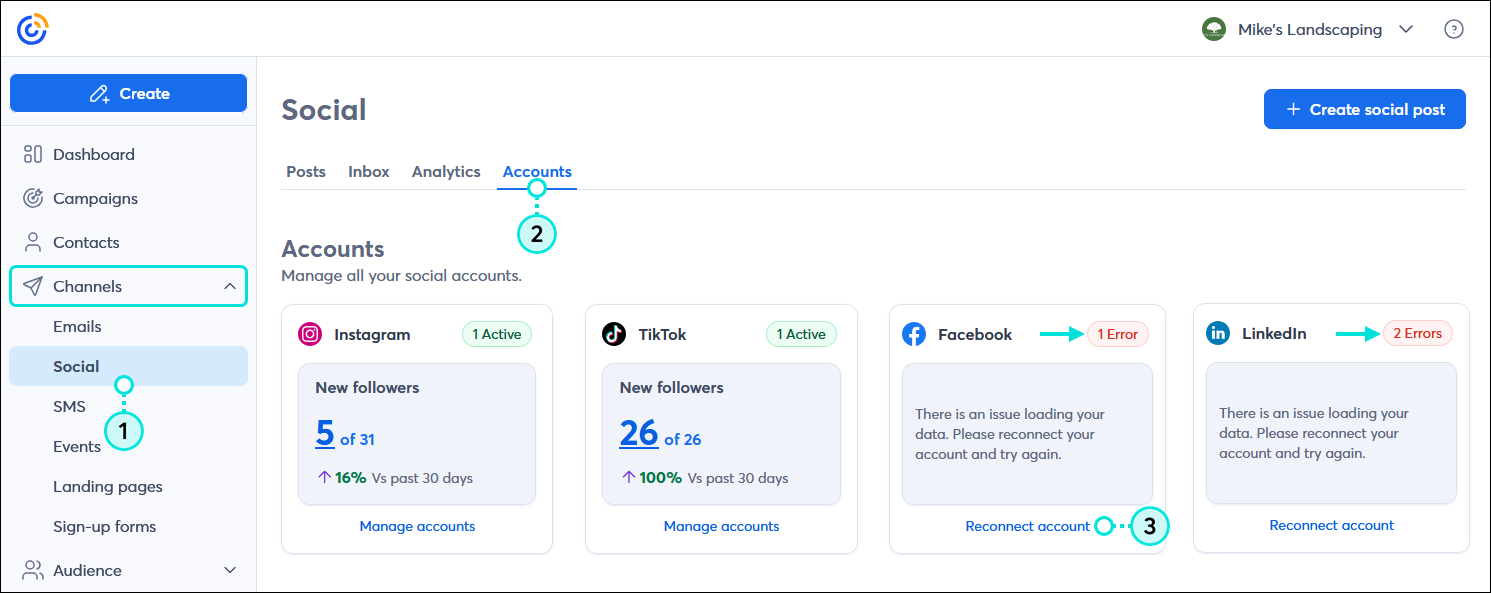
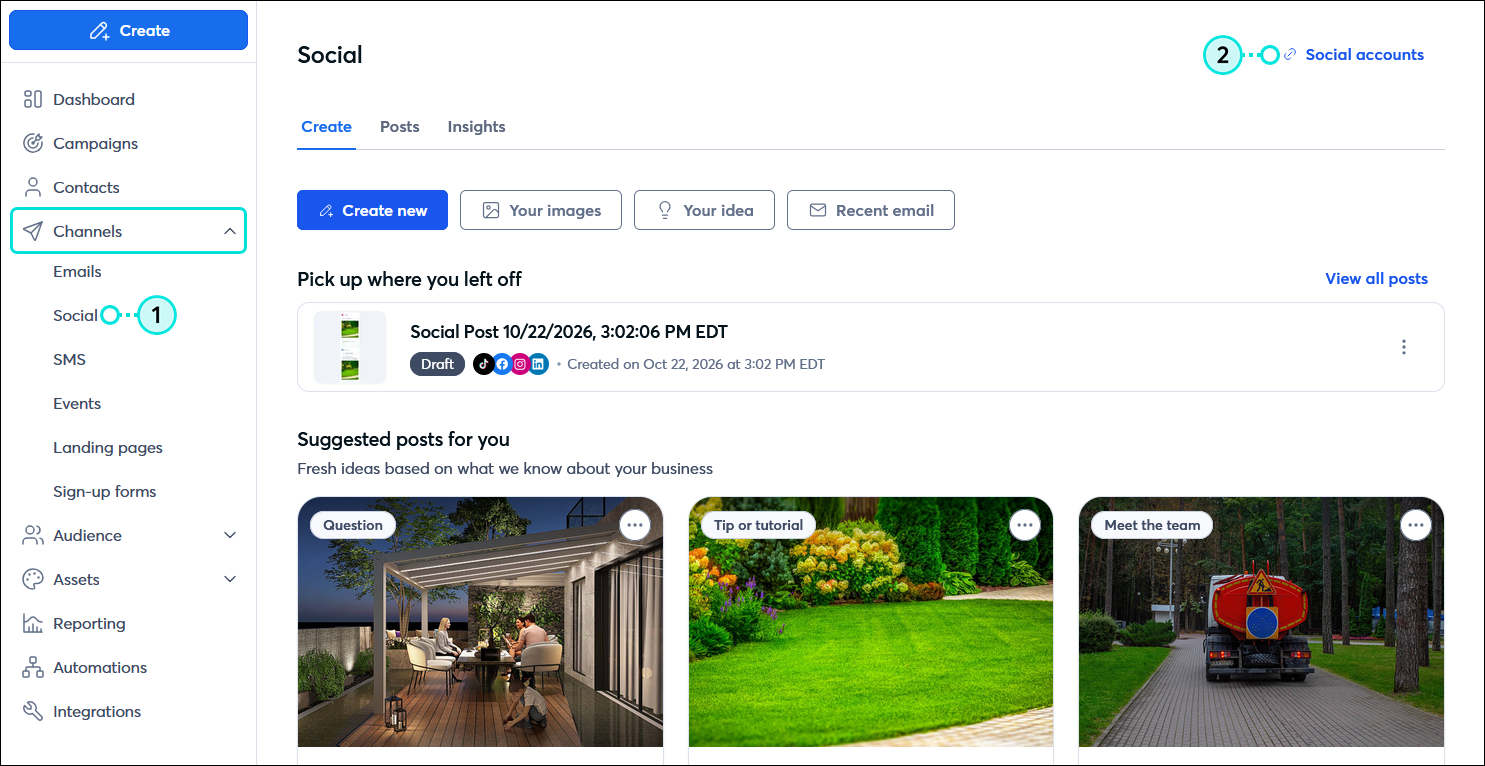
  1. In the left-hand menu, click Channels > Social.
  2. Click the Accounts tab.
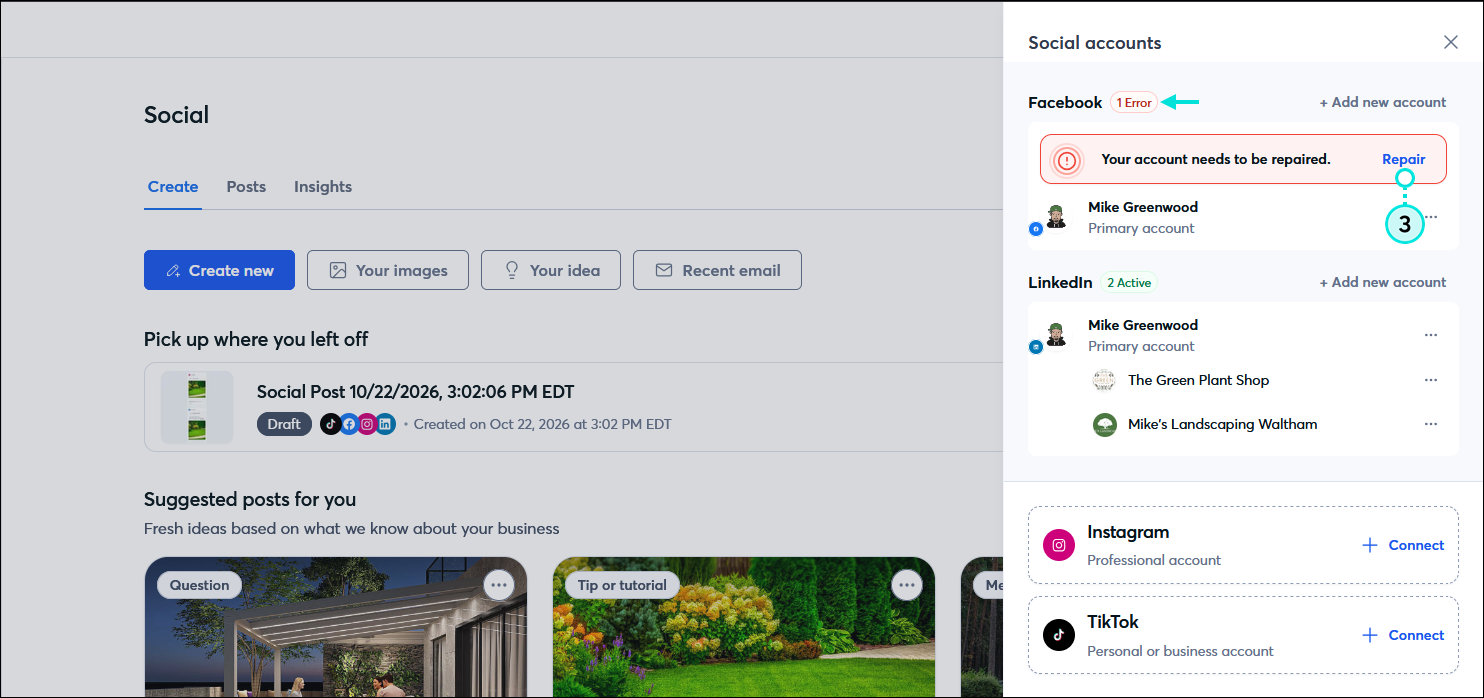
  3. Under the social platform with the "Error" message, click the "Reconnect account" link.
    Note: If your Instagram account is managed through your Meta Business Account, repairing the Facebook connection will repair the Instagram connection. If your Instagram account is independent of your Facebook account, repair the connection through the Instagram tile.

    Channels menu expanded and Social posts option selected, Social dashboard with Accounts tab selected, Facebook tile with Error message and Reconnect account link

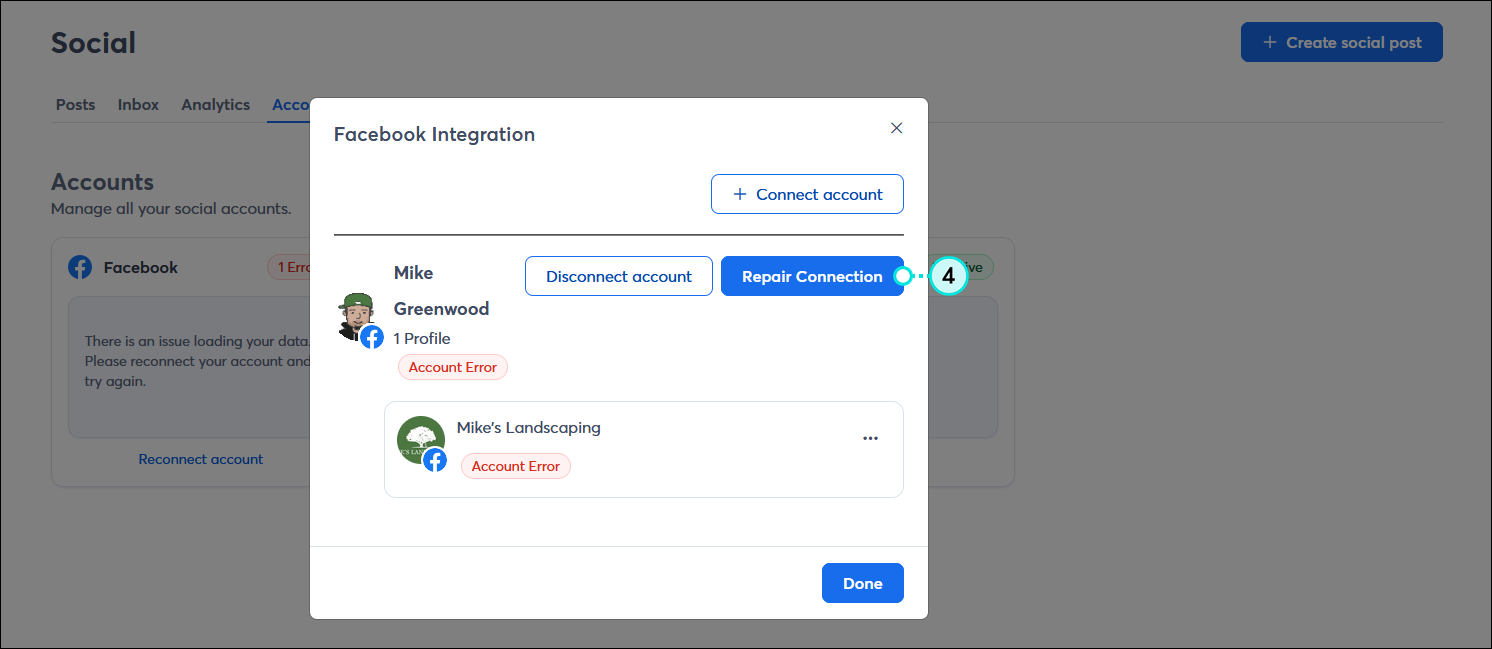
  4. Click the Repair Connection button.

    Facebook integration overlay with Account Errors and Repair Connection button

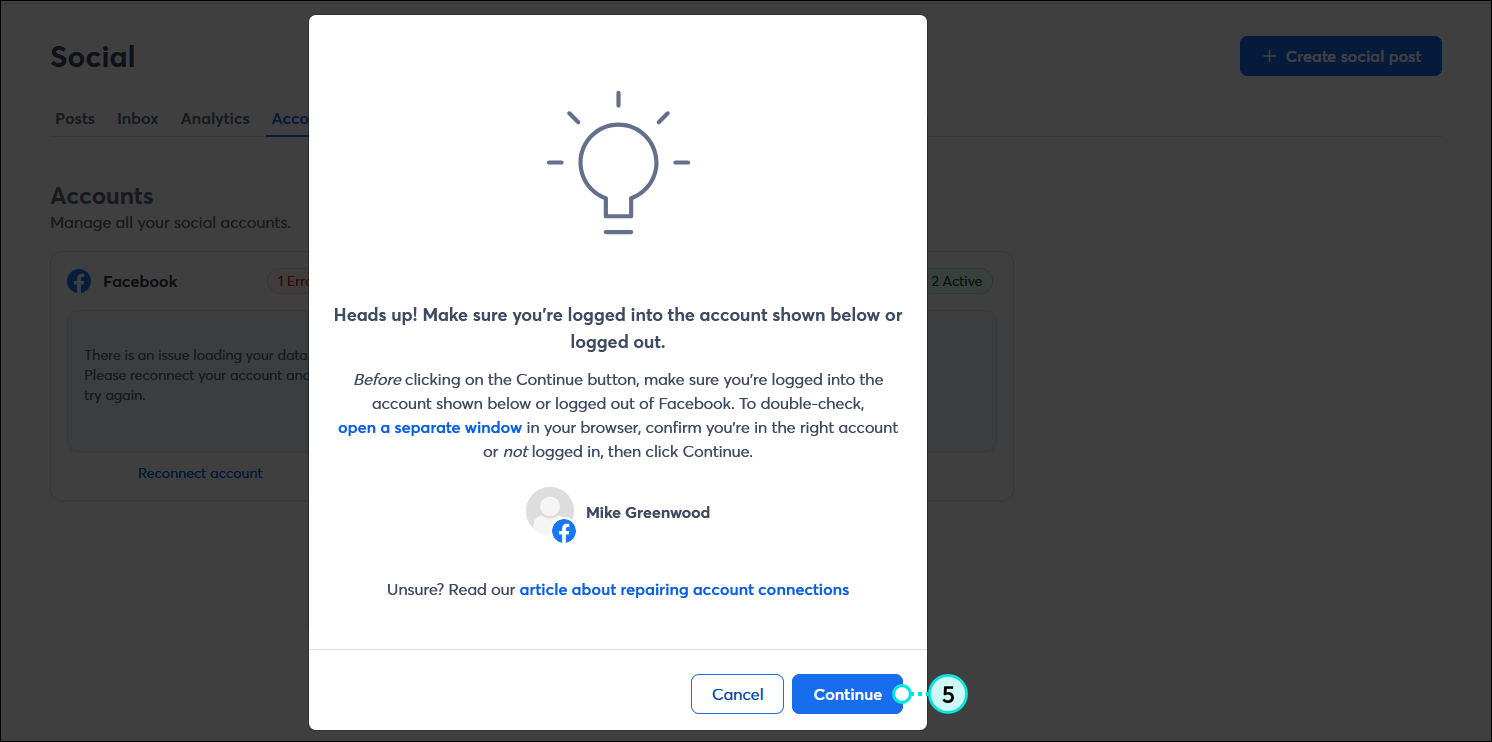
  5. Click the Continue button and follow the prompts to log back into your social media account to finish repairing the connection.

    Heads up! Make sure you're logged into the account shown below or logged out overlay with Continue button

Once your socail media connection is repaired, you can create and publish social posts again without interruption.


Questions?

Ask the Community

Did this article answer your question?


Constant Contact Logo

Copyright © 2026 · All Rights Reserved · Constant Contact · Privacy Center