Email and Digital Marketing
How can we help you?
Search our help articles, video tutorials, and quickstart guides

You've got this. You've got us. Search our Knowledge Base to quickly find answers to your questions.

Mark a contact list as a favorite

Article: 000037427
Updated: October 30, 2025

Add a star to your most frequently used lists to easily find them when viewing your lists or scheduling your email

When you mark a list as a favorite, you can use the sort feature to bring your favorite lists to the top of the table on the Lists and segments page. Then when you're ready to send an email, your favorite lists appear at the top of the list options too!


Mark a list as a favorite

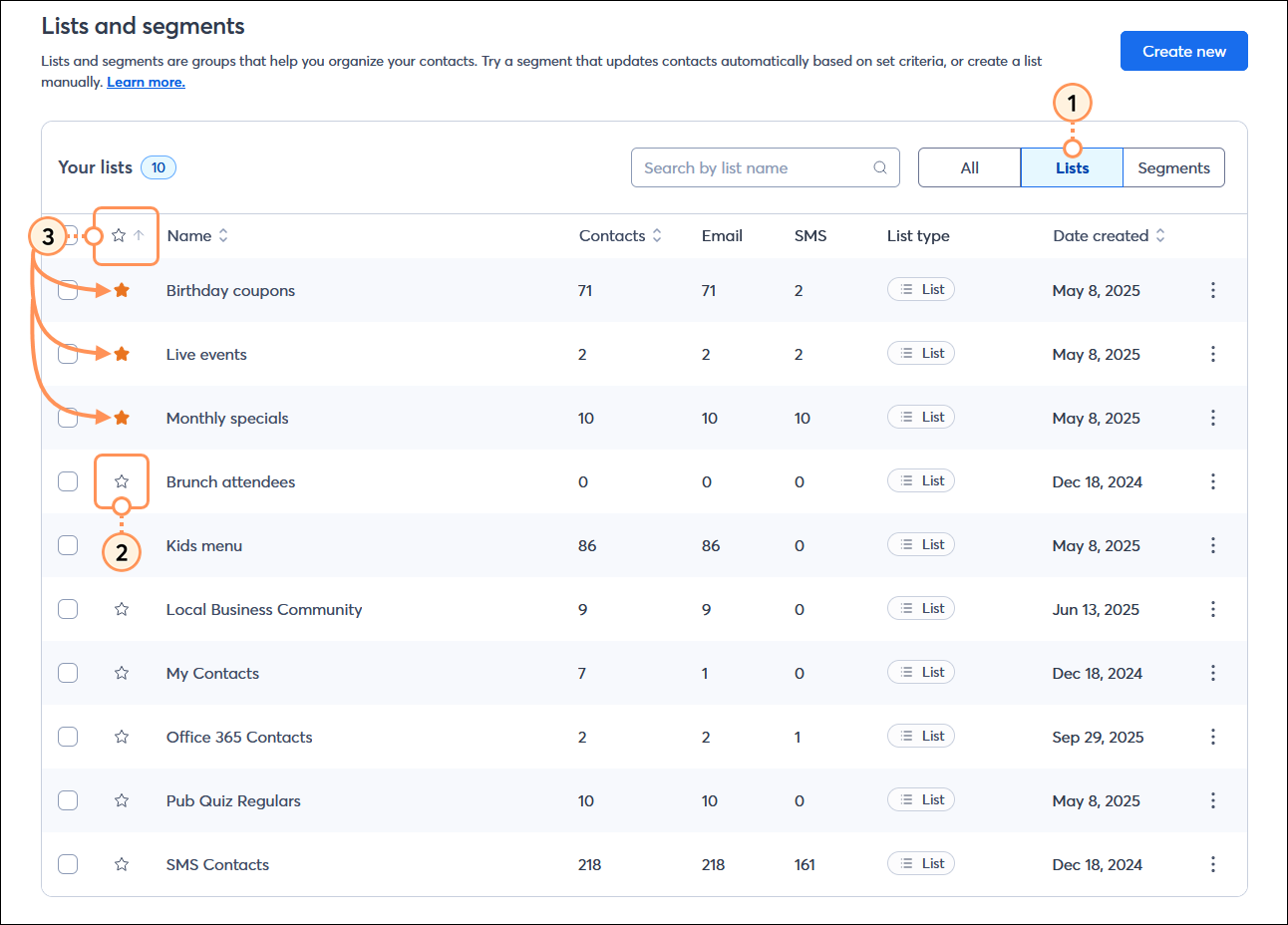
  1. From the Lists and segments page, click All lists types > Lists.
    Note: Segments aren't compatible and can't be favorited at this time.
  2. Click on the star outline next to each list you want to label as a favorite. If you want to "un-favorite" a list, just click on the star again to deselect it.
  3. Click the star in the table header to sort your favorites to the top.

    Lists and segments page with List type drop-down menu expanded and Lists option selected, lists with star outlines and All lists table with Favorite heading sorted in ascending order with favorite lists at the top with solid stars


View where your favorites can be seen

In addition to the Lists and segments page, you can see your favorite lists while:
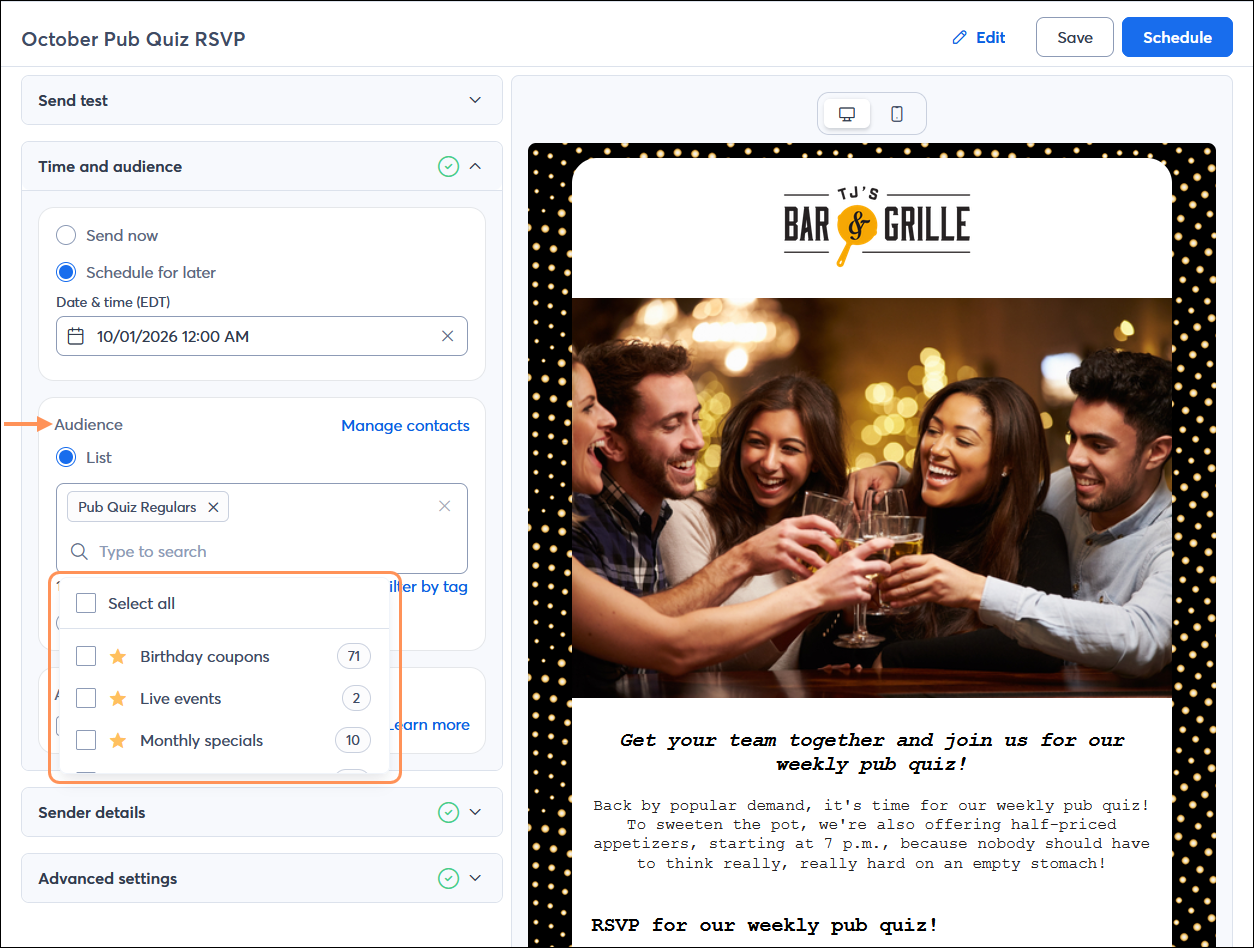
  • Sending an Email - When you send an email, your favorite lists appear at the top of the drop-down menu when you select a list from the Schedule page.

    Email Schedule page with Time and audience section expaned, Audience section with List drop-down menu expanded and with favorite lists at the top


Questions?

Ask the Community

Did this article answer your question?


Constant Contact Logo

Copyright © 2026 · All Rights Reserved · Constant Contact · Privacy Center