Email and Digital Marketing
How can we help you?
Search our help articles, video tutorials, and quickstart guides

You've got this. You've got us. Search our Knowledge Base to quickly find answers to your questions.

View a group of contacts based on their email or SMS status

Article: 000033125
Updated: May 4, 2026

Filter your email and SMS contacts to see which are subscribed, have a temporary hold, have no permission set, are unsubscribed, or are awaiting confirmation

Don't get overwhelmed when looking at a large list of contacts! You can filter your list by contact status to see which contacts you can or can't send emails or SMS messages to, and which need your attention.


Contact status types and how to handle them

Permission to Send IconPermission to send: When a contact has opted in/subscribed to both email and SMS, they can opt out/unsubscribe from both independently.


Depending on your contact's status, there are different actions you can take to either engage them or clean up your contact list:

  • All statuses - This includes every single contact in your account, regardless of their status or list. It's a good option if you're searching for a specific contact so you don't accidentally exclude them.

Email statuses

  • Awaiting confirmation - If you've enabled Confirmed Opt-in or sent a Reconfirm Opt-in Email to your existing contacts, any contacts who don't respond are marked as "awaiting confirmation." You're prevented from sending emails to these contacts. If it's been a while since you sent your confirm opt-in request and you're not seeing responses from these contacts, they're good candidates to remove from your list. They can always sign up again, and if they submit the opt-in, they'll be added to your list then.
    Note: This does not prevent you from sending SMS text messages to these contacts if they are in the "SMS subscribed" status (see below).
  • All subscribed - These contacts have an email address and have given you permission to email them. You can actively email these contacts.
  • Subscribed - Implied - Part of Canada's anti-spam laws (CASL) and the European Union's General Data Protection Regulation (GDPR). You have a relationship with these contacts, but don't have express permission to email them. Under CASL, you have up to 6 months or 2 years (depending on the relationship) to obtain express permission from these contacts, or they must be removed from your list. Under GDPR, you may be able to rely on a "soft opt-in" to send emails to these contacts. To see these contacts, you must have Advanced Email Permissions enabled in your account.
  • Subscribed - Express -  Part of Canada's anti-spam laws (CASL) and the European Union's General Data Protection Regulation (GDPR). These are the contacts who have given you express permission to email them. Any contacts who sign up for your contact list via our list-growth tools are considered to have given express permission. To see these contacts, you must have Advanced Email Permissions enabled in your account.
  • Subscribed - Confirmed - These contacts have all given you express permission to email them through Confirmed Opt-in. Confirmed Opt-in can be enabled so that whenever a contact signs up for your contact list through one of our sign-up tools, they receive an email confirming they really do want to join your list. You can also send a Reconfirm Opt-in Email to your existing contacts to verify that they still want to remain on your list and receive emails from you. Confirmed addresses can't be edited, and if a contact changes their email address, you have to add them as a new contact.
  • Temporary hold - There are two ways a contact can be labeled as "Temporary hold." The first is if you put a temporary hold on an individual contact to prevent yourself from sending to them, and you can remove the hold at any time by editing the contact record and selecting a new option from the Email status field in the Campaign channels section. (A temporary hold can't be performed as a bulk action for a group of contacts.) The second is if you're using a sign-up form that doesn't have any way to verify the sign-up is indeed a human, like CAPTCHA, and you experience a fraudulent sign-up attack. These contacts should be left alone so that if another fraudulent attack is made with the same group of email addresses, they aren't added to your account again. 
  • Unsubscribed - When a contact opts out of receiving emails from you, either through the "Unsubscribe" link in your email footer or because they reached out to you and asked to be removed from your list, they're moved into the "unsubscribed" status. If the contact rejoins your list through one of our list-growth tools, the status is removed, and you can start sending to them again. 
    Note: This does not prevent you from sending SMS text messages to these contacts if they are in the "SMS subscribed" status (see below).
  • No permission set - These contacts have given you their email addresses but haven't given permission to send email to them yet. You can't email these contacts because they didn't grant you permission, which also prevents you from sending them a Rceonfirm Opt-in Email, so they're good candidates for removal. Instead of trying to chase down these contacts, grow your list with more engaged contacts using our list-growth tools.


SMS statuses

  • SMS Awaiting confirmation - When a contact fills out your SMS-enabled Sign-up Landing Page and opts in to receive SMS messages, they're sent a text message asking them to confirm their subscription. The contacts who don't respond are marked as "Awaiting confirmation" and must reply "Yes" before you can send messages to them. 
    Note: This does not prevent you from sending emails to these contacts if they are also in the "Subscribed - Implied," "Subscribed - Express," or "Subscribed - Confirmed" status for email (see above).
  • SMS Subscribed - These contacts have an SMS phone number and have given you permission to send text messages to them. You can actively send SMS text messages to these contacts, and they factor into the total number of text messages you send each month.
    Note: These contacts can unsubscribe from your email list at any time without affecting their "SMS subscribed" status.
  • SMS Unsubscribed - When a contact opts out of receiving text messages from you by texting "Stop" to your dedicated SMS phone number, they're moved into the "SMS unsubscribed" status. If the contact later opts back into your SMS list by texting "Start" or "Unstop" to your dedicated SMS phone number, or by filling out your SMS-enabled Sign-up Landing Page, you can resume sending to them.
    Note: This does not prevent you from sending emails to these contacts if they are also in the "Subscribed - Implied," "Subscribed - Express," or "Subscribed - Confirmed" status for email (see above).
  • SMS Unsubscribed by system - These contacts were unsubscribed in bulk at the request of a wireless carrier (e.g., AT&T, T-Mobile, Verizon). When a mobile subscriber deactivates their mobile number or switches mobile carriers, the mobile carrier generally reassigns deactivated numbers to new subscribers after a waiting period. Any messages sent to the new subscriber are considered unsolicited, since the opt-in was tied to the original owner of the number. Unsubscribing the number ensures the new user doesn't receive unsolicited messages that the last user signed up for with that phone number.
  • SMS No permission set - These contacts were uploaded from a spreadsheet that included SMS phone numbers, but no SMS consent date was provided. To provide SMS permission, the contact can submit your SMS-enabled Sign-up Landing Page, or you can re-upload your file with the consent date included (import feature is coming soon).


Filter contacts by their status type

Filter your contacts by their Email or SMS status so you can see which contacts have granted permission to email or text them, who have unsubscribed, who were interested but haven't granted you permission yet, and who need some extra attention from you. Your contacts are updated every minute to show you the most up-to-date list for each status.
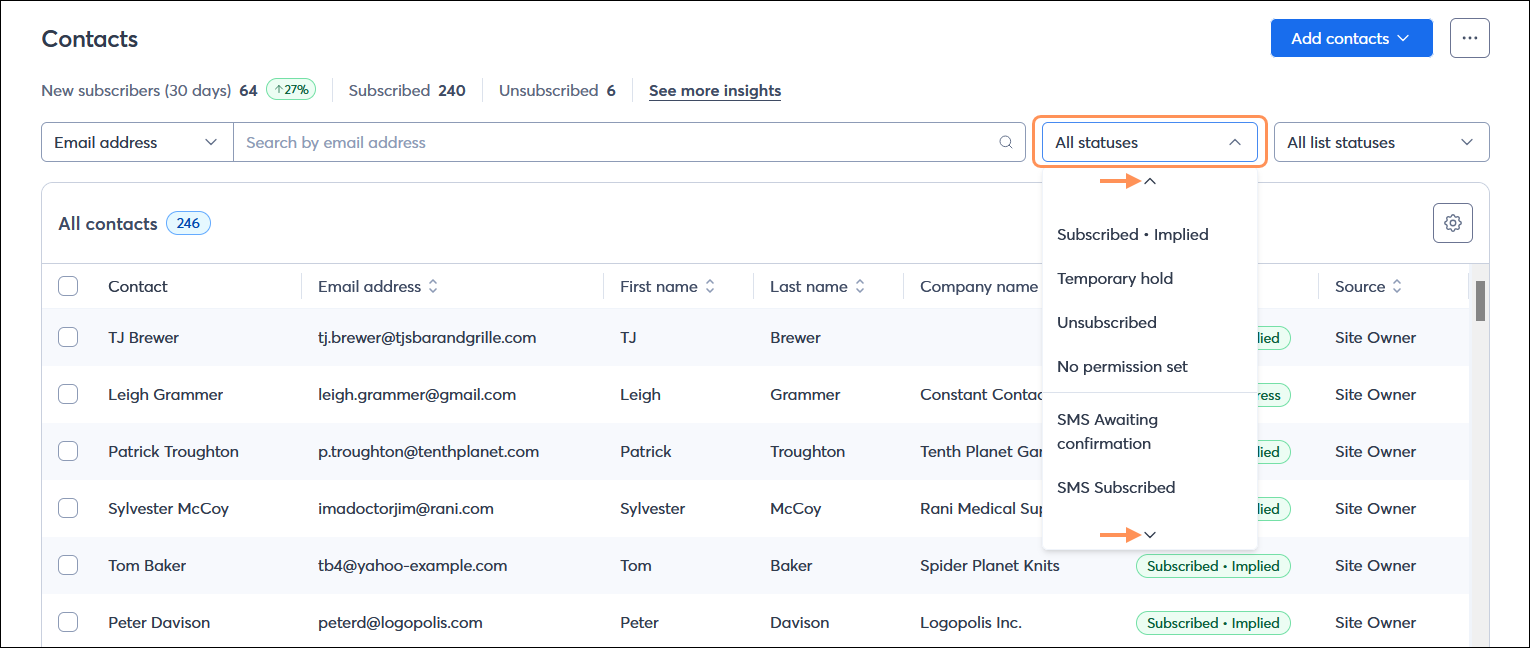
  1. Open the Contacts page and click the All statuses menu to select an email or SMS status from the drop-down menu. Email statuses are listed first, followed by SMS statuses.

    All contacts table with All statuses drop-down menu expanded with email and SMS statuses visible and scroll controls

Once you have your results, you can add your contacts to a list or export them to a spreadsheet by selecting them and clicking Actions.


Questions?

Ask the Community

Did this article answer your question?


Constant Contact Logo

Copyright © 2026 · All Rights Reserved · Constant Contact · Privacy Center