Email and Digital Marketing
How can we help you?
Search our help articles, video tutorials, and quickstart guides

You've got this. You've got us. Search our Knowledge Base to quickly find answers to your questions.

Copy an email

Article: 000005653
Updated: October 27, 2025

Save time and make a copy of an email to reuse for a new campaign

When you copy an email, the copy includes all aspects of the original, including the template, colors and font styles, images, links, content, and the header and footer information. Copying is a great way to save time and stay consistent with your emails while still having the flexibility to make changes.


lightbulb iconTip: When copying an email, it's always a good idea to send a test version to yourself or those you trust to proofread it, and ensure that any outdated content is removed before you send the final version to your contacts. 


Copy from the Email page

The Email page helps you find the email you want to copy in several ways. If you know you're looking for a draft or a sent email, you can narrow it down by status, or you can search by keyword.
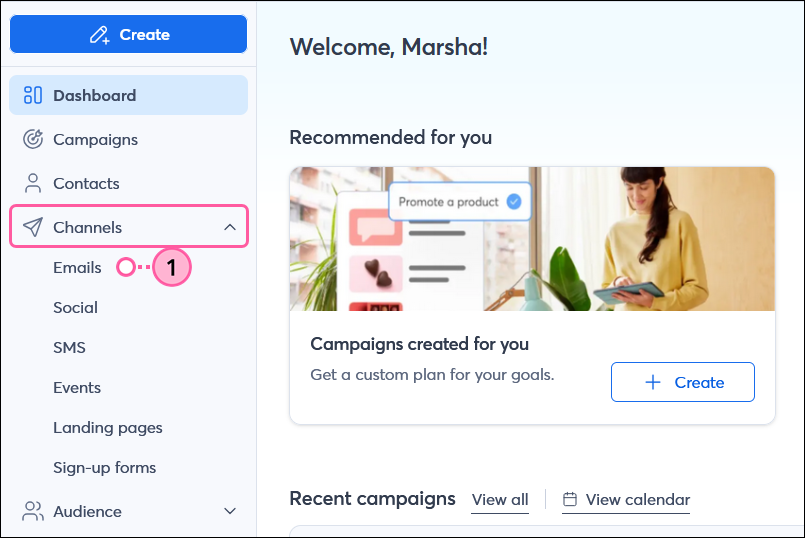
  1. Click Channels > Emails.

    Marketing Channels dropdown and Email option 
     
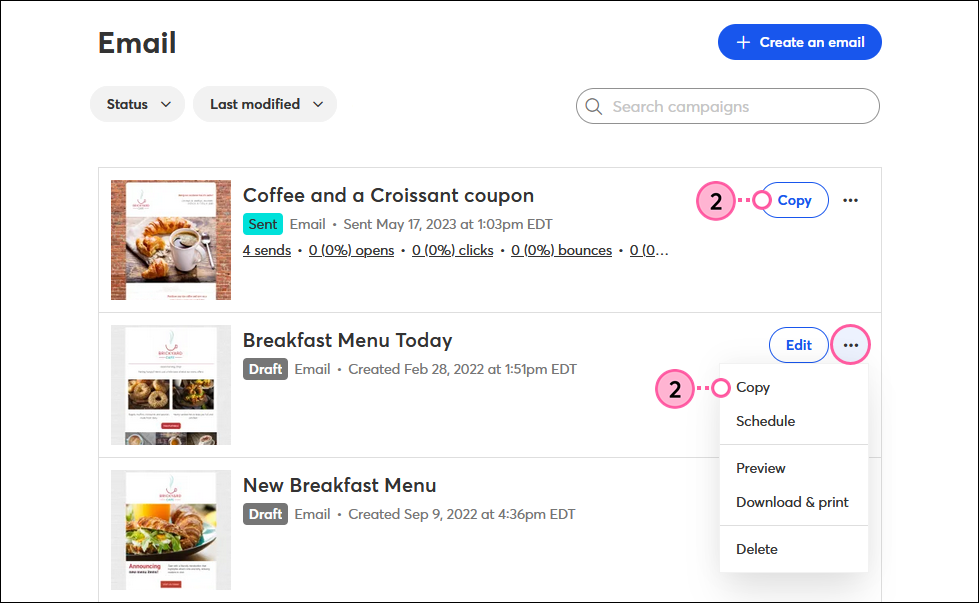
  2. Locate your campaign from the list and click Copy for sent campaigns or click the three dots and select Copy for draft campaigns.
    Note: Not seeing the "Copy" option? Some emails created with our legacy email editor can't be copied.

    Email page, Sent Email with Copy button, and Draft Email with More Drop-down and Copy option
     
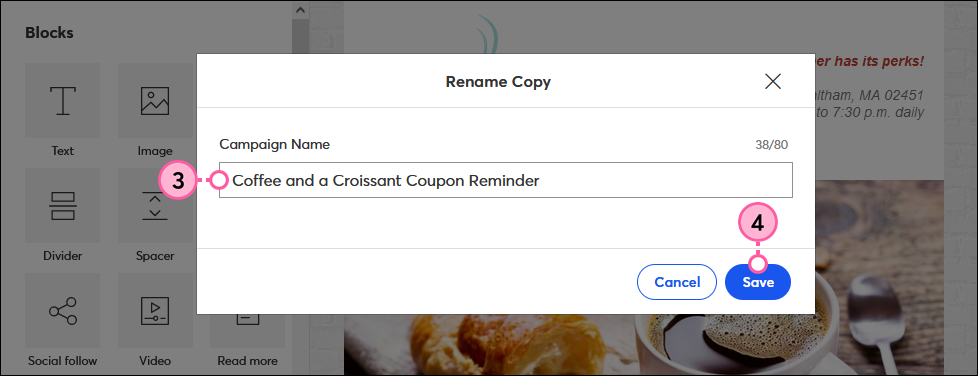
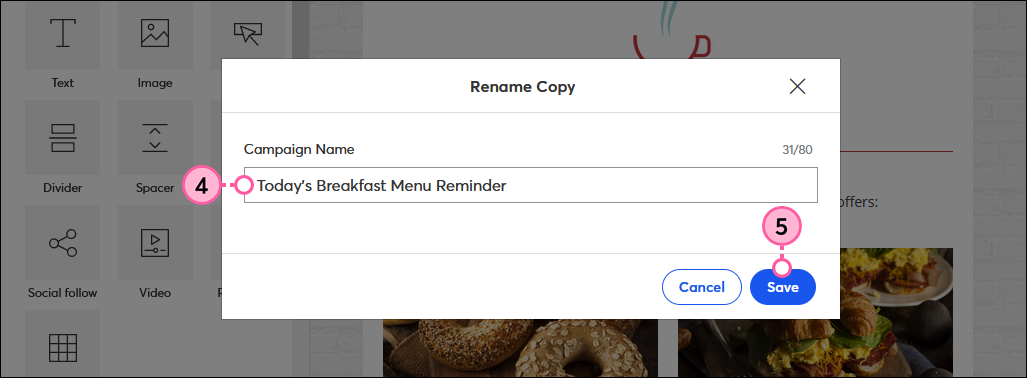
  3. Type in a new name for your copied email. Your contacts don't see this name; they only see your subject line.
  4. Click Save.

    Campaign Name field and Save button


Once you've copied your campaign, update the content as you'd like - modify the layout, edit the text, swap out images, or change colors. Don't forget to check your email's subject line to ensure it isn't outdated.


Copy from the Calendar

The great thing about copying an email from the Calendar View is that when you're ready to send, the date you select on the calendar will be pre-filled on the schedule page.
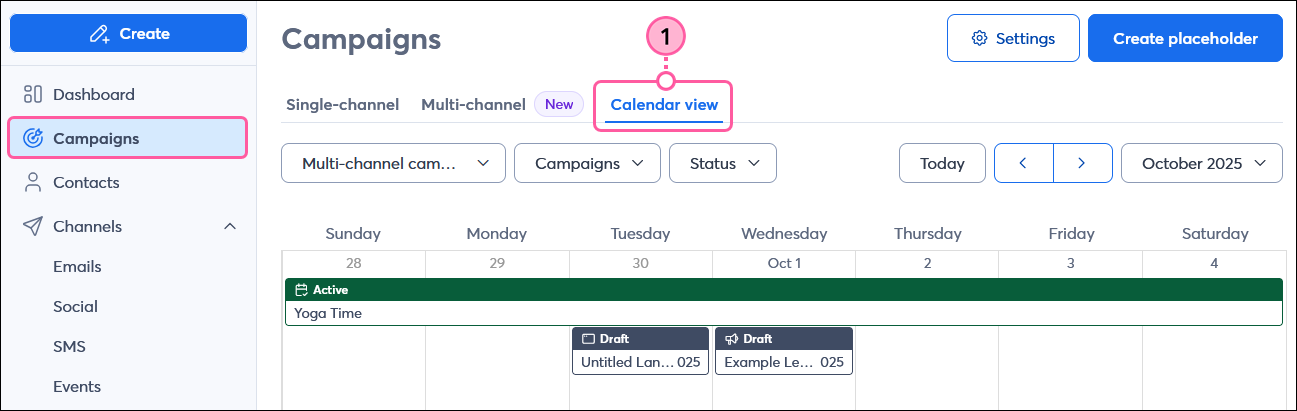
  1. From the Campaigns page, click the Calendar view tab.

    All Campaigns page and Calendar option 
     
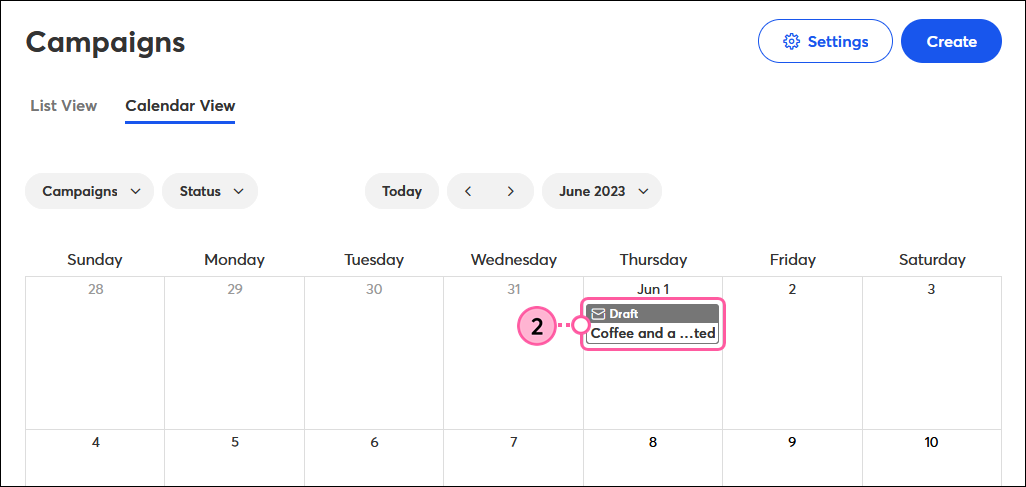
  2. Click the name of the campaign you want to copy.

    Campaigns page, Calendar View tab, and Draft Email selected
     
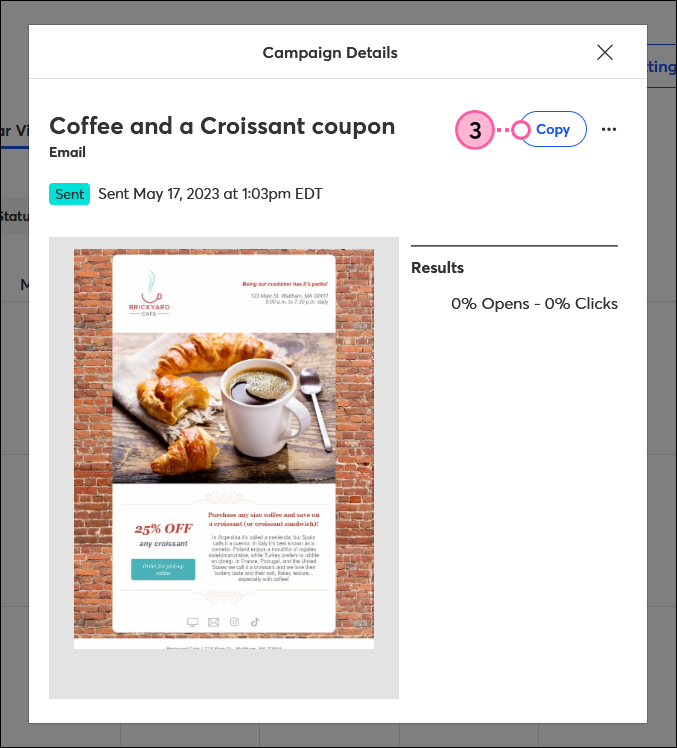
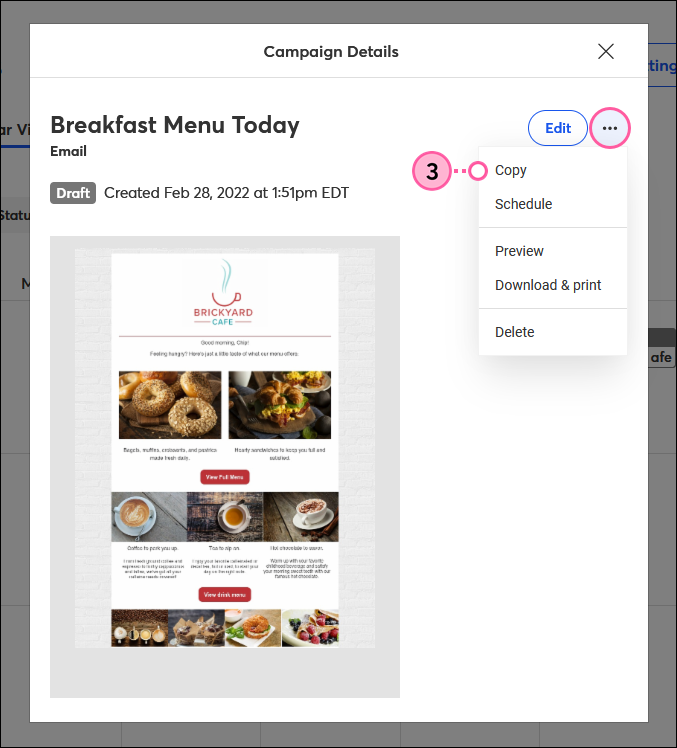
  3. Click Copy for sent campaigns or click the three dots and select Copy for draft campaigns.
     
    Sent campaignDraft campaign
    Sent Email Campaign Details overlay with Copy buttonDraft Email Campaign Details overlay with More drop-down and Copy option

     
  4. Give your new campaign a name that you’ll easily recognize later. Your contacts don't see this name; they only see your subject line.
  5. Click Save.

    Rename Copy overlay with Campaign Name field and Save button


Once you've copied your campaign, update the content as you'd like—modify the layout, edit the text, swap out images, or change colors. Don't forget to check your email's subject line to ensure it isn't outdated.


Questions?

Ask the Community

Did this article answer your question?


Constant Contact Logo

Copyright © 2026 · All Rights Reserved · Constant Contact · Privacy Center